How to fix
“Invalid MS-DOS Function” error
on Windows
Resolve the "Invalid MS-DOS Function" error on Windows 10 and 11 effortlessly. Follow our expert-tested solutions for quick fixes and zero traces left.


What causes How to fix “Invalid MS-DOS Function” error in Windows?
- Mismatch between the file system of the source and the destination
- File or folder corruption
- Disk errors
- Unexpected system shutdowns
- Problematic applications
- Restrictions from security software or policies
Repairs Windows system files, removes malware, and restores a clean OS state — without reinstalling.
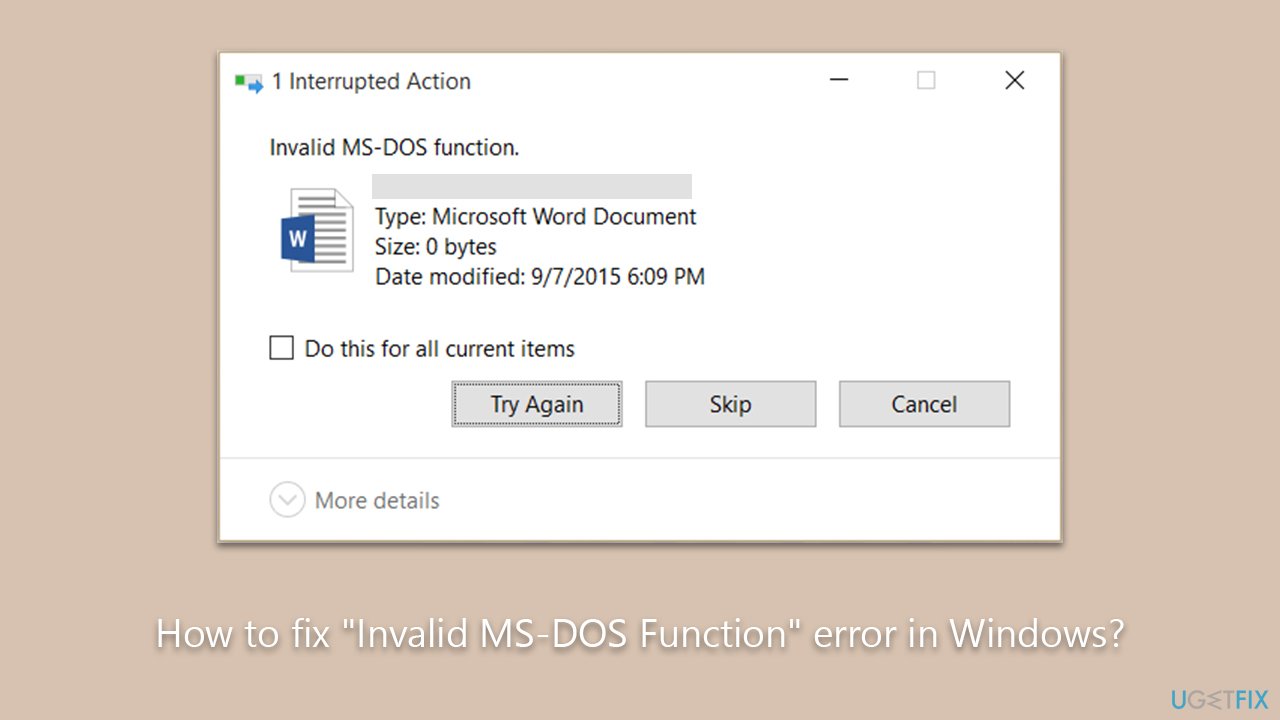
I often download photos for editing, and then, soon after, I delete them. Unfortunately, I have noticed that each time I attempt to delete a picture, I receive an error "Invalid MS-DOS Function." Now I am stuck with a bunch of pictures I can't delete. Any tips to resolve this would be appreciated.
Windows, a product of Microsoft, is an operating system that serves as a foundation for many of the tasks we perform on our computers. At the heart of these tasks are files - digital containers that hold data. They can be documents, pictures, applications, or other types of data that we use daily.
As users, we often need to manage these files, which involves renaming, deleting, copying, or making modifications to them. These are basic operations, and usually, they are executed seamlessly. However, occasionally, users encounter a stumbling block in the form of an error message: "Invalid MS-DOS Function." This error acts as a barrier, preventing the desired action from being executed on the file.
The root causes of the "Invalid MS-DOS Function" error can be multifaceted. At times, it can stem from a mismatch between the file system of the source and the destination, especially when transferring files between different devices or partitions. Another potential reason could be the file or folder in question having been corrupted or damaged. This corruption might be a result of disk errors, unexpected system shutdowns, or problematic applications. Additionally, certain security software or policies might restrict specific actions, causing the "Invalid MS-DOS Function" error.
While the "Invalid MS-DOS Function" error can be unnerving, it's solvable. There are several manual methods to troubleshoot and resolve the issue. Those looking for specific steps can find detailed instructions provided below this article.
For those who prefer an automated approach to resolving such issues, using the [d1] PC repair tool is highly recommended. This tool offers comprehensive solutions for a wide range of Windows problems, from errors like the one discussed to BSODs, registry complications, and more.
Fix 1. Check file attributes
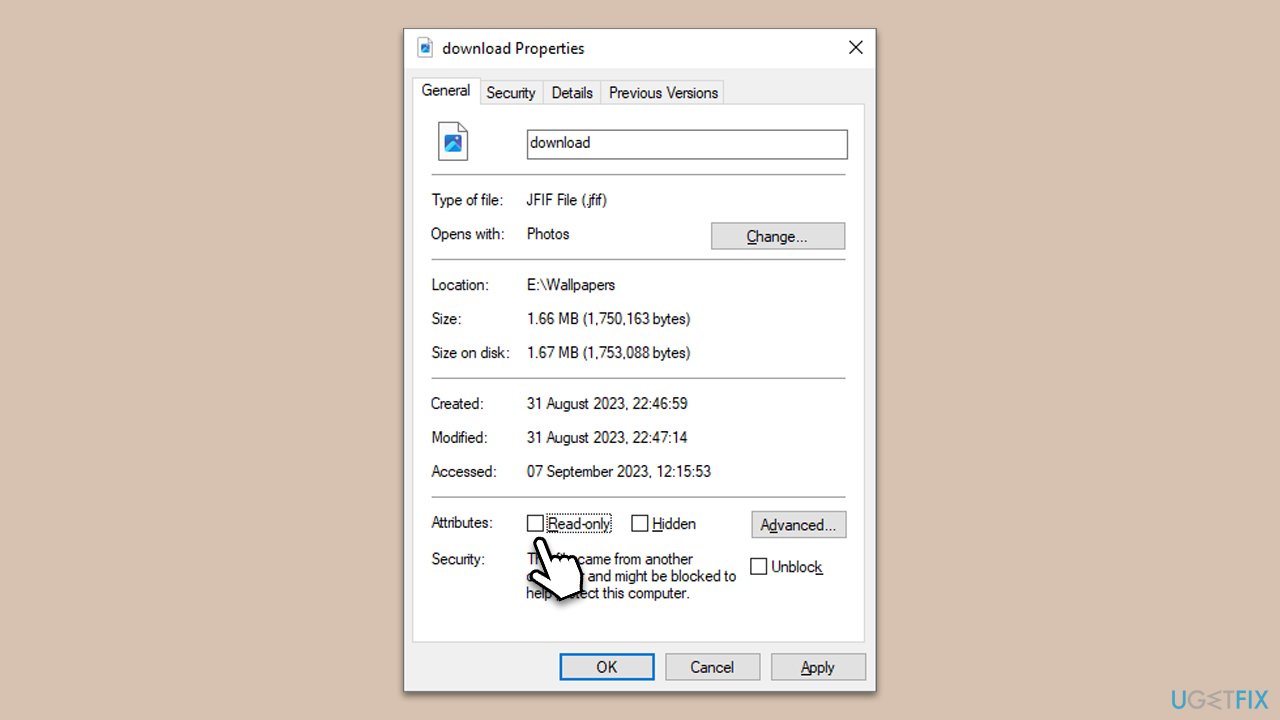
Attributes are settings that can affect a file's behavior. A common attribute, "read-only," can prevent modifications.
- Open File Explorer by pressing Win + E.
- Navigate to the problematic file's location.
- Right-click the file and choose Properties.
- Look under the Attributes section at the bottom.
- If Read-only is checked, uncheck it.
- Click Apply, then OK.
- Test the file again to see if the issue persists.
Fix 2. Run SFC and DISM
Corrupted system files can cause unexpected errors. Running SFC (System File Checker) and DISM (Deployment Image Servicing and Management) can find and repair these files.
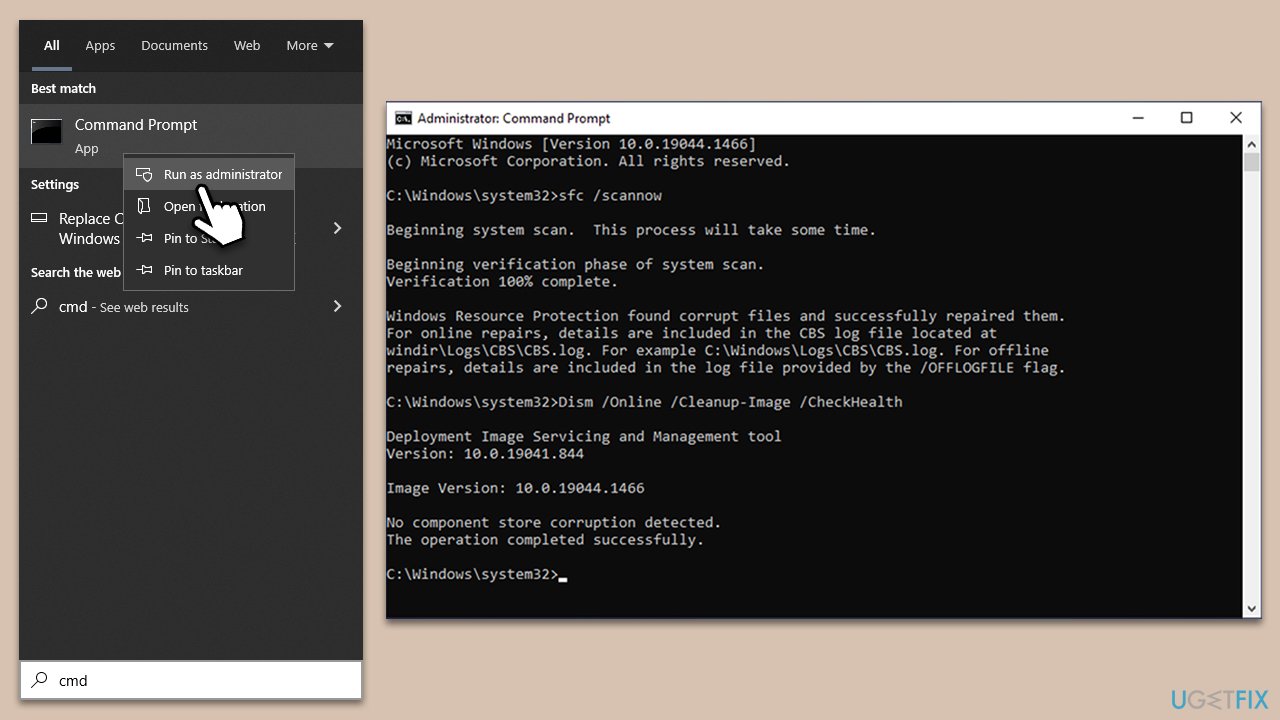
- Type cmd into Windows search.
- Right-click on Command Prompt and select Run as administrator.
- When the User Account Control (UAC) window shows up, click Yes.
- Copy and paste the following command and press Enter:
sfc /scannow - Next, use the following commands, pressing Enter each time:
Dism /Online /Cleanup-Image /CheckHealth
Dism /Online /Cleanup-Image /ScanHealth
Dism /Online /Cleanup-Image /RestoreHealth
(Note: if you get an error executing this last command, add /Source:C:\RepairSource\Windows /LimitAccess to it and try again). - Reboot your device.
Fix 3. Update your drivers
Outdated drivers can be incompatible with recent updates or programs, causing errors. You can choose to update them automatically with the help of tools like [rev id="DriverFix"], install them manually from the device's manufacturer's website, or use the Windows update feature instead:
- Right-click on Start and pick Device Manager.
- Expand the Display Adapters section.
- Right-click on your graphics card and select Update Driver.
- Select Search automatically for drivers and wait.
- Once done, restart your computer.

Fix 4. Check the disk for errors
A malfunctioning disk or bad sectors can lead to various errors.
- Open Command Prompt as administrator, as explained previously.
- In the new window, type in the following command and press Enter after:
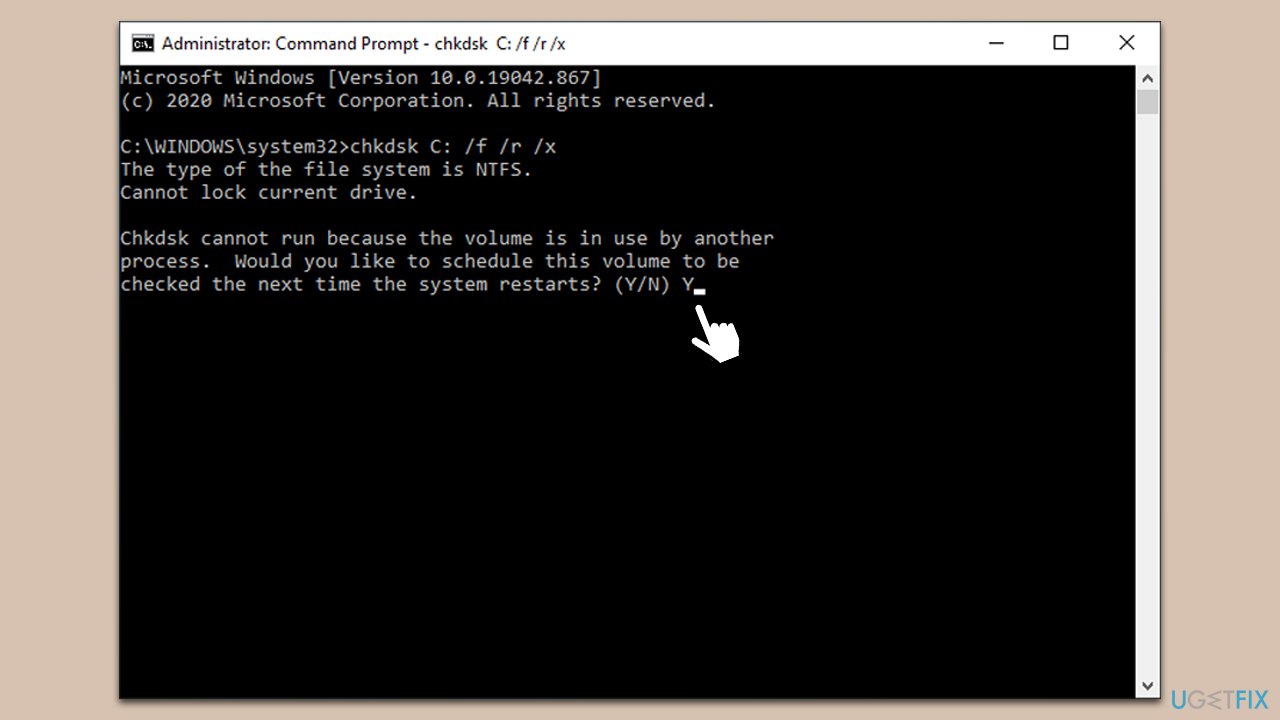
chkdsk c: /f
(Note: use chkdsk c: /f /r /x command if you are using SSD as your primary partition) - If you receive an error, type in Y, close down Command Prompt, and restart your device.
- Wait until the scan is finished - you can find the results in the Event Viewer.
Fix 5. Use Safe Mode
Safe Mode runs Windows with a minimal set of drivers and services, which can help diagnose and fix issues.
- Restart your computer.
- Before the Windows logo appears, repeatedly press the F8, F10, Del, or another key (depending on your motherboard or laptop manufacturer).
- Windows will automatically enter Advanced Startup mode.
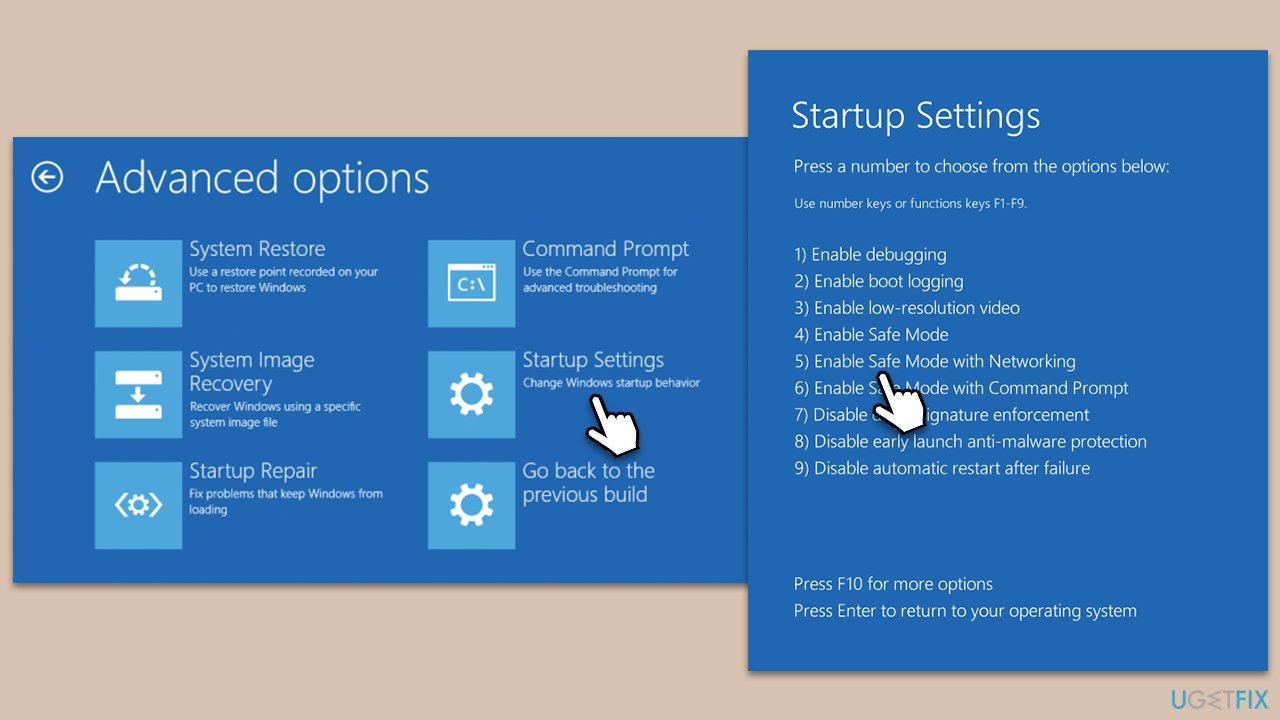
- Select Troubleshoot > Advanced options > Startup Settings and Restart.
- After a reboot, pick either 4/F4 for Safe Mode or 5/F5 for Safe Mode with Networking.
Fix 6. Temporarily disable third-party software
Some software, especially antivirus or security programs, may interfere with file operations.
- In the bottom right (system tray), right-click the icons of any third-party software and choose Exit or Close.
- If unsure, press Ctrl + Shift + Esc to open Task Manager, go to the Processes tab, and end any suspicious or unnecessary processes.
- Try the file action again.
Fix 7. Transfer the file
Occasionally, simply moving a file to a different location or directory can resolve issues associated with it.
- Create a new folder anywhere, e.g., on your desktop.
- Drag the problematic file into the new folder.
- Attempt the operation within this folder. If successful, you can then move the file back to its original location if desired.
Bottom line
The 'Invalid MS-DOS Function' error can be resolved by checking file attributes and ensuring compatibility between file systems. If these methods do not work, consider using a PC repair tool for a more automated solution.
Frequently asked questions
This error typically occurs due to incorrect file paths, corrupted files, or issues with the disk format. It may also arise from using incompatible software or hardware with these operating systems.
To fix this, try connecting the USB drive to another port or computer, and ensure it is properly formatted. If the issue persists, you can run the CHKDSK utility to check for and repair any file system errors.
Yes, ensure that you are using the correct command syntax and check if the command is supported in Windows 11. Additionally, running the command prompt as an administrator may resolve permission-related issues.




Report an issue
What's wrong with this guide? We review every report and update or remove content.
Report received — thank you. We'll review and fix it.
You need a free account to submit a report.
Be the first to comment