How to fix
“There was a problem with the server” error on YouTube
on Windows
Resolve the "There was a problem with the server" error on YouTube for Windows 10 and 11 users easily. Expert-tested solutions for quick fixes!


What causes How to fix “There was a problem with the server” error on YouTube?
- Outdated YouTube app
- Incorrect date and time settings
- Network connectivity issues
- Insufficient app permissions
- Restricted Mode enabled
Repairs Windows system files, removes malware, and restores a clean OS state — without reinstalling.
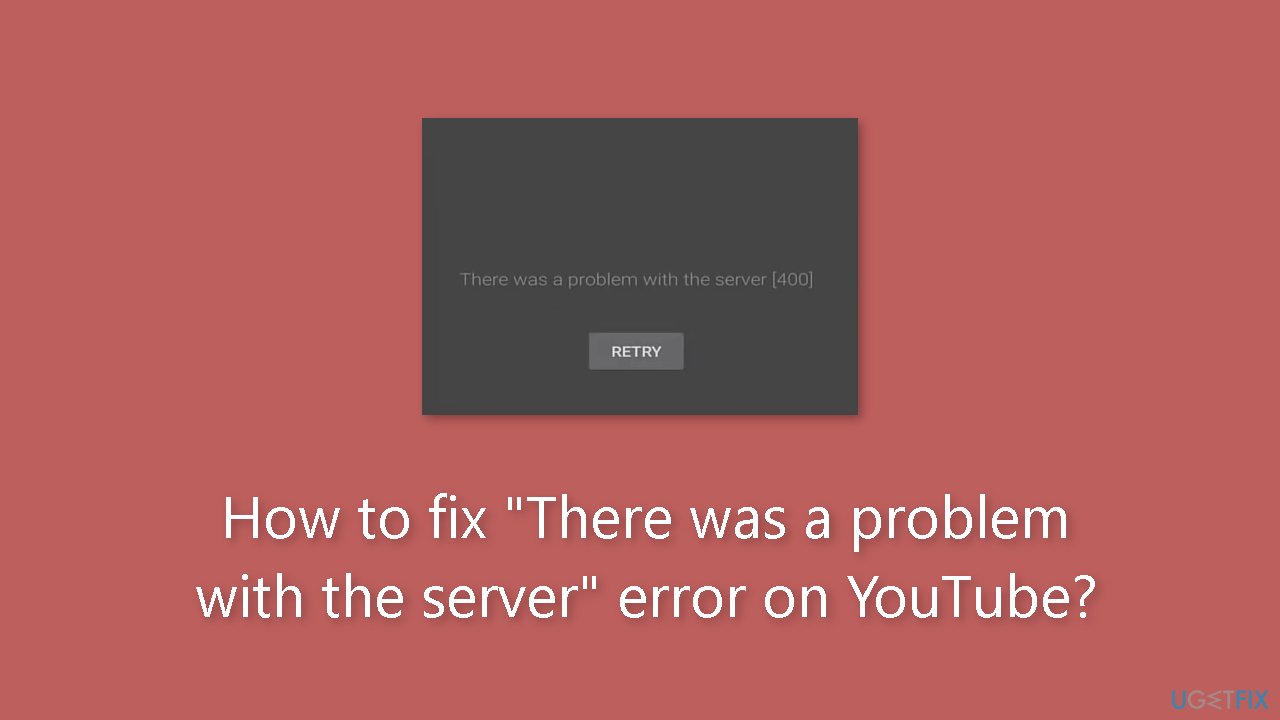
Hello. When I try to watch certain videos on my Android phone using the YouTube app, I get the "There was a problem with the server" error message. When I try to access another video, it plays without issues. Any suggestions?
Users may find the "There was a problem with the server" error on YouTube, also known as YouTube Server Error 400, to be quite inconvenient. When viewers attempt to open a video on the YouTube platform, this error code frequently appears. This issue is particularly frustrating because it doesn't effect all videos in the same way. Instead, it appears to effect some videos alone, while leaving others unaffected and functioning properly.
A video is completely unusable when it encounters the YouTube Server Error 400. Users are prevented from viewing the content they meant to watch by an error message informing them of the server-related issue. This can be a major inconvenience, especially for those who use YouTube frequently for different things like entertainment, education, or professional responsibilities.
The YouTube Server Error 400 problem seems to be mostly related to Android mobile devices. While it's possible that not all Android users will experience this issue, for those who do, the platform may no longer be enjoyable to use. Users frequently rely on YouTube for a variety of content, so when some videos are rendered unavailable due to this problem, it may be difficult for them to acquire important information or take pleasure in their favorite forms of entertainment.
There are a number of actions users can take to try and remedy this problem as far as potential solutions go. The YouTube app may need to be updated, the app's date and time settings may need to be changed, network connectivity difficulties may need to be checked, and the app's permissions may need to be verified. It's crucial to remember that the efficacy of these methods can vary and that they might not be suitable for everyone.
Solution 1. Disable Restricted Mode
- Open the YouTube application on your phone.
- Select the icon located in the top right corner to open the Settings menu.
- Within the Settings menu, access the General tab.
- Scroll down until you locate the Restricted Mode option.

- Make sure the Restricted Mode option is disabled by turning the toggle grey.
- After disabling Restricted Mode, check to see if you still encounter the error.
Solution 2. Clear the Data and Cache Files
- Open the Settings on your phone.
- Look for and access the Apps section.
- Scroll through the list of apps and locate YouTube. Access it when you find it.
- Inside the YouTube settings, find and select the Storage option.
- Start by selecting the Clear Data button to remove all temporary data.
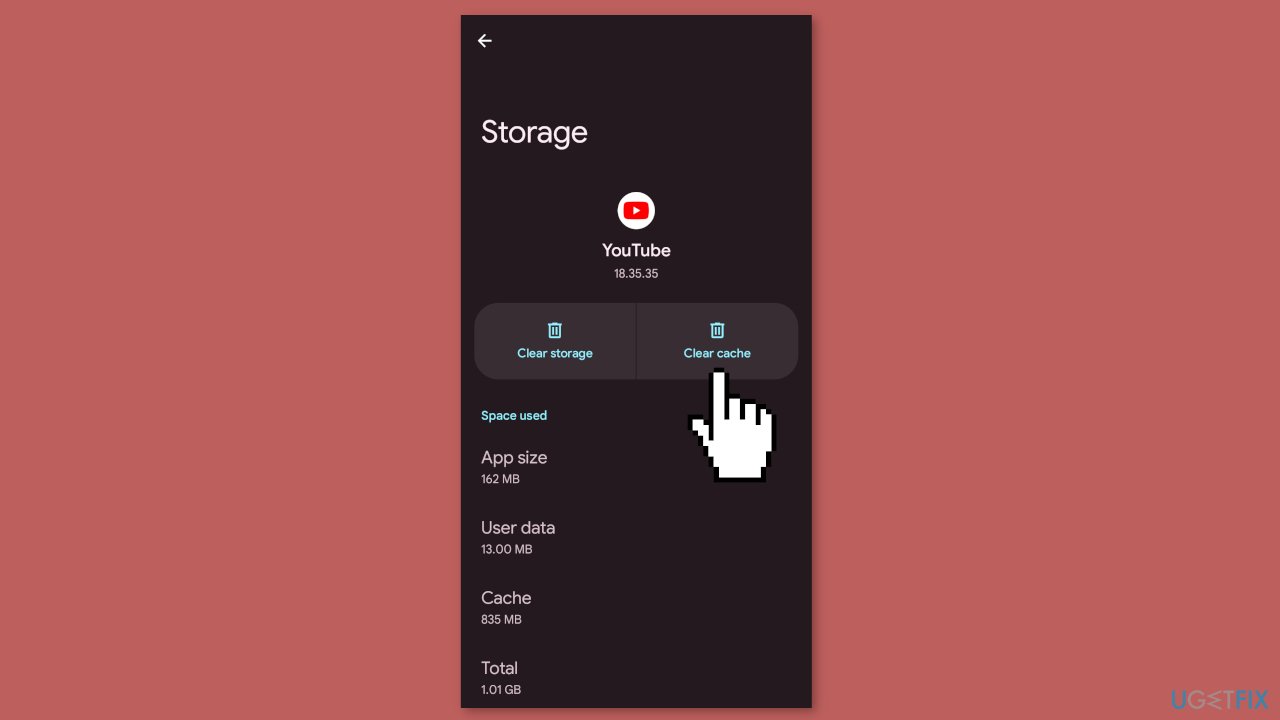
- Afterward, select the Clear Cache button to delete cache files.
- Once you've completed these steps, check YouTube to see if the issue has been resolved.
Solution 3. Give Permission for YouTube
- Open your phone's Settings.
- Select the Apps section.
- Scroll through the list of apps until you locate YouTube and open it.
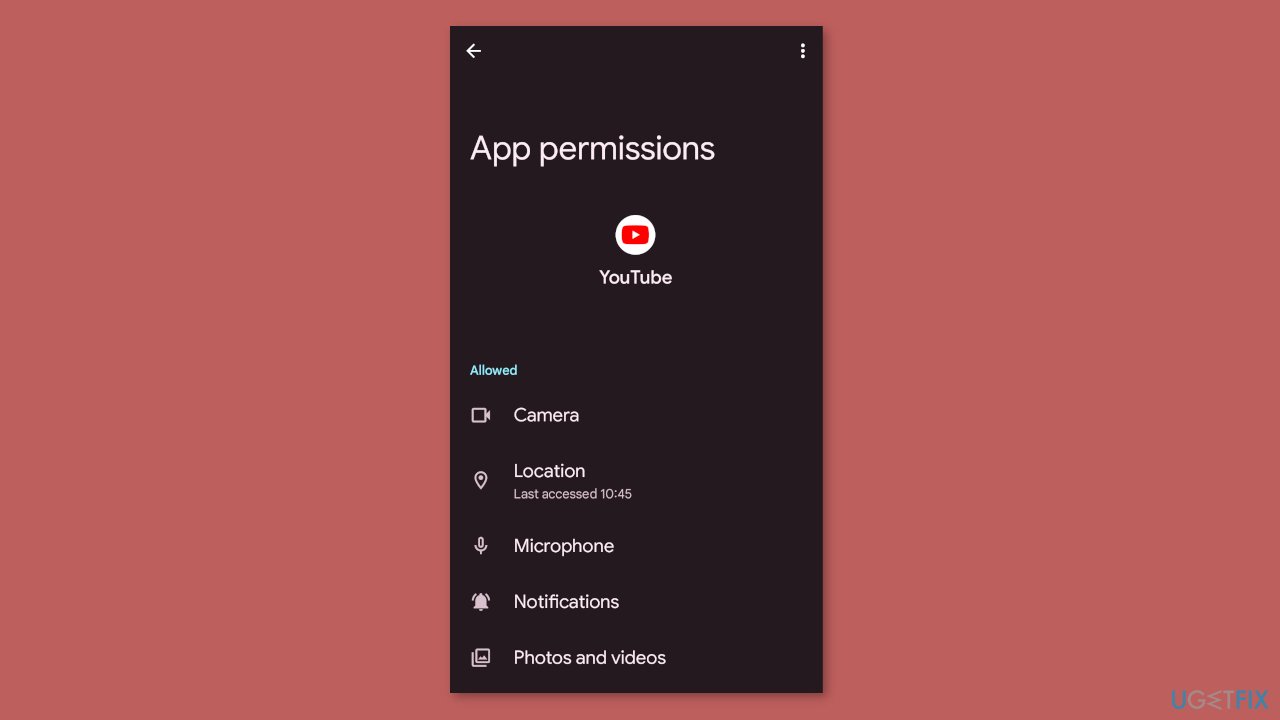
- Find and access the Permissions button within the YouTube settings.
- Grant permission to all available options by enabling them.
- Once you've completed these steps, test YouTube to check if the issue has been resolved.
Solution 4. Reset the Date and Time
- Open the Settings on your mobile phone.
- Navigate to the System tab and select it.
- Access the Date & time section.
- Change the date and time to a different setting.
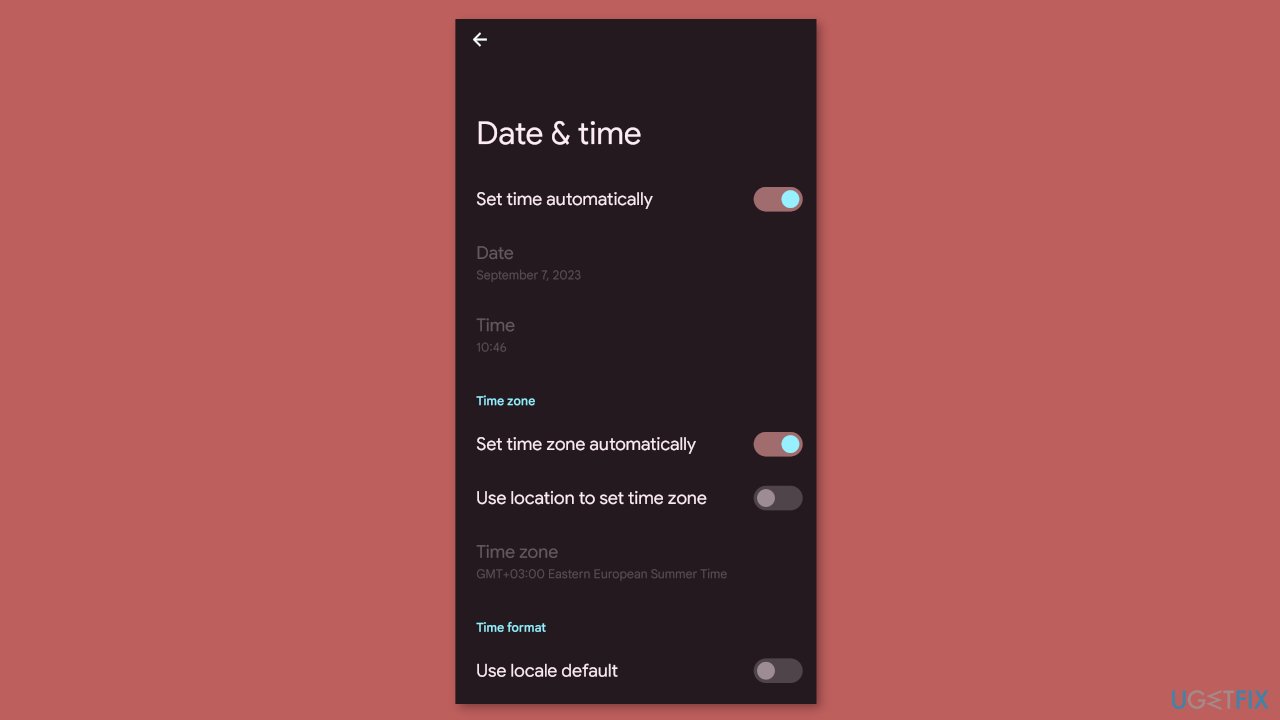
- After making the adjustment, return to the Date & time section.
- Turn on the Set automatically option to set the correct date and time automatically.
- Once you've completed these steps, go back to YouTube to check if the issue has been resolved.
Solution 5. Update YouTube App
- Open the Play Store on your phone.
- In the Play Store, you have two options:
- Select the icon in the top right corner and access the Manage apps & devices button.
- Alternatively, you can manually search for YouTube using the search bar.
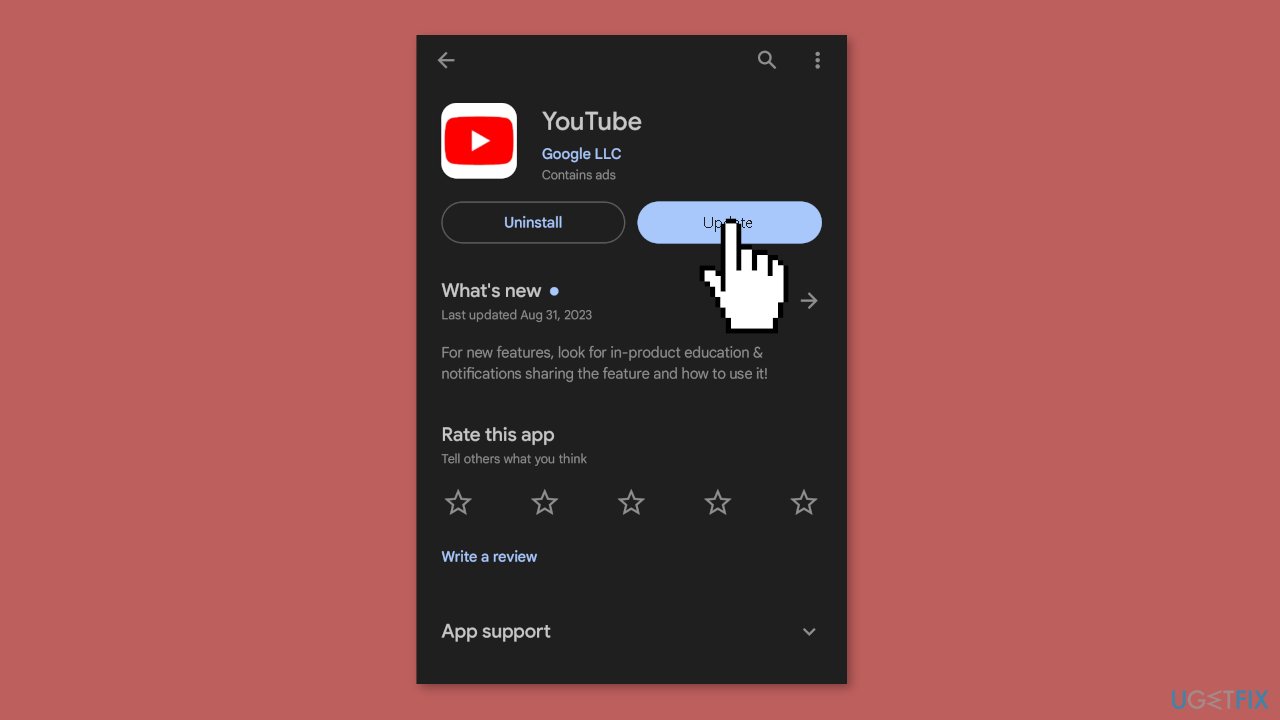
- If updates are available for YouTube, locate the Update button and select it to begin the update process.
- Once the update is installed, open the YouTube app.
- Test YouTube to check if the issue has been resolved.
Bottom line
To fix the 'There was a problem with the server' error on YouTube, users can try updating the YouTube app, adjusting date and time settings, checking network connectivity, and verifying app permissions. If these solutions do not resolve the issue, users may need to explore additional troubleshooting steps or seek further assistance.
Frequently asked questions
First, try clearing your browser cache and cookies, as this can resolve temporary issues. If the problem persists, consider checking your internet connection or switching to a different browser.
Yes, disabling browser extensions can often resolve conflicts that may cause the 'There was a problem with the server' error. After disabling them, refresh the YouTube page to see if the issue is resolved.
Absolutely, your firewall settings might be blocking YouTube access, leading to the server error. Check your firewall settings and ensure that your browser is allowed to connect to the internet.




Report an issue
What's wrong with this guide? We review every report and update or remove content.
Report received — thank you. We'll review and fix it.
You need a free account to submit a report.
Be the first to comment