How to fix
Gaming Services crashing
on Windows
Resolve Gaming Services crashing on Windows 10 and 11 effortlessly. Follow our expert-tested tips for quick fixes and enjoy uninterrupted gaming!

What causes How to fix Gaming Services crashing on Windows?
- Interference from other software or applications
- Corrupted files integral to Gaming Services
- Outdated Windows system
- Older version of the Xbox app
- Overstretched computer resources such as RAM
- High CPU utilization
Repairs Windows system files, removes malware, and restores a clean OS state — without reinstalling.
As of recently, I am not able to install new games or update already installed ones on Xbox Game Pass. I checked out a bit further, and I've noticed that Gaming Services are crashing without any error messages or notices. It would be great if you could provide me with some solutions for this.
Gaming Services in Windows form a core part of the operating system's gaming infrastructure. These services facilitate the proper functioning of games, especially those that are sourced from the Microsoft Store or played through the Xbox app. They ensure an optimal user experience by aiding in the management, updating, and smooth running of games.
Despite their importance, some users have experienced Gaming Services crashing. A predominant sign of this issue arises when users encounter difficulties in updating or downloading games via the Xbox app, leading to interruptions.
The reasons behind the crashing of Gaming Services on Windows can be multifaceted. In some instances, other software or applications running on a Windows system might interfere with Gaming Services. Such interferences often result from overlapping functionalities or the monopolization of system resources by another application.
Additionally, over time, the files integral to Gaming Services can become corrupted. This corruption can be attributed to several factors, including abrupt system shutdowns or software glitches, rendering the service unstable. Furthermore, having an outdated Windows system or an older version of the Xbox app can lead to compatibility issues.
As software continues to evolve, ensuring that all components are regularly updated is paramount to maintaining both functionality and security. Lastly, if a computer's resources, such as RAM, are overstretched, or there's high CPU utilization, it could impede the efficient operation of background services, including Gaming Services, resulting in crashes.
For users facing these issues, there's hope. Following this article, step-by-step solutions will be provided to address these problems. Additionally, for those seeking an automated approach, the [d1] PC repair tool can effectively diagnose and fix a range of Windows issues, simplifying the troubleshooting process.
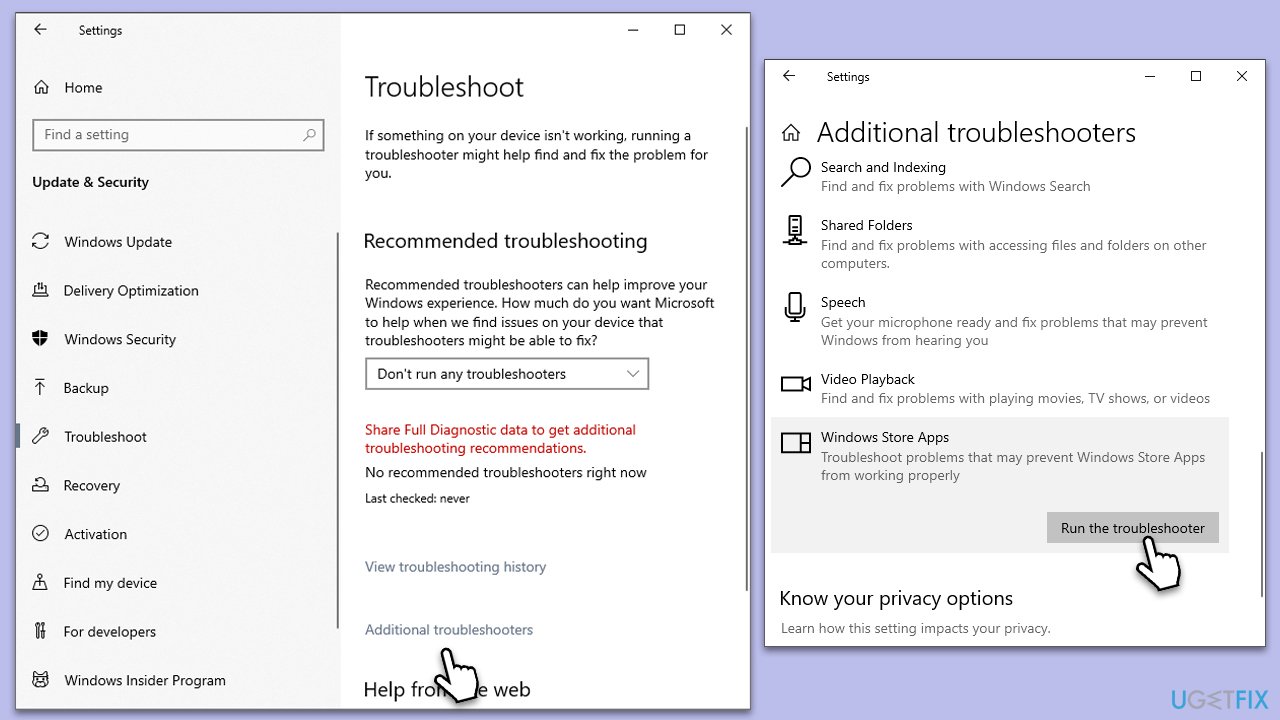
Fix 1. Run Windows Store Apps troubleshooter
The troubleshooter is designed to identify and automatically rectify any issues with Windows Store apps, ensuring they function correctly.
- Type Troubleshoot in Windows search and press Enter.
- Select Additional troubleshooters/Other troubleshooters.
- Find Windows Store Apps from the list and select Run the troubleshooter/Run.
- Wait till the process is finished and apply the offered fixes.
Fix 2. Run SFC and DISM
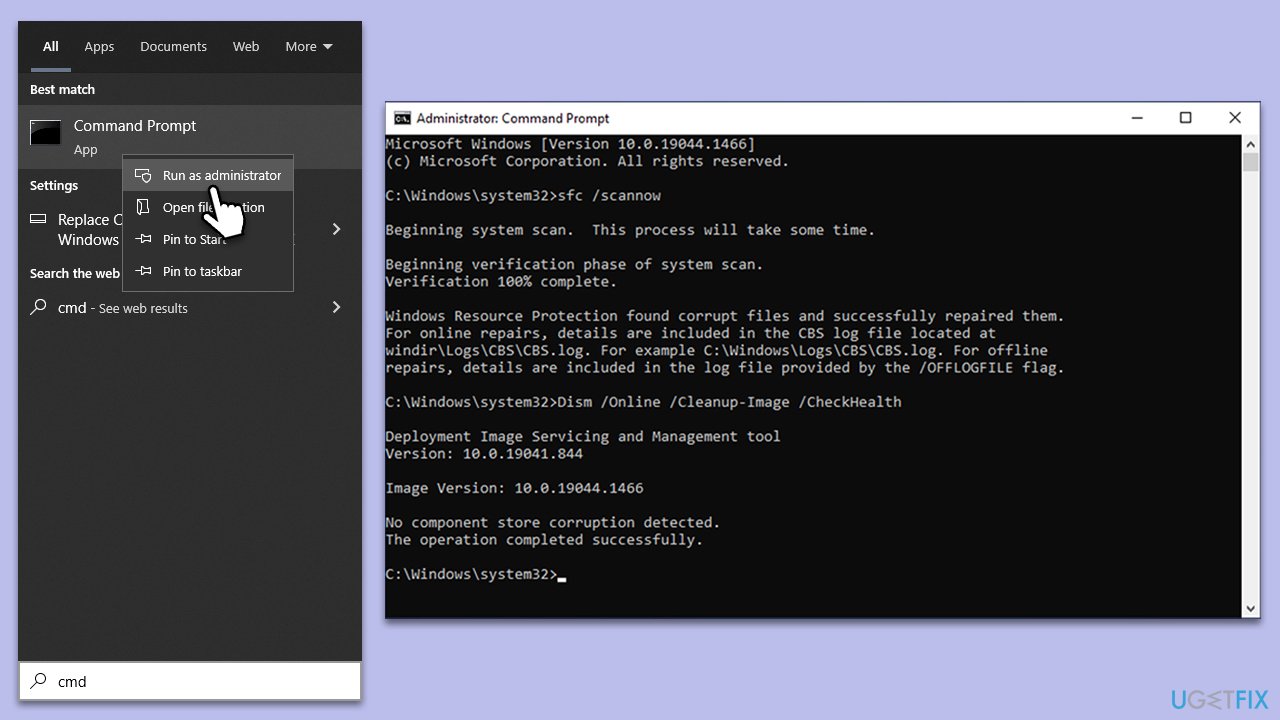
Repairing corrupted system files can help users fix Gaming Services crashes in some cases.
- Type cmd in Windows search.
- Right-click on Command Prompt and pick Run as administrator.
- The User Account Control window will ask whether you want to allow changes - click Yes.
- Type this command and press Enter:
sfc /scannow - Wait for the scan to finish.
- Then, use the following commands, pressing Enter after each:
Dism /Online /Cleanup-Image /CheckHealth
Dism /Online /Cleanup-Image /ScanHealth
Dism /Online /Cleanup-Image /RestoreHealth - Reboot your system.
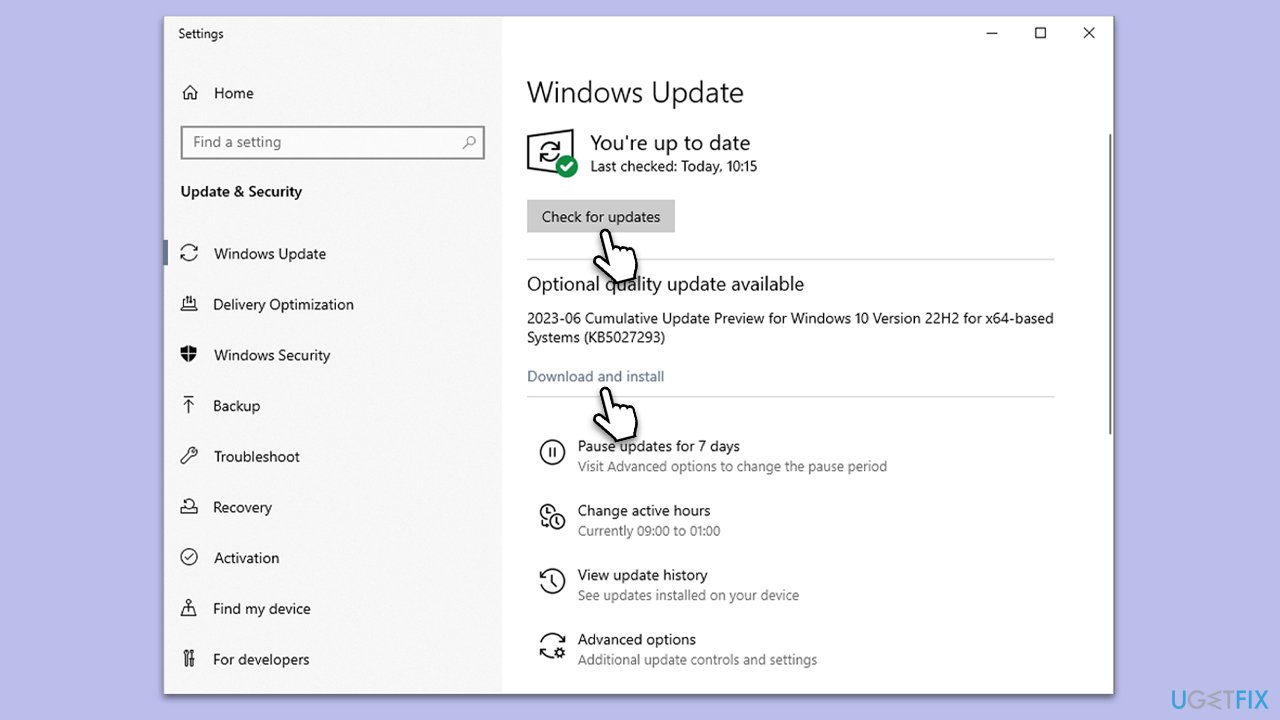
Fix 3. Update Windows
Updating Windows ensures that your system has the latest security patches and is compatible with all its applications.
- Type Updates in Windows search and hit Enter.
- In the new window, click Check for updates.
- If optional updates are available, make sure to install them too.
- Once all the files are installed, reboot your PC to implement the changes.
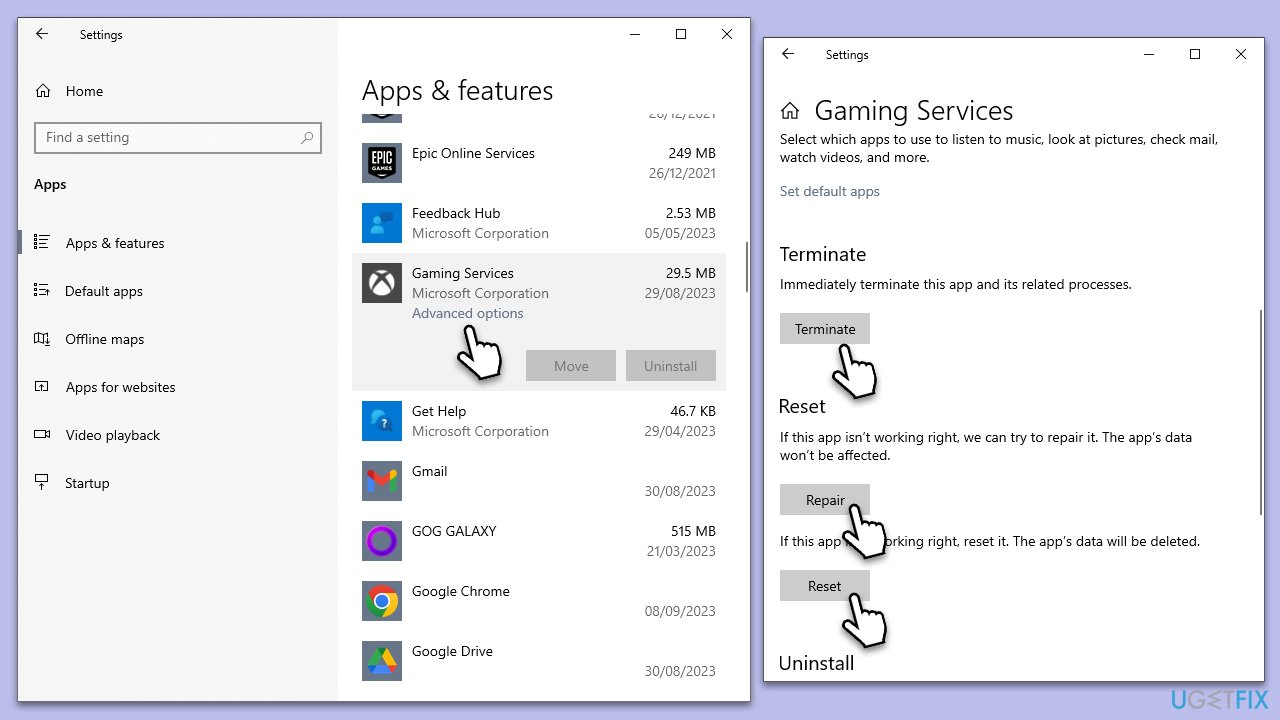
Fix 4. Repair or Reset Gaming Services and its dependencies
Repairing or resetting Gaming Services along the Xbox and Xbox Live apps might resolve crashes.
- Right-click on Start and select Apps and Features.
- Scroll down to find Gaming Services and select Advanced options.
- Here, click Terminate and then opt for Repair.
- If that does not work, try Reset instead.
- Repeat this process with Xbox and Xbox Live apps.
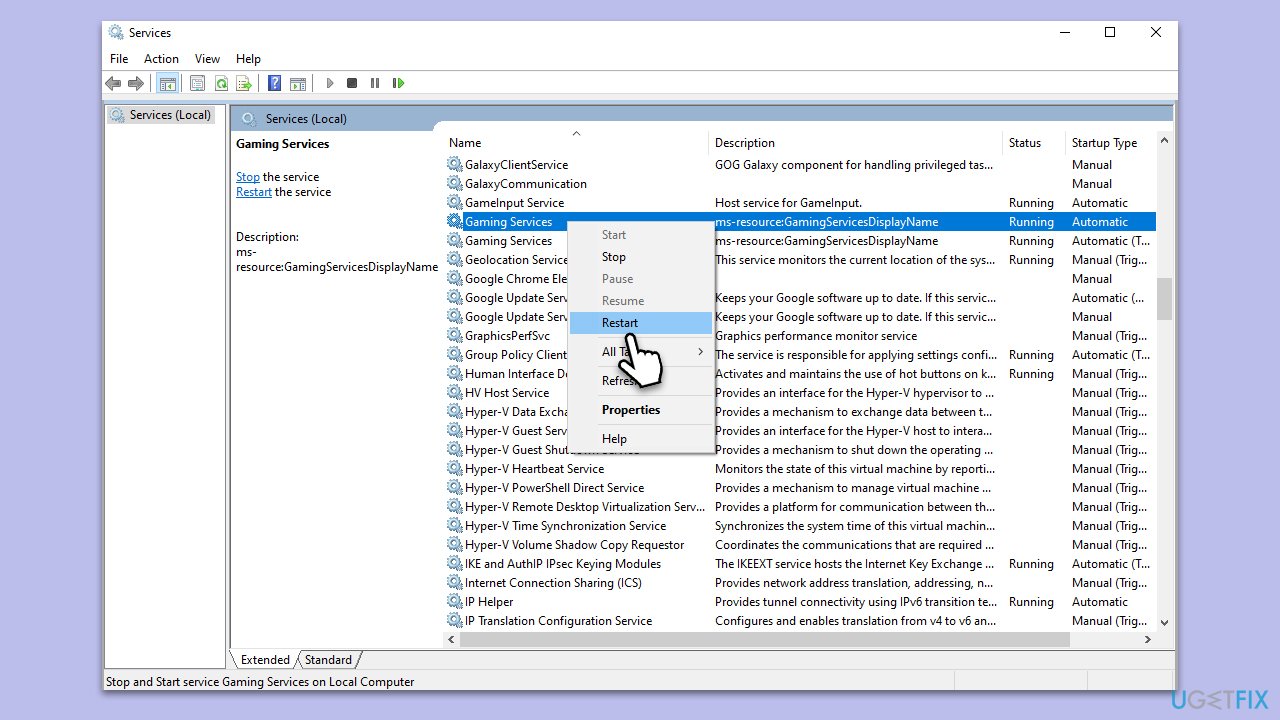
Fix 5. Restart Gaming Services
A simple restart of the service can often clear temporary bugs or glitches, allowing the app to function smoothly.
- Press Win + R to open the Run dialog.
- Enter
services.mscand press Enter. - Locate Gaming Services.
- Right-click and choose Restart.
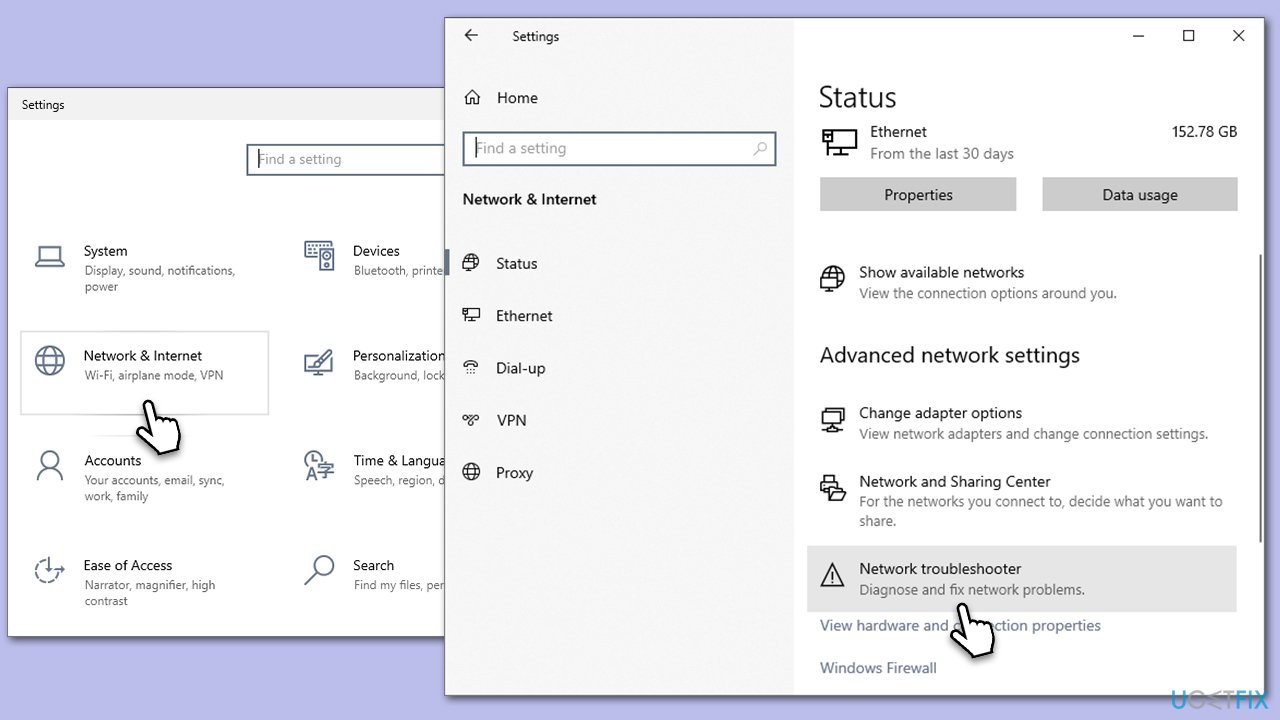
Fix 6. Run Network troubleshooter
Network issues can hinder Gaming Services from accessing required online resources. The troubleshooter can help identify and solve these.
- Right-click on Start and select Settings.
- Pick the Network & Internet section.
- On the right side, select the Advanced network settings section.
- Click Network troubleshooter and wait.
Fix 7. Use Google's DNS
Changing to a more reliable DNS can enhance connectivity and access to online services.
- Right-click on Start and select Settings.
- Go to the Network and Internet section.
- Click on Change adapter options.
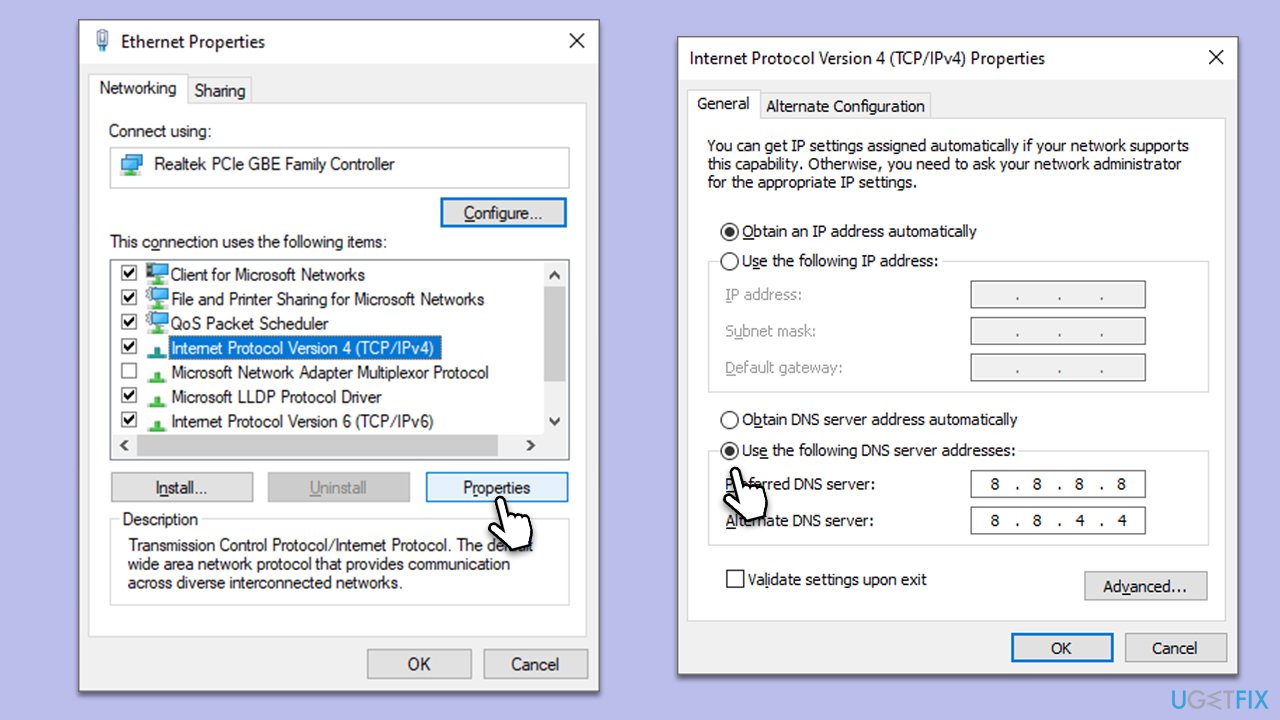
- Right-click on your internet connection and pick Properties.
- Click Internet Protocol Version 4 (TCP/IPv4) once and go to Properties
- Select Use the following DNS server addresses option and set your DNS to Google's:
Preferred DNS server: 8.8.8.8
Alternate DNS server: 8.8.4.4 - Click OK.
Fix 8. Reinstall Gaming Services through PowerShell
Reinstallation can reset any corrupted files or settings, ensuring the application starts afresh.
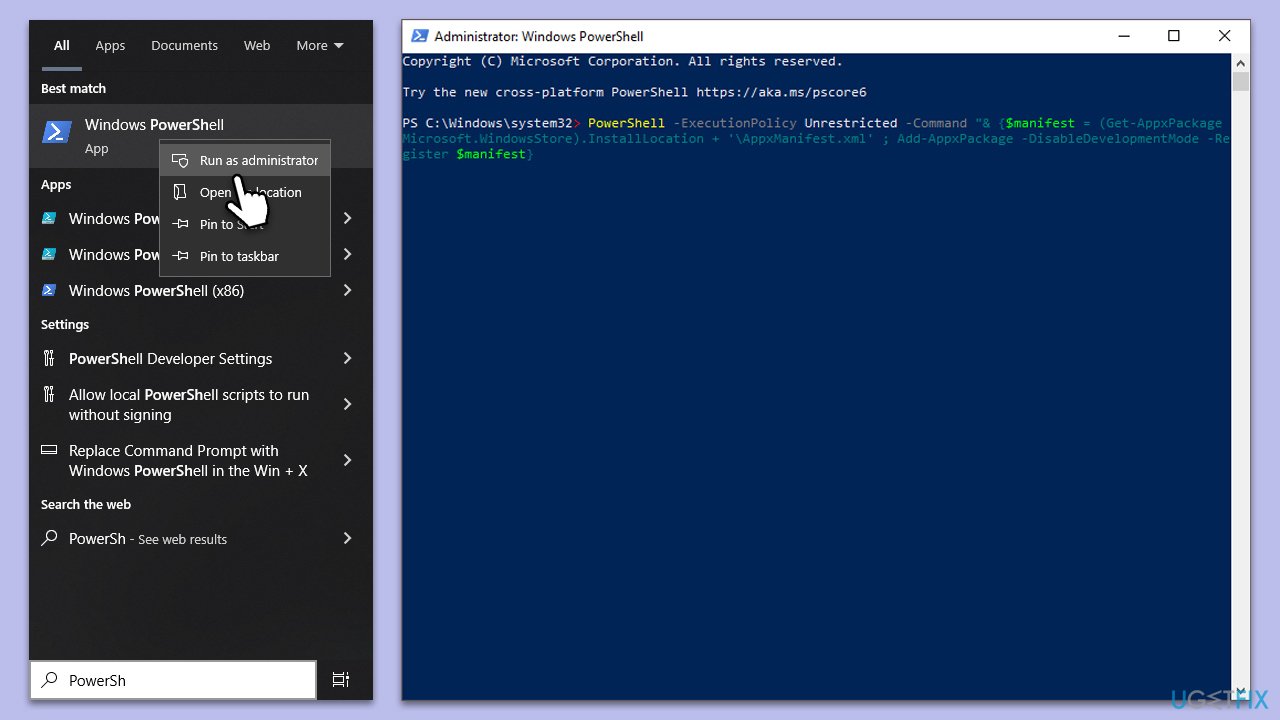
- Right-click on the Start button and select Windows PowerShell (Admin).
- Type
Get-AppxPackage *gamingservices* -allusers | Remove-AppxPackage -allusersand press Enter. - Next, type
Start-Process ms-windows-store://pdp/?PFN=Microsoft.GamingServices_8wekyb3d8bbweand press Enter. - Follow the on-screen prompts to reinstall Gaming Services.
Bottom line
To fix Gaming Services crashing on Windows, users can run the Windows Store Apps troubleshooter, update their system and Xbox app, and check for resource usage. If these solutions do not resolve the issue, consider using a PC repair tool for further diagnosis.
Frequently asked questions
You can reinstall Gaming Services by opening PowerShell as an administrator and running the command 'Get-AppxPackage Microsoft.GamingServices | Remove-AppxPackage -AllUsers' followed by 'start ms-windows-store://pdp/?ProductId=9MWPM2CQNLHN' to reinstall it.
To check for updates, go to Settings > Update & Security > Windows Update, and click 'Check for updates' to ensure your Windows 10 or Windows 11 system is fully up to date.
Yes, resetting the Gaming Services app can resolve issues; go to Settings > Apps > Apps & features, find Gaming Services, click on it, and select 'Advanced options' to choose the 'Reset' option.




Report an issue
What's wrong with this guide? We review every report and update or remove content.
Report received — thank you. We'll review and fix it.
You need a free account to submit a report.
Be the first to comment