How to fix
“Extracting files to the temporary location” error 1152
on Windows
Resolve the "Extracting files to the temporary location" error 1152 in Windows 10 and 11 quickly. Expert-tested solutions included for your convenience.


What causes How to fix “Extracting files to the temporary location” error 1152 in Windows?
- Problem with the downloaded installer file
- Errors during the download process
- File corruption
- Issues with temporary file locations
- Insufficient user permissions
Repairs Windows system files, removes malware, and restores a clean OS state — without reinstalling.
Hello. When I try to install a particular program in Windows I get the "Extracting files to the temporary location" message with an 1152 error. How do I fix it?
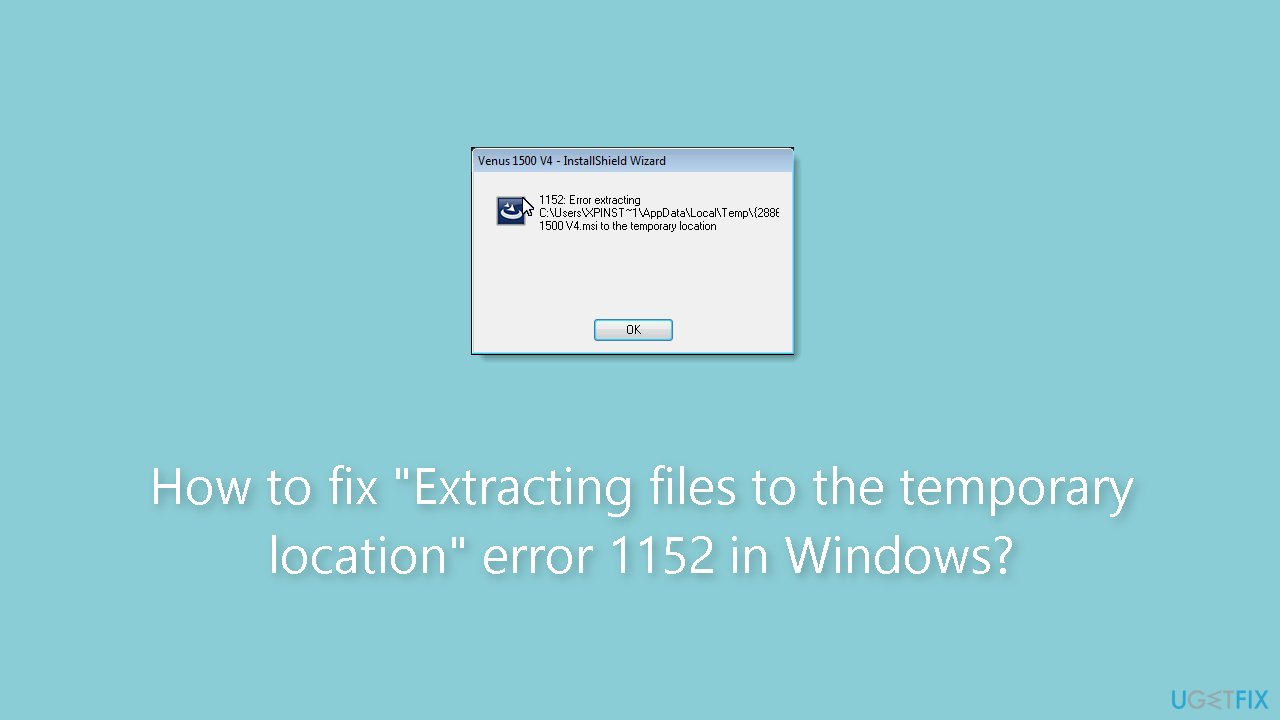
Error 1152 is a bothersome problem that some Windows users run into when attempting to install particular software packages. It is frequently accompanied by the statement "Error extracting files to the temporary location." Users are effectively unable to continue with the installation of their desired program due to this problem, which is caused by the InstallShield software.
Error 1152 may have big effects on users. The user experience is first and foremost disrupted, resulting in irritation and lost time as people are unable to install or use the software they require. If the program in question is essential for performing work or personal-related duties, this can be very problematic, resulting in delays and problems with productivity.
Error 1152 can also be perplexing and frightening for less tech-savvy individuals who might not comprehend the technical implications of the error message. Users may feel helpless and anxious because they are unsure of how to start fixing the problem.
Error 1152 may have potential fixes, but they frequently require technical steps that some users may find difficult to follow. These fixes often demand that users explore system settings, change the locations of temporary files, or even change rights. The irritation customers feel when they run into this issue can be made worse by its intricacy.
In this guide, you will find 4 steps that should help you fix "Extracting files to the temporary location" error 1152 in Windows. You can also use a maintenance tool like [d1] that can fix most system errors, BSODs,[ref en-1] corrupted files, and registry[ref en-2] issues. Otherwise, follow the step-by-step instructions below.
Method 1. Download the affected Installation File
This error may occur due to a problem with the downloaded installer file. Errors during the download process can lead to file corruption. To resolve this, consider re-downloading the setup file, ideally from an alternative website source if possible. After obtaining the new installer file, right-click on it and choose to run it with administrative privileges.
Method 2. Set Full Control Permissions for the Temp Folder
- Open File Explorer and navigate to C:\Windows. Right-click on the Temp directory within the Windows folder.
- Select Properties from the context menu.
- In the Properties window, click on the Security tab.
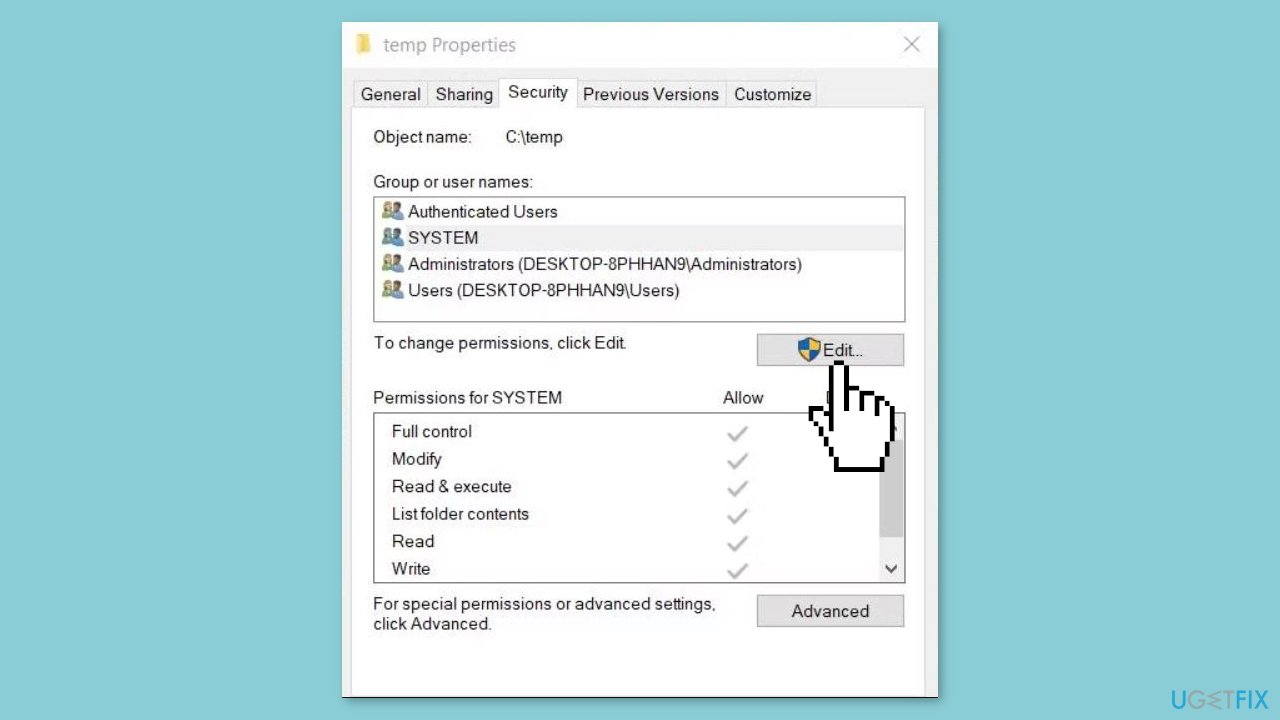
- Click on the Edit button to open the Permissions window. Click Add to bring up the object name selection window.
- In the object name box, type everyone and then click Check Names.
- Select OK to add the Everyone group.
- Click on Everyone within the Permission for Temp window.
- Check the Full control permission checkbox. Click Apply and then OK to save the changes and close all windows.
- If the Security tab indicates you need read permissions, click Advanced and then Change.
- Input Everyone in the Enter the object name to select box, as instructed above.
- Select System in the Advanced Security Settings window.
- Press the Add button. This will open another Select User or Group window; here, input Everyone again.
- Finally, select the Full control checkbox from the permissions list. Click OK on all open windows to save the changes.
Method 3. Clear the Temporary Files Folder
- Click on the magnifying glass icon on the taskbar to open Windows 11's search tool. In the search box, type Storage Sense as the keyword.
- From the search results, select Turn on Storage Sense.
- Click the toggle switch to turn on Storage Sense.
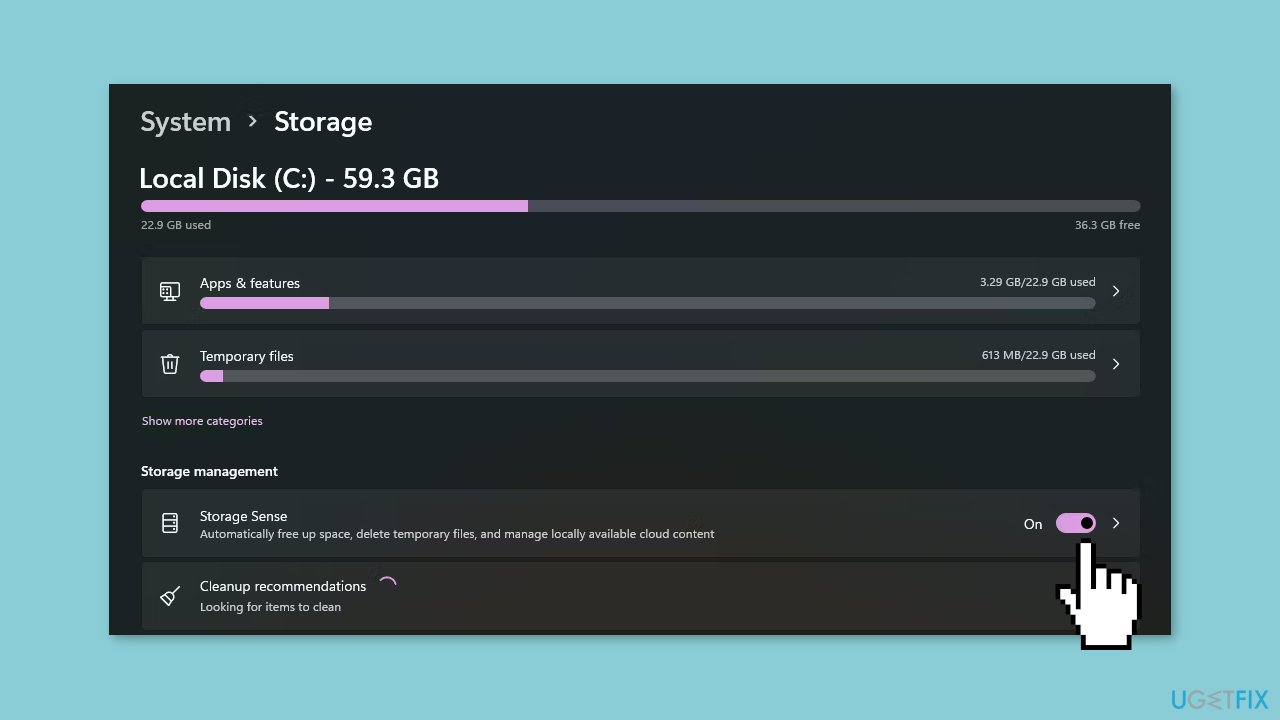
- Click the > arrow located next to the Storage Sense option to access the settings below.
- Select the Keep Windows running smoothly by automatically clearing up temporary system and app files checkbox.
- Enable the Automatic User Cleanup content option.
- Click the Run Storage Sense drop-down menu to choose an automatic cleanup schedule for deleting temporary files.
- Select the Every day option for the most frequent scheduling.
- To manually delete temporary files using Storage Sense, press the Run Storage Sense now button.
Method 4. Try Clean Boot
- Open the Search menu, type in system configuration, and press Enter.
- Under the Services tab, tick the Hide all Microsoft services box.
- Click on Disable all button.
- Head over to the Startup tab and click on Open Task Manager.
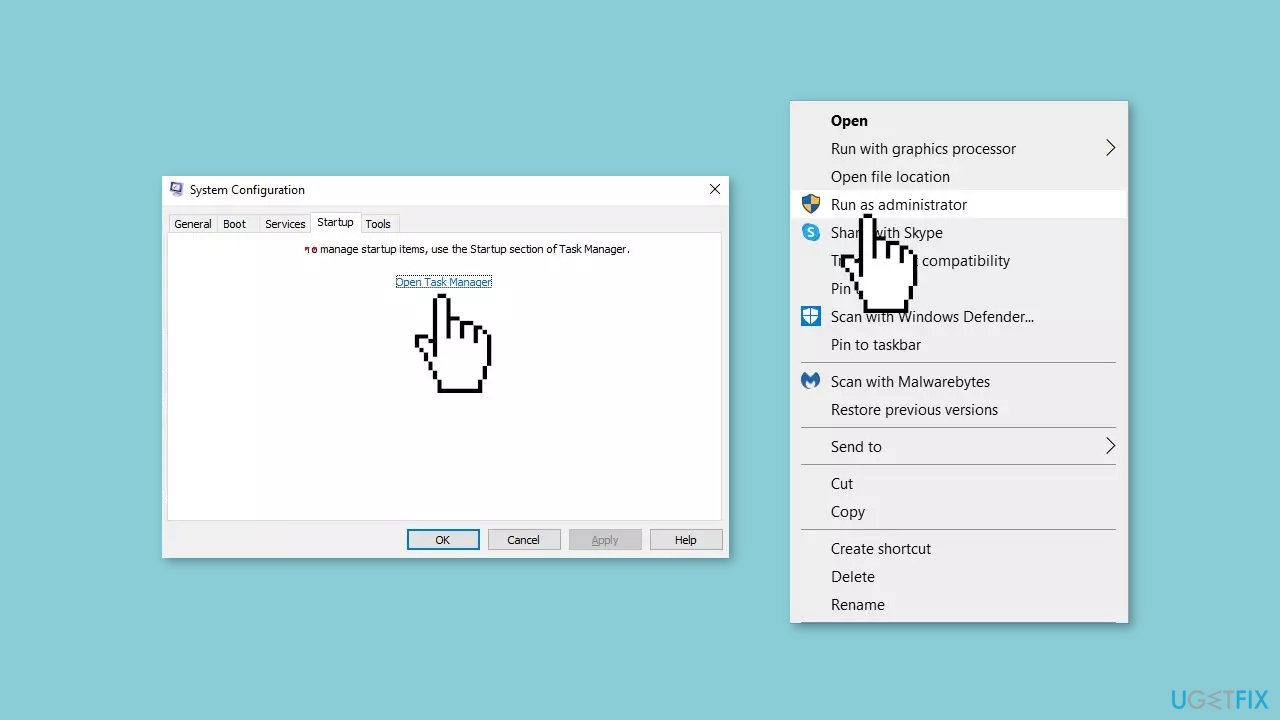
- Select a third-party program and click on Disable at the top.
- Repeat this step to disable all third-party apps and programs.
- Restart your PC to enter the clean boot state and see if the issue persists.
- If the issue disappeared in the clean boot state, then you can be certain that a third-party app is causing it.
- Go through all recently installed apps or programs and remove them one by one.
Bottom line
To fix the 'Extracting files to the temporary location' error 1152 in Windows, you can try re-downloading the installation file, checking the temporary file locations, and adjusting user permissions. If these steps do not resolve the issue, consider using a maintenance tool that can fix system errors.
Frequently asked questions
This error typically occurs due to insufficient disk space, corrupted temporary files, or permission issues with the temporary folder. Ensuring adequate space and clearing the temp folder usually resolves the issue.
You can clear temporary files by pressing Win + R, typing 'temp', and deleting the files in the folder that opens. Additionally, use the Disk Cleanup tool to remove unnecessary files from your system.
Yes, ensure that your user account has full control permissions for the 'Temp' folder, typically located at C:\Users\YourUsername\AppData\Local\Temp. Adjusting these permissions can help in resolving the extraction error.




Report an issue
What's wrong with this guide? We review every report and update or remove content.
Report received — thank you. We'll review and fix it.
You need a free account to submit a report.
Be the first to comment