How to fix
Phone Link not generating a QR code or PIN
on Windows
Resolve the Phone Link QR code or PIN issue on Windows 10 and 11 effortlessly. Expert-tested solutions to get you connected in minutes.


What causes How to fix Phone Link not generating a QR code or PIN in Windows?
- Bluetooth is deactivated on the PC or Android smartphone
- Overly strict firewall settings
- Outdated drivers on the PC or Android phone
- Errors, glitches, or corrupted data in the Phone Link app
Repairs Windows system files, removes malware, and restores a clean OS state — without reinstalling.
Hello. When I tried setting up the Phone Link app it would not generate a QR code or PIN so I could not connect. What should I do?
Users who want to link their Android phone and Windows PC wirelessly may encounter the annoying "Phone Link won't generate a QR code or PIN" problem. This problem appears when the Phone Link is unable to provide the needed QR code or PIN during the setup process. This issue may be caused by a number of things, so it's critical to understand its possible roots.
The Bluetooth connectivity status is a typical offender. It may be difficult for the Phone Link to create the necessary code or PIN if Bluetooth is deactivated on the PC or the Android smartphone. Users frequently encounter this problem when they either fail to enable Bluetooth on their devices or accidentally do so.
The configuration of the firewall can also have a big impact on whether or not the QR code or PIN is generated. Sometimes, overly strict firewall settings can prevent the essential communication between the PC and the Phone Link software, leading to the failure of the setup procedure.
Outdated drivers on the PC or the Android phone may cause compatibility problems that prevent the Phone Link from working properly. Driver version incompatibilities could prevent users from creating a QR code or PIN, which would prevent them from connecting.
In addition, problems with the Phone Link app itself may be the cause of this difficulty. The program may be unable to carry out its intended functions, including creating the required code or PIN for tying the devices, due to errors, glitches, or corrupted data.
In this guide, you will find 4 steps that should help you fix Phone Link not generating a QR code or PIN. You can also try a system repair tool like [d1] that can fix most system errors, BSODs,[ref en-1] corrupted files, and registry[ref en-2] issues. Otherwise, follow the step-by-step instructions below.
Method 1. Temporarily Disable Windows Defender
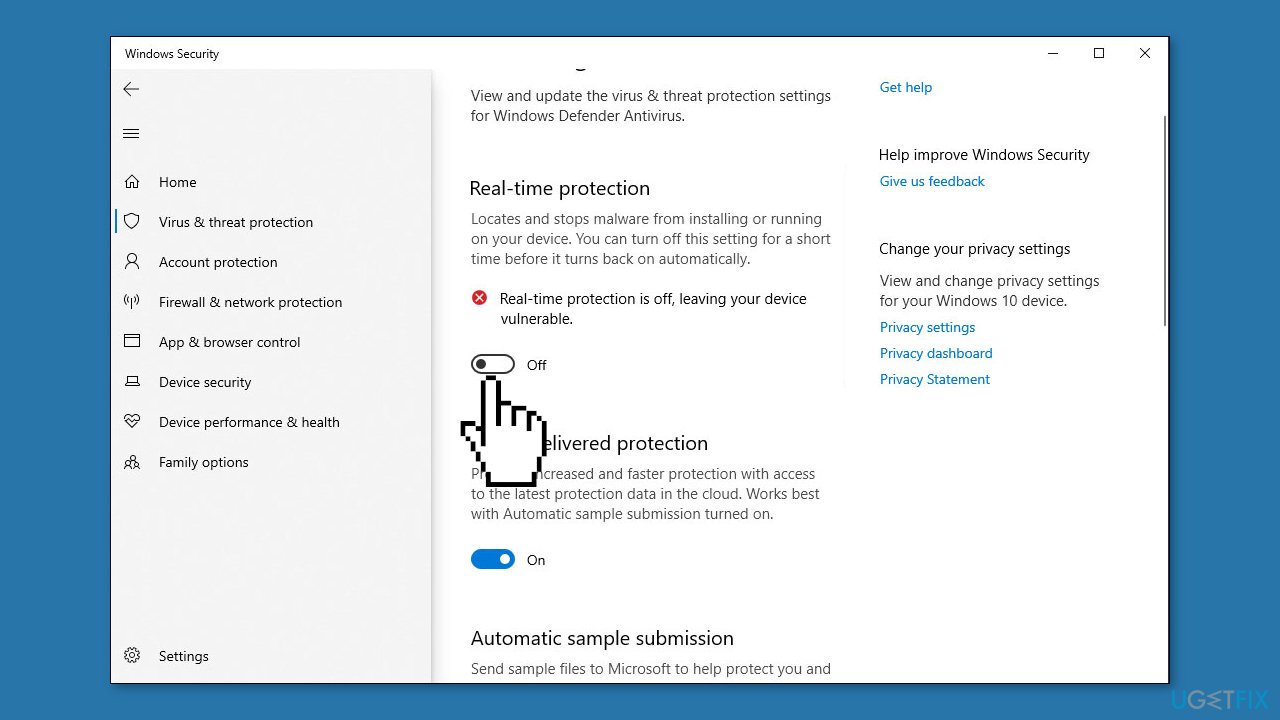
- Search for Windows Security from the Start bar and choose the top result to continue.
- Choose Virus & threat protection.
- Click Manage settings under Virus & threat protection settings.
- Turn the switch from Off to On under the Real-time protection section.
Method 2. Check Network Connection
If your Internet connection experiences instability or is disabled, you may encounter the "Phone Link won't generate a QR code or PIN on Windows" issue. To eliminate this as a potential cause, you can perform the following steps:
- Verify if other Internet-connected devices are functioning normally to confirm the issue isn't widespread.
- Consider restarting your router or modem as a troubleshooting step.
Method 3. Reset the Phone Link App
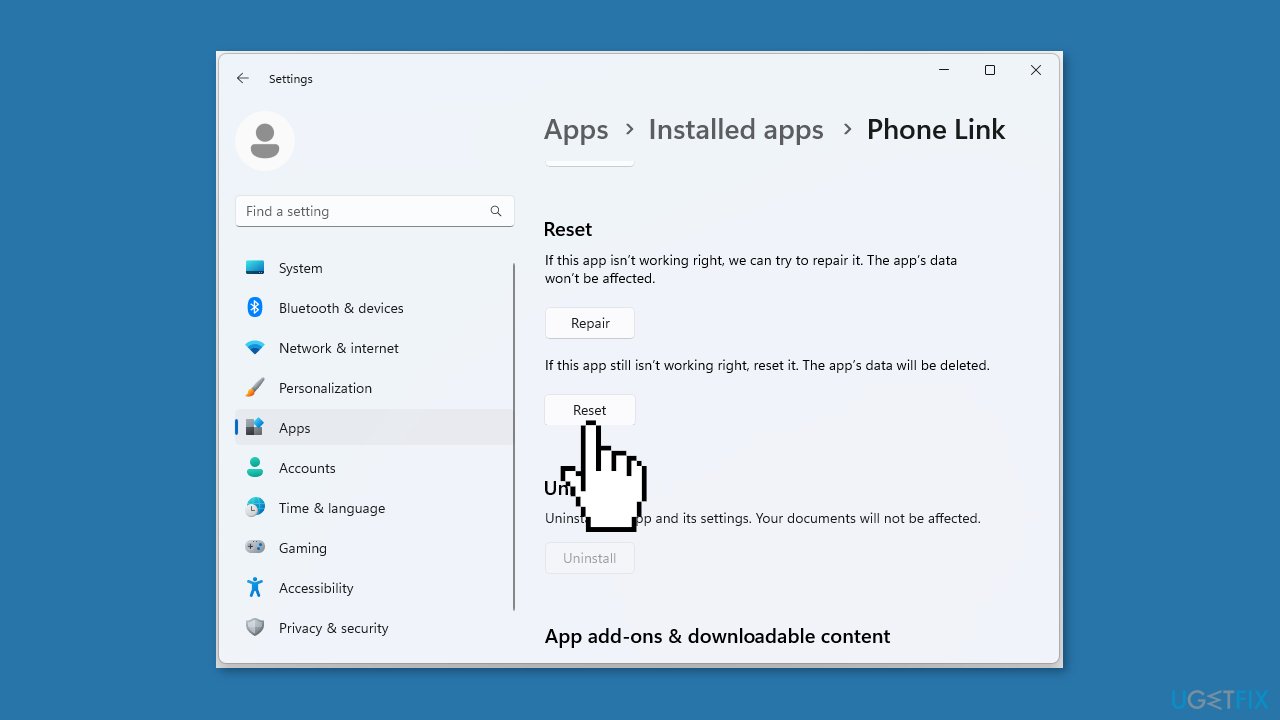
- Press the Windows + I keys together to open Settings.
- Go to Apps > Installed apps and find the Phone Link app.
- Click on the three horizontal dots at the right end and select Advanced options.
- Navigate to the Reset section and click on the Reset button.
- Restart the Phone Link app and try generating the QR code or PIN.
Method 4. Use a Different Microsoft Account
If the previously mentioned solutions do not resolve the issue, consider connecting your phone to your computer using an alternative Microsoft account. When you link your phone to your PC, you can effortlessly access your content through your Microsoft account. If you only have one Microsoft account, refer to this guide for instructions on creating an additional one:
- Press the Windows key + R to open Run.
- Type netplwiz in the text field and click OK.
- Click the Add button.
- Click on Sign in without a Microsoft account.
- Now, click the Local Account button.
- Fill out the username, password, and password hints fields.
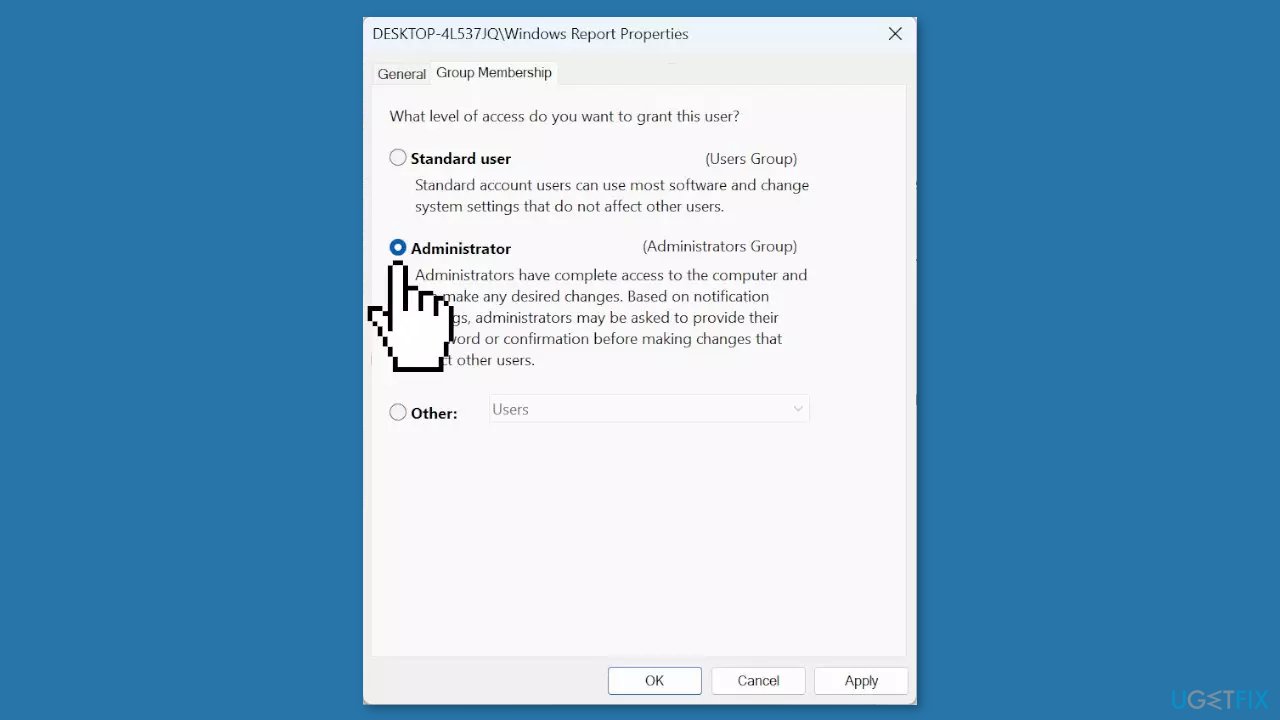
- Next, select the newly created account, and click on Properties.
- Go to the Group Membership tab.
- Select Administrator, and click OK to save the changes.
- Finally, sign into the new account, and you should be able to dock the language bar to the Windows taskbar.
Bottom line
To fix the issue of Phone Link not generating a QR code or PIN, you should ensure Bluetooth is enabled, adjust firewall settings, update drivers, and check for any problems with the Phone Link app. If these steps do not resolve the issue, consider using a system repair tool to fix potential system errors.
Frequently asked questions
Try restarting both your Windows 10 PC and your mobile device, then reopen the Phone Link app to see if the QR code appears. If the issue persists, ensure both devices are connected to the same Wi-Fi network.
Make sure that you have the latest version of the Phone Link app installed on your Windows 11 system. If it still doesn't generate a PIN, try resetting the app's settings in the Windows settings menu.
If Phone Link fails to generate a QR code or PIN after a Windows update, check for any additional updates or patches for the app itself. Additionally, consider reinstalling the Phone Link app to resolve any compatibility issues.




Report an issue
What's wrong with this guide? We review every report and update or remove content.
Report received — thank you. We'll review and fix it.
You need a free account to submit a report.
Be the first to comment