How to fix
“Your Windows Is Infected” Pop-Up
on Windows
Easily eliminate the "Your Windows Is Infected" pop-up on Windows 10 or 11 with our expert solutions. Get your system back to normal in minutes!

What causes How to Fix “Your Windows Is Infected” Pop-Up?
- Tech-Support-Scam alert
- Malicious websites
- Suspicious freewares
- Malicious web browser extension
- Increased cyber crime activity
Repairs Windows system files, removes malware, and restores a clean OS state — without reinstalling.
Can’t get rid of "Your Windows Is Infected" pop-up on Edge. Tried resetting it, but that did not help.
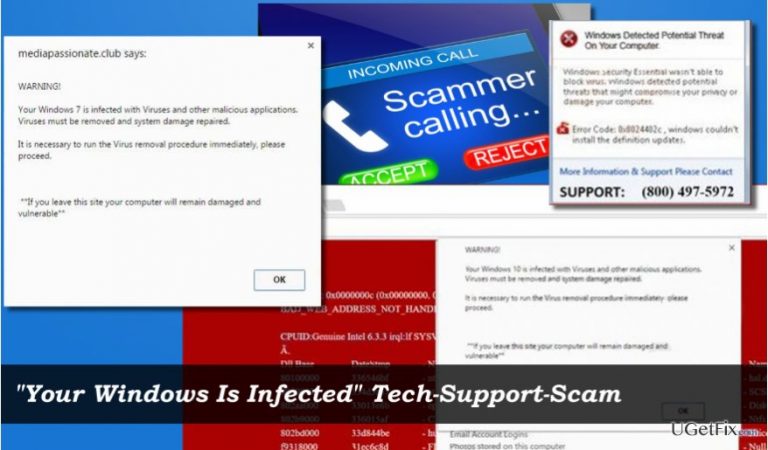
"Your Windows Is Infected" is the brand new Tech-Support-Scam alert, which has been actively circulated on the Internet for the last couple of weeks. Those who have never heard about this type of scam may easily fall victims of cyber criminals after initiated a call for supposed IT technicians and allowing them to access their PCs remotely.
Tech-Support-Scam – one of the most widely-used scheme
For the past couple of years, the number of Technical Support Scam attacks has increased significantly. At the moment of writing, this type of cyber crime is as widely used as adware or ransomware distribution. Typically, tech support scam viruses are distributed by bundling or malicious third-party websites. All of them emerge while browsing with Chrome, Edge, IE, Firefox or any other web browser and freeze the screen in order to make it look more credible and arouse the feeling of urgency. Usually, scam alerts mimic the design of the official Microsoft alerts and contain intimidating facts about a supposed virus infection, poor system’s health, risk of identity theft, and so on. Besides, all tech-support-scam alerts unanimously claim that the only way to fix the problem is to call for certified technicians and provide a telephone number. That’s a typical scheme used by frauds to trick less tech-savvy computer users into subscribing useless tech-support services, revealing personal information or allowing them to access PCs remotely.
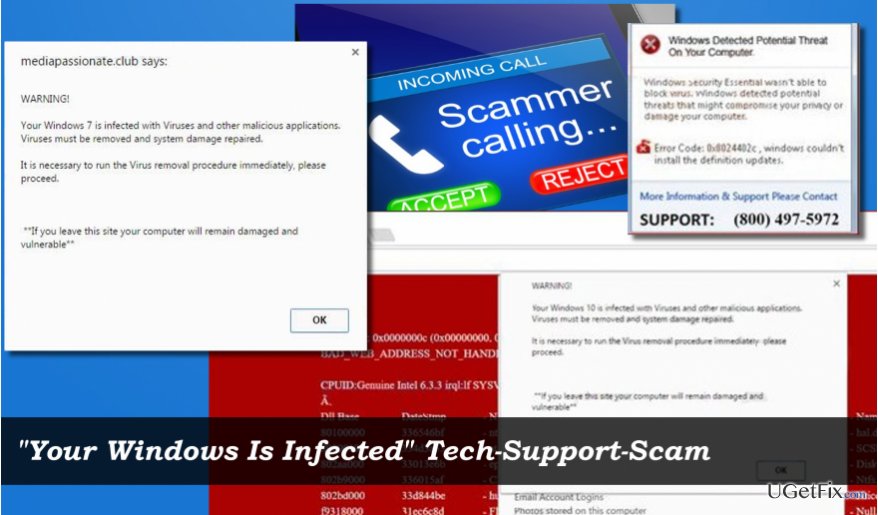
"Your Windows Is Infected" Tech-Support-Scam detected recently
Security experts have recently detected another actively spreading tech-support-scam virus called "Your Windows Is Infected." Just like we have described above, the virus is spreading via malicious websites and suspicious freewares. As soon as it gets into the system, a malicious web browser extension is dropped into the default web browser and the PC user starts receiving the following alert:
WARNING!
Your Windows 10 is infected with Viruses and other malicious applications.
Viruses must be removed and damage must be repaired.
It is necessary to run virus removal procedure immediately, please proceed.
**If you leave this site your computer will remain damaged and vulnerable**
Additionally, the pop-up contains a telephone number, which supposedly belongs to the certified technicians. DO NOT get fooled by this alert. "Your Windows Is Infected" pop-up is yet another trick used by frauds who want to make easy money. All you have to do is to remove an adware-type program, which is generating "Your Windows Is Infected" scam and then reset your web browser.
Fixing "Your Windows Is Infected" error
To disable "Your Windows Is Infected" pop-up, you’ll have to perform the following steps:
1. Force your web browser to close
2. Boot PC into Safe Mode
3. Run anti-malware or remove "Your Windows Is Infected" adware manually
4. Reset web browser
Step 1. Close your web browser
-Open Task Manager (Ctrl + Alt + Del).
-Find the process of your web browser and click it.
-Select End Task.
NOTE: DO NOT restore the last browsing session the next time you open your web browser.
Step 2. Boot into Safe Mode
-Press Windows key and move your cursor over the Power button.
-Press and hold the Shift key and select Restart.
-When PC restarts, choose Troubleshoot → Advanced Options → Startup Settings.
-Click Restart.
-Press F5 to enable Safe Mode with Networking mode.
Step 3. Remove malware
The quickest and most reliable way to remove "Your Windows Is Infected" adware is to run a full system scan with [d1] or another powerful anti-malware utility. However, you may also do that by removing unknown apps via Programs & Features app:
-Open Control Panel.
-Navigate to Programs & Features and locate suspicious programs.
-Right-click on them and select Uninstall.
Step 4. Reset your web browser
Finally, reset your web browser to default settings.
Bottom line
To fix the 'Your Windows Is Infected' pop-up, try resetting your browser, removing suspicious extensions, and running a full antivirus scan. If these steps do not resolve the issue, consider seeking professional help or using dedicated malware removal tools.
Frequently asked questions
Close the pop-up immediately and do not click on any links. Then, run a full system scan using Windows Defender or another trusted antivirus program to ensure your system is clean.
No, this pop-up is typically a scam designed to trick you into downloading malware or paying for unnecessary services. Always verify such claims through legitimate antivirus software.
Keep your Windows 10 or Windows 11 operating system and all software updated, use a reliable antivirus solution, and avoid clicking on suspicious links or ads.




Report an issue
What's wrong with this guide? We review every report and update or remove content.
Report received — thank you. We'll review and fix it.
You need a free account to submit a report.
Be the first to comment