How to fix
Snip & Sketch crashes
on Windows
Resolve Snip & Sketch crashes on Windows 10 or 11 quickly with expert-tested solutions. Get your screenshot tool working flawlessly again!

What causes How to fix Snip & Sketch crashes on Windows?
- Internal software bugs
- Conflicts with other software
- Outdated graphics drivers
- Insufficient system resources
- Corrupted installation files
Repairs Windows system files, removes malware, and restores a clean OS state — without reinstalling.
Whenever I use a ruler or attempt to draw lines in Snip & Sketch, it crashes. The only thing I can do then is restart it and use it again... except that it crashes again in the same manner. How do I fix this?
Snip & Sketch is a valuable tool introduced by Microsoft, aimed at simplifying the task of taking screenshots and annotating them on Windows. As the successor to the older "Snipping Tool," Snip & Sketch provides a more enhanced and user-friendly interface, allowing individuals to capture their screens, whether it's an entire window, specific rectangular areas, or even freeform shapes.
Post-capture, users can conveniently annotate their screenshots using a variety of drawing tools available within the application. This combination of utility and simplicity has made Snip & Sketch a favorite among many Windows users for capturing and sharing visual information.
Despite its undeniable utility, there have been growing reports of Snip & Sketch crashes on Windows. For some users, these crashes occur almost instantly upon launching the application. Others find themselves interrupted by Snip & Sketch crashes while they are actively using its features. There are also those who've noticed that specific actions, such as drawing lines, can instantly lead to a Snip & Sketch crash. These disruptions can be particularly frustrating, especially when users are relying on the tool for work or important tasks.
The frequency of reports regarding Snip & Sketch crashes suggests that there might be underlying issues that need to be addressed. Possible reasons for these crashes can range from internal software bugs within the application itself to conflicts with other software running on the system. Furthermore, outdated graphics drivers, insufficient system resources, or corrupted installation files can also lead to Snip & Sketch crashes.
Addressing these crashes often requires a multifaceted approach. Since the nature of Snip & Sketch crashes can vary from one system to another, identifying the root cause becomes crucial. Fortunately, there are detailed solutions and steps available below this article to help users troubleshoot and resolve the common issues associated with Snip & Sketch crashes on Windows.
For those who encounter broader Windows challenges, such as the Blue Screen of Death (BSOD), registry errors, or DLL issues, the [d1] PC repair tool is a commendable solution. It offers a comprehensive remedy to many common Windows problems, ensuring a smoother and more reliable user experience.
Fix 1. Run Windows Store Apps troubleshooter
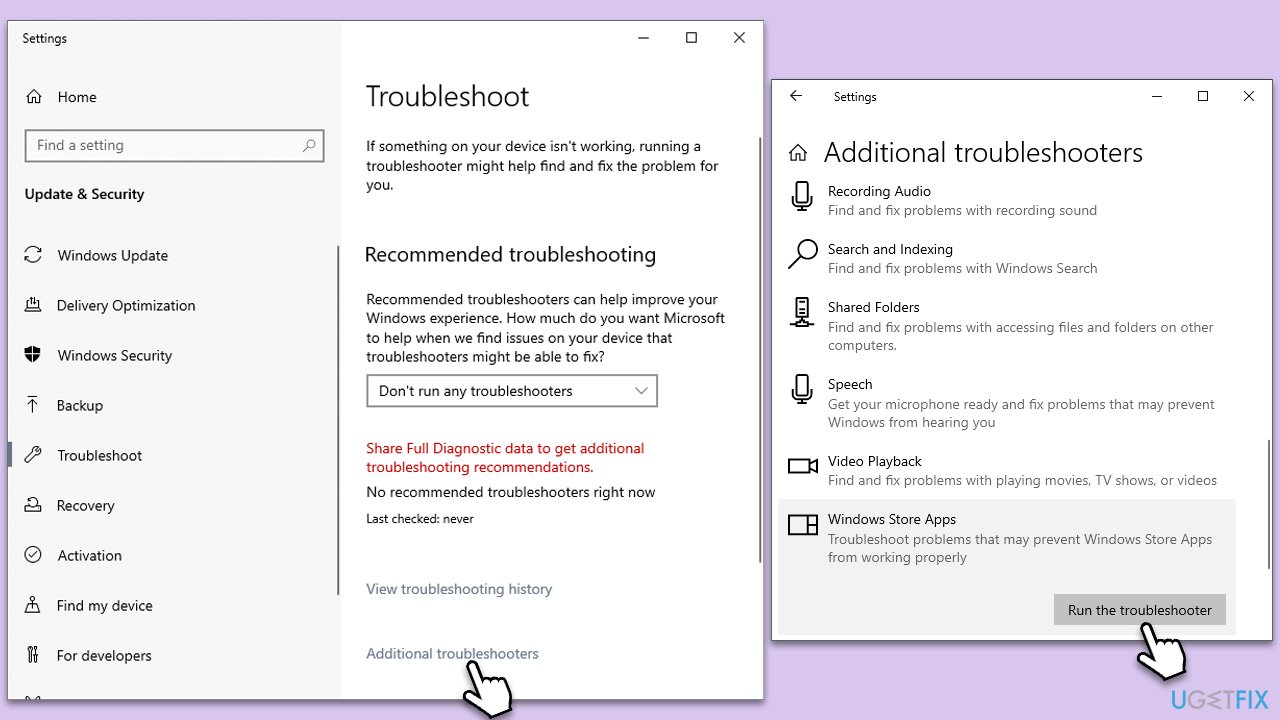
Windows has a built-in tool to diagnose and automatically fix potential problems with Store apps. By running the troubleshooter, Windows can identify any issues with Snip & Sketch or its related components and offer potential solutions.
- Type Troubleshoot in Windows search and press Enter.
- Select Additional troubleshooters/Other troubleshooters.
- Find Windows Store Apps from the list and select Run the troubleshooter/Run.
- Wait till the process is finished and apply the recommended fixes.
Fix 2. Update graphics drivers
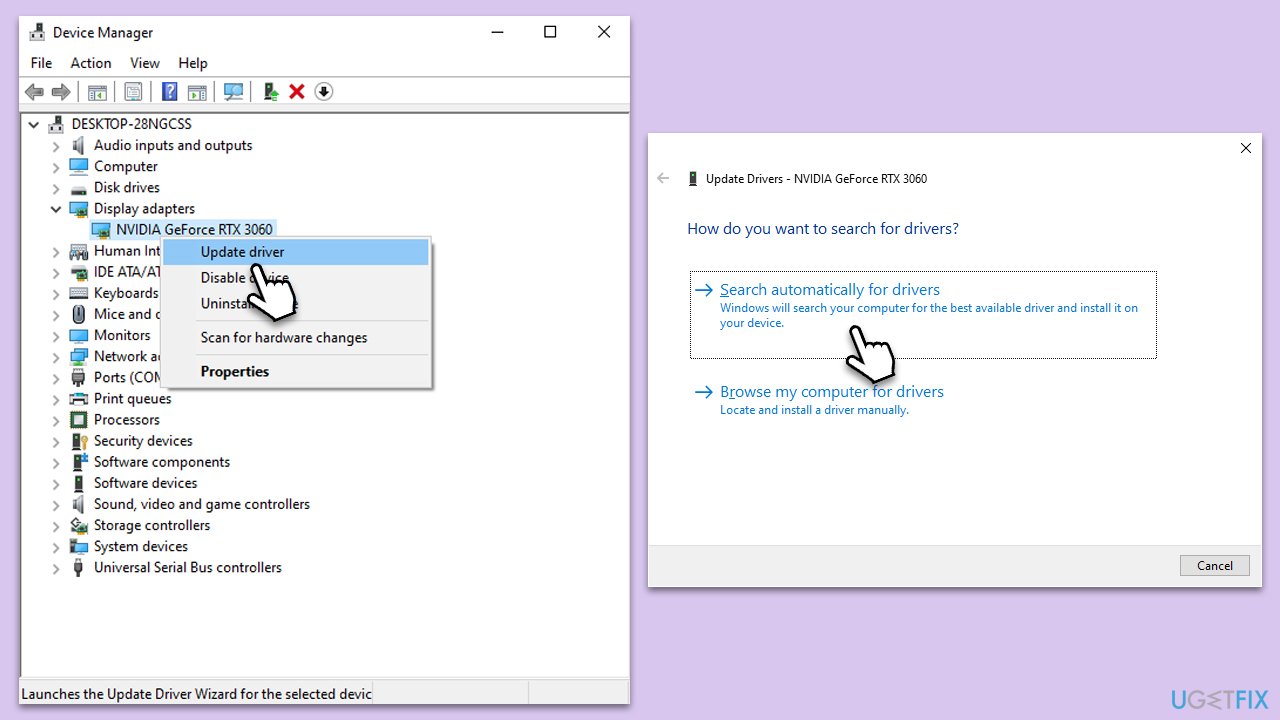
Graphics drivers interact directly with apps that use visual components. Outdated or corrupted drivers can cause Snip & Sketch crashes. Updating them ensures better compatibility and smoother performance. You can either manually update drivers from the official website, employ automatic tools such as [rev id="DriverFix"], or simply use Windows update:
- Right-click on Start and pick Device Manager.
- Expand the Display Adapters section.
- Right-click on your graphics card and select Update Driver.
- Select Search automatically for drivers and wait.
- Once done, restart your computer.
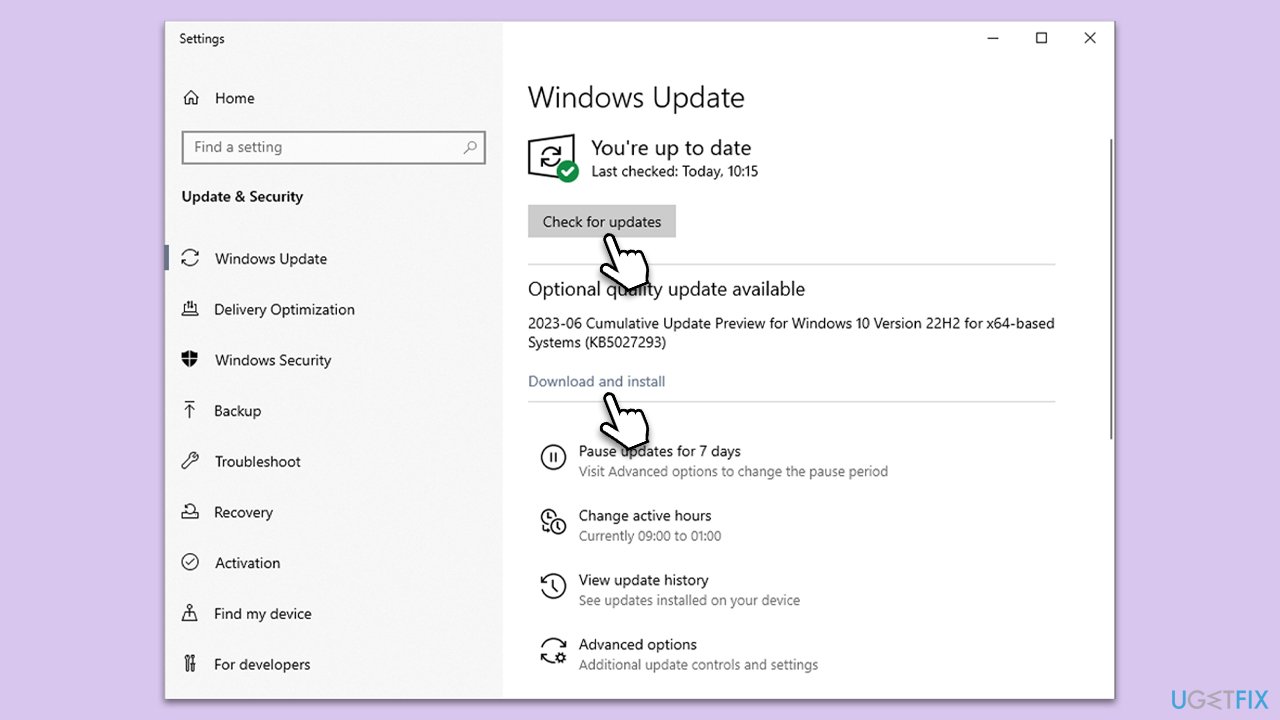
Fix 3. Install all Windows updates
Microsoft releases regular updates to improve system stability and fix known bugs. Keeping your system updated can prevent Snip & Sketch crashes.
- Type Updates in Windows search and press Enter.
- In this window, click Check for updates.
- If optional updates are available, install them too.
- When everything is installed, restart your system.
Fix 4. Reset the app
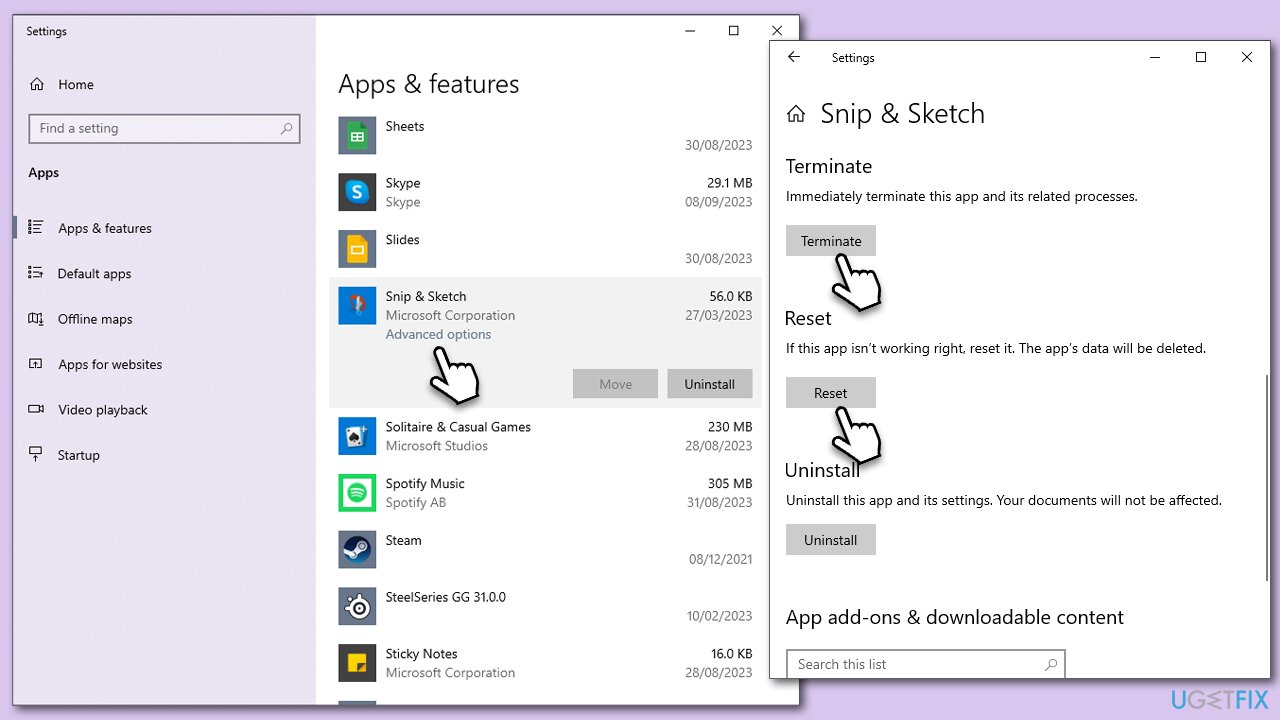
If Snip & Sketch is behaving erratically, resetting the app can restore its default settings and resolve underlying issues.
- Right-click on Start and select Apps & Features.
- Scroll down to find Snip & Sketch and click Advanced options.
- Scroll down again and click Terminate and Reset.
- Launch the app as normal.
Fix 5. Disable Focus Assist
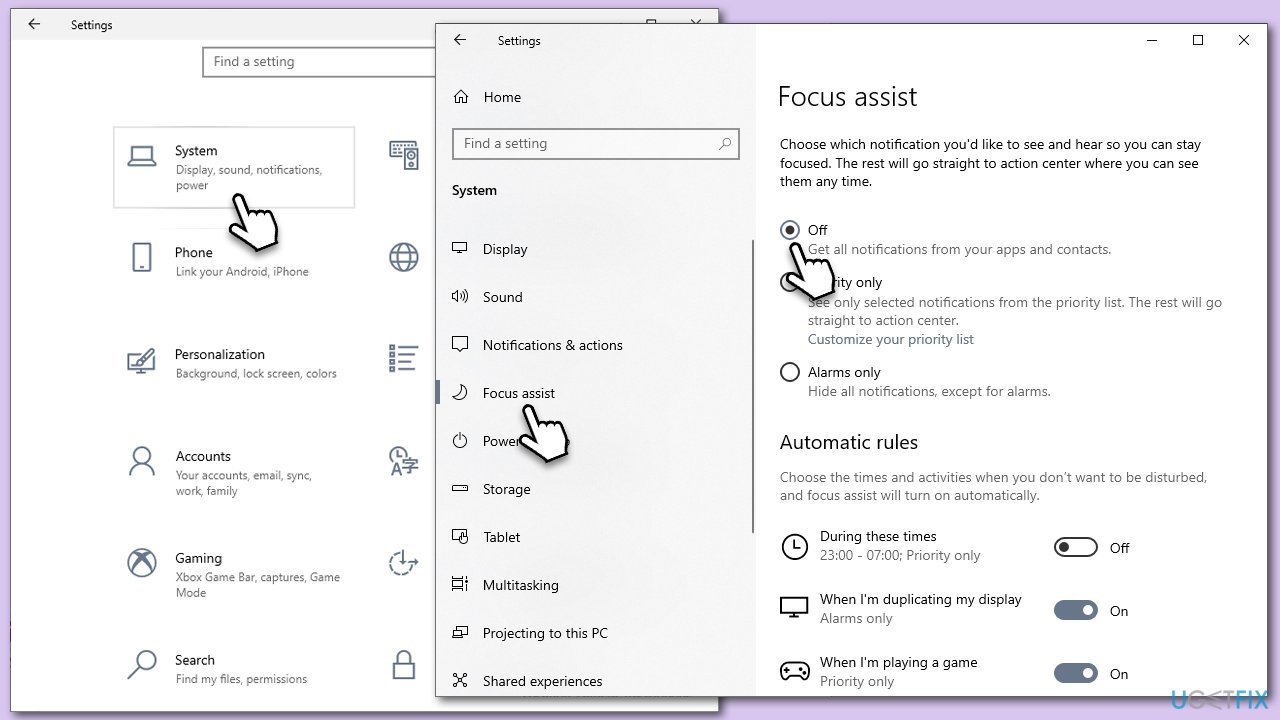
Focus Assist is a feature designed to minimize distractions. However, it can sometimes interfere with app notifications and cause crashes.
- Go to Settings.
- Click on System.
- Choose Focus Assist.
- Turn off any automatic rules or set it to Off entirely.
Fix 6. Run SFC and DISM
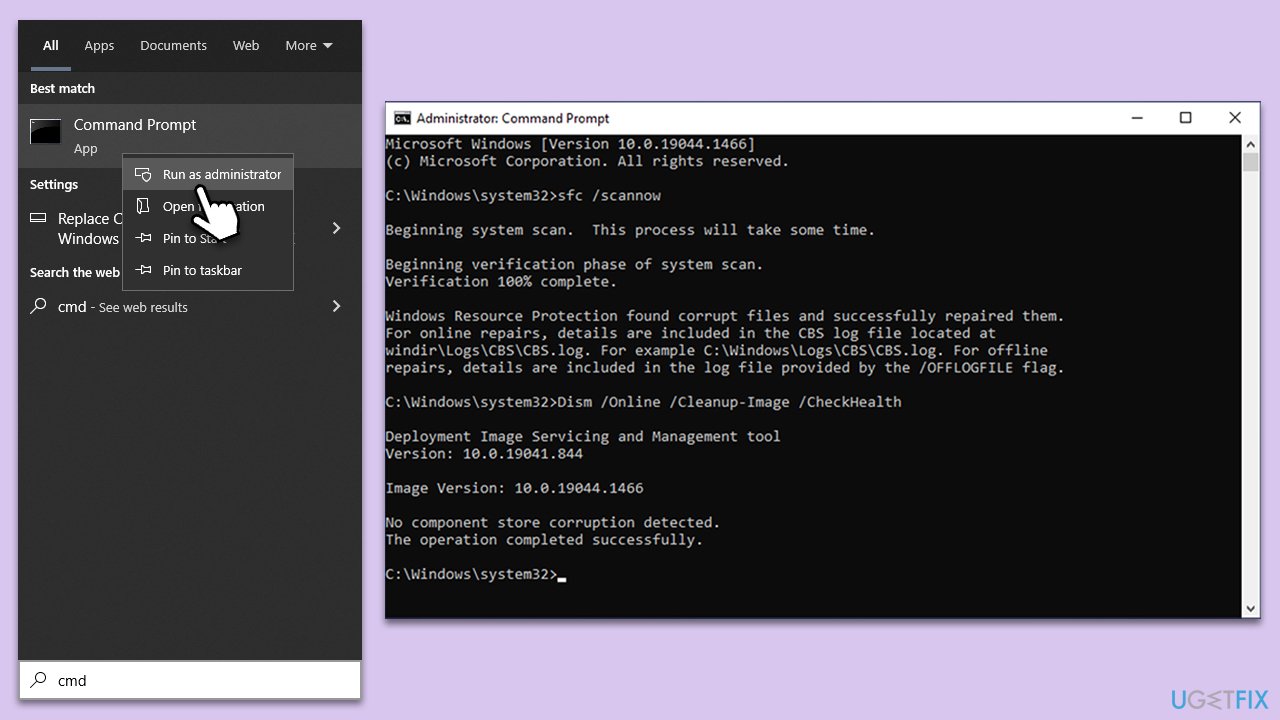
SFC and DISM are tools that can repair corrupted system files that might be causing Snip & Sketch crashes.
- Type cmd into Windows search.
- Right-click on Command Prompt and select Run as administrator.
- When the User Account Control (UAC) window shows up, click Yes.
- Copy and paste the following command and press Enter:
sfc /scannow - Next, use the following commands, pressing Enter each time:
Dism /Online /Cleanup-Image /CheckHealth
Dism /Online /Cleanup-Image /ScanHealth
Dism /Online /Cleanup-Image /RestoreHealth
(Note: if you get an error executing this last command, add /Source:C:\RepairSource\Windows /LimitAccess to it and try again). - Reboot your system.
Fix 7. Reinstall Snip & Sketch
If all else fails, uninstalling and then reinstalling the app can fix any persistent issues by providing a fresh installation.
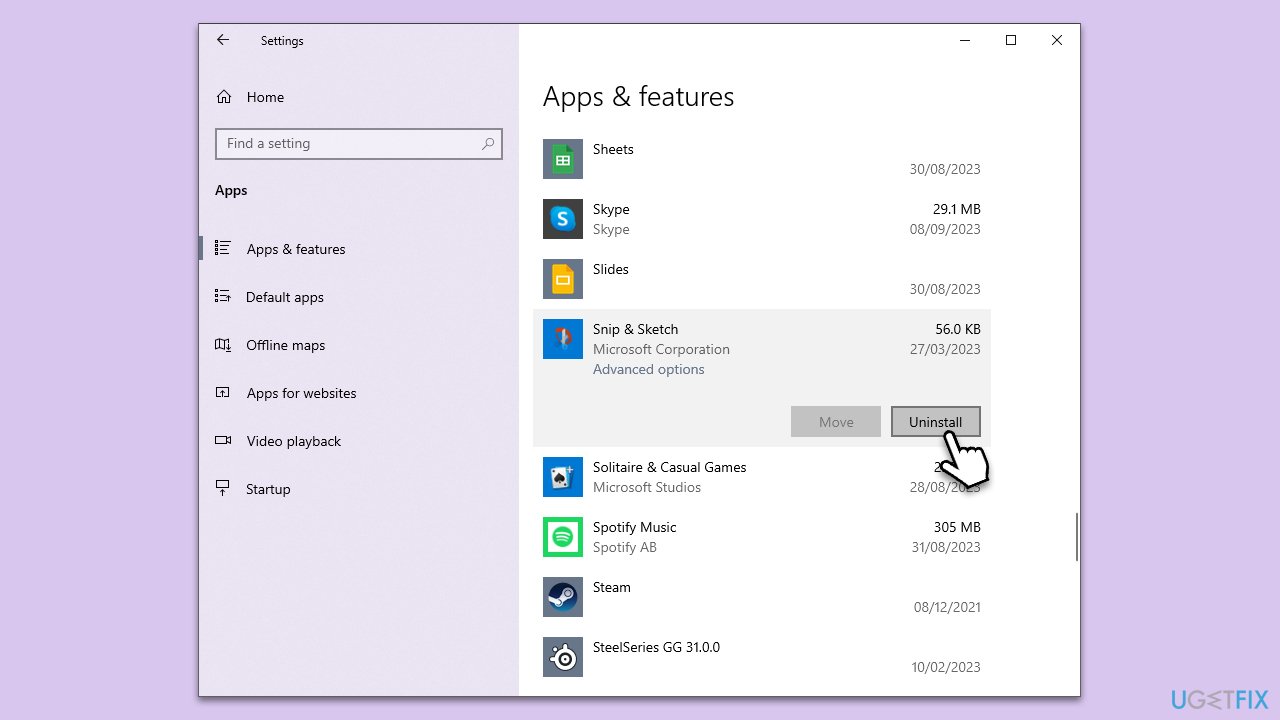
- Right-click on Start and select Apps & Features.
- Scroll down to find Snip & Sketch.
- Select Uninstall and follow the prompts.
- Once done, reboot your computer.
- Reinstall the app from the Microsoft Store.
Bottom line
To fix Snip & Sketch crashes, users can update their graphics drivers, check for software conflicts, and ensure sufficient system resources are available. If these solutions do not resolve the issue, consider reinstalling the application or seeking further technical support.
Frequently asked questions
Try resetting the Snip & Sketch app by going to Settings > Apps > Apps & features, selecting Snip & Sketch, and clicking on 'Advanced options' to reset it. If the problem persists, consider updating Windows 10 to the latest version.
Ensure that your Windows 11 is up to date by checking for updates in Settings > Windows Update. Additionally, reinstalling Snip & Sketch from the Microsoft Store may resolve any corrupted files causing the crashes.
Yes, make sure that your graphics drivers are updated, as outdated drivers can lead to crashes; you can update them via Device Manager. Also, check if any third-party software conflicts with Snip & Sketch by performing a clean boot.




Report an issue
What's wrong with this guide? We review every report and update or remove content.
Report received — thank you. We'll review and fix it.
You need a free account to submit a report.
Be the first to comment