How to fix
Outlook error “the set of folders cannot be opened”
on Windows
Resolve the "set of folders cannot be opened" error in Outlook on Windows 10 and 11 effortlessly. Expert-tested solutions for a quick fix!

What causes How to fix Outlook error “the set of folders cannot be opened” in Windows?
- Add-ins that might not work properly
- Corrupted OST (Offline Storage Table) files
- Corrupted data files
- Problems with the user's email profile
- Corruption of the Outlook profile
Repairs Windows system files, removes malware, and restores a clean OS state — without reinstalling.
Hello. When I try to open Outlook on my Windows PC the "the set of folders cannot be opened" error pops up. How do I fix it?
"The set of folders cannot be opened" error message in Microsoft Outlook, a commonly encountered issue in Windows, can be a source of frustration for users. This problem frequently occurs for a number of reasons, with Outlook add-in intervention being the main culprit. Extensions or outside tools that are integrated into Outlook to increase functionality are called add-ins. The error message is brought on by add-ins that might not work properly or interact improperly with one another.
The presence of corrupted OST (Offline Storage Table) and data files, problems with the user's email profile, or corruption of the Outlook profile itself are additional possible causes besides add-in intervention. These elements can interfere with Outlook's ability to efficiently retrieve and synchronize email data.
By interfering with users' ability to access crucial email communications, this problem may have a severe negative impact on them. Those who depend on Outlook for work-related tasks may miss messages, respond to emails more slowly, and be less productive as a result. In addition to being inconvenient, the error can be stressful, especially when users are unable to identify the problem's cause or fix.
The standard troubleshooting process for this problem entails a number of actions, such as repairing or recreating the email profile, deactivating or deleting troublesome Outlook add-ins, and fixing any corrupted OST or data files. Each remedy deals with a certain probable cause, and the best course of action relies on the problem that gave rise to the error message.
In this guide, you will find 6 steps that should help you fix Outlook error "the set of folders cannot be opened" in Windows. You can also use a maintenance tool like [d1] that can fix most system errors, BSODs, corrupted files, and registry issues. Otherwise, follow the step-by-step instructions below.
Solution 1. Remove Problematic Add-Ins
- Launch Outlook.
- Click on the File tab.
- Choose Options from the left pane.
- In the Options window, select Add-Ins from the left menu.
- Expand the Manage dropdown on the right side of the window.
- Select COM Add-ins.
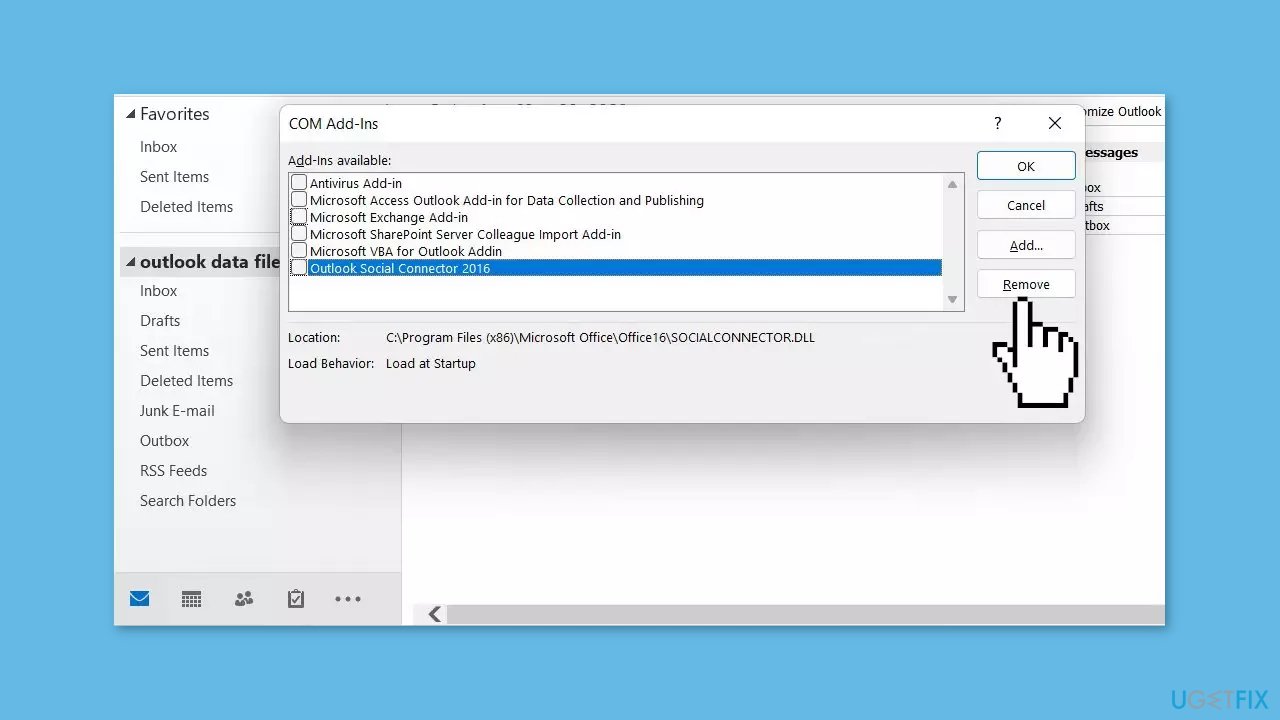
- Click on the Go button. You will see a list of add-ins that are currently enabled.
- Uncheck the boxes next to each add-in to disable them.
- If you already have a suspect add-in, you can just disable that one and leave the others enabled.
- Click OK to save the changes.
- Restart Outlook.
- Check if the issue is resolved.
Solution 2. Check the OST File
- Open the Control Panel.
- Click on the View by dropdown menu and select Large icons.
- Go to Mail (Microsoft Outlook).

- Click the Data Files... button.
- Select the OST file location and click Open File Location...
- Right-click the file in the File Explorer and select Properties.
- If the file type is OST, the file is in the right place, and no action is needed.
- To ensure that the OST file is not corrupt, copy it to a safe location outside the Outlook installation folder.
- Then, right-click and delete the main OST file.
- After that, restart Outlook.
Solution 3. Check the Outlook Profile
- Open the Control Panel.
- Click on the View by dropdown menu and select Large icons.
- Go to Mail (Microsoft Outlook).
- Click the Show Profiles button.
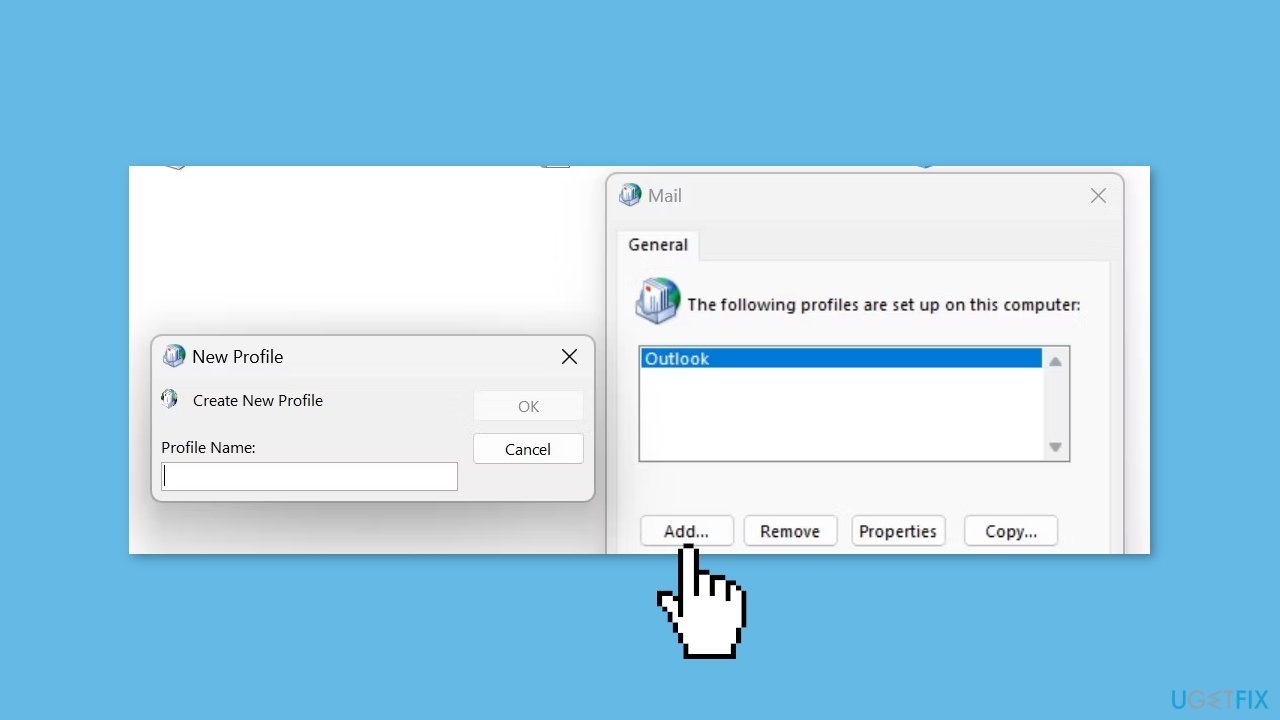
- Click on the Add button.
- Follow the instructions on the screen to create your new profile.
- Launch a new Outlook profile.
Solution 4. Reset the Navigation Pane
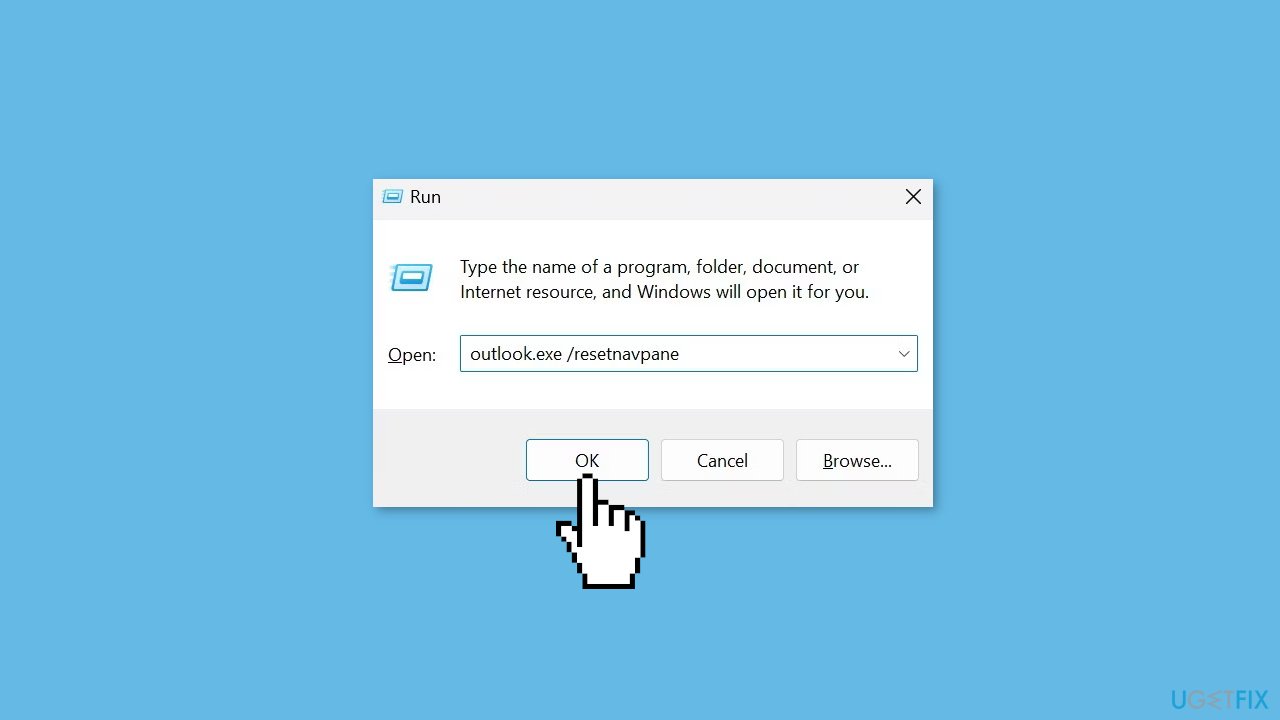
- Press the Windows key + R to open the Run dialog box.
- Type outlook.exe /resetnavpane and hit Enter.
- After that, relaunch Outlook.
- If resetting the navigation pane doesn't work, you should delete the XML file manually.
- To do this, press the Windows key + R.
- Type %localappdata%\Microsoft\Outlook and hit Enter.
- After that, delete any XML files you find in this folder.
- Then, restart Outlook from scratch, and it will recreate the XML file with default settings.
Solution 5. Repair Outlook PST Files
- Navigate to the Outlook installation folder, which is located here by default:
C:\Program Files\Microsoft Office\root\Office16
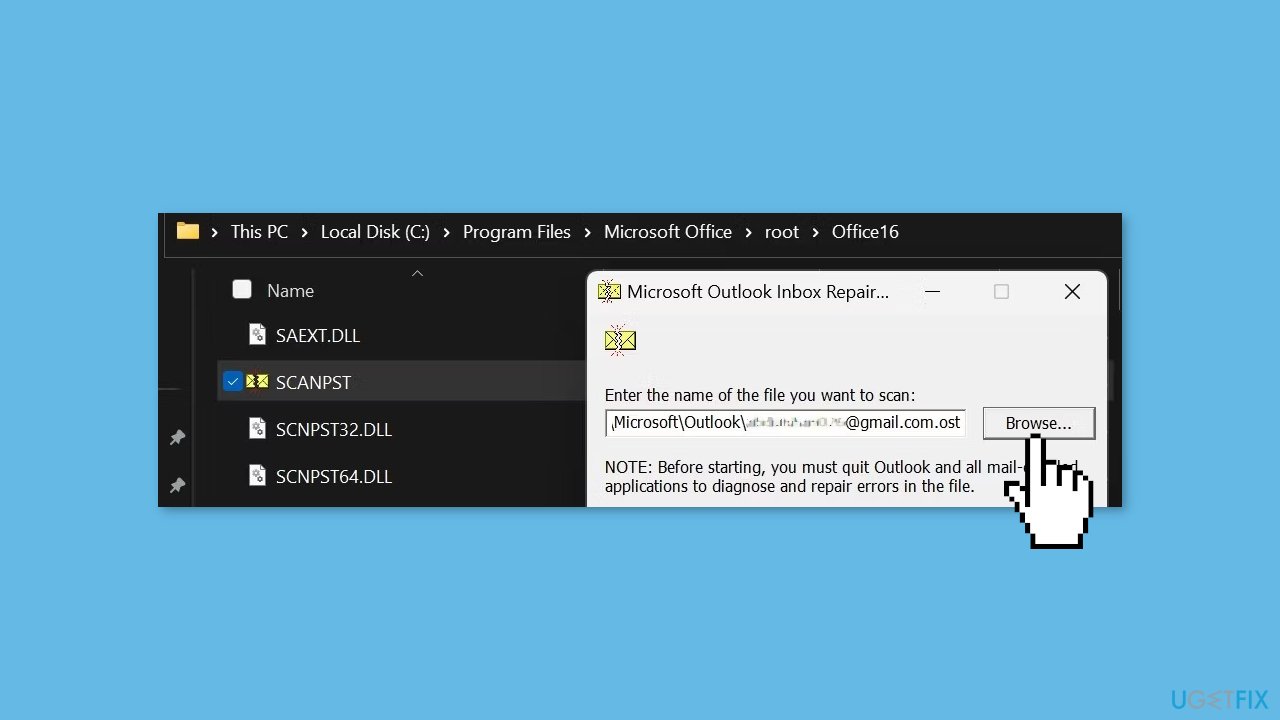
- Locate the ScanPST.exe file and run it.
- Click Browse, paste the path from the error window into the Inbox Repair tool, and click Start.
- Then, click the Repair button to complete the repair.
Solution 6. Run the Microsoft Support and Recovery Assistant
- Download Microsoft Support and Recovery Assistant from the Microsoft website.
- Unzip the file you just downloaded.
- Run the SaraSetup file to install the software.
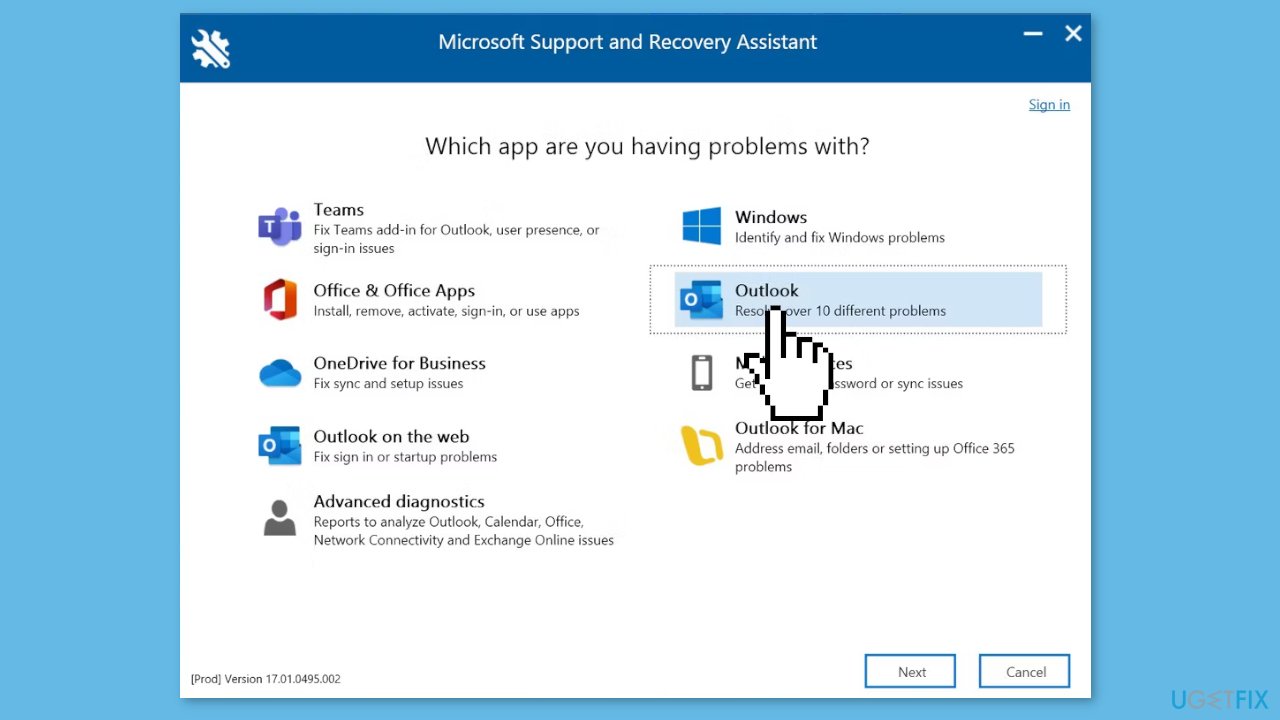
- Upon installation, launch the tool and click the I agree button.
- Select Outlook from the list of applications and click Next.
- Then, follow the on-screen instructions to carry out the repair.
Bottom line
To fix the Outlook error 'the set of folders cannot be opened', you can remove problematic add-ins, repair or recreate the email profile, and fix any corrupted OST or data files. If these solutions do not resolve the issue, consider using a maintenance tool that can address system errors and corrupted files.
Frequently asked questions
You can start by running Outlook in safe mode, which may help identify any add-in conflicts. If that doesn't work, try creating a new Outlook profile through the Control Panel.
Yes, you can use the Inbox Repair Tool (scanpst.exe) to repair your PST file, which often resolves this issue without needing a full reinstall.
You can check for corruption by using the built-in Repair Tool or by manually running the Inbox Repair Tool on your PST/OST files.




Report an issue
What's wrong with this guide? We review every report and update or remove content.
Report received — thank you. We'll review and fix it.
You need a free account to submit a report.
Be the first to comment