How to fix
HDMI audio not working
on Windows
Resolve HDMI audio issues in Windows 10 or 11 quickly. Follow our expert-tested tips for seamless sound restoration, with screenshots for easy guidance.

What causes How to fix HDMI audio not working in Windows?
- Windows unable to recognize HDMI audio output
- Incorrect audio output settings
- Outdated or corrupted audio drivers
- HDMI cable or device malfunction
- HDMI audio output not set as default playback device
Repairs Windows system files, removes malware, and restores a clean OS state — without reinstalling.
Hello. The HDMI connection does not seem to be transferring audio data to my Windows PC. Is there a way to fix this? The HDMI cable is not the problem.
Users may find it challenging when HDMI audio malfunctions in Windows because it affects their ability to hear audio from multimedia files, video streams, and other applications that depend on audio output. The main cause of this problem is Windows' inability to recognize or properly set up the audio output via the HDMI connection. It can occur on various versions of Windows, including Windows 10 and Windows 11.
The effects of this issue may be very serious for users. For instance, people who use their laptops to enjoy themselves by watching movies or playing games will discover that their experience is greatly hampered. The immersive and engaging elements of these activities are lost without audio. Additionally, if the HDMI audio is not working correctly, professionals who depend on their Windows PCs for presentations or video conferencing may experience substantial disruptions. Miscommunication, decreased productivity, and frustration may result from this.
Additionally, customers may experience problems in a variety of situations, such as when they utilize HDMI to link their laptops or desktops to bigger screens or better audio quality on external monitors, projectors, or televisions. When this happens, the connection's intended use may be compromised since it is difficult to exchange films, present information, or listen to high-quality audio in home entertainment systems.
In order to resolve the problem, troubleshooting procedures are typically taken. These steps could include checking audio settings, upgrading or reinstalling audio drivers, making sure the HDMI cable and device are in good working order, and making sure the HDMI audio output is configured as the default playback device.
In this guide, you will find 5 steps that should help you fix HDMI audio not working in Windows. You can also run a repair tool like [d1] that can fix most system errors, BSODs, corrupted files, registry issues, or clear cookies and cache. Otherwise, follow the step-by-step instructions below.
Method 1. Run the Sound Troubleshooter
- Press the Windows key + I to open the Settings app.
- In the Settings app, locate and select the Troubleshoot option.
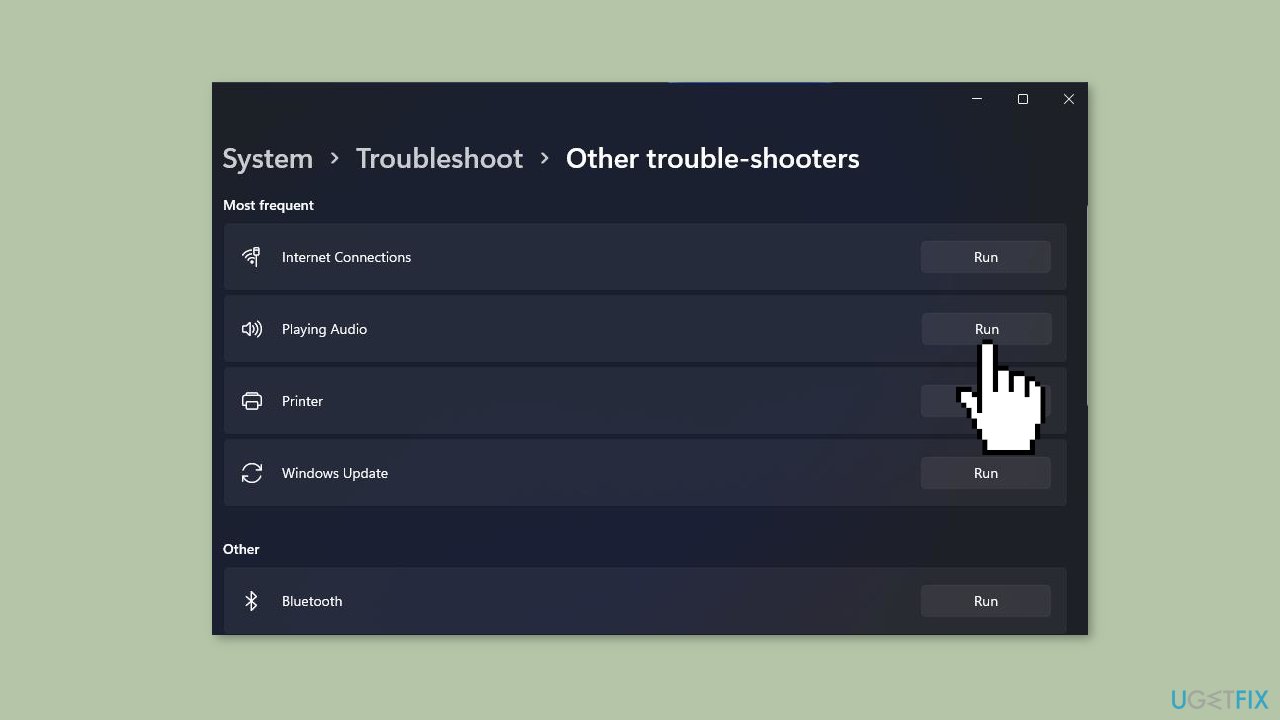
- Inside the Troubleshoot section, click on Other troubleshooters to access a list of Windows troubleshooters.
- Find the Playing Audio troubleshooter in the list and click on its Run button to initiate the troubleshooting process.
- Follow the on-screen instructions and implement any solutions recommended by the troubleshooter to resolve the audio issue.
Method 2. Set HDMI as the Default Playback Device
- Press the Windows key + R on your keyboard simultaneously.
- Input the following command to open sound settings: control mmsys.cpl sounds
- Click OK to open the Sound window.
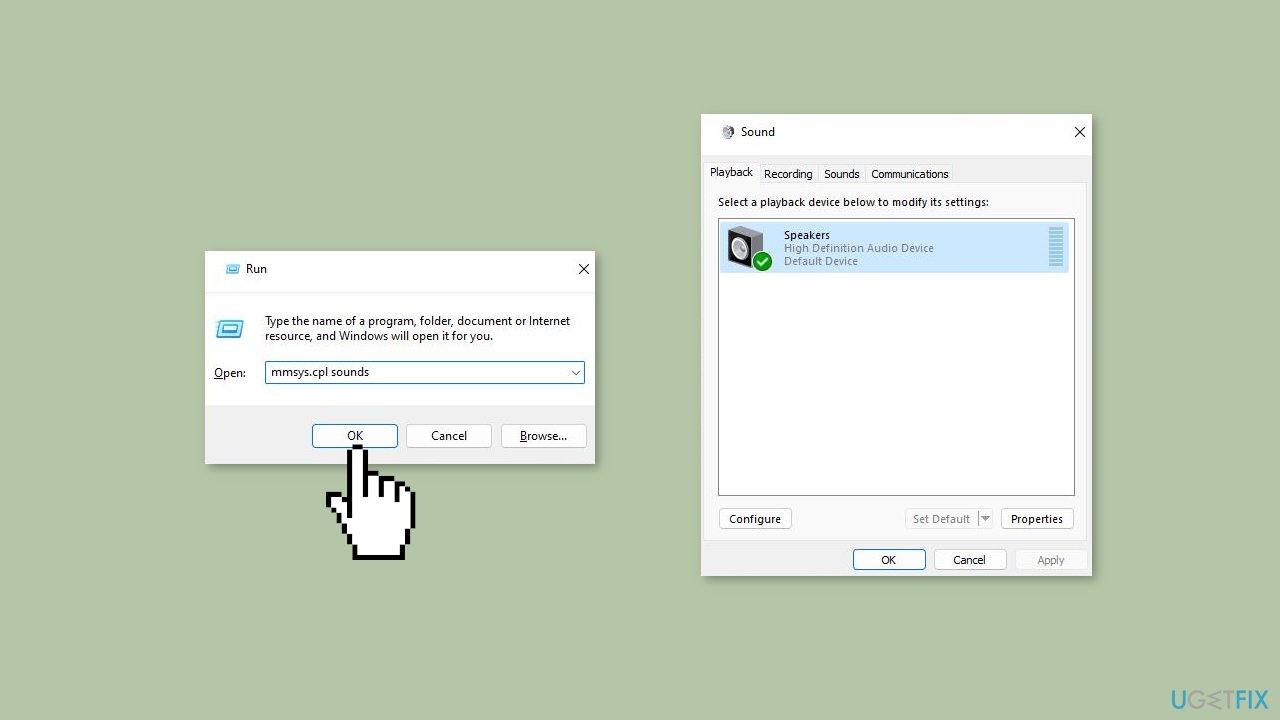
- On the Playback tab, right-click an HDMI output device to select Enable.
- Select the HDMI output device, and press the Set Default button.
- Click Apply and OK to save the new sound settings.
Method 3. Update or Reinstall Sound Drivers
- Press the Windows key + X to open the Power User menu and select Device Manager.
- In Device Manager, double-click the category labeled Sound, video, and audio controllers.
- Right-click the High Definition Audio category and choose Update driver from the context menu.
- In the Update Drivers window, select the option to Browse my computer for drivers.
- Click on Let me pick.
- Choose High Definition Audio Device and then click the Next button.
- Confirm the update by clicking Yes on the Update Driver Warning window.
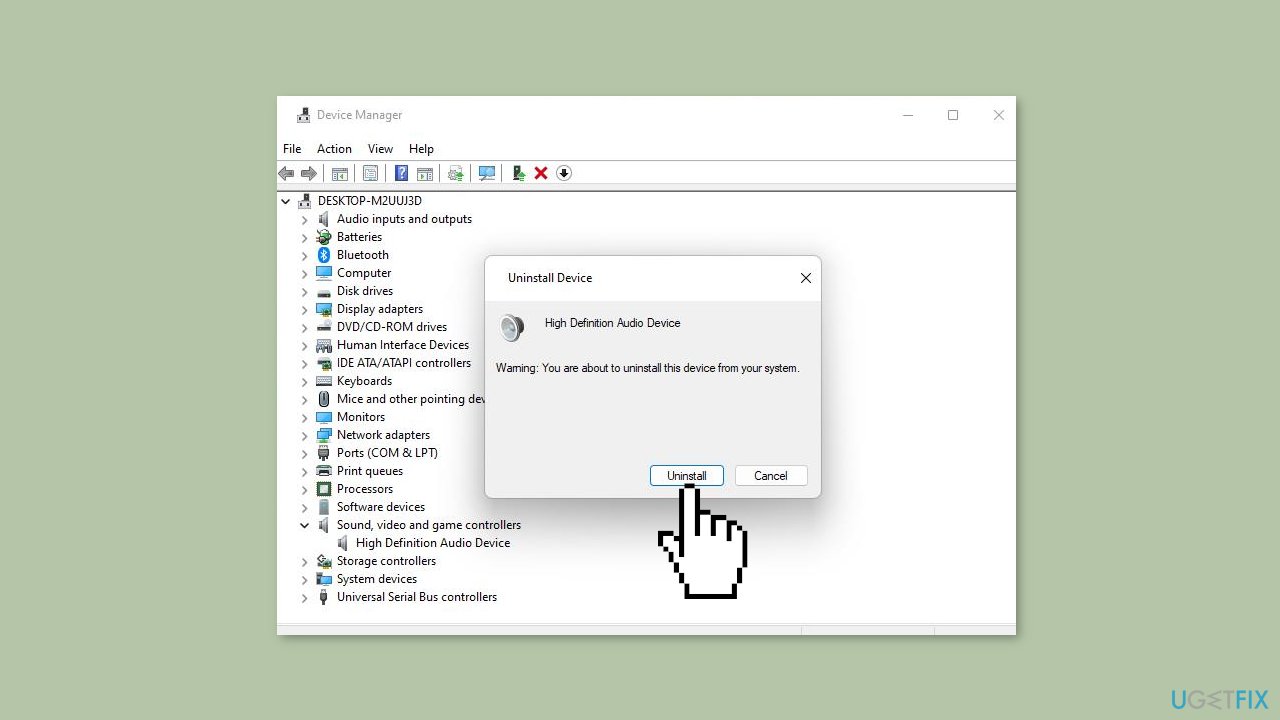
If updating the driver did not work, try reinstalling it:
- Open the Sound, video, and audio controllers category in Device Manager.
- Right-click on High Definition Audio Device to select Uninstall device.
- Choose the Uninstall option.
- Press Alt + F4 to select Restart.
Method 4. Restart the Audio Service
- Bring up Run by pressing the Windows key + X and selecting it from the menu.
- Type in the following Run command: services.msc
- Click OK to launch the Services tool.
- Double-click the Windows Audio service.
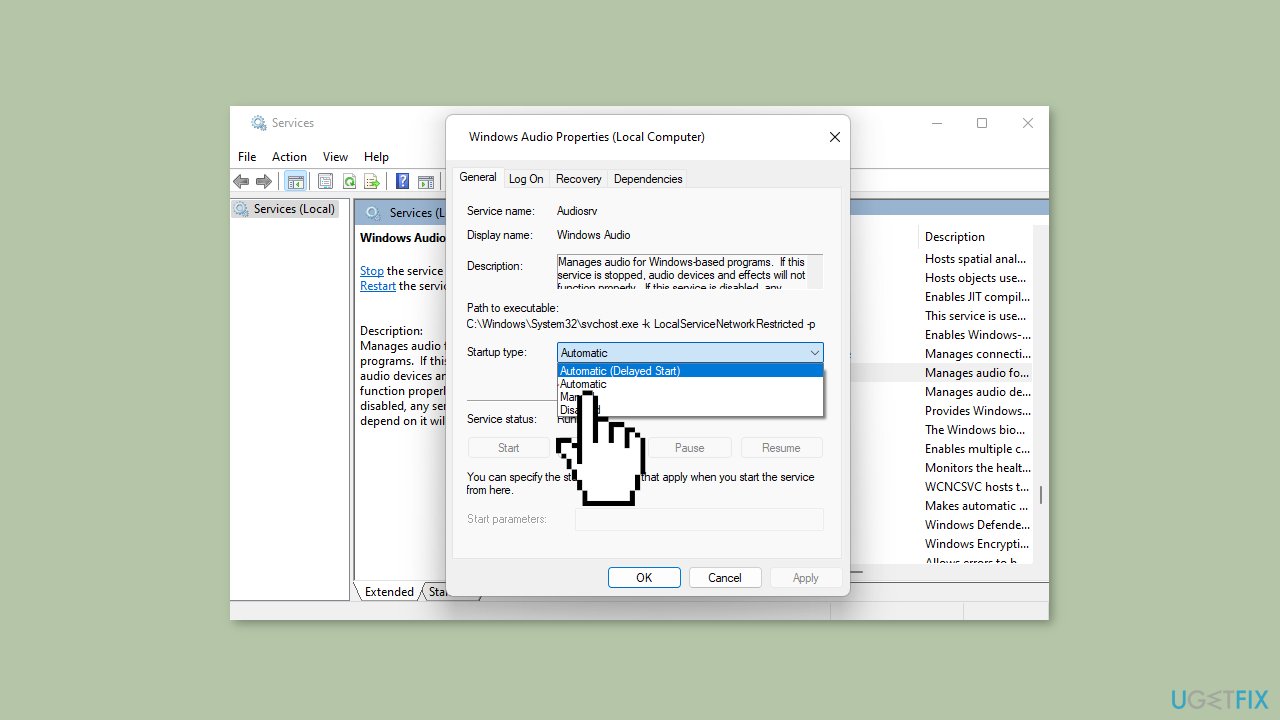
- From the drop-down menu for the Windows Audio service, select Automatic if the service is disabled. Then, click the service's Start button.
- If the Windows Audio service is already enabled, right-click on Windows Audio and choose a Restart option for it.
- Repeat the above steps for the Windows Audio Endpoint Builder service.
Method 5. Enable All Audio Controllers
- Open Device Manager.
- Click the View menu, and select its Show hidden devices option.
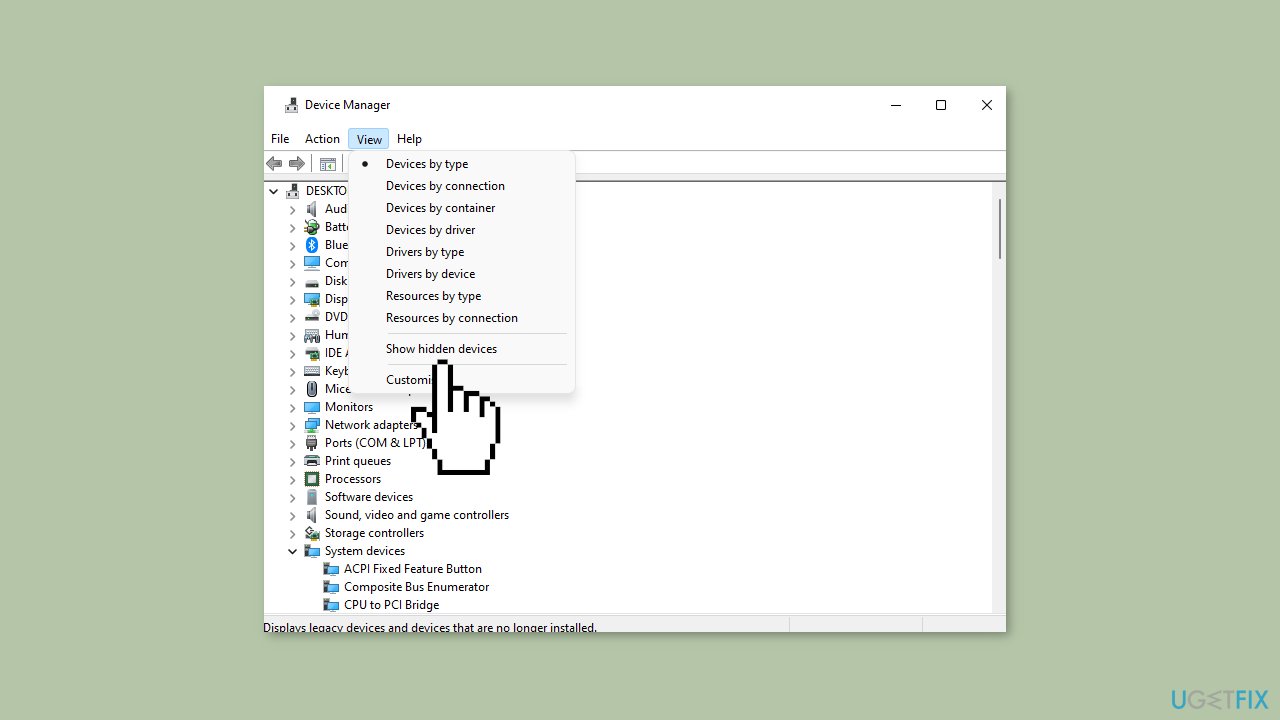
- Double-click System devices to extend that category.
- Right-click High Definition Audio Controller and select Properties.
- In the Properties window, select the Driver tab.
- Click Enable if that option is available on the tab.
- Repeat those steps for any other audio devices listed within that category.
Bottom line
To resolve the HDMI audio issue, users can check their audio settings, update or reinstall audio drivers, ensure the HDMI cable and device are functioning properly, and configure the HDMI audio output as the default playback device. If these steps do not work, consider using a repair tool to fix system errors.
Frequently asked questions
HDMI audio issues on Windows 10 can occur due to incorrect audio settings or outdated drivers. Check your sound settings to ensure the HDMI device is set as the default playback device and update your audio drivers if necessary.
In Windows 11, you can resolve HDMI audio issues by navigating to Settings > System > Sound, and selecting the HDMI device as the output. Additionally, ensure that your graphics and audio drivers are up to date.
If your HDMI device is not recognized in Windows, try unplugging and re-plugging the HDMI cable, or test it on another device to rule out hardware issues. Also, check for any Windows updates that may include necessary driver fixes.




Report an issue
What's wrong with this guide? We review every report and update or remove content.
Report received — thank you. We'll review and fix it.
You need a free account to submit a report.
Be the first to comment