How to fix
OOBELANGUAGE error
on Windows
Resolve the OOBELANGUAGE error in Windows 10 or 11 easily with our expert-tested solutions. Fixed in minutes for a smoother experience!


What causes How to fix OOBELANGUAGE error in Windows?
- User is unable to select or modify the chosen language during the OOBE process
- Error occurs during the language selection part of Windows 11 setup
- Repeated attempts to fix the problem may be ineffective
- Users may lack experience with technical problems
- System settings may require adjustments
Repairs Windows system files, removes malware, and restores a clean OS state — without reinstalling.
Hello. I tried setting up Windows 11 but I got the OOBELANGUAGE error once I reached the language selection part. Is there a way to fix this?
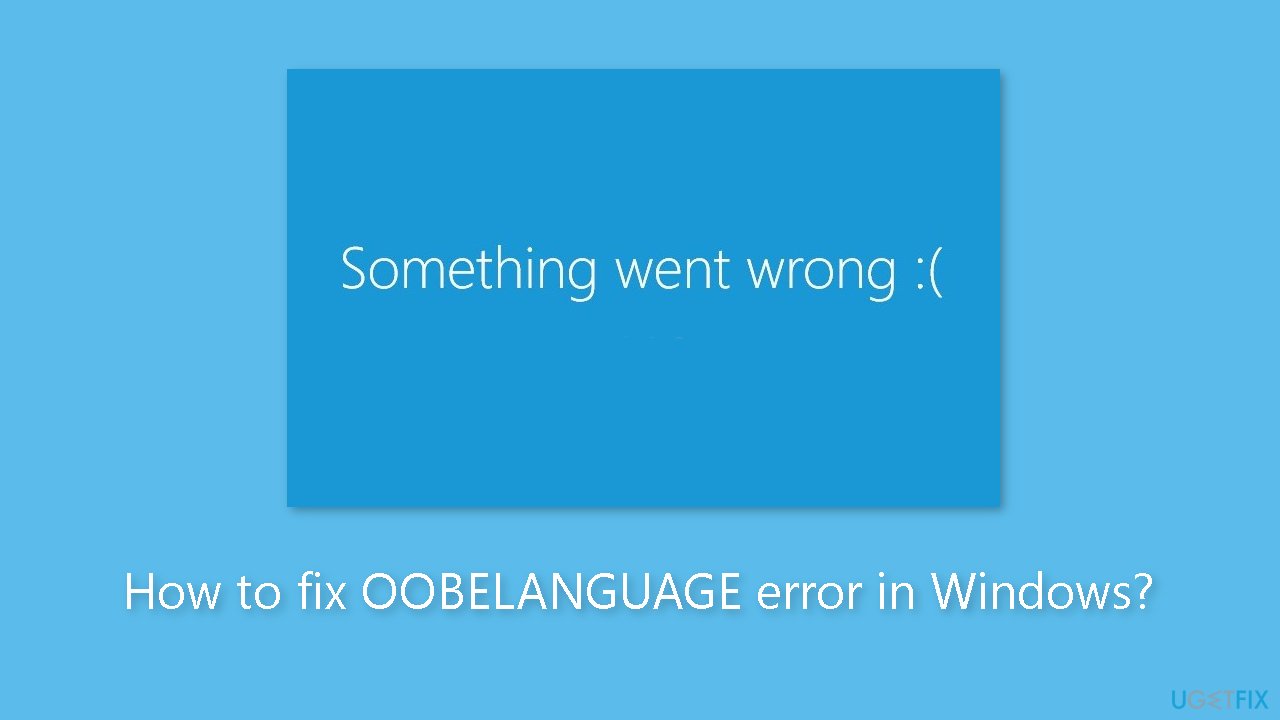
Users trying to set up their operating system may run into the OOBELANGUAGE problem in Windows 11. Users frequently run across this specific problem while trying to select or modify their chosen language during the Out of Box Experience (OOBE) process. When encountered, the error message typically reads, "Something went wrong. You can try again or skip for now OOBELANGUAGE."
This issue may have a number of repercussions and may have a big impact on how users set up their Windows 11 system. It hinders the seamless OOBE process in the first place, preventing users from finishing the first setup as planned. Confusion and irritation might result from not being able to set the preferred language, especially for users who might not be experienced with technical problems.
Additionally, the continued occurrence of this error, even after clicking "Try again," can give users a feeling of hopelessness and leave them unclear about what to do. Additionally, it can take a lot of time because repeated attempts to fix the problem might be ineffective.
There are several troubleshooting techniques available to address the OOBELANGUAGE problem in Windows 11 as possible solutions. Making adjustments to the system setups or settings is typically required for these solutions. It's crucial to remember that these procedures could change depending on the unique conditions and system setups, so users should take caution and think about getting help if they feel uneasy making these adjustments themselves.
In this guide, you will find 4 steps that should help you fix OOBELANGUAGE error in Windows. If you encounter any other OS issue, you can use a repair tool like [d1] that can fix most system errors, BSODs,[ref en-1] corrupted files, and registry[ref en-2] issues. Otherwise, follow the step-by-step instructions below.
Solution 1. Use Registry Editor
- When you are on the OOBELANGUAGE error screen, press Shift + F10.
- The Command Prompt will appear; type regedit.exe and press Enter.
- Click on Yes on the Confirmation prompt.
- Once Registry Editor appears, navigate to the following string:
HKEY_LOCAL_MACHINE\SOFTWARE\Microsoft\Windows\CurrentVersion\Setup\OOBE
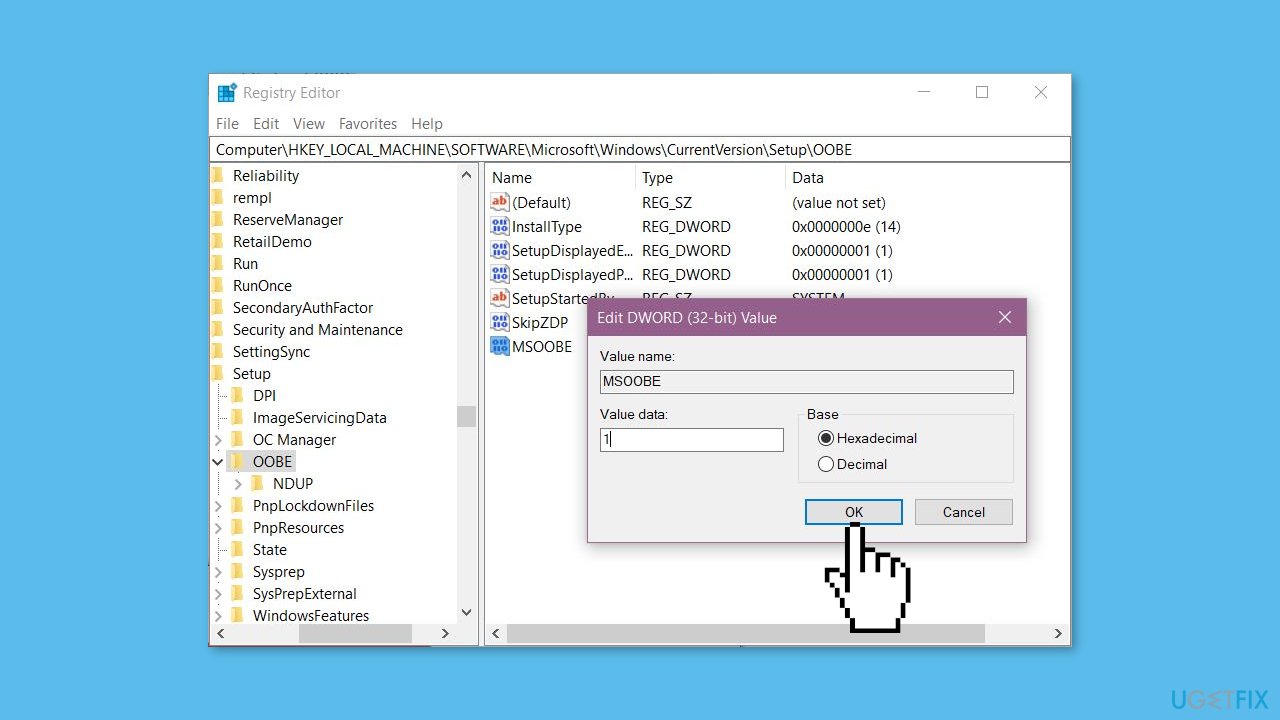
- Go to the right panel and right-click on an empty space.
- Select New > DWORD (32-bit) Value.
- Rename the value to MSOOBE.
- Double-click on this value and enter value data 1.
- Restart the device and check if the OOBELANGUAGE error is solved.
Solution 2. Factory Reset from Out of Box Experience Screen
- Press Shift and F10 keys simultaneously.
- Once Command Prompt appears, type system reset –factoryreset and hit Enter.
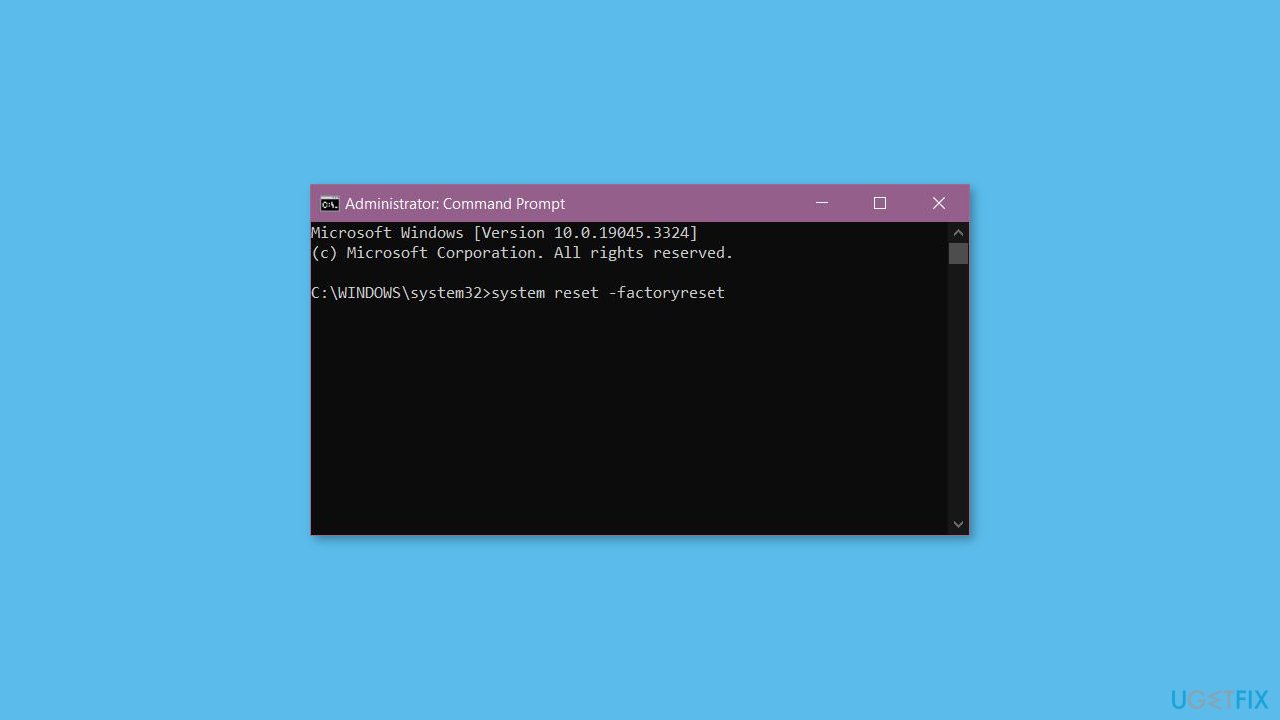
- Give some time to complete the process and check if you can now configure the language on Out of Box Experience.
Solution 3. Reload OOBE
- Press the F10 + Shift keys simultaneously.
- In the Command Prompt, type the following command:
%windir%\System32n\Sysprep\sysprep.exe /oobe /reboot

- Hit Enter and once again, give it an attempt to set a language.
Solution 4. Create a Temporary Account
- Hold down Shift and F10.
- In the following command, change newusername and newuserpassword as per your preference and paste the command into the prompt:
net user administrator /active:yes
net user /add newusername newuserpassword
net localgroup administrators newusername /add
cd %windir%\system32\oobe
msoobe.exe
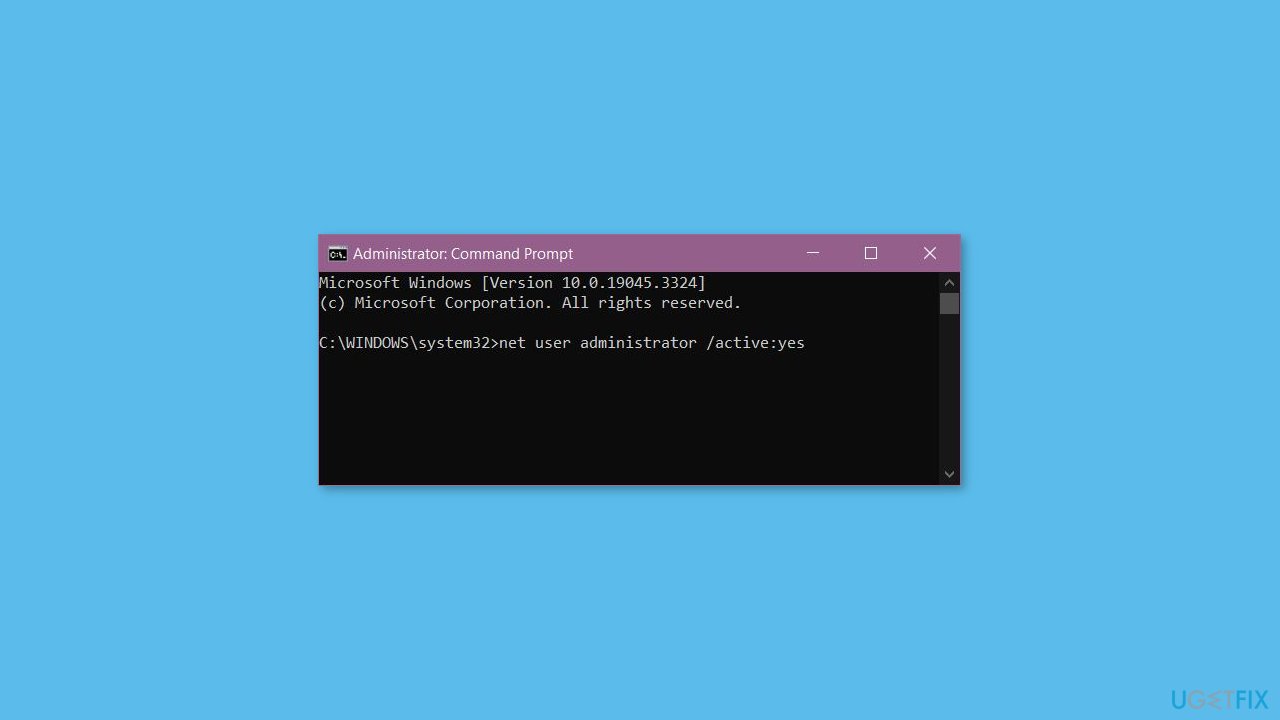
- Hit Enter.
- This process may take 15-20 minutes to complete the task.
- In case it stops working in the middle, force shut down the PC and then turn it on again.
- You will reach the login screen.
- Log in with the newusername and newuserpassword (Note: if you have changed them, use those ones).
- Once you have accessed the desktop, press Winkey and R both at the same time.
- In the Run dialog box, type lusrmgr.msc and press Enter.
- Select the Users folder from the left panel.
- From the middle, right-click on Administrators.
- Then, select Properties.
- You will notice a window; check the box for Account is Disabled.
- Select Apply and then OK.
- Right-click on Defaultuser0 and choose Delete.
- Press the Windows key + I.
- Select Accounts.
- On the Accounts Settings page, navigate to Your info.
- Click on Sign in with Microsoft account instead.
- Follow the onscreen instructions and use your Microsoft account credentials to log in with the administrator.
Bottom line
To fix the OOBELANGUAGE error in Windows 11, you can use the Registry Editor and follow the step-by-step instructions provided. If these solutions do not resolve the issue, consider using a repair tool that can fix system errors.
Frequently asked questions
The OOBELANGUAGE error indicates an issue with the Out-Of-Box Experience language settings during Windows installation or setup. This can prevent users from completing the installation process.
To fix the OOBELANGUAGE error on Windows 11, you can try changing the language settings via the Windows Recovery Environment or by using a bootable installation media to reinstall Windows with the correct language settings.
To prevent the OOBELANGUAGE error in Windows 10, ensure that the correct language pack is selected during the installation process and that your system's region settings match the chosen language.




Report an issue
What's wrong with this guide? We review every report and update or remove content.
Report received — thank you. We'll review and fix it.
You need a free account to submit a report.
Be the first to comment