How to fix
“Your PC did not start correctly” error
on Windows
Resolve the "Your PC did not start correctly" error in Windows 10 and 11 with easy-to-follow solutions. Expert-tested methods for quick fixes.

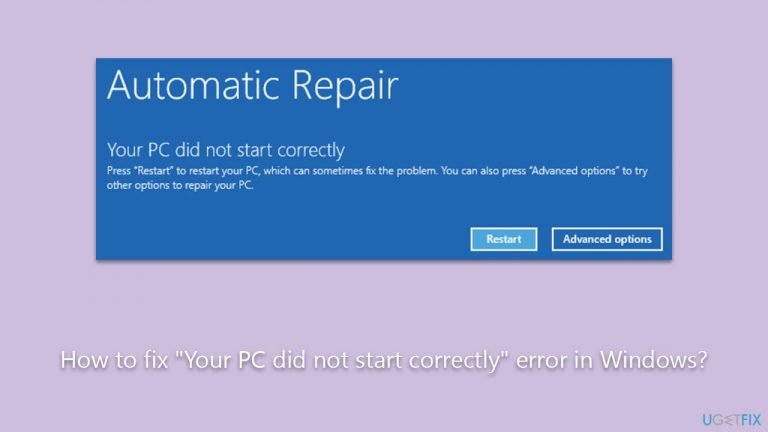
What causes How to fix “Your PC did not start correctly” error in Windows?
- Corrupted system files
- Faulty hardware components
- Conflicts from newly installed software
- Altered system settings
- BIOS or UEFI firmware issues
Repairs Windows system files, removes malware, and restores a clean OS state — without reinstalling.
Hello. I have a problem where I can't boot into my PC, and instead, I receive the "Your PC did not start correctly" error. How do I access Windows? I am sort of stuck now - I need help urgently.
Encountering the "Your PC did not start correctly" message upon booting is a common predicament many Windows users face. This message, when it appears, often takes users by surprise and can stir significant concern. As such, gaining clarity about the underlying causes and the available solutions is imperative.
For some individuals, the "Your PC did not start correctly" error might manifest as a one-time event - a mere glitch that dissipates on the next startup, causing no further inconvenience. However, for a different subset of users, the situation is markedly different. The message not only persists across multiple startups but also impedes users from accessing their computer systems, locking them out of their files, applications, and other pivotal resources.
Various factors could trigger this error. Corrupted system files can disrupt the smooth functioning of the system. Imagine trying to read a book with missing pages; in much the same way, a computer system with damaged or absent files will inevitably falter. Moreover, issues can stem from faulty hardware components - the intricate machinery of hard drives, RAM, and other elements, if compromised, can hinder the system's startup process.
Beyond hardware, software complexities can arise. Newly installed software might clash with pre-existing programs or system settings, giving rise to startup anomalies. Even inadvertent alterations in system settings, especially those concerning the BIOS or UEFI firmware, can produce the "Your PC did not start correctly" error.
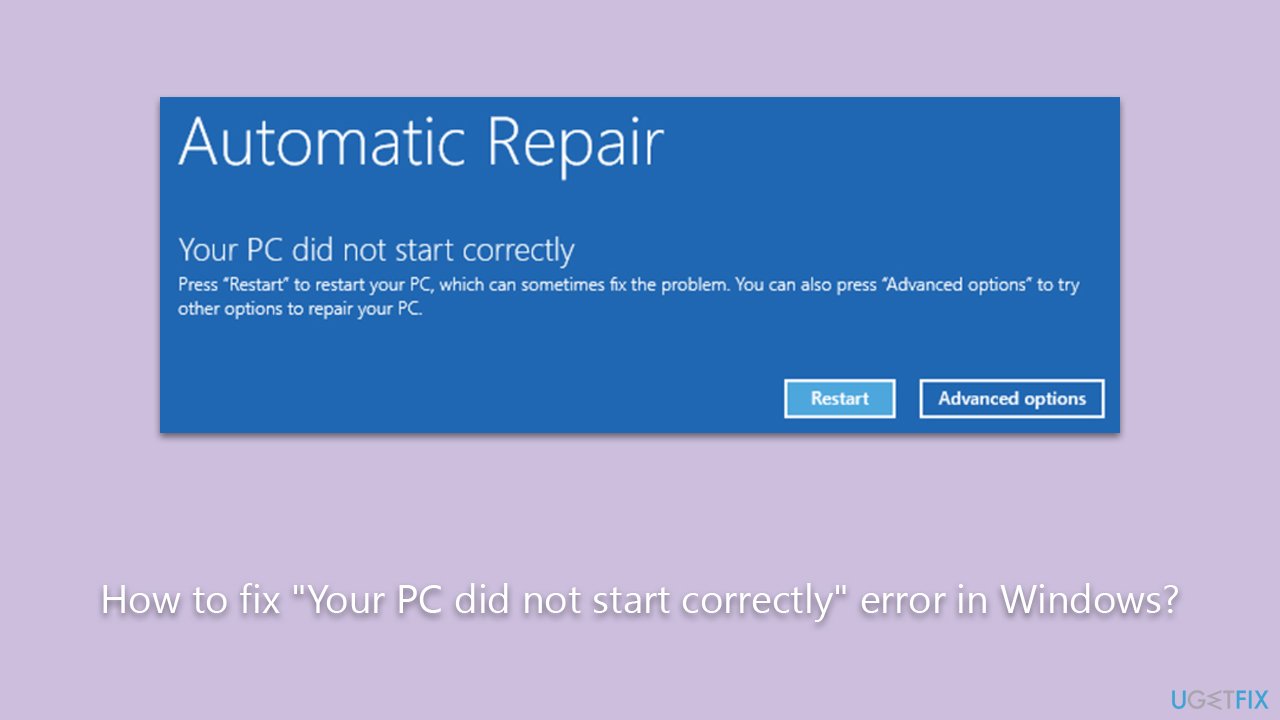
Nevertheless, as multifaceted as the reasons might be, solutions are accessible. For those uncertain about the root cause or those wary of delving into manual troubleshooting, leveraging the capabilities of [d1] PC repair software offers a promising and straightforward resolution.
Fix 1. Use Startup Repair
Windows offers a built-in tool called Startup Repair that can automatically fix certain problems that prevent the computer from starting correctly.
- Restart Windows - use Power or Reset button.
- Once the system starts loading, interrupt the process by pressing and holding Power button for several seconds - do this two more times, and you should enter Windows Recovery Environment.
- From here, select Troubleshoot > Advanced Options and click Startup Repair.
- Follow the on-screen instructions to complete the restore process.

Fix 2. Use System Restore
System restore is a feature in Windows that allows users to revert their computer's state (including system files, installed applications, Windows Registry, and system settings) to a previous point in time. This can be useful for recovering from problems that might have been introduced by a recent change.
- Access Windows Recovery Environment as explained in the previous fix.
- Go to Troubleshoot > Advanced options.
- From here, pick System Restore.
- Pick the point in time when the problem did not exist and follow on-screen instructions.
- Your system will restart.

Fix 3. Run SFC and DISM
If the issue is caused by
- Access Windows Recovery Environment once again.
- Select Troubleshoot > Advanced options > Command Prompt.
- In the Command Prompt, type in the following command and press Enter. This command will initiate the scanning process.
sfc /scannow - Allow some time for the scan to complete and repair any corrupted files found.
- When done, use the following command, pressing Enter after:
Dism /Online /Cleanup-Image /RestoreHealth - Reboot your PC in normal mode.

Fix 4. Rebuild BCD
Boot Configuration Data (BCD) is a database containing essential information required for Windows to boot up. If the BCD becomes corrupted or misconfigured, it can prevent Windows from starting. Rebuilding the BCD can rectify this issue by reconfiguring or replacing any missing or corrupt data.
- Access WinRe and select Troubleshoot > Advanced options.
- From the subsequent options, open Command Prompt.
- Within the Command Prompt, type the following command and press Enter:
bootrec /rebuildbcd - The system will then scan for Windows installations not included in the BCD. If any are found, you will be prompted to add them.
- Confirm by typing Y and pressing Enter.

Fix 5. Reset the PC
Resetting your PC reinstalls Windows, providing an option to keep or remove personal files while removing apps, drivers, settings, and any software changes made. It’s akin to a fresh installation but more streamlined.
- From the recovery environment, choose Troubleshoot.
- Now, select Reset this PC.
- You will be presented with two options:
- Keep my files - This option will preserve your personal files but remove apps and settings.
- Remove everything - This option will remove everything, including personal files, apps, and settings.
- Choose the desired option based on your preference.
- Follow the on-screen instructions to initiate the reset. The system will go through the process, which might take some time, depending on your hardware and the amount of data.
- Once completed, you'll have a fresh installation of Windows, and you can proceed with the initial setup.

Fix 6. Reinstall Windows using ISO file
If the previous method did not work, using the Media Creation Tool to create a bootable USB might. Please follow the steps below:
- Download Windows 10 installation media (Windows 11 version) from the official Microsoft website.
- Double-click the installer to launch it.
- Agree to Terms and select Next.
- Select Create installation media (USB flash drive, DVD or ISO file) for another PC and click Next.
- Pick a USB flash drive (make sure you have USB connected to your PC).
- Mark the Use Recommended options for this PC checkbox and click Next
- Pick ISO file and click Next to finish the process.
Once you have the USB ready, proceed with the following:
- Connect the USB to the PC that you are having trouble with.
- Boot into BIOS and go to the Boot menu.
- Here, select the Boot priority option and set it to USB.
- Restart the system.
- When the system boots, you will be presented with the Install now option - click it.
- Select all the preferences and click Next.
- Skip Windows activation for now - select I don't have a product key.
- Select the correct version of the operating system (if you were using Windows 11 Home before, use the same option).
- In the next step, select Keep personal files and apps.
- Select the correct partition and click Next.

Bottom line
To address the 'Your PC did not start correctly' error, you can utilize the built-in Startup Repair tool in Windows. If the issue persists, consider using PC repair software for further assistance. If none of these solutions work, seeking professional help may be necessary.
Frequently asked questions
You can try booting into Safe Mode and then restart your PC to see if it resolves the issue. If that doesn't work, use the Startup Repair option from the Windows Recovery Environment.
Yes, you can use the Startup Repair tool or System Restore to fix the issue without losing your files. However, ensure you back up your important data just in case.
To minimize the chances of encountering this error in Windows 10 or 11, keep your system updated, regularly run disk checks, and avoid abrupt shutdowns.




Report an issue
What's wrong with this guide? We review every report and update or remove content.
Report received — thank you. We'll review and fix it.
You need a free account to submit a report.
Be the first to comment