How to fix
WSL error 4294967295
on Windows
Resolve WSL error 4294967295 in Windows 10 and 11 effortlessly with our expert-tested solutions. Get back to smooth operation in minutes!

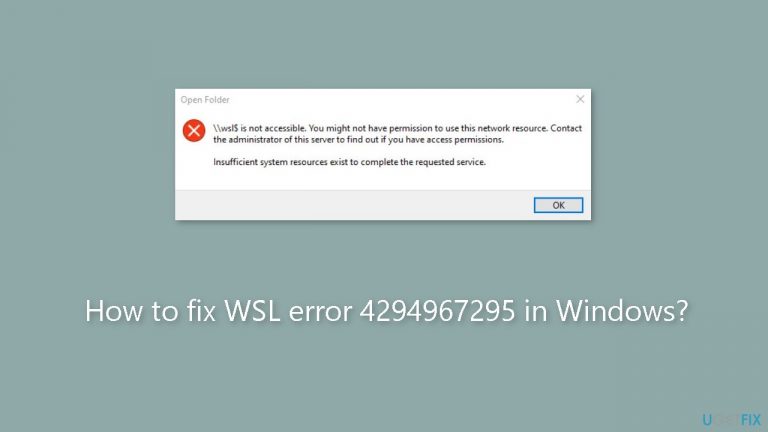
What causes How to fix WSL error 4294967295 in Windows?
- Failed communication between Windows and Linux subsystems
- Challenges starting Linux distributions
- Issues using Linux commands
- Inaccessibility to Linux file systems
- Potential corruption in WSL components
Repairs Windows system files, removes malware, and restores a clean OS state — without reinstalling.
Hello. When I tried to access my Linux files in Windows Explorer I got the 4294967295 error. Any way to fix this?
Although obscure in its numerical form, the WSL error code 4294967295 indicates a serious failure in communication between the Windows and Linux subsystems. This problem may have a substantial negative effect on users' capacity to make use of WSL's features, disturbing their workflow and making it more difficult for them to use Linux-based tools and apps inside of a Windows environment.
The main way that this problem presents itself is as a roadblock to the smooth communication between Linux and Windows environments. It may cause a number of operational issues with the WSL, including challenges starting Linux distributions, using Linux commands, or gaining access to Linux file systems. Users can consequently be unable to carry out necessary tasks, cooperate across platforms, or use Linux-based development tools, which are becoming more and more well-liked among developers and system administrators.
Furthermore, the lack of clear, user-friendly information about the underlying cause makes the WSL error code 4294967295 very aggravating. Users' inconvenience may be increased by their confusion over what specifically went wrong and how to fix it.
Users can investigate alternative solutions, such as checking for Windows updates, making sure the Windows Subsystem for Linux capability is turned on, and confirming the reliability of their Linux distributions, to mitigate this problem. In addition, troubleshooting procedures could entail looking at system logs and, if required, reinstalling WSL components.
In this guide, you will find 5 steps that should help you fix WSL error 4294967295 in Windows. You can also run a maintenance tool like [d1]. It can fix most system errors, BSODs,[ref en-1] corrupted files, and registry[ref en-2] issues. Otherwise, follow the step-by-step instructions below.

Method 1. Check Network Connection
Considering that the error message indicates a failed connection attempt or a disruption in an established connection due to the connected host (in this instance, Windows) not responding, your initial step should be confirming the presence of a stable internet connection. This is crucial because issues like network interruptions, latency, or packet loss can result in communication difficulties between the client and server, potentially causing the problem in question.
Method 2. Restart WSL
- Open the Task Manager and right-click on any WSL-related process.
- Choose End task or Disable.

- Once done, open your preferred terminal emulator as an administrator.
- For instance, if you are using Command Prompt, press the Windows key + R together to open Run and type cmd in the text field.
- Press the Ctrl + Shift + Enter keys together to launch the Command Prompt as an administrator.
- Click Yes in the User Account Control prompt.
- Type wsl in the following window and click Run as administrator to open WSL again. You can now check if the problem is resolved.
- Alternatively, you can also re-enable WSL using the following steps:
- In the elevated Command Prompt window, execute the following commands one by one:
DISM /online /disable-feature /featurename:VirtualMachinePlatform /norestart
DISM /online /disable-feature /featurename:Microsoft-Windows-Subsystem-Linux /norestart
- Once the commands are completed, restart your computer and upon reboot, execute the following commands in cmd:
DISM /online /enable-feature /featurename:VirtualMachinePlatform /norestart
DISM /online /enable-feature /featurename:Microsoft-Windows-Subsystem-Linux /norestart
Method 3. Reset Network Settings
- Type cmd in the Windows search utility and click on Run as administrator.
- Select Yes in the User Account Control prompt.
- Now, execute the following commands one by one:
wsl --shutdown
netsh winsock reset
netsh int ip reset all
netsh winhttp reset proxy
ipconfig /flushdns
- Once done, press the Windows key + I together to open the Settings app.
- Navigate to Network & Internet > Status > Network reset. Click on Reset now.
- Finally, restart your computer and upon reboot, check if the issue is resolved.

Method 4. Disable Antivirus Software
Occasionally, your antivirus software might disrupt WSL network activities, leading to an error. To verify this possibility, you can temporarily disable your antivirus software and subsequently initiate your Windows Subsystem for Linux. If WSL functions smoothly without the antivirus program, it suggests that the antivirus was obstructing WSL network operations.
Method 5. Modify the Hypervisor Launch Type
- Launch Command Prompt as an administrator.
- Execute the following command:
bcdedit /set hypervisorlaunchtype auto

- Once done, restart your computer and check if the error is resolved.
- In case you suspect an issue with the Hyper-V service itself, you can also try restarting it. For that, simply access the Services utility, locate the Hyper-V service, and right-click on it. Choose Restart and check if that makes any difference.
Bottom line
To fix WSL error 4294967295, users should check for Windows updates, ensure the Windows Subsystem for Linux capability is enabled, and verify the reliability of their Linux distributions. Additionally, troubleshooting may involve examining system logs and reinstalling WSL components. If these steps do not resolve the issue, consider running a maintenance tool to address system errors.
Frequently asked questions
This error typically occurs due to issues with the Windows Subsystem for Linux installation or corrupted system files. It can also be triggered by insufficient permissions or misconfigured settings.
To troubleshoot this error, you can try resetting the WSL by running 'wsl --unregister <distro>' in PowerShell, and then reinstalling the distribution. Additionally, ensure that your Windows 11 is updated to the latest version.
To prevent this error in Windows 10, ensure that you regularly update your system and WSL components, and avoid making unnecessary changes to WSL settings. Regularly checking for Windows updates can also help maintain system stability.




Report an issue
What's wrong with this guide? We review every report and update or remove content.
Report received — thank you. We'll review and fix it.
You need a free account to submit a report.
Be the first to comment