How to fix
Valorant “TIMEOUT” error
on Windows
Resolve the Valorant "TIMEOUT" error on Windows 10 and 11 quickly with our expert-tested solutions. Get back to gaming in minutes!

What causes How to fix Valorant “TIMEOUT” error in Windows?
- Connection difficulty for the player's internet service
- Server-side issue
- Inadequate system specifications
- Unstable or slow internet connection
- Frequent disconnections from matches
Repairs Windows system files, removes malware, and restores a clean OS state — without reinstalling.
Hello. I was playing Valorant but was thrown out of the game a couple of times with the "TIMEOUT" error. What should I do?
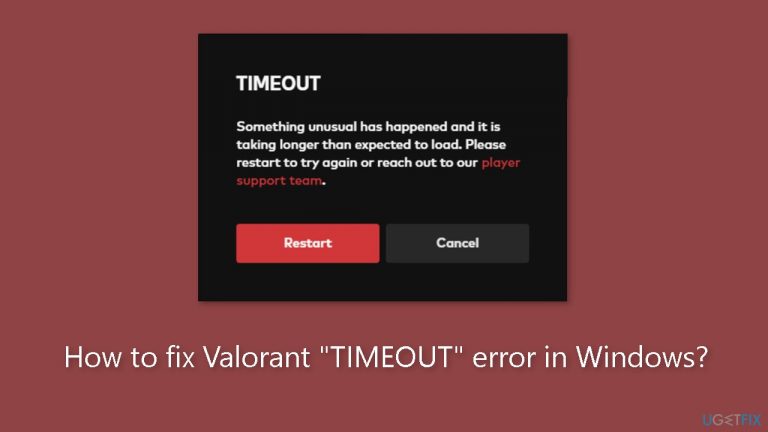
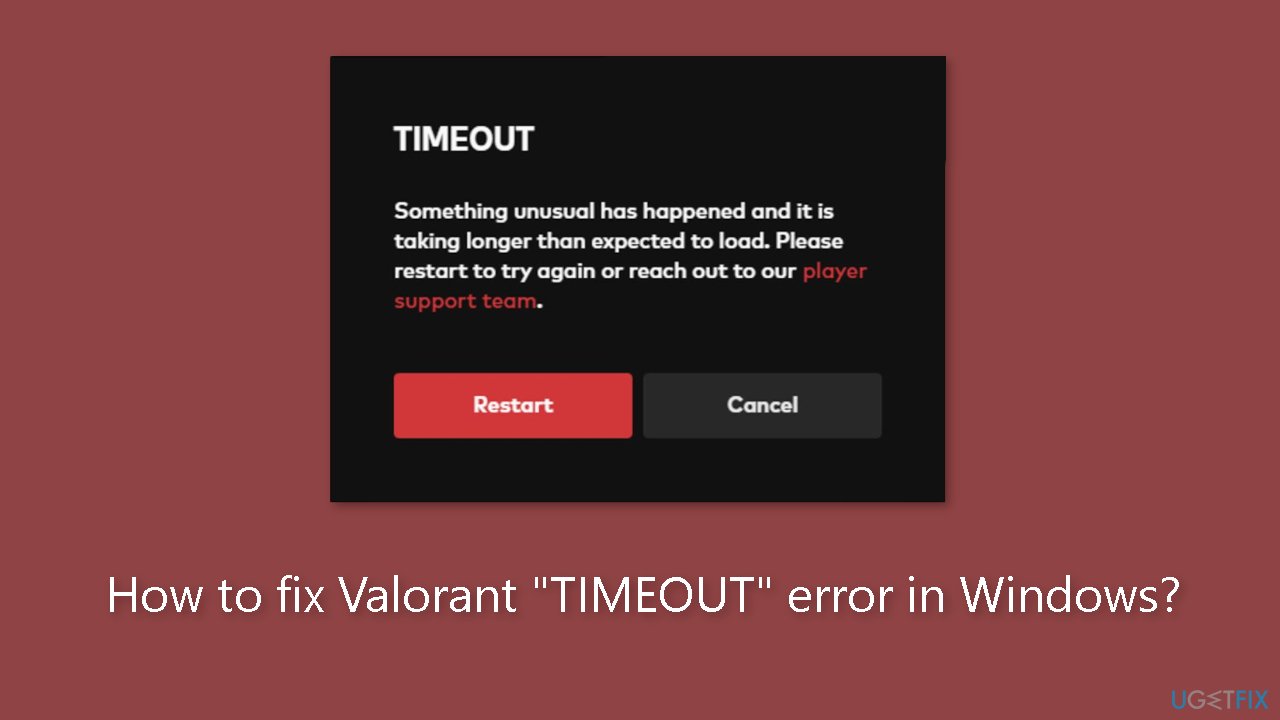
Many players have experienced the "TIMEOUT" problem in Valorant on occasion, which can be annoying for those attempting to enjoy the well-liked free-to-play hero shooter. Players who experience this problem are informed that "Something unusual has happened" and that "It is taking longer than expected to load." This error message often denotes a connection difficulty for the player's internet service or a server-side issue.
The principal way that this issue might have an impact on users is by ruining their gaming experience. Valorant is a highly competitive game where split-second decisions and teamwork are crucial. Players who encounter the "TIMEOUT" error are frequently forced to leave a match that is in progress or barred from joining one, which can be disadvantageous for their team and have a negative effect on how much fun the game is for everyone.
Furthermore, many repetitions of this issue might ruin a player's game experience, leaving them discouraged and frustrated. In-game reputation and rating can suffer if a player regularly disconnects from matches owing to TIMEOUT problems.
There are a few options that players can think about to fix the "TIMEOUT" problem in Valorant. These fixes involve keeping an eye on Valorant's servers, guaranteeing a steady, fast internet connection, and making sure the player's computer satisfies the game's system specifications.
In this guide, you will find 5 steps that should help you fix Valorant "TIMEOUT" error in Windows. You can also run a maintenance tool like [d1] that can fix most system errors, BSODs,[ref en-1] corrupted files, and registry[ref en-2] issues. Otherwise, follow the step-by-step instructions below.
Solution 1. Run the Game as an Administrator
- Open the Search box.
- Type valorant.
- Right-click on VALORANT.
- Select Open file location.
- In the new window, right-click on VALORANT Shortcut.
- Select Properties.
- Go to the Compatibility tab.
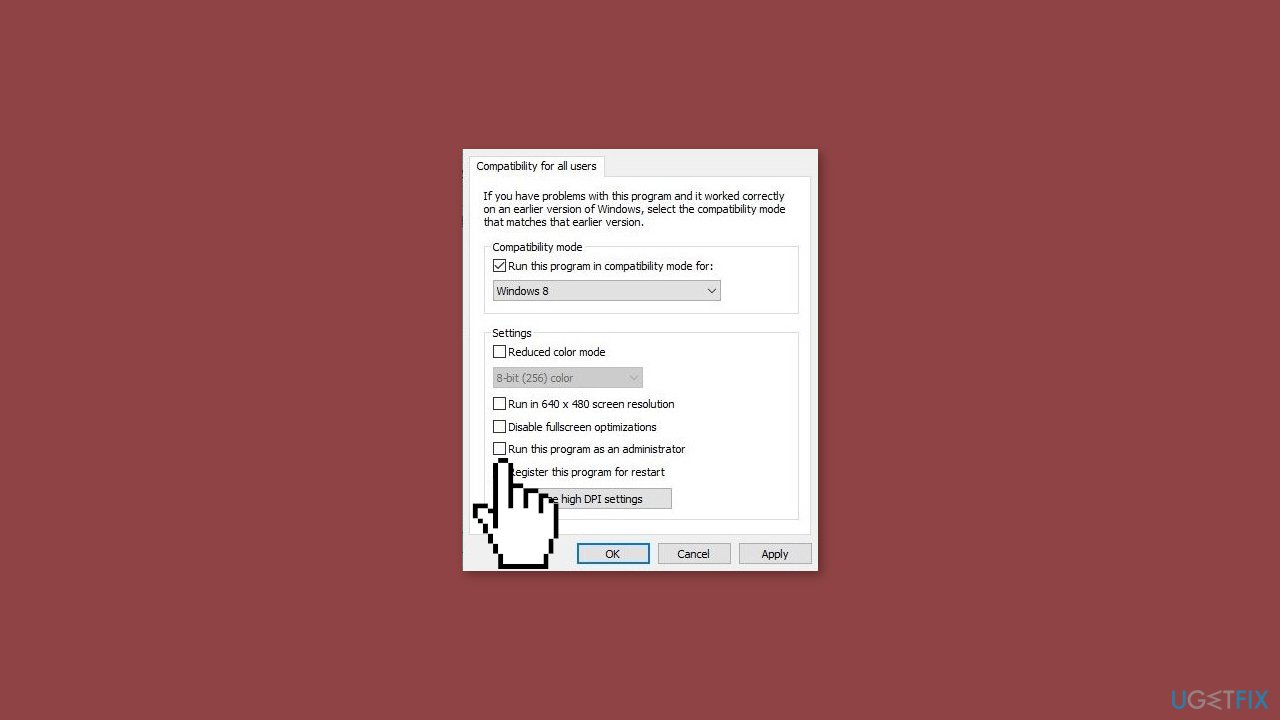
- Check the box that says Run this program as an administrator.
- Click Apply and then OK.
- After making these changes, open Valorant, and you should now be able to launch the game with administrative rights.
Solution 2. Turn off Windows Firewall
- Press the Windows key + R to open the Run dialog box.
- Type control and press Enter.
- In the Control Panel, select System and Security (ensure the View by option is set to Category).
- Choose Windows Defender Firewall.
- On the left side of the screen, click Turn Windows Firewall on or off.
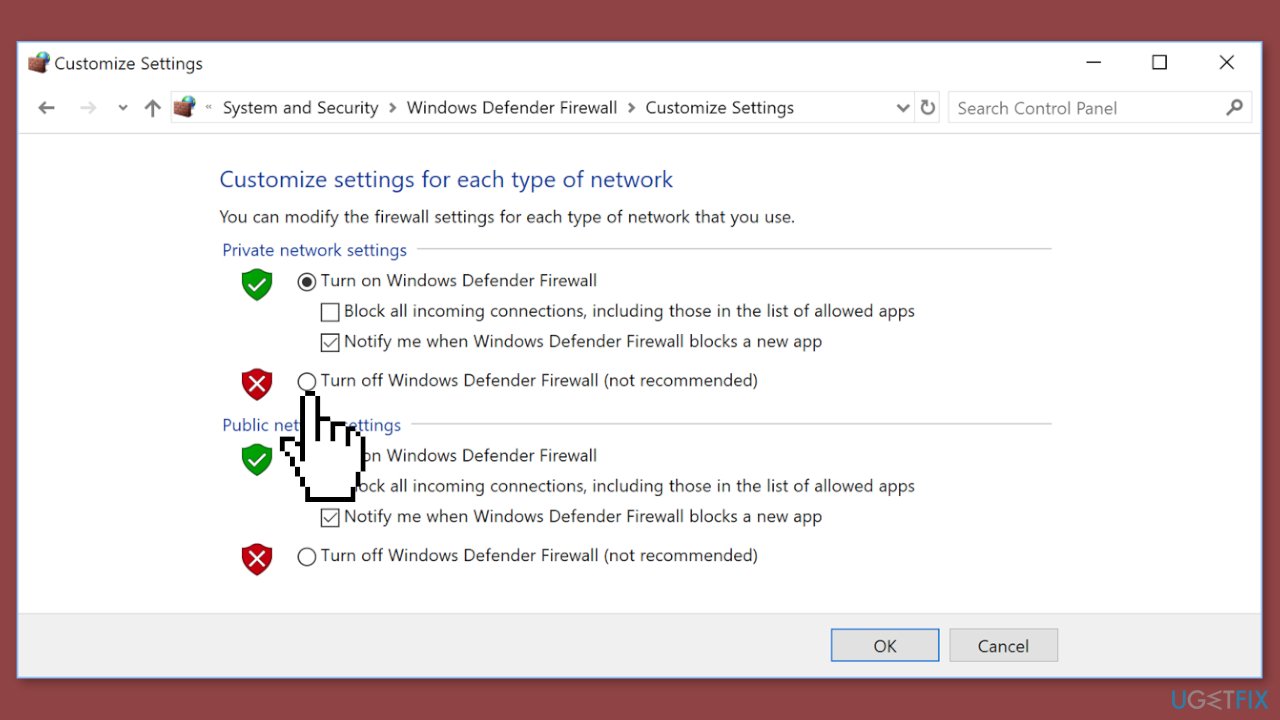
- Select the bubble next to Turn off Windows Defender Firewall (not recommended).
- Click OK to save the changes.
- Optionally, you can also disable the Windows Defender Firewall for both the private and public network settings.
Solution 3. Change DNS Settings
- Press the Windows key + R to open the Run dialog box.
- Type control and then press Enter on your keyboard to open the Control Panel.
- Click Network and Internet. (Make sure you've set Category as the View by.)
- Click Network and Sharing Center.
- Click on your network connection (whether it's Ethernet, Wi-Fi, or others).
- Click Properties.
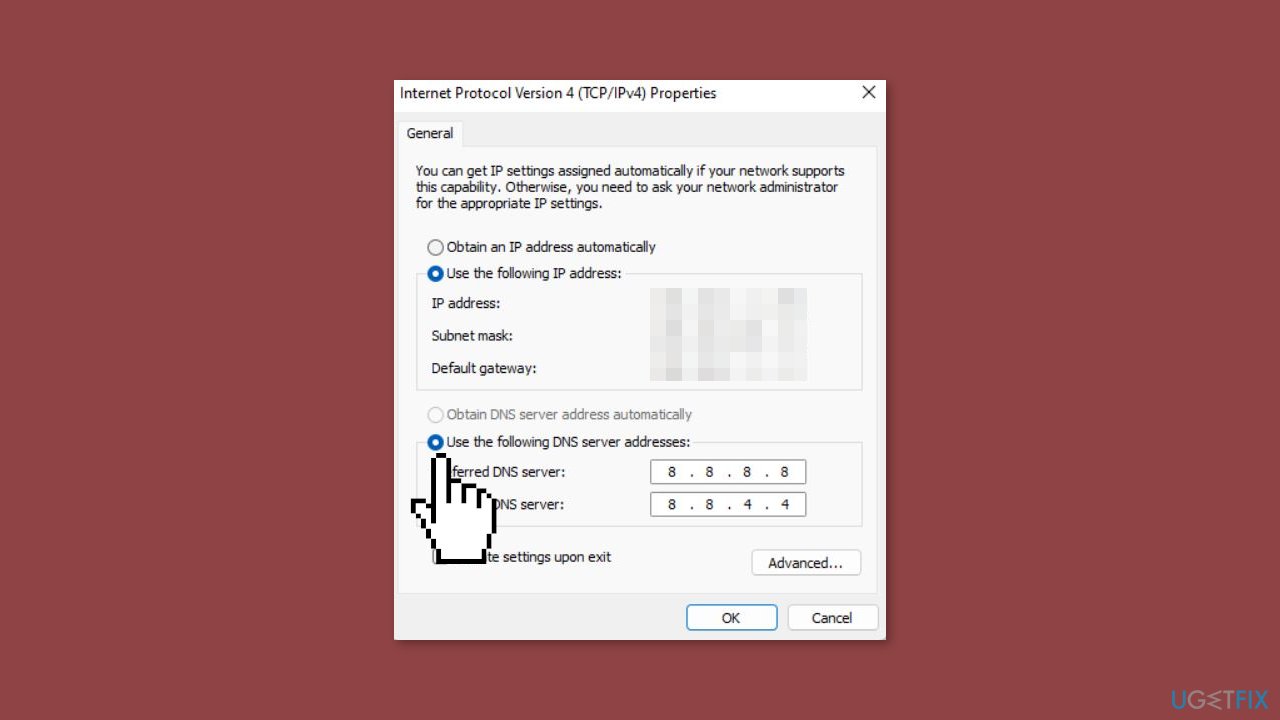
- Click Internet Protocol Version 4 (TCP /IPv4) and then click Properties.
- Select the bubble next to Use the following DNS server addresses.
For Preferred DNS server, type 8.8.8.8
For Alternate DNS server, type 8.8.4.4
- Tick Validate settings upon exit and then click OK.
Solution 4. Flush DNS Cache
- Open the Search box.
- Type cmd.
- Right-click Command Prompt from the results.
- Select Run as administrator.
- In the Command Prompt window that appears, type the following command:
ipconfig /flushdns
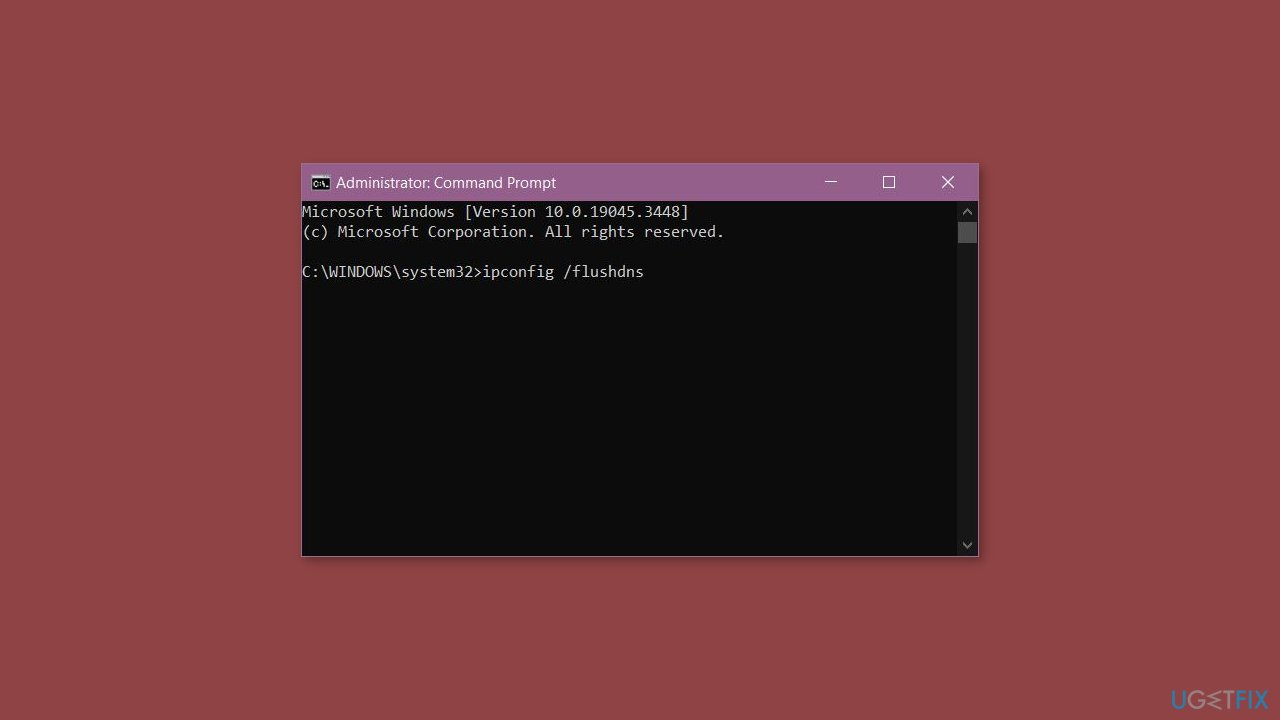
- Press Enter.
- If successful, the Command Prompt will report back with Successfully flushed the DNS Resolver Cache.
- Once done, restart your computer.
Solution 5. Update Network Adapter Driver
- Press the Windows key + X on your keyboard.
- From the menu that appears, select Device Manager.
- In the Device Manager window, locate and expand the section labeled Network adapters.
- Find your network adapter from the list. It might be labeled with the brand or model name of your network card.
- Right-click on your network adapter.
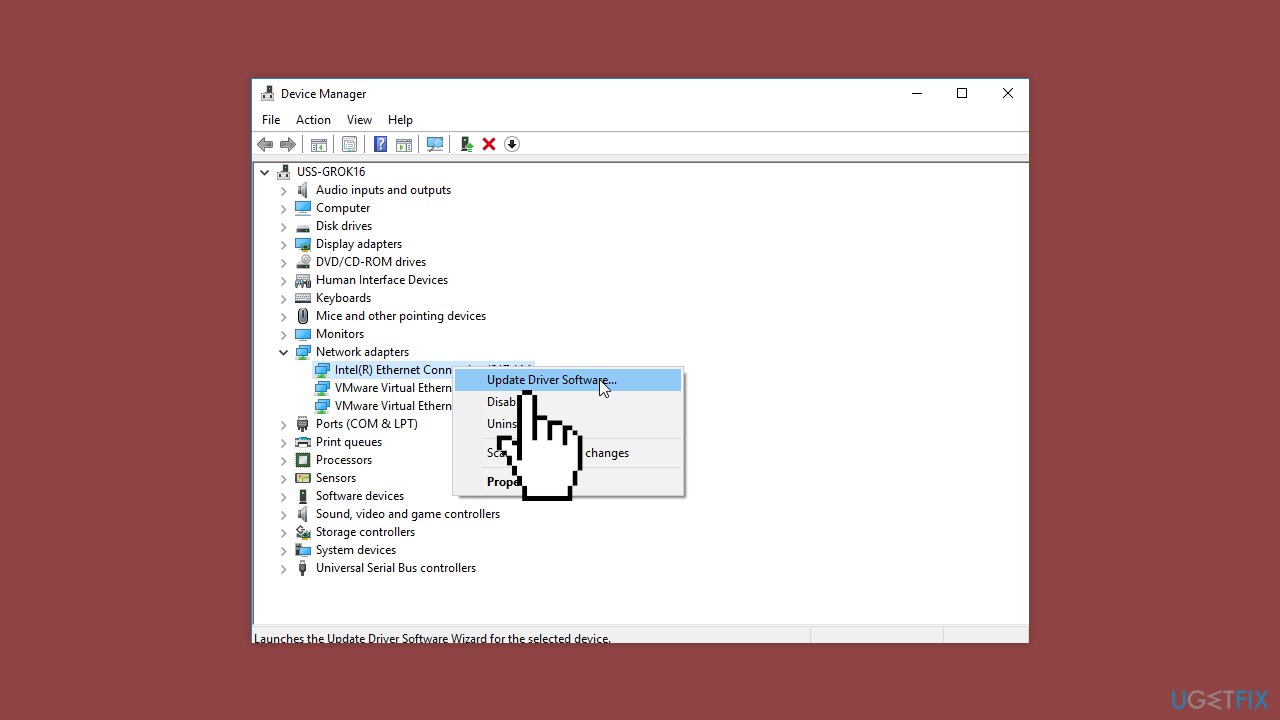
- Select Update driver from the context menu.
- Click Search automatically for updated driver software. This option allows Windows to search for the latest driver online and install it if available.
You can also use a dedicated utility like [rev id="DriverFix"] that can find the best drivers for your machine and install them automatically.
Bottom line
To fix the Valorant 'TIMEOUT' error in Windows, players should check Valorant's servers, ensure a stable and fast internet connection, and verify that their computer meets the game's system specifications. Additionally, running the game as an administrator may help. If these solutions do not work, consider using a maintenance tool to address system errors.
Frequently asked questions
The 'TIMEOUT' error in Valorant is often caused by network connectivity issues, server problems, or firewall settings blocking the game's access. Ensuring a stable internet connection and checking your firewall settings can help resolve this issue.
To troubleshoot the 'TIMEOUT' error on Windows 11, try restarting your router, verifying game files, and temporarily disabling your antivirus software. Additionally, running Valorant as an administrator can also help eliminate permission-related problems.
Yes, you can fix the 'TIMEOUT' error by allowing Valorant through the Windows Firewall. Go to 'Windows Security', select 'Firewall & network protection', then 'Allow an app through firewall', and ensure Valorant is checked for both private and public networks.




Report an issue
What's wrong with this guide? We review every report and update or remove content.
Report received — thank you. We'll review and fix it.
You need a free account to submit a report.
Be the first to comment