How to fix
EXCEPTION_ILLEGAL_INSTRUCTION error
on Windows
Resolve the EXCEPTION_ILLEGAL_INSTRUCTION error on Windows 10 and 11 quickly and effectively. Expert-tested solutions to get you back on track, fixed in…

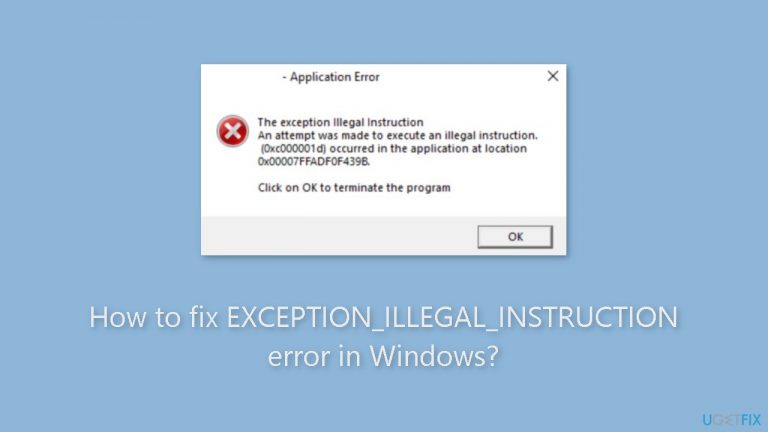
What causes How to fix EXCEPTION_ILLEGAL_INSTRUCTION error in Windows?
- Missing essential components
- Badly developed software
- Outdated operating system
- Outdated drivers
- Hardware issues
Repairs Windows system files, removes malware, and restores a clean OS state — without reinstalling.
Hello. I keep getting an application error "EXCEPTION_ILLEGAL_INSTRUCTION" when I try to game on my Windows PC. I also got a BSOD a couple of times. How do I fix this?
Users who are running various applications may experience the EXCEPTION_ILLEGAL_INSTRUCTION error on Windows. This error can be caused by both hardware and software issues, and it often occurs when a PC is missing essential components. Application crash issues are relatively rare, although they tend to happen more frequently with software that has been badly developed, and they commonly appear as error codes.
The error can affect a broad variety of programs, including games, editing software, and web browsers. It is not exclusive to any one type of application. Users may encounter this issue at inconvenient times, interfering with their work or enjoyment. The EXCEPTION_ILLEGAL_INSTRUCTION error frequently results in a Blue Screen of Death (BSOD),[ref en-1] an unpleasant occurrence that denotes a serious system problem.
Typically, a crash report is produced when this issue happens. This report contains essential information about the crash, such as the application involved and potentially problematic system components. Understanding the error's primary cause can be learned through analyzing this report.
Users often have a few alternatives to solve this problem. Due to the fact that software-related problems are a frequent source of the error, they can try to update or reinstall the affected application. Additionally, maintaining an updated operating system and set of drivers[ref en-2] can lessen compatibility problems. Users may need to run diagnostic tests or get assistance from a qualified expert to find and fix the underlying hardware issue if the error persists and is thought to be hardware-related.
In this guide, you will find 6 steps that should help you fix EXCEPTION_ILLEGAL_INSTRUCTION error in Windows. You can also run a system repair tool like [d1] that can fix most system errors, BSODs, corrupted files, and registry[ref en-3] issues. Otherwise, follow the step-by-step instructions below.

Solution 1. Update or Reinstall the Graphics Driver
- Press the Windows key + R to open Run.
- Type devmgmt.msc in the text field and hit Enter.
- Double-click the Display adapters entry.
- Right-click on the graphics adapter in use.
- Select Update driver.
- Click on Search automatically for drivers.
- Wait for Windows to install the best available version stored locally.
- If updating did not work, try uninstalling and reinstalling the driver.
- Expand the Display adapters entry.
- Right-click the graphics adapter.
- Select Uninstall device.
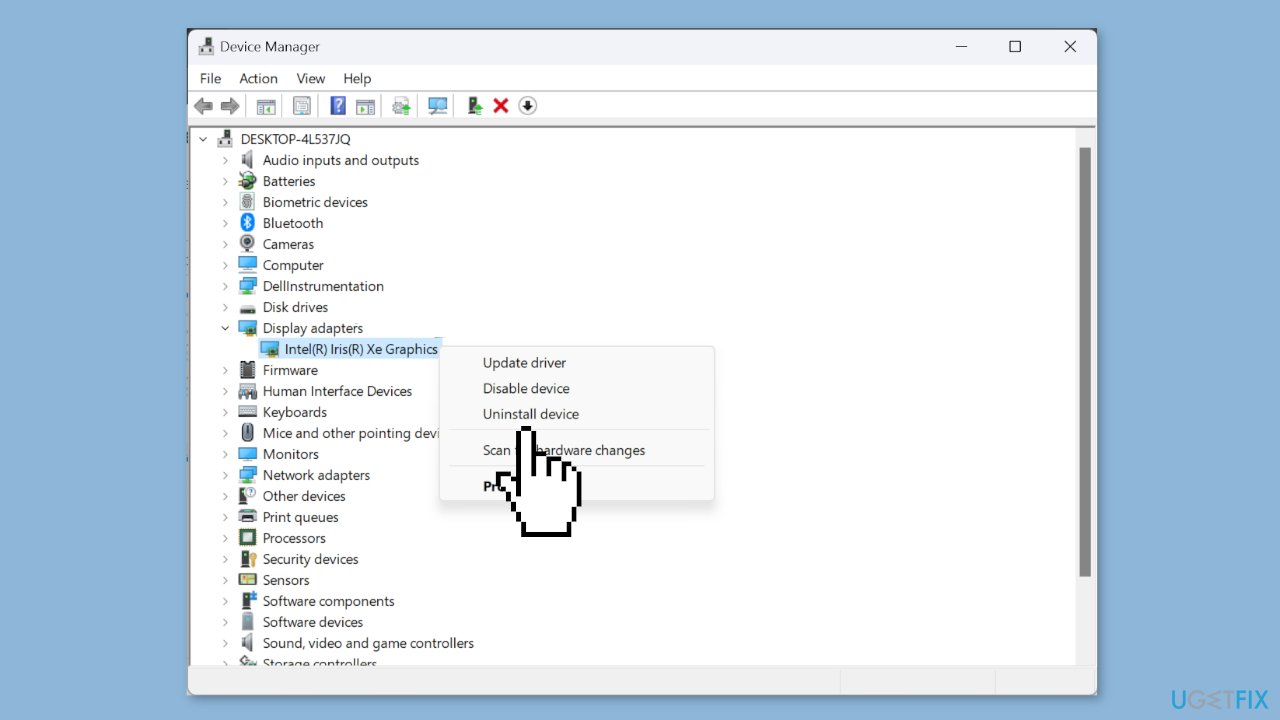
- Tick the checkbox for Attempt to remove the driver for this device.
- Click Uninstall.
- Restart the computer.
- Let Windows automatically download a fresh copy.
You can also use a dedicated utility like [rev id="DriverFix"] that can find the best drivers for your machine and install them automatically.
Solution 2. Run the Program in Compatibility Mode
- Right-click the affected program's launcher.
- Select Properties and go to the Compatibility tab.
- Tick the checkbox for Run this program in compatibility mode for.
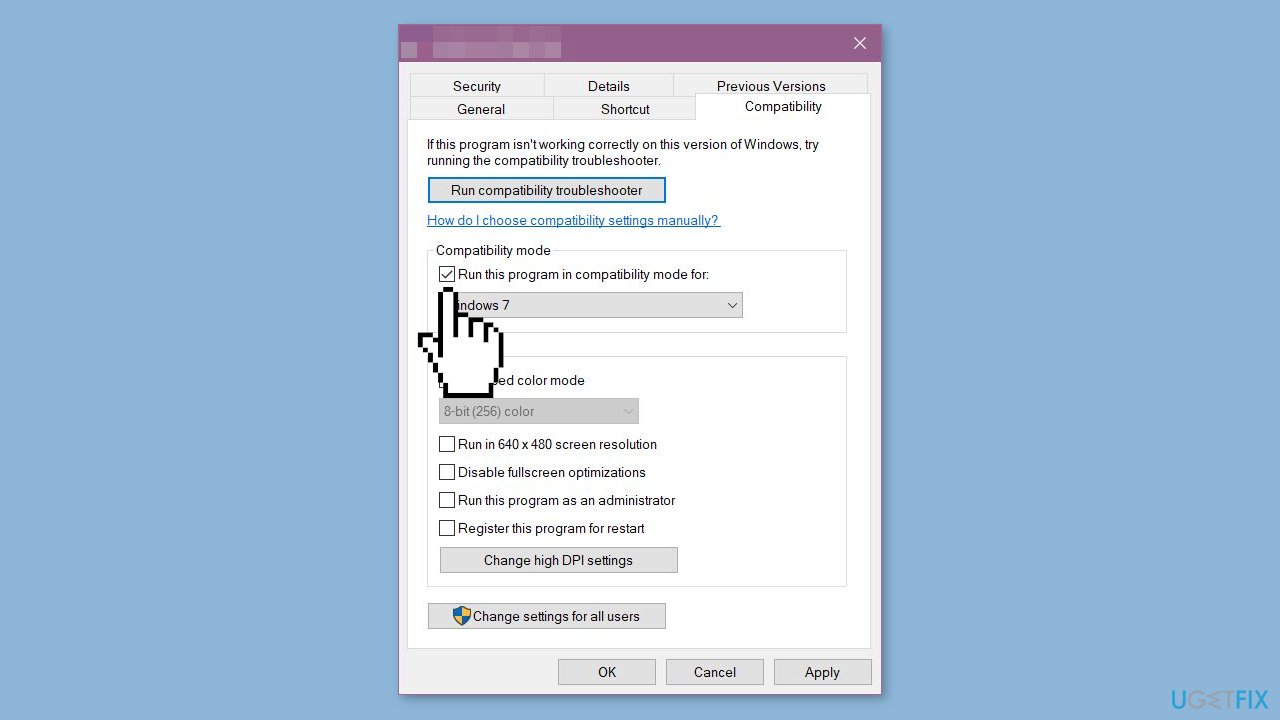
- Select an older iteration of the OS from the dropdown menu, preferably Windows 7.
- Once done, click Apply and OK to save the changes.
Solution 3. Repair Redistributable Packages
- Press the Windows key + R to open Run.
- Type appwiz.cpl in the text field and click OK.
- Select the Microsoft Visual C++ Redistributable package.
- Click the Change button.
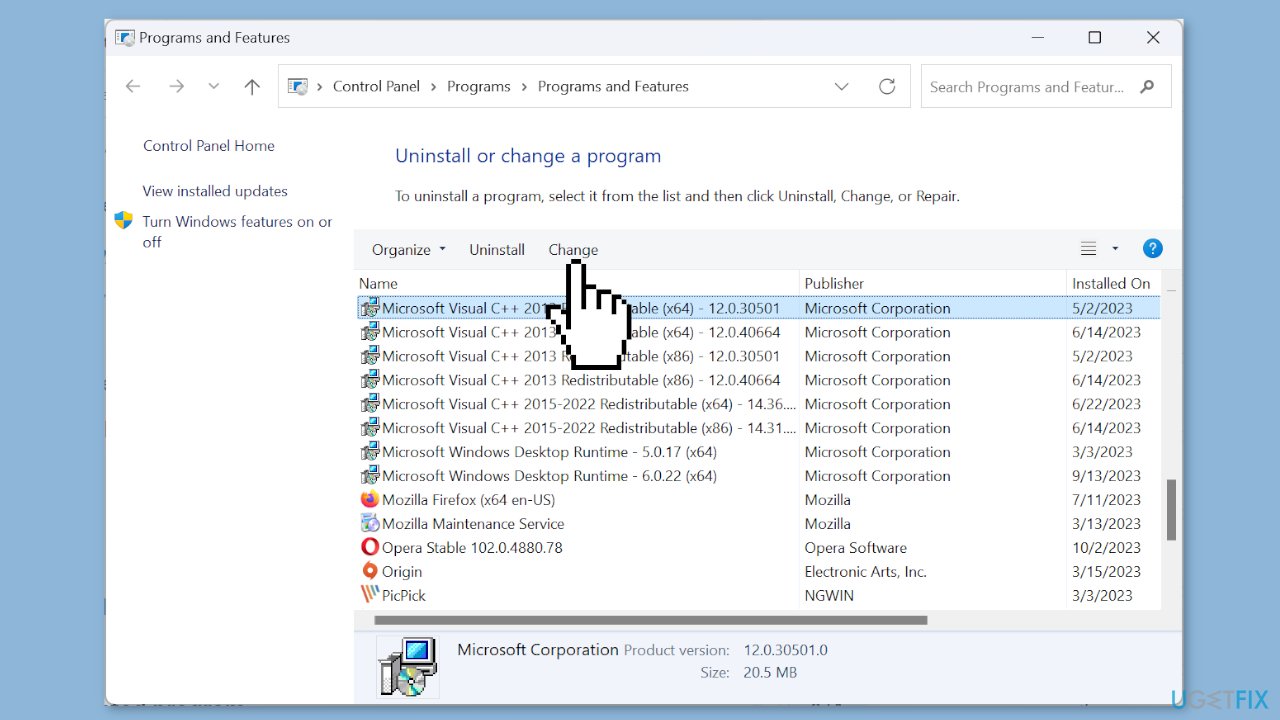
- Click on Repair.
- Click Yes in the UAC prompt.
- Wait for the process to complete.
Solution 4. Install Redistributable Packages
- Go to Microsoft's official website.
- Download the latest Visual C++ Redistributables.
- We recommend you get all the versions.
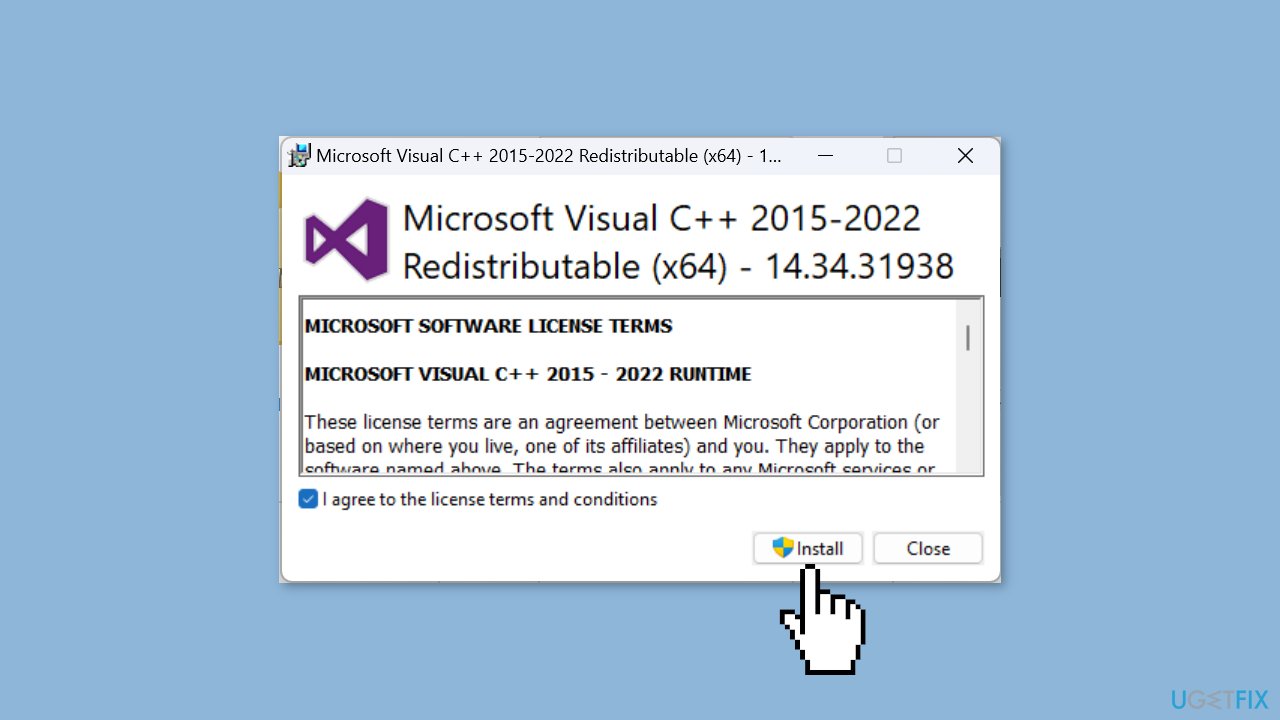
- Run the setup.
- Follow the on-screen instructions to complete the download process.
Solution 5. Reinstall the Affected Program
- Press the Windows key + I to open the Settings app.
- Go to Apps from the left.
- Click on Installed apps.
- Locate the affected program.
- Click the ellipsis next to it.
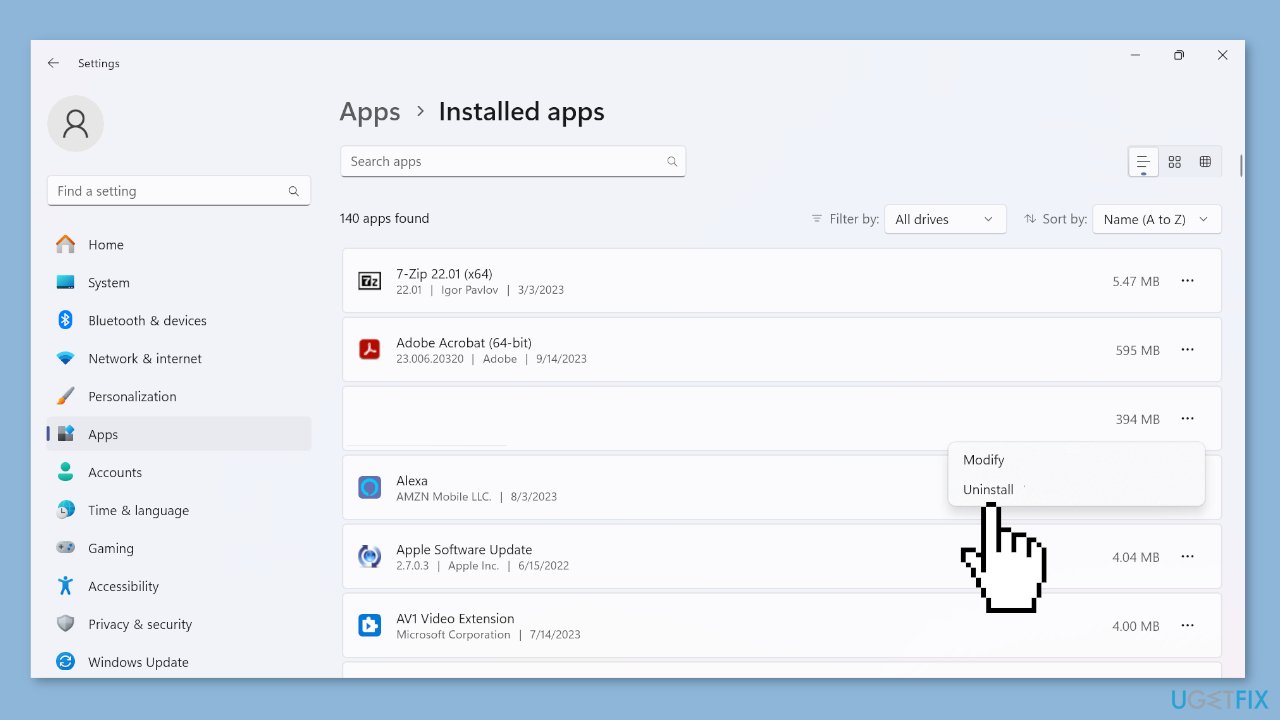
- Select Uninstall.
- Again, click Uninstall in the confirmation prompt.
- Once done, restart the computer.
- Re-download the app from an official source.
Solution 6. Try Clean Boot
- Open the Search menu, type in system configuration, and press Enter.
- Under the Services tab, tick the Hide all Microsoft services box.
- Click on Disable all button.
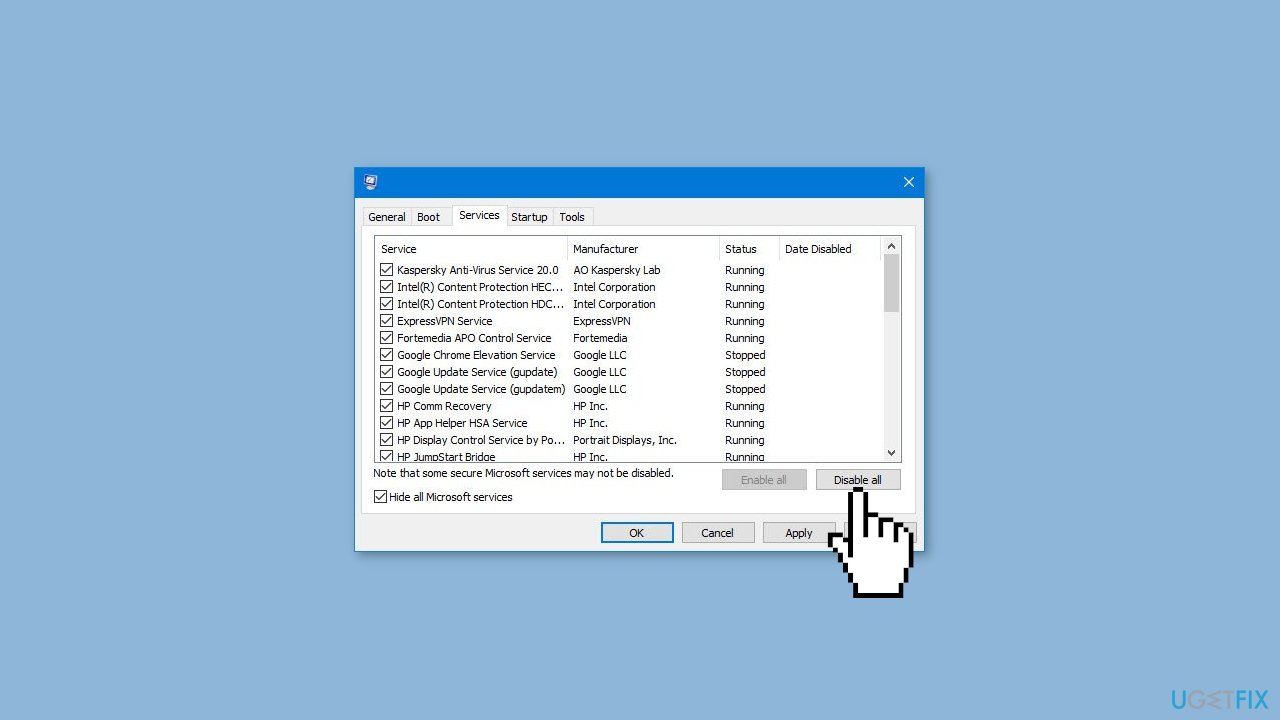
- Head over to the Startup tab and click on Open Task Manager.
- Select a third-party program and click on Disable at the top.
- Repeat this step to disable all third-party apps and programs.
- Restart your PC to enter the clean boot state and see if the issue persists.
- If the issue disappeared in the clean boot state, then you can be certain that a third-party app is causing it.
- Go through all recently installed apps or programs and remove them one by one.
Bottom line
To fix the EXCEPTION_ILLEGAL_INSTRUCTION error, users can update or reinstall the affected application, maintain an updated operating system and drivers, and run diagnostic tests for hardware issues. If these steps do not resolve the problem, consider using a system repair tool or seeking assistance from a qualified expert.
Frequently asked questions
The EXCEPTION_ILLEGAL_INSTRUCTION error typically occurs due to incompatible software, corrupted system files, or hardware issues such as failing RAM or CPU problems.
To troubleshoot this error, start by running the Windows Memory Diagnostic tool and performing a System File Check (SFC) to repair any corrupted files.
Yes, keeping your system updated, regularly scanning for malware, and ensuring that all drivers are compatible with Windows 10 can help prevent this error.




Report an issue
What's wrong with this guide? We review every report and update or remove content.
Report received — thank you. We'll review and fix it.
You need a free account to submit a report.
Be the first to comment