How to fix
Cryptographic Services high CPU or disk usage
on Windows
Resolve Cryptographic Services high CPU or disk usage in Windows 10 or 11 effortlessly. Expert-tested solutions for a smooth experience, fixed in minutes.

What causes How to fix Cryptographic Services high CPU or disk usage in Windows?
- High CPU and disk usage from Cryptographic Services
- Software conflicts caused by third-party applications or malware
- Excessive resource consumption affecting battery life
- Overheating issues due to increased CPU and storage utilization
Repairs Windows system files, removes malware, and restores a clean OS state — without reinstalling.
Hello. I noticed in Task Manager that Cryptographic Services are using high amounts of CPU on my Windows PC. What is this process and is there a way to fix this?
The Cryptographic Services in Windows play a crucial role in ensuring data security by encrypting and decrypting data during data access. This encryption provides a layer of protection to sensitive information, making it difficult for unauthorized users, including hackers, to decipher the data. However, users have complained that a problem with Cryptographic Services is generating high CPU and disk usage, which can seriously affect the performance of their machines.
The issue with Cryptographic Services' high CPU and disk use can negatively impact users' computing experiences in a number of ways. The system performance can be slowed down overall, which can make programs respond slowly or even freeze. This can be especially annoying for users who depend on their computers for business or other important tasks because it reduces productivity and creates an unpleasant user experience.
Additionally, the increased CPU and storage utilization could cause overheating problems, which might eventually harm hardware components. Users may discover that their laptops or desktops are operating hotter than usual, and this persistent temperature rise might negatively impact the lifespan of their equipment.
Another issue is the potential impact on laptop and other portable device batteries of the high resource consumption of cryptographic services. Excessive CPU and disk utilization might cause the battery to discharge more quickly, necessitating more frequent recharging, which is annoying, especially when working on the move.
Users may need to investigate various solutions to this problem. Troubleshooting is frequently a part of these fixes, and it may entail restarting the Cryptographic Services, looking for Windows updates or patches, and performing system scans to find and fix any potential software conflicts. Comprehensive system scans are crucial because in some circumstances, third-party applications or malware may be causing the high CPU and disk utilization.
In this guide, you will find 5 steps that should help you fix Cryptographic Services high CPU or disk usage in Windows. You can also run a system repair tool like [d1] that can fix most system errors, BSODs, corrupted files, and registry issues. Otherwise, follow the step-by-step instructions below.

Solution 1. Repair Corrupted System Files
Use Command Prompt commands to repair system file corruption:
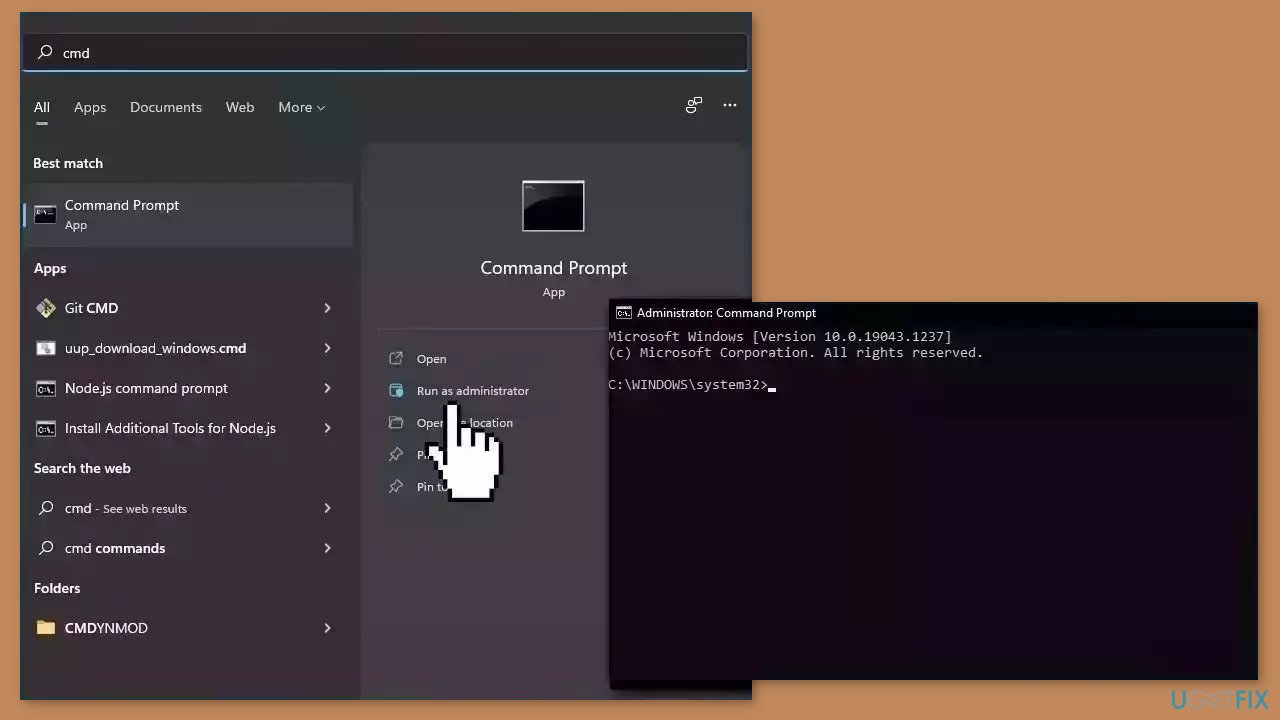
- Open Command Prompt as administrator
- Use the following command and press Enter:
sfc /scannow
- Reboot your system
- If SFC returned an error, then use the following command lines, pressing Enter after each:
DISM /Online /Cleanup-Image /CheckHealth
DISM /Online /Cleanup-Image /ScanHealth
DISM /Online /Cleanup-Image /RestoreHealth
Solution 2. Reset the Catroot2 Folder
- Open an elevated Command Prompt.
- Type the following commands one after the other and press Enter:
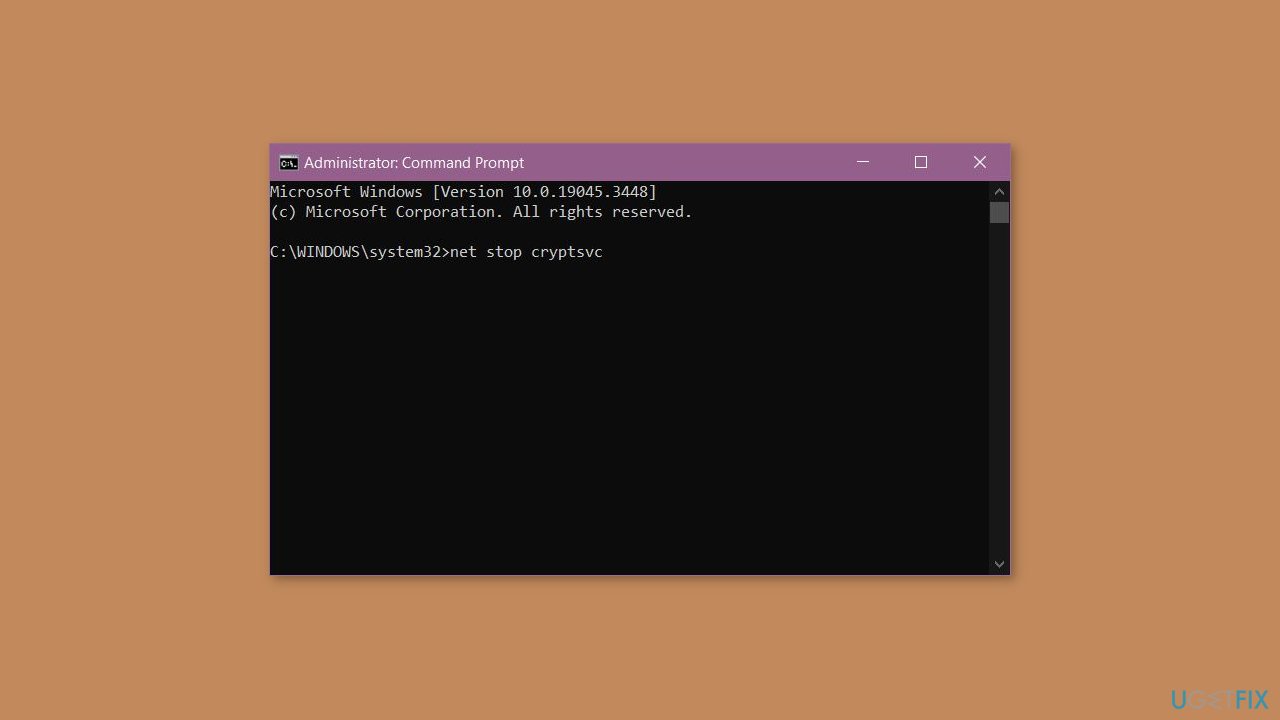
net stop cryptsvc
md %systemroot%\system32\catroot2.old
xcopy %systemroot%\system32\catroot2 %systemroot%\system32\catroot2.old /s
- Delete all the contents of the catroot2 folder.
- In the CMD window, type the following and press Enter:
net start cryptsvc
- Your catroot folder will be reset when you start Windows Update again.
Solution 3. Scan for Malware
It is possible that a malware infection may be the cause of Cryptographic Services high CPU or disk usage in Windows. It is important to run a comprehensive security scan to rule out this possibility and ensure that the computer is not infected. This can help to prevent further issues with the Windows operating system and ensure that it is functioning properly.
If you have access to a security scanner, or if your organization pays for one, you can use it to scan your entire system to check for a virus infection. Otherwise, you can use Windows Defender to scan your system:
- Click on the Windows Start menu or press the Windows key on your keyboard.
- Type Microsoft Defender in the search bar and click on Microsoft Defender Antivirus to open the application.
- Click on the Virus & threat protection option in the left-hand menu.
- Click on the Quick scan or Full scan option, depending on your preference.
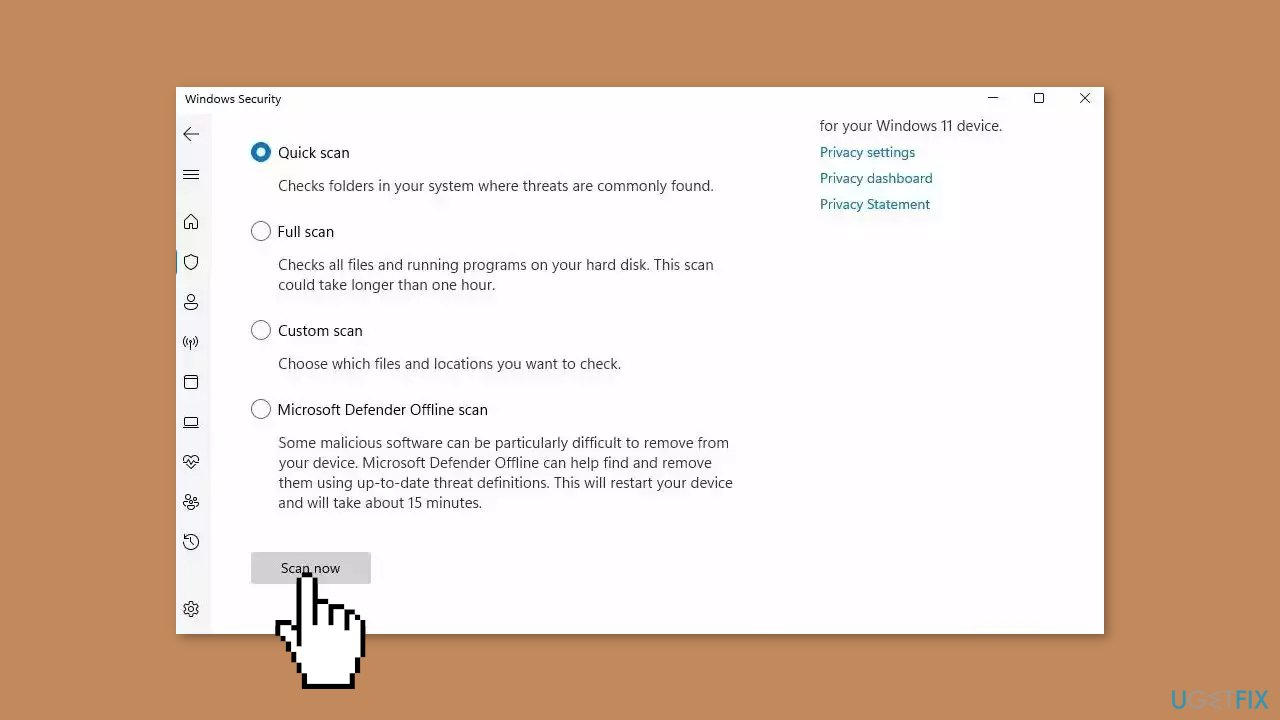
- If you choose Quick scan, Microsoft Defender Antivirus will scan the most vulnerable and commonly infected areas of your computer.
- If you choose Full scan, Microsoft Defender Antivirus will scan your entire computer, including all files, folders, and programs.
- Click on the Scan now button to start the selected scan type and wait for the scan to complete.
- The time it takes will depend on the size of your hard drive and the number of files being scanned.
- Once the scan is complete, you will be informed of any detected threats, and you can choose to quarantine or remove them.
- If no threats are found, Microsoft Defender Antivirus will inform you that your device is secure.
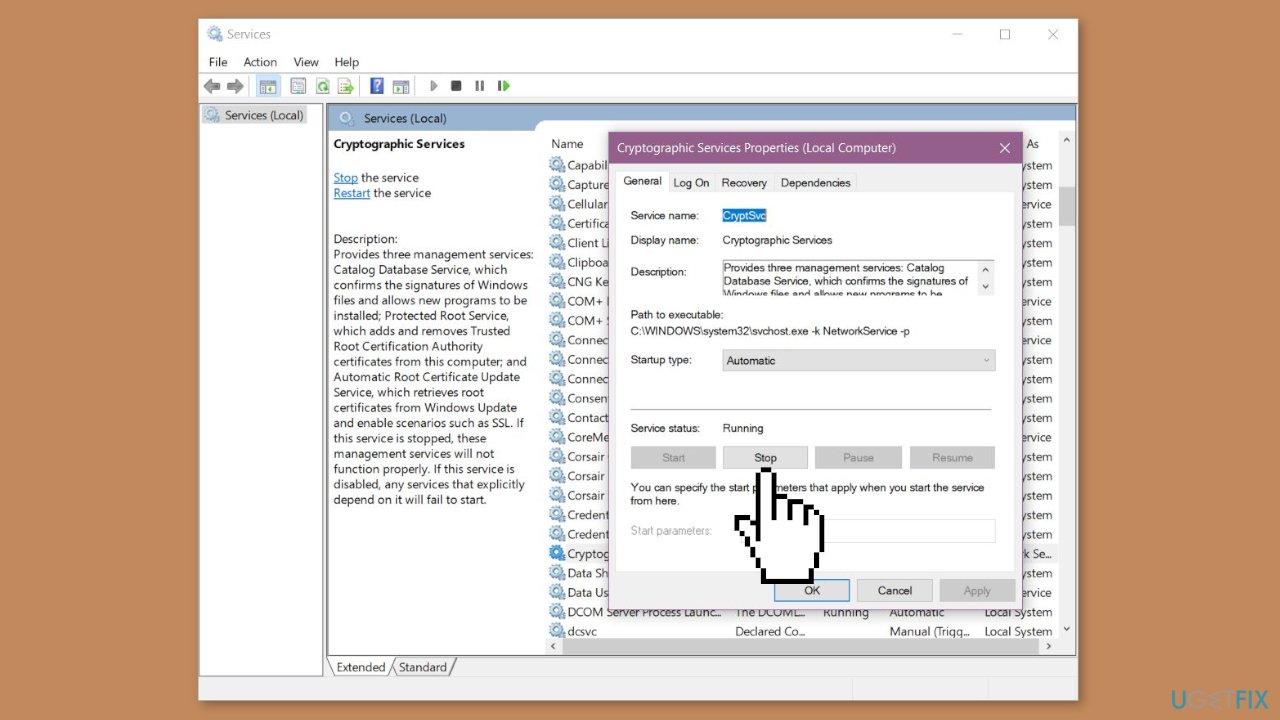
Solution 4. Restart or Disable the Cryptographic Service
- Press the Windows key + R to open the Run dialog box.
- Type services.msc and then press Enter.
- Locate Cryptographic Services, right-click, and then select Properties.
- Now, click on Stop and then on Start button.
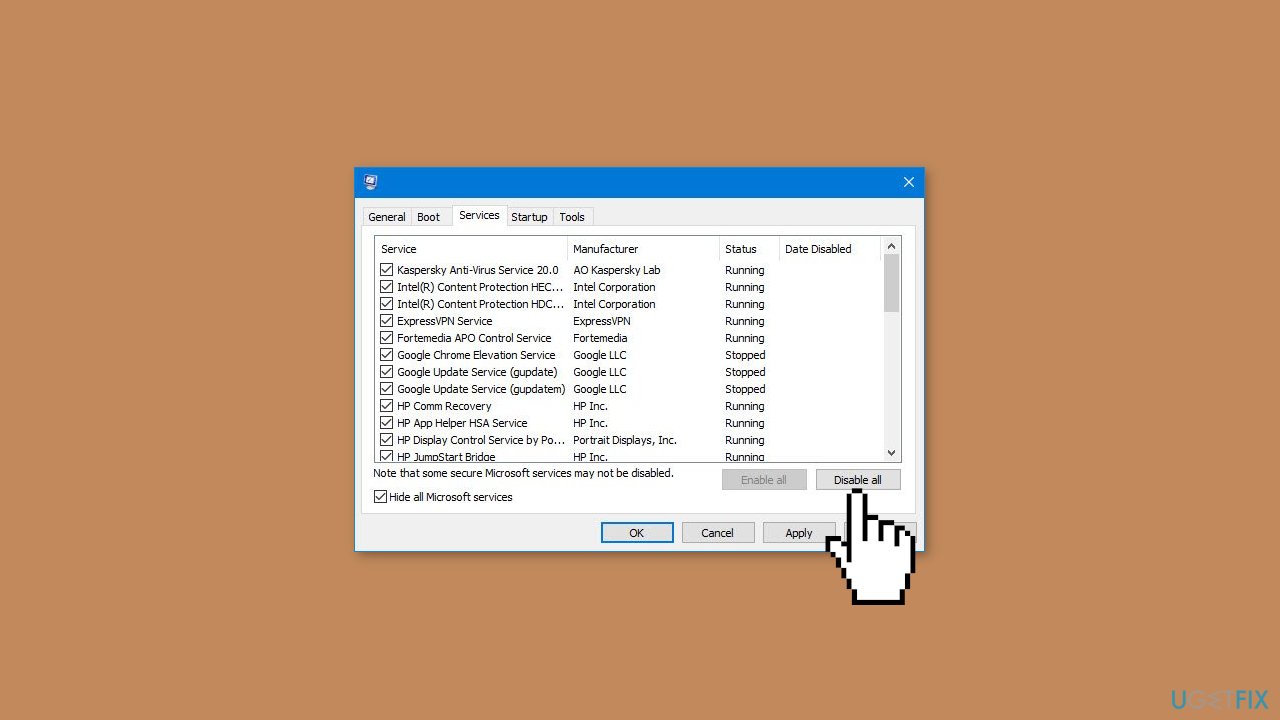
Solution 5. Try Clean Boot
- Open the Search menu, type in system configuration, and press Enter.
- Under the Services tab, tick the Hide all Microsoft services box.
- Click on Disable all button.
- Head over to the Startup tab and click on Open Task Manager.
- Select a third-party program and click on Disable at the top.
- Repeat this step to disable all third-party apps and programs.
- Restart your PC to enter the clean boot state and see if the issue persists.
- If the issue disappeared in the clean boot state, then you can be certain that a third-party app is causing it.
- Go through all recently installed apps or programs and remove them one by one.
Bottom line
To fix the high CPU or disk usage caused by Cryptographic Services, you can restart the service, check for Windows updates or patches, and perform comprehensive system scans. If these solutions do not resolve the issue, further troubleshooting may be necessary.
Frequently asked questions
You can try restarting the Cryptographic Services by opening the Services app, locating the service, and clicking 'Restart'. Additionally, ensure that your Windows 10 is up to date, as updates may resolve underlying issues.
Yes, many Windows 11 users report high disk usage by Cryptographic Services, often due to background processes such as Windows updates or system scans.
You can check the Task Manager for high CPU or disk usage attributed to Cryptographic Services, which is often listed under 'Background processes'.




Report an issue
What's wrong with this guide? We review every report and update or remove content.
Report received — thank you. We'll review and fix it.
You need a free account to submit a report.
Be the first to comment