How to fix
“Windows Search Not Working”
on Windows
Resolve "Windows Search Not Working" issues on Windows 10 quickly and effectively. Trust our expert-tested solutions for seamless searching, fixed in mi…

What causes How to Fix “Windows Search Not Working” on Windows 10?
- Search service is not functioning properly
- Files are not indexed
- Windows Search Troubleshooter is not available
- System reboot is needed
- Corrupted system files
Repairs Windows system files, removes malware, and restores a clean OS state — without reinstalling.
Hello, there’s something wrong with Windows search - it doesn’t work anymore. I cannot search for files on my computer, which is frustrating. Can you tell me how to fix Windows search not working problem?
Windows search is a beneficial service provided by Microsoft Windows OS.[ref en-3] It helps to browse and find the required files and programs quickly, saving users a lot of time. It goes without saying that we use this feature daily and we probably do not imagine our virtual life without File Explorer[ref en-1] or the search engine that can be accessed via the Start menu.
Apparently, losing access to Windows search can significantly slow down your productivity. If the search on your computer suddenly stopped working, it can be hard to identify the issue instantly. There are a few issues that cause the search service to lag or not work properly. For example, if the search service works, but fails to find certain files, you should check if they're indexed.
To find the issue and to fix it, we suggest trying solutions provided by UGetFix team. One of these methods should help you to fix the “Windows Search not working” issue. Make sure that you perform each of the below-given steps exactly as required in the instructions in order to achieve the best results possible and get rid of the annoying problem.
Fixing the “Windows Search not working” issue on Windows 10
Method 1. Restart your computer
Sometimes, all that it takes to fix this issue is a simple system reboot. To quickly reboot the computer, use your preferred way or press down Windows + X key on your keyboard. Then hover your mouse above Shut down or sign out button and choose Restart option.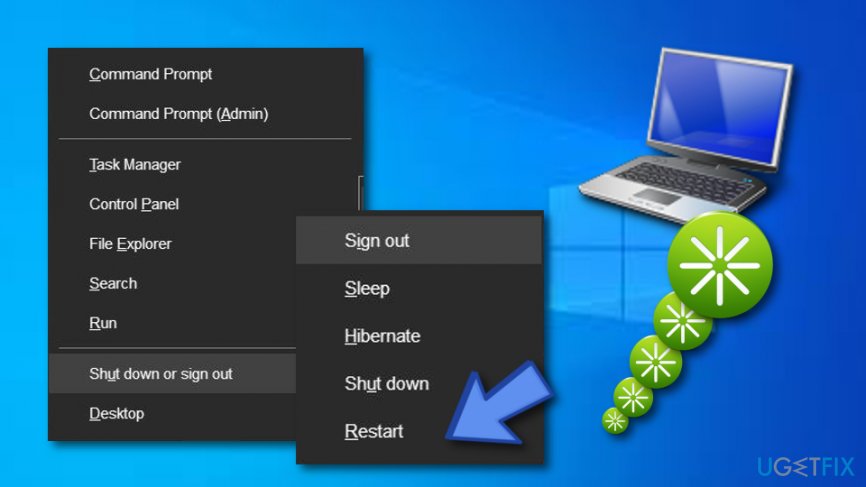
Method 2. Use Windows Search Troubleshooter
This troubleshooter might be or might not be on your Windows computer. If you can’t find it using the provided instructions, download it from official Microsoft’s website first.
- Right-click on Windows Start menu and select Control Panel/Settings from the list. You can also open the control panel by pressing down Windows + R keys and entering control panel into the Run prompt. Click OK to activate the command.
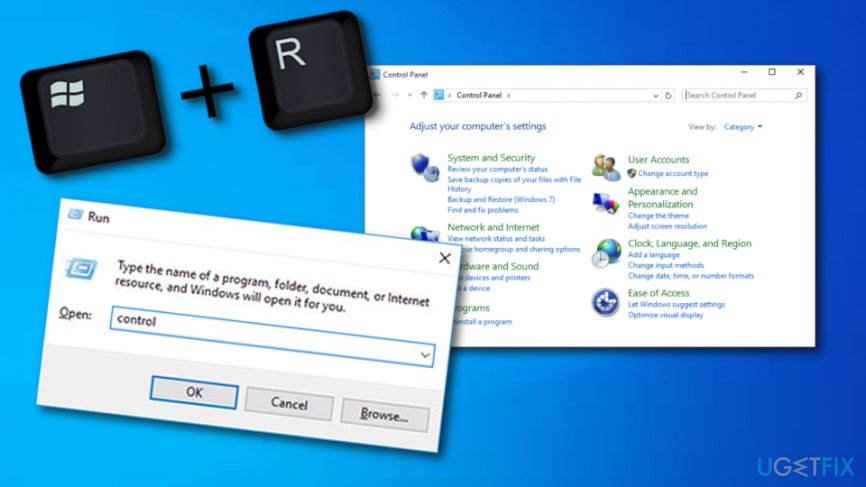
Use control panel - Go to Troubleshooting, then to System and Security. Right-click on Search and Indexing and then hit Run as Administrator.
- Now, click Next and then look through the list of provided problems. Select the ones you’re dealing with and click Next.
- The troubleshooter should attempt to fix the problem. If it doesn’t fix it, try the next method.
Method 3. Fix Windows Search service
- Press down Windows + R keys at the same time.
- In the Run prompt, type: services.msc and hit Enter.
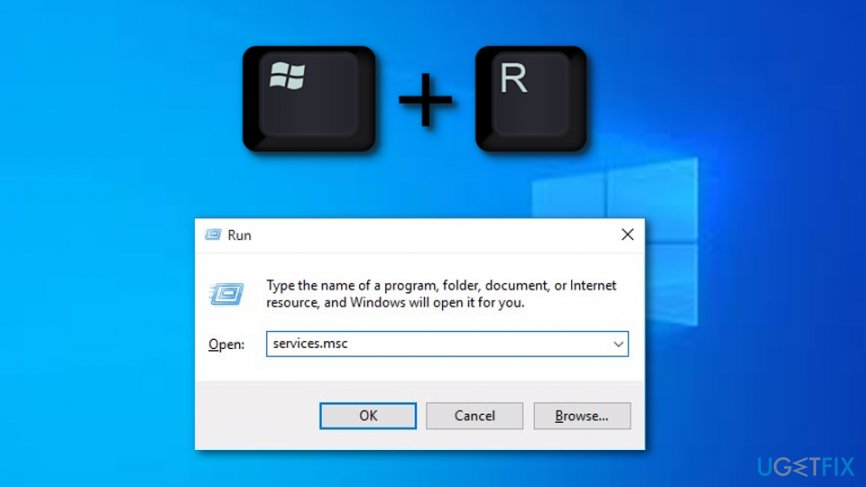
Run services msc - Find Windows Search in the list and see if its status says Running. If it does, right-click on it and choose Restart. If the status is different, follow these instructions:
- Right-click on the service and select Properties.
- Choose Automatic in the Startup type option.
- Hit Apply, then OK.
Method 4. Add System permissions to folders
The folder that misses the System permission might not appear in the search results. To index these folders, follow the provided steps.
- Right-click the folder that you want to add to index and select Properties. Then go to Security tab.
- Hit the Edit… button below the Group or user names table.
- Hit Add… button and then enter SYSTEM in the Enter the object names to select (examples) field. Then hit Check Names button. Click OK afterward.
- Now, select SYSTEM in the list of Group or user names and check its permissions. Make sure that Read & Execute, Read and List folder contents permissions are allowed.
- Click on Apply, then OK.
Method 5. Rebuild the index
- Go to Control Panel and locate Indexing Options there. You need to access All Control Panel items to see it. Open Indexing Options.
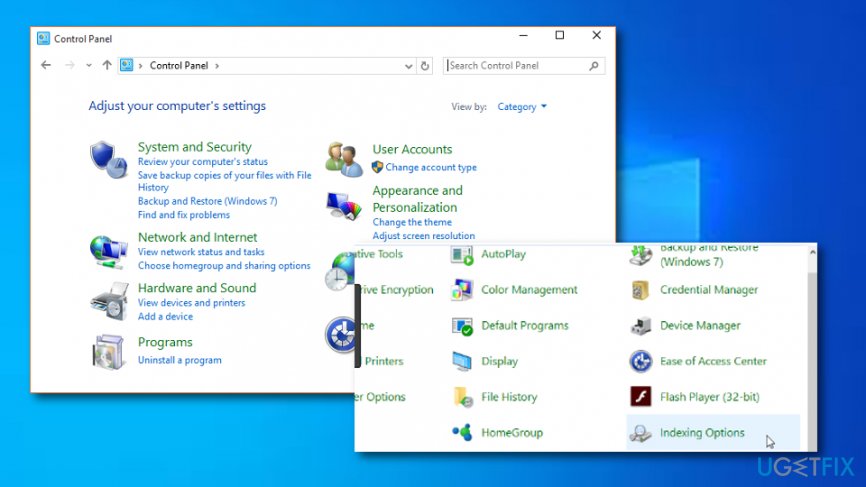
Rebuild indexing options - Click on Advanced button and select Rebuild. Click OK to confirm.
- Wait until the index is rebuilt and then click Close.
Method 6. Turn off Windows Cortana
Cortana is Windows virtual assistant, very similar to Apple’s Siri. It helps you to search your computer using your voice. Sometimes, disabling Cortana can help to fix the “Windows Search not working” issue.
- Open Windows Task Manager (Control+Alt+Delete and click Task Manager).
- Click More Details. Look below the Processes tab to locate Cortana process.
- Right-click on it and select End Task.
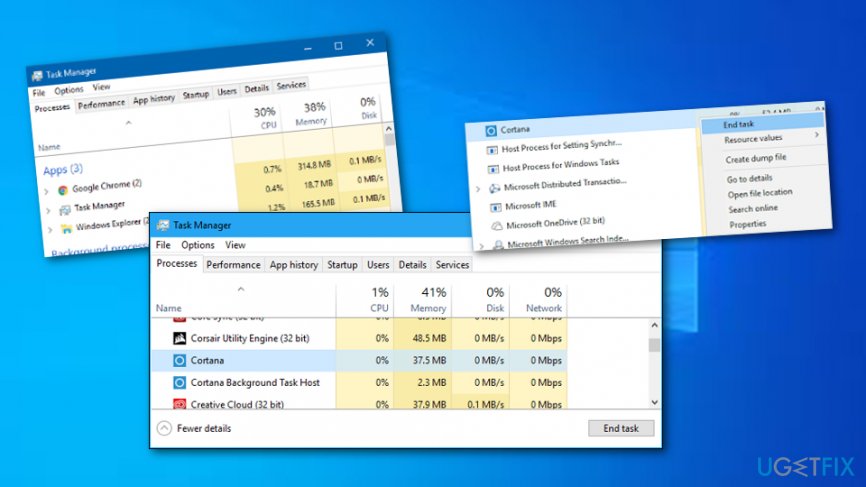
End task cortana - Now, find a process called Search. Right-click on it and select End Task.
- Test Windows search to see if it started working.
Method 7. Fix Cortana’s registration
- Press down Windows + X keys.
- From the menu that appeared on your screen, choose File Explorer.
- Go to C:\\Windows\\System32\\WindowsPowerShell\\v1.0\\
- Click the powershell.exe file with the right mouse button. Select Run as administrator.
- Now, type in the provided command:
Get-AppXPackage -AllUsers | Foreach {Add-AppxPackage -DisableDevelopmentMode -Register “$($_.InstallLocation)\\AppXManifest.xml”} and press Enter. - Test Windows search.
Method 8. Make Windows create a fresh UsrClass.dat file
- Go to C:\\Users\\[Your computer name here]\\AppData\\Local\\Microsoft\\Windows and find UsrClass.dat file.
- Right-click on it and choose Rename.
- Now, enter a new name: UsrClass.dat.old and click Enter to save.
- Restart your PC. Your computer will create a fresh UsrClass.dat file that doesn’t contain any errors.
If everything else fails, we suggest optimizing your PC. A program like [d1] can come in handy when dealing with Windows Search[ref en-2] not working issue.
Bottom line
To fix the 'Windows Search not working' issue on Windows 10, you can try restarting your computer, using the Windows Search Troubleshooter, or checking if the files are indexed. If none of these solutions work, consider looking for additional troubleshooting methods or seeking help from a professional.
Frequently asked questions
You can try restarting the Windows Search service through the Services app, or run the Search and Indexing troubleshooter found in Settings under Update & Security.
Go to Settings > Search > Searching Windows, and under 'More Search Indexer Settings', click on 'Advanced Indexing Options', then select 'Rebuild' to start the indexing process.
Yes, you can open Command Prompt as an administrator and execute the command 'powershell -ExecutionPolicy Unrestricted -Command "& {Start-Process PowerShell -Verb RunAs}"' to reset the Windows Search feature.




Report an issue
What's wrong with this guide? We review every report and update or remove content.
Report received — thank you. We'll review and fix it.
You need a free account to submit a report.
Be the first to comment