How to fix
Find My Device feature not working
on Windows
Resolve the Find My Device issue on Windows 10 and 11 effortlessly. Follow our expert-tested guide to restore functionality in minutes!

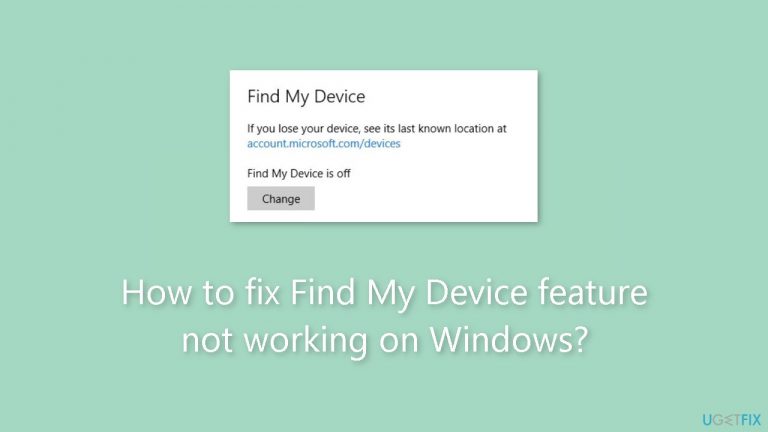
What causes How to fix Find My Device feature not working on Windows?
- Location settings are disabled
- Privacy settings do not allow permissions
- Device is not logged in with a Microsoft account
- Find My Device feature is not enabled in Windows settings
- Network connectivity issues
Repairs Windows system files, removes malware, and restores a clean OS state — without reinstalling.
Hello. The Find My Device function does not seem to be working on my Windows PC. What can I do?
Windows' "Find My Device" function is a useful security tool that enables users to track and find their Windows-based laptops and tablets in the event that they are lost or stolen. Users must have their device's location settings enabled in order to use this feature. When enabled, it allows the Windows operating system to send the device's location information on a regular basis to Microsoft's servers, allowing one to locate the device on a map.
In cases where a user's device has been lost or stolen, this capability can be very useful. Users may trace the position of their lost device, check its recent activity, and even remotely lock or delete the device to safeguard their data and retain privacy by logging into the Find My Device feature through a web browser on another device. In essence, it gives Windows users a measure of control and assurance in the sad case of device loss or theft.
The "Find My Device" option, however, is useless if the Windows device's location settings are off. Users may experience major effects from this problem since it deprives them of a tool that could be essential for finding and protecting their stolen or lost devices. Users may feel more frustrated under these circumstances, worry about their device's security, and worry about possible data loss or privacy violations if it gets into the wrong hands.
Users should make sure that their device's location settings are enabled in order to solve this issue. In order for the Find My Device feature to function properly, they can also check their privacy settings to make sure that the appropriate permissions have been allowed. Checking network connectivity, making sure the device is logged in with a Microsoft account, and making sure the function is actually enabled in the Windows settings are all possible troubleshooting techniques if the problem persists.
In this guide, you will find 3 steps that should help you fix Find My Device feature not working on Windows. If you experience any OS issues, you can run a maintenance tool like [d1] that can fix most system errors, BSODs, corrupted files, and registry issues. Otherwise, follow the step-by-step instructions below.

Solution 1. Re-enable Location Settings
- Press the Windows key and click on Settings.
- Choose Privacy & security.
- Navigate to App permissions and then select Location.
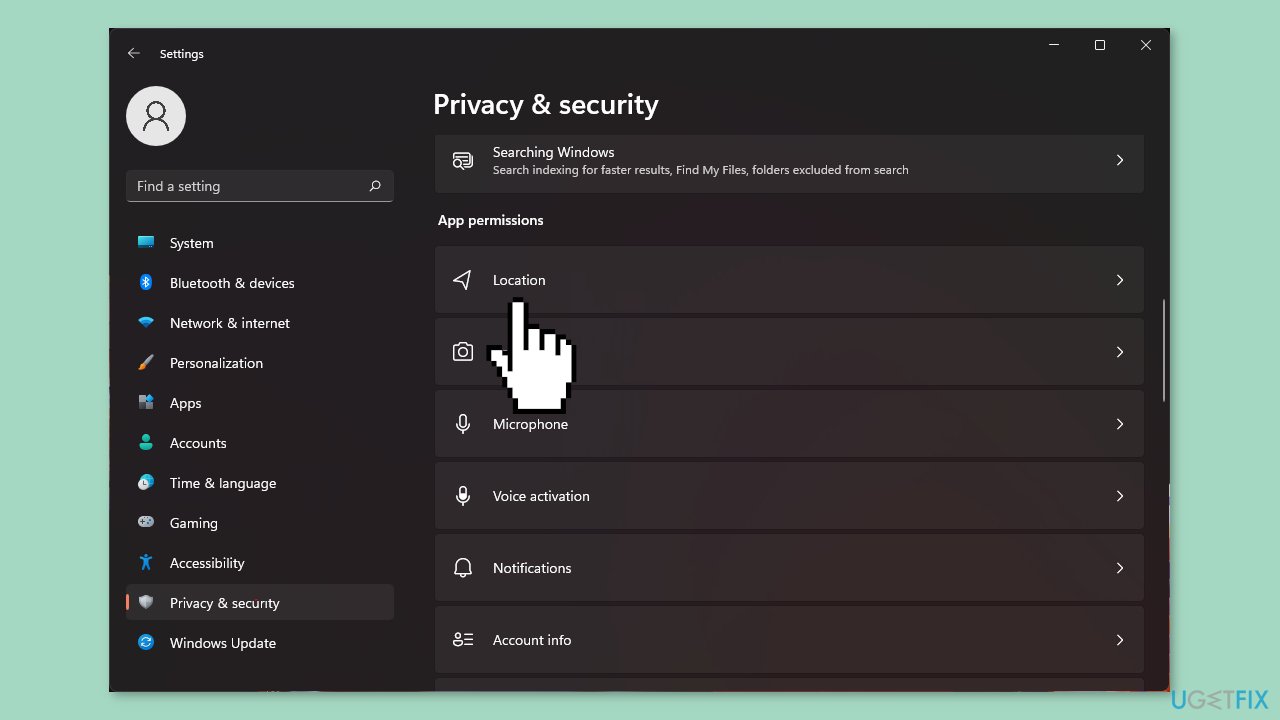
- Toggle the switches for Location services and Let apps access your location to turn them on and off as needed.
Solution 2. Turn off VPN
- Press the Windows key and choose Settings.
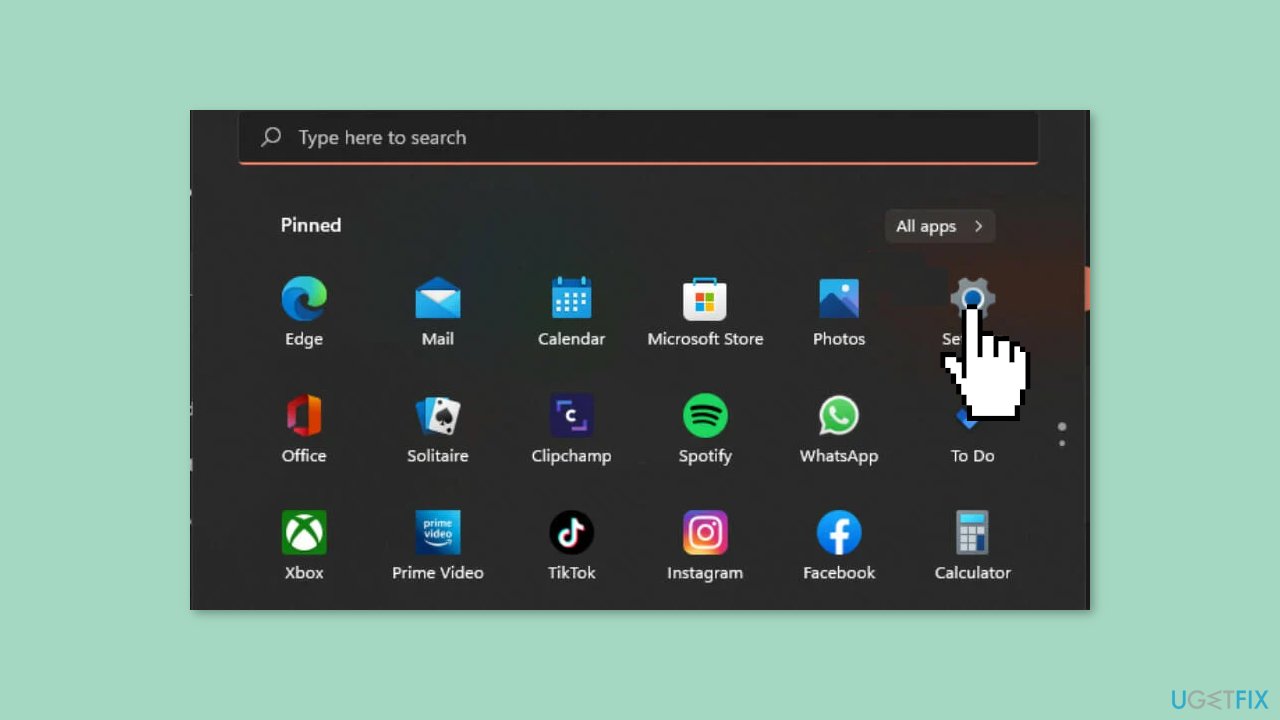
- Click on Network & internet.
- In the right-side menu, select VPN.
- Choose the VPN connection you wish to disable.
- Click on the drop-down menu, and then select Remove to delete the VPN connection.
Solution 3. Scan for Malware
It is possible that a malware infection may be the cause of Find My Device feature not working on Windows. It is important to run a comprehensive security scan to rule out this possibility and ensure that the computer is not infected. This can help to prevent further issues with the Windows operating system and ensure that it is functioning properly.
If you have access to a security scanner, or if your organization pays for one, you can use it to scan your entire system to check for a virus infection. Otherwise, you can use Windows Defender to scan your system:
- Click on the Windows Start menu or press the Windows key on your keyboard.
- Type Microsoft Defender in the search bar and click on Microsoft Defender Antivirus to open the application.
- Click on the Virus & threat protection option in the left-hand menu.
- Click on the Quick scan or Full scan option, depending on your preference.
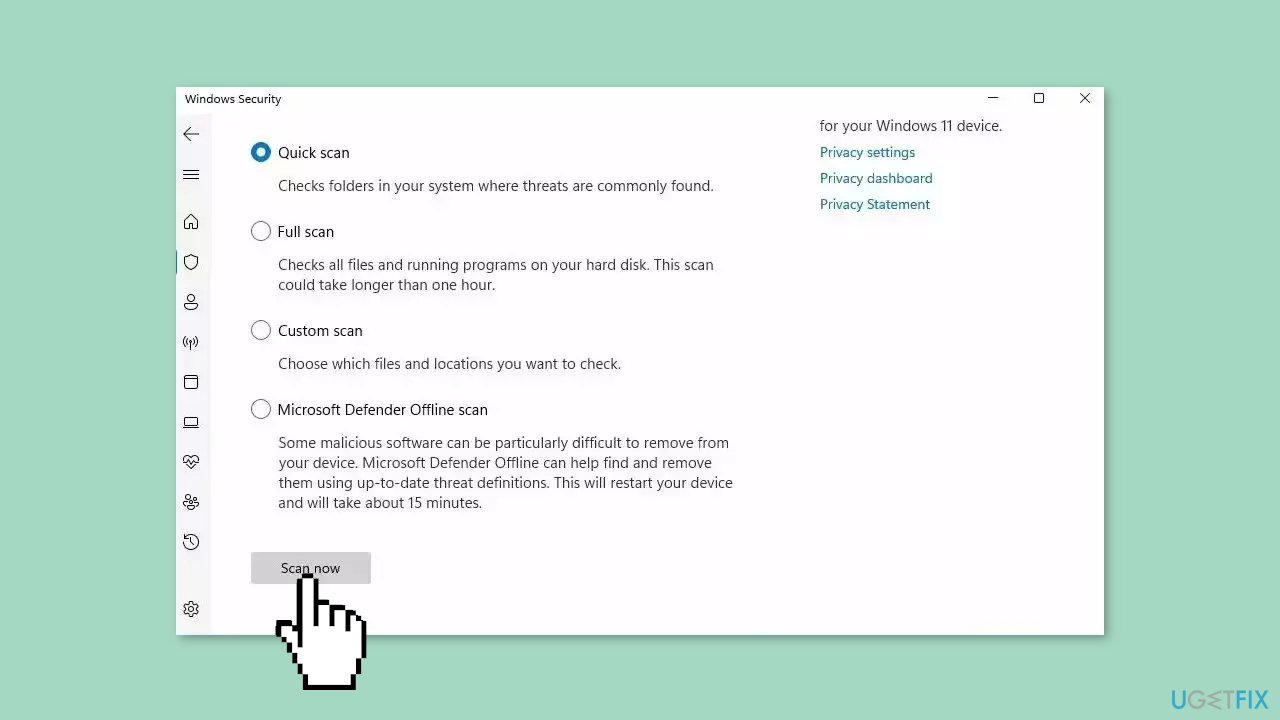
- If you choose Quick scan, Microsoft Defender Antivirus will scan the most vulnerable and commonly infected areas of your computer.
- If you choose Full scan, Microsoft Defender Antivirus will scan your entire computer, including all files, folders, and programs.
- Click on the Scan now button to start the selected scan type and wait for the scan to complete.
- The time it takes will depend on the size of your hard drive and the number of files being scanned.
- Once the scan is complete, you will be informed of any detected threats, and you can choose to quarantine or remove them.
- If no threats are found, Microsoft Defender Antivirus will inform you that your device is secure.
Bottom line
To fix the Find My Device feature not working on Windows, ensure that location settings are enabled, check privacy settings for the necessary permissions, and confirm that the device is logged in with a Microsoft account. Additionally, verify that the feature is enabled in Windows settings and that there are no network connectivity issues. If none of these solutions work, consider seeking further technical support.
Frequently asked questions
Ensure that the Find My Device feature is enabled in your device settings under 'Privacy' and 'Location'. Also, verify that your device is connected to the internet.
You can reset the feature by going to Settings > Update & Security > Find My Device, and then click on 'Change' to toggle it off and back on again.
Yes, check if Location services are enabled by navigating to Settings > Privacy > Location, and ensure that both 'Location for this device' and 'Location services' are turned on.




Report an issue
What's wrong with this guide? We review every report and update or remove content.
Report received — thank you. We'll review and fix it.
You need a free account to submit a report.
Be the first to comment