How to fix
Ntoskrnl.exe high CPU usage
on Windows
Resolve Ntoskrnl.exe high CPU usage on Windows 10 and 11 with our expert-tested solutions. Get your PC running smoothly again in minutes!

What causes How to fix Ntoskrnl.exe high CPU usage in Windows?
- Outdated Drivers
- Memory Leaks
- Hardware Malfunctions
- Incompatible Software Installations
- Corrupt System Files
Repairs Windows system files, removes malware, and restores a clean OS state — without reinstalling.
Hi, I've recently noticed that the CPU usage of Ntoskrnl.exe is quite high when I check the Task Manager. While it doesn't go to 100%, it usually sits at 20-50%, which is quite taxing when I do other stuff on my PC. Any advice on how to resolve this?
Within the structural framework of a Windows operating system, resources such as the Central Processing Unit (CPU), memory, and disk space represent pivotal elements, diligently working to ensure optimal functionality and smooth user experience.
These resources are meticulously allocated and utilized by various processes and programs, orchestrating a harmonious interaction between software and hardware. However, certain anomalies occasionally permeate this equilibrium, manifesting as abnormal resource usage, which can potentially decelerate system performance and compromise system stability.
One conspicuous instance of such an abnormality is the high CPU usage by a system process known as "Ntoskrnl.exe." Serving as the kernel of the Windows operating system, Ntoskrnl.exe, short for Windows NT operating system kernel, is paramount for managing system memory, executing program code, and maintaining hardware processes, among other critical functions. Its optimal performance is imperative to uphold the stability and efficiency of the operating system.
Excessive CPU usage by Ntoskrnl.exe might be triggered by several culprits, such as outdated drivers, memory leaks, or even hardware malfunctions. At times, it may also be precipitated by incompatible software installations or corrupt system files. This abnormal resource consumption doesn’t only hinder the operating system’s proficiency but may also produce auxiliary issues like system overheating and sluggish response times.
When confronted with the high CPU usage of Ntoskrnl.exe, you are advised to investigate potential reasons and employ corrective measures promptly to mitigate potential repercussions. Such interventions might encompass updating device drivers, conducting system scans for malware, or inspecting hardware components for faults. It's essential to approach these issues methodically, ensuring that system integrity and data safety are not jeopardized during remediation.
In instances where straightforward solutions seem elusive, employing a dedicated PC repair tool like [d1] might provide an expedited resolution by identifying, analyzing, and repairing the myriad issues that might be covertly sabotaging system performance.
Fix 1. Update your drivers
Updating drivers ensures that all hardware components and peripherals communicate effectively with the operating system. Outdated drivers might cause incompatibility issues, leading to excessive CPU usage.
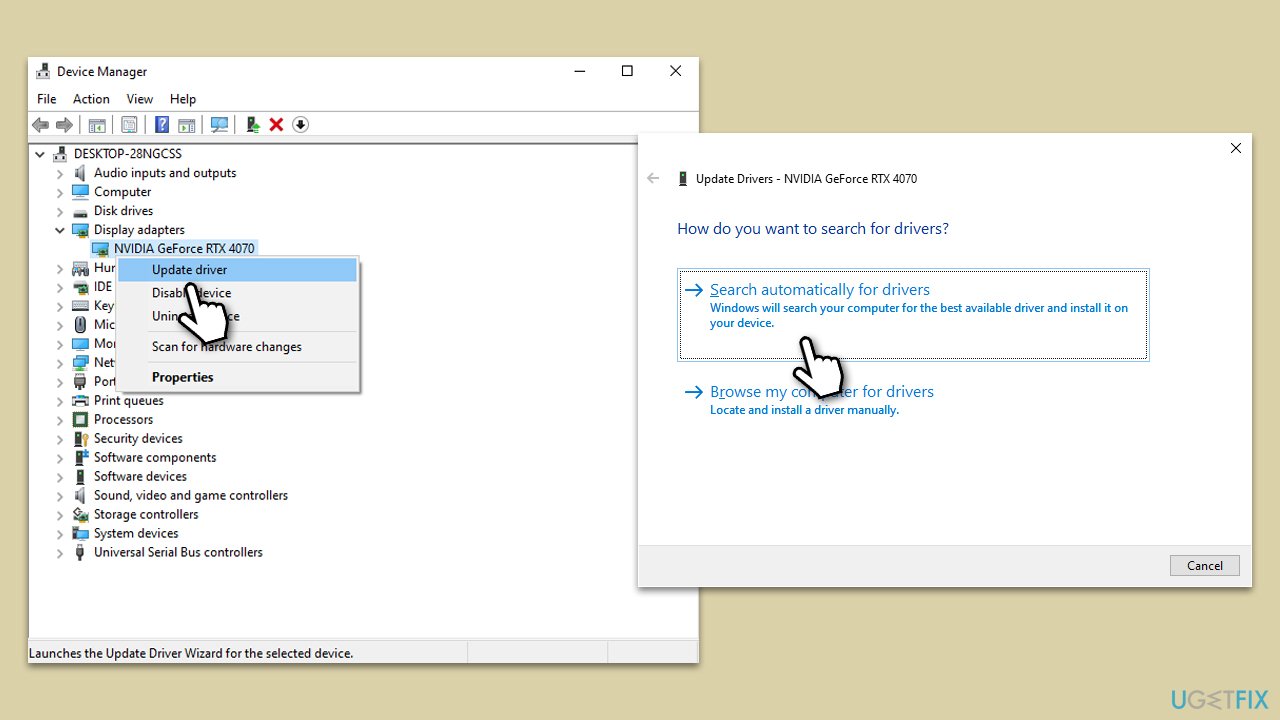
- Go to Device Manager by right-clicking the Start button and selecting it from the menu.
- Expand each section and right-click on every device, choosing Update driver.
- Opt for Search automatically for drivers.
- If updates are found, allow them to install.
- Restart your computer after updating all necessary drivers.
If you find this method tedious, we recommend employing an automatic driver updater such as [rev id="DriverFix"].
Fix 2. Run SFC and DISM
System File Checker (SFC) and Deployment Image Servicing and Management (DISM) are built-in Windows utilities that can detect and repair corrupted or missing system files.
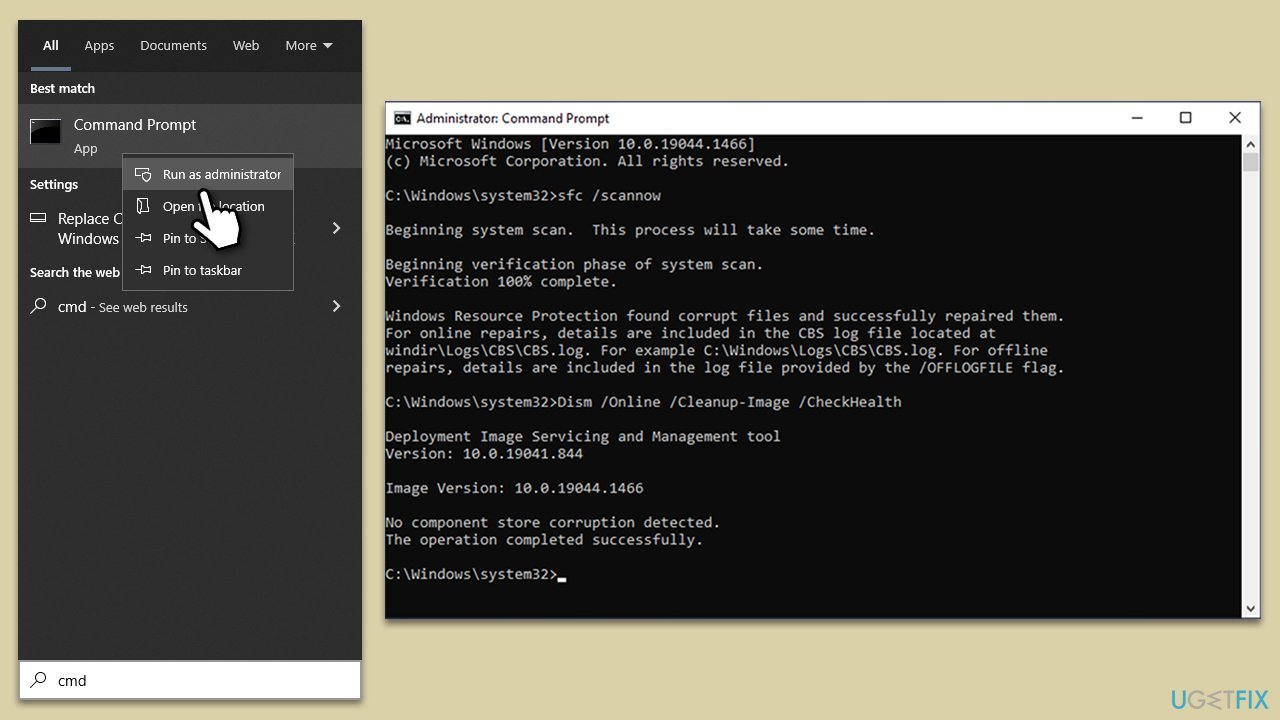
- Type in cmd in Windows search.
- Right-click on Command Prompt and select Run as administrator.
- When User Account Control asks you whether you allow changes to your system - click Yes.
- In the Command Prompt window, paste the following command and hit Enter:
sfc /scannow - Next, use the following commands, pressing Enter after each:
Dism /Online /Cleanup-Image /CheckHealth
Dism /Online /Cleanup-Image /ScanHealth
Dism /Online /Cleanup-Image /RestoreHealth
(Note: if you get an error executing this last command, add /Source:C:\RepairSource\Windows /LimitAccess to it and try again). - Reboot your device.
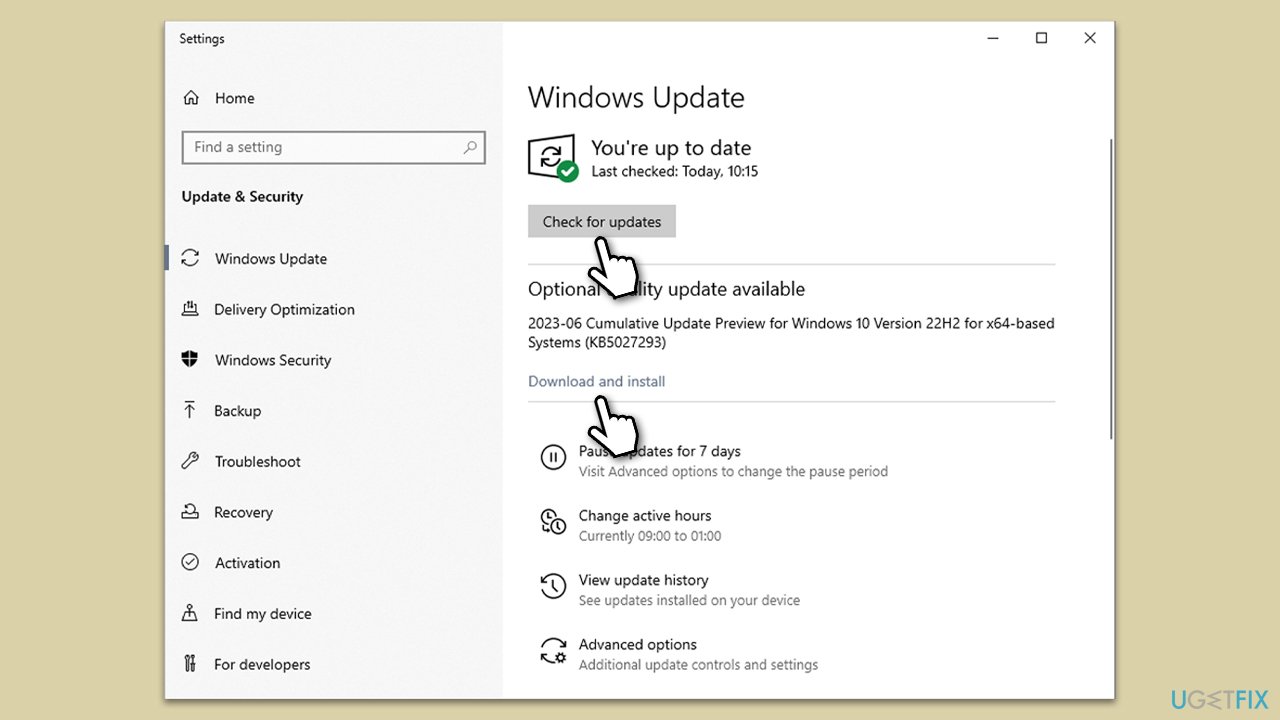
Fix 3. Update Windows
Keeping Windows updated ensures that you have the latest patches, bug fixes, and improvements.
- Type Updates in Windows search and press Enter.
- In the new window, click Check for updates.
- If optional updates are available, install them as well.
- Wait till all the files are downloaded and installed.
- Restart your system.
Fix 4. Check the system for malware
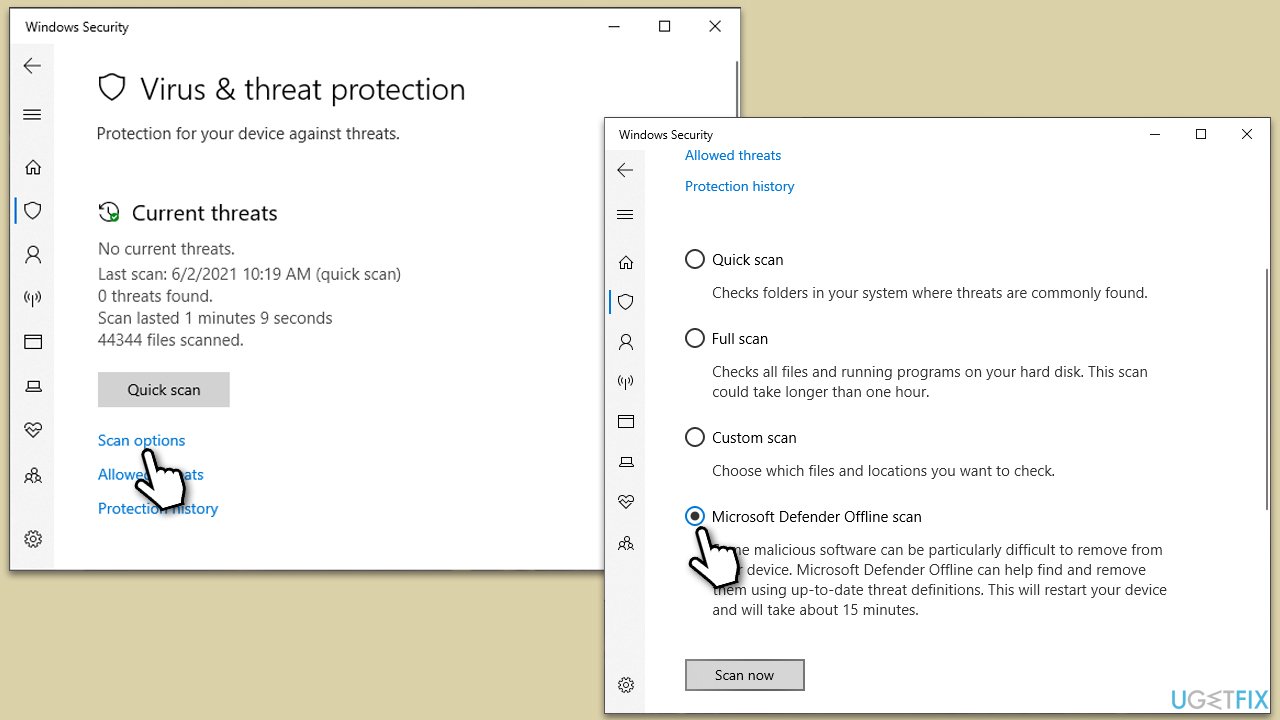
Malware can stealthily consume system resources, causing high CPU usage. You can employ any reputable third-party software, use the free Microsoft Safety Scanner, or rely on good old Windows Defender:
- Type Windows Security in the Windows search bar and hit Enter.
- Select Virus & threat protection.
- Pick Scan options.
- Choose Microsoft Defender Offline scan and click Scan now.
- Your computer will immediately restart and begin a deep scan.
Fix 5. Try Clean Boot
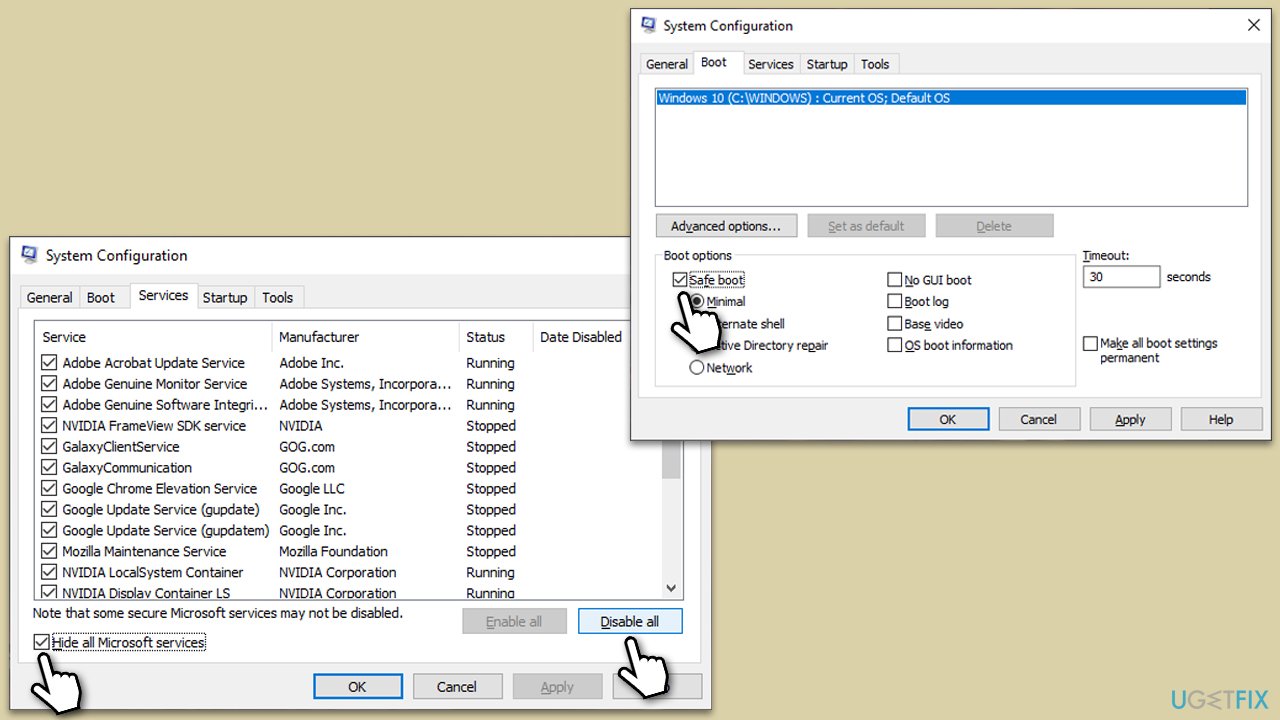
A Clean Boot starts Windows with a minimal set of drivers and services to help identify potential software conflicts.
- Press Win + R, type msconfig, and hit Enter.
- Go to the Services tab and tick the Hide all Microsoft services checkbox.
- Select Disable all.
- Go to the Startup tab and click Open Task Manager.
- Here, right-click on each of the non-Windows entries and select Disable.
- Close down the Task Manager.
- Go to the Boot tab and tick the Safe boot option.
- Restart your device.
Fix 6. Perform System Restore
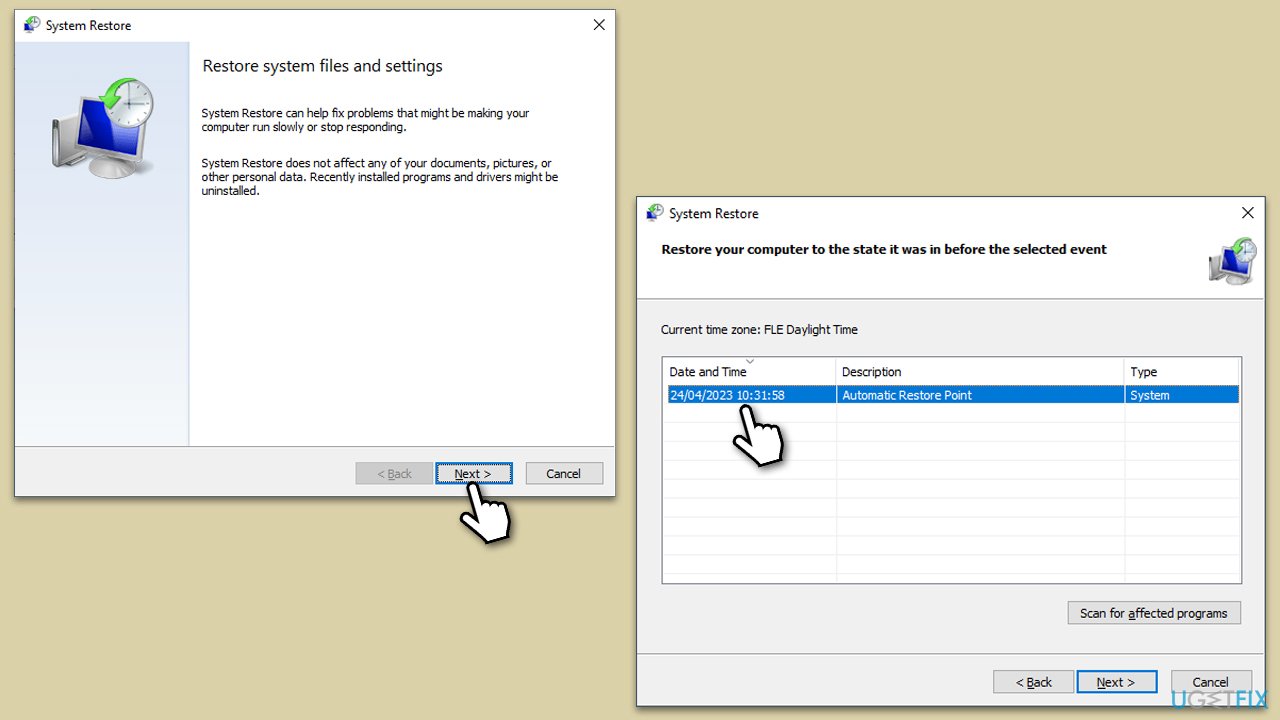
System Restore returns your computer's system files and settings to a date and time when everything was working fine, potentially rectifying any recent changes that led to high CPU usage. It won't affect personal files, but it might remove recently installed apps and drivers.
- Type in Create a Restore point in Windows search and hit Enter.
- In the System Protection tab, pick System restore.
- Click Next.
- Click Show more restore points (if available).
- Pick the time before the problem occurred and click Next.
- Your computer will reboot.
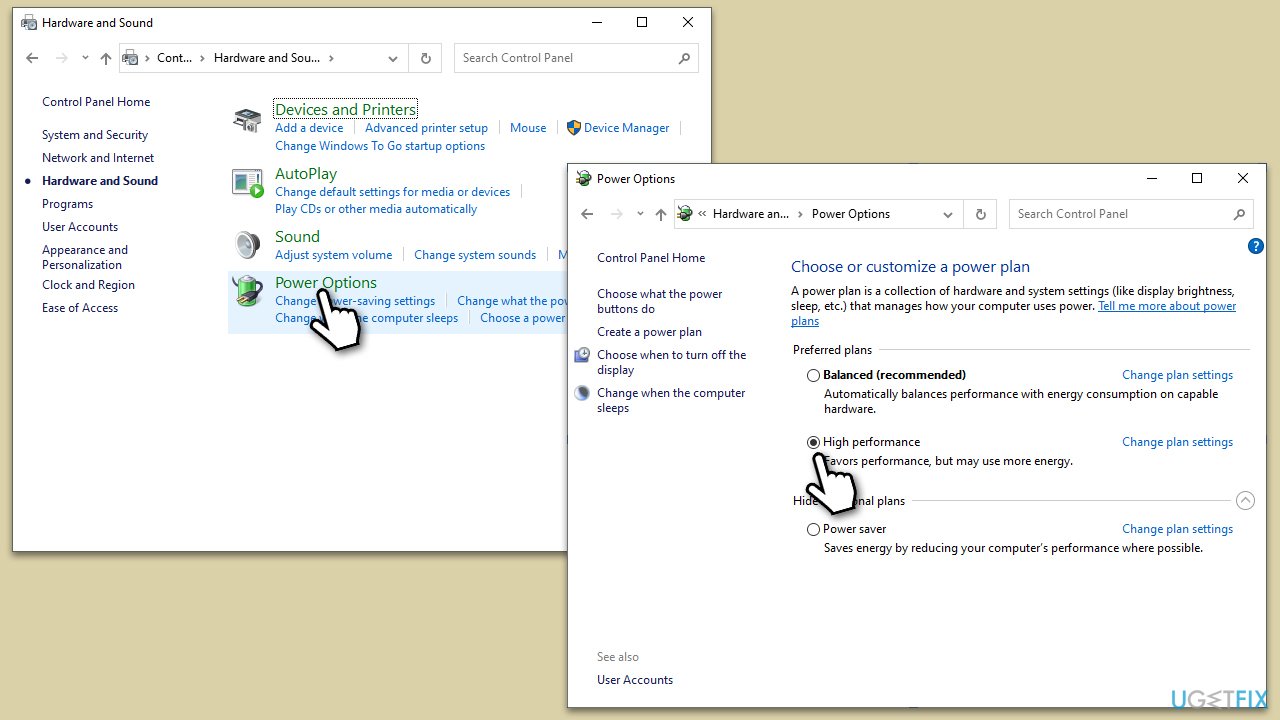
Fix 7. Adjust power settings
Some power settings can cause excessive CPU usage, especially on laptops.
- Type Control Panel in Windows search and hit Enter.
- Here, go to Hardware and Sound > Power options.
- Here, you will see the listed plans.
- Change the plan from Power saver to High performance.
Fix 8. Perform Disk Cleanup
Accumulated temporary files might contribute to system lags.
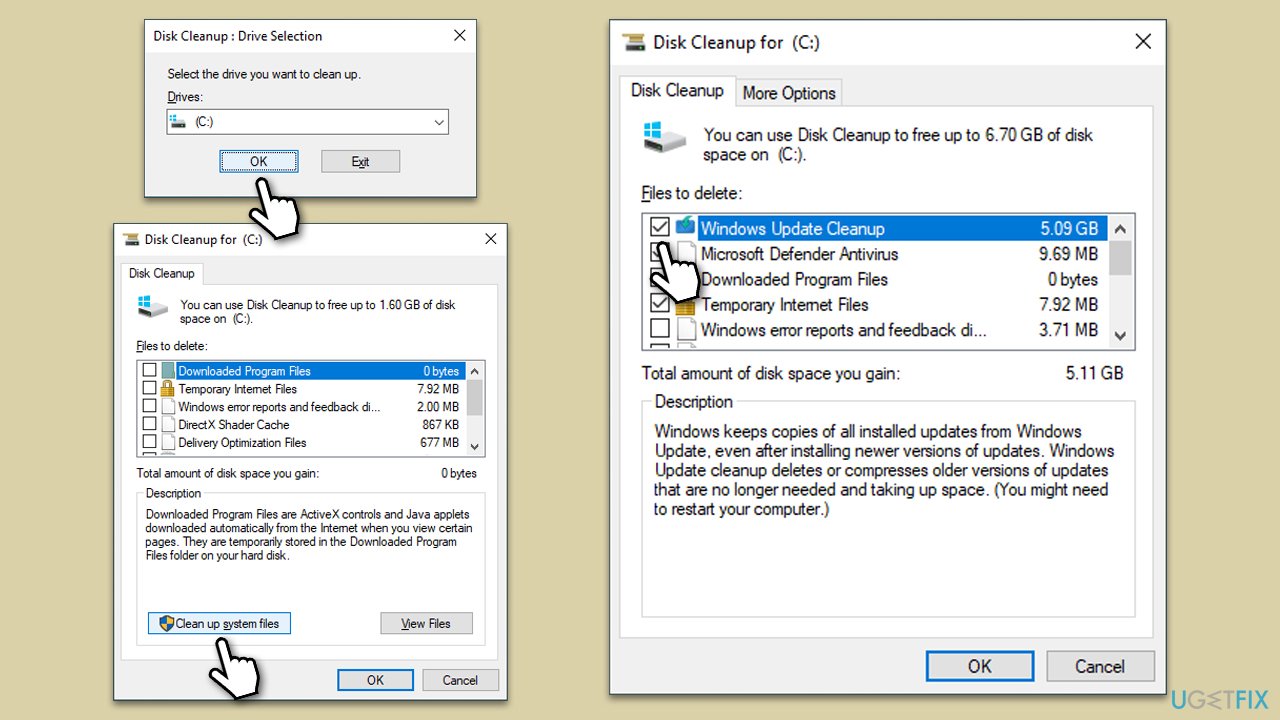
- In Windows search, type Disk Cleanup. Press Enter to open the Disk Cleanup utility.
- In the Disk Cleanup window, click Clean up system files.
- Select the drive again and click OK.
- In the list of files that can be cleaned up, select the largest portions of data, such as Temporary Internet Files, Windows Update, Temporary Files, and others.
- Click OK to begin the cleanup process.
Bottom line
To resolve high CPU usage by Ntoskrnl.exe, consider updating device drivers, conducting system scans for malware, and inspecting hardware components for faults. If these straightforward solutions do not yield results, employing a dedicated PC repair tool may expedite the resolution.
Frequently asked questions
High CPU usage by Ntoskrnl.exe can be caused by outdated drivers, software conflicts, or corrupted system files. Identifying the specific cause often requires checking system logs and monitoring resource usage.
To fix high CPU usage by Ntoskrnl.exe on Windows 11, try updating your device drivers, running a system file checker, and performing a clean boot to isolate software conflicts.
No, disabling Ntoskrnl.exe is not recommended as it is a critical component of the Windows operating system. Instead, focus on troubleshooting methods to address the underlying issues.




Report an issue
What's wrong with this guide? We review every report and update or remove content.
Report received — thank you. We'll review and fix it.
You need a free account to submit a report.
Be the first to comment