How to fix
“No device drivers were found” error when installing Windows
on Windows
Resolve the "No device drivers were found" issue during Windows 10 or Windows 11 installation with our expert-tested solutions. Fixed in minutes!

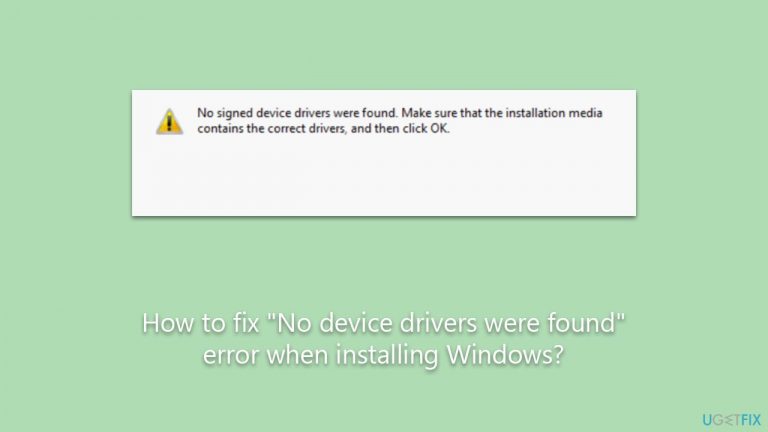
What causes How to fix “No device drivers were found” error when installing Windows?
- Installation media lacks necessary drivers for the hard drive or motherboard
- Primary partition where Windows is to be installed is not activated
- USB port issues may prevent proper driver detection
- Drivers need to be downloaded from the manufacturer's website
- Using outdated installation media may lead to missing drivers
Repairs Windows system files, removes malware, and restores a clean OS state — without reinstalling.
I have recently built a new PC, and whenever I attempted to boot into Windows, I received a "No device drivers were found" error. I now can't boot into Windows because it's missing drivers. Any ideas on how to proceed?
When installing the Windows operating system on a computer, the process is usually straightforward. However, challenges can arise, and one of the common issues encountered by users is the "No device drivers were found" error. This error message can be quite puzzling, especially for users who may not be deeply familiar with the intricacies of computer hardware and software.
The appearance of the "No device drivers were found" error during the Windows installation process essentially means that the installation procedure cannot find the necessary drivers to proceed. Drivers are software components that allow the operating system to communicate with the hardware of the computer, such as the hard drive, graphics card, or network adapters. In the context of this error, the main focus is often on the hard drive or storage drivers.
There are several reasons why this error might pop up. The installation media might not have the necessary drivers for the specific hard drive or motherboard of the computer. Alternatively, Windows requires an active primary partition to be installed. If the primary partition where Windows is meant to be installed is not activated, it might lead to this error.
To resolve this issue, users have a few potential solutions. Sometimes, the issue might be with the USB port itself. Trying a different port might solve the problem. Another option is using Microsoft's Media Creation Tool, which can help in creating a bootable USB or DVD with the latest drivers.

If the necessary drivers are identified, they can be downloaded from the manufacturer's website and then installed during the Windows installation process. Ensuring that the primary partition where Windows is to be installed is active can also mitigate this issue.
For those who encounter other general issues and errors with Windows, considering tools like the [d1] PC repair tool can provide comprehensive solutions.
Fix 1. Use a different USB port
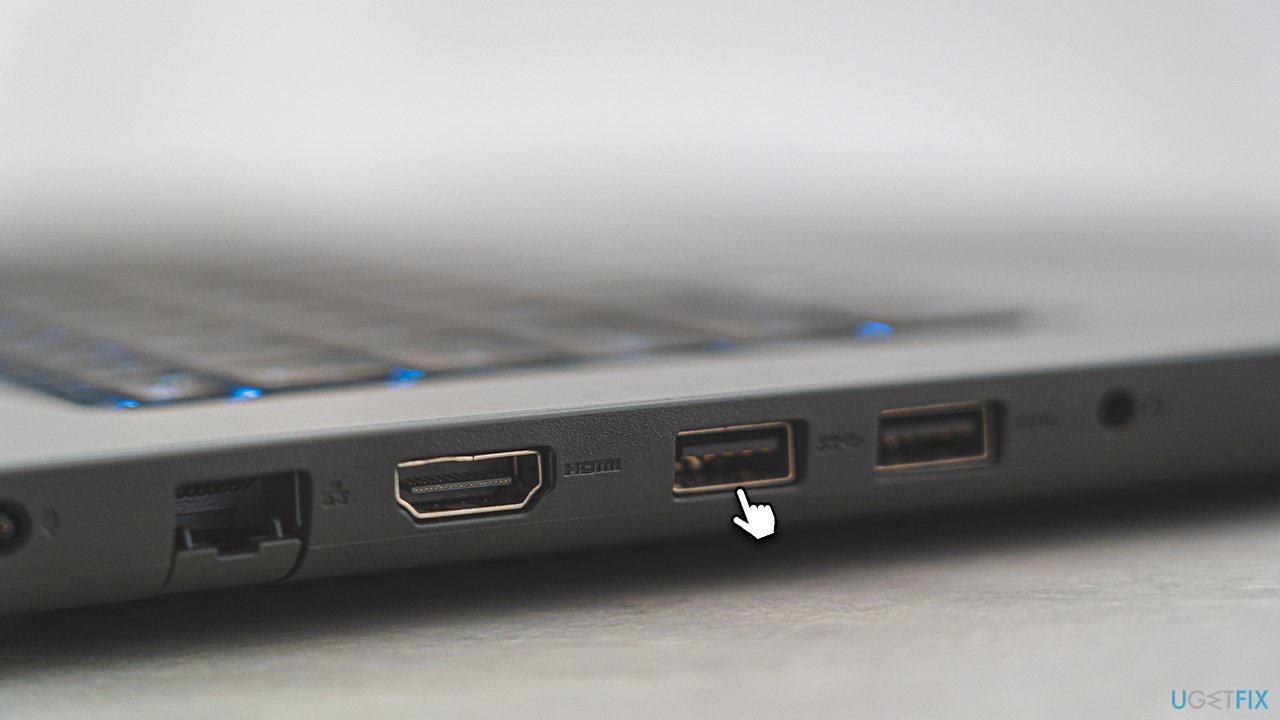
Sometimes, the USB port you're using to install Windows might not be compatible, especially if it's a USB 3.0 port. Older installation media or PCs may have difficulty recognizing devices connected to these newer ports.
- Locate another USB port on your computer.
- Ensure it's a USB 2.0 port (it's typically black in color, whereas USB 3.0 is blue).
- Connect your installation media to the USB 2.0 port.
- Restart the installation process.
Fix 2. Create Windows Installation Media
Microsoft's Media Creation Tool can create more up-to-date installation media with the latest drivers.
- Download Windows 11 Installation Media from the official website. [Windows 10 version]
- Launch mediacreationtool.exe by double-clicking it.
- If User Account Control shows up, click Yes.
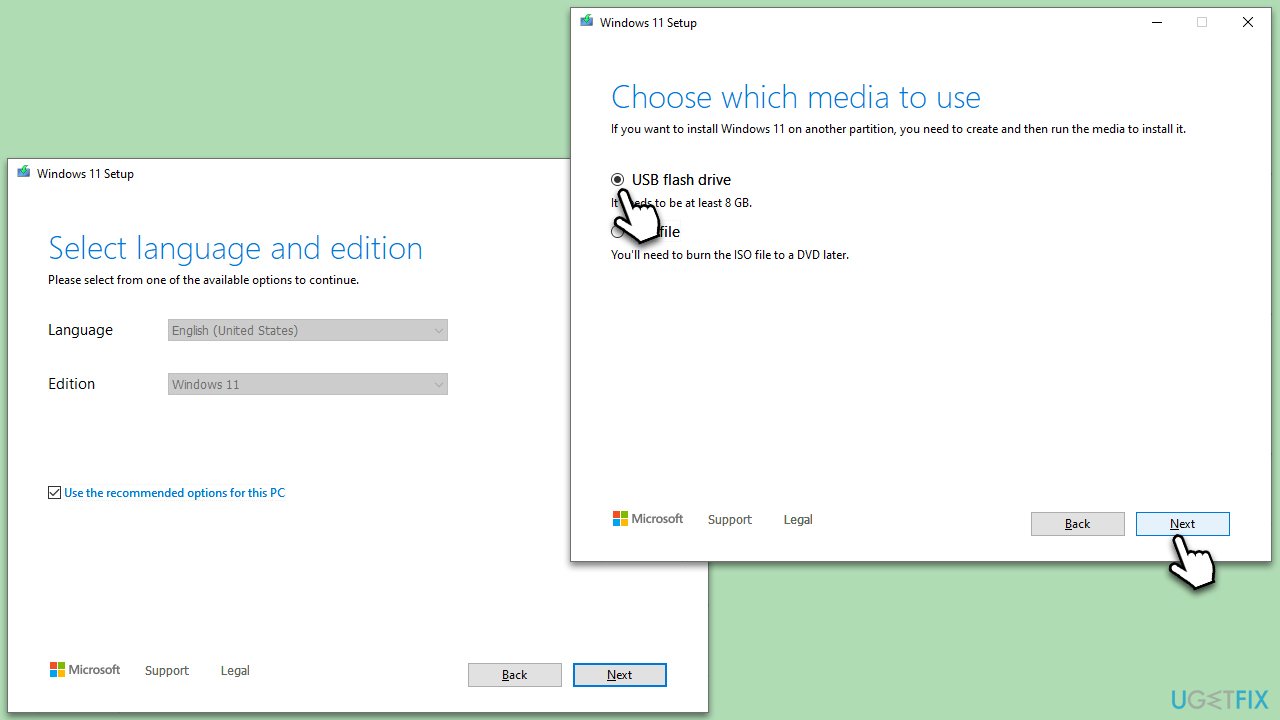
- Select Create installation media (USB flash drive, DVD or ISO file) for another PC, and then pick Use the recommended options for this PC, and click Next.
- Select the USB flash drive and click Next.
- Finalize the process and then use this USB when booting into Windows with an error.
Fix 3. Install the driver from a USB
In some cases, your computer might require specific SATA or AHCI drivers to recognize the storage. These drivers allow the system to communicate with the storage device during installation.
- Download the necessary SATA or AHCI drivers from the manufacturer's website on another computer.
- Save these drivers onto a USB drive.
- During the Windows installation, after receiving the error, select Load Driver.
- Browse to the location on the USB drive where you saved the drivers and select them.
- Continue with the installation process after the drivers are loaded.
Fix 4. Set the partition to active
Windows needs an active partition to install. If it's not set to active, the installation might not proceed.
- Boot your computer using the Windows installation media.
- On the initial setup screen, press Shift + F10 to open the Command Prompt.
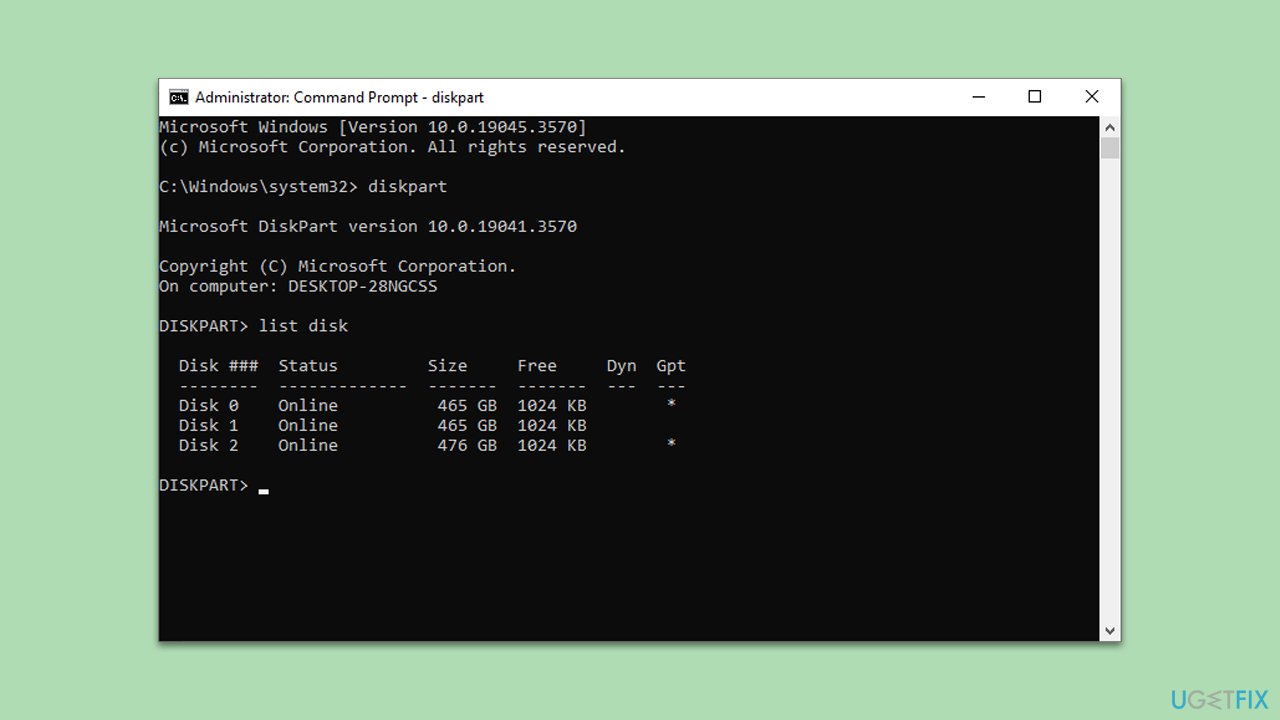
- Type
diskpartand press Enter. - Type
list diskand press Enter. - Identify the disk you want to install Windows on and type
select disk X(replace X with the number of your disk). - Type
list partitionand press Enter. - Identify the primary partition and type
select partition X(replace X with the number of your partition). - Type
activeand press Enter. - Exit the command prompt and continue with the installation.
Fix 5. Reset motherboard settings in BIOS
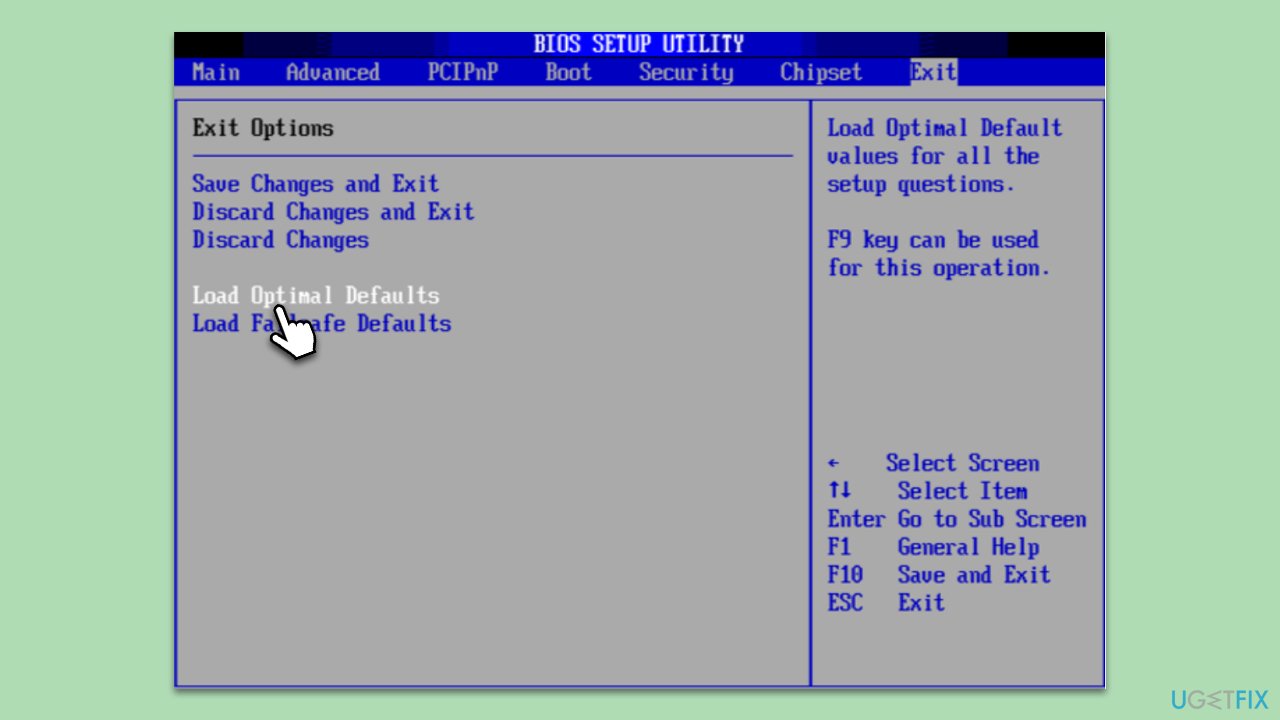
Resetting the motherboard settings to their defaults can solve any configuration issues that might be preventing the installation.
- Restart your computer and press the key to enter the BIOS (usually Del, F2, or F10, depending on the manufacturer).
- Navigate to the Exit tab or look for an option that says Load Setup Defaults or Load Optimized Defaults.
- Confirm the action to reset all settings.
- Save and exit the BIOS.
- Retry the Windows installation.
Bottom line
To resolve the 'No device drivers were found' error, users can try different USB ports, use Microsoft's Media Creation Tool to create updated installation media, and ensure that the primary partition is active. If these solutions do not work, consider downloading the necessary drivers directly from the manufacturer's website.
Frequently asked questions
Make sure that your USB drive is properly connected and that you are using a compatible USB port. If the issue persists, try using a different USB drive or downloading the latest drivers from the manufacturer's website before the installation.
Check if your BIOS settings allow USB booting and ensure that the USB drive is formatted correctly. Additionally, downloading the necessary drivers for your hardware and loading them during installation can help resolve this issue.
Yes, you can download the appropriate drivers from your hardware manufacturer's site and load them during the Windows installation process. Ensure that you have these drivers on a separate USB drive to access them when prompted.




Report an issue
What's wrong with this guide? We review every report and update or remove content.
Report received — thank you. We'll review and fix it.
You need a free account to submit a report.
Be the first to comment