How to fix
QuickBooks “Payroll Service connection” error
on Windows
Resolve the QuickBooks "Payroll Service connection" error on Windows 10 or 11 effortlessly with our expert-tested solutions. Fixed in minutes!

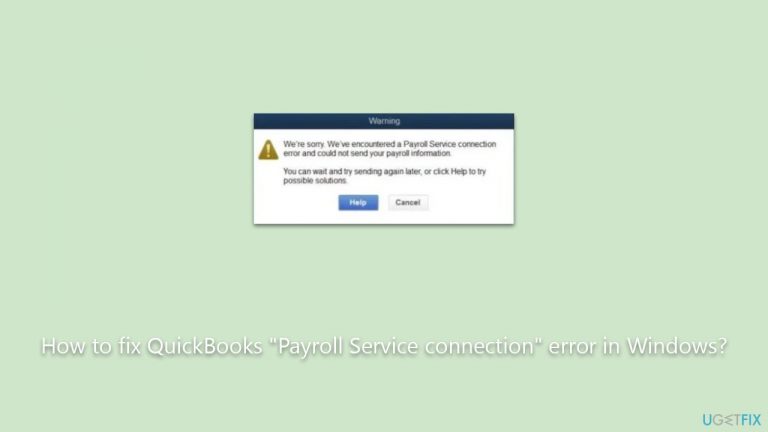
What causes How to fix QuickBooks “Payroll Service connection” error in Windows?
- Unstable internet connection
- Slow internet connection
- Internet connection is entirely down
- Server downtimes at Intuit
- Maintenance schedules on Intuit's side
Repairs Windows system files, removes malware, and restores a clean OS state — without reinstalling.
I am unable to use QuickBooks properly because of the "Payroll Service connection" error. Please advise on how to fix this.
QuickBooks is a widely recognized accounting software solution tailored for small to medium-sized businesses. Developed by Intuit, QuickBooks offers a range of financial tools that help businesses manage their expenses, track transactions, process payrolls, and more, all within an intuitive user interface. Its prominence in the market comes as a result of its efficiency, user-friendliness, and robust feature set, which streamlines many of the laborious tasks associated with business finance management.
However, like all software, QuickBooks isn’t immune to occasional hiccups. One common issue you might encounter while using QuickBooks is the "Payroll Service Connection" error. This error typically signifies that the software is unable to establish a connection with the Intuit server to process payroll functions.
Several factors could trigger the "Payroll Service Connection" error. Predominantly, it's usually caused by issues related to your internet connection or server problems at Intuit's end. If your internet connection is unstable, slow, or entirely down, QuickBooks may fail to access the server, leading to the displayed error. Additionally, server downtimes or maintenance schedules on Intuit's side can temporarily interrupt the payroll service, causing the software to throw this error message.

If you encounter the "Payroll Service Connection" error, there are potential solutions to try. First, ensure your internet connection is stable and robust. Sometimes, simply restarting your router or checking for connectivity issues can resolve the problem. If your connection is fine, then it might be beneficial to check Intuit's official site or forums to see if there are any reported server downtimes. Bear in mind that instructions on how to comprehensively tackle this issue will be provided below this article.
For broader Windows-related concerns or general software glitches, considering the use of [d1] PC repair app can be a proactive approach to maintaining your system's health and functionality.
Fix 1. Run network troubleshooter
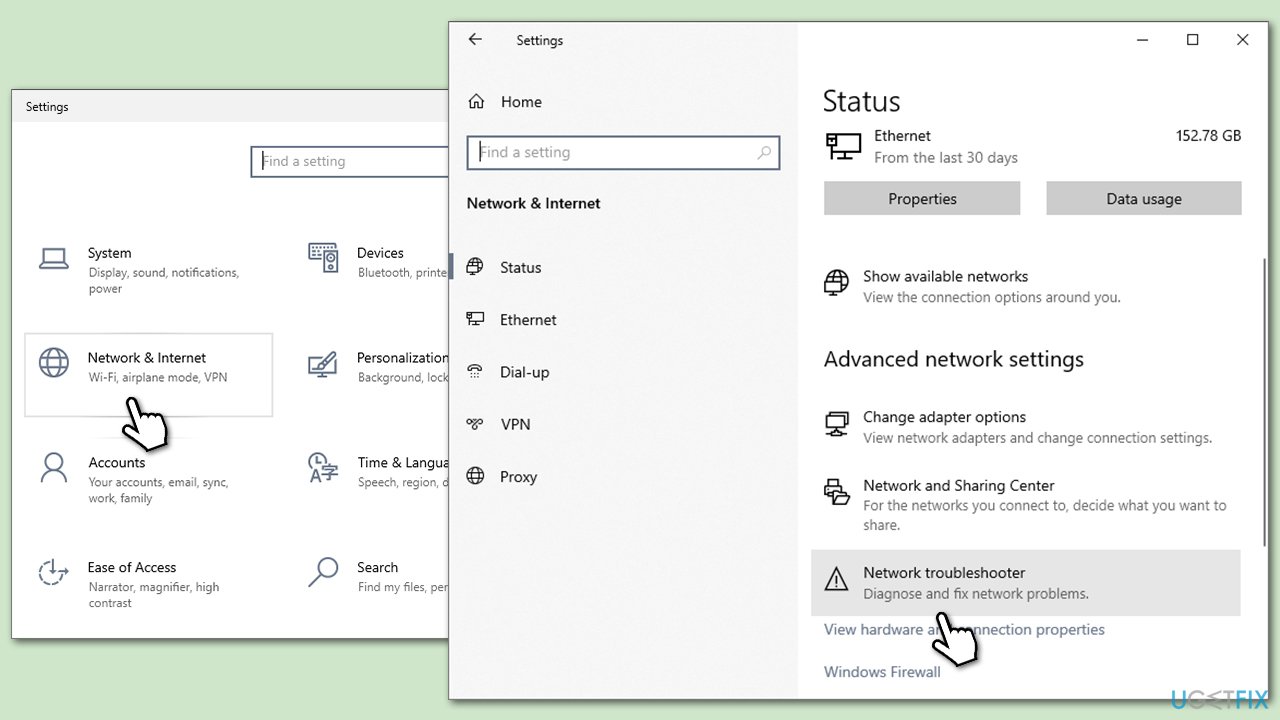
The network troubleshooter is a built-in tool in Windows that helps identify and resolve any potential internet or network-related problems. It can detect issues like weak connectivity, connection disruptions, or misconfigured network settings and automatically fix them or provide recommendations.
- Right-click on Start and pick Settings.
- Go to Network & Internet section.
- On the right side, find the Advanced network settings section.
- Click Network troubleshooter and wait.
- The fixes will be automatically applied.
Fix 2. Update the QuickBooks app
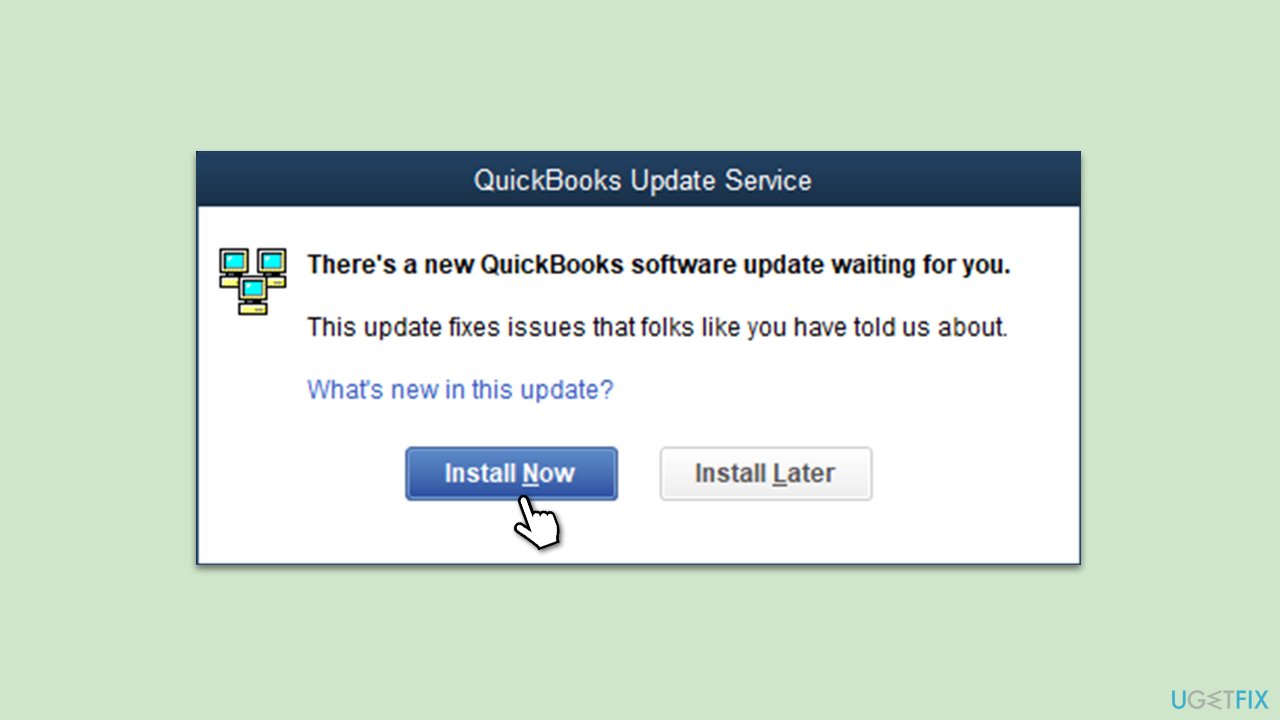
Updating your software ensures you have the latest features and bug fixes. An outdated QuickBooks app might be incompatible with newer system settings or lack the most recent fixes, leading to a connection error.
- Open your QuickBooks application.
- Go to the Help menu.
- Select Update QuickBooks Desktop.
- Click on the Update Now tab.
- Choose Get Updates and wait for the process to complete.
- Restart QuickBooks and see if the issue is resolved.
Fix 3. Clear browser's cache
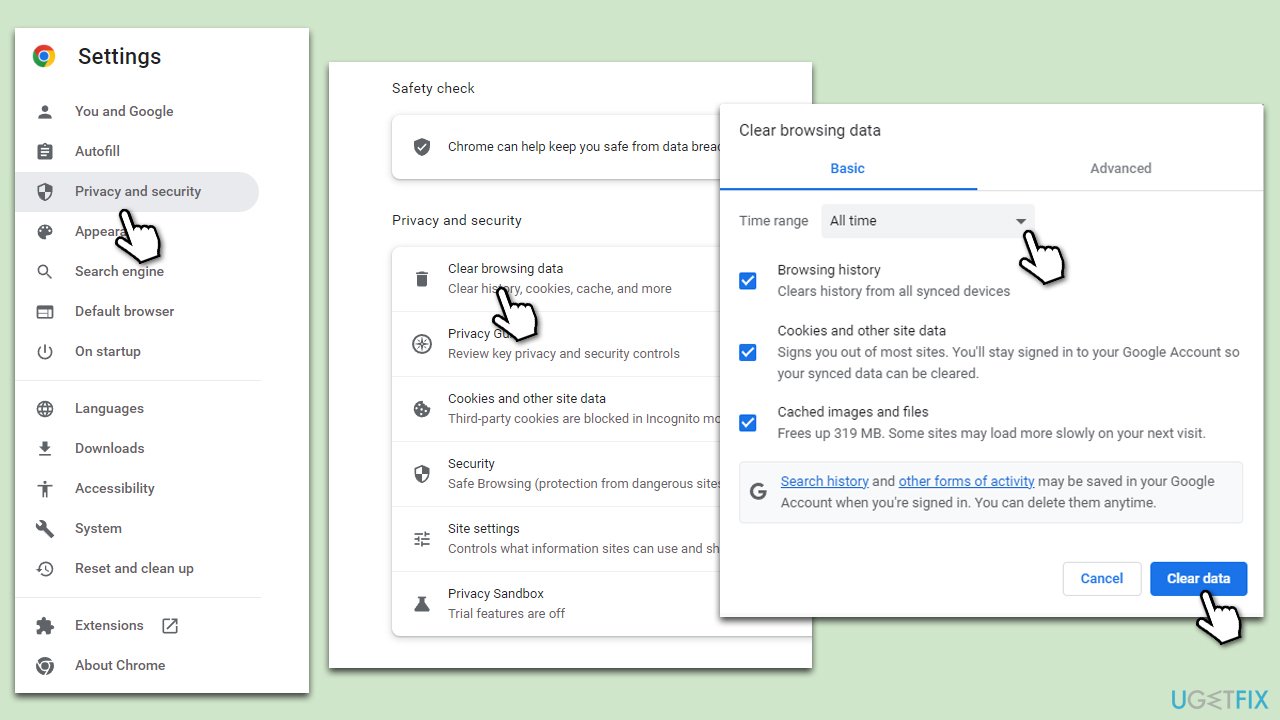
The cache stores temporary internet files, which can sometimes interfere with the software's online functionality. Clearing it can enhance performance and remove any hindrances.
Google Chrome
- Click on Menu (⋮) and pick Settings.
- Under Privacy and security, select Clear browsing data.
- Under time range, pick All time.
- Select Browsing history, Cookies and other site data, and Cached images and files.
- Click Clear data.
Mozilla Firefox
- Open Mozilla Firefox.
- Click the three lines icon (≡) located at the top-right corner of the window.
- Click on Settings from the dropdown menu.
- In the left-hand menu, click on Privacy & Security.
- Scroll down to locate the Cookies and Site Data section.
- Click Clear data...
- Mark the Cookies and Site Data, as well as Cached Web Content checkmarks, and click Clear.
Microsoft Edge
- Open Edge and click on three horizontal dots (…) (Settings and more).
- Pick Settings.
- Click Privacy, search, and services on the left.
- On the right side of the window, scroll down to find the Clear browsing data section.
- Click Choose what to clear.
- Select All time.
- Pick all the sections and click Clear now.
Fix 4. Verify security certificate information
Incorrect security certificate settings may prevent QuickBooks from establishing a secure connection with Intuit servers.
- Press Win + E to open File Explorer.
- Navigate to the installation folder of QuickBooks (usually, C:\Program Files (x86)\Intuit\QuickBooks).
- Right-click on the QuickBooks EXE file and select Properties.
- Go to the Digital Signatures tab and click on Details.
- Then, select View certificate, and if everything is fine, check other certificates.
- If the certificate was revoked or similar, you should click on the Import certificate option.
- Set the Store location as a current user and then proceed with on-screen instructions.
Fix 5. Reset your internet connection
A simple reset can often solve intermittent connection issues by refreshing the connection parameters.
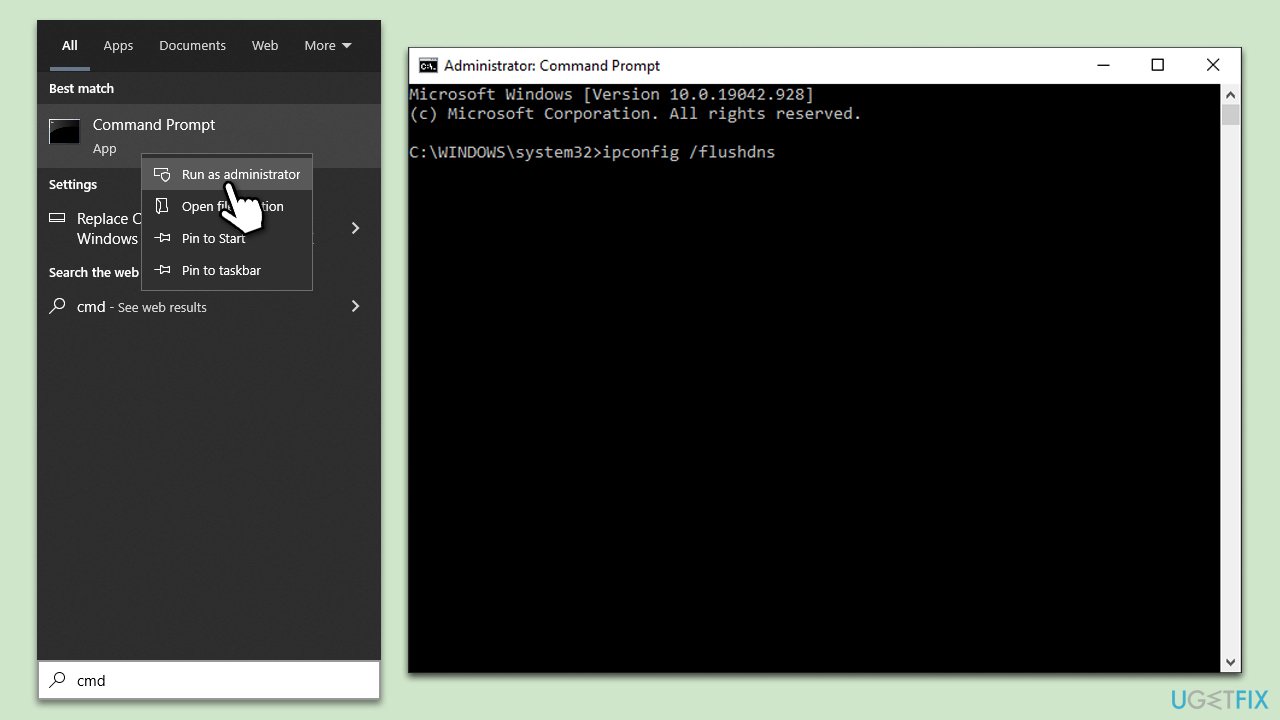
- Type cmd in Windows search, right-click on Command Prompt and select Run as administrator
- When the new window opens, copy and paste the following commands, pressing Enter after each:
ipconfig /flushdns
ipconfig /registerdns
ipconfig /release
ipconfig /renew
netsh winsock reset - Close down the Command Prompt and check if the problem is resolved.
Bottom line
To fix the 'Payroll Service Connection' error, ensure your internet connection is stable and robust, restart your router, and check for any reported server downtimes on Intuit's official site. If these steps do not resolve the issue, consider using the network troubleshooter or a PC repair app for further assistance.
Frequently asked questions
This error often occurs due to network connectivity issues, incorrect firewall settings, or outdated QuickBooks software on Windows 10.
To fix this error on Windows 11, ensure your internet connection is stable, and check that QuickBooks is updated to the latest version.
Yes, temporarily disabling the firewall in Windows can help identify if it is blocking QuickBooks, but remember to enable it again after testing.




Report an issue
What's wrong with this guide? We review every report and update or remove content.
Report received — thank you. We'll review and fix it.
You need a free account to submit a report.
Be the first to comment