How to fix
“An error occurred while applying security information”
on Windows
Resolve the "An error occurred while applying security information" issue in Windows 10 or 11 quickly and effectively. Expert-tested solutions await!

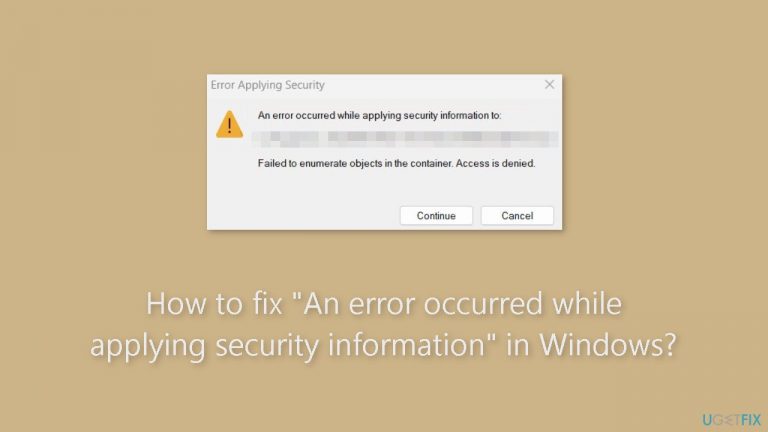
What causes How to fix “An error occurred while applying security information” in Windows?
- File is locked in read-only mode
- Current user account lacks ownership rights
- Insufficient permissions to change security settings
- File is being used by another program
Repairs Windows system files, removes malware, and restores a clean OS state — without reinstalling.
Hello. I tried to change the security settings of a file in Windows but I received "An error occurred while applying security information to:" message. How do I fix this?
The error message "An error occurred while applying security information" is an issue sometimes encountered by Windows users when attempting to modify the security settings of a file or folder. This error message typically appears while attempting to alter the ownership, security, or permissions of a particular file, and it frequently indicates a few underlying problems.
This error frequently occurs when a file is locked in read-only mode. In order to prevent unintentional modifications, Windows forbids users from making changes to files that are marked as read-only. This problem may also arise if the current user account does not have ownership rights or the required permissions to change the file's security settings.
Users may be greatly impacted by this issue because it may make it more difficult for them to manage their files efficiently. It may make it difficult to change the file's characteristics, limit access, and, in rare situations, even prevent particular programs or processes from running. Users may become frustrated and find it difficult to safeguard or alter their files as needed while dealing with this problem.
Solving this issue generally involves addressing the root causes, which can include changing the read-only status of the file, obtaining ownership of the file, or adjusting permissions accordingly. Users may also want to think about executing the process in Safe Mode, using an Administrator account, or with enhanced permissions. Additionally, making sure the file isn't being used by another program can assist in resolving this problem.
In this guide, you will find 5 steps that should help you fix "An error occurred while applying security information" message in Windows. If you encounter any other OS issues, you can run a system repair tool like [d1]. It can fix most system errors, BSODs,[ref en-1] corrupted files, and registry[ref en-2] issues. Otherwise, follow the step-by-step instructions below.

Solution 1. Take Ownership of the File using Security Settings
- Right-click the file or folder.
- Select Properties.

- Navigate to the Security tab and click Advanced.
- In the Advanced Security Settings window, click Change.
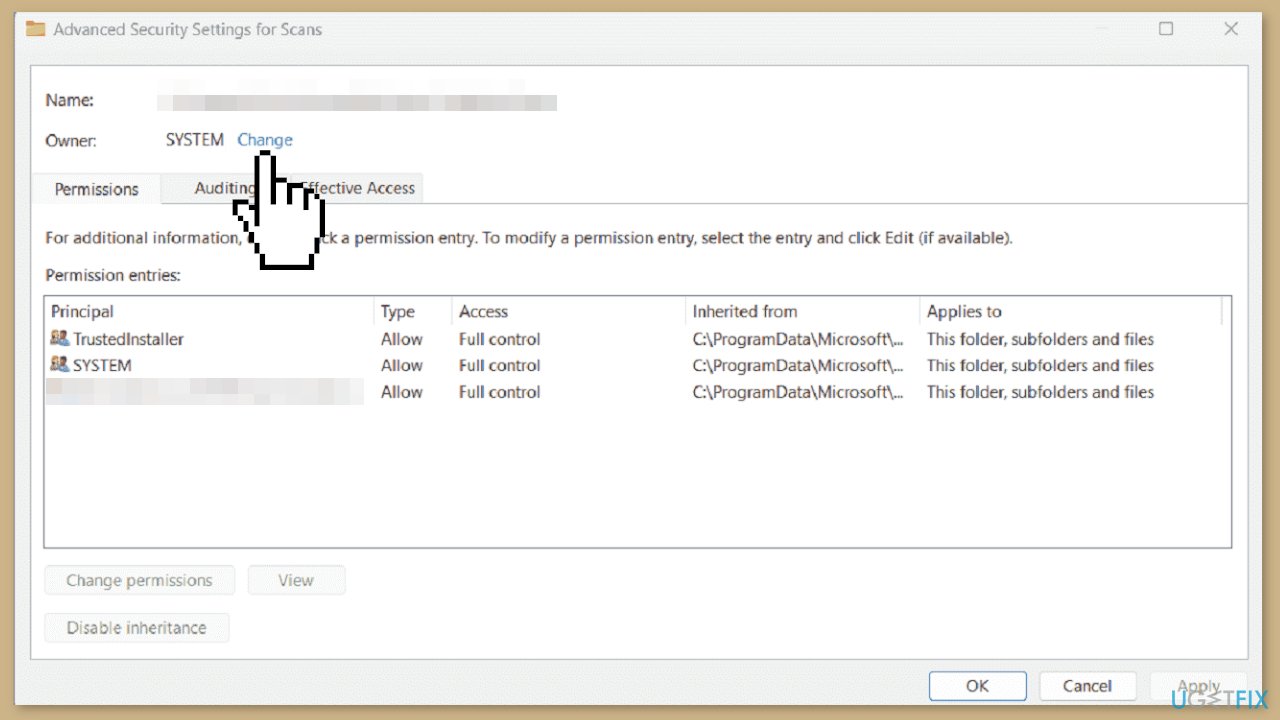
- Enter your administrator email ID, validate it by clicking Check Names, and select OK.
- Back in the Advanced Security Settings window, click on the Auditing tab and enable the two options:
Replace owner on sub-containers and objects
Replace all child object permission entries with inheritable permission entries from this object.
- If needed, revisit the Security tab in the Properties window, click Edit, and grant Full control for the file or folder.
Solution 2. Take Ownership of the File using Command Prompt
- Search for Command Prompt and Run as Administrator.
- Alternatively, press the Windows key + R, type cmd, and use Ctrl + Shift + Enter.
- Type these commands, pressing Enter after each:
takeown /f "F:\ProblemFolder" /a /r /d y
icacls "F:\ProblemFolder" /t /c /grant administrators:F System:F everyone:F
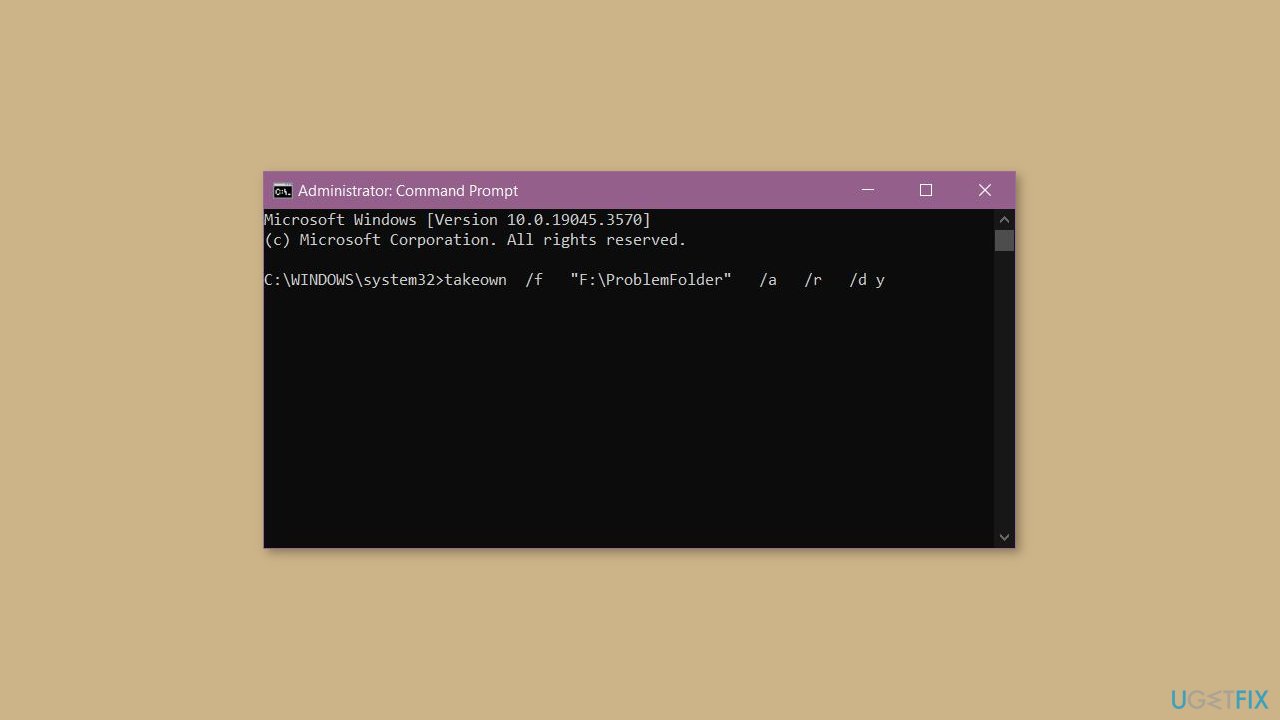
- If no errors appear, you’ve successfully changed permissions and ownership.
Solution 3. Disable Read-only Mode
- Right-click the troublesome file or folder.
- Choose Properties.
- Navigate to the General tab.
- Uncheck the Read-only option in the Attributes section.
- Click Apply and OK to confirm the change.

Solution 4. Modify UAC Settings
- Press the Windows key + R to open the Run dialog box.
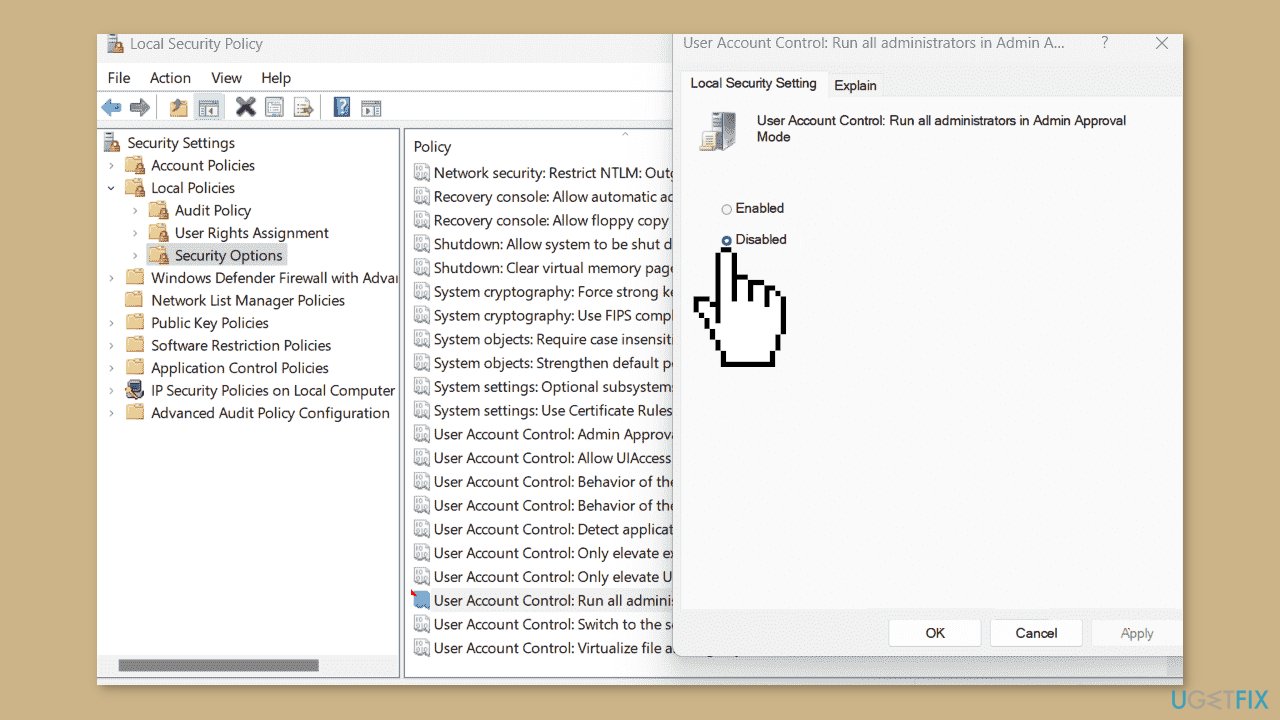
- Type secpol.msc and click OK.
- Navigate to Security Settings > Local Policies > Security Options.
- Double-click User Account Control: Run all administrators in Admin Approval Mode.
- Choose Disabled, then click Apply and OK.
- Restart your PC.
Solution 5. Change Drive Ownership
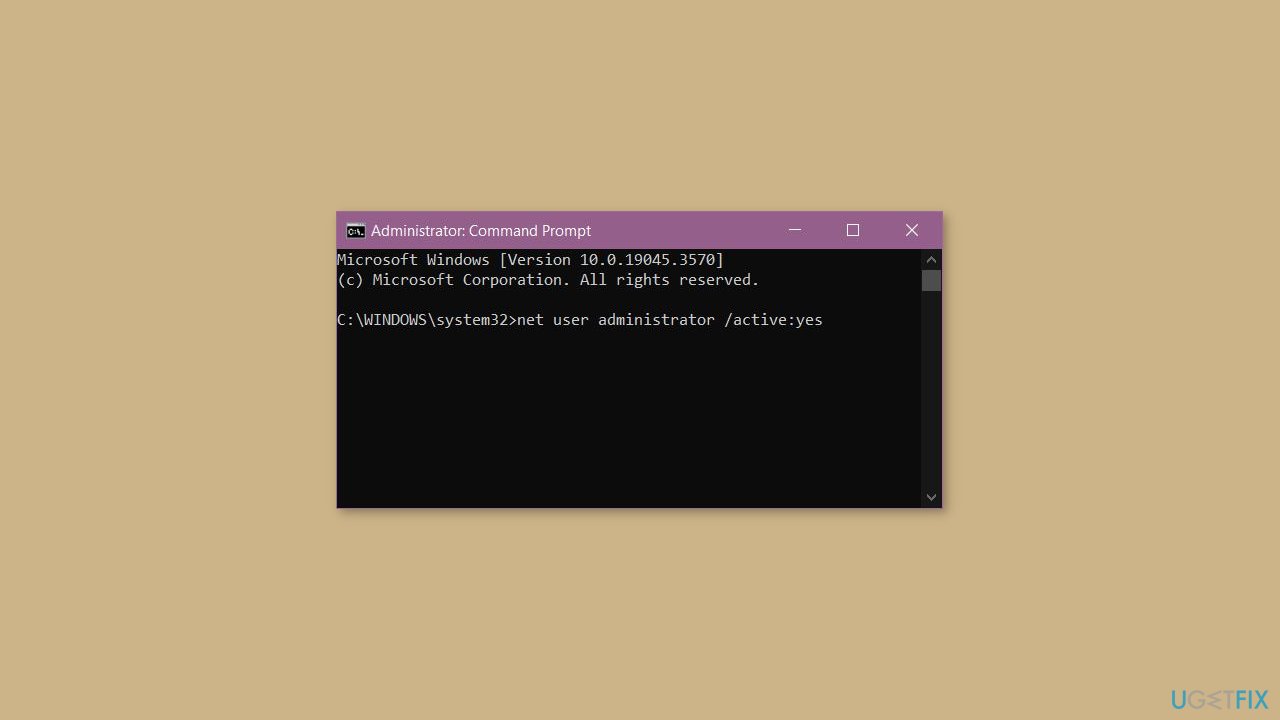
- Open the elevated Command Prompt by clicking on Search, typing cmd, and selecting Run as administrator.
- Enter and execute the provided command:
net user administrator /active:yes
- Log into the admin account.
- Press the Windows key + X.
- Select Disk Management.
- Locate the (C:) drive under the Volume column.
- Right-click the drive and choose Properties.
- Go to the Security tab and click Advanced.
- Click Change next to Owner.
- Select Advanced > Find now.
- Choose Administrator from the list.
- Check the necessary options for subfolders and objects.
- Confirm security prompts when they appear.
- Restart your system and check if the error is fixed.
Bottom line
To fix the error, you can take ownership of the file, change its read-only status, or adjust permissions accordingly. Additionally, consider running the process in Safe Mode or using an Administrator account. If these solutions do not work, you may want to run a system repair tool to address other potential issues.
Frequently asked questions
This error typically arises due to permission issues, corrupted user profiles, or conflicts with antivirus software affecting file access.
You can try taking ownership of the folder by right-clicking it, selecting 'Properties', navigating to the 'Security' tab, and then clicking 'Advanced' to change the owner.
Yes, you can run the System File Checker tool by executing 'sfc /scannow' in the Command Prompt to repair corrupted system files in Windows 10 or 11.




Report an issue
What's wrong with this guide? We review every report and update or remove content.
Report received — thank you. We'll review and fix it.
You need a free account to submit a report.
Be the first to comment