How to fix
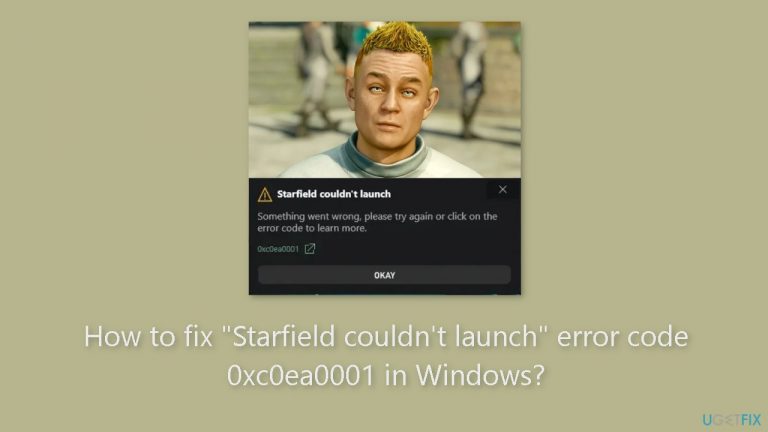
“Starfield couldn’t launch” error code 0xc0ea0001
on Windows
Resolve the "Starfield couldn't launch" error code 0xc0ea0001 on Windows 10 and 11 effortlessly. Quick solutions for gamers, expert-tested.

What causes How to fix “Starfield couldn’t launch” error code 0xc0ea0001 in Windows?
- Corrupted game files
- Missing game files
- Issues with the game's cache
- Problems with the gaming service app
Repairs Windows system files, removes malware, and restores a clean OS state — without reinstalling.
Hello. I wanted to play Starfield but I got the "Starfield couldn't launch" message with error code 0xc0ea0001. Any way to fix this?
Video game studio Bethesda Game Studios, well known for creating hit titles like The Elder Scrolls and the Fallout series, developed Starfield. It is a role-playing game with a space theme that has attracted a lot of interest from gamers.
Error 0xc0ea0001 in Windows, which causes the message "Starfield couldn't launch," is a sign that there are problems that prohibit the game from launching. This error can occur due to various reasons, including corrupted or missing game files, issues with the game's cache, or problems with the gaming service app.
The operation of the game may be affected by corrupted or missing game files, rendering it unable to launch or run properly. The player's experience may also be impaired by performance issues and error messages like the one indicated as a result of corrupted cache. Issues with gaming services can prevent the game from accessing essential resources and services, which can cause startup problems.
Users who are anxiously wanting to play Starfield may find this problem very unpleasant. As the game fails to launch or crashes, it can cause frustration and delays and prevent players from fully immersing themselves in the game's universe. If a player has already played the game and runs into this problem, they may lose their settings or progress.
Clearing cache, checking that the gaming services are working properly, and verifying and restoring game files are all ways to fix the "Starfield couldn't launch" error code 0xc0ea0001. These fixes are designed to deal with the root causes of the issue and give gamers a flawless gaming experience.
In this guide, you will find 5 steps that should help you fix "Starfield couldn't launch" error code 0xc0ea0001. You can also run a maintenance tool like [d1] that can fix most system errors, BSODs,[ref en-1] corrupted files, registry[ref en-2] issues, or clear cookies and cache[ref en-3] automatically. Otherwise, follow the step-by-step instructions below.

Solution 1. Restart Windows
Rebooting the computer is a recommended action to resolve this issue, especially for minor problems. We recommend you restart your computer and check if this resolves the issue. Once your computer has been restarted, proceed to launch your game.
Solution 2. Restart the Xbox App
- Close the game.
- Close the Xbox app.
- Open the Task Manager.
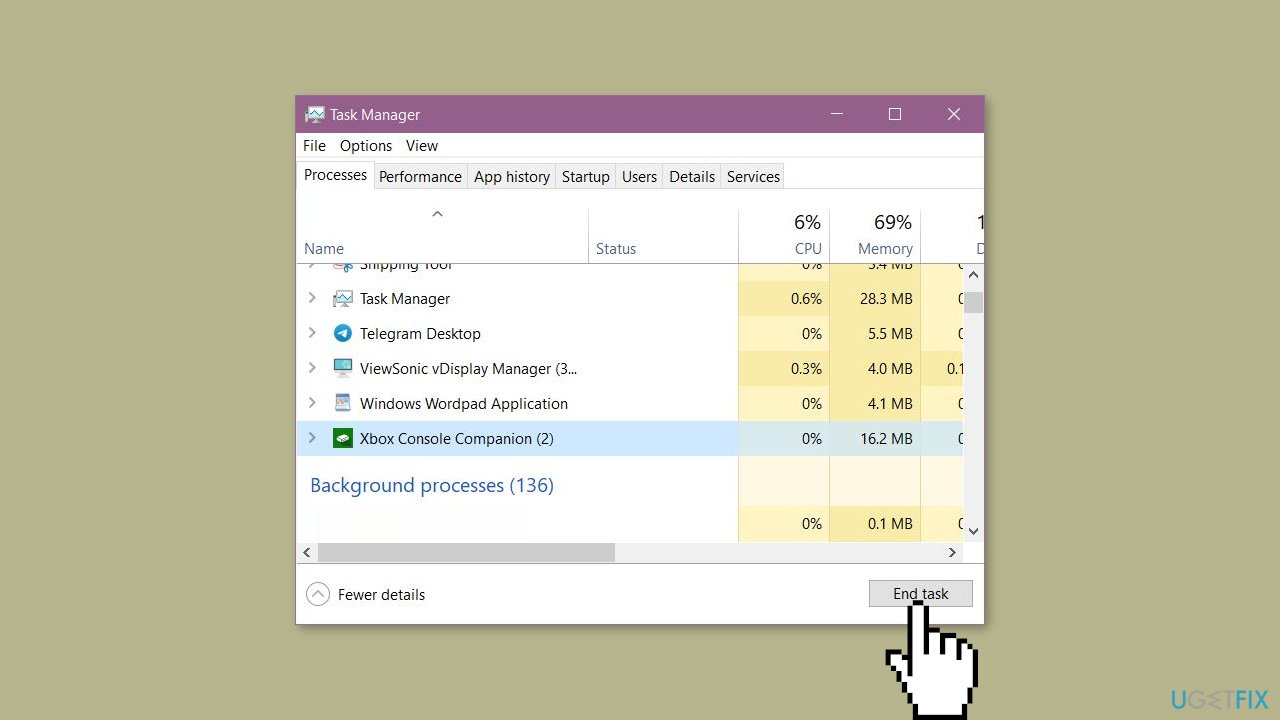
- Terminate all running instances of the Xbox app from the Processes tab.
- Open the Services manager.
- Locate the Gaming Services.
- Right-click on Gaming Services.
- Select Restart.
- Open the Xbox app and try launching the game.
Solution 3. Check Relevant Services
- Open the Run dialog box by pressing the Windows key + R.
- Type services.msc and click OK.
- Scroll down the list of services and find the required services:
IP Helper
Xbox Live Auth Manager
Xbox Live Game Save
Xbox Live Networking Service
Gaming Services
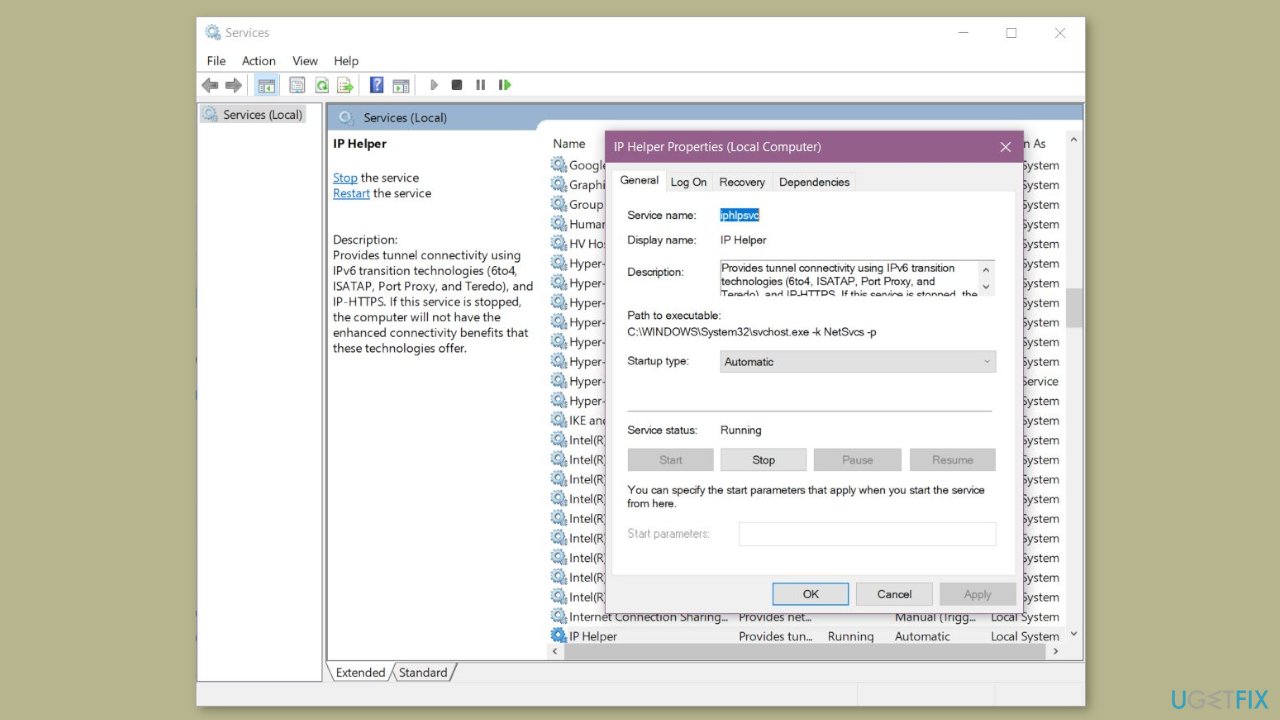
- All these services should be running. If any of these services is not running, right-click on it and select Start. If the services are already running, you can try restarting all of them to see if this works.
- To ensure these services start automatically upon boot:
- Right-click on the services one by one and select Properties.
- Select the General tab.
- Click on the Startup type drop-down and select Automatic (Delayed Start).
- Click Apply and then click OK.
- Restart your computer and launch the game.
Solution 4. Try Clean Boot
- Open the Search menu, type in system configuration, and press Enter.
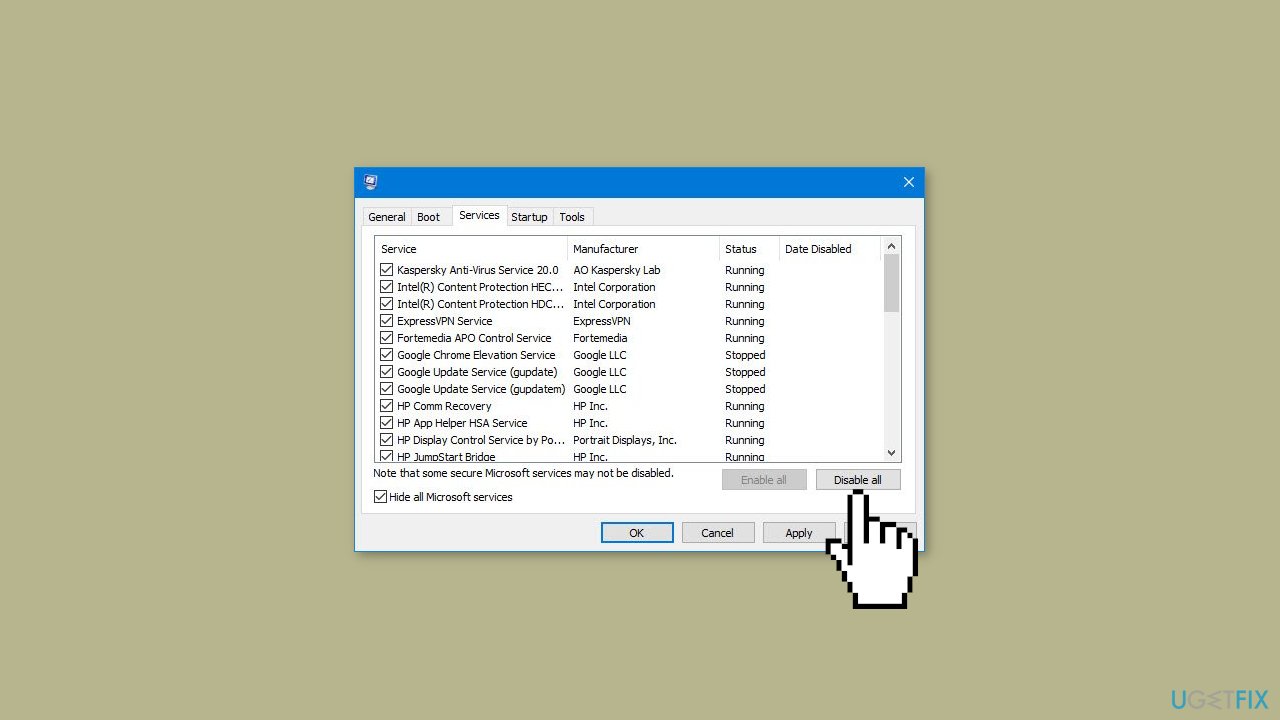
- Under the Services tab, tick the Hide all Microsoft services box.
- Click on Disable all button.
- Head over to the Startup tab and click on Open Task Manager.
- Select a third-party program and click on Disable at the top.
- Repeat this step to disable all third-party apps and programs.
- Restart your PC to enter the clean boot state and see if the issue persists.
- If the issue disappeared in the clean boot state, then you can be certain that a third-party app is causing it.
- Go through all recently installed apps or programs and remove them one by one.
Solution 5. Reinstall Starfield
- Select the Search icon on the taskbar, type xbox, and then select Xbox.
- In the list of installed games on the left side of the app, right-click on Starfield, and then select Uninstall game.
- On the game’s page, select Install and then follow the prompts.
Bottom line
To fix the 'Starfield couldn't launch' error code 0xc0ea0001, you can clear the cache, check that the gaming services are functioning properly, and verify and restore the game files. If these solutions do not resolve the issue, consider running a maintenance tool to address system errors.
Frequently asked questions
The error code 0xc0ea0001 indicates a problem with the game files or system compatibility issues that prevent Starfield from launching properly on Windows.
To verify the integrity of game files, open the game launcher (like Steam or Bethesda), navigate to the game's properties, and select the option to verify file integrity, which will check for and replace any corrupted files.
Yes, ensure your system meets the minimum requirements for Starfield, including the latest Windows updates, GPU drivers, and sufficient RAM, as these factors can affect game performance on Windows 10 or Windows 11.




Report an issue
What's wrong with this guide? We review every report and update or remove content.
Report received — thank you. We'll review and fix it.
You need a free account to submit a report.
Be the first to comment