How to fix
Red Dead Redemption 2 “Unknown error FFFFFFFF”
on Windows
Resolve the Red Dead Redemption 2 "Unknown error FFFFFFFF" effortlessly on Windows 10 or 11. Quick fixes and expert-tested solutions included!

What causes How to fix Red Dead Redemption 2 “Unknown error FFFFFFFF” in Windows?
- Outdated graphics card drivers
- Screen optimizations causing conflicts
- Incompatible compatibility settings
- Corrupted game files
- Inappropriate in-game graphics settings
Repairs Windows system files, removes malware, and restores a clean OS state — without reinstalling.
Hello. The Red Dead Redemption 2 keeps crashing on my Windows PC with "Unknown error FFFFFFFF". What is this message? Any way to fix this?
Many Windows users have experienced Red Dead Redemption 2's frequent "Unknown error FFFFFFFF" problem. Rockstar Games' well-liked adventure game has a devoted following, however a small number of users have encountered sporadic crashes of the program that are accompanied by an error message reading "Unknown error FFFFFFFF."
Players may find this error to be quite aggravating because its root cause is frequently inconspicuous. Although the precise reason of this problem may vary, it frequently causes major disruptions to the gaming experience. Gamers who are suddenly removed from the game risk losing their progress and sense of immersion. For those who have put work and time into the game's narrative and open-world exploration, this kind of interruption can be unpleasant.
Users have tried a variety of solutions to try and reduce this problem, but it's important to realize that the effectiveness of these solutions can vary depending on system setups and the severity of the issue. Updating graphics card drivers,[ref en-1] deactivating screen optimizations, checking compatibility settings, and occasionally deleting specific game files are among potential solutions to the "Unknown error FFFFFFFF" problem. To establish a compromise between performance and visual quality, users may also need to think about changing the in-game graphics settings.
In this guide, you will find 5 steps that should help you fix Red Dead Redemption 2 "Unknown error FFFFFFFF" in Windows. You can also run a maintenance tool like [d1] that can fix most system errors, BSODs,[ref en-2] corrupted files, and registry[ref en-3] issues. Otherwise, follow the step-by-step instructions below.

Solution 1. Connect Headphones or Speakers
- Plug in your speaker or headphones into your computer.
- Alternatively, establish a Bluetooth connection between the devices.
- Reboot your computer.
- After the restart, verify if the error message has disappeared.
Solution 2. Install Windows Updates
- Click Start and select Settings.
- Go to the Windows Update section.
- Click Check for updates and wait.
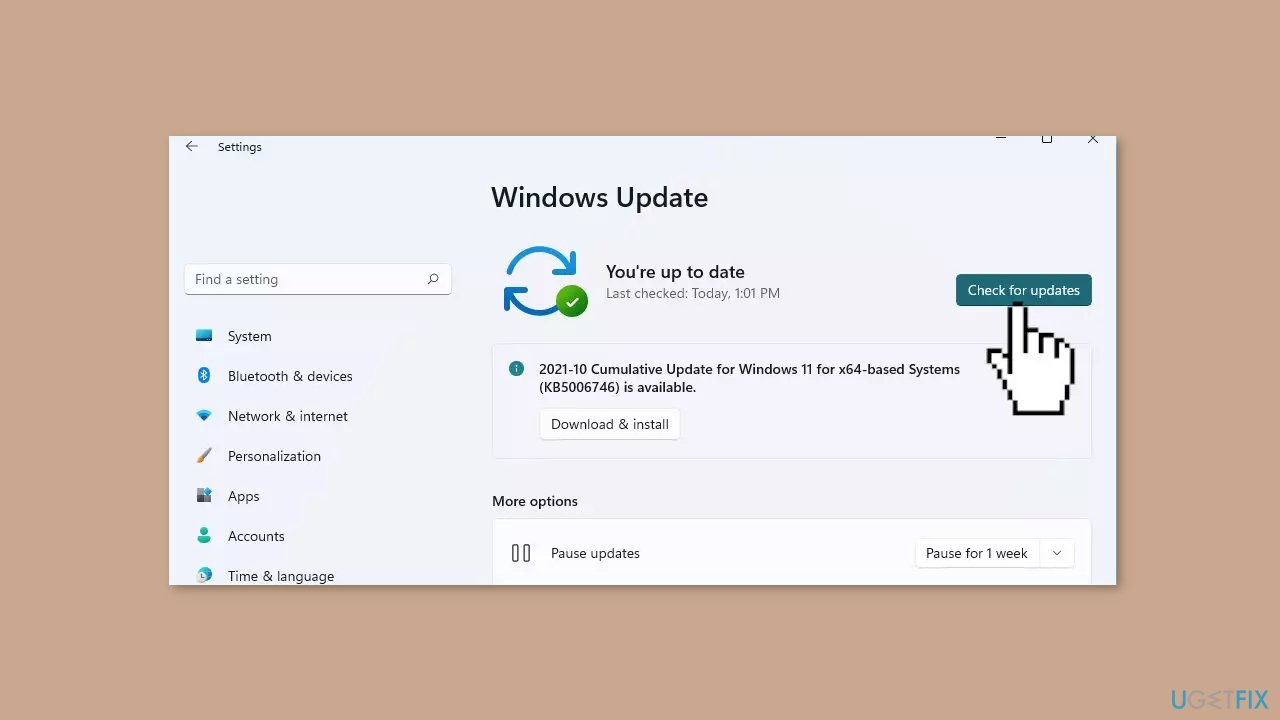
- Go to the Advanced options and install optional updates.
- Reboot your system.
Solution 3. Switch to DirectX 12
- Press the Windows key + I.
- In File Explorer, navigate to the following location:
Documents/Rockstar Games/Red Dead Redemption 2/Settings
- Right-click on systems.xml and choose Open with > Notepad.
- Scroll down to locate the section: <advanceGraphics>.
- In the line <API>kSettingAPI_Vulkan</API>, change Vulkan to DX12. If the line already reads <API>kSettingAPI_DX12</API>, change DX12 to Vulkan.
- Click on File > Save in Notepad and then close it.
- Return to the folder Documents\Rockstar Games\Red Dead Redemption 2\Settings.
- Find every file that starts with sga_ and delete it. The files will resemble names like sga_vulkan_final_init.vkWarmupCacheWindows, or sga_vulkan_final_init.vkPipelineCacheHeaderWindows.
- Open the game Red Dead Redemption 2 to check if the issue is resolved.
Solution 4. Disable Fullscreen Optimization
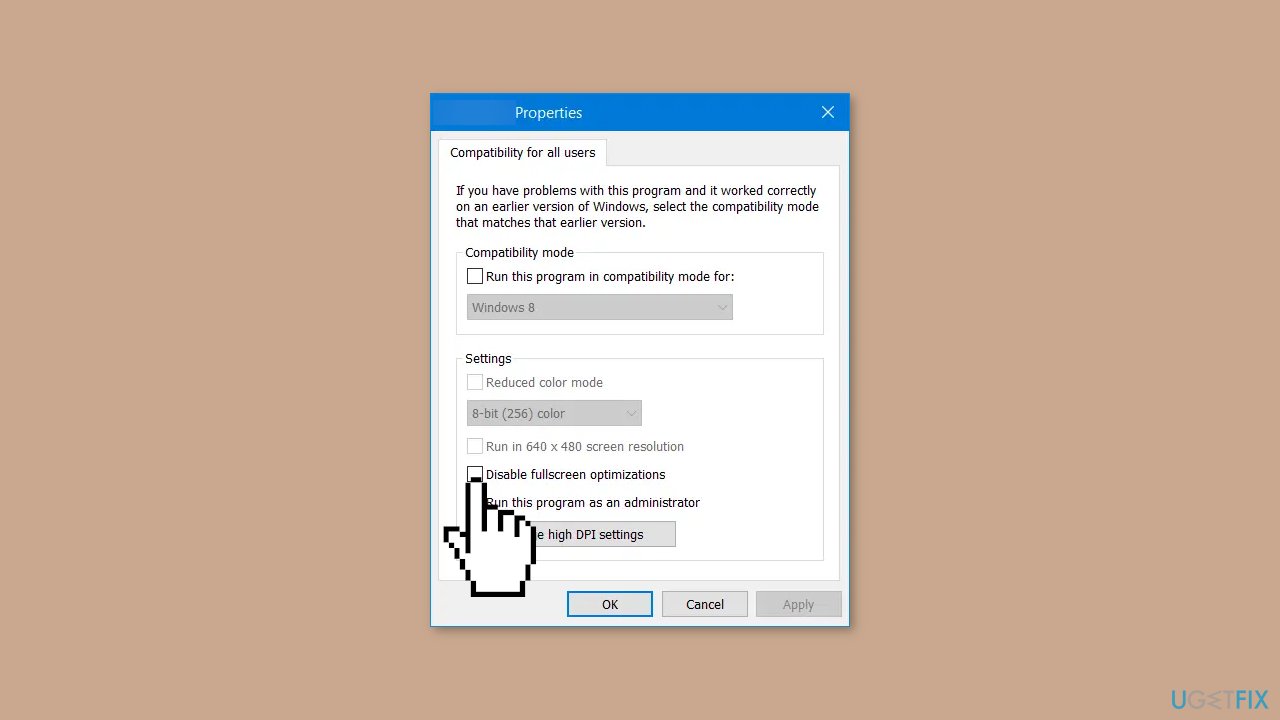
- Right-click on RDR2.exe.
- Select Properties.
- Navigate to the Compatibility tab.
- Check the option for Disable screen optimizations.
- Click Apply, and then click OK.
Solution 5. Update Graphics Driver
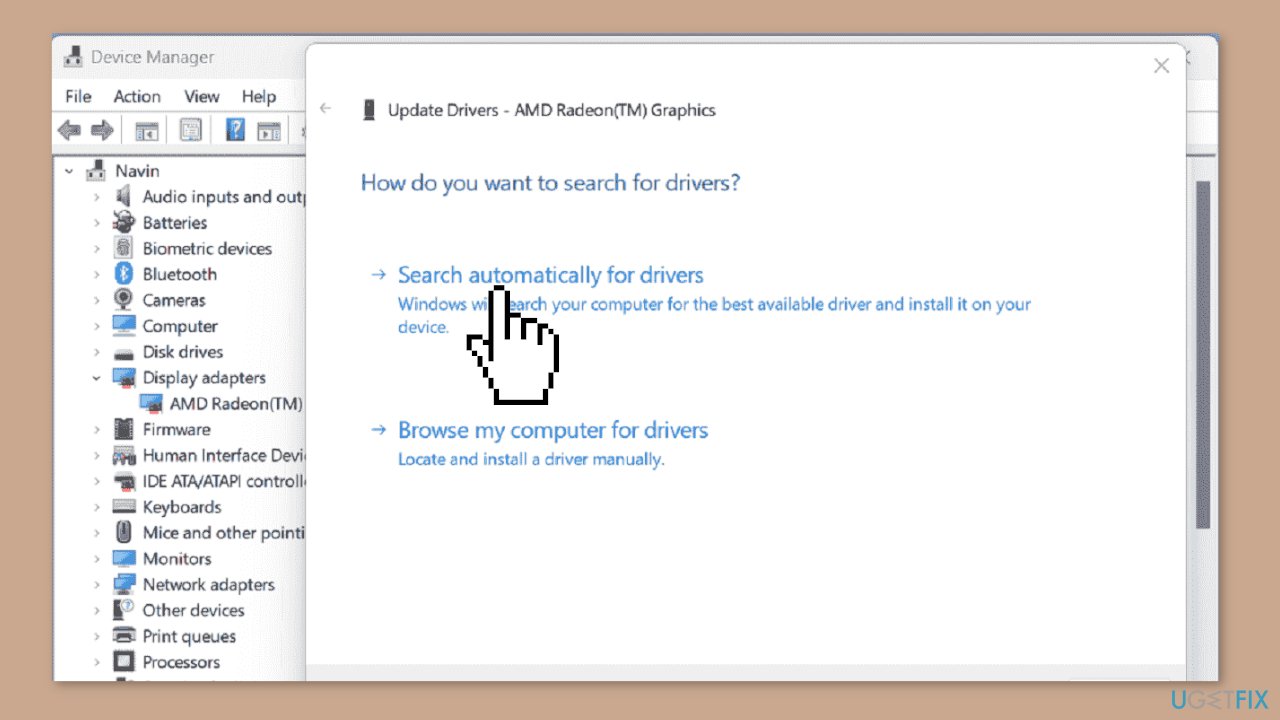
- Right-click on Start and choose Device Manager.
- Expand Display adapters by double-clicking on it.
- Next, right-click on your Graphics card (NVIDIA or AMD) and select Update driver.
- In the new window, pick Search automatically for drivers.
- Restart your system to see if this resolves the issue.
- If the problem persists, visit the NVIDIA or AMD driver download page.
- Select the latest supporting driver and download it.
- Run the installer from your download location and follow the on-screen instructions to complete the process.
- Lastly, restart your computer.
You can also use a dedicated utility like [rev id="DriverFix"] that can find the best drivers for your machine and install them automatically.
Bottom line
To fix the 'Unknown error FFFFFFFF' in Red Dead Redemption 2, users can try updating their graphics card drivers, deactivating screen optimizations, checking compatibility settings, and deleting corrupted game files. If these solutions do not resolve the issue, consider running a maintenance tool or checking for Windows updates.
Frequently asked questions
This error is often related to corrupted game files or issues with the Rockstar Game Launcher on Windows 10 or Windows 11.
You can verify the integrity of game files through the Rockstar Game Launcher by navigating to the game's settings and selecting the option to verify files, which can resolve the 'Unknown error FFFFFFFF'.
Ensure that your Windows 10 or Windows 11 firewall and antivirus settings are not blocking the Rockstar Game Launcher or Red Dead Redemption 2, as this can lead to the 'Unknown error FFFFFFFF'.




Report an issue
What's wrong with this guide? We review every report and update or remove content.
Report received — thank you. We'll review and fix it.
You need a free account to submit a report.
Be the first to comment