How to fix
“0x8096002A: No error description available”
on Windows
Resolve the "0x8096002A" error in Windows 10 or 11 effortlessly with expert-tested solutions. Get your system running smoothly again, fixed in minutes!

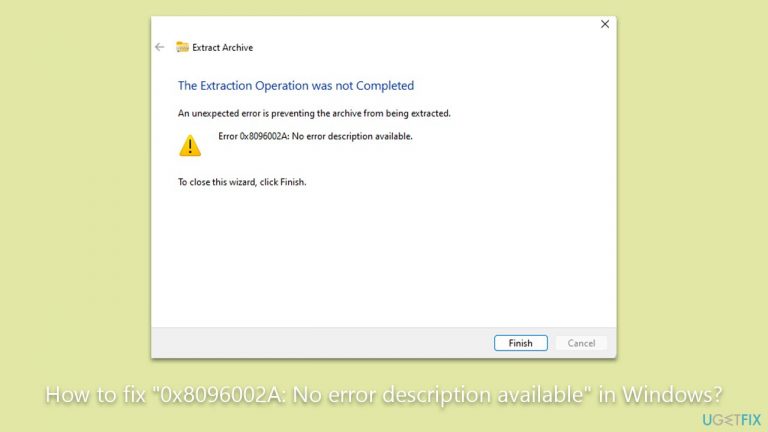
What causes How to fix “0x8096002A: No error description available” in Windows?
- Corrupted compressed files
- Incompatibility between the compression method and the extraction tool
- Missing or outdated driver related to the extraction process
- Permission issues or restrictions on the file location
Repairs Windows system files, removes malware, and restores a clean OS state — without reinstalling.
How do I fix the "0x8096002A: No error description available" error? I was trying to extract a ZIP file and received it.
File compression is a process through which the size of a file is reduced for the purpose of saving storage space or speeding up electronic transmission. When files are compressed, redundant or unnecessary information is removed or encoded in a more efficient manner. This process is beneficial for numerous reasons. First, it conserves valuable storage space, especially for large files. Second, it speeds up the process of sending and receiving files, especially over the internet or between devices.
However, file compression is not without its challenges. One such challenge is the process of extracting or decompressing the compressed files back to their original state. This is where some individuals encounter the "0x8096002A: No error description available" error.
If you've ever tried to extract a compressed file in Windows and been met with the "0x8096002A: No error description available" error, you're not alone. This error can be frustrating as it does not provide a clear indication of its cause.
There are a multitude of reasons you might experience this issue. Commonly, this error can arise due to corrupted compressed files, incompatibility between the compression method used and the extraction tool, or a missing or outdated driver related to the extraction process. In some instances, the location where the compressed file is stored might have permission issues or other restrictions preventing the extraction.
Microsoft has integrated native support for extracting file formats such as RAR, ZIP, and others directly within its operating system. However, even with these advancements, some might still face challenges, such as the "0x8096002A: No error description available" error.

When confronted with this issue, there are several potential solutions. First, ensure the integrity of the file. If it's corrupted, especially if it was downloaded from the internet, consider redownloading or acquiring it from another trusted source. Sometimes, turning to third-party extraction software can offer a way around challenges that native Windows tools might not handle. Furthermore, regularly updating Windows is crucial, as Microsoft often releases patches and updates designed to fix common errors.
By adopting these strategies, many find they can navigate past the "0x8096002A: No error description available" error, allowing them to manage compressed files with greater ease.
While the "0x8096002A: No error description available" error can be a hurdle, it is often surmountable with a little troubleshooting. For general Windows errors and other system issues, consider using [d1] PC repair software, which can simplify and expedite the resolution process.
Fix 1. Run SFC and DISM
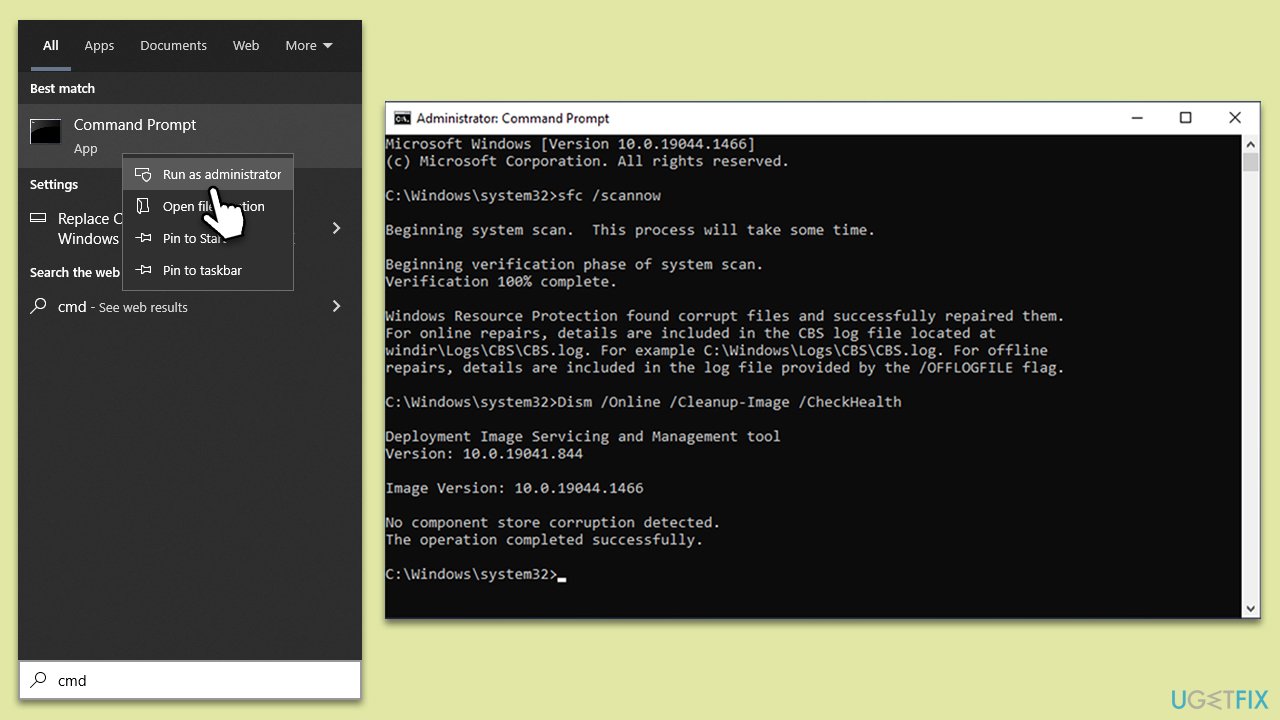
System File Checker (SFC) is a built-in Windows utility that can scan and repair missing or corrupted system files. These corrupted files can sometimes interfere with various operations, including file extraction. DISM is another built-in Windows tool that can fix system corruption. It works by restoring the system's health from a local image or Windows Update. Often, if SFC can't fix an issue, DISM might.
- Type in cmd in Windows search.
- Right-click on Command Prompt and select Run as administrator.
- When User Account Control shows up, click Yes.
- In the Command Prompt window, paste the following command and hit Enter:
sfc /scannow - Next, use the following commands, pressing Enter each time:
Dism /Online /Cleanup-Image /CheckHealth
Dism /Online /Cleanup-Image /ScanHealth
Dism /Online /Cleanup-Image /RestoreHealth
(Note: if you get an error executing this last command, add /Source:C:\RepairSource\Windows /LimitAccess to it and try again). - Reboot your system.
Fix 2. Use third-party extraction software
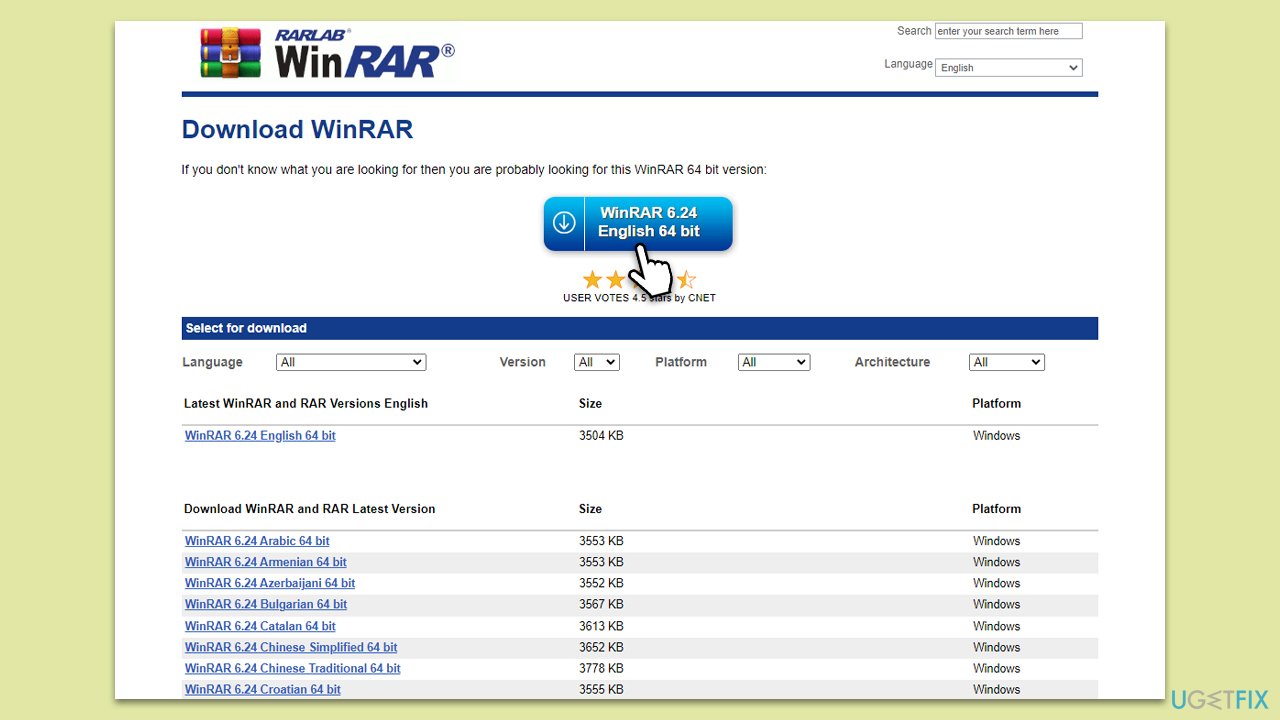
Sometimes, native tools may face limitations that specialized software can overcome. Third-party tools often come with advanced features or support for more file formats.
- Visit a reputable software download website.
- Search for popular extraction tools like WinRAR or 7-Zip.
- Download and install the software.
- Use the newly installed software to attempt file extraction.
Fix 3. Update Windows
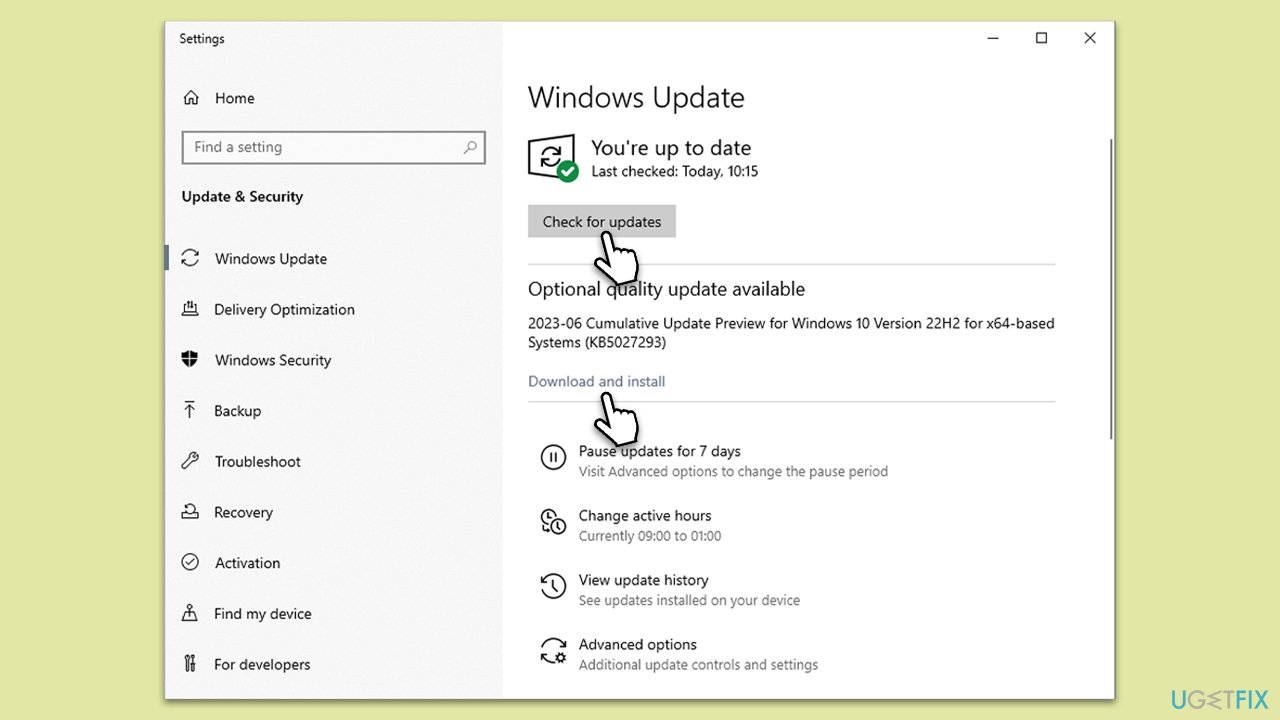
Ensuring your operating system is up-to-date can resolve issues caused by outdated software components. Microsoft regularly releases updates to address various bugs and enhance system compatibility.
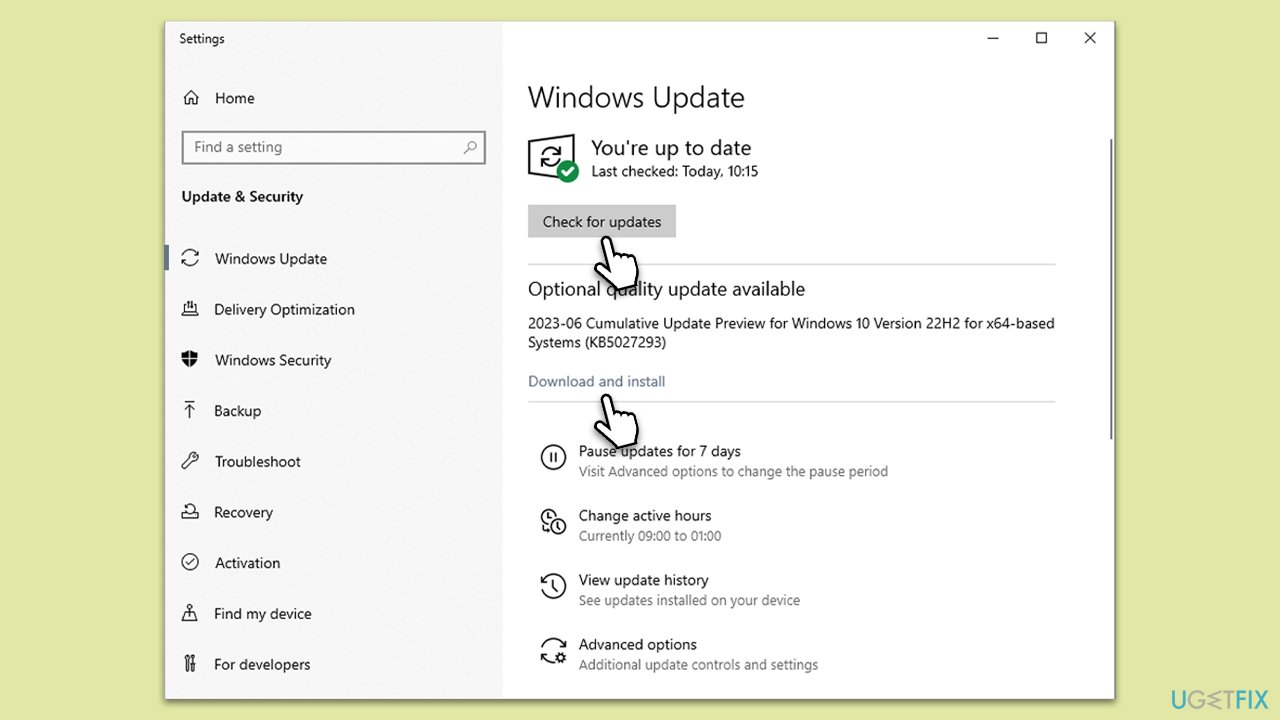
- Type Updates in Windows search and press Enter.
- Here, click Check for updates.
- Wait till Windows downloads and installs all the files.
- If optional updates are available, install them as well.
- Reboot your computer.
Fix 4. Check file permissions
At times, the location where the file resides might have restricted permissions, preventing operations like extraction.
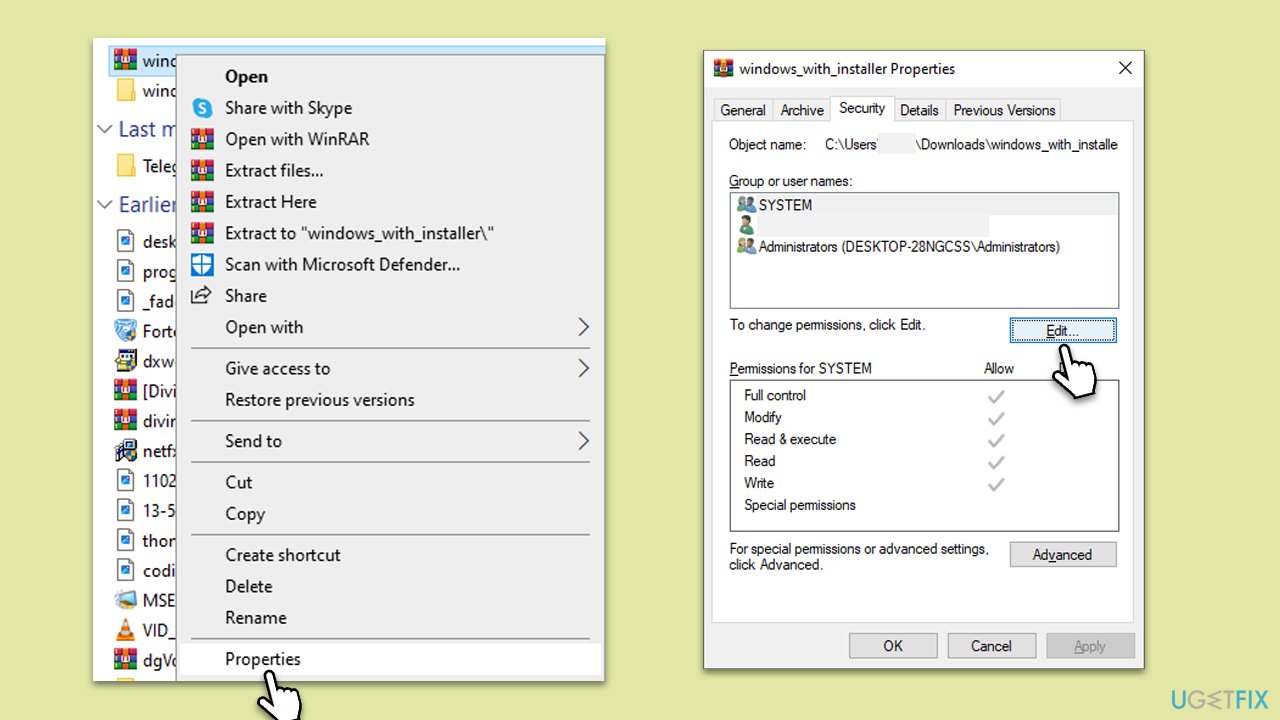
- Right-click on the compressed file.
- Select Properties.
- Navigate to the Security tab and click Edit under permissions.
- Ensure your user account has Full Control under permissions. If not, modify permissions.
Fix 5. Change file location
Moving the compressed file to a different location, such as your desktop, can sometimes resolve issues related to extraction paths or file directory problems.
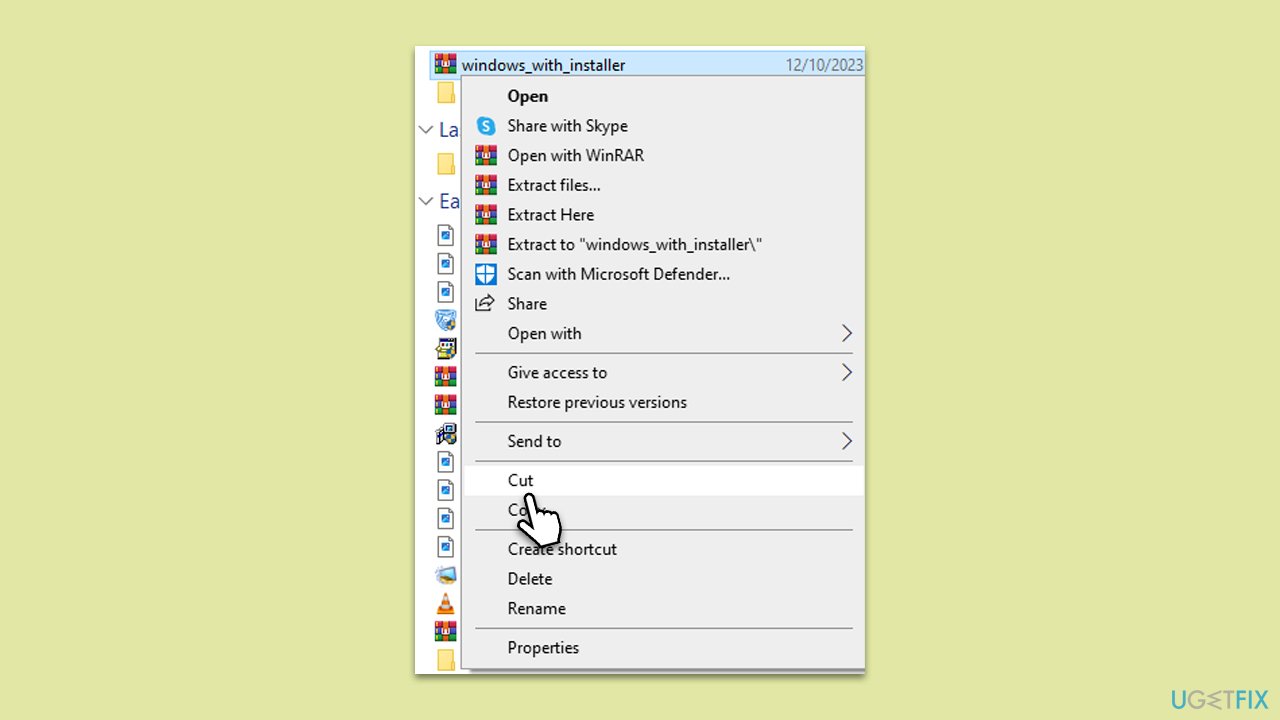
- Right-click on the compressed file.
- Select Cut.
- Navigate to your desktop or another folder.
- Right-click and select Paste.
- Attempt extraction from the new location.
Fix 6. Scan for malware
Malicious software can interfere with system operations. Running a malware scan ensures your system is clean and operates without interference.
You can employ a third-party anti-malware, Microsoft Security Scanner, or the built-in Microsoft Defender:
- Type Windows Security in the Windows search bar and hit Enter.
- Select Virus & threat protection.
- Pick Scan options.
- Choose Microsoft Defender Offline scan and click Scan now.
- Your PC will immediately reboot and begin a deep scan.
Bottom line
To fix the error, ensure the integrity of the file by redownloading it if necessary. Consider using third-party extraction software if native Windows tools fail. If none of these solutions work, further investigation into the issue may be required.
Frequently asked questions
The error code 0x8096002A typically arises due to issues with Windows Update or corrupted system files. It may also be related to problems with the Windows Store or app installations.
To fix the 0x8096002A error, try running the Windows Update troubleshooter and resetting Windows Update components. Additionally, performing a System File Check (SFC) scan can help restore corrupted files.
Yes, you can open Command Prompt as an administrator and run the commands 'DISM /Online /Cleanup-Image /RestoreHealth' followed by 'sfc /scannow' to repair system files and potentially resolve the 0x8096002A error.




Report an issue
What's wrong with this guide? We review every report and update or remove content.
Report received — thank you. We'll review and fix it.
You need a free account to submit a report.
Be the first to comment