How to fix
KB5031445 fails to install
on Windows
Resolve the KB5031445 installation error in Windows 10 with our easy-to-follow solutions, ensuring your system runs smoothly. Expert-tested fixes await!

What causes How to fix KB5031445 fails to install in Windows 10?
- Corrupted integral system files
- Insufficient disk space
- Interference from third-party software
- Broken or outdated update components
Repairs Windows system files, removes malware, and restores a clean OS state — without reinstalling.
Hi, today, I attempted to install the latest preview build 19045.3633 (KB5031445) and was unable to. This is the first time it happened to me so some advice would be welcome.
Microsoft regularly ships updates to its Windows operating system to enhance system performance, fix bugs, and introduce new features. These updates play a crucial role in ensuring that Windows runs smoothly and securely. Typically, updates are released on the second Tuesday of each month, a day often referred to as "Patch Tuesday." However, in addition to these scheduled updates, Microsoft also releases preview updates to gather feedback and catch issues before a wider rollout.
On October 17, 2023, Microsoft released KB5031445, a Preview update available to all Windows Insiders. This update carries numerous improvements intended for testing and feedback. However, a notable concern has emerged: KB5031445 fails to install for some. When this happens, the intended tests for these improvements become impossible, hindering both Microsoft's development process and the experience of the testers.
There are several reasons why this issue might arise. Sometimes, integral system files become corrupted, preventing updates from being installed correctly. Windows updates also require a specific amount of disk space, and if you don’t have enough, the installation may fail. Third-party software, especially security programs, might interfere with the update process. Additionally, components that handle the update process can sometimes become broken or outdated.
If you can't install KB5031445 on Windows, several potential solutions could rectify the situation. You might consider running the Windows Update Troubleshooter or checking and freeing up disk space. Temporarily disabling third-party software or manually downloading and installing the update can also be effective.

For a variety of Windows-related issues, including problems with updates, it's recommended to use the [d1] PC repair tool. This tool can help identify and fix common problems efficiently.
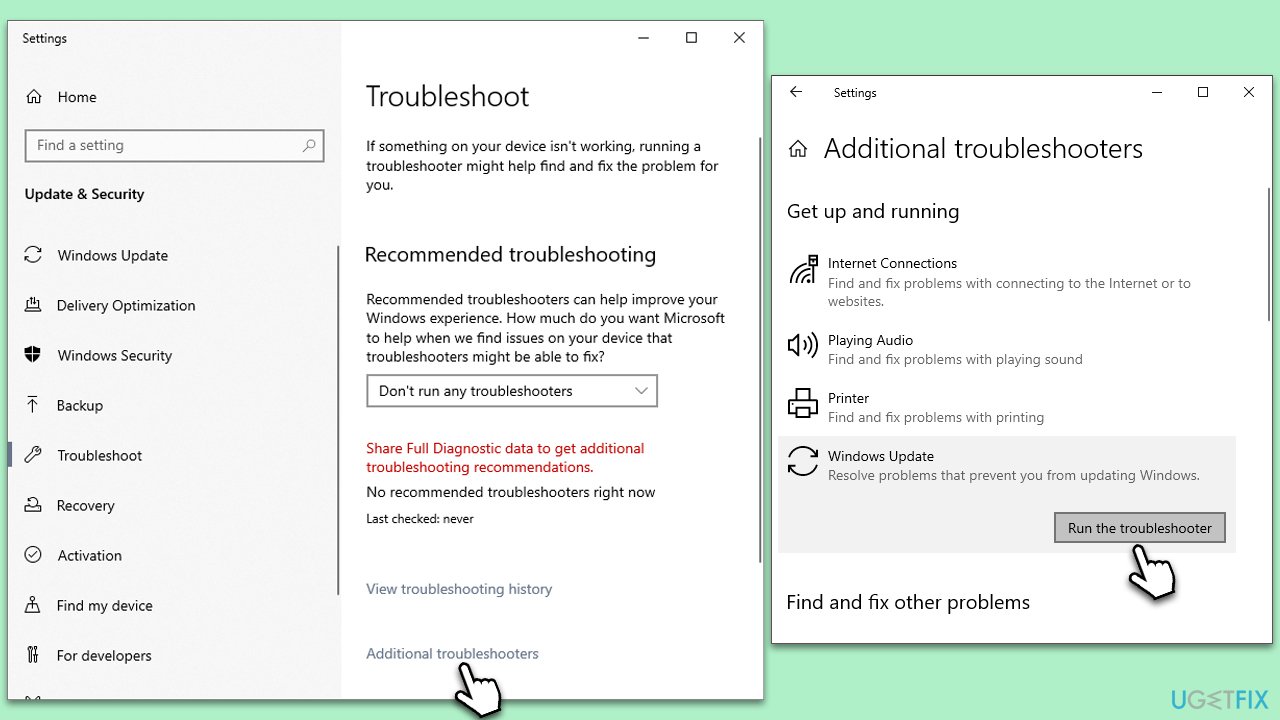
Fix 1. Run Windows Update troubleshooter
The Windows Update Troubleshooter is a built-in tool designed to identify and resolve common problems related to the update process. By scanning and fixing issues automatically, it can often resolve the problem without requiring further actions.
- Type Troubleshoot in Windows search and hit Enter.
- Select Additional troubleshooters.
- Find Windows Update from the list and select Run the troubleshooter.
- Wait till the scan is finished - you will be provided with potential causes so you can proceed with fixes.
- If no suggestions were given, proceed with the solutions below.
Fix 2. Perform Clean Disk
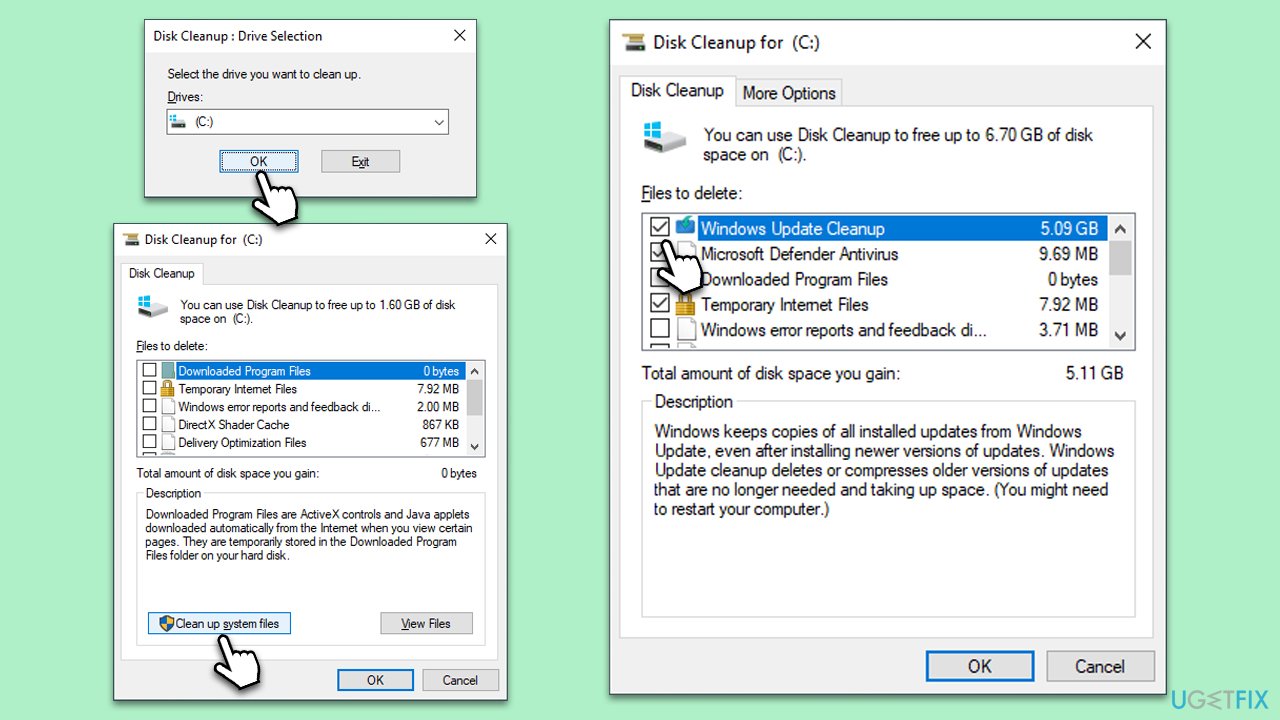
Over time, your PC accumulates unnecessary files. Using the Disk Cleanup tool can help free up space, potentially aiding in the successful installation of updates.
- Open the Windows search bar and type Disk Cleanup. Press Enter to open the Disk Cleanup utility.
- In the Disk Cleanup window, select the drive where your Windows operating system is installed (usually drive C:) and click OK.
- Click Clean up system files.
- Select the drive again and click OK.
- In the list of files that can be cleaned up, select the largest portions of data, such as Temporary Internet Files, Windows Update, Temporary Files, and others.
- Click OK to begin the cleanup process.
Fix 3. Temporarily disable third-party security software
Some third-party security software can conflict with Windows updates. Temporarily disabling them can help ensure a smooth update process.
- Locate your security software icon in the system tray (bottom-right of the screen).
- Right-click on the icon and look for an option like Disable, Pause, or Exit.
- Choose the option to disable the software.
- Install the Windows update.
- After updating, don’t forget to enable your security software.
Fix 4. Run SFC and DISM
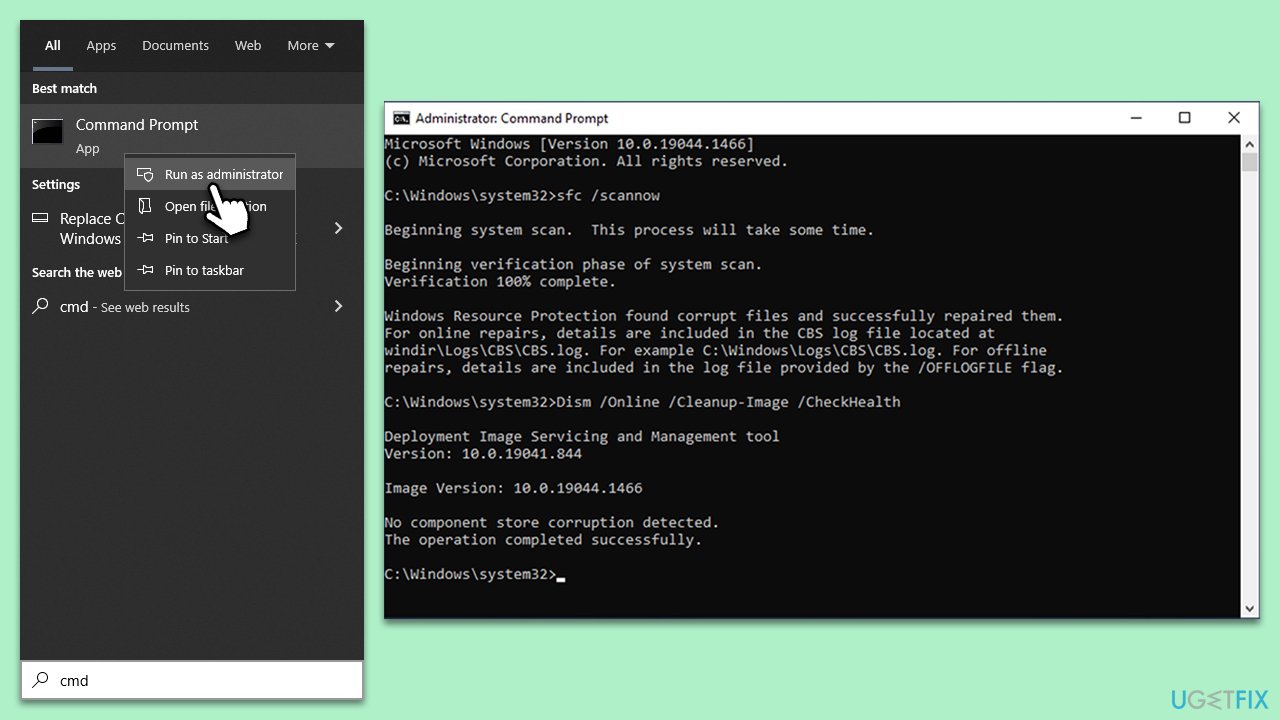
System File Checker (SFC) and Deployment Image Servicing and Management (DISM) are tools that can repair corrupted system files, which might be causing the update to fail.
- Type cmd in Windows search.
- Right-click on Command Prompt and pick Run as administrator.
- The User Account Control window will ask whether you want to allow changes - click Yes.
- In the Command Prompt window, paste the following command and hit Enter:
sfc /scannow - Once the scan is complete, use the following commands and press Enter after each:
Dism /Online /Cleanup-Image /CheckHealth
Dism /Online /Cleanup-Image /ScanHealth
Dism /Online /Cleanup-Image /RestoreHealth - (Note: if you get an error executing this last command, add /Source:C:\RepairSource\Windows /LimitAccess to it and try again).
- Restart your computer.
Fix 5. Reset Windows Update components
Resetting the components that manage updates can resolve issues caused by broken or outdated elements.
- Open Command Prompt as an administrator.
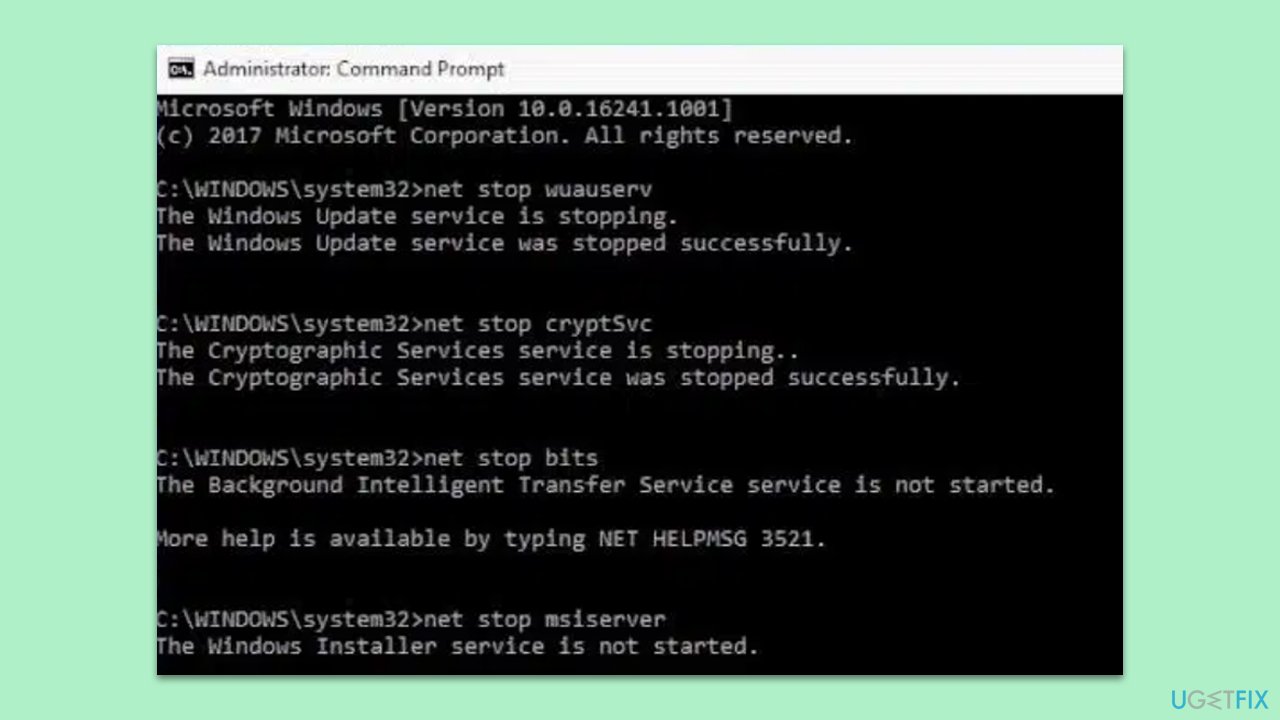
- Stop the update services by typing the following commands one by one, pressing Enter after each:
- net stop wuauserv
- net stop cryptSvc
- net stop bits
- net stop msiserver
- Rename the SoftwareDistribution and Catroot2 folders by typing:
- ren C:\Windows\SoftwareDistribution SoftwareDistribution.old
- ren C:\Windows\System32\catroot2 catroot2.old
- Restart the update services by typing the following commands one by one:
- net start wuauserv
- net start cryptSvc
- net start bits
- net start msiserver
- Restart your computer.
Bottom line
To fix the KB5031445 installation issue, you can try running the Windows Update Troubleshooter, checking and freeing up disk space, or temporarily disabling third-party software. If these solutions do not work, consider manually downloading and installing the update or using a PC repair tool to identify and fix common problems.
Frequently asked questions
First, ensure that your Windows 10 is fully updated by checking for other pending updates. If the issue persists, try running the Windows Update Troubleshooter from the Settings app.
Yes, you can manually download the KB5031445 update from the Microsoft Update Catalog website and install it directly on your Windows 10 system.
Yes, resetting Windows Update components can resolve installation issues, and you can do this by running specific commands in the Command Prompt as an administrator.




Report an issue
What's wrong with this guide? We review every report and update or remove content.
Report received — thank you. We'll review and fix it.
You need a free account to submit a report.
Be the first to comment