How to fix
KB5031356 fails with 8007000D error
on Windows
Resolve the KB5031356 error 8007000D on Windows 10 and 11 effortlessly. Follow expert-tested solutions for a quick fix with zero traces left.

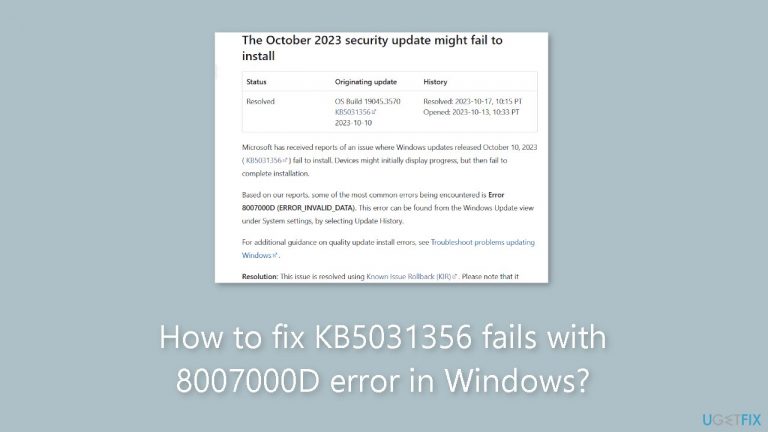
What causes How to fix KB5031356 fails with 8007000D error in Windows?
- Installation of the update was unsuccessful due to invalid data
- Problems with the data being installed
- Security risks and vulnerabilities due to failed update installation
- Exposure to malware and cyberattacks
- System instability from not applying the update
Repairs Windows system files, removes malware, and restores a clean OS state — without reinstalling.
Hello. I tried installing the KB5031356 update on my Windows 10 PC but I received an 8007000D error code. Is there any way to fix this?
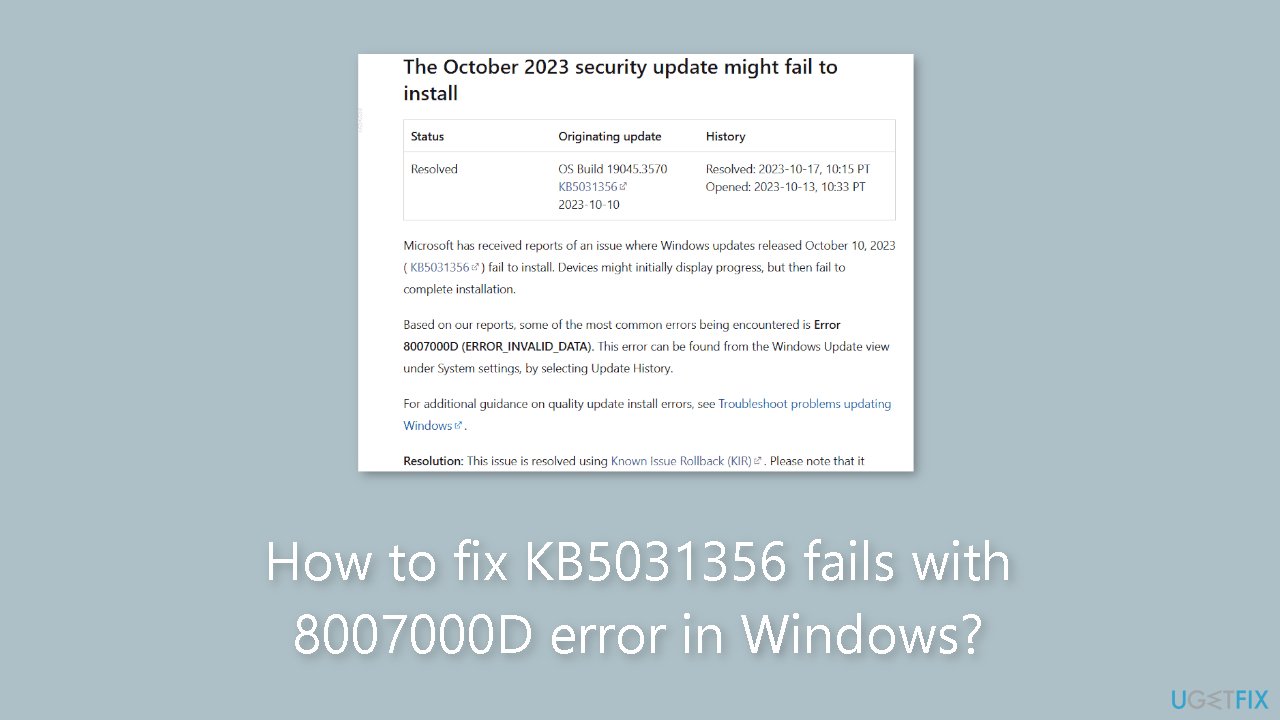
Many Windows 10 users encountered a significant issue when attempting to install the security update KB5031356[ref en-1] on their devices running Windows 10 version 22H2. The problem was marked by the appearance of the 0x8007000D error, also known as ERROR_INVALID_DATA. The installation of the update was unsuccessful as a consequence of this error code, which indicates a problem with the data that it was attempting to install. Microsoft released a Known Issue Rollback (KIR)[ref en-2] to address and fix the 0x8007000D error on impacted devices in response to this problem.
KIR is designed to address and resolve issues or problems that arise after the deployment of a software update, which can include security updates, feature updates, or quality updates. It is a means of reverting a problematic update to a previous state in cases where the update introduces new issues, incompatibilities, or critical bugs.
The effects of this problem have a significant influence on users. Devices were left open to various security risks and vulnerabilities when the security update KB5031356 failed to install because of the 0x8007000D issue. System protection against many types of malware, cyberattacks, and other threats to security depends on security upgrades. Users may therefore be exposed to security flaws as a result of failing to apply this update, which may result in data breaches, system instability, and a variety of other potential problems.
Users might utilize the Group Policy Editor to apply the Known Issue Rollback to fix the 0x8007000D problem with security update KB5031356. In essence, this rollback removes or reverts the update, enabling consumers to keep their systems stable until Microsoft offers a fix.
To resolve the issue in a more permanent manner, it is advisable to monitor Microsoft's official support channels and websites for updates and patches that address the underlying problem with update KB5031356. Microsoft often releases fixes and updates for known issues in subsequent patch releases, so staying informed about such developments is essential to ensure a more secure and stable Windows environment for affected users.
If you experience any OS issues you can run a system repair tool like [d1] that can fix most system errors, BSODs,[ref en-3] corrupted files, and registry issues. Otherwise, follow the step-by-step instructions below.
Use the Group Policy Editor
Group Policy Editor is a powerful tool, primarily available in Windows Pro, Enterprise, and Education editions, and it enables users to configure and manage various settings and policies that govern the behavior and functionality of their Windows operating system.
- Download the MSI file named Windows 10 20H2, 21H1, 21H2 and 22H2 KB5026879 230627_173533 Known Issue Rollback.msi.
- Double-click on the MSI file.
- In the appeared wizard, click Next.
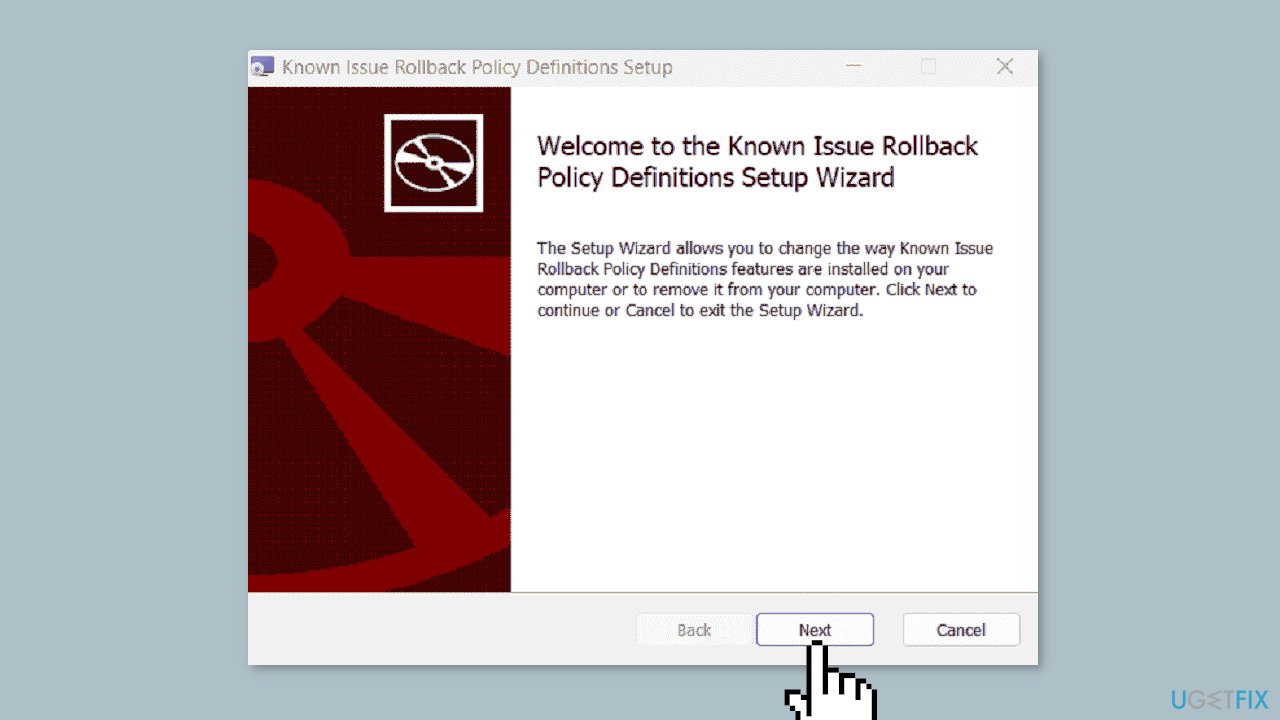
- After the process is completed, click Finish.
- Press the Windows key + R to open the Run dialog.
- Type gpedit.msc and press Enter to launch the Group Policy Editor.
- In the Group Policy Editor, navigate to:
Local Computer Policy > Computer Configuration > Administrative Templates > KB5026879 230627_173533 Known Issue Rollback > Windows 10, version 20H2, 21H1, 21H2, and 22H2
- Right-click on KB5026879 230627_173533 Known Issue Rollback and select Edit.
- In the Wizard, check the Disabled option.
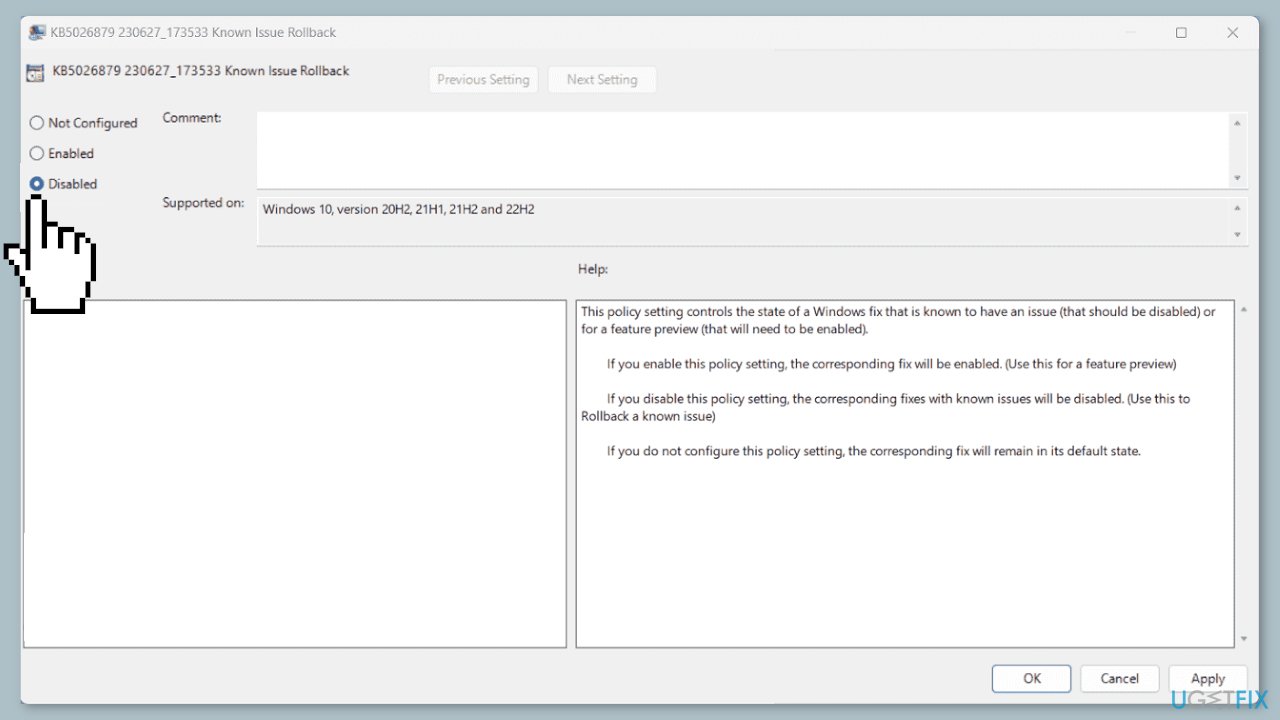
- Click on Apply and then on OK.
- Restart your computer.
If the deployment is slow:
- Click on Start and type cmd.
- Select Run as administrator.
- In the Command Prompt, type the following command:
Dism /online /cleanup-image /RestoreHealth
- Press Enter to execute the command.
- Wait until the process is finished.
- Finally, restart your system.
Bottom line
To fix the 8007000D error, users can apply the Known Issue Rollback using the Group Policy Editor. It is also advisable to monitor Microsoft's official support channels for updates and patches addressing the underlying problem with update KB5031356. If these solutions do not work, users should continue to seek further assistance from Microsoft.
Frequently asked questions
The error code 8007000D indicates that there is a data corruption issue, preventing the update from being installed correctly. This can occur if system files are damaged or if the update files themselves are corrupted.
You can troubleshoot this error by running the Windows Update Troubleshooter and performing a System File Check (SFC) scan. This will help identify and repair any corrupted system files that might be causing the issue.
Yes, using the DISM tool can be an effective way to fix the 8007000D error by repairing the Windows image. Run the command 'DISM /Online /Cleanup-Image /RestoreHealth' in an elevated Command Prompt to initiate the repair.




Report an issue
What's wrong with this guide? We review every report and update or remove content.
Report received — thank you. We'll review and fix it.
You need a free account to submit a report.
Be the first to comment