How to fix
“Documents are waiting” error when using printer
on Windows
Resolve the "Documents are waiting" error on your Windows 10 or 11 printer effortlessly. Expert-tested solutions ensure your printer works smoothly, fix…

What causes How to fix “Documents are waiting” error when using printer in Windows?
- Stuck print queue
- Pending print tasks
- Hardware issues
- Driver problems
- User unfamiliarity with printer management
Repairs Windows system files, removes malware, and restores a clean OS state — without reinstalling.
Hello. When I try to print on Windows I get the "Documents are waiting" error. This has never happened before. How do I fix this?
When trying to print documents on their printers, Windows users frequently experience the "Documents are waiting" error. Even in a time when cloud storage makes it easier for users to access their files from anywhere, there are still many situations where printing physical papers is necessary. This error, which can have many effects on users, frequently indicates a stuck print queue, which prevents the printer from processing the next document.
Users may find the "Documents are waiting" issue unpleasant since it interferes with their productivity and printing operations. It may cause delays in finishing significant tasks or individual projects that call for tangible copies. This problem can reduce productivity in professional contexts, delay the completion of tasks, and reduce workplace effectiveness. It can be similarly inconvenient for users at home, particularly when printing papers for individual use, such as projects, paperwork, or homework.
In addition to causing delays, this error can also create confusion and frustration among users who may not be familiar with the technical aspects of printer management. Users might not know how to empty the print queue, which would be yet more difficult. As a result, users can end up wasting time and resources by repeatedly attempting to print the same document or by making pointless changes to their documents.
The "Documents are waiting" error has a few potential fixes that users can choose from. They can try to empty the print queue, which typically fixes the problem. Any pending print tasks can be canceled, and the print spooler service can then be restarted. Users can also look for and fix any hardware or driver[ref en-1] problems with the printer.
In this guide, you will find 8 steps that should help you fix "Documents are waiting" error in Windows. You can also use a maintenance tool like [d1] that can fix most system errors, BSODs,[ref en-2] corrupted files, and registry[ref en-3] issues. Otherwise, follow the step-by-step instructions below.

Method 1. Check Printer Connection
You might want to consider power cycling both your computer and printer. This can quickly resolve the issue by refreshing the connection between your devices.
Method 2. Check Pages and Ink
In case your printer has depleted its pages or ink, you might encounter the 'documents are waiting' error. To ensure smooth operation, simply replenish the ink or add more pages to your printer.
Method 3. Try another Document
A corrupted document could disrupt the printing service on your printer. Consider attempting to print a different document.
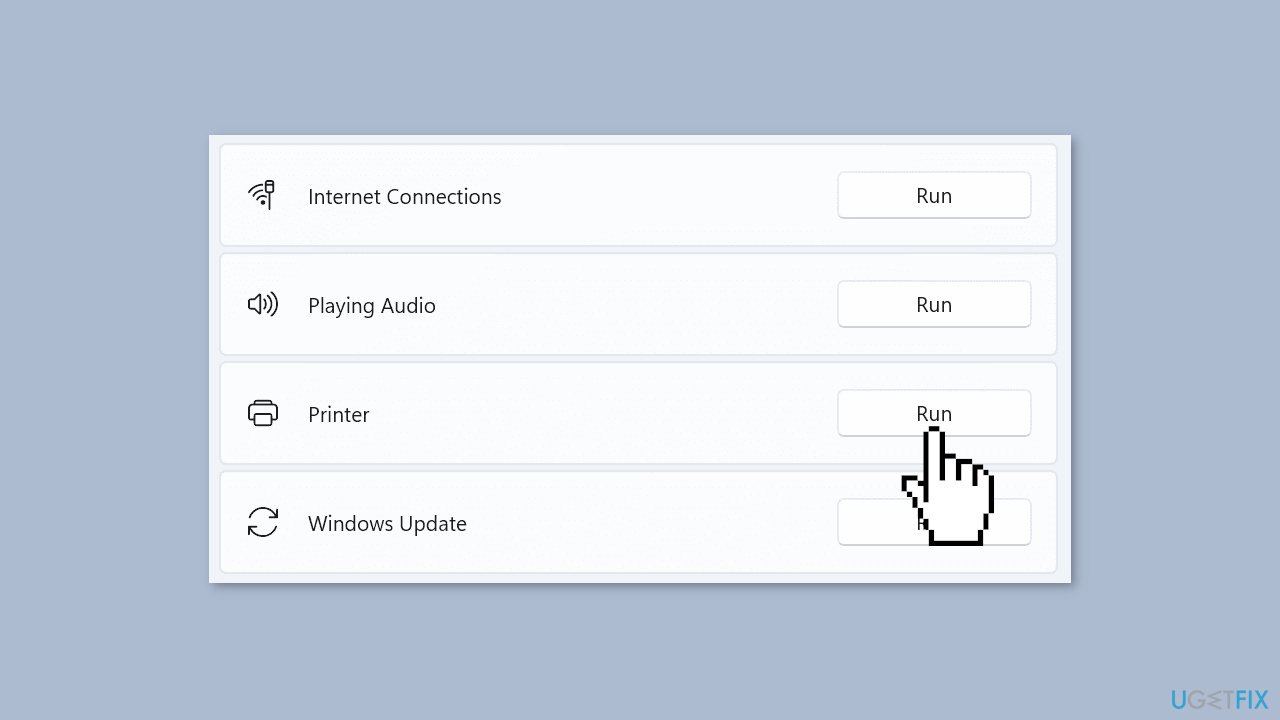
Method 4. Run the Printer Troubleshooter
- Navigate to Settings.
- Open the System.
- Select Troubleshooters.
- Select Other troubleshooter.
- Run the Printer troubleshooter from the following menu and follow the on-screen instructions.
Method 5. Check Printer Status
- Press the Windows key + I to open Windows Settings.
- Select Bluetooth & devices.
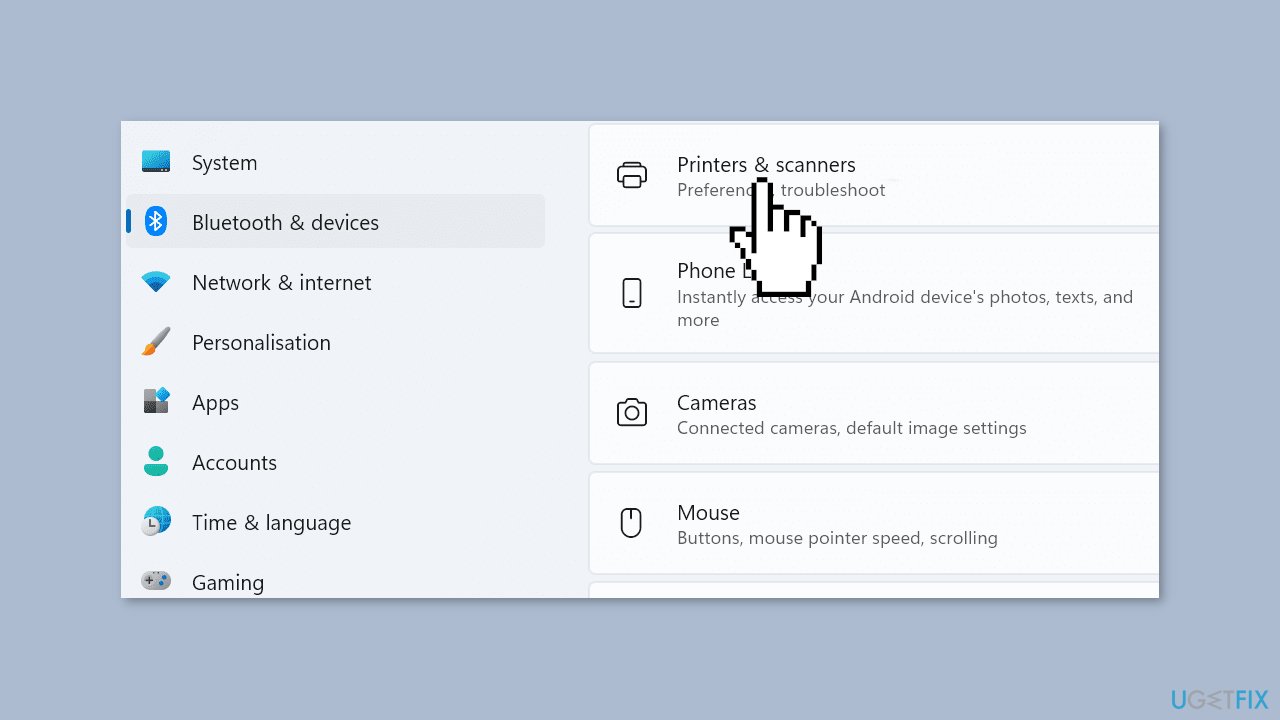
- Select Printers & scanners.
- It displays a list of printers on your device.
- Choose your printer.
- Click Open print queue.
- Ensure you disable the Use Printer Offline option from the Printer menu.
Method 6. Restart the Print Spooler
- Press the Windows key + R to open a new Run window.
- Type services.msc and press Enter. It opens the services menu.
- Scroll down to Print Spooler.
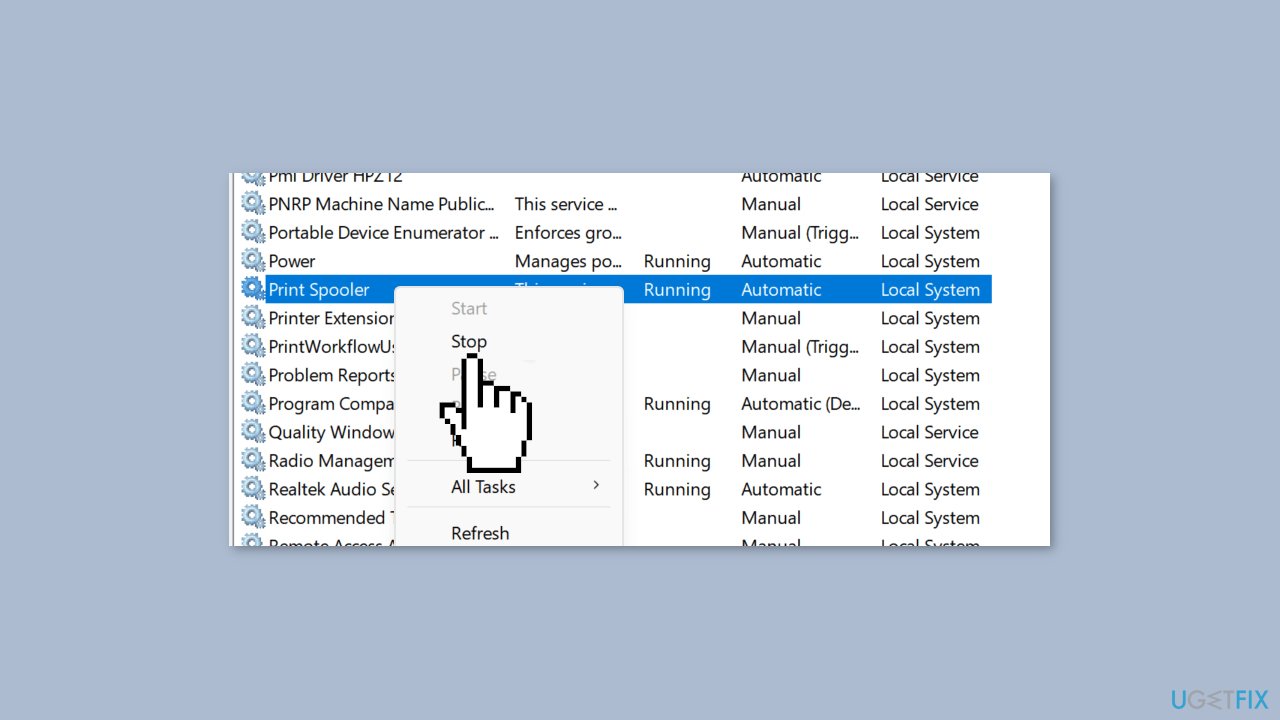
- Right-click on the service and select Stop. The service should no longer be running now.
- Launch File Explorer and go to the following path:
C:\Windows\System32\spool\printers
- Delete the content of the folder. By doing that, you’ll delete the printing queue. But don’t delete the folder itself.
- Restart your computer.
- Go back to Print Spooler and restart the service.
- Set the Startup Type to Automatic.
If the steps above are too complicated, you can complete the same task from the Command Prompt menu:
- Launch the Command Prompt as admin.
- Run these commands and press Enter after each one:
net stop spooler
del /Q %systemroot%\system32\spool\printers*.*
net start spooler
Method 7. Reinstall Printer Drivers
- Launch the Device Manager.
- Go to Print Queues and expand the list.
- Select Update driver and check if the problem is gone.
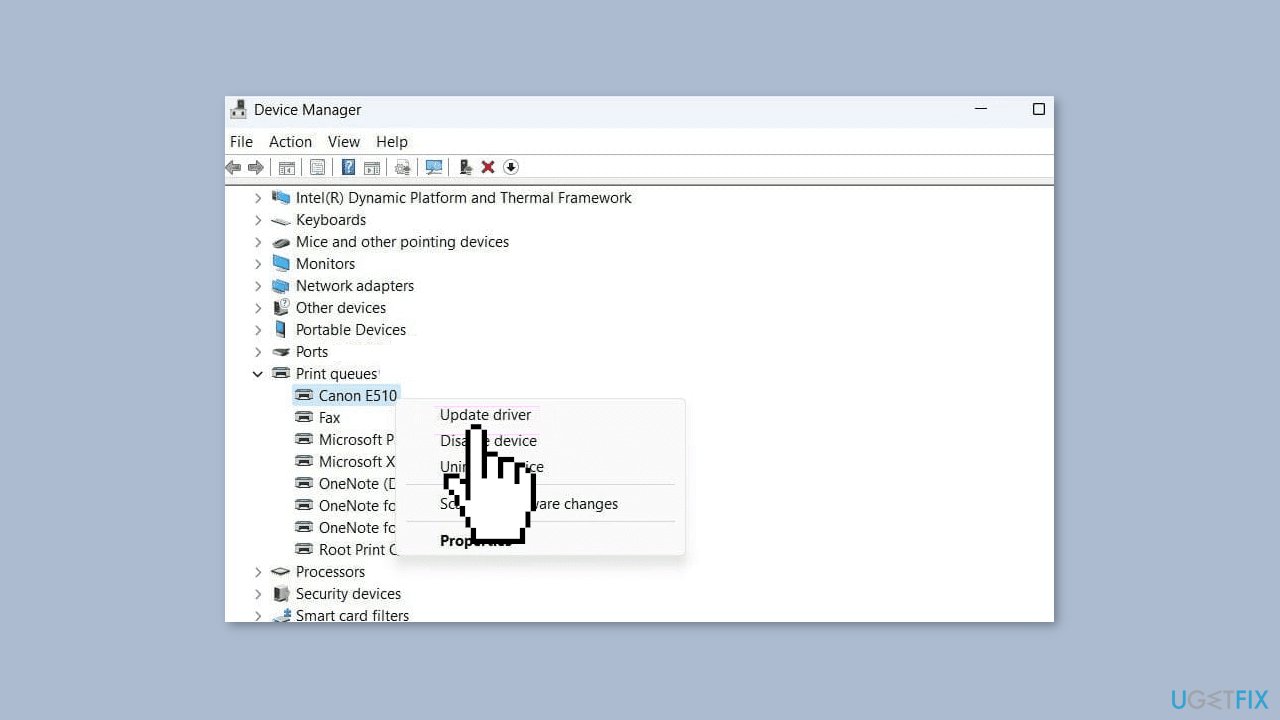
- If it persists, select Uninstall device to remove your current print drivers.
- Restart your computer.
- Your device will automatically install the latest print drivers.
You can also use a dedicated utility like [rev id="DriverFix"] that can find the best drivers for your machine and install them automatically.
Method 8. Re-add your Printer
- Head to Settings > Bluetooth & devices > Printers & scanners menu.
- Select your preferred printer.
- Click Remove.
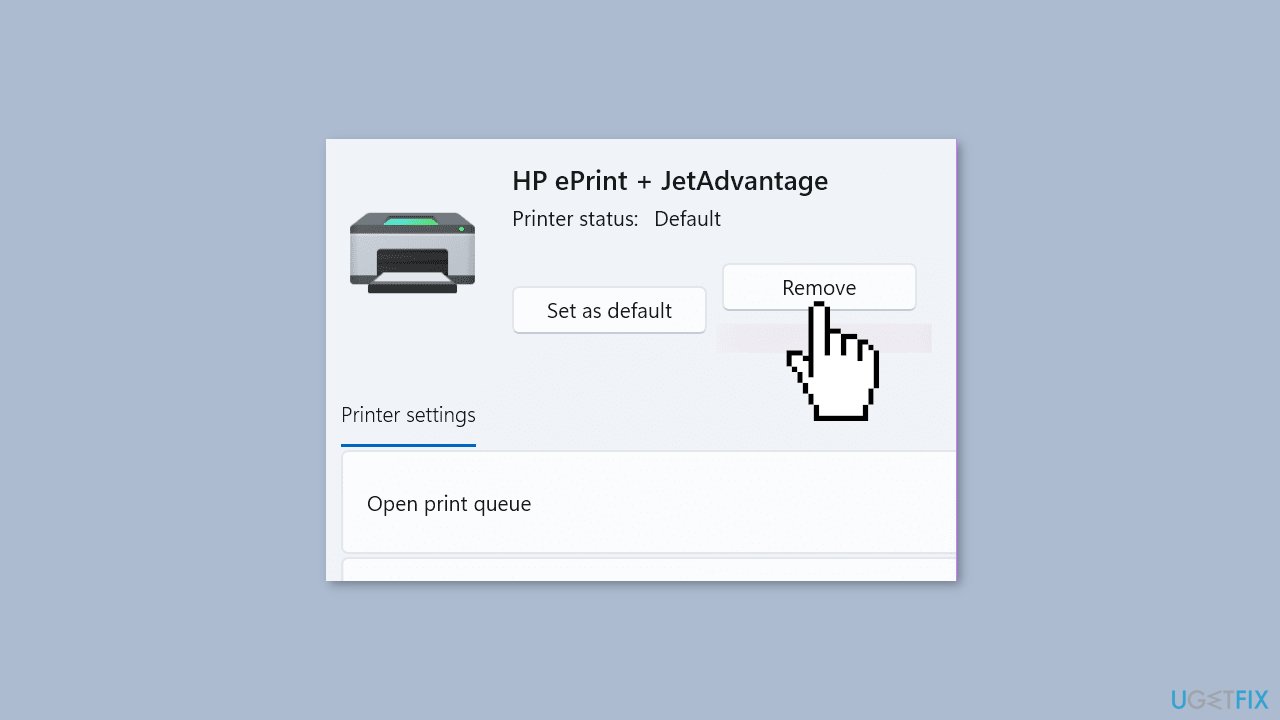
- Now, go back and select Add device.
- Once Windows detects your printer, click Add device.
Bottom line
To fix the 'Documents are waiting' error, users can try emptying the print queue, canceling pending print tasks, and restarting the print spooler service. Additionally, checking for hardware or driver issues may help resolve the problem. If these steps do not work, consider using a maintenance tool to address system errors.
Frequently asked questions
This error typically occurs due to a stuck print job in the queue or issues with the printer driver. Restarting the print spooler service or clearing the print queue can often resolve the issue.
To clear the print queue in Windows 11, open the 'Devices and Printers' settings, right-click on your printer, select 'See what's printing,' and then cancel any pending documents.
Yes, you can update your printer driver by going to 'Device Manager,' locating your printer under 'Printers,' right-clicking it, and selecting 'Update driver' to search for the latest version.




Report an issue
What's wrong with this guide? We review every report and update or remove content.
Report received — thank you. We'll review and fix it.
You need a free account to submit a report.
Be the first to comment