How to fix
Microsoft Store error 0x8D050003
on Windows
Resolve Microsoft Store error 0x8D050003 on Windows 10 and 11 quickly and easily. Follow our expert-tested solutions for a smooth experience!

What causes How to fix Microsoft Store error 0x8D050003 in Windows?
- Network connectivity issues
- Incorrect date and time settings
- Corrupted Microsoft Store cache
- Outdated Microsoft Store app
- Outdated Windows operating system
Repairs Windows system files, removes malware, and restores a clean OS state — without reinstalling.
Hello. I tried installing an app from the Microsoft Store, but I got the 0x8D050003 error. Any way to fix this?
Some Windows users frequently experience the Microsoft Store error code 0x8D050003, especially when trying to download, install, or update apps. When this error happens, a notice is presented that often says the following:
Something unexpected happened. Reporting this problem will help us understand it better. You can wait a bit and try again or restart your device. That may help. Code: 0x8D050003.
Users attempting to access and use apps from the Microsoft Store may find this issue to be highly unpleasant and disruptive. For those users who are affected, the effects of this issue are extremely disruptive. Their inability to access or update apps from the Microsoft Store may have an adverse effect on their level of productivity, entertainment, and overall user experience. Users might not be able to access new features and applications or download crucial software updates, for instance, which would ultimately compromise the security and functionality of their Windows devices.
Users may become frustrated and inconvenienced as a result of the issue since they cannot have immediate access to the tools or software they require. Users may try one of several potential fixes to fix problem code 0x8D050003. It's crucial to remember that these solutions' efficacy can vary and that not every user will experience success with them. Solutions include troubleshooting steps like checking network connectivity, ensuring that the date and time settings are correct, or resetting the Microsoft Store cache.
Users could also think about utilizing the Windows Store Apps troubleshooter, which can automatically find and fix problems that might be the source of the error. It's also advised to keep the Microsoft Store app and Windows operating system updated in order to address compatibility concerns that can cause the error.
In this guide, you will find 5 steps that should help you fix Microsoft Store error 0x8D050003 in Windows. You can also run a maintenance tool like [d1] that can fix most system errors, BSODs,[ref en-1] corrupted files, registry[ref en-2] issues, or clear cookies and cache.[ref en-3] Otherwise, follow the step-by-step instructions below.

Solution 1. Run the Microsoft Store Apps Troubleshooter
- Open the Start menu.
- Click the gear-shaped icon to launch the Settings app.
- In the Settings app, click on the System tab.
- Click on Troubleshoot.
- Select Other troubleshooters.
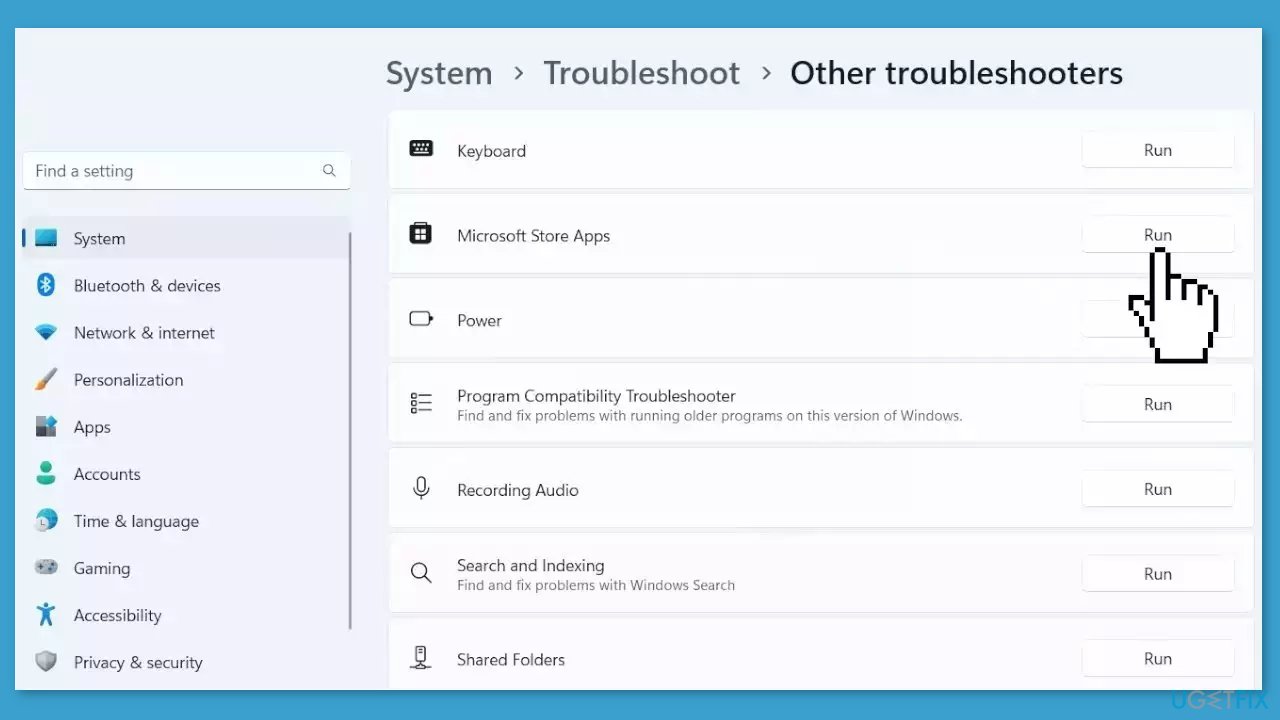
- Look for Microsoft Store Apps and click the Run button next to it.
- Follow the on-screen prompts to run the troubleshooter.
Solution 2. Clear the Microsoft Store Cache
Like most applications, Microsoft Store creates and stores cache data to enhance performance. However, if this cache becomes corrupt, you may experience various issues.
- Open the Run dialog box by pressing the Windows key + R.
- If the hotkeys don't work, you can use any other method to open the Run dialog box.
- In the search bar of the Run dialog box, type wsreset.exe.
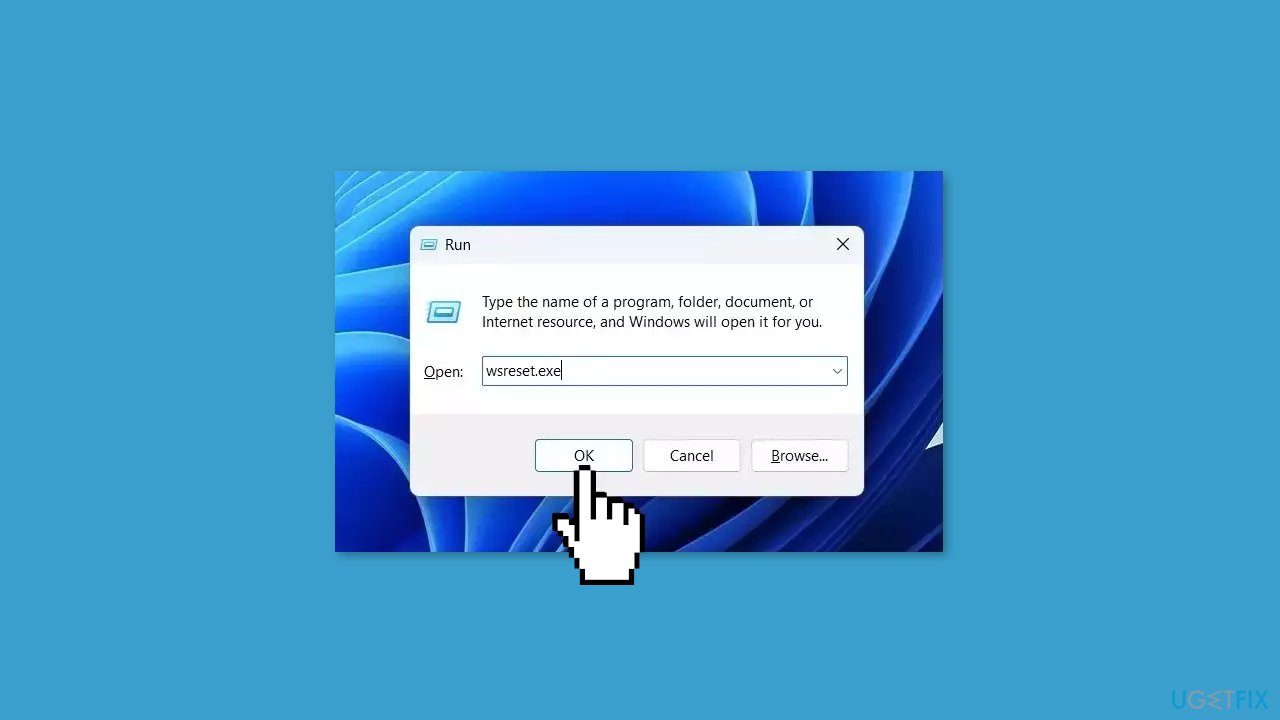
- Click OK.
- A blank Command Prompt window will appear for a few seconds.
- Once the cache is cleared, Windows will close the Command Prompt window and automatically launch the Microsoft Store app.
Solution 3. Disable VPN and Proxy
- Press the Windows key + I to open Windows Settings.
- Move to the Network & internet tab from the left pane.
- Select the Proxy option.
- Switch off the Automatically detect settings toggle.
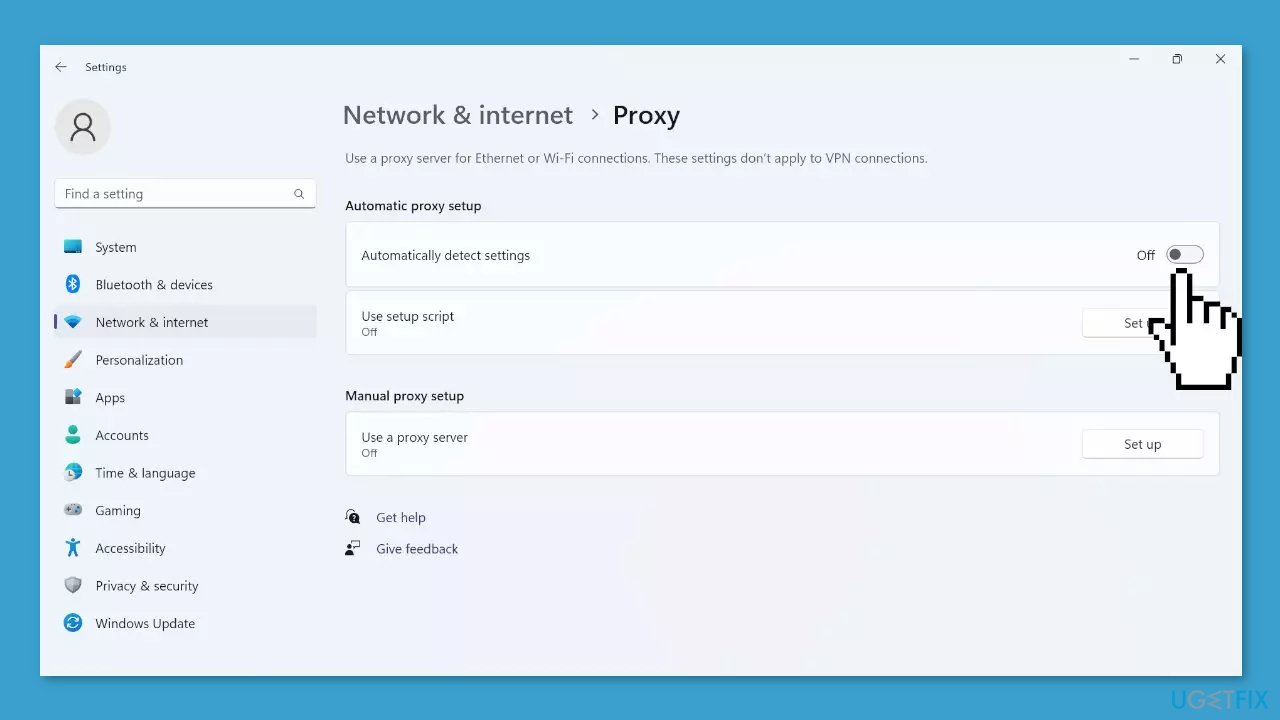
- Click on the Set up button under the Manual proxy setup section.
- Make sure the Use a proxy server toggle is Off.
- Check if the error is fixed.
Solution 4. Reset the Microsoft Store App
- Right-click on Start and select Settings.
- In the Settings window, click on Apps.
- Click on Installed apps in the right pane.
- Scroll down to find Microsoft Store and click on the three dots.
- Select Advanced options from the menu list.
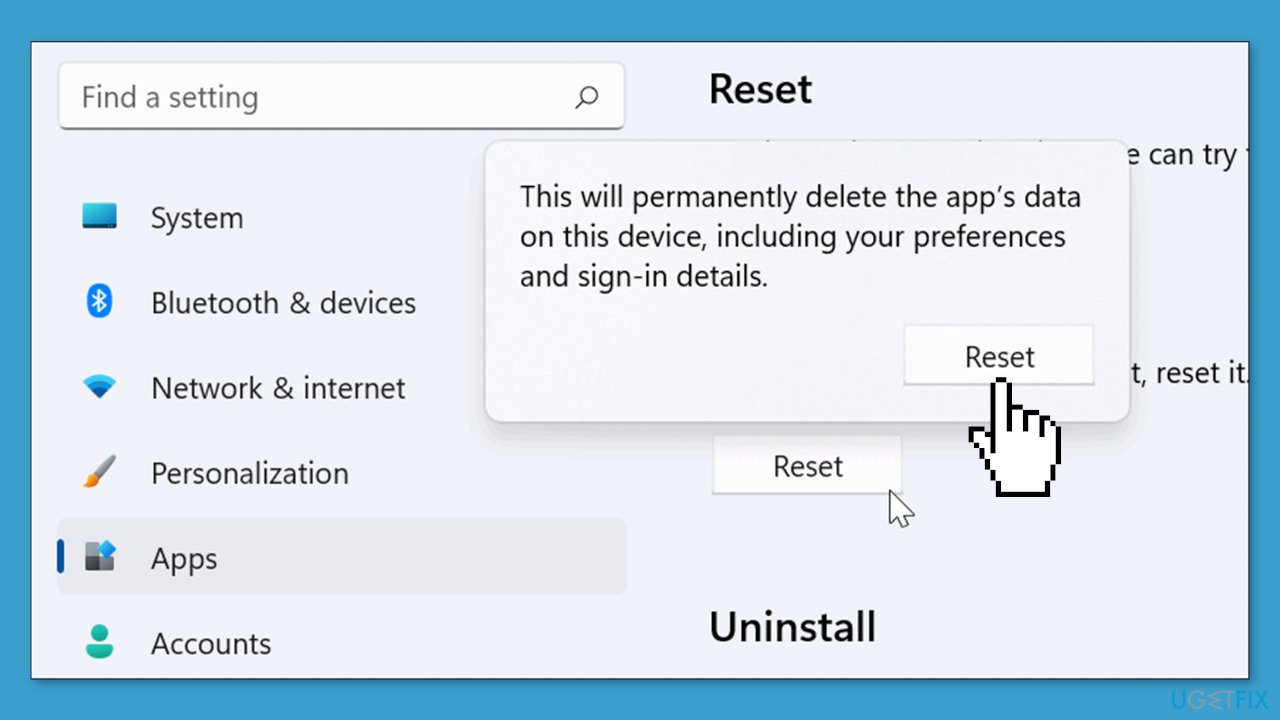
- Click on the Reset button under the Reset section. A confirmation popup will appear.
- Click Reset again to confirm the action and wait for the process to finish.
Solution 5. Reinstall the Microsoft Store App
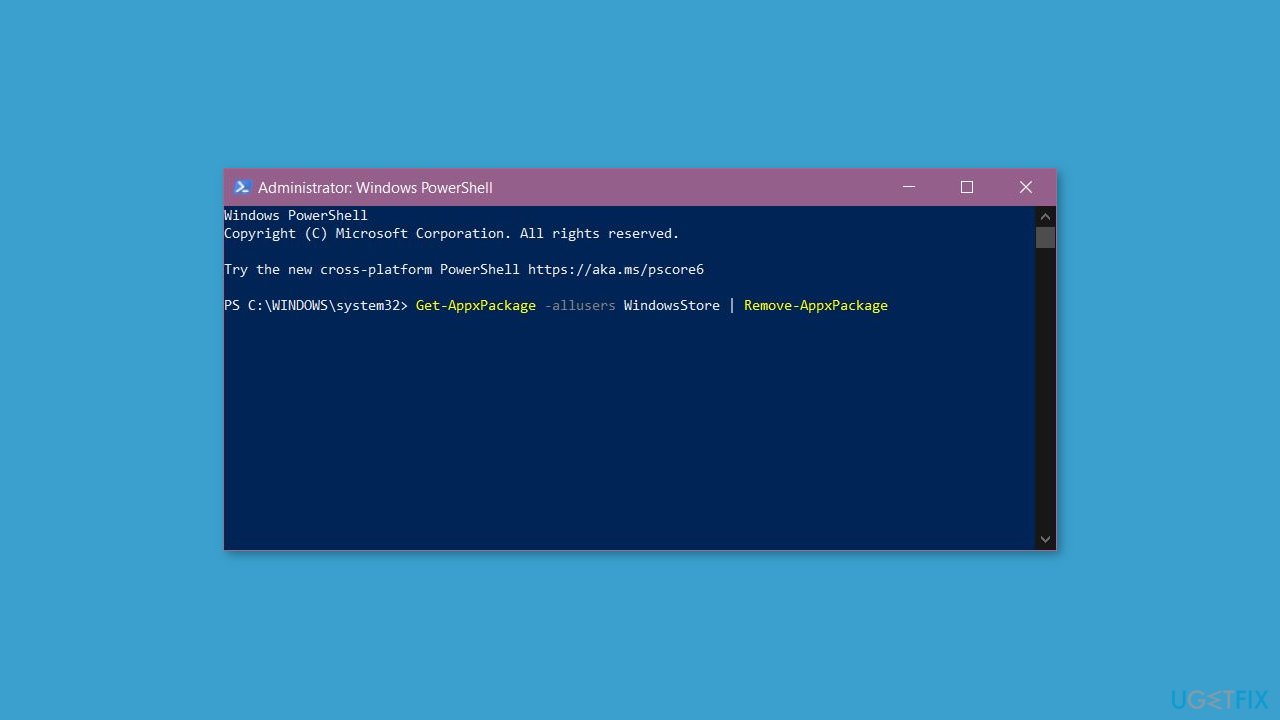
- Open the Windows PowerShell app with administrator privileges using the Windows Search function.
- To uninstall the Microsoft Store, use the below command:
Get-AppxPackage -allusers WindowsStore | Remove-AppxPackage
- After that, reinstall the Microsoft Store using the following command:
Get-AppxPackage -allusers Microsoft.WindowsStore | Foreach {Add-AppxPackage -DisableDevelopmentMode -Register "$($_.InstallLocation)\AppXManifest.xml"}
- Reboot your PC.
Bottom line
To fix the Microsoft Store error 0x8D050003, users can check their network connectivity, ensure their date and time settings are correct, and reset the Microsoft Store cache. Additionally, running the Windows Store Apps troubleshooter and keeping both the Microsoft Store app and Windows operating system updated are recommended. If none of these solutions work, consider using a maintenance tool to address system errors.
Frequently asked questions
The error 0x8D050003 typically indicates a problem with your Microsoft account or a network connectivity issue affecting the Microsoft Store in Windows 10 or 11.
To fix the error, try signing out of your Microsoft account in the Store app, then sign back in, or reset the Store cache by running 'wsreset.exe' in the Run dialog.
Yes, ensure that your internet connection is stable and that your firewall or antivirus software is not blocking the Microsoft Store; you may also try disabling VPNs if you are using one.




Report an issue
What's wrong with this guide? We review every report and update or remove content.
Report received — thank you. We'll review and fix it.
You need a free account to submit a report.
Be the first to comment