How to fix
OneNote recorded audio not working
on Windows
Resolve OneNote audio issues on Windows 10 and 11 effortlessly. Get expert-tested tips to restore recorded sound in minutes, zero traces left.

What causes How to fix OneNote recorded audio not working in Windows?
- Microphone issues
- Software conflicts
- Corrupted OneNote files
- Interference from other applications
Repairs Windows system files, removes malware, and restores a clean OS state — without reinstalling.
I can't seem to get the audio I recorded on OneNote to work. Please help to resolve this. I am using the latest version of Windows 10.
OneNote, developed by Microsoft as part of its Office Suite, serves as a digital notebook designed for the versatile needs of today's information age. It facilitates users in storing, organizing, and sharing notes in diverse formats. A unique feature that adds to its utility is the ability to record audio directly within the application. This function is especially beneficial for students capturing lectures, professionals documenting meetings, or any individual looking to integrate spoken content with their written notes.
However, some individuals encounter a recurring problem: the audio recording feature in OneNote fails to operate as expected. This malfunction is not just an inconvenience but can significantly impede the note-taking process, especially when audio input is pivotal.
The reasons for OneNote's recorded audio not working can be manifold:
- The device's microphone issues. Sometimes, the root cause of the problem lies in the device's microphone or the associated settings. If the microphone isn't correctly configured or has inherent issues, OneNote might not be able to capture sound accurately.
- Software conflicts. OneNote, like any other software, relies on the appropriate system and hardware drivers to function optimally. Outdated audio drivers or conflicts with other software can lead to disruptions in OneNote's audio recording capability.
- Corrupted OneNote files. At times, the problem might be internal to OneNote. Corrupted files or misconfigured settings specific to the application could hinder its ability to record audio.
- Interference from other applications. Other software running in the background or using the microphone concurrently might interfere with OneNote's recording function.

If OneNote recorded audio not working for you, it is essential to troubleshoot and pinpoint the exact cause to implement the right solution. Specific instructions on how to address these concerns are provided below, offering guidance on restoring the audio recording functionality to its intended performance level.
Lastly, for those experiencing persistent challenges, it's advisable to consider the [d1] PC repair tool. This tool can help identify and rectify common computer issues that could be affecting OneNote's performance.
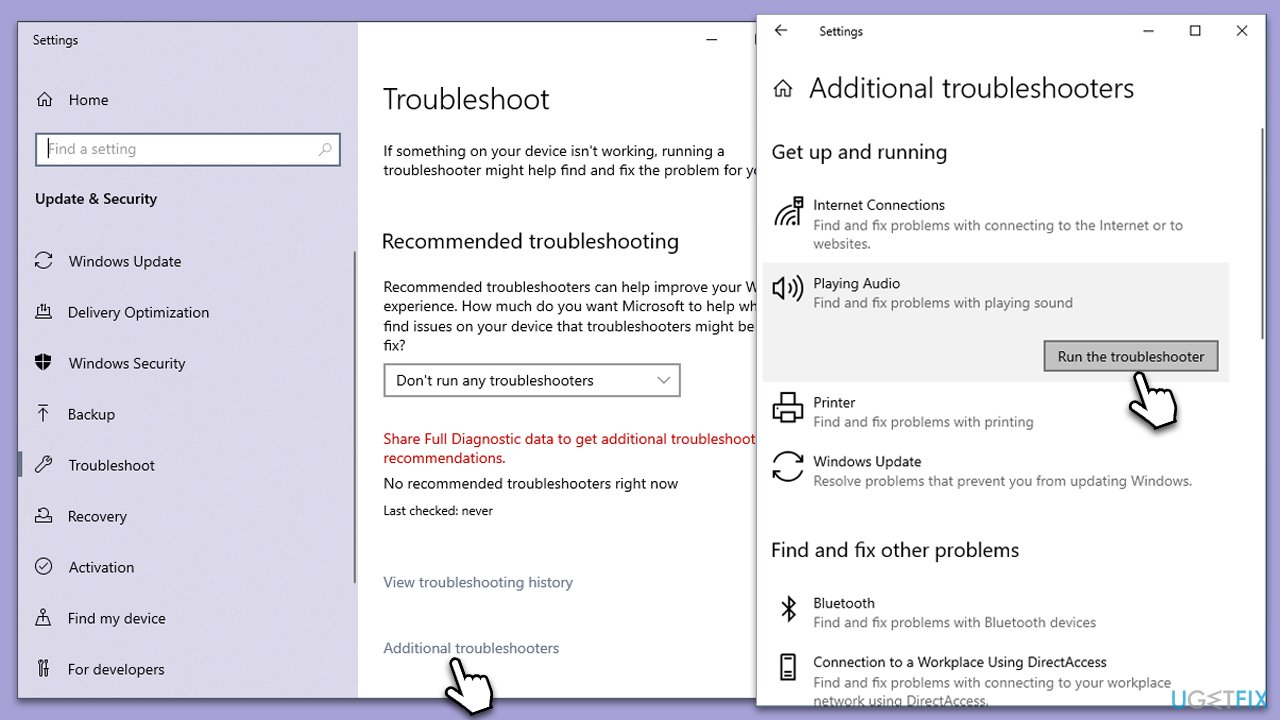
Fix 1. Run audio troubleshooter
The built-in audio troubleshooter in Windows can detect and resolve many common audio issues. Running this can help rectify any problems with your sound setup.
- Type Troubleshoot in Windows search and hit Enter.
- Select Additional troubleshooters/Other troubleshooters.
- Select Playing audio from the list and click Run the troubleshooter/Run.
- The troubleshooter will automatically scan your system for potential problems and display any issues it finds.
- If the troubleshooter finds any issues, it will provide recommended solutions.
- Follow the on-screen instructions to apply the recommended solution.
Fix 2. Check audio & video settings in OneNote
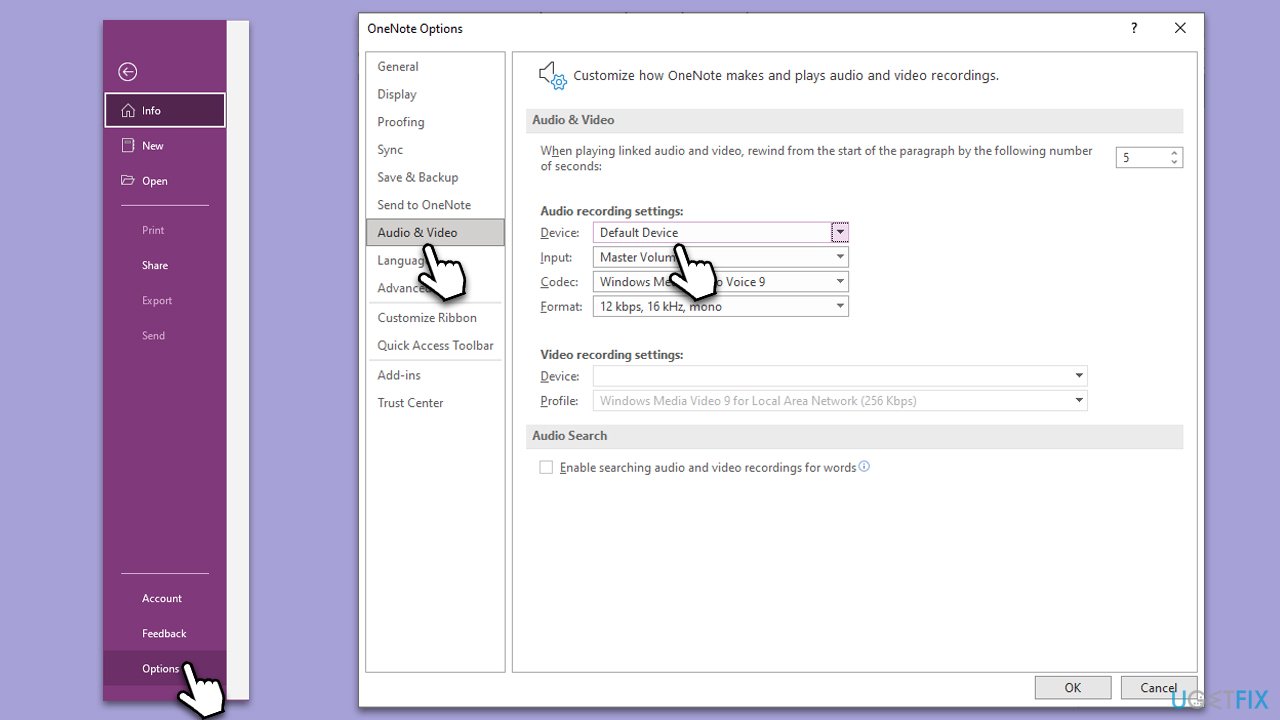
It's essential to ensure OneNote's internal settings are appropriately configured to facilitate audio recording.
- Open OneNote.
- Navigate to File > Options.
- From the left pane, choose Audio & Video.
- Make sure the correct microphone is selected in the dropdown menu.
- Modify the audio quality settings if necessary, and select OK.
Fix 3. Update OneNote
Outdated software can often lead to glitches or performance issues. Regularly updating OneNote ensures you have the latest features and bug fixes.
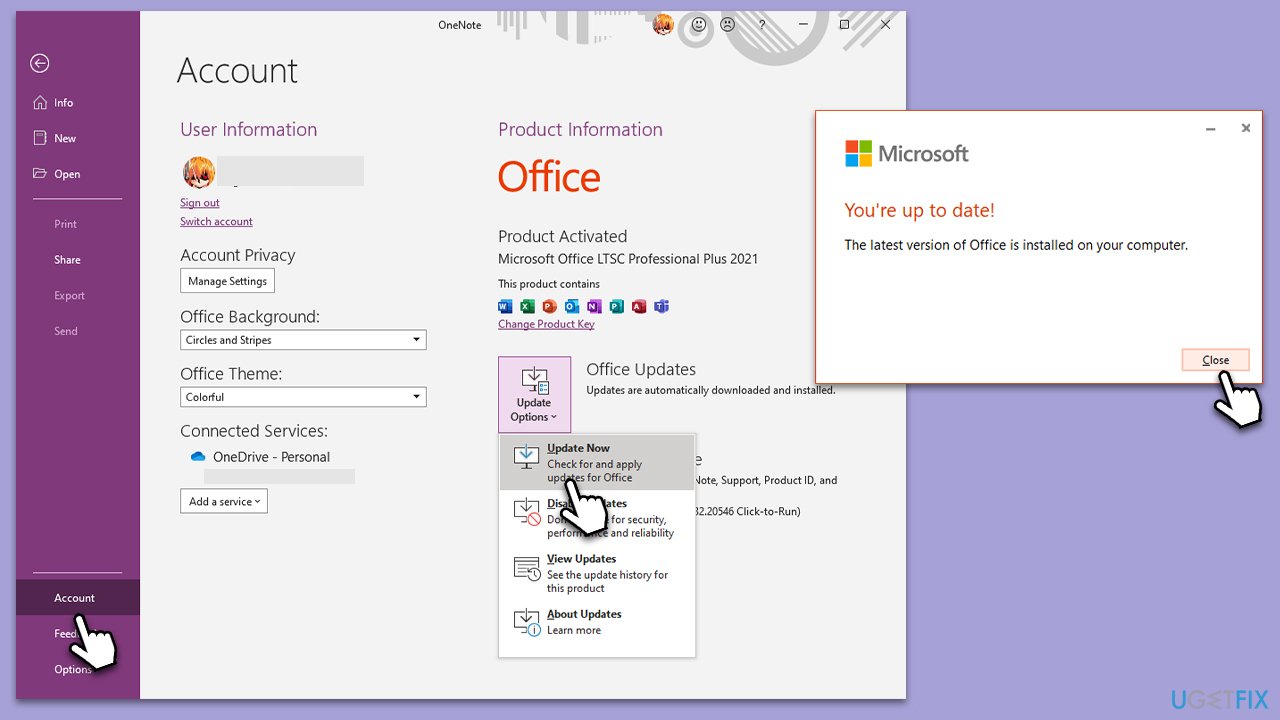
- Open Microsoft OneNote and navigate to File.
- From the file menu, select Account.
- Under Product Information, locate and click on Update Options.
- From the dropdown list, select Update Now. The program will then check for available updates and install them.
Fix 4. Repair Microsoft Office
Since OneNote is part of the Microsoft Office suite, issues with Office can affect OneNote's functionality. Repairing the entire suite can sometimes solve these issues.
- Press the Windows key and type Control Panel, then press Enter.
- Select Programs > Programs and Features.
- Select Microsoft Office and click on Change.
- Choose the option for Online Repair and click Repair.
- Follow the prompts to finish the process.
Fix 5. Reinstall audio drivers
Corrupt or outdated audio drivers can interfere with OneNote's recording function.
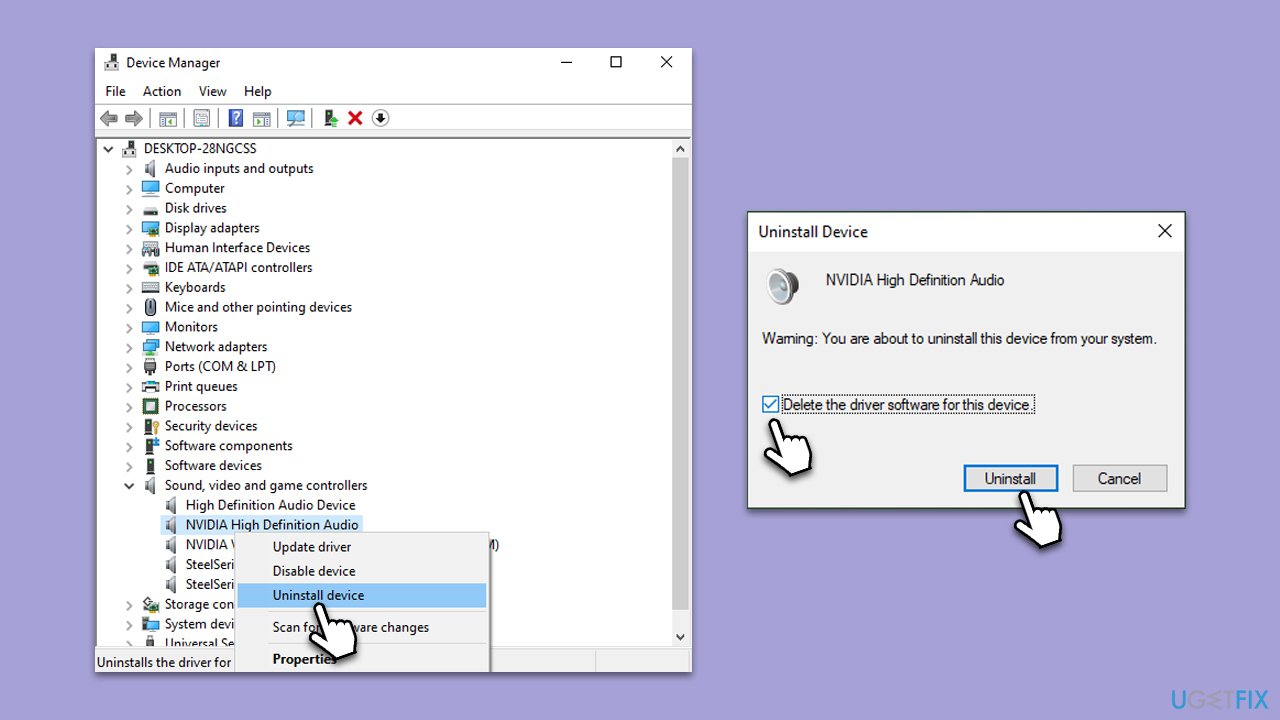
- Right-click on Start and pick Device Manager.
- Expand the Sound, video, and game controllers section.
- Right-click on your audio driver and select Uninstall device.
- Mark the Delete the driver software for this device option.
- Click Uninstall and follow the on-screen instructions.
- Restart your PC.
Fix 6. Check microphone privacy settings
Windows 10 introduced privacy settings that control which apps can access your microphone. Ensure OneNote has permission.
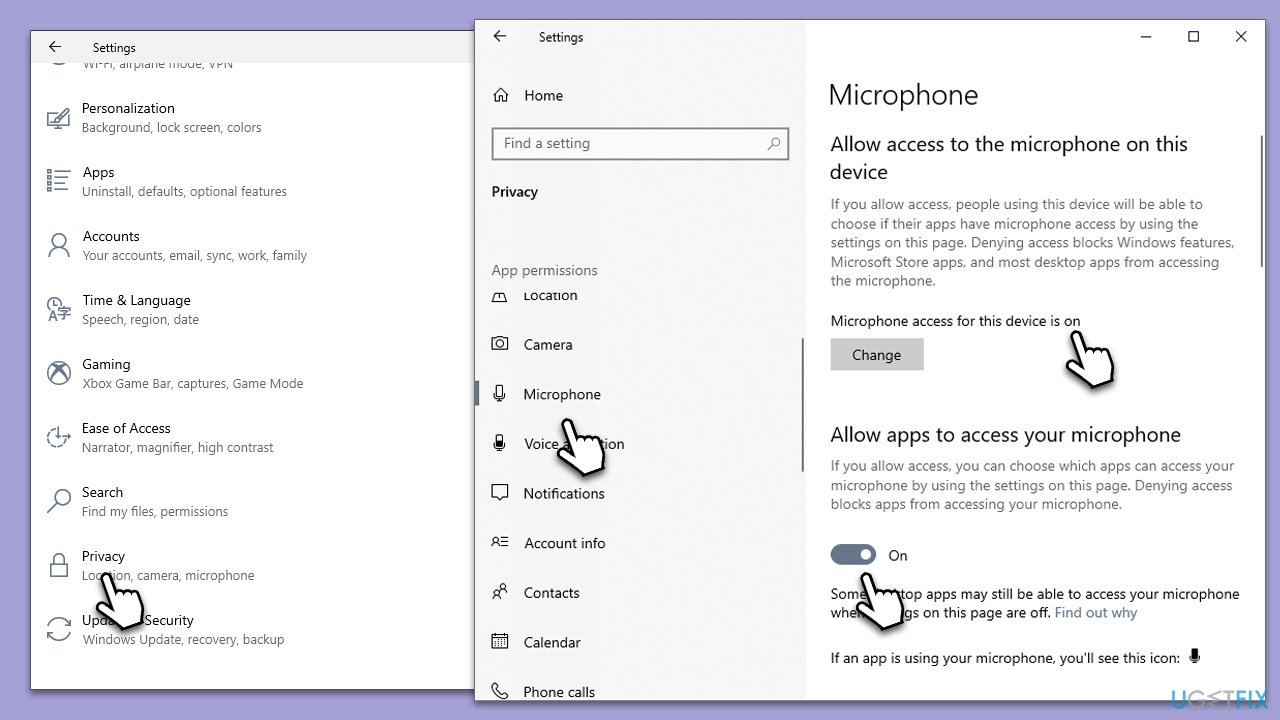
- Click on the Windows Start button and pick Settings.
- Go to the Privacy section.
- Select the Microphone section.
- Make sure Allow apps to access your microphone option is enabled.
- Select Microphone.
- Scroll down to find WhatsApp and toggle the switch next to it to the right - On position.
Fix 7. Reset OneNote
Resetting OneNote to its default settings can help eliminate any configuration-related issues.
- Right-click on Start and pick Apps & Features.
- Find OneNote in the list and select it.
- Choose Advanced options.
- Scroll down and select Reset. Confirm any prompts.
Bottom line
To fix the OneNote recorded audio issue, check your microphone settings, update audio drivers, and ensure no other applications are using the microphone. If the problem persists, consider repairing OneNote or using a PC repair tool.
Frequently asked questions
Check your audio device settings to ensure they're configured correctly and not muted. Additionally, verify that OneNote has permission to access your microphone in the Windows 10 privacy settings.
Make sure that you have enough storage space on your device and check if OneNote has write permissions. You can also try reinstalling OneNote to resolve potential software issues.
Ensure that your audio drivers are up to date and restart OneNote to see if the issue persists. If playback is still problematic, consider checking for updates to OneNote via the Microsoft Store.




Report an issue
What's wrong with this guide? We review every report and update or remove content.
Report received — thank you. We'll review and fix it.
You need a free account to submit a report.
Be the first to comment