How to fix
Mouse stuck in a corner
on Windows
Resolve the frustrating issue of a mouse stuck in a corner on Windows 10 or 11 with expert-tested solutions. Get back to smooth navigation quickly!

What causes How to fix mouse stuck in a corner on Windows?
- Loose or damaged mouse cable
- Broken USB port
- Mouse driver issues
- Hardware problems with the computer
- USB controller incompatibilities
Repairs Windows system files, removes malware, and restores a clean OS state — without reinstalling.
Hello. My mouse pointer on Windows is stuck in a corner and not moving no matter how much I move the mouse. What do I do?
Users may find it unpleasant when a mouse on a Windows computer gets trapped in a corner since it greatly limits their ability to move around and interact with the system. This problem appears, according to one user's description, when the mouse cursor unexpectedly moves to a certain spot on the screen and stops responding no matter how they move the actual mouse.
In most situations, it's wise to start by looking at the mouse setup's actual components. Users should verify that the mouse cable connection is solid and secure. Sometimes the issue is caused by a loose or damaged cable, a broken USB port, or both. Make sure the cord and port, as well as any other hardware parts of the mouse, are in good working order.
It's time to explore the world of software and drivers[ref en-1] if the mouse and its physical connections are found to be in good working order. Occasionally, problems with mouse drivers can be fixed by upgrading or reinstalling the drivers. Users should also take into account the likelihood of hardware problems with the computer itself, such as issues with the USB controller or incompatibilities with other gadgets. To locate and resolve the problem, it may occasionally be required to restart the system or check for program conflicts.
Users' productivity and overall computing experience may be significantly impacted by the issue of a mouse getting trapped in a corner. It interferes with their ability to carry out fundamental duties, which can be frustrating and waste time trying to fix the problem. Furthermore, if the issue is not fixed right away, it can impair how usable the computer is overall, which might make it difficult to use the computer for work or leisure.
In this guide, you will find 4 steps that should help you fix mouse stuck in a corner on Windows. You can also run a maintenance tool like [d1] that can fix most system errors, BSODs,[ref en-2] corrupted files, and registry[ref en-3] issues. Otherwise, follow the step-by-step instructions below.

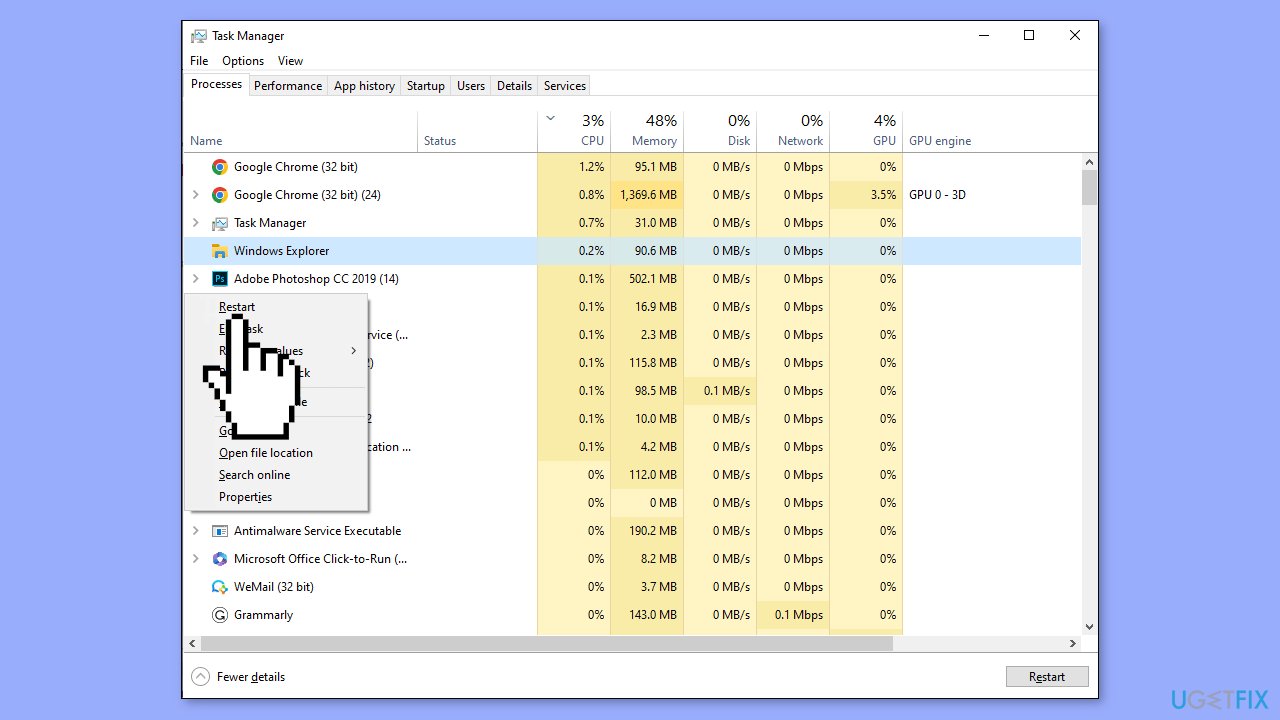
Solution 1. Restart File Explorer
- Press Ctrl + Shift + Esc to open the Task Manager window.
- Use the arrow keys to select Windows Explorer and press Shift + F10 to open the context menu.
- Choose Restart and press Enter to confirm.
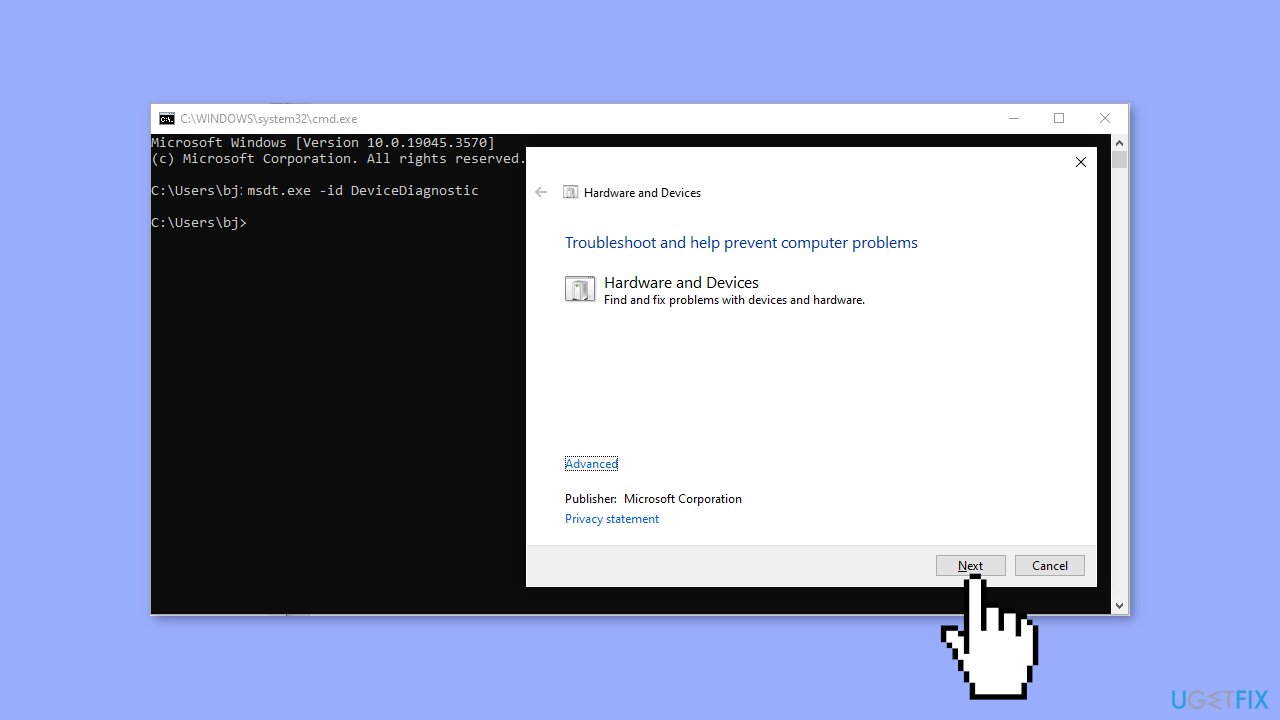
Solution 2. Run Hardware and Devices Troubleshooter
- Press the Windows key + R to open the Run window.
- Type cmd into the text box and hit Enter to open Command Prompt.
- Type msdt.exe -id DeviceDiagnostic and press Enter to open the Hardware and Devices troubleshooter.
- Press the Enter key twice to select the Next choice and execute the troubleshooter.
Solution 3. Update or Reinstall the Mouse Driver
- Press the Windows key + X and select Device Manager by using the arrow keys.
- Hit Enter to open Device Manager.
- Press the Tab button and go to Mice and other pointing devices using the down arrow key.
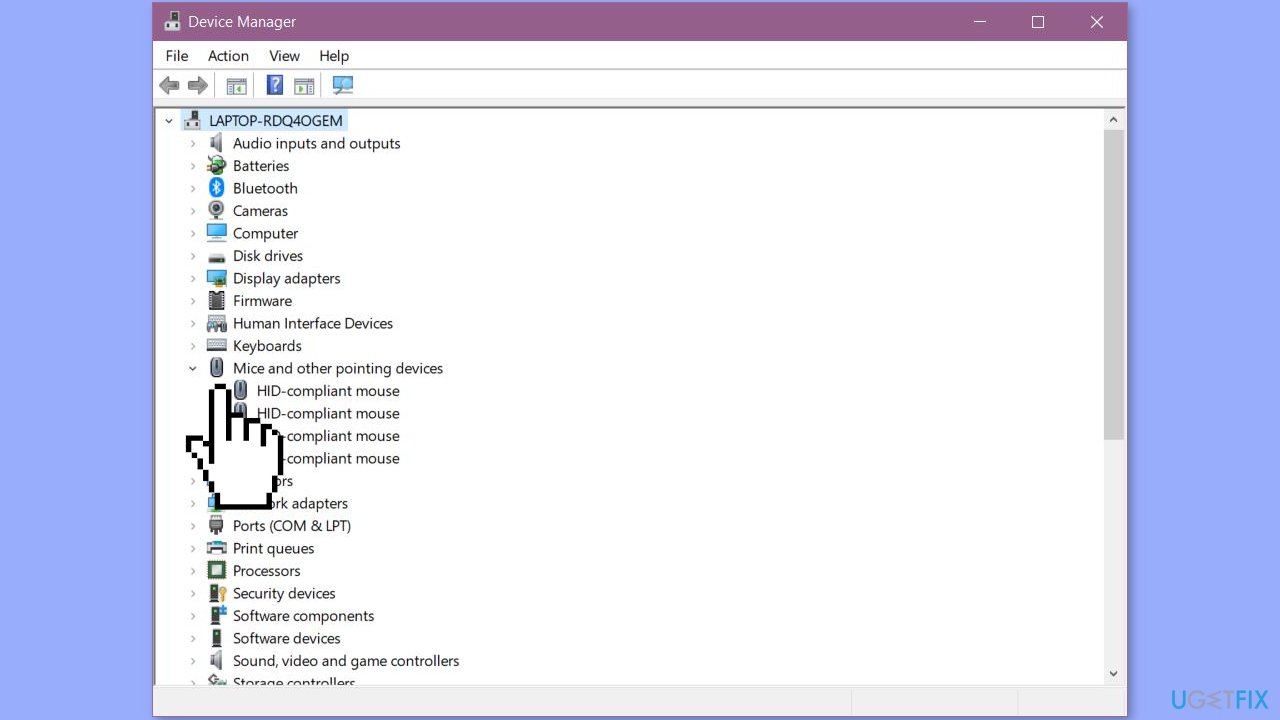
- Hit the right arrow key to expand the option, then use the down arrow key to select the mouse driver.
- Press Shift + F10 to open the context menu and select Update Driver.
- Hit Enter and follow the instructions below to complete the operation.
- If updating the driver did not fix the issue, you can try uninstalling and installing the driver.
- Go back and choose Uninstall Device.
- Click Uninstall in the confirmation window.
- Restart Windows.
You can also use a dedicated utility like [rev id="DriverFix"] that can find the best drivers for your machine and install them automatically.
Solution 4. Use System Restore
- Press the Windows key + R and type rstrui.exe into the text box.
- Press Enter to open the System Restore window.
- Hit Enter to choose the Next button.
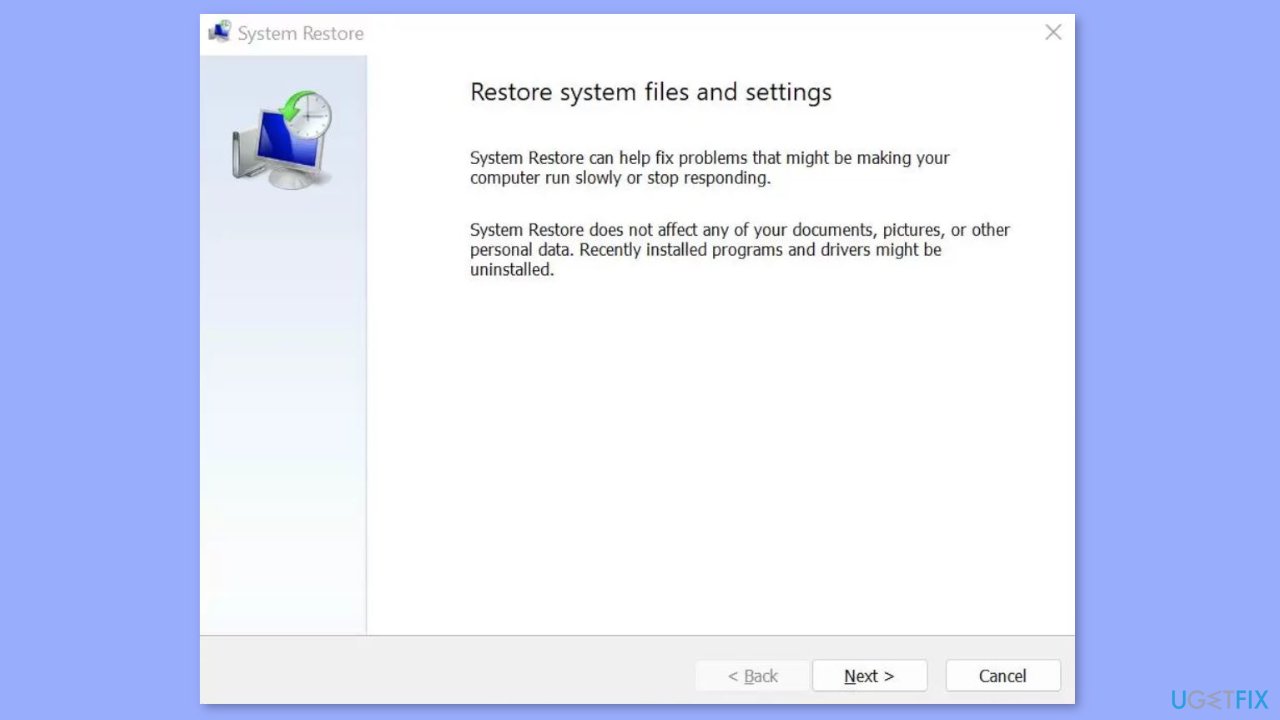
- Use the arrow keys to select the restore point you want to choose and press Enter to confirm.
- Check the information and hit Enter to start the system restore process.
Bottom line
To fix the mouse stuck in a corner on Windows, check the mouse cable connection, upgrade or reinstall mouse drivers, and investigate potential hardware issues. If the problem persists after these steps, consider restarting the system or checking for program conflicts.
Frequently asked questions
This issue may occur due to incorrect mouse settings or driver problems. Try updating your mouse driver or adjusting the sensitivity settings in Windows 10.
You can resolve this by checking for any software conflicts or disabling mouse acceleration in the settings. Additionally, ensure that your mouse is clean and functioning properly.
If the problem started after a Windows update, try rolling back the update or reinstalling your mouse drivers to see if that resolves the issue.




Report an issue
What's wrong with this guide? We review every report and update or remove content.
Report received — thank you. We'll review and fix it.
You need a free account to submit a report.
Be the first to comment