How to fix
Backspace key not working
on Windows
Resolve the Backspace key issue on Windows 10 or 11 quickly and effectively. Get back to smooth typing with our expert-tested solutions.

What causes How to fix Backspace key not working in Windows?
- Incompatible keyboard drivers
- Outdated keyboard drivers
- Corrupt keyboard drivers
- Incorrectly configured system settings
- Hardware problems with the keyboard
Repairs Windows system files, removes malware, and restores a clean OS state — without reinstalling.
Hello. Suddenly, the backspace key on my keyboard that I use with Windows stopped responding. Everything else works fine. What can I do?
For users, the issue of the Windows backspace key not functioning can be an annoying and bothersome issue. The backspace key is essential for text editing and navigation since it enables users to remove characters, fix errors, and carry out a number of other functions. This key dysfunction can seriously reduce effectiveness and production.
Incompatible or outdated keyboard drivers[ref en-1] are a frequent reason for the backspace key not functioning. Keyboard drivers are crucial pieces of software that allow the hardware and operating system to communicate with each other. These drivers, which include the backspace key, may no longer function correctly if they become outdated or corrupt. This issue can also be brought on by incorrectly configured system settings, which renders the key inoperative.
Depending on the users' unique responsibilities and reliance on the backspace key, this problem may have a variety of effects on them. When characters cannot be deleted quickly and effectively, it can become frustrating for authors, editors, and anybody else who works with a lot of text input. Similar to this, users may find it difficult to go back and amend input errors or make revisions when navigating through papers, forms, or web pages, which can negatively impact their entire user experience.
The non-working backspace key has a number of alternative remedies that users can think about. Keyboard driver updates or reinstallations are frequently beneficial actions. Additionally, checking and configuring system settings related to keyboard input may resolve the issue. If the problem is more serious, you might need to physically check the keyboard for hardware problems or think about utilizing an external keyboard as a workaround.
In this guide, you will find 4 steps that should help you fix Backspace key not working in Windows. You can also run a maintenance tool like [d1] that can fix most system errors, BSODs,[ref en-2] corrupted files, and registry[ref en-3] issues. Otherwise, follow the step-by-step instructions below.

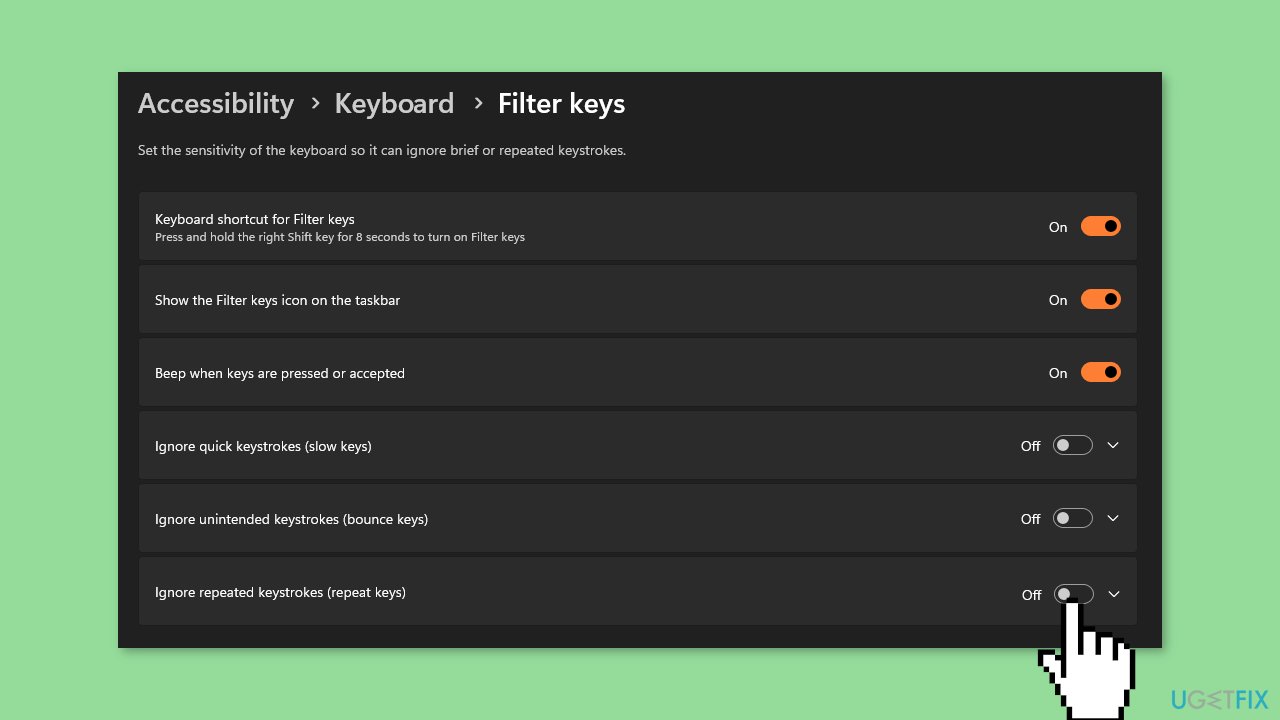
Solution 1. Disable Sticky and Filter keys
- Press the Windows key + I to open the Settings app.
- Click on Accessibility and click on Keyboard in the left-hand menu.
- Find the Sticky keys option, and toggle off the Press one key at a time for keyboard shortcuts.
- Click the Filter Keys link, toggle off the Ignore brief or repeated keystrokes.
- Close the Settings app and restart the PC to effect the changes.
Solution 2. Run the Keyboard Troubleshooter
- Press the Windows key + I to open the Settings app.
- Click on System, then select Troubleshoot from the right pane.
- Click on Other Troubleshooters.
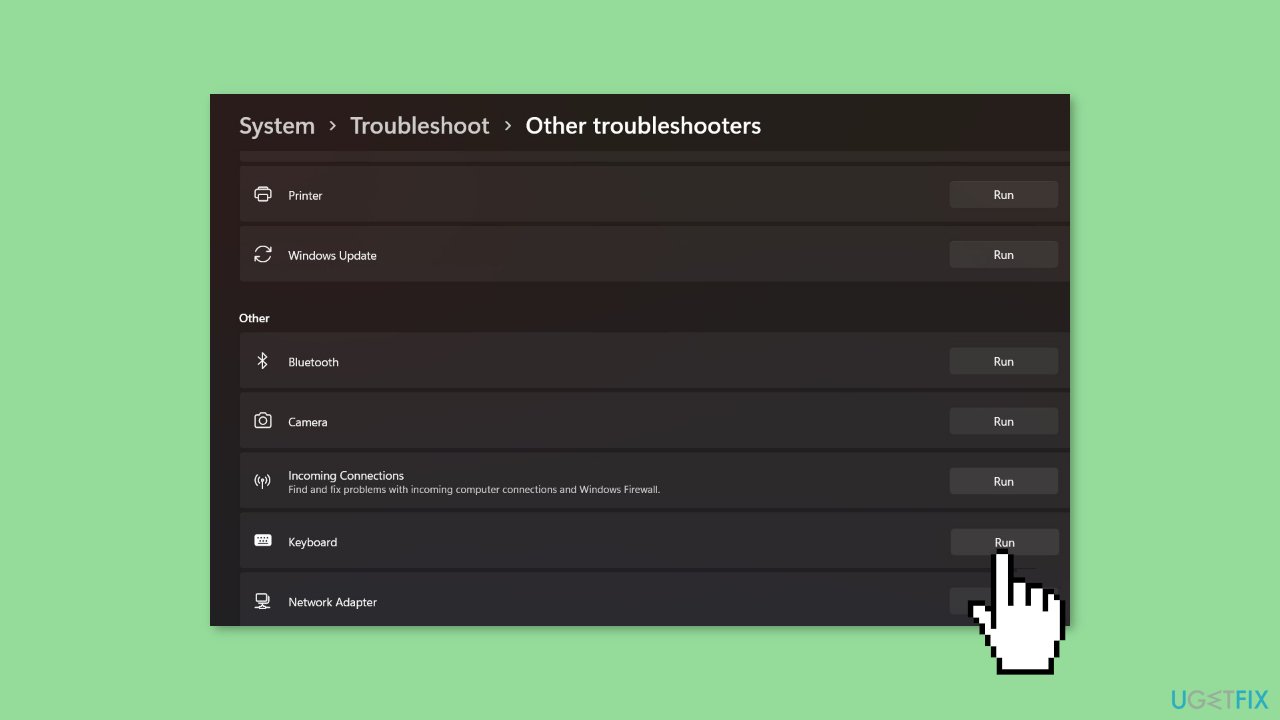
- Then, click the Run button against the Keyboard.
- Wait for the Troubleshooter to find and fix the Keyboard issues on your computer.
Solution 3. Update Keyboard Drivers
- Press the Windows key + R to open the Run window.
- Type devmgmt.msc, and click OK to open the Device Manager.
- Expand the Keyboards entry.
- Right-click on the Keyboard devices.
- Then, select Update driver from the drop-down menu.
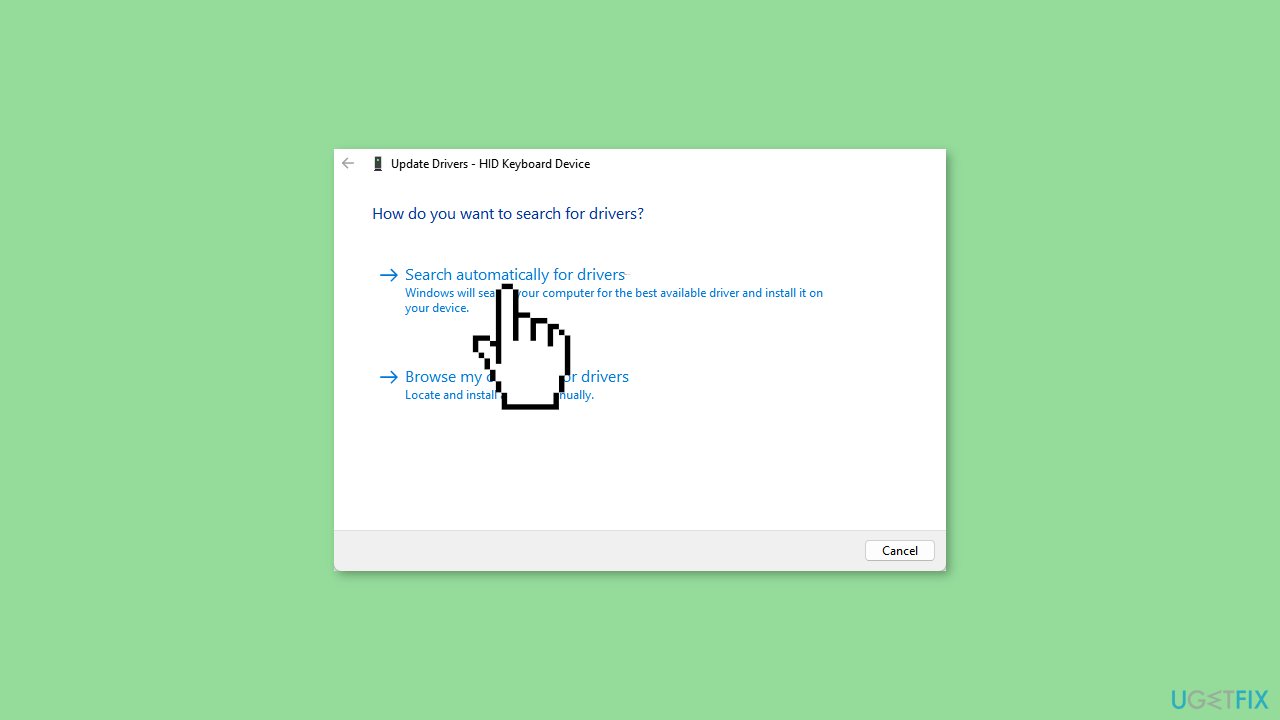
- Click on Search automatically for updated driver software.
- Restart your computer and check if the issue persists.
Solution 4. Reinstall Keyboard Drivers
- Press the Windows key + R to open the Run window.
- Type devmgmt.msc, and click OK to open the Device Manager.
- Expand the Keyboards entry.
- Right-click on the Keyboard devices.
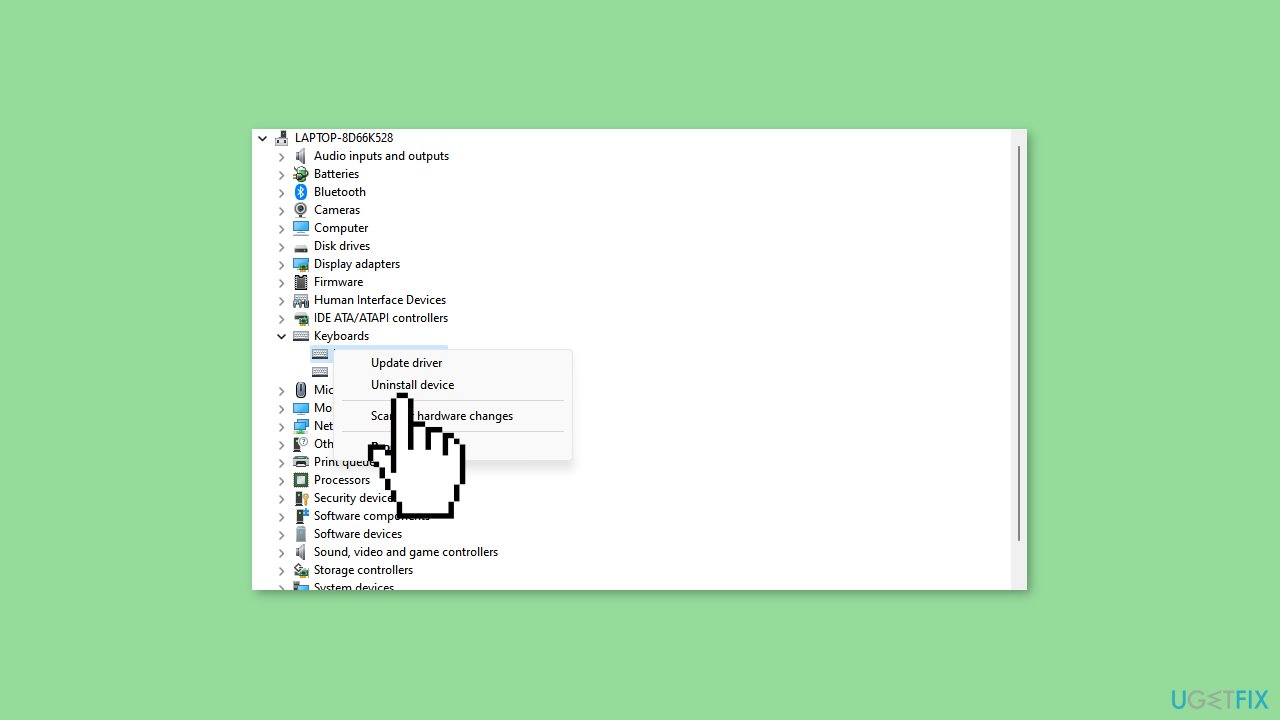
- Then, select Uninstall device from the drop-down menu.
- Click Uninstall in the confirmation box and wait for the process to complete.
- Restart your PC, and it will automatically install the missing driver.
You can also use a dedicated utility like [rev id="DriverFix"] that can find the best drivers for your machine and install them automatically.
Bottom line
To fix the backspace key not working in Windows, you can update or reinstall keyboard drivers, check and configure system settings related to keyboard input, or physically inspect the keyboard for hardware issues. If these solutions do not resolve the problem, consider using an external keyboard as a workaround.
Frequently asked questions
First, check if the keyboard is properly connected and try restarting your computer. If the issue persists, consider updating the keyboard drivers through Device Manager.
You can run the Keyboard Troubleshooter from the Settings app to identify and fix any keyboard-related issues automatically. Additionally, ensure that no software conflicts are causing the problem by booting Windows in Safe Mode.
Yes, you can use third-party software like SharpKeys or Microsoft PowerToys to remap the Backspace key to another key that functions properly, allowing you to continue using your keyboard.




Report an issue
What's wrong with this guide? We review every report and update or remove content.
Report received — thank you. We'll review and fix it.
You need a free account to submit a report.
Be the first to comment