How to fix
Can’t uninstall Valorant
on Windows
Struggling to uninstall Valorant on Windows 10 or 11? Follow our expert-tested guide for a hassle-free removal with zero traces left!

![[Fix] Can’t uninstall Valorant in Windows](https://ugetfix.com/wp-content/uploads/articles/askit/fix-cant-uninstall-valorant-in-windows_en-768x432.jpg)
What causes [Fix] Can’t uninstall Valorant in Windows?
- Game not showing up in the list of installed programs
- Issues during the uninstall procedure
- Riot Vanguard anti-cheat mechanism obstructing uninstallation
- Incomplete uninstallation leaving game leftovers
- Need for efficient game removal process
Repairs Windows system files, removes malware, and restores a clean OS state — without reinstalling.
Hello. I stopped playing Valorant a while ago and it is just taking up space on my Windows PC. I decided to uninstall it but it won't work. What should I do?
For a number of users, the inability to remove Valorant from a Windows machine has been a persistent problem. A frustrating situation may arise when Valorant, a popular first-person shooter game created by Riot Games, won't uninstall. The annoyance of using up disk space and the possibility of leaving behind game leftovers that could impair system performance are only two of the consequences that this problem may have for users. This problem might be especially troublesome for users who want to release some space or stop playing the game.
Users may see the game not showing up in the normal list of installed programs or issues during the uninstall procedure as a result of this issue. The game's anti-cheat mechanism, Riot Vanguard, may occasionally have a role because it can obstruct the uninstallation procedure. This leaves customers with an incomplete uninstallation, which makes it difficult to uninstall the game completely.
One popular workaround for the Valorant uninstallation problem is to remove Riot Vanguard first, as it can block the game's removal. Sometimes users can successfully uninstall Valorant by removing this component. To fully remove the game from the system, though, other actions or debugging could be needed. This technique isn't always effective.
In the end, the issue with the uninstallation of Valorant emphasizes the need for efficient game removal and the demand for a fast uninstallation procedure to guarantee a seamless transition for customers who choose to remove the game. While some users may find success with the recommended method of uninstalling Riot Vanguard, others may need to look for other options or contact Riot Games' support staff in order to guarantee a successful uninstallation.
In this guide, you will find 3 steps that should help you fix Valorant not uninstalling in Windows. You can also run a maintenance tool like [d1] that can fix most system errors, BSODs,[ref en-1] corrupted files, and registry[ref en-2] issues. Otherwise, follow the step-by-step instructions below.

Method 1. Use the Settings app
- Press the Windows key + I to open the Settings app.
- Navigate to Apps and click on Installed apps.
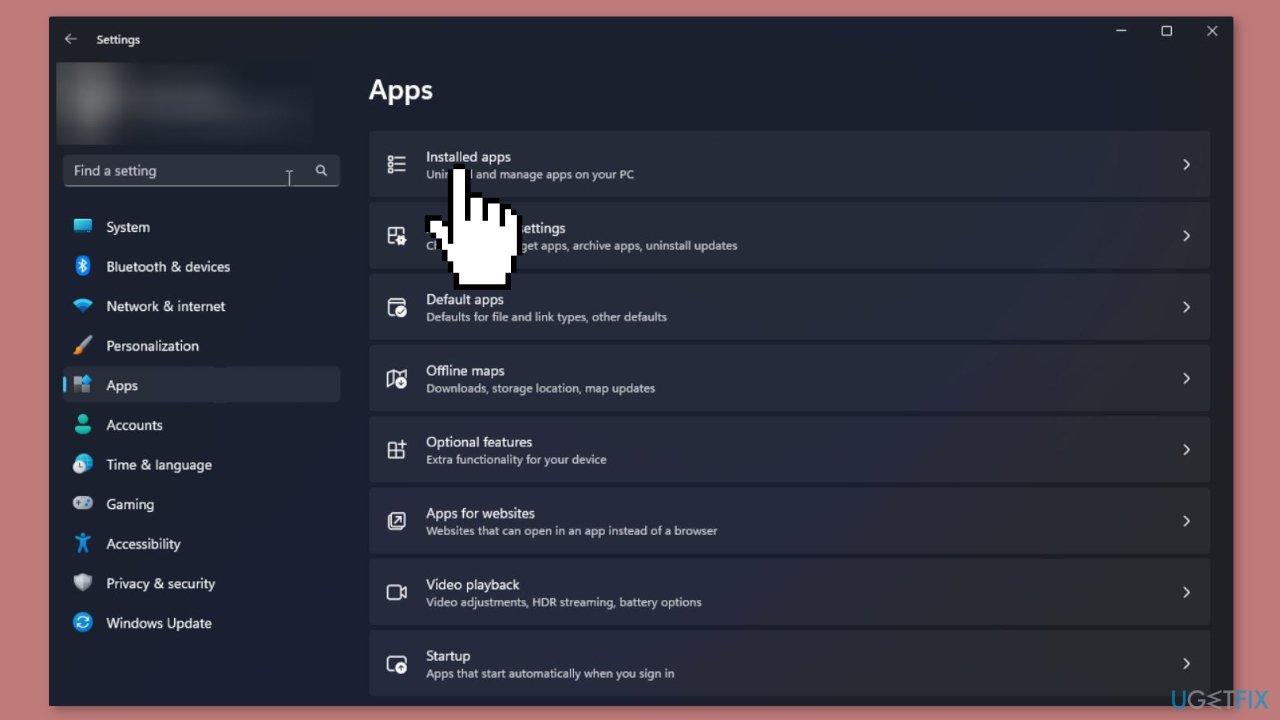
- Find Riot Vanguard, click the three dots icon, and select Uninstall. Confirm by clicking Uninstall.
- Locate Valorant, click the three dots, and choose Uninstall. Confirm by clicking Uninstall again to initiate app removal.
Method 2. Use the Control Panel
- Press the Windows key, type control panel in the search box, and click Open.
- Select Category for View by and click Uninstall a program under Programs.
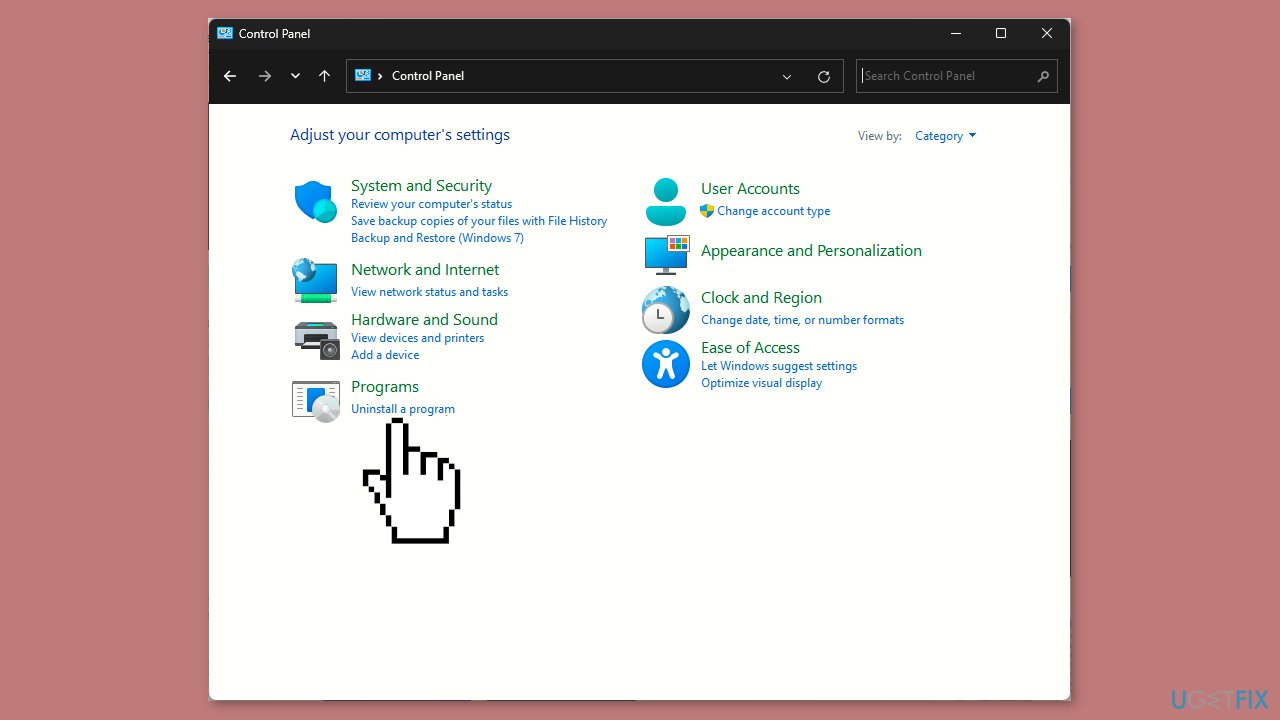
- In the Programs and Features window, locate Riot Vanguard and click Uninstall.
- Follow the onscreen instructions to complete the uninstallation process.
- Next, locate Valorant, then click Uninstall and follow the prompts to remove the app.
- Restart your computer.
Method 3. Use the Command Prompt
- Press the Windows key, type cmd in the search bar, and click Run as administrator to open Command Prompt with elevated rights. Click Yes on the UAC prompt.
- Type the following command to uninstall Riot Vanguard and hit Enter:
sc delete vgc
- Copy and paste the following command to delete Valorant and press Enter:
sc delete vgk
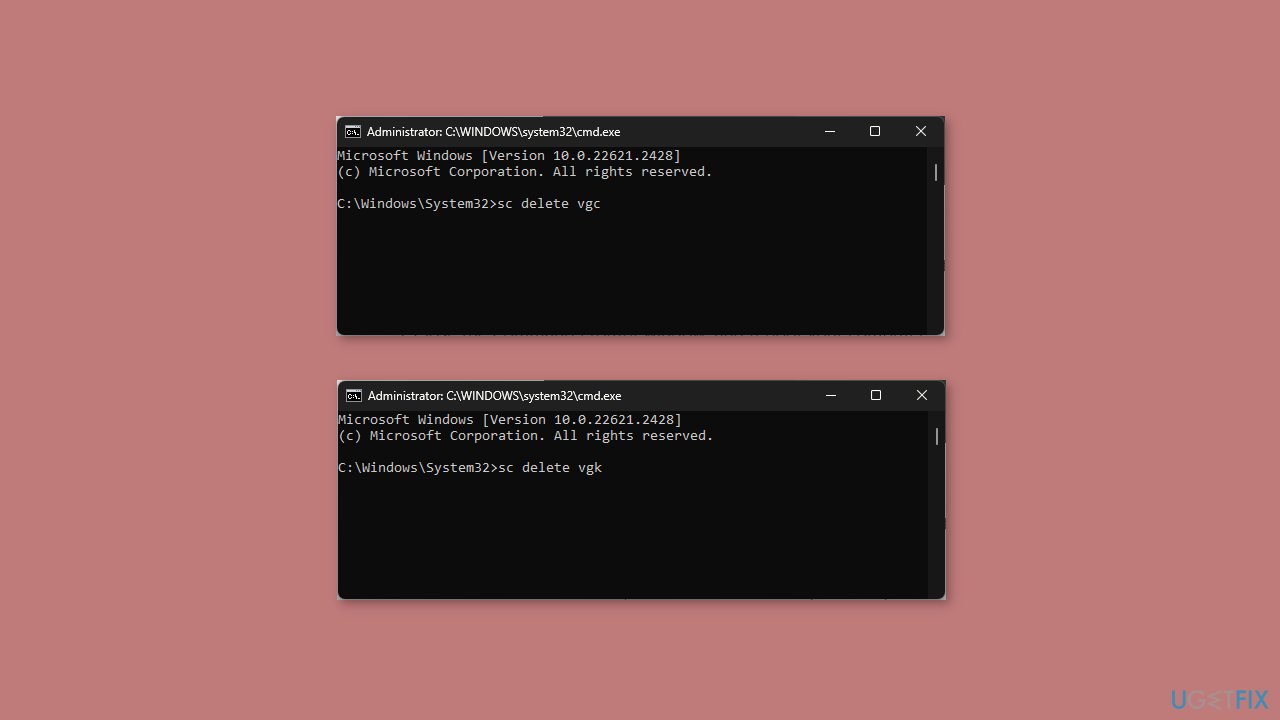
- Close the Command Prompt window and reboot your computer.
- Once your PC is up, log in and press the Windows key + E to open File Explorer.
- Navigate to this folder:
C:\Program Files\Riot Games
- Locate and select the Riot Vanguard folder, then click the Delete button. Restart your computer to let the changes take effect.
Bottom line
To fix the issue of Valorant not uninstalling, users can try removing Riot Vanguard first, as it may block the game's removal. If this method does not work, additional steps or contacting Riot Games' support may be necessary to ensure a successful uninstallation.
Frequently asked questions
If Valorant is missing from the Programs and Features list, try using the Riot Client to uninstall the game, as it may not have registered properly in Windows.
You can use a third-party uninstaller tool to forcibly remove Valorant from your system if the standard uninstallation fails, ensuring all related files and registry entries are deleted.
Yes, after uninstalling Valorant, use Disk Cleanup or a dedicated cleanup tool to remove any leftover files and folders associated with the game to free up space.




Report an issue
What's wrong with this guide? We review every report and update or remove content.
Report received — thank you. We'll review and fix it.
You need a free account to submit a report.
Be the first to comment