How to fix
Corel VideoStudio not opening
on Windows
Struggling with Corel VideoStudio not opening on Windows 10 or 11? Get quick solutions and expert-tested tips to resolve the issue in minutes.

What causes How to fix Corel VideoStudio not opening in Windows?
- Application not launching due to software bugs
- Compatibility issues with the operating system
- Corrupted installation files
- Conflicts with other programs or drivers
- Insufficient system resources
Repairs Windows system files, removes malware, and restores a clean OS state — without reinstalling.
Hello. Since yesterday, when I try to open Corel VideoStudio on Windows it just won't launch. Is there anything I can do?
A lot of people use Corel VideoStudio, a popular video editing program, because of its feature-rich UI. However, a number of customers have noted a persistent problem in which the application just won't launch. For users who depend on the program for their video editing needs, this issue can be very annoying and negatively affect their productivity and artistic endeavors.
A user's inability to open Corel VideoStudio can have several effects. It impedes their workflow in the first place, which causes delays in their video editing assignments. Professionals and enthusiasts with passionate personal projects or tight deadlines may find this especially challenging. Their overall experience with the software may suffer as a result of this problem, which could cause them to lose faith in its dependability.
Furthermore, not being able to open the software can be financially damaging for people who have already paid for it. They've spent money on a tool they can't use efficiently, which may lead them to look for other software solutions, incurring further costs or requiring them to go through a learning curve to get used to a new program.
There are several troubleshooting procedures involved in solving the issue. These could involve reinstalling or fixing the program, looking for updates, addressing compatibility problems, and inspecting system resources for any conflicts with other programs or drivers. There are six stages in this guide that should help you resolve the issue with Corel VideoStudio not opening in Windows.
You can also run a maintenance tool like [d1] that can fix most system errors, BSODs,[ref en-1] corrupted files, registry[ref en-2] issues, or clear cookies and cache[ref en-3] automatically. Otherwise, follow the step-by-step instructions below.

Method 1. Rename the uvDV.dll File
- Press Ctrl + Shift + Esc to open Task Manager.
- Identify all VideoStudio processes, select them individually, and click on End task.
- Press the Windows key + E to open File Explorer.
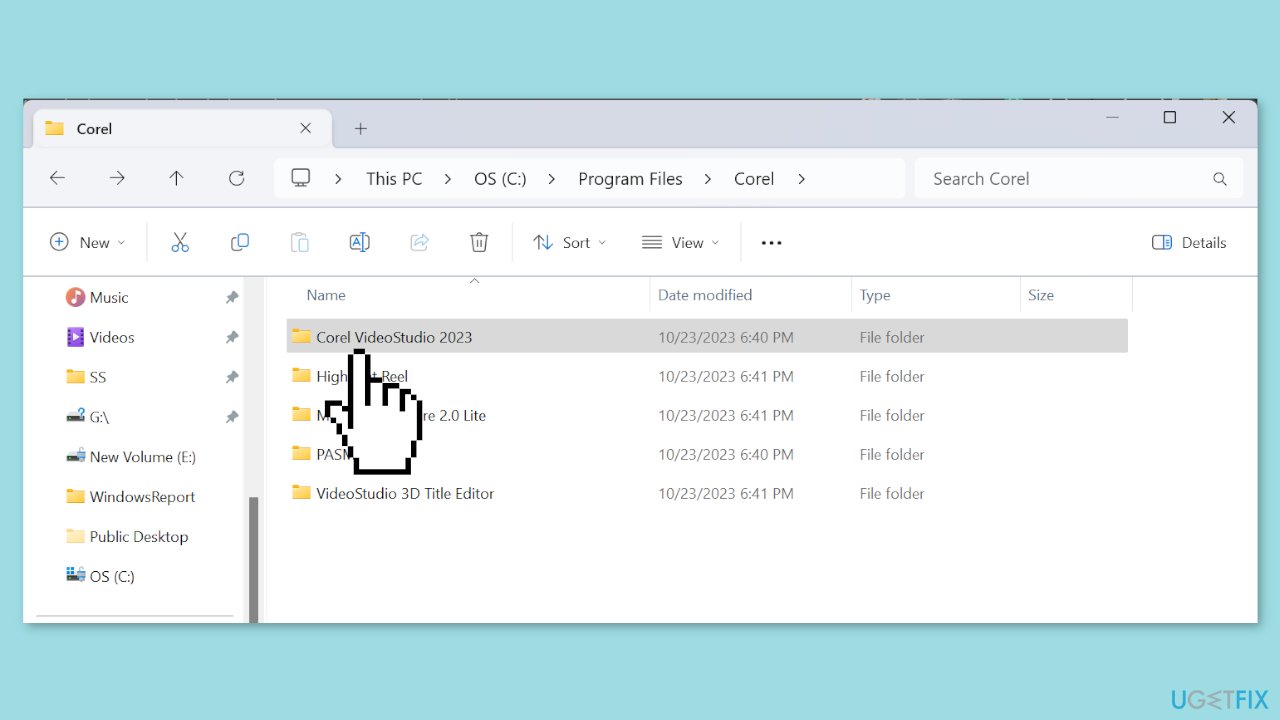
- Navigate to the following path: C:\Program Files\Corel or paste it in the address bar and hit Enter.
- Double-click on the folder with the same name as the installed program version.
- Locate the uvDV.dll file, right-click on it, and select Rename.
- Now, name it uvDV-old.dll.
- Finally, relaunch the program and verify whether Corel VideoStudio is still not opening.
Method 2. Repair the Visual C++ Redistributables
- Press the Windows key + R to open Run.
- Type appwiz.cpl in the text field and hit Enter.
- Locate all the Microsoft Visual C++ Redistributable entries, select each individually, and click Change/repair.
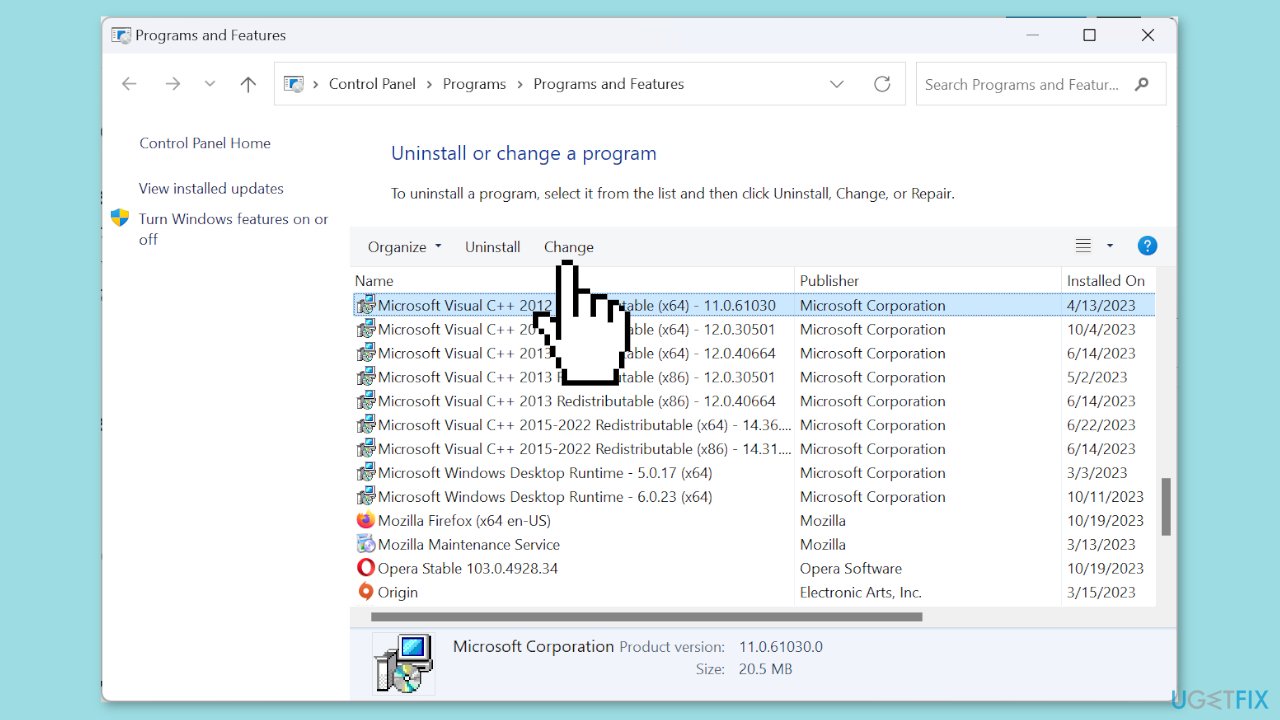
- Click the Repair button.
- Click Yes in the UAC prompt and wait for the process to complete.
- Now, launch the program and check for improvements.
Method 3. Download Visual C++ Redistributables
- Go to Microsoft’s official website and download the latest Visual C++ Redistributable packages. We recommend you download them all.
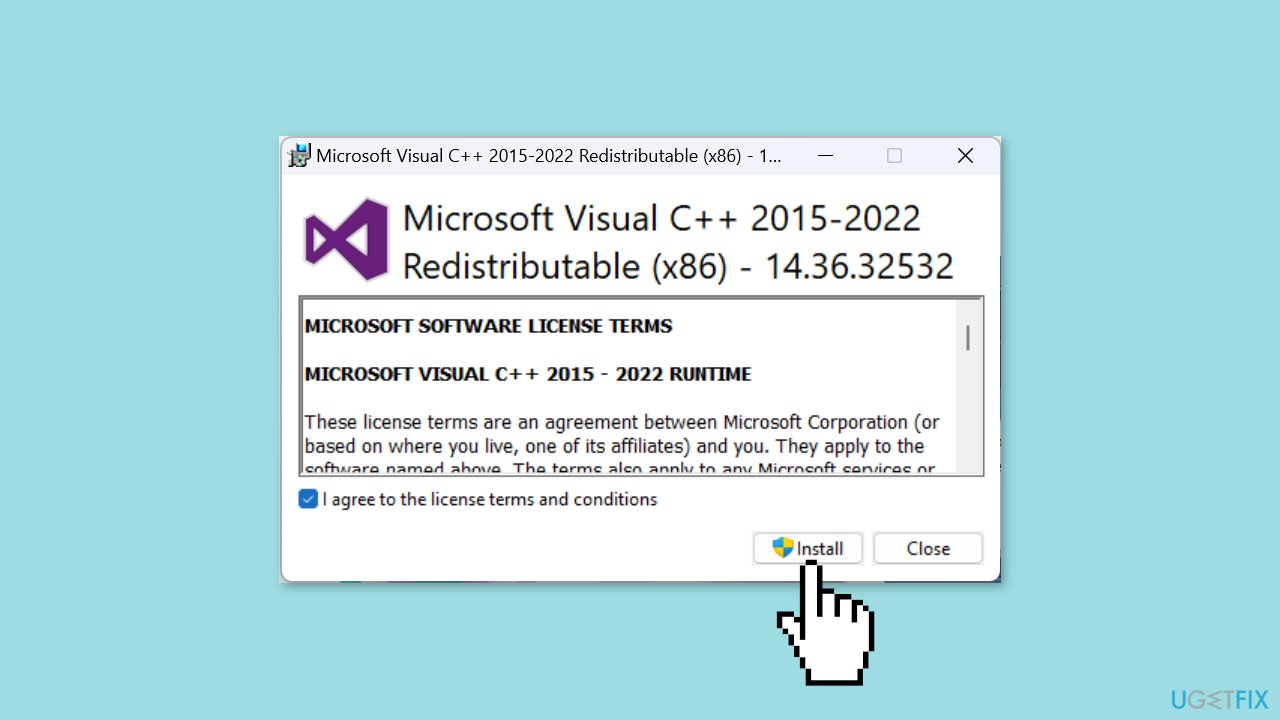
- Now, run the setup and follow the on-screen instructions to complete the installation.
- Once done, verify if Corel VideoStudio still won’t open.
Method 4. Recreate the Program Files
- Terminate all running instances of Corel VideoStudio using the Task Manager.
- Press the Windows key + E to open File Explorer.
- Paste the following path in the address bar and hit Enter:
%AppData%\Ulead Systems\Corel VideoStudio Pro (x64)
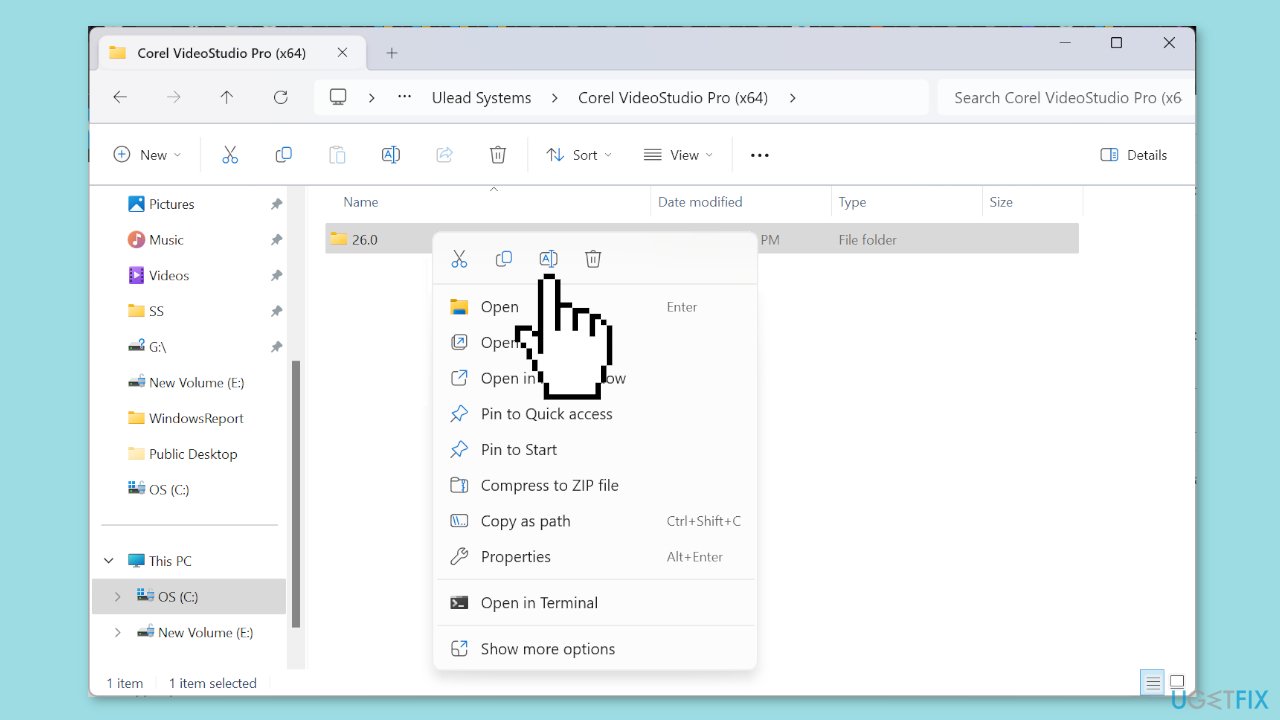
- Right-click on the folder here, and select Rename from the context menu.
- Add _old to the name, and save the changes.
- Finally, relaunch Corel VideoStudio. It will take a few minutes to re-register the files, but the app should open after that.
Method 5. Uninstall Recent Windows Update
- Press the Windows key + I to open Settings.
- Go to Windows Update from the navigation pane.
- Click on Update history.
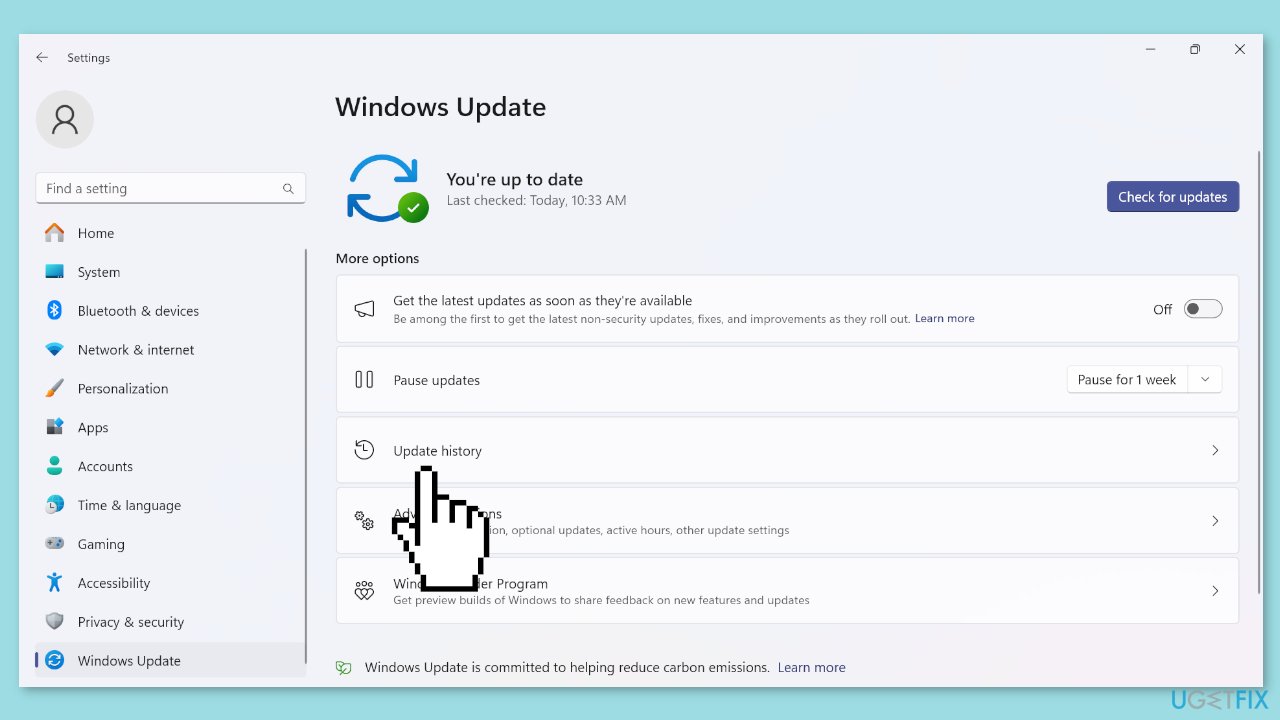
- Scroll down and click on Uninstall updates.
- Now, click Uninstall next to the updates that were installed around the same time Corel VideoStudio stopped working.
- Again, click Uninstall in the confirmation prompt.
Method 6. Repair or Reinstall Corel VideoStudio
- Press the Windows key + R to open Run, type appwiz.cpl in the text field, and click OK.
- Select Corel VideoStudio from the list of apps, and click Uninstall.
- On the first attempt, choose Repair, and click Next to proceed. Once the repair is complete, check whether the program now opens.
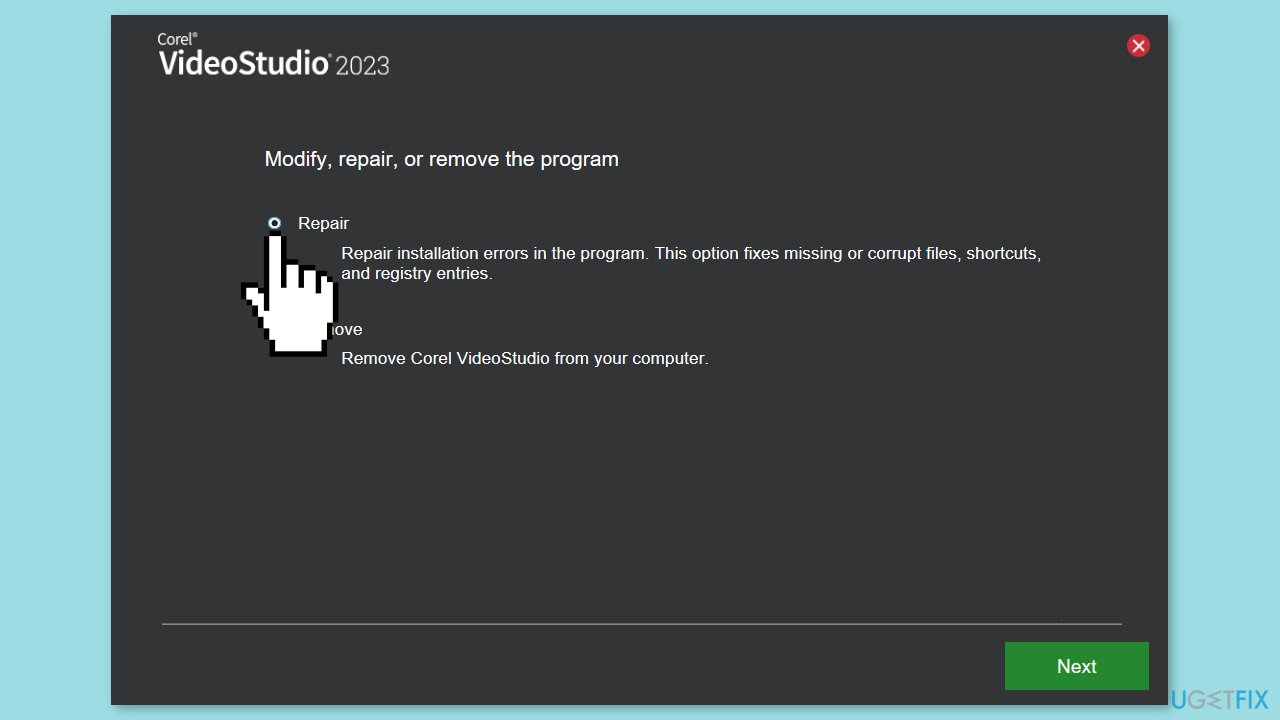
- If not, select Uninstall the next time and follow the on-screen instructions to remove the app. Also, make sure to delete any app files and Registry entries.
- Once done, restart the computer and download Corel VideoStudio again.
Bottom line
To resolve the issue of Corel VideoStudio not opening, you can try renaming the uvDV.dll file, reinstalling or repairing the program, checking for updates, and inspecting system resources for conflicts. If these steps do not work, consider running a maintenance tool to fix system errors or explore alternative software solutions.
Frequently asked questions
Try running the program as an administrator by right-clicking the shortcut and selecting 'Run as administrator.' If that doesn't work, consider reinstalling the software to ensure all components are properly installed.
Check for any pending Windows updates and ensure your graphics drivers are up to date, as outdated drivers can cause compatibility issues. Additionally, try resetting the program settings to default from the installation directory.
You can run the program in compatibility mode by right-clicking the executable, selecting 'Properties,' then the 'Compatibility' tab, and choosing an earlier version of Windows. This can resolve issues stemming from incompatibilities with the latest Windows updates.




Report an issue
What's wrong with this guide? We review every report and update or remove content.
Report received — thank you. We'll review and fix it.
You need a free account to submit a report.
Be the first to comment