How to fix
“No Network Connection. Please check your network settings and try again [2603]” error in OneDrive
on Windows
Resolve the "No Network Connection" error in OneDrive on Windows 10 and 11 effortlessly with expert-tested solutions. Fixed in minutes!

![How to fix “No Network Connection. Please check your network settings and try again [2603]” error in OneDrive?](https://ugetfix.com/wp-content/uploads/articles/askit/how-to-fix-no-network-connection-please-check-your-network-settings-and-try-again-2603-error-in-onedrive_en-768x432.jpg)
What causes How to fix “No Network Connection. Please check your network settings and try again [2603]” error in OneDrive?
- Auto-login mechanism not functioning properly
- Issues with OneDrive application
- Outdated OneDrive installation
- Outdated Windows operating system
- Network settings prompting unnecessary checks
Repairs Windows system files, removes malware, and restores a clean OS state — without reinstalling.
Hello. I can't log into OneDrive because I get the 2603 error code with "No Network Connection. Please check your network settings and try again" message. What should I do?
The error message, "No Network Connection. Please check your network settings and try again [2603]," in OneDrive can be a frustrating obstacle for users who rely on this native cloud solution on Windows. OneDrive is made to automatically log you into your account as soon as you turn on your computer, guaranteeing that your data and files are always available. But much like any software, problems might occur. In this instance, the error notice may appear on the elevated OneDrive side panel due to the auto-login mechanism not working as planned.
Users may be greatly impacted by this problem in a number of ways. It primarily interferes with OneDrive's smooth incorporation into their regular workflow. The purpose of the automated login feature is to make their cloud-stored files and documents easily accessible. Users may encounter delays in receiving important data when it malfunctions, which can be especially problematic in circumstances where time is of the essence.
Moreover, users may become frustrated and confused as a result of this inaccuracy. Even when their internet connection and network settings are flawless, it frequently encourages users to check them again. When debugging their network, users could waste valuable time without realizing that the problem is with the OneDrive application itself.
Checking for updates, fixing the OneDrive installation, and making sure the Windows operating system is up to date are common fixes for this problem. To fix the issue, users might also need to reset OneDrive or unlink and relink their account. More tests can be necessary in circumstances that are more complicated. It's important to remember that depending on the particulars, these solutions can call for alternative actions.
In this guide, you will find 6 steps that should help you fix "No Network Connection. Please check your network settings and try again [2603]" error in OneDrive. You can also run a maintenance tool like [d1] that can fix most system errors, BSODs,[ref en-1] corrupted files, and registry[ref en-2] issues. Otherwise, follow the step-by-step instructions below.

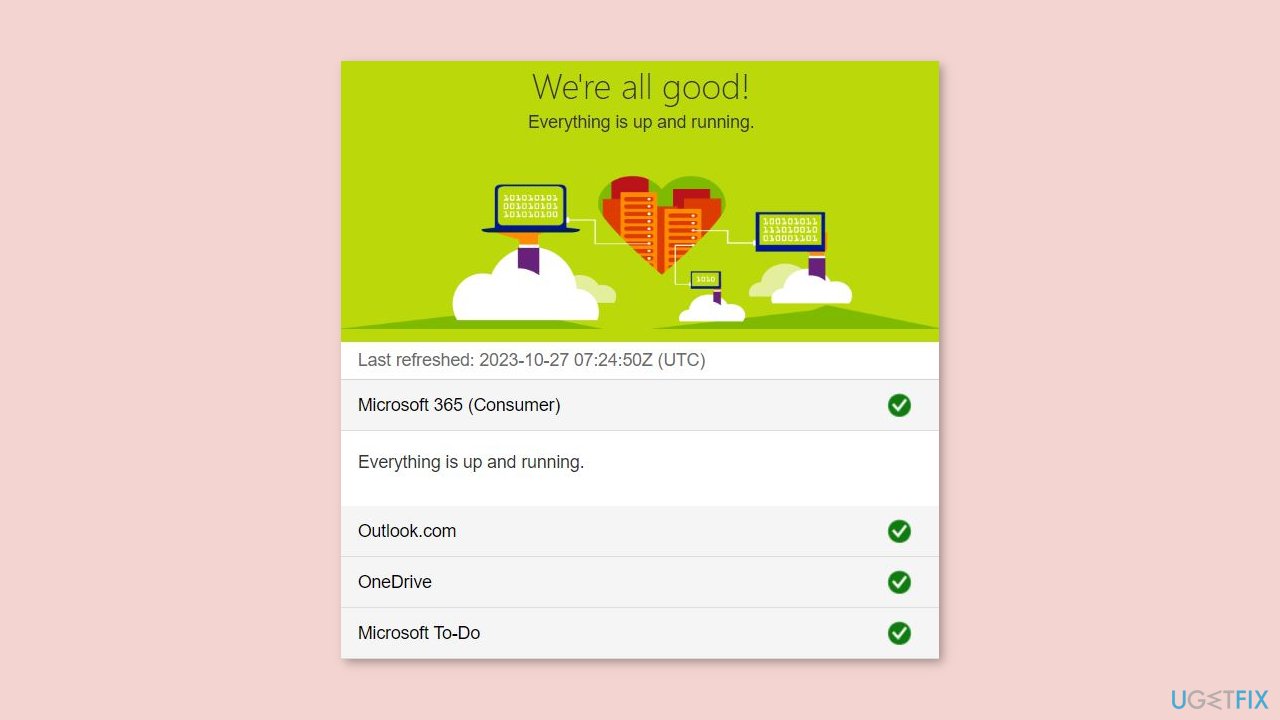
Solution 1. Check the OneDrive Server Status
- Access the Office portal to monitor the OneDrive status.
- Examine the OneDrive service status. Look for the presence of a green checkmark indicator.
Solution 2. Restore the Advanced Network Settings
- Right-click the Start icon on the taskbar.
- Choose Run to access it.
- Type inetcpl.cpl in the Run box. Press the Enter key to open the Internet Properties window.
- Navigate to the Advanced zone in that window.
- Scroll to the bottom of the page and select Restore advanced settings. This action will reset all settings to their default mode.
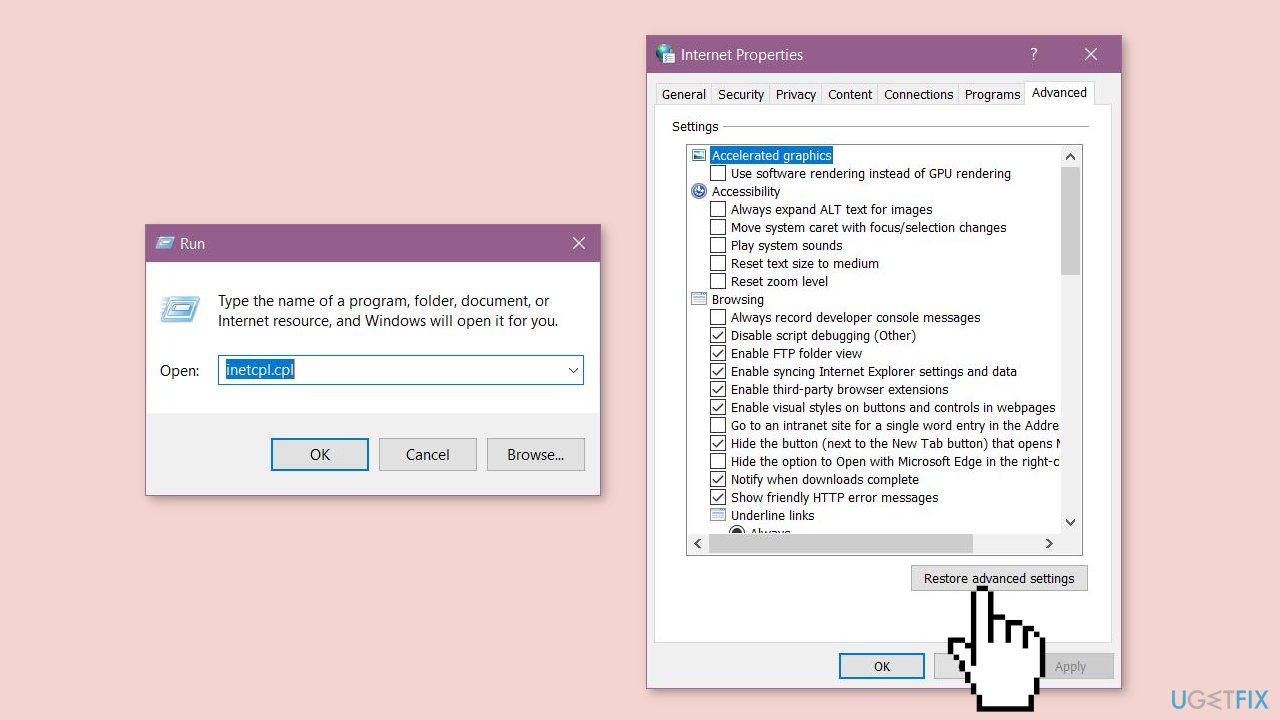
- Save this modification by clicking the Apply and OK buttons consecutively. Afterward, close the Internet Options panel and reboot the system.
Solution 3. Modify the DNS Settings
- Open the Network and Sharing Center by simultaneously pressing the Windows key + R to access the Run box.
- Type ncpa.cpl and press Enter.
- On the resulting page, you will see a list of network adapters on your device.
- Right-click the desired adapter and select Properties.
- Locate the Internet Protocol Version 4 (IPv4) option.
- Double-click it to edit.
- Leave the IP address untouched and choose the Obtain DNS server address automatically option.
- Modify the DNS address to the following values:
Preferred DNS server: 8.8.8.8
Alternate DNS server: 8.8.4.4
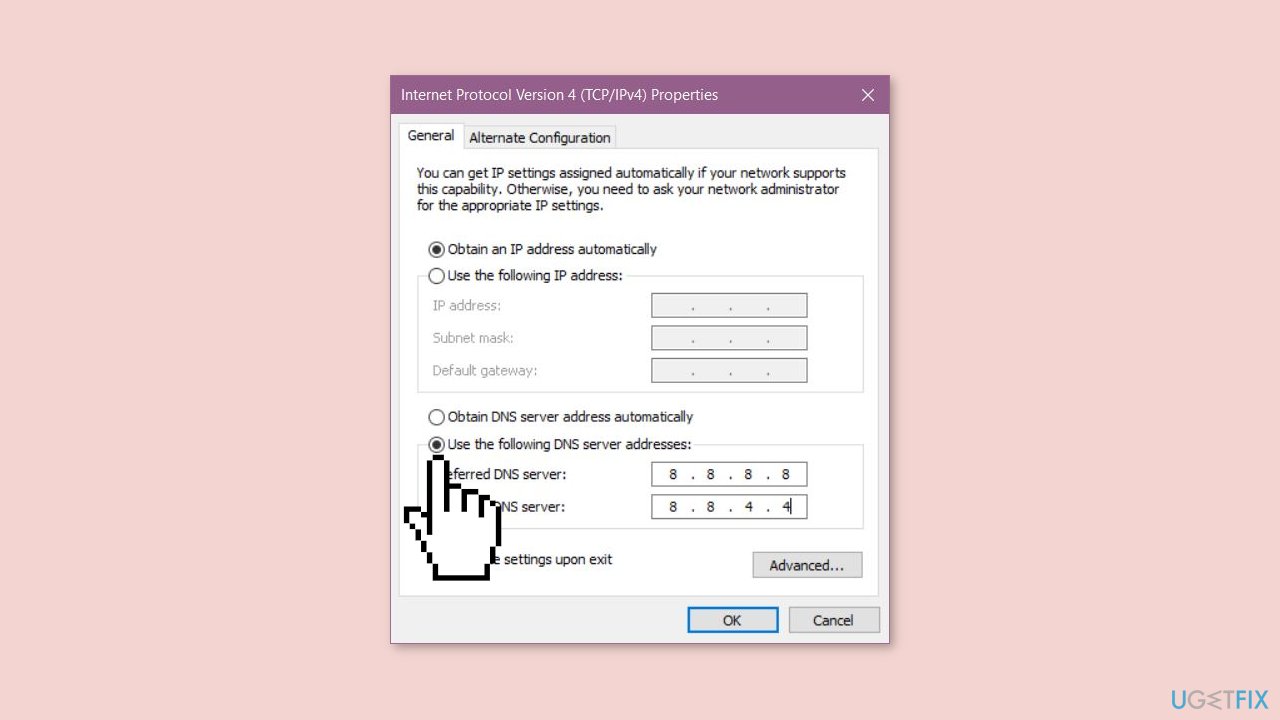
- Save this change by clicking OK. Afterward, reboot the system.
Solution 4. Close the OneDrive app and Restart
- Click the ^ icon at the extreme bottom right corner of the Taskbar.
- Locate the little grey cloud icon and click it once.
- You will now see the OneDrive options. Click the small Settings icon.
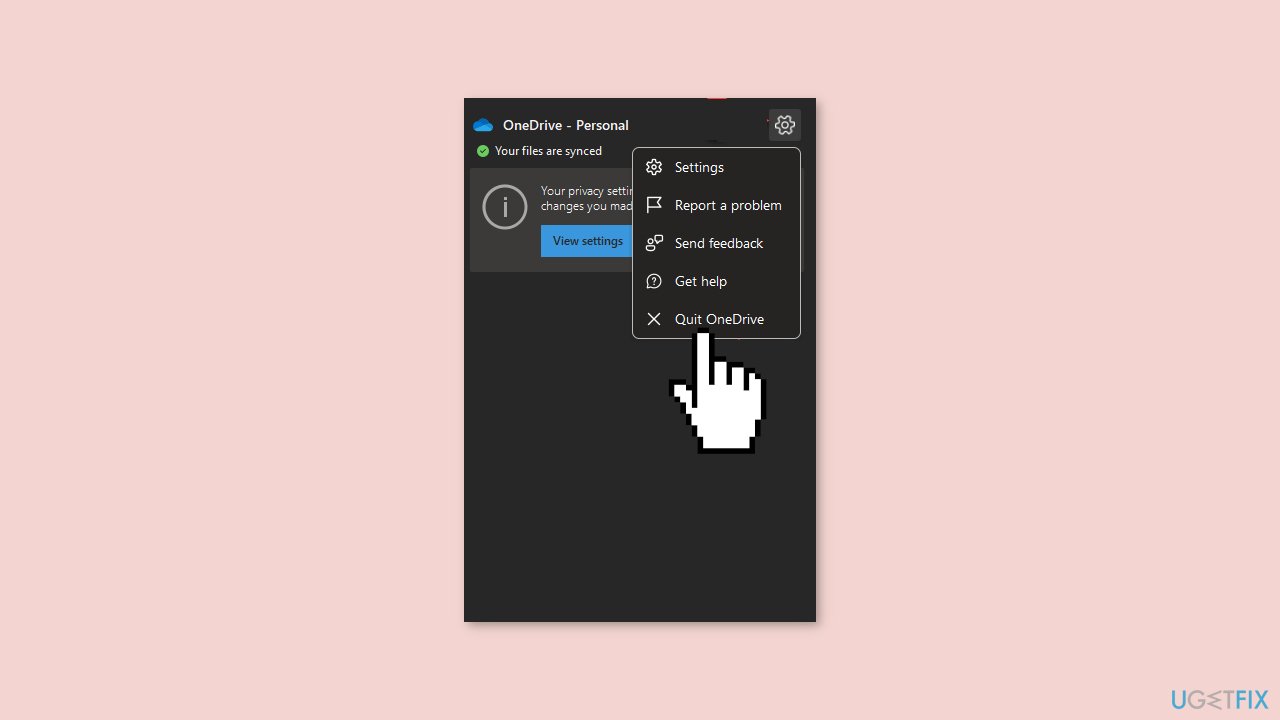
- Finally, select Quit OneDrive to exit OneDrive. Force-closing OneDrive will terminate all OneDrive processes.
- Type OneDrive in the search box and open the OneDrive app. After launching the OneDrive app, it will automatically log you in.
Solution 5. Update the OneDrive App
- Open a Run utility tab by pressing the Windows key + R simultaneously.
- Paste the following and press Enter:
%localappdata%\Microsoft\OneDrive
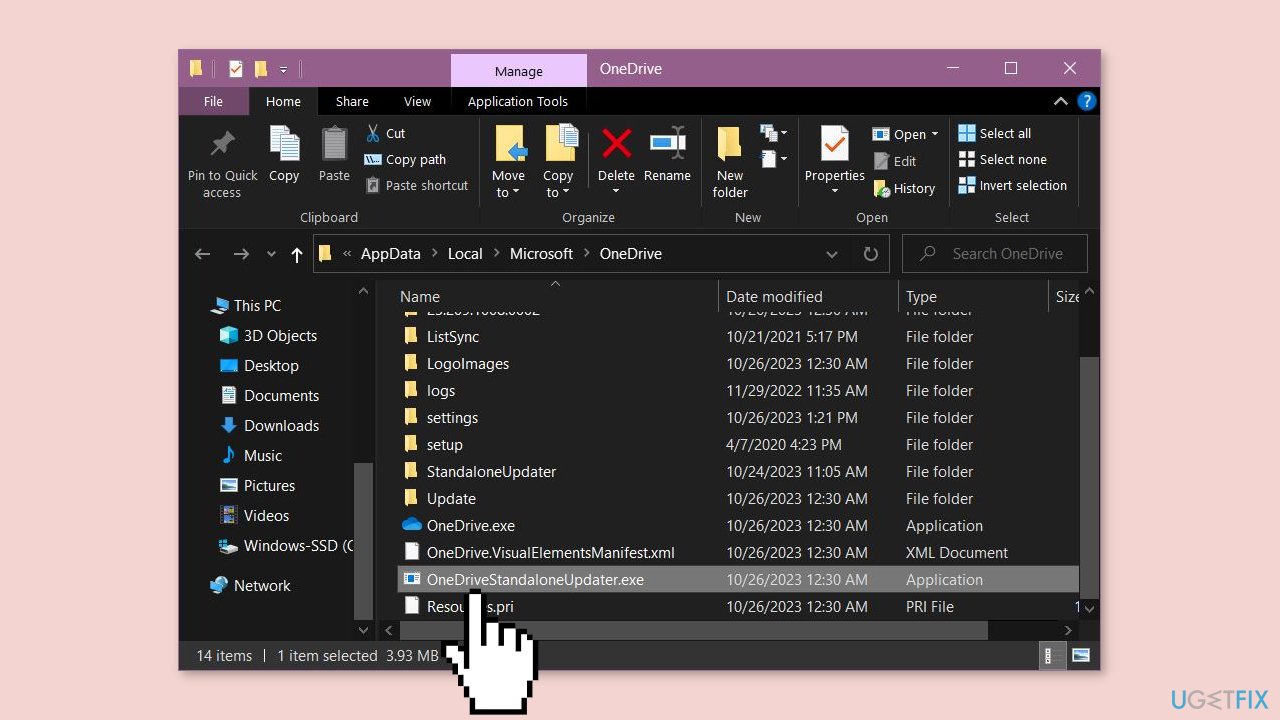
- You should find the OneDriveSetup executable file in this location.
- If you can't find it, search for the OneDriveStandaloneUpdater component. Double-click it to get the latest version of the OneDrive app. After doing this, OneDrive may prompt you to sign in.
Solution 6. Change Internet Options
- Close OneDrive and all Office apps.
- Open Control Panel > Network and Internet > Internet Options.
- In the Advanced tab, scroll down and find TLS 1.0, TLS 1.1, and TLS 1.2. Ensure that they are all selected.
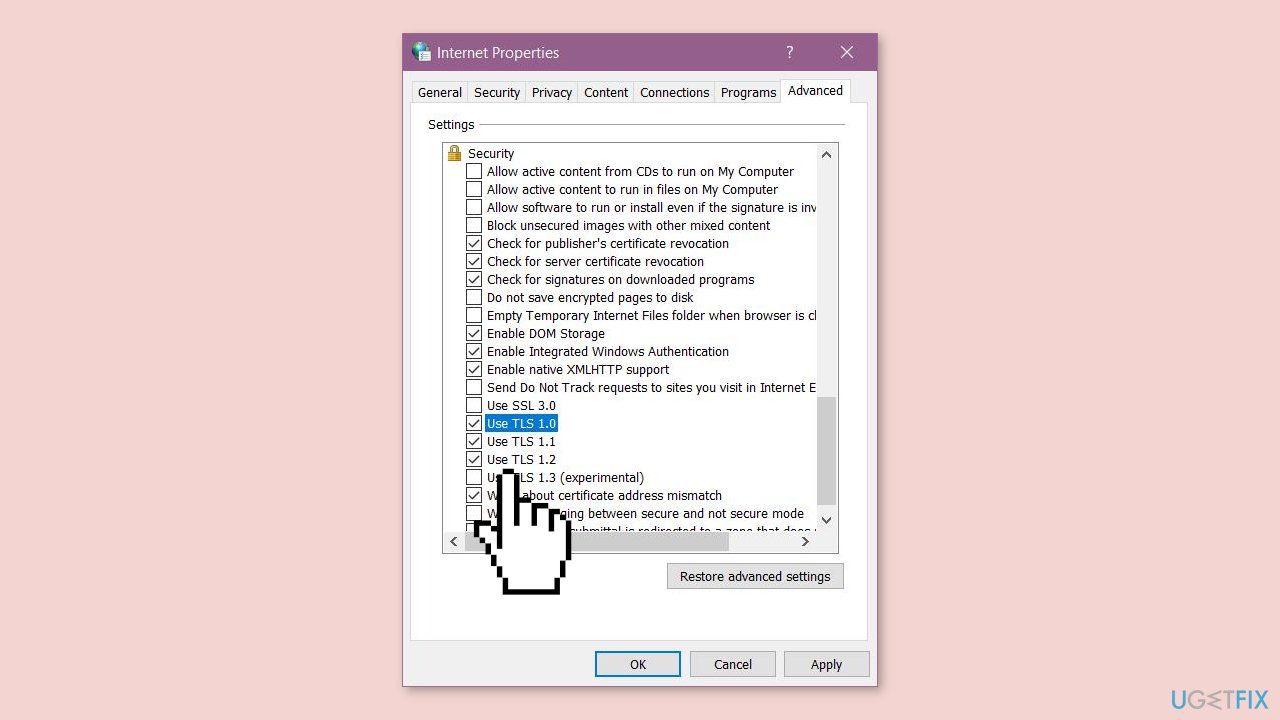
- Click Apply and then OK.
- Restart your computer and test OneDrive again.
Bottom line
To fix the 'No Network Connection. Please check your network settings and try again [2603]' error in OneDrive, users can check for updates, repair the OneDrive installation, reset OneDrive, or unlink and relink their account. If these solutions do not resolve the issue, further troubleshooting may be necessary.
Frequently asked questions
First, ensure that your internet connection is stable and functional. If the issue persists, try resetting your network settings by navigating to Settings > Network & Internet > Status and selecting 'Network reset.'
Yes, keeping your Windows 11 updated can fix bugs and improve system compatibility, which may resolve the OneDrive error. Go to Settings > Windows Update and check for updates to ensure your system is current.
You can check the OneDrive status by right-clicking the OneDrive icon in the system tray and selecting 'Settings.' If there are sync issues, you can also try unlinking and relinking your account.




Report an issue
What's wrong with this guide? We review every report and update or remove content.
Report received — thank you. We'll review and fix it.
You need a free account to submit a report.
Be the first to comment