How to fix
Couldn’t start Files on Demand error code 0xffffffea in OneDrive
on Windows
Resolve the Files on Demand error code 0xffffffea in OneDrive on Windows 10 and 11 quickly and efficiently. Expert-tested solutions await!

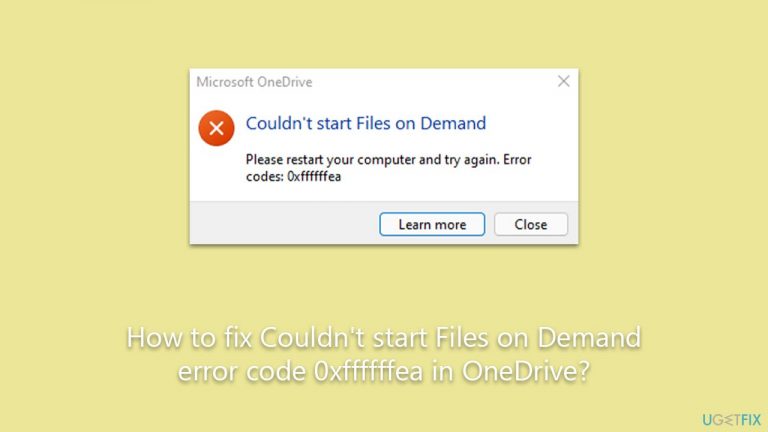
What causes How to fix Couldn’t start Files on Demand error code 0xffffffea in OneDrive?
- Unstable or weak internet connectivity
- Corrupted cache files
Repairs Windows system files, removes malware, and restores a clean OS state — without reinstalling.
Hi, I can't use OneDrive because of the error "Couldn't start Files on Demand. Please restart your computer and try again. Error codes: 0xffffffea." How do I bypass this? I need to use OneDrive for work, and this is really problematic for me.
OneDrive is a cloud storage service provided by Microsoft, allowing users to store and access their files from any device with an internet connection. By saving files to OneDrive, users can easily share them with others, collaborate in real time, and maintain backups of essential documents. Integrated deeply within the Windows operating system, OneDrive facilitates seamless file synchronization between a user's computer and the cloud.
One of the notable features of OneDrive is its "Files on Demand" capability, which permits users to access all their files without downloading them fully to their devices. Instead, the files appear locally but are fetched from the cloud on-demand when accessed.
Despite the myriad benefits it typically offers, OneDrive is not without its glitches. A frustrating issue that some individuals encounter when trying to log in is the "Couldn't start Files on Demand" error, accompanied by the error code 0xffffffea. This prevents them from utilizing the cloud storage, as it prevents people from accessing OneDrive.
Now, if you're facing this particular predicament, it's essential to understand the underlying causes. Primarily, this error may stem from two central issues. First, the error can arise due to unstable or weak internet connectivity. OneDrive's Files on Demand function heavily relies on the internet to retrieve files in real time. If the connection is inconsistent, it can disrupt the process, causing the error to appear. Hence, it's advisable to check and ensure that you have a stable internet connection.

The second potential culprit is the presence of corrupted cache files. These are temporary files stored on your computer to speed up operations, but over time, they might get bugged or outdated. These corrupted cache files can hinder OneDrive's ability to access or synchronize your data with the cloud correctly. Clearing these cache files often resolves the issue and allows OneDrive to function smoothly.
Addressing internet connectivity issues and clearing cache files are the primary steps you can take to fix the "Couldn't start Files on Demand error code 0xffffffea" in Windows. For general Windows fixes and optimization, consider using the [d1] PC repair software.
Fix 1. Perform a computer restart
Often, the simplest solution can resolve underlying issues. Restarting your computer can clear temporary glitches and free up system resources that might have been causing conflicts with OneDrive.
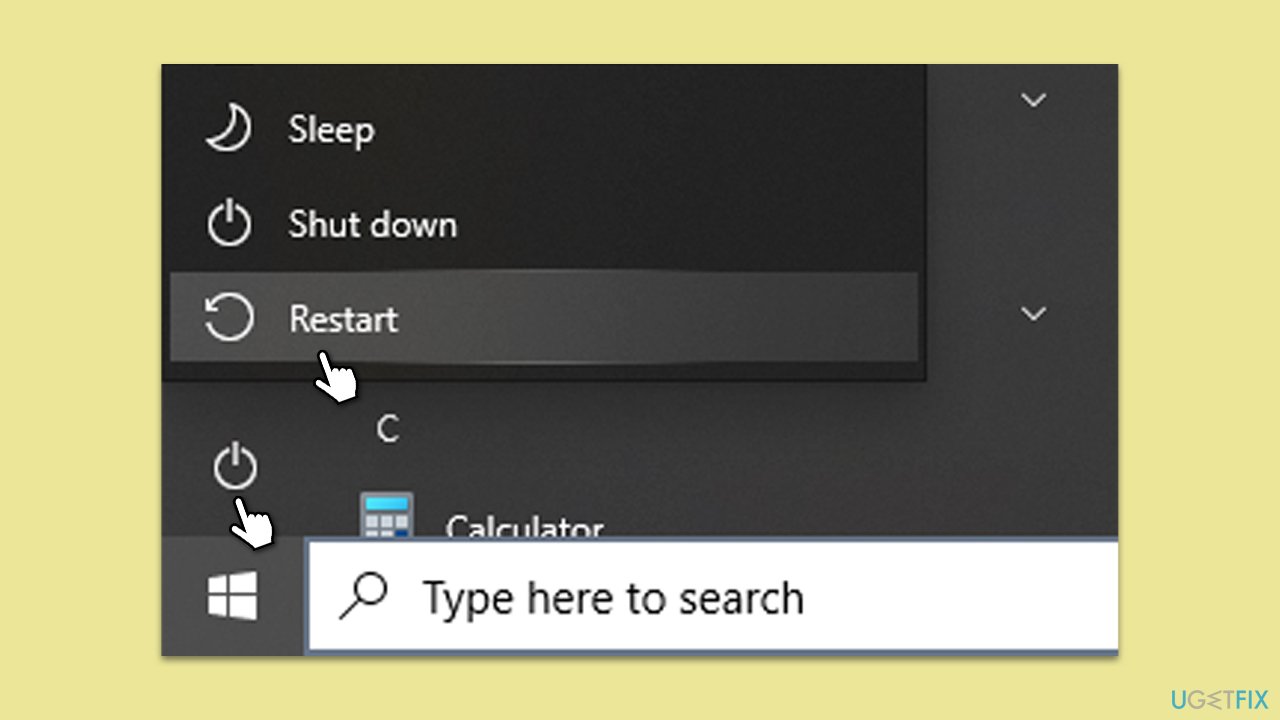
- Click on the Windows Start button.
- Select the Power icon.
- Click on Restart.
- Try launching OneDrive again.
Fix 2. Run Windows Store Apps troubleshooter
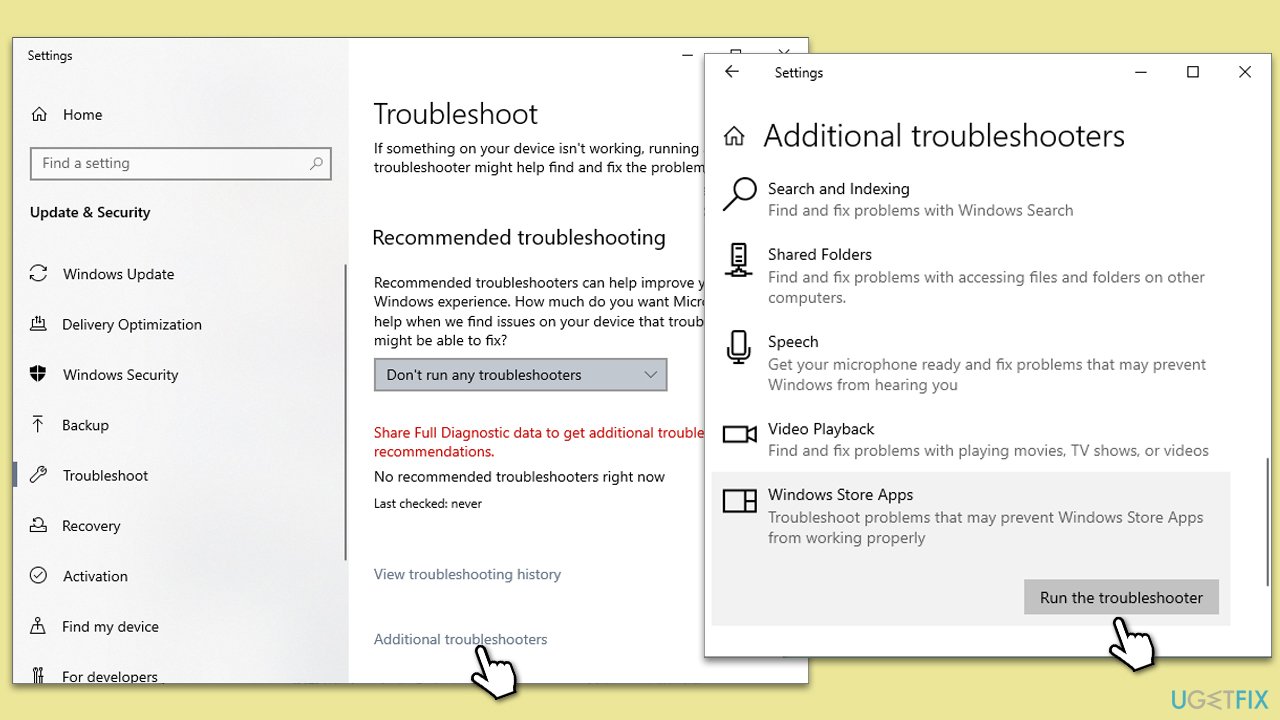
Windows includes built-in troubleshooters designed to automatically identify and fix potential problems with applications, including OneDrive.
- Type Troubleshoot in Windows search and press Enter.
- Select Additional troubleshooters/Other troubleshooters.
- Find Windows Store Apps from the list and select Run the troubleshooter/Run.
- Wait till the process is finished and apply the offered fixes.
Fix 3. Reset OneDrive
Resetting OneDrive can resolve issues related to configuration or cache corruption.
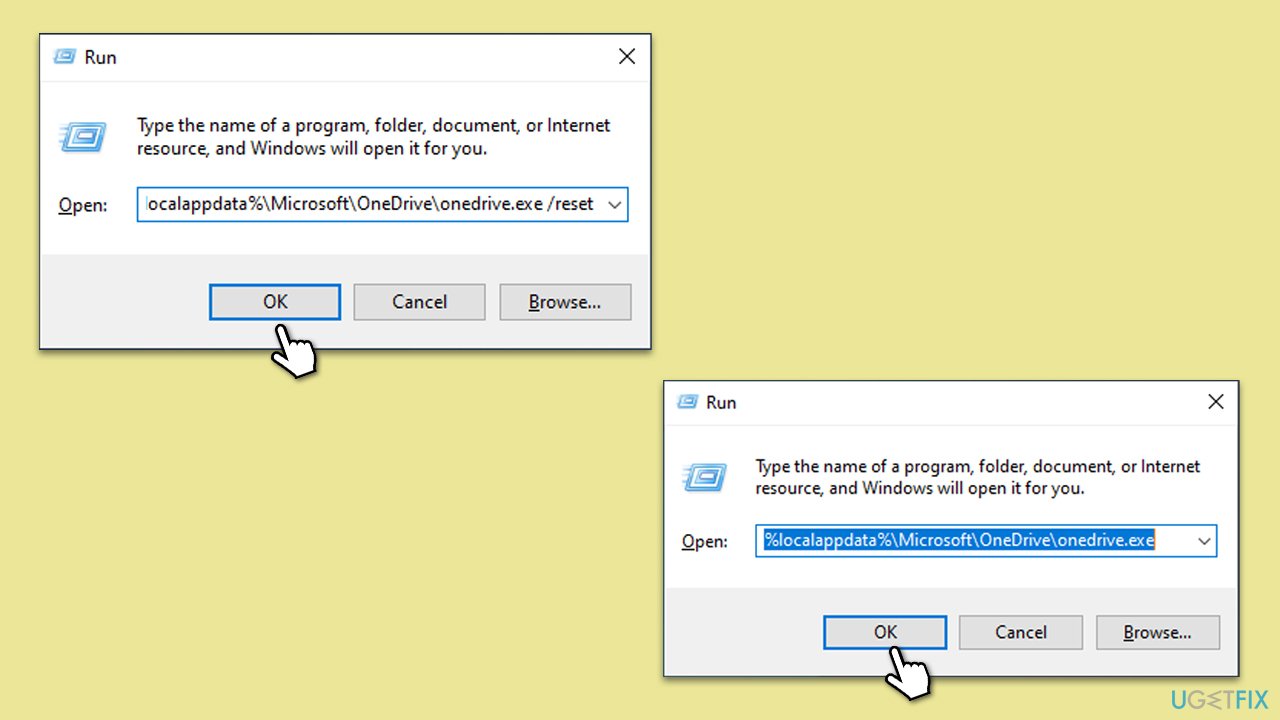
- Press Win + R on your keyboard.
- When the Run window opens, copy and paste the following text into it:
%localappdata%\Microsoft\OneDrive\onedrive.exe /reset
(Note: you might get an error here. In that case, use %programfiles(x86)%\Microsoft OneDrive\onedrive.exe /reset or C:\Program Files (x86)\Microsoft OneDrive\onedrive.exe /reset instead) - Press Enter or click OK.
- After this command is executed, the app should be reset, and OneDrive should open.
- If it doesn't, wait a few minutes, then open the Run window again and use the following command:
%localappdata%\Microsoft\OneDrive\onedrive.exe - Press Enter.
Fix 4. Run Network troubleshooter
If there are problems with your network connection, the built-in Network troubleshooter can identify and rectify them.
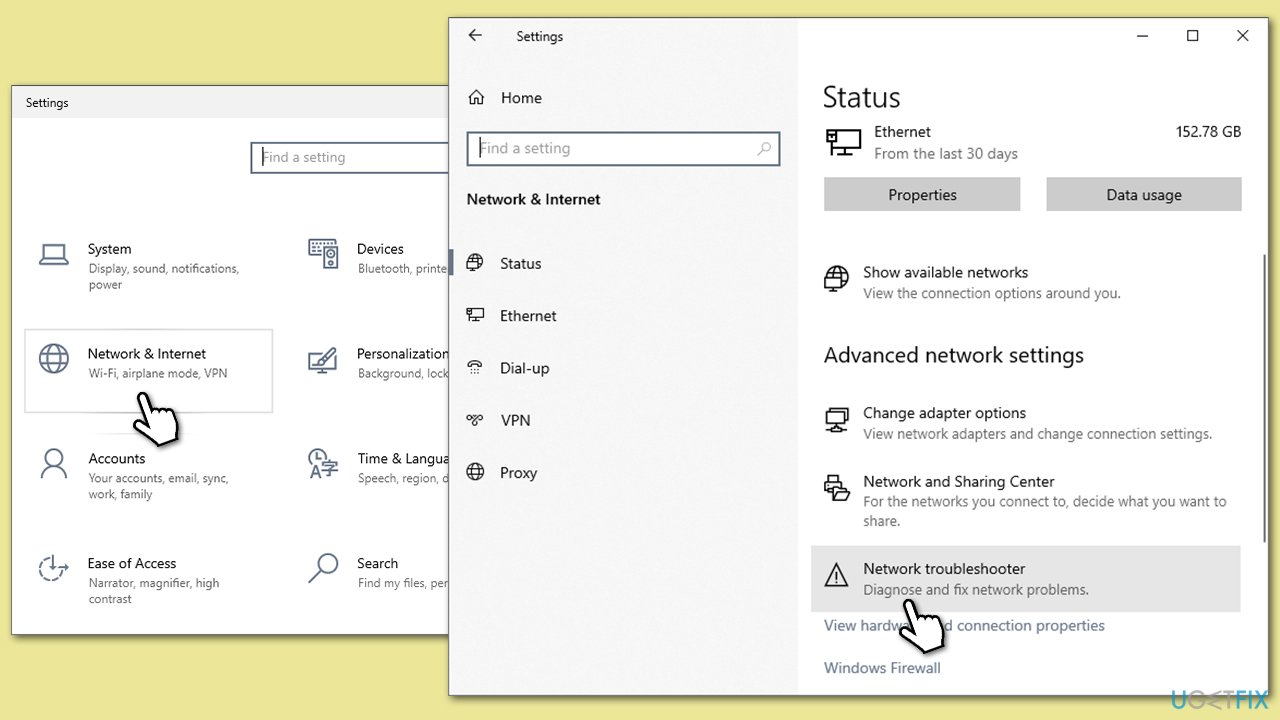
- Right-click on Start and pick Settings.
- Go to Network & Internet section.
- On the right side, find the Advanced network settings section.
- Click Network troubleshooter and wait.
- The fixes should be automatically applied.
Fix 5. Reset your internet connection
Resetting your connection ensures that any temporary network glitches are cleared. To do that, access the elevated Command Prompt as follows:
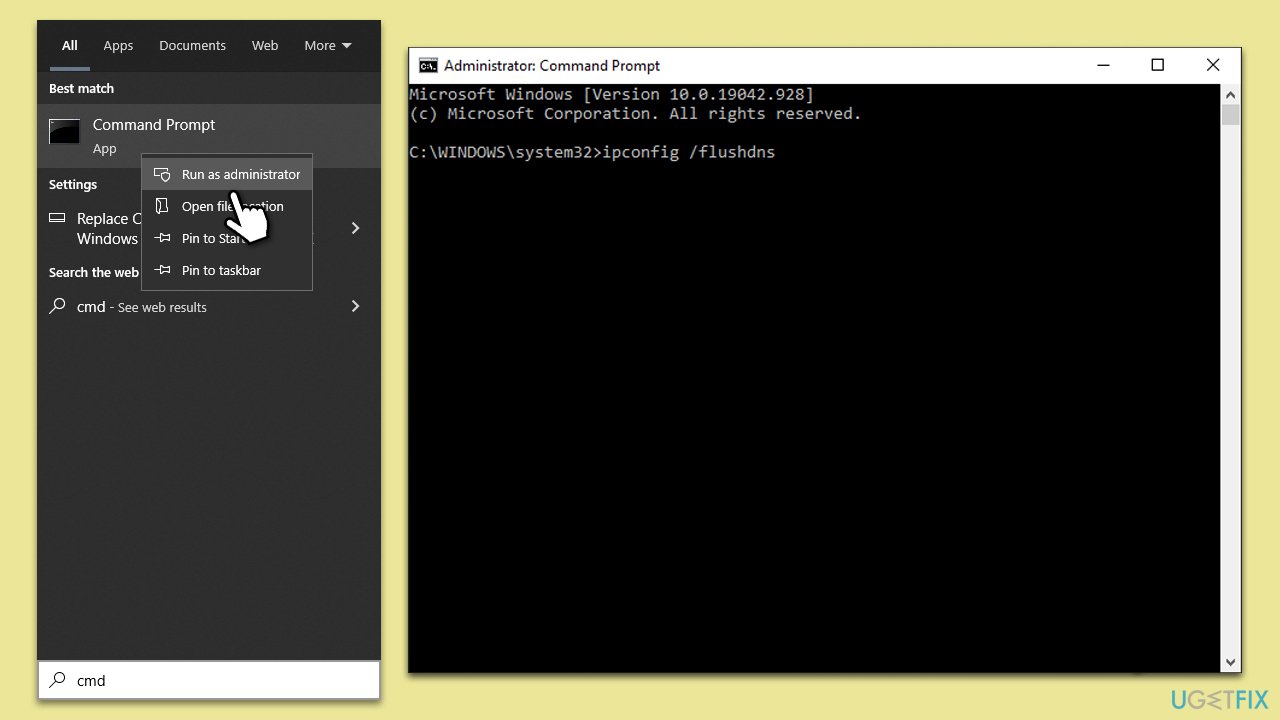
- Type cmd in Windows search.
- Right-click on the Command Prompt result and select Run as administrator.
- When User Account Contol shows up, click Yes.
- In the new window, copy and paste the following command links, pressing Enter each time:
ipconfig /flushdns
ipconfig /registerdns
ipconfig /release
ipconfig /renew
netsh winsock reset - Close the Command Prompt and restart your PC.
Fix 6. Reinstall OneDrive
Reinstalling OneDrive ensures you have the latest version and can resolve software conflicts.
- Right-click on Start and pick Apps and Features.
- Scroll down and find OneDrive.
- Click Uninstall and follow the prompts to remove the app.
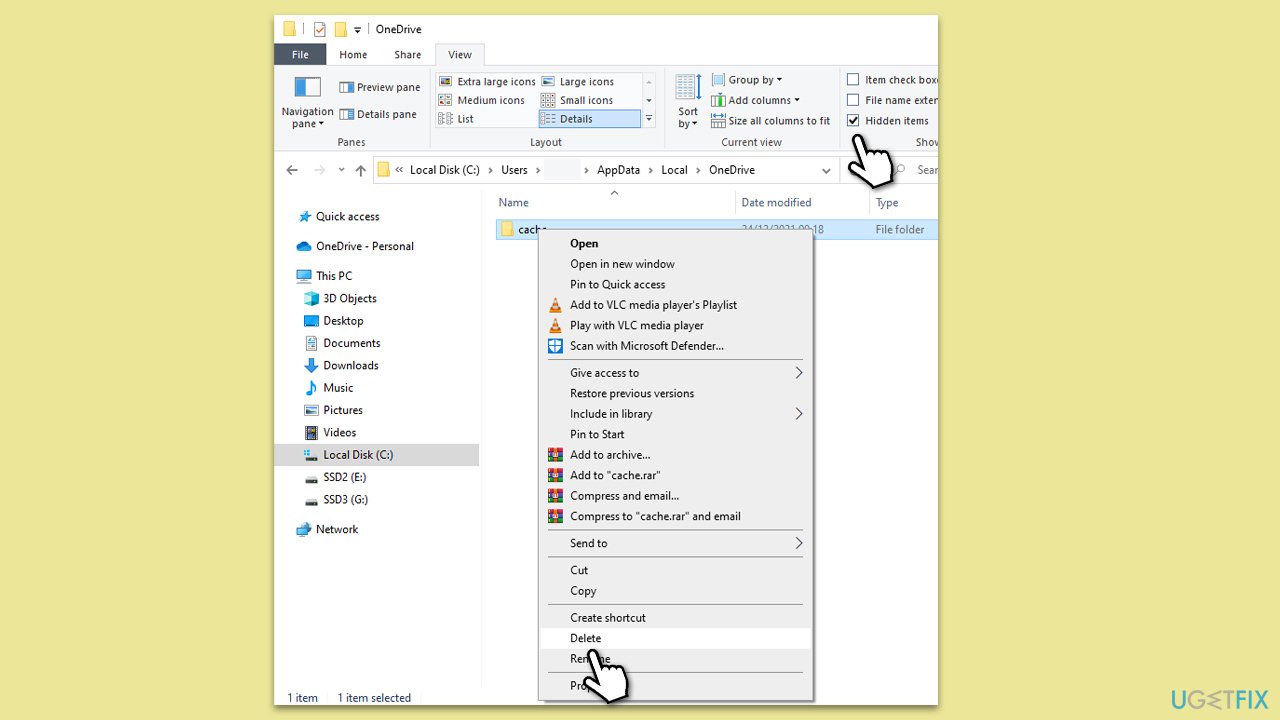
- Next, open File Explorer and make sure Hidden items are visible.
- Navigate to the following locations and delete all contents from OneDrive folders located in the following directories (replace USERNAME with your username):
C:\Users\USERNAME\AppData\Local\
C:\Users\USERNAME\AppData\Local\Temp
C:\Users\USERNAME\AppData\LocalLow\Temp
C:\Windows\Temp - Restart your PC.
- Once rebooted, open your browser and go to the official Microsoft site to download OneDrive.
- During the installation, make sure to pick the same folder for sync as you originally did.
- Wait for the app to sync all files.
Fix 7. Check for Windows updates
Keeping your system updated can resolve compatibility issues.
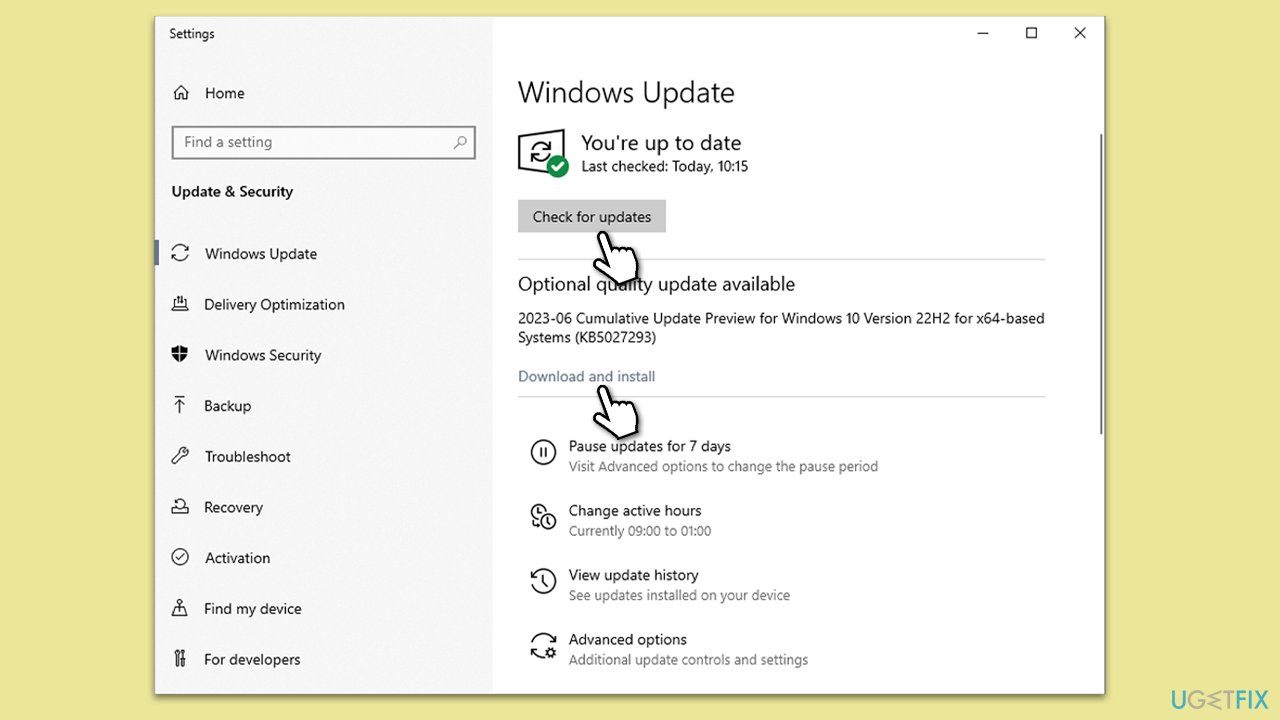
- Type Updates in Windows search and press Enter.
- On the right side of the window, press Check for updates.
- If there are optional updates available, install them as well.
- Restart your device.
Bottom line
To fix the 'Couldn't start Files on Demand' error code 0xffffffea in OneDrive, ensure you have a stable internet connection and clear any corrupted cache files. If these solutions do not resolve the issue, consider further troubleshooting steps or contacting support.
Frequently asked questions
The error code 0xffffffea indicates that the Files on Demand feature in OneDrive is unable to start due to a configuration issue or a temporary glitch in the application.
You can resolve this error by resetting OneDrive through the command prompt or by unlinking and relinking your OneDrive account in the app settings.
Yes, ensure that Files on Demand is enabled in the OneDrive settings and that your Windows 11 is updated to the latest version to avoid compatibility issues.




Report an issue
What's wrong with this guide? We review every report and update or remove content.
Report received — thank you. We'll review and fix it.
You need a free account to submit a report.
Be the first to comment