How to fix
“A disk read error occurred. Press Ctrl+Alt+Del to restart” issue
on Windows
Resolve the "A disk read error occurred" issue on Windows 10/11 effortlessly. Follow our expert-tested tips to get your system running smoothly again!

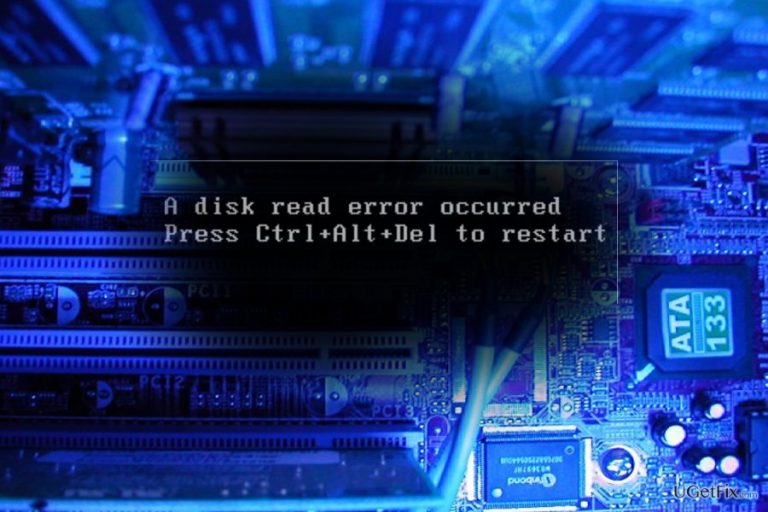
What causes How to fix “A disk read error occurred. Press Ctrl+Alt+Del to restart” issue on Windows?
- Hardware issues
- Damaged RAM slots
- Faulty SATA cables
- Faulty IDE cables
- Physical damage to the hard disk
Repairs Windows system files, removes malware, and restores a clean OS state — without reinstalling.
I bought a new computer, and after a week of usage, I couldn‘t load it. Right after the logo of the processor shows up, the screen goes black and “A disk read error occurred. Press Ctrl+Alt+Del to restart” shows up. A couple of times restarting the device worked, but now the message won’t go away, and I can’t load the device all. Any suggestions would be highly appreciated.
"A disk read error occurred. Press Ctrl+Alt+Del to restart" error might appear regardless of whether your device is brand new or older, whether you are still running Windows XP or Windows 10 with Creators Update installed. Let us assure that your data is still there unless you have witnessed the direct physical damage inflicted on the hard disk.
Indeed, the issue might become a highly frustrating issue if left untackled. Since it is quite frequent, there are already solutions for. It would be practical to determine the cause to solve the issue faster.
The very cause may lie not in the operating system itself but in the hardware. You might want to check your RAM slots, SATA and IDE cables. Physical damage may trigger the error message. Here, you will find a couple of methods to solve the problem.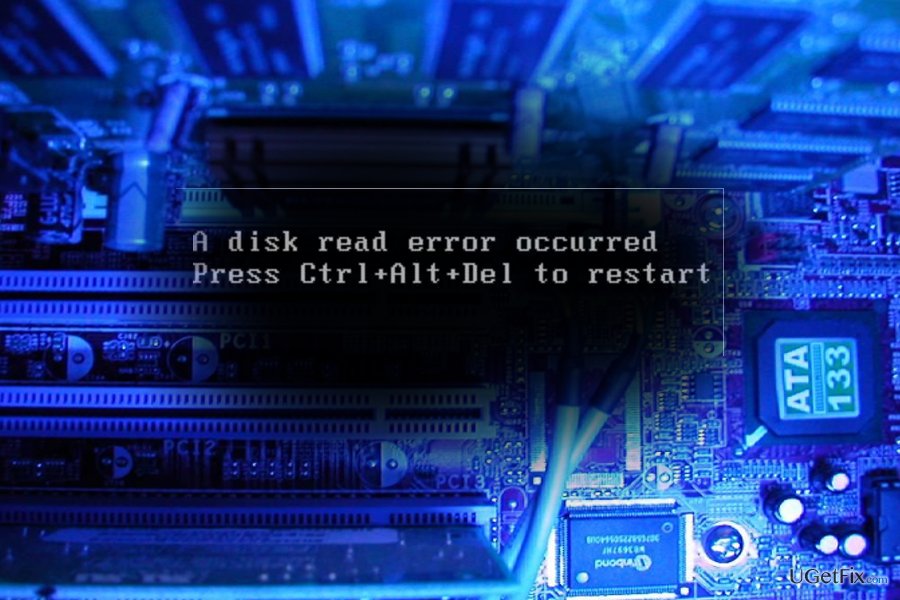
Option 1. Load BIOS default settings
Step 1. This method often works unless there is a damaged element on the motherboard.
- In order to load the setup, tap F2 or F8 right after you press the power button, and the computer screen displays the image of your video card manufacturer or processor. The screen will also indicate which keys open which options.
- Once you are in the setup, navigate with arrow keys to the Exit section.
- There you will see Load BIOS defaults. Move down with the arrow key and press Enter. A message will appear asking to click Y or N to make changes. Click Y key on the keyboard.
- In order for the changes to take effect, move up to the option Exit saving changes.
- Repeat the same action with the Y key.
- Click Ctrl+Alt+Del to reboot the computer or do it manually by holding the power button.
Step 2. Choose Load Custom Defaults
Repeat the same steps but instead of choosing Load BIOS defaults, opt for Load Custom Defaults. Apply changes by opting for Exit saving changes.
Option 2. Check if the computer detects the hard disk
Once you load the settings by tapping F2 or F8, you may check the Main or Boot settings to see if the name of the hard drive is displayed. In short, check if any numbers and characters are displayed under the Hard drive headline.
Then, move to the Exit section and press Enter after choosing Exit Saving Changes. Surprisingly, this simple trick might solve the problem.
Option 3. Check SATA, IDE cables, and RAM slots
It is often the case that "A disk read error occurred. Press Ctrl+Alt+Del to restart" issue appears as a result of damaged cables in the hardware. If you have never opened the computer cover and might be frightened to get lost in the myriad of microchips, simply take a look at the pictures on the Web. World Wide Web members did a great job placing photos with the instructions.
Re-plug the cables to other slots. Faulty hardware slots is a common issue. Fortunately, other ports should work. You may change RAM ports as well to see if it solves the problem.
Though this error is purely internal, it would be a mistake to let your guard down. The cases of tech support scams reveal how crafty cyber crooks may be to find persuasive deceptions. Monitor the cyber protection of the device with [rev id=”Reimage”].
Bottom line
To fix the "A disk read error occurred" issue, you can try loading the BIOS default settings and checking your hardware connections. If these methods do not resolve the problem, further investigation into potential hardware failures may be necessary.
Frequently asked questions
This error typically occurs due to a failing hard drive, corrupted system files, or incorrect BIOS settings in Windows 10.
You can resolve this issue by checking the hard drive for errors using the CHKDSK command or by ensuring that the boot order in BIOS is correctly set.
Regularly backing up your data and running system diagnostics can help prevent this error from occurring on Windows 10 or Windows 11.




Report an issue
What's wrong with this guide? We review every report and update or remove content.
Report received — thank you. We'll review and fix it.
You need a free account to submit a report.
Be the first to comment