How to fix
“You do not have sufficient rights to perform this operation” error
on Windows
Resolve the "You do not have sufficient rights" error in Windows 10/11 with our expert-tested solutions. Get back to working smoothly—fixed in minutes!

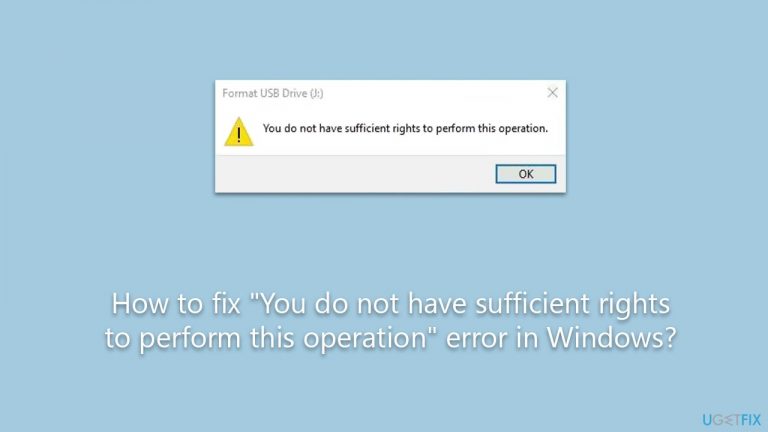
What causes How to fix “You do not have sufficient rights to perform this operation” error in Windows?
- Permissions settings preventing formatting
- Drive in use by another application
- Manufacturer-specific software inhibiting formatting
- Group policies restricting operations
- User account control settings affecting permissions
Repairs Windows system files, removes malware, and restores a clean OS state — without reinstalling.
I have full administrative privileges on my Windows, and despite that, I can't format any drives because of the "You do not have sufficient rights to perform this operation" error. How do I fix this?
In the Windows operating system, one of the fundamental operations that many users perform is drive formatting. Formatting a drive essentially prepares the hardware for data storage, wiping any existing information, and setting up a new file system, be it NTFS, FAT32, or exFAT, among others.
This operation is crucial when one wants to clean up a drive, repurpose it, or install a new operating system. Furthermore, it is common practice to format external storage devices, such as USB flash drives or external hard drives, before their initial use to ensure compatibility and optimal performance.
However, a challenge arises when, despite following the necessary steps to format a drive, you encounter an error message stating, "You do not have sufficient rights to perform this operation." This error message can be both confusing and frustrating, especially if you believe you're using an administrator account on the computer.
The underlying reason for the "You do not have sufficient rights to perform this operation" error typically revolves around permissions. Windows has a sophisticated system of permissions that regulate which accounts can perform specific operations and access particular files or directories. Even if you're logged into what you believe is an administrator account, there may be underlying settings or group policies preventing the formatting action.
Additionally, in some cases, the drive in question might be in use by another application or process, which can also prevent formatting. It's also worth noting that external drives can come with manufacturer-specific software or protection mechanisms that may inhibit standard formatting processes.

While the reasons behind the "You do not have sufficient rights to perform this operation" error can be varied, there are potential solutions to address it. Ensuring that you are indeed using an administrator account, checking for conflicting software or applications, and verifying that the drive isn't write-protected are a few starting points to consider.
In situations where the issue persists, or if you're uncertain about navigating these steps, leveraging a dedicated tool can be beneficial. Using the [d1] PC repair tool, for instance, can streamline the process and address any underlying issues that might be causing the error, ensuring smooth and hassle-free drive formatting.
Fix 1. Enable administrator via Command Prompt
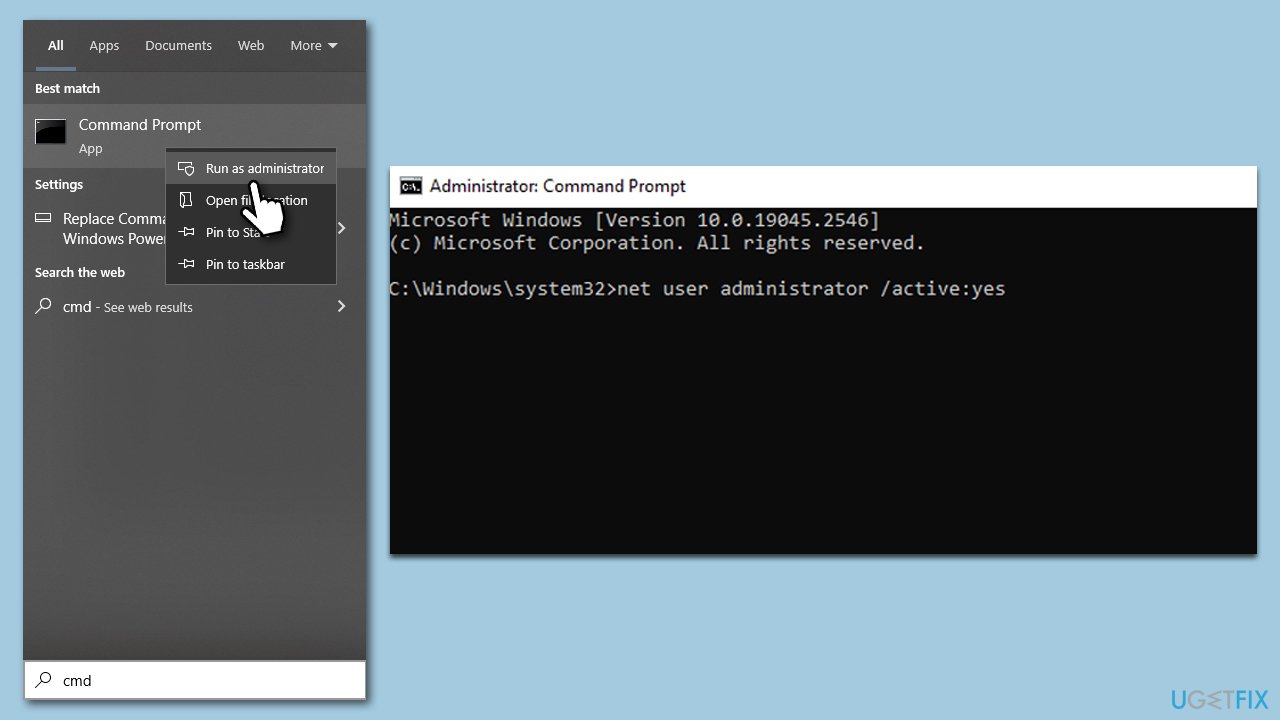
Windows Command Prompt is a powerful tool that allows you to execute commands to interact with the operating system directly. One of the commands can grant administrator rights to a user. This solution ensures that your account has the necessary permissions to perform operations, such as formatting a drive.
- Type cmd in Windows search.
- Right-click on Command Prompt and select Run as administrator.
- When prompted by User Account Control, click Yes.
- In the Command Prompt window, type the following and press Enter:
net user administrator /active:yes - Close the Command Prompt window.
- Log out of your current account.
- Log in to the Administrator account that now appears on the welcome screen.
Fix 2. Perform Check Disk
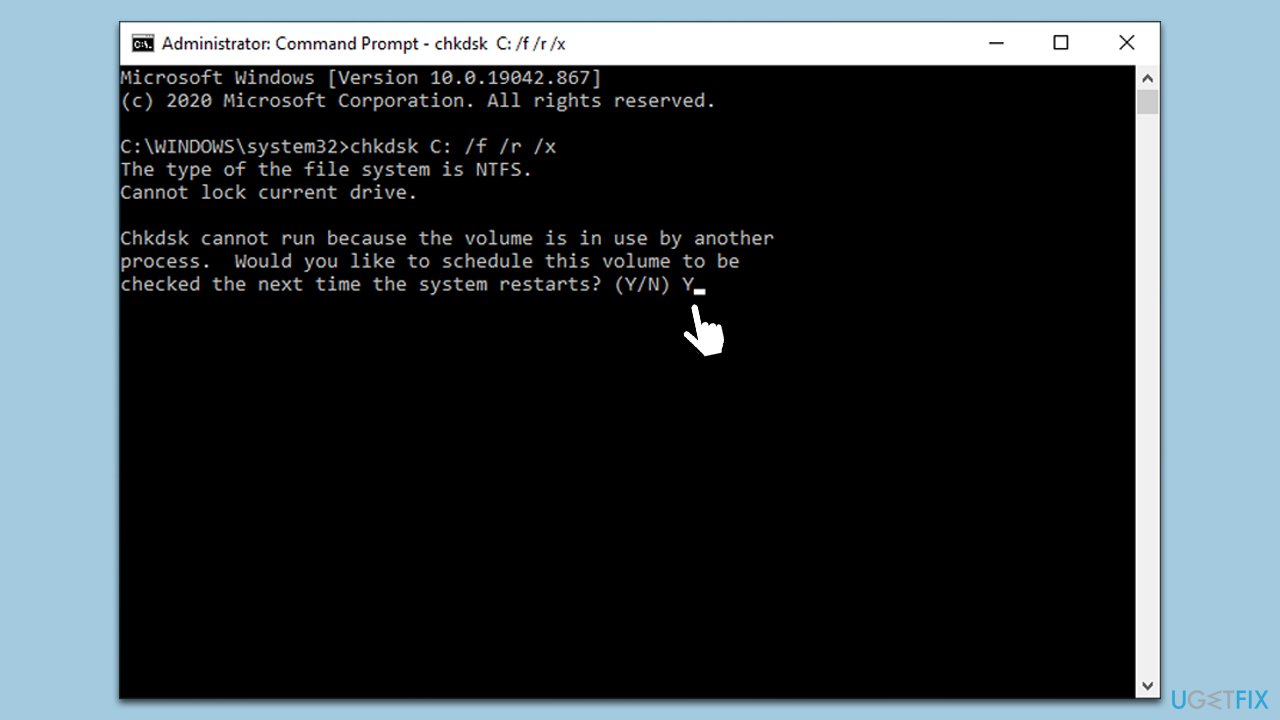
Check Disk, commonly known as chkdsk, is a utility tool in Windows used to scan and repair disk-related issues. It can help address problems like bad sectors, file system errors, or other disk-related anomalies that could prevent formatting.
- Open Command Prompt as administrator.
- In the new window, type in the following command and press Enter:
chkdsk c: /f
(Note: use chkdsk c: /f /r /x command if you are using SSD as your primary partition) - If you receive an error, type in Y, close down Command Prompt and restart your computer.
- Wait till the scan is finished - you can then find the results in the Event Viewer.
Fix 3. Use Disk Management
The Windows Disk Management tool offers an alternative method to format drives.
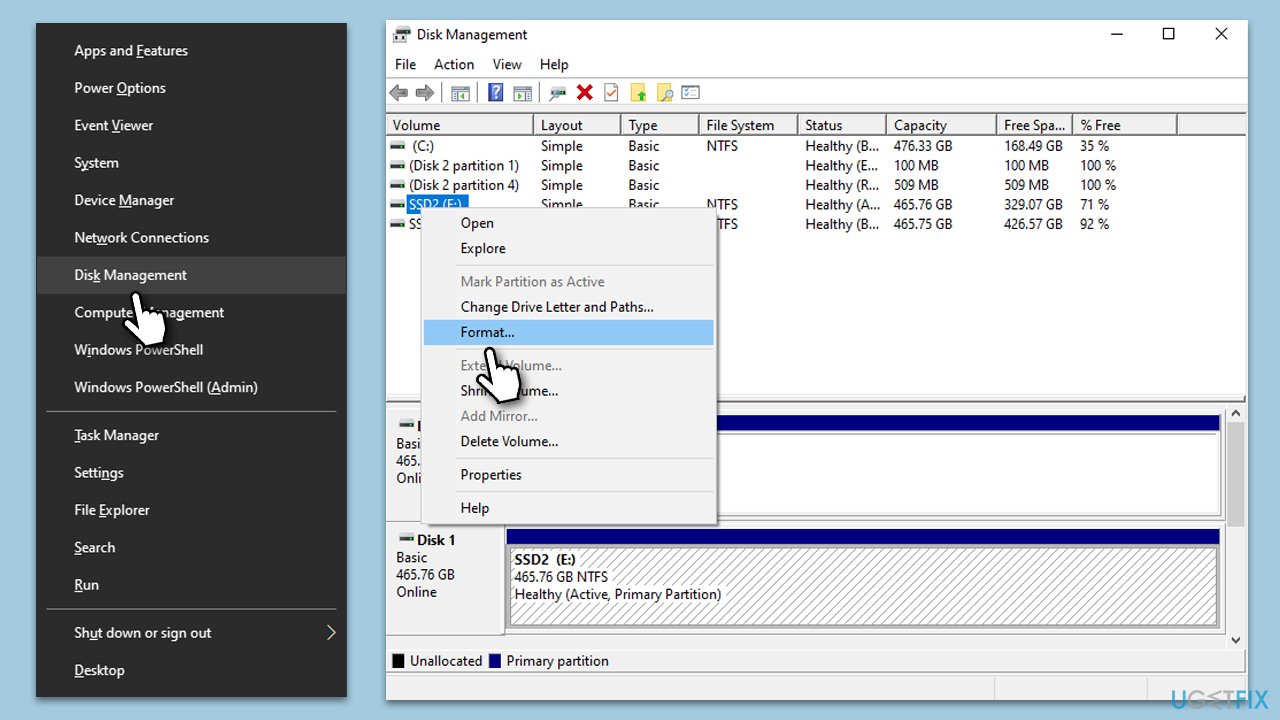
- Press Win + X to open a quick access menu.
- From the list, select Disk Management.
- You'll see a list of all storage devices connected to your computer.
- Identify the drive or partition you wish to format. Ensure you're selecting the correct one, as the operation will delete all data on it.
- Right-click on the chosen drive or partition, then select Format from the context menu.
- A new window will open, prompting you to choose a file system (e.g., NTFS, FAT32), assign a volume label, and select the format type (quick or full). Make your choices based on your requirements.
- Click OK to start the formatting process. A warning message will appear, reminding you that formatting will erase all data on the drive or partition. Confirm your intention to proceed.
Fix 4. Use Diskpart
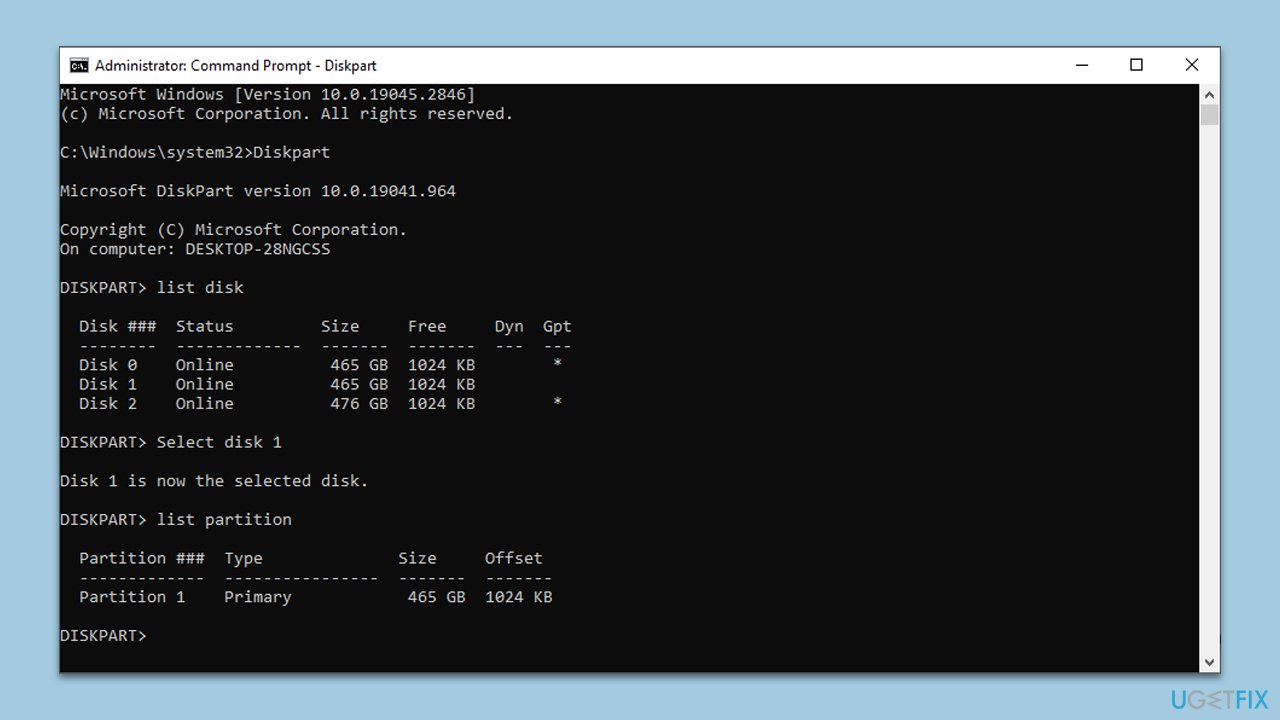
Diskpart is a command-line utility provided by Windows to manage drives, partitions, and volumes. It offers a range of commands that can help in situations where the standard graphical interface falls short. In the context of addressing the "You do not have sufficient rights to perform this operation" error, Diskpart can be used to clean and then format the drive. However, exercise caution when using Diskpart, as it is a powerful tool, and any incorrect commands can lead to data loss.
- In the Command Prompt (admin) window, type the following and press Enter.
diskpart - The next command will provide the list of disks on your PC:
list disk - Identify the number corresponding to the disk you want to format (be very careful with this step).
- Type select disk [number], replacing [number] with the appropriate disk number, and press Enter.
- Next, type in the following command and press Enter:
format fs=ntfs - Replace "ntfs" with "fat32" if you want a different file system.
- Once the format completes, type exit to leave Diskpart and then exit again to close the Command Prompt.
Fix 5. Check for hardware connections
It's essential to ensure that all connections, internal and external, are securely attached.
- If you're working with an internal drive, ensure your PC is off and unplugged. Open the computer case and check the drive's connections.
- If you're dealing with an external drive, unplug and reconnect it, or try a different USB port or cable.
- For both, ensure there's no visible damage or obstructions. Clean connections if needed before reattaching.
Bottom line
To fix the 'You do not have sufficient rights to perform this operation' error, ensure you are using an administrator account, check for any conflicting software, and verify that the drive is not in use. If these steps do not resolve the issue, consider checking for group policy restrictions or manufacturer-specific software that may be affecting the formatting process.
Frequently asked questions
This error typically occurs due to insufficient user permissions or corrupted user profiles in Windows 10. Ensuring that you are logged in as an administrator can help resolve this issue.
To fix this error, try running the installer as an administrator by right-clicking the setup file and selecting 'Run as administrator.' Additionally, check your user account control settings to ensure they are not too restrictive.
Yes, you should verify the folder permissions for the file or application you are trying to access and ensure your user account has the necessary rights. You can also check the Local Security Policy settings in Windows 10 or 11 for any restrictions.




Report an issue
What's wrong with this guide? We review every report and update or remove content.
Report received — thank you. We'll review and fix it.
You need a free account to submit a report.
Be the first to comment