How to fix
“Can’t play the current song” Spotify error
on Windows
Resolve the "Can't play the current song" error on Windows 10 or 11 effortlessly. Enjoy uninterrupted music with expert-tested solutions.

What causes How to fix “Can’t play the current song” Spotify error on Windows?
- Corrupted cache files
- Problem with the DNS server
- Issues with the Spotify Crossfade feature
- Corrupted Spotify application installation
Repairs Windows system files, removes malware, and restores a clean OS state — without reinstalling.
Whenever I attempt to play a song on Spotify, nothing happens for some seconds. Then, after the song finally starts playing, it gets interrupted by the "Can’t play the current song" error. I am using Windows, please help.
Spotify is a renowned music streaming platform that has seamlessly integrated itself into the Windows operating system, becoming a favorite for countless individuals. For many, it offers a cost-free gateway to explore millions of tracks from diverse genres and artists.
However, with its vast user base and wide reach, not all experiences are without issues. One such issue that has been reported by a segment of Spotify listeners on Windows is the "Can’t play the current song" error. This glitch appears when one attempts to play a song or even during the middle of playback, disrupting the user's musical experience.
When you encounter the "Can’t play the current song" error, it's often an indication of underlying issues with the software or system settings. Several factors might be at play here. One common culprit is corrupted cache files. Just like many other applications, Spotify stores temporary data to enhance user experience, but sometimes these files can get corrupted, leading to unexpected errors.
Another potential reason is a problem with the DNS server, which can hinder the app's ability to fetch and stream songs. The Spotify Crossfade feature, designed to ensure smooth transitions between tracks, has also been identified as a potential cause in some instances.
If the transitions are not seamless or are interrupted, the app might throw the "Can’t play the current song" error. Moreover, at its core, if the Spotify application itself has been corrupted during installation or due to other system conflicts, it might be unable to function properly, leading to such disruptions.

In addressing this, you might consider exploring solutions associated with the mentioned causes. Clearing cache, checking DNS settings, toggling the Crossfade feature, or even reinstalling the application could hint towards possible rectifications.
Moreover, to ensure that the root of the problem doesn't lie deeper within the Windows system, employing a tool like the [d1] PC repair tool might be beneficial. This software can scan and rectify underlying Windows issues that could be indirectly affecting your Spotify experience.
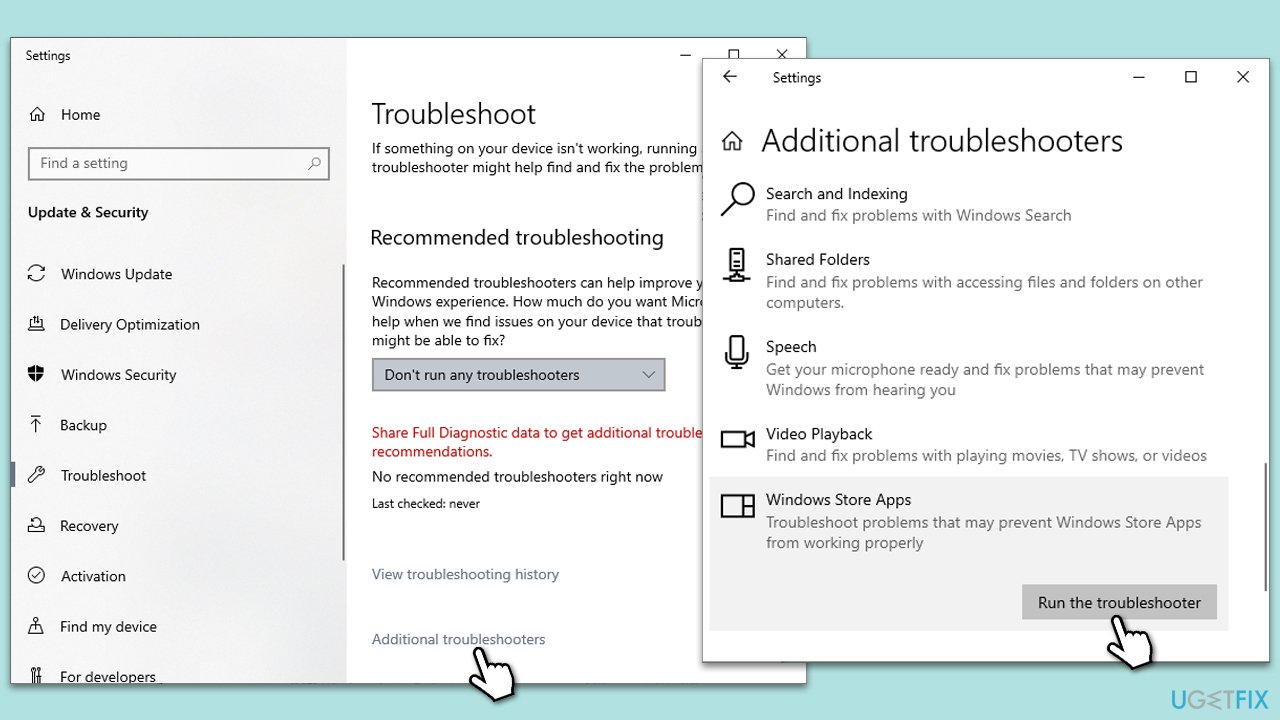
Fix 1. Run Windows Store apps troubleshooter
The Windows Store apps troubleshooter is a built-in utility in Windows designed to automatically detect and fix common issues with applications downloaded from the Microsoft Store, including Spotify.
- Type Troubleshoot in Windows search and press Enter.
- Select Additional troubleshooters/Other troubleshooters.
- Find Windows Store Apps from the list and select Run the troubleshooter/Run.
- Wait till the process is finished and apply the recommended fixes.
Fix 2. Clear offline song cache in Spotify
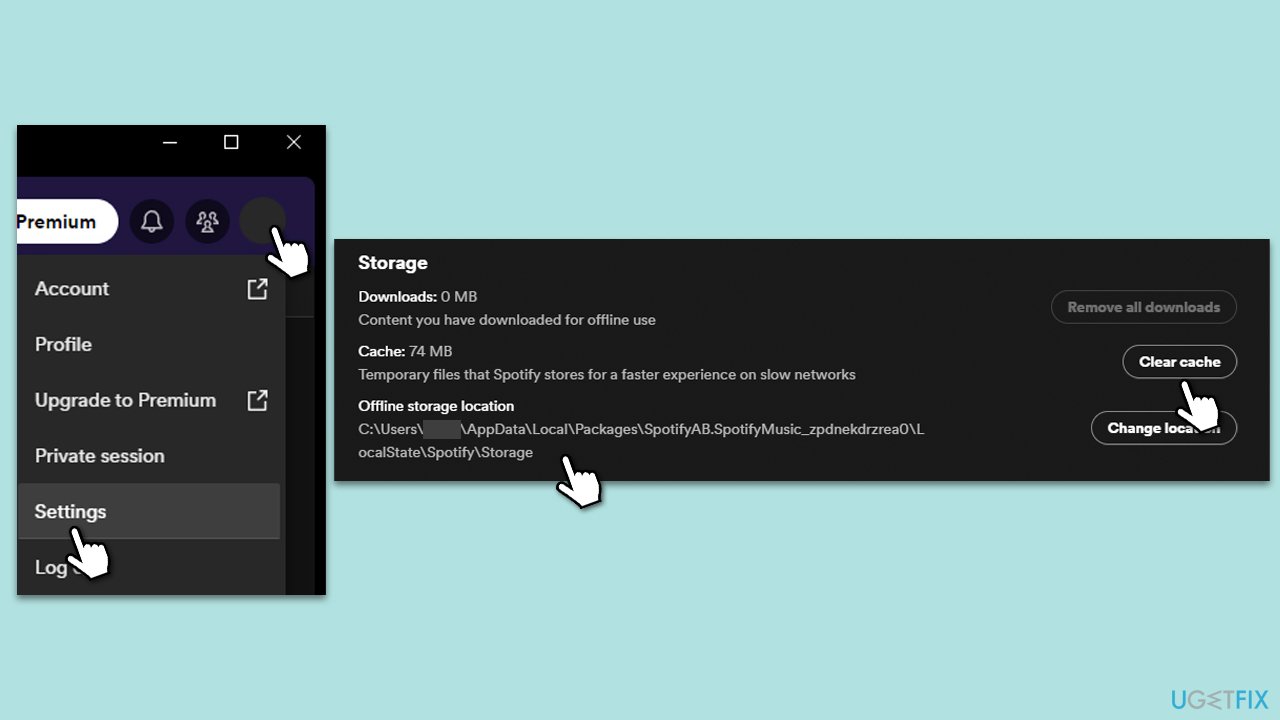
Spotify stores offline song data in a cache. Sometimes, this data might get corrupted leading to errors. Clearing it can often resolve issues.
- Open Spotify and click on your profile (top-right corner).
- Go to Settings.
- Scroll down to the Storage section.
- Here, you will see the Offline storage location. (Note: you should also clear cache files)
- Open File Explorer by clicking Win + E on your keyboard.
- Make sure Hidden items are visible.
- Navigate to the directory path and delete all the files inside.
- Restart Spotify.
Fix 3. Disable the Hardware Acceleration feature
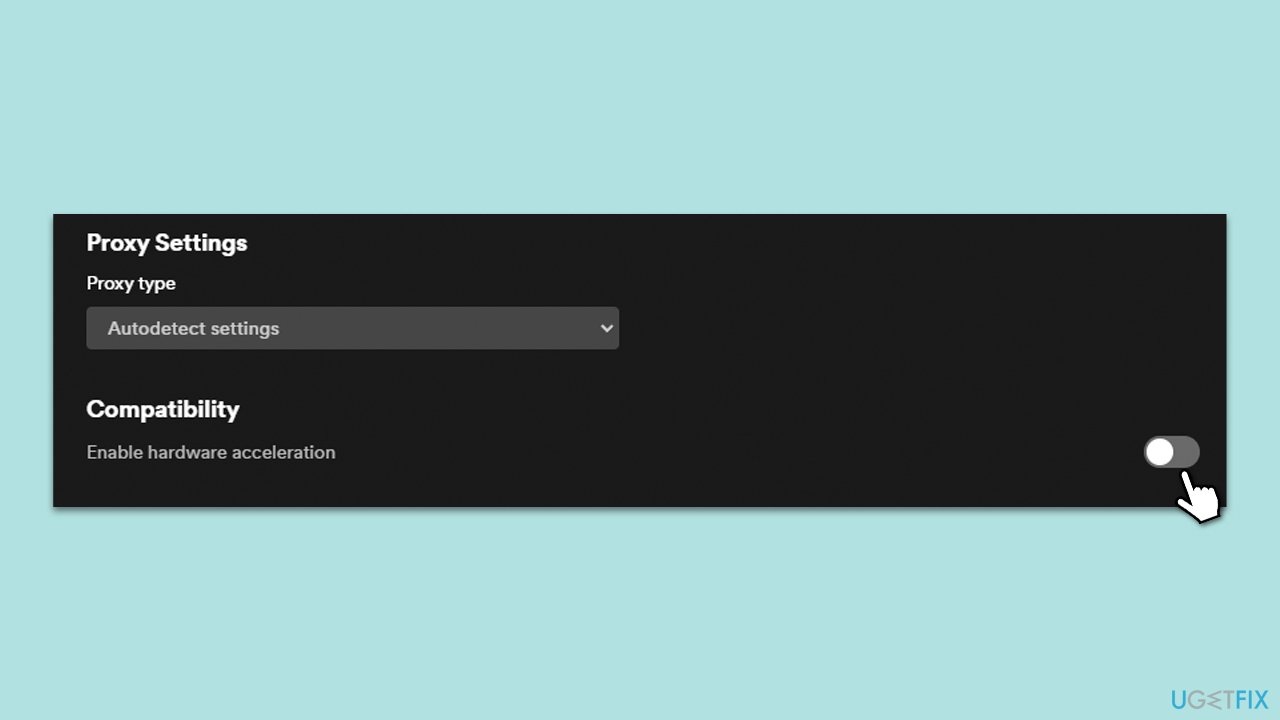
Hardware Acceleration is a feature that allows applications to offload certain computing tasks onto specialized hardware components of the system, aiming to make app processes run more efficiently. However, not all systems or hardware components handle this the same way. For some users, enabling Hardware Acceleration in Spotify can lead to unexpected behaviors, including playback errors. Disabling it can ensure that the application runs using only software-based rendering, avoiding potential hardware-related issues.
- Open Spotify.
- Go to Settings.
- Scroll down to the Compatibility section.
- Toggle off the option for Hardware Acceleration.
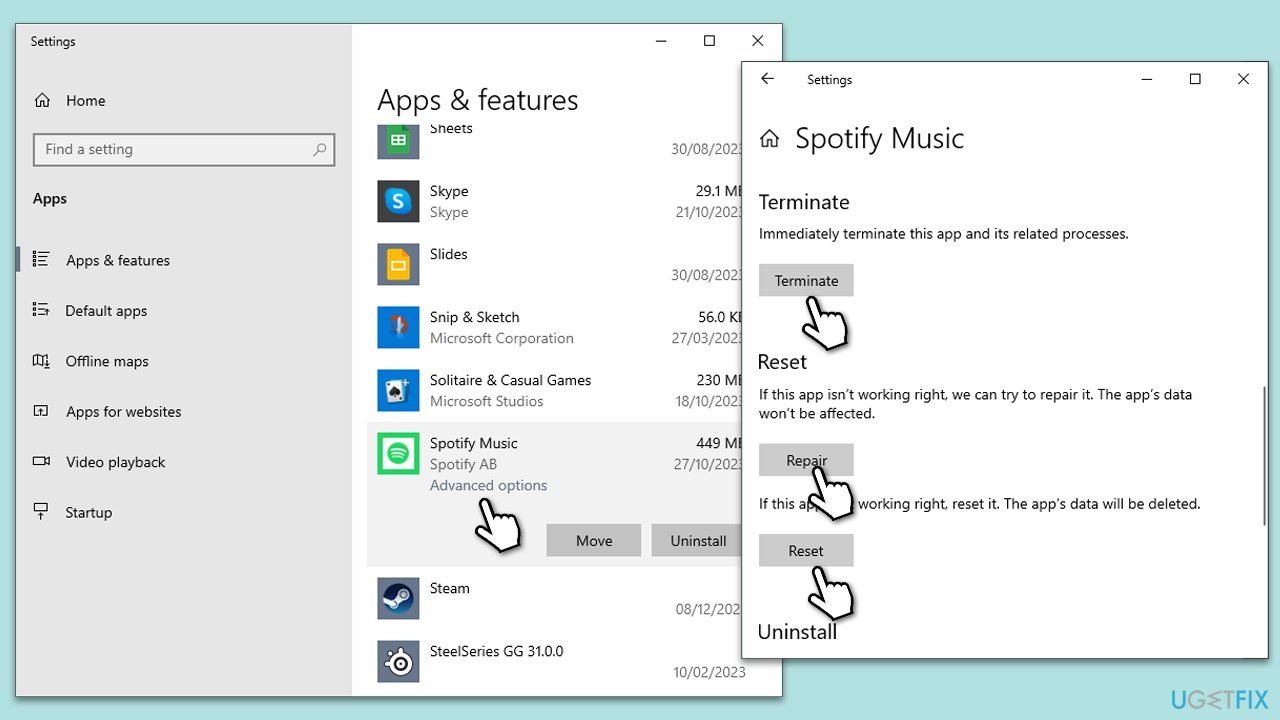
Fix 4. Repair or reset Spotify
Repairing or resetting the app can fix any potential corruption issues with the installation.
- Right-click on Start and pick Apps & features.
- Scroll down and locate Spotify.
- Choose Advanced options.
- Scroll down and click Terminate.
- Then, click on Repair and see if the problem is resolved.
- If not, try the Reset option instead.
Fix 5. Install all Windows and Spotify updates
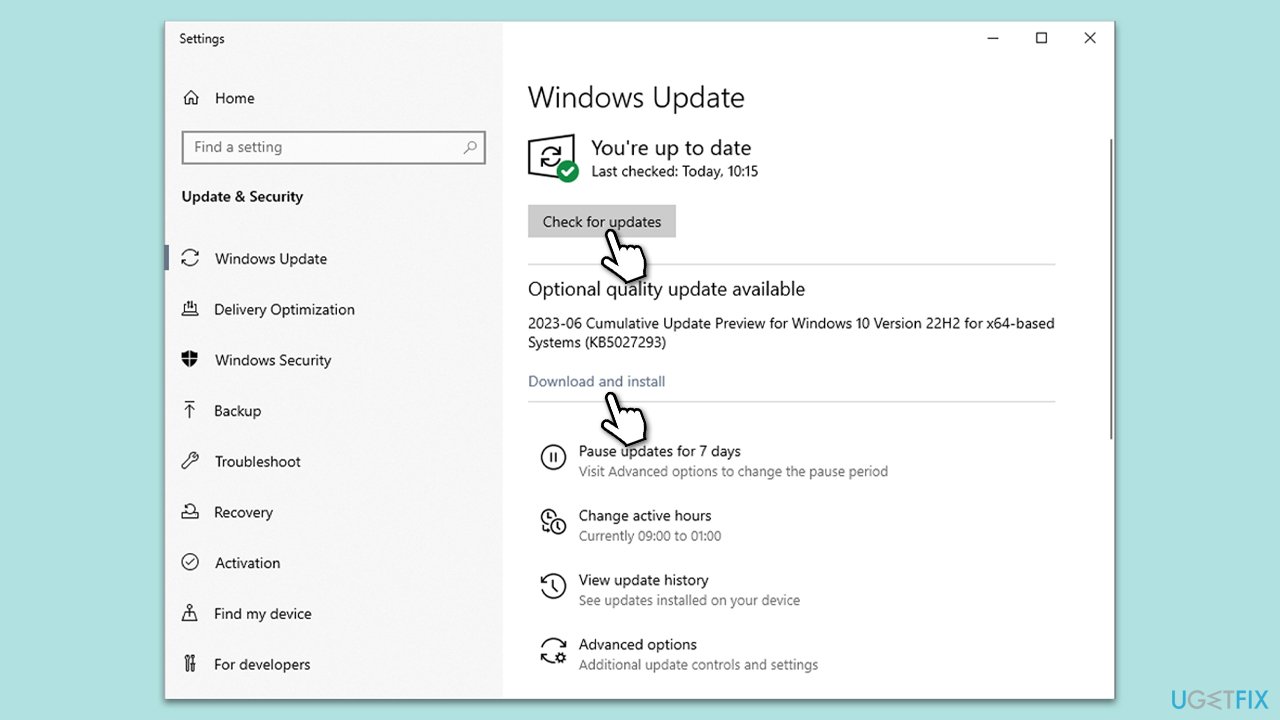
Ensuring you have the latest updates can resolve compatibility and bug-related issues.
- For Windows: Go to Settings > Update & Security > Windows Update > Check for updates.
- For Spotify: Open the app, go to the three-dot menu > Help > About Spotify > Check for updates.
Fix 6. Disable Crossfade
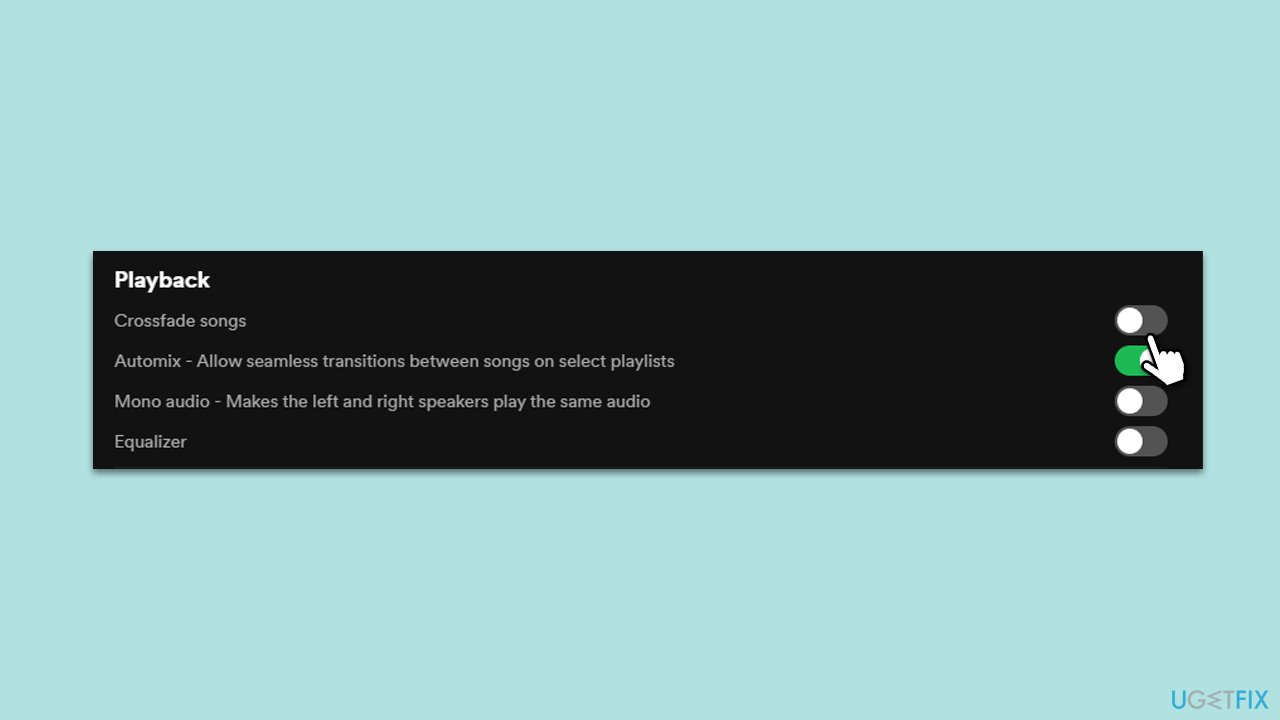
The Crossfade feature in Spotify ensures a smooth transition between tracks by overlapping the end of one song with the beginning of the next. However, in certain situations, especially if the feature's settings are not calibrated correctly, it can interfere with the song's playback. Disabling it may help.
- Open Spotify.
- Go to Settings.
- Under Playback, disable Crossfade by toggling the switch.
Fix 7. Use Google's DNS
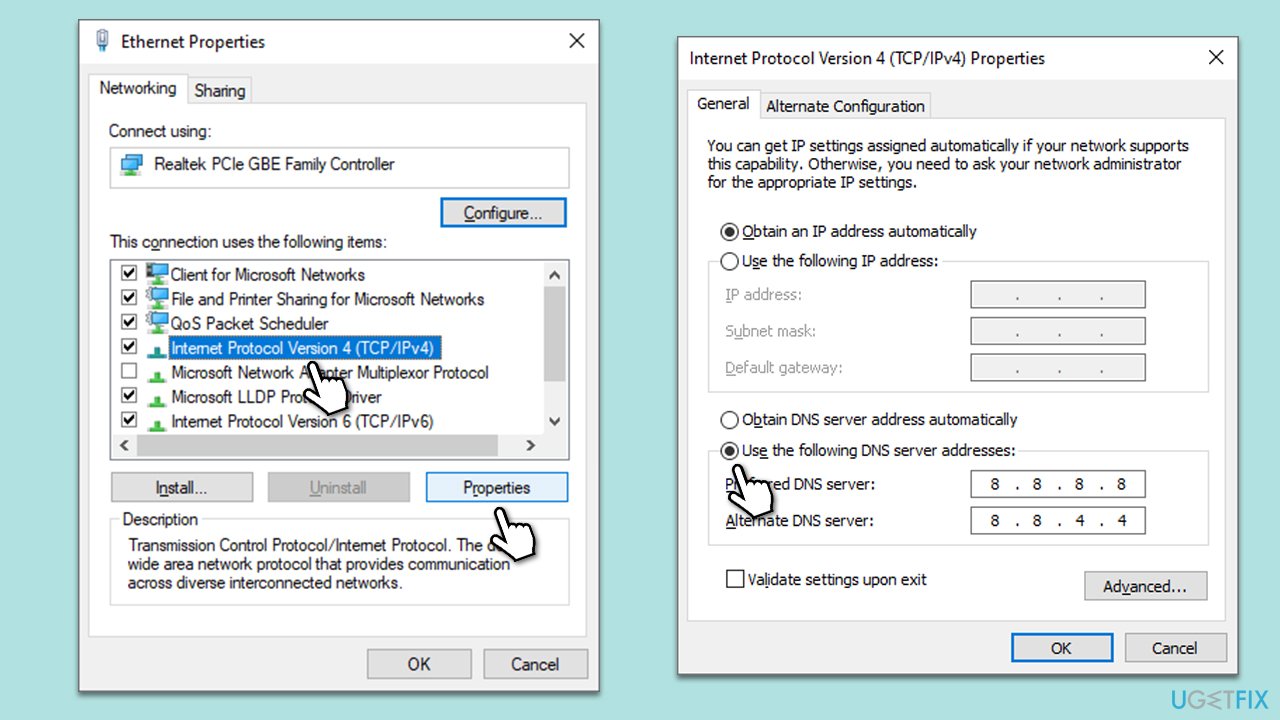
Switching to a more reliable DNS can improve connectivity and streaming.
- Right-click on Start and pick Network Connections.
- Under Advanced network settings, pick Change adapter options.
- In the Network Connection window, right-click on your main connection (for example, Ethernet) and pick Properties.
- Select Internet Protocol Version 4 (TCP/IPv4) and click Properties below.
- Click Use the following DNS server address and type the following into the fields:
Preferred DNS server: 8.8.8.8
Alternate DNS server: 8.8.8.9 - Press OK.
Fix 8. Reinstall Spotify
Sometimes, the best way to resolve persistent or complex issues with an application is to start afresh. Reinstalling Spotify ensures that you have a clean slate, free from any corrupted files, outdated versions, or incorrect configurations. A fresh installation often eliminates hidden issues and restores the app to its optimal performance.
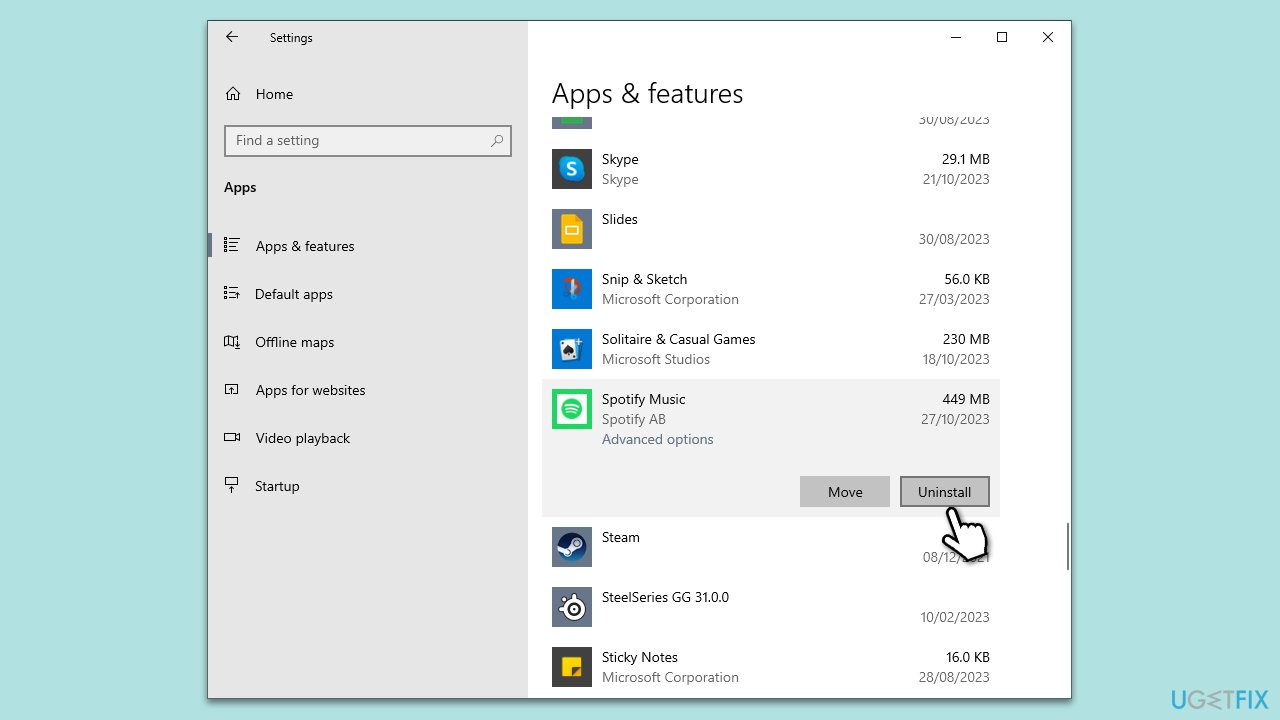
- Right-click on Start and pick Apps & features.
- Find Spotify, click on it, choose Uninstall, and follow the prompts.
- Once done open File Explorer by pressing Win + E and navigate to the following location (make sure hidden files are visible):
C:\Users\USERNAME\AppData\Roaming - Delete any Spotify folders in this location.
- Restart your PC.
- Visit the Spotify website and download the latest version.
- Install Spotify by following the on-screen instructions.
Bottom line
To fix the 'Can't play the current song' error on Spotify for Windows, you can try clearing the cache, checking DNS settings, toggling the Crossfade feature, or reinstalling the application. If none of these solutions work, further investigation into system settings or contacting Spotify support may be necessary.
Frequently asked questions
Try restarting the Spotify app, as this can often resolve temporary glitches. If the issue persists, check your internet connection and ensure that Spotify is updated to the latest version.
If clearing the cache doesn't resolve the issue, consider reinstalling Spotify to eliminate any corrupted files. After uninstalling, download the latest version from the official Spotify website.
Yes, ensure that your Windows Firewall or any third-party security software isn't blocking Spotify's access to the internet. You can check this by going to Windows Security settings and allowing Spotify through the firewall.




Report an issue
What's wrong with this guide? We review every report and update or remove content.
Report received — thank you. We'll review and fix it.
You need a free account to submit a report.
Be the first to comment