How to fix
ITunes not working
on Windows
Resolve iTunes issues on Windows 10 and 11 effortlessly. Follow our expert-tested solutions to restore functionality and enjoy music again! Fixed in min…

What causes How to fix iTunes not working in Windows?
- Software updates needed
- Third-party security programs interfering
- Corrupted iTunes installation
- Underlying software issues
- Unresponsive iTunes processes
Repairs Windows system files, removes malware, and restores a clean OS state — without reinstalling.
Hello. I use iTunes on my Windows PC and everything was working fine until today. When I try to launch the iTunes app it does not open. Any way to fix this?
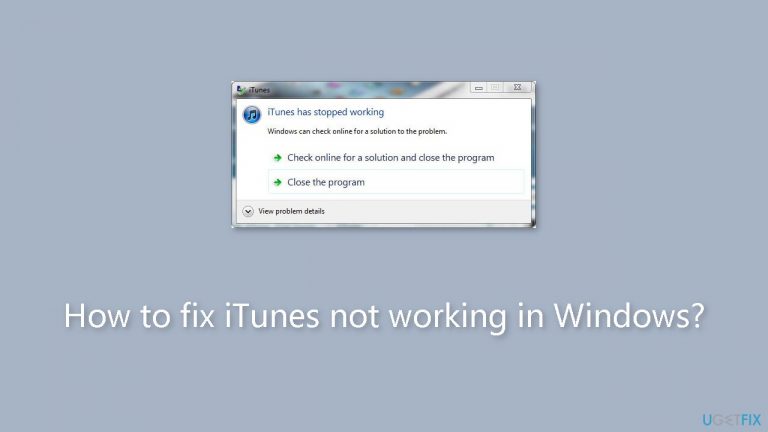
iTunes not working on a Windows system can be a frustrating and disruptive issue for users, as it can impede access to their music libraries, media content, and device synchronization capabilities. iTunes frequently displays error messages like "iTunes has stopped working" or "cannot run" when it encounters issues and won't start, which eventually stops the program from opening as intended. Although these launch issues might take many different forms, the common result is an iTunes program that is unresponsive.
Users may experience a major effect. For many who depend on iTunes to organize their podcasts, movies, music, or iOS devices, not being able to launch the program interferes with their daily schedules and media intake. Users may lose access to their iTunes collections and be unable to move music to their iPods, iPhones, or other Apple devices. This might lead to lost entertainment opportunities, decreased productivity, and inconvenience for people who use iTunes for different purposes.
In order to fix the problem of iTunes not working on Windows, users must look into possible fixes. These could entail performing software updates, turning off third-party security programs that might be interfering with iTunes, or fixing the iTunes installation. In more serious situations, reinstalling iTunes from scratch may be required to fix underlying software issues or corruption.
In this guide, you will find 8 steps that should help you fix iTunes not working in Windows. You can also run a maintenance tool like [d1] that can fix most system errors, BSODs, corrupted files, and registry issues. Otherwise, follow the step-by-step instructions below.

Solution 1. Close All of iTunes Tasks
- Right-click an empty area on your taskbar to select the Task Manager shortcut.
- Click Processes on Task Manager's tab bar.

- If you can see an iTunes process under Apps, select it and click End task. Look for and disable any other iTunes-related tasks under Background processes.
Solution 2. Run the Micrososft Store Apps Troubleshooter
- Press the Windows key + I to open the Windows Settings app.
- Select the System tab from the left sidebar.
- Then, click on Troubleshoot from the right pane.
- Click on Other troubleshooters.

- Click on the Run button next to Microsoft Store Apps.
- Follow the on-screen instructions to assist the troubleshooter in diagnosing and resolving the problem.
Solution 3. Run iTunes as an Administrator
- Right-click iTunes on your Start menu.
- Select More > Run as administrator.

Solution 4. Run iTunes in Safe Mode
- To activate safe mode, press and hold the Ctrl + Shift keys when you click to launch iTunes.
- Click Continue on the safe mode dialog box that appears.
If this works, a plugin is probably crashing iTunes at launch. To open iTunes without activating safe mode, follow these steps:
- Find and delete plugins from this default folder location:
C:\Users<username folder>\App Data\Roaming\Apple Computer\iTunes\iTunes Plug-ins/
Note: this potential resolution doesn't apply to the iTunes UWP app downloaded from Microsoft Store. Holding the Ctrl + Shift keys when clicking the iTunes UWP app will bring up a Restrictions window.
Solution 5. Run iTunes in Compatibility Mode
- Press the Windows key + E key combination and open your iTunes installation folder. This will typically be in the Programs File folder with iTunes installed in a default directory.
- Right-click on the iTunes executable file to select Properties.
- Click Compatibility on the iTunes Properties window.
- Select Run this program in compatibility mode to activate the drop-down menu for that setting.

- Select the Windows 7 compatibility setting on the drop-down menu. Click on the Apply button to set your selected options.
- Select OK to leave the iTunes Properties window.
Solution 6. Repair or Reset iTunes
- Start by pressing the Windows key + I to bring up the Settings app.
- Then, navigate to Apps > Installed apps.
- Scroll through the list of apps on your computer until you find iTunes.
- Once you've found it, click on the three horizontal dots on its right and select Advanced options from the menu.

- Scroll down to the Reset section. Here, you can also repair the Windows app to try and fix it without losing any data.
- If that doesn't work, click the Reset button.
- Confirm you want to reset the app by clicking Reset again in the pop-up.
Solution 7. Disable Third-Party Security Software
Third-party security applications include antivirus shields and firewalls, and they are often the primary culprits for causing problems when launching iTunes. This is primarily because these security apps can impose strict restrictions on other applications.
To resolve this issue, consider disabling any third-party antivirus, firewall, or general security software installed on your PC before launching iTunes. Many third-party security applications provide context menu options for disabling their antivirus shields. Typically, you can temporarily deactivate the antivirus protection of a security app by right-clicking its system tray icon and selecting the appropriate option.
Solution 8. Reinstall iTunes
- Right-click Start on the taskbar and select the Power User’s menu Run shortcut.
- Type appwiz.cpl into Run.
- Click OK to bring up the Programs and Features window.
- Select iTunes.

- Click the Uninstall button. Then select Yes on any confirmation dialog boxes that might pop up.
- An uninstaller wizard for the software might then open. Go through that wizard to select the required uninstall options.
- When you've uninstalled iTunes, you can either install the UWP app or older Windows desktop software.
- To do so, click Download iTunes for Windows 10 from the Microsoft Store or Download iTunes 12.10.11 on the Apple page.

- If you select the 12.10.11 option, you'll need to open the installation file for iTunes in the folder it downloaded and install the software with that. Installing iTunes from the Microsoft Store is recommended because you can be sure that it's the Windows-supported app and the latest version. 12.10.11 is the last version of the desktop software Apple hasn't updated since 2020.
However, users have confirmed that uninstalling iTunes and installing an older version of that software can resolve certain issues.
Bottom line
To fix iTunes not working on Windows, users can try performing software updates, disabling third-party security programs, or fixing the iTunes installation. In more serious cases, reinstalling iTunes may be necessary. If none of these solutions work, consider using a maintenance tool to address system errors.
Frequently asked questions
Try running iTunes as an administrator by right-clicking the icon and selecting 'Run as administrator'. If that doesn't work, consider reinstalling iTunes to resolve any corrupted files.
Ensure that your Windows is up to date, as outdated system files can cause iTunes to freeze. Additionally, check for any pending updates for iTunes itself and install them.
Make sure that your iPhone is unlocked and the 'Trust This Computer' prompt is accepted. If the issue persists, try reinstalling the Apple Mobile Device USB driver.




Report an issue
What's wrong with this guide? We review every report and update or remove content.
Report received — thank you. We'll review and fix it.
You need a free account to submit a report.
Be the first to comment