How to fix
“There was an error trying to load your shopping cart” error on Steam
on Windows
Resolve the "There was an error trying to load your shopping cart" issue on Steam for Windows 10 and 11 effortlessly. Expert-tested solutions inside!


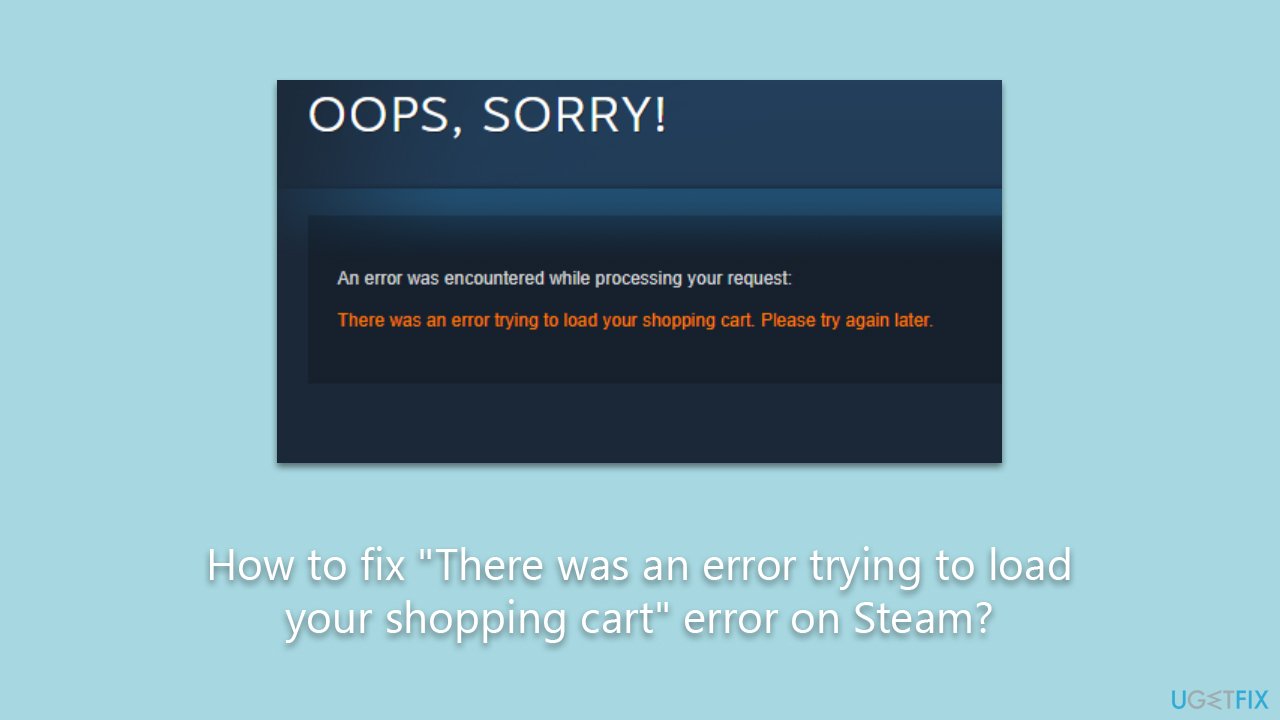
What causes How to fix “There was an error trying to load your shopping cart” error on Steam?
- Network instability
- Server-side issues during high traffic
- Cache corruption within the Steam client
- Outdated browser cache and cookies
- Outdated Steam client
Repairs Windows system files, removes malware, and restores a clean OS state — without reinstalling.
There was a sale on Steam and I was looking forward to buying several games. However, each time I try to purchase something, I receive "There was an error trying to load your shopping cart. Please try again later." Any ideas?
Steam stands as the preeminent gaming platform, hosting a myriad of titles for millions of enthusiastic gamers around the globe. With a user-friendly interface and a vast library of games, it offers a seamless purchasing experience that is integral to the gaming routine of many. However, at times, the process can be hindered by a recurring issue: the "There was an error trying to load your shopping cart" error. This error can manifest whether you are navigating through the Steam client or utilizing the web page version, bringing your game acquisition to an unexpected halt.
The root of this problem can often be traced to a few typical culprits. Network instability is a primary factor; an inconsistent or weak internet connection can disrupt communication with the Steam servers, leading to this error. Server-side issues also play a role. During high-traffic periods, such as seasonal sales or hotly-anticipated game launches, Steam's servers may become overloaded, resulting in various errors including difficulty in loading shopping carts.
Moreover, cache corruption within the Steam client may be the cause for the "There was an error trying to load your shopping cart" error. Over time, stored data intended to speed up the loading process can become corrupted, causing errors and glitches. Similarly, when using a web browser to access Steam, the browser's cache and cookies might contribute to this issue if they become outdated or corrupted. In such cases, refreshing the associated files could potentially resolve the issue.
For those using the Steam client, ensuring that the application is updated to the latest version is critical. Steam regularly releases updates to address bugs and enhance performance. An outdated client might struggle with newer protocols or changes made server-side, leading to this cart error.
It is also beneficial to consider the potential impact of third-party software, which might interfere with Steam's operations. Firewalls, antivirus programs, or other security software could mistakenly identify Steam as a threat and block its processes, including cart management.
While the "There was an error trying to load your shopping cart" error on Steam can be a source of frustration, understanding the possible causes provides a roadmap to a smoother gaming experience. Additionally, utilizing a PC repair tool [d1] can offer a convenient solution by automatically fixing any underlying Windows issues that may be contributing to this issue.
Fix 1. Check the Steam server status
When the Steam servers are down, you may encounter a shopping cart error due to the inability to retrieve data. Checking the server status will let you know if the issue is on Steam's end, and if so, there's nothing to do but wait until the service is restored.
- Visit the Steam Status website or use a service like DownDetector to check for any reported issues.
- Look for any notices of server maintenance or reported outages that match the timing of your issue.
- If server issues are reported, wait for a while before trying to load your shopping cart again.

Fix 2. Clear web browser caches
Clearing your web browser's cache removes old and potentially corrupt data that might be causing the shopping cart error. This process ensures that your browser loads the most recent version of the Steam website.
Google Chrome
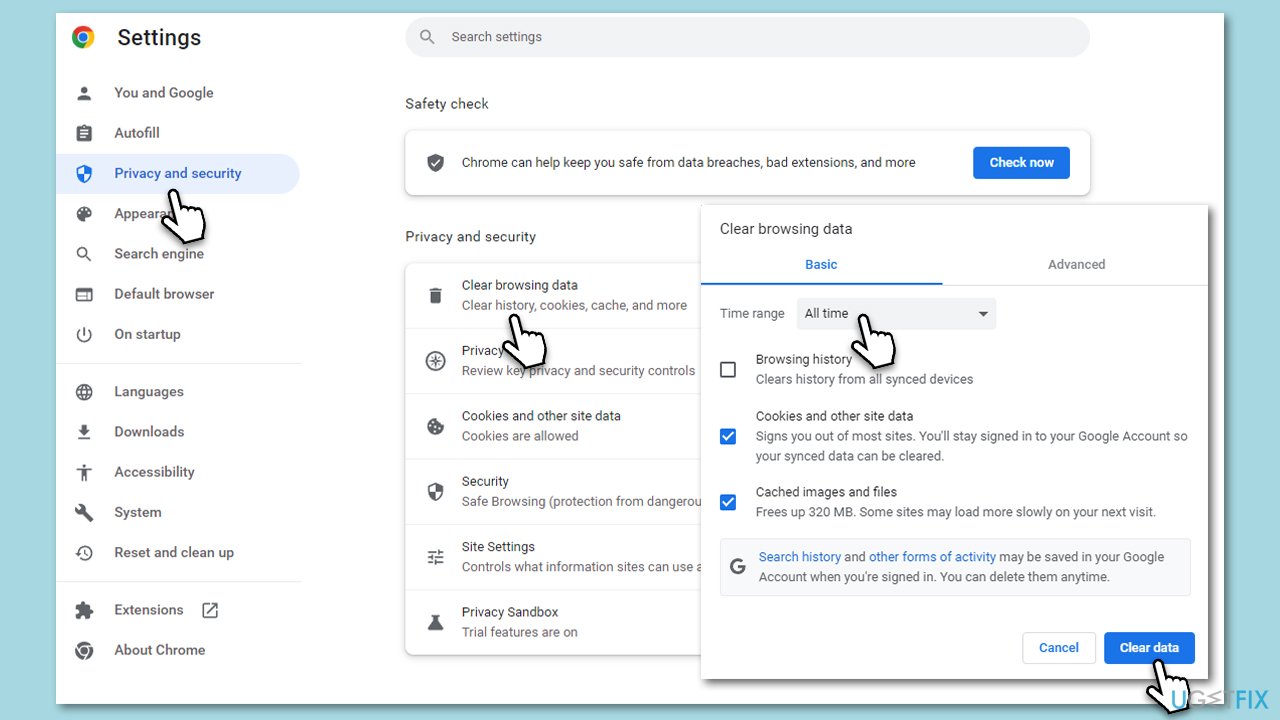
- Click on Menu (⋮) and pick Settings.
- Under Privacy and security, select Clear browsing data.
- Under time range, pick All time.
- Select Browsing history, Cookies and other site data, and Cached images and files.
- Click Clear data.
Mozilla Firefox
- Open Mozilla Firefox.
- Click the three lines icon (≡) located at the top-right corner of the window.
- Click on Settings from the dropdown menu.
- In the left-hand menu, click on Privacy & Security.
- Scroll down to locate the Cookies and Site Data section.
- Click Clear data...
- Mark the Cookies and Site Data, as well as Cached Web Content checkmarks, and click Clear.
Microsoft Edge
- Open Edge and click on three horizontal dots (…) (Settings and more).
- Pick Settings.
- Click Privacy, search, and services on the left.
- On the right side of the window, scroll down to find the Clear browsing data section.
- Click Choose what to clear.
- Select All time.
- Pick all the sections and click Clear now.
Fix 3. Run Steam as administrator
Running Steam as an administrator can resolve issues caused by restricted permissions. This allows Steam to access necessary system resources that might be otherwise unavailable due to user privilege restrictions.
- Right-click on the Steam shortcut or executable.
- Select Run as administrator from the context menu.
- Confirm any prompts that appear asking for permission to run as an administrator.
Fix 4. Run Network troubleshooter
Windows has a built-in tool for diagnosing and resolving network problems which can fix issues preventing Steam from loading your shopping cart.
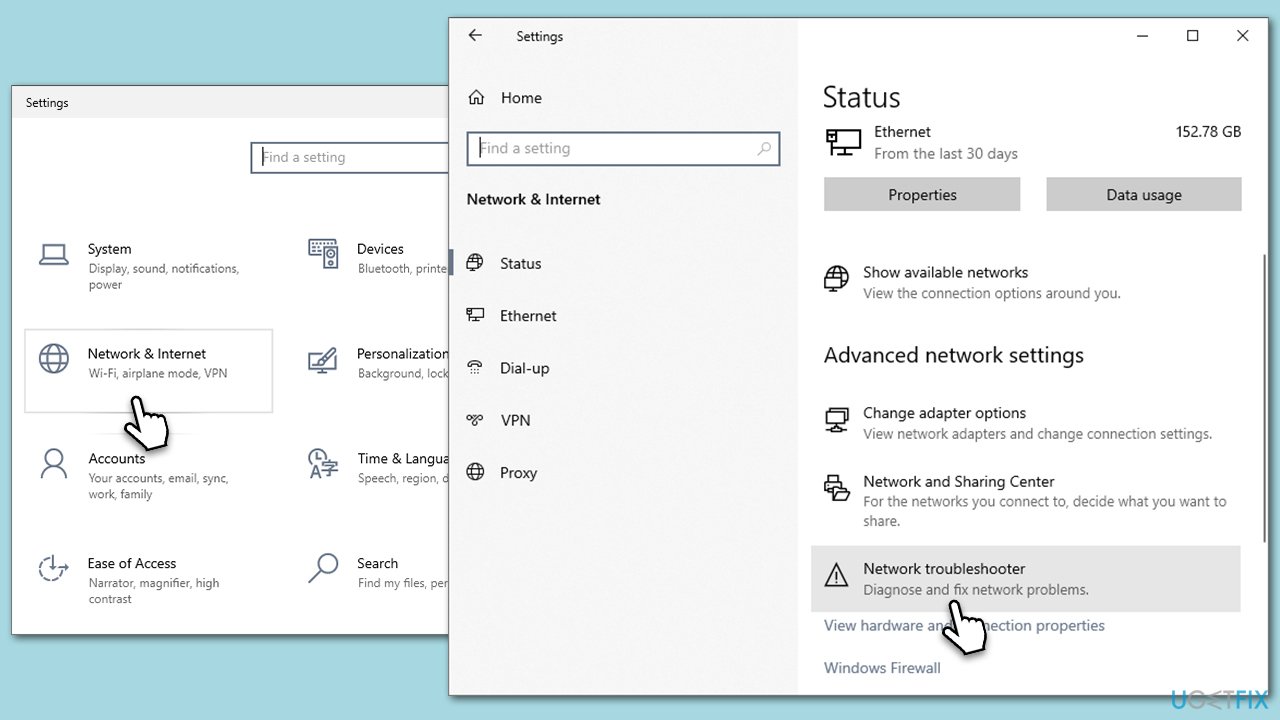
- Right-click on Start and pick Settings.
- Go to Network & Internet section.
- On the right side, find the Advanced network settings section.
- Click Network troubleshooter and wait.
- Apply the recommendations and see if that resolves the Steam issue.
Fix 5. Repair or reset Steam [Windows 11 only]
Repairing or resetting the Steam client can fix issues with corrupt files or configurations that may be causing the shopping cart error.
- Open Settings by clicking Start > Settings.
- Go to the Apps section.
- Select Installed apps.
- From there, scroll down to find Steam.
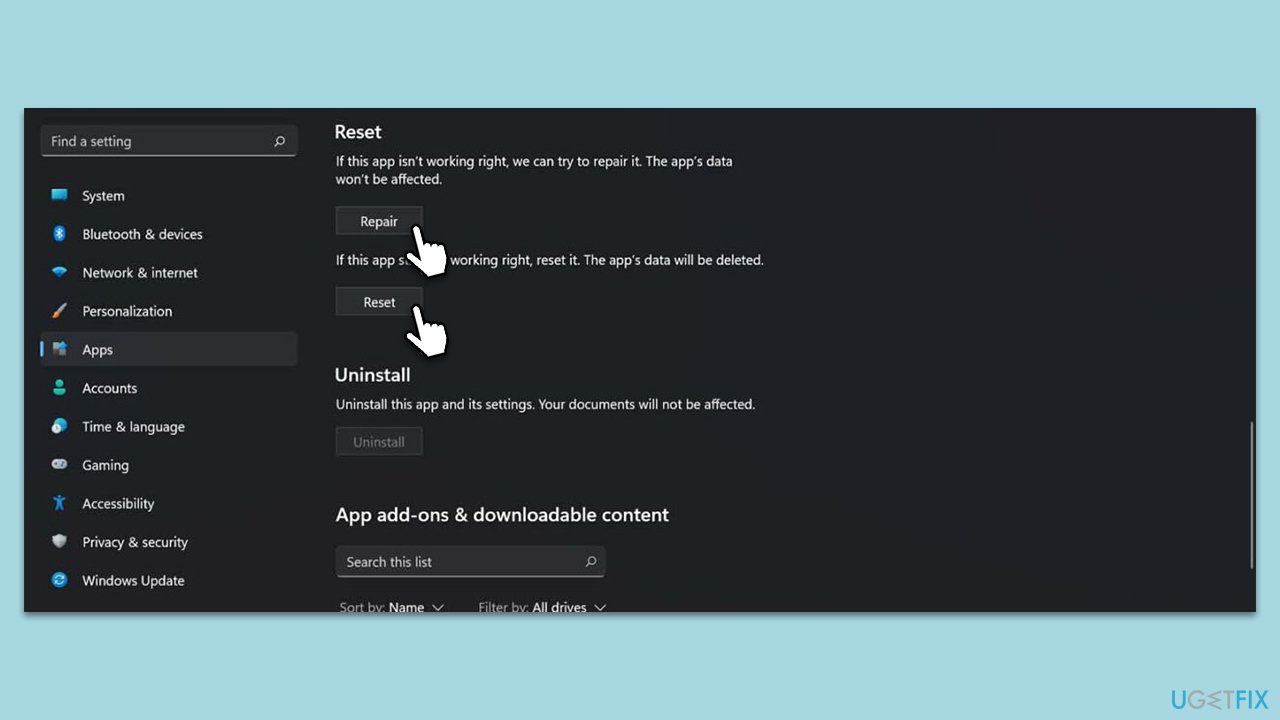
- Click on three horizontal dots (…) and select Advanced options.
- Scroll down and click Repair.
- If that does not work, try the Reset option.
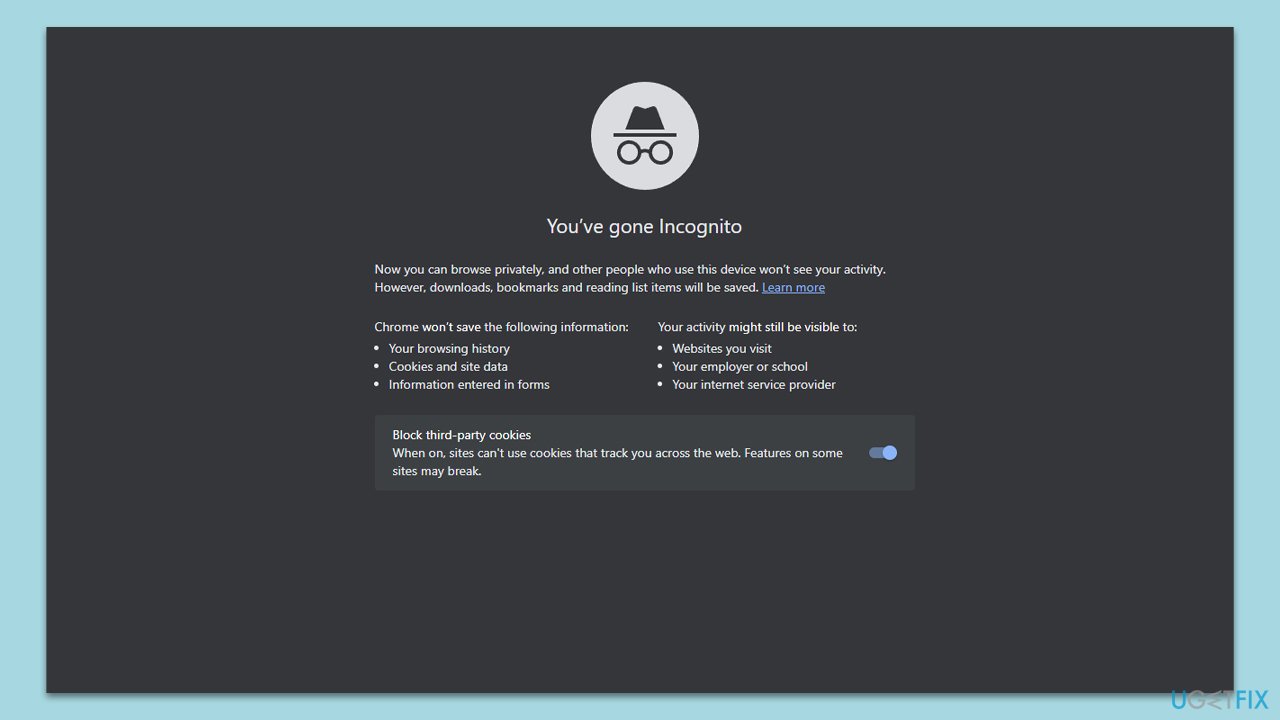
Fix 6. Use incognito mode in your browser
Using incognito mode disables extensions and ignores cached data, providing a clean slate that can circumvent issues caused by browser add-ons or corrupted cache files.
- Open your web browser.
- Click on Settings/Menu in the top-right corner and select New incognito window/New in-private window.
- Visit the Steam website in this incognito window, log in to your account, and attempt to load your shopping cart.
Fix 7. Disable third-party security or similar software
Overly aggressive antivirus software might block certain connections. Thus, you should temporarily disable it and see if that fixes the "There was an error trying to load your shopping cart" error on Steam.
- Right-click on your antivirus icon in the system tray.
- Choose Disable or Pause protection (options might vary).
- Try using Steam.
- Remember to re-enable your antivirus after checking.
Bottom line
To fix the error, ensure your internet connection is stable, clear the cache and cookies of your browser, and update the Steam client to the latest version. If the issue persists, consider checking Steam's server status or trying again later.
Frequently asked questions
This error often occurs due to corrupted cache files or issues with the Steam client itself on Windows 10. Ensuring that your Steam is updated and clearing the cache can help resolve this issue.
For Windows 11 users, you can try restarting the Steam client or verifying the integrity of the game files to fix the shopping cart error. If that doesn’t work, consider reinstalling the Steam client.
Yes, Windows firewall or antivirus settings can block Steam's connection, leading to this error. Make sure to allow Steam through the firewall and temporarily disable antivirus to see if it resolves the issue.




Report an issue
What's wrong with this guide? We review every report and update or remove content.
Report received — thank you. We'll review and fix it.
You need a free account to submit a report.
Be the first to comment