How to fix
Gdi32.dll missing or not found error
on Windows
Resolve the gdi32.dll missing error on Windows 10 or Windows 11 effortlessly. Expert-tested solutions ensure your system runs smoothly in minutes.

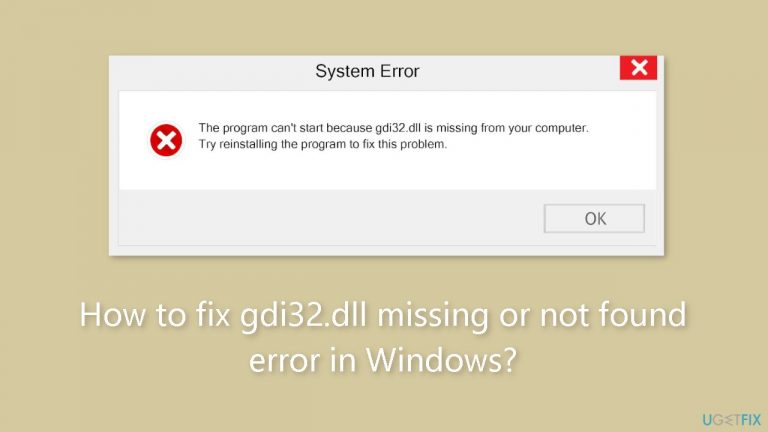
What causes How to fix gdi32.dll missing or not found error in Windows?
- Dynamic Link Library (DLL) gdi32.dll cannot be found
- gdi32.dll is corrupted
- Missing important system files
- Incompatibility with certain applications
- Recent changes to the system
Repairs Windows system files, removes malware, and restores a clean OS state — without reinstalling.
Hello. I keep getting the "gdi32.dll is missing" error on my Windows PC when I try to open certain applications. Is there anything I can do about this?
In Windows operating systems, the "gdi32.dll is missing" or "not found" errors are a frequent problem. This issue happens when the Dynamic Link Library (DLL)[ref en-1] gdi32.dll cannot be found or accessed by the system. This DLL is necessary for the Microsoft Graphics Device Interface (GDI) in Windows to operate correctly. Rendering graphics and managing formatted text for printing to physical devices such as printers and computer screens are the responsibilities of the GDI. The user's experience and the operation of their computer may be significantly impacted if this DLL file is missing or corrupted.
Numerous graphical and text-related issues are among the main ways this problem affects users. Users of web browsers, other software, and applications that depend on the GDI may observe distorted or absent graphics and pictures. Moreover, typographical errors or jumbled language can cause readability problems in a variety of programs, websites, and documents.
Instability in the system is another possible effect of this inaccuracy. Crashing, freezing, and general performance deterioration can result from missing or corrupted important system files, such as gdi32.dll. In extreme circumstances, users may encounter program crashes or even the dreaded Blue Screen of Death.
There are multiple ways to fix the "gdi32.dll is missing" or "not found" problem. Using the built-in Windows System File Checker (sfc) utility, users can try to repair the corrupted or missing DLL file by running a system file check. Utilizing the Deployment Imaging Service and Management Tool (DISM) to fix the Windows image is an additional choice. Windows may need to be repaired or reinstalled in more extreme circumstances.
As an alternative, users may want to think about using System Restore to go back in time if the error just started, or they may want to do a fresh Windows installation if the problem still persists. This tutorial contains 7 methods that should help you resolve the "gdi32.dll is missing" or "not found" error.
You can also run a system repair tool like [d1] that can fix most system errors, BSODs,[ref en-2] corrupted files, and registry[ref en-3] issues. Otherwise, follow the step-by-step instructions below.

Solution 1. Fix Corrupted System Files
Use Command Prompt commands to repair system file corruption:
- Open Command Prompt as administrator
- Use the following command and press Enter:
sfc /scannow

- Reboot your system
- If SFC returned an error, then use the following command lines, pressing Enter after each:
DISM /Online /Cleanup-Image /CheckHealth
DISM /Online /Cleanup-Image /ScanHealth
DISM /Online /Cleanup-Image /RestoreHealth
Solution 2. Install Windows Updates
- Click Start and select Settings.
- Go to the Windows Update section.

- Click Check for updates and wait.
- Go to the Advanced options and install optional updates.
- Reboot your system.
Solution 3. Update Display Driver
- Press the Windows key + X on your keyboard to open the Quick Link menu.
- Select Device Manager from the list of options.
- In the Device Manager window, expand the Display adapters category. This will show the installed display devices.
- Right-click on your display adapter (e.g., NVIDIA, AMD, or Intel) and select "Properties."
- In the Properties window, go to the Driver tab. Note down the current driver version and other details for reference.
- Click on the Update driver button.

- Select Search automatically for updated driver software.
- Windows will connect to the internet and search for the latest driver updates. If found, it will download and install them automatically.
You can also use a dedicated utility like [rev id="DriverFix"] that can find the best drivers for your machine and install them automatically.
Solution 4. Scan for Malware
It is possible that a malware infection may be the cause of gdi32.dll missing or not found error in Windows. It is important to run a comprehensive security scan to rule out this possibility and ensure that the computer is not infected. This can help to prevent further issues with the Windows operating system and ensure that it is functioning properly.
If you have access to a security scanner, or if your organization pays for one, you can use it to scan your entire system to check for a virus infection. Otherwise, you can use Windows Defender to scan your system:
- Click on the Windows Start menu or press the Windows key on your keyboard.
- Type Microsoft Defender in the search bar and click on Microsoft Defender Antivirus to open the application.
- Click on the Virus & threat protection option in the left-hand menu.
- Click on the Quick scan or Full scan option, depending on your preference.

- If you choose Quick scan, Microsoft Defender Antivirus will scan the most vulnerable and commonly infected areas of your computer.
- If you choose Full scan, Microsoft Defender Antivirus will scan your entire computer, including all files, folders, and programs.
- Click on the Scan now button to start the selected scan type and wait for the scan to complete.
- The time it takes will depend on the size of your hard drive and the number of files being scanned.
- Once the scan is complete, you will be informed of any detected threats, and you can choose to quarantine or remove them.
- If no threats are found, Microsoft Defender Antivirus will inform you that your device is secure.
Solution 5. Reinstall the Problematic App
- Click the Start button and type control panel.
- Press Enter to open the Control Panel.
- Click on Programs and go to the Programs and Features tab.

- Find the app from the list and select it.
- Click Uninstall at the top of the tab.
- Click OK and restart your PC.
- Reinstall the app.
- Check if the error persists.
Solution 6. Try Clean Boot
- Open the Search menu, type in system configuration, and press Enter.
- Under the Services tab, tick the Hide all Microsoft services box.
- Click on Disable all button.

- Head over to the Startup tab and click on Open Task Manager.
- Select a third-party program and click on Disable at the top.
- Repeat this step to disable all third-party apps and programs.
- Restart your PC to enter the clean boot state and see if the issue persists.
- If the issue disappeared in the clean boot state, then you can be certain that a third-party app is causing it.
- Go through all recently installed apps or programs and remove them one by one.
Solution 7. Use System Restore
System Restore is a feature in Microsoft Windows that allows users to revert their computer's state to a previous point in time. This can be helpful if you have made changes to your system that are causing problems.
- Press the Windows key + R on your keyboard to open the Run box.
- Type SystemPropertiesProtection and press Enter.
- Go to the System Protection tab.

- You will see the System Restore… button. Click it to run System Restore.
- Follow the prompts until you can select a restore point.
- Select the one you want (ideally before the issue started occurring) and go ahead with the process.
Bottom line
To fix the 'gdi32.dll is missing' error, users can utilize the Windows System File Checker (sfc) utility, the Deployment Imaging Service and Management Tool (DISM), or consider using System Restore. In more severe cases, repairing or reinstalling Windows may be necessary. If none of these methods work, a fresh Windows installation might be the last resort.
Frequently asked questions
The gdi32.dll missing error can be caused by corrupted system files, malware infections, or an incomplete software installation. It's important to ensure your system is free from viruses and that all software is properly installed.
You can restore gdi32.dll by running the System File Checker tool via Command Prompt, which scans for and repairs corrupted system files. Simply open Command Prompt as an administrator and type 'sfc /scannow'.
Yes, there are several third-party tools available that can help fix gdi32.dll errors, such as DLL repair tools or system optimization software. However, ensure you use reputable software to avoid further issues.




Report an issue
What's wrong with this guide? We review every report and update or remove content.
Report received — thank you. We'll review and fix it.
You need a free account to submit a report.
Be the first to comment