How to fix
“No route” error in Discord
on Windows
Resolve the “No route” error in Discord on Windows 10 or Windows 11 easily. Follow expert-tested solutions for quick fixes and seamless gaming!

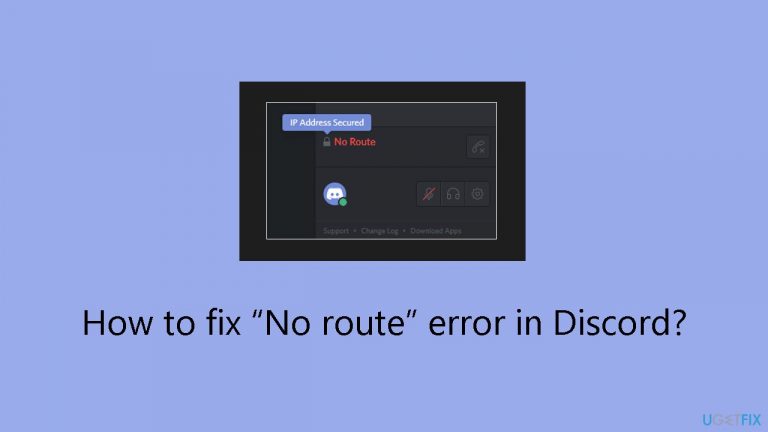
What causes How to fix “No route” error in Discord?
- Network issues
- Internet service provider (ISP) problems
- Firewall settings blocking connection
- Network configuration issues
- Dependable internet connection is crucial
Repairs Windows system files, removes malware, and restores a clean OS state — without reinstalling.
Hello. When I try to connect with a voice channel on Discord in Windows, I get the “No route” error. How can I get this fixed?
Discord's "No Route" error is a common problem that appears when a user's network or Internet service provider (ISP) has trouble connecting to the Discord server. This issue frequently occurs when users try to join a voice channel in Discord, which keeps them from being able to use the voice chat feature in the app. This problem can greatly affect users' ability to communicate in real-time during gaming sessions, as Discord is widely used for both gaming and communication.
The "No Route" problem can be especially annoying for those that depend on Discord's voice chat feature for planning tactics, interacting with others, or just having a more engaging gaming experience. The smooth flow of communication in gaming communities is disrupted when a voice channel cannot be reached, which may have an impact on coordination, teamwork, and the enjoyment of gaming in general.
The fact that this error is related to problems with connections between the user's network and Discord servers emphasizes how crucial having a dependable internet connection is. Gamers who encounter the "No Route" issue may discover that their gaming sessions are hindered; in particular, losing real-time communication can make the experience feel less immersive and connected.
While there are workarounds for the "No Route" problem, they frequently entail resetting internet connections, altering firewall settings, or debugging network arrangements. Users encountering this issue may need to explore these solutions to restore seamless communication on Discord.
In this guide, you will find 6 steps that should help you fix “No route” error in Discord. You can also run a maintenance tool like [d1] that can fix most system errors, BSODs,[ref en-1] corrupted files, registry[ref en-2] issues, or clear cookies and cache[ref en-3] automatically. Otherwise, follow the step-by-step instructions below.

Solution 1. Restart the Router
Initially, attempt to reboot both your PC and router. For the router, disconnect the power plug, wait a few minutes, and then reconnect it. Additionally, consider restarting the application. This allows the Windows system to inspect and address any issues that may arise as necessary.
Solution 2. Whitelist Discord through Windows Firewall
- Press the Windows key.
- Type firewall and choose Windows Defender Firewall to open the Control Panel app.
- Click Allow an app or feature through Windows Defender Firewall to access the allowed app options.

- Click the Change settings option.
- Select all the checkboxes for Discord if they're not already selected.
- Press the OK button.
Solution 3. Turn off the Enable Quality of Service High Packet Priority Setting
- Click the gear button at the bottom left of Discord to access additional options.
- Go to Voice & Video settings.
- Scroll down and toggle the Enable Quality of Service High Packet Priority option off.

- After disabling this option, restart Discord.
Solution 4. Disable VPN Software
- Press the Windows key.
- Type network and select View network connections to open the Control Panel app.
- Right-click your VPN in the list and choose Disable.

- Attempt to connect to a voice channel in Discord with the VPN disabled.
Solution 5. Uninstall Antivirus Software
- Use the keyboard shortcut Windows key + R.
- Input appwiz.cpl in the Open box and click OK to open the Programs and Features app.

- Select your listed antivirus software, and click on the Uninstall option.
- Click Yes on any confirmation prompt that opens.
- Restart Windows after uninstalling the antivirus software.
Solution 6. Flush the DNS
- Press the Windows key.
- Type cmd, then right-click on the Command Prompt result, and select Run as administrator.
- In the Command Prompt, type the following command and press Enter:
ipconfig /release

- Copy and paste the next command, then press Enter:
ipconfig /flushdns
- Use the following command and be sure to press Enter:
ipconfig /renew
- Restart Windows after flushing the DNS.
Bottom line
To fix the 'No Route' error in Discord, you can try restarting your router, adjusting firewall settings, or debugging your network arrangements. If these solutions do not work, consider using a maintenance tool to address system errors or corrupted files.
Frequently asked questions
The 'No route' error typically occurs due to network connectivity issues, firewall settings, or DNS configuration problems on your Windows system.
You can try resetting your network settings by running the 'netsh winsock reset' command in Command Prompt, then restart your computer.
Yes, temporarily disabling your firewall can help identify if it's causing the issue, but remember to re-enable it afterward for your security.




Report an issue
What's wrong with this guide? We review every report and update or remove content.
Report received — thank you. We'll review and fix it.
You need a free account to submit a report.
Be the first to comment