How to fix
Runtime error 7: Out of memory
on Windows
Resolve Runtime Error 7: Out of Memory in Windows 10/11 effortlessly. Follow our expert-tested solutions to regain system stability and performance. Upd…


What causes How to fix Runtime error 7: Out of memory in Windows?
- Programming flaw within the application
- Memory not managed efficiently
- Conflicts between programs
- Corrupted files
- Outdated software components
Repairs Windows system files, removes malware, and restores a clean OS state — without reinstalling.
I was using Excel as usual, when suddenly, I received "Runtime error 7: Out of memory." How do I fix this? I am using the latest version of Windows.
Runtime error 7, commonly referred to as "Out of Memory," is a prevalent issue that users might encounter when working with various applications on Windows operating systems. This error typically arises when a program runs out of memory during its operation, but the causes and implications can be more complex and varied. Understanding the nature of this error is crucial for anyone who regularly uses Windows-based software, especially those applications that are resource-intensive.
The error is most commonly associated with applications that require a significant amount of memory to function properly. For instance, when using Visual Basic or Microsoft Office applications like Excel, which are known to consume considerable system resources, this error may occur more frequently.
These applications, particularly when handling large data sets or performing complex operations, can exhaust the available memory, leading to Runtime error 7. It's important to note that the "Out of Memory" message doesn't always literally mean that the system's physical memory (RAM) is insufficient. More often, it's an indication that the program has exceeded the memory allocation limit set by the operating system or that there's a memory leakage issue.
There are several underlying factors that might contribute to this error. It could be due to a programming flaw within the application itself, where memory is not managed efficiently. Alternatively, it might be a sign of other systemic issues such as conflicts between programs, corrupted files, or outdated software components. These factors can hinder the efficient allocation and utilization of memory resources, triggering the error.
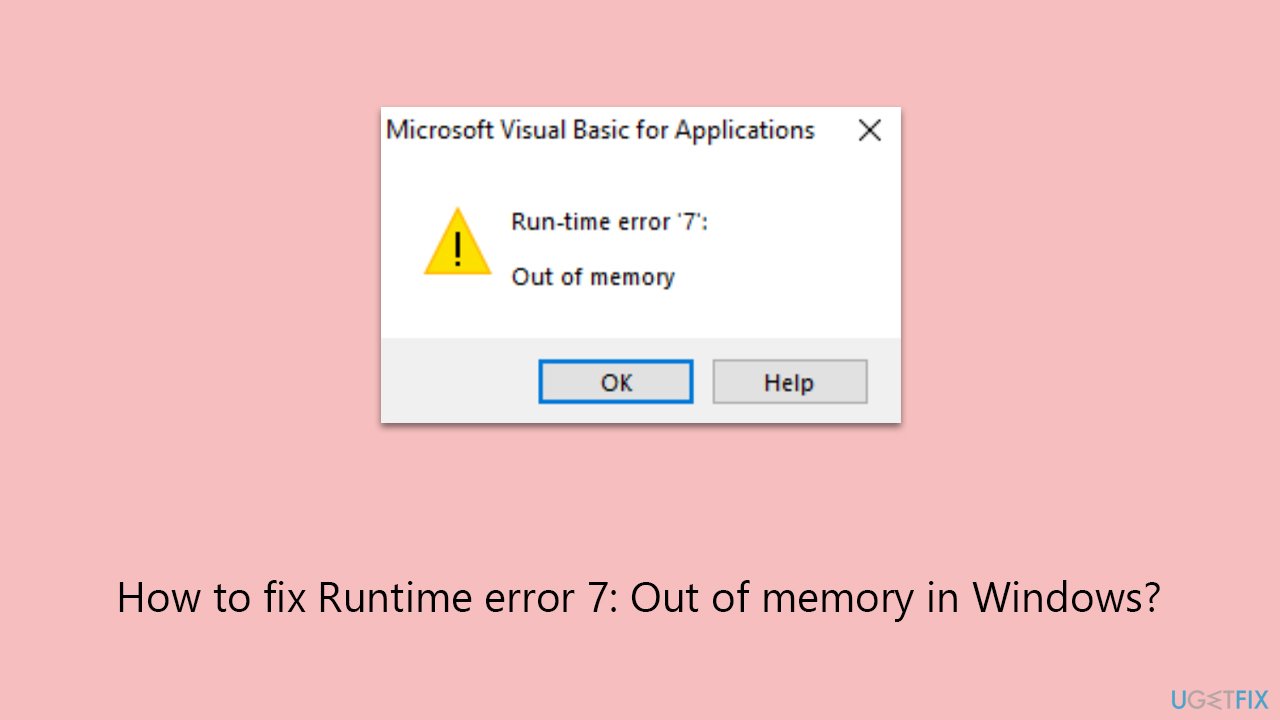
While dealing with Runtime error 7, it's beneficial to consider various aspects that might influence the system's memory usage. Monitoring the applications' memory demands, keeping the software updated, and ensuring optimal system health are general practices that can mitigate the risk of encountering this error.
Runtime error 7: "Out of Memory" is a sign that there are memory utilization issues in the application or system. While it primarily indicates that a program has surpassed its memory allocation, it can also point to broader issues within the system. For those seeking a straightforward solution, a PC repair tool [d1] might be a viable option. Such tools are designed to automatically diagnose and fix underlying Windows issues, potentially resolving the error without manual intervention.
Fix 1. Disable startup items and restart your PC
Disabling startup items can significantly free up memory resources, as many applications and services start automatically when Windows boots, consuming memory. By disabling these items, you ensure that only essential processes are running, reducing the likelihood of encountering the Runtime error 7. This fix is particularly effective if the error occurs shortly after the system starts.
- Open the Task Manager by pressing Ctrl + Shift + Esc.
- Go to the Startup tab.
- Carefully review the list of startup applications.
- Right-click on non-essential applications and select Disable.
- Restart your PC to apply these changes.

Fix 2. Update the application
Outdated software can lead to memory management issues, resulting in errors like Runtime error 7. By updating the application, you ensure that you have the latest fixes and improvements from the developer, which might include patches for memory-related issues.
- Open the application that is causing the error.
- Look for an option like Help or About in the menu.
- Click on Check for Updates or similar options.
- Follow the prompts to install any available updates.
- Restart the application after the update is complete.

Fix 3. Perform Disk Cleanup
Disk Cleanup helps free up space on your hard drive, which can indirectly affect memory usage, especially if your system is low on space. It removes temporary files, system cache, and other unnecessary files that might be consuming resources.
- Initiate the Windows search bar and enter Disk Cleanup, then press Enter to launch the utility.
- Pick the main drive (C: by default) and select the option for Clean up system files.
- Choose the drive once more and press OK.
- From the array of files that can be cleaned, choose those taking up the most space, for example, Temporary Internet Files, Windows Update, and Temporary Files, among others.
- Hit OK to begin the cleanup process.

Fix 4. Defrag your hard drive
Defragmenting your hard drive can improve its efficiency. Over time, files get fragmented and scattered across the drive, which can slow down data access and potentially impact memory usage. Note that this is applicable only for HDDs, not SSDs.
- Type Defragment and Optimize Drives in the Windows search bar and open it.
- Select your hard drive (usually C:) from the list.
- Click Optimize to start the defragmentation process.
- Wait for the process to complete.

Fix 5. Increase Virtual Memory
Virtual memory is a portion of your hard drive that Windows uses as if it were RAM. Increasing the size of virtual memory can provide more space for applications to use, potentially resolving memory issues.
- Open File Explorer, right-click on This PC, and select Properties.
- Click on Advanced system settings.
- Under the Performance section, click on Settings.
- Go to the Advanced tab, then click on Change under Virtual memory.
- Uncheck Automatically manage paging file size for all drives.
- Select the drive where Windows is installed (usually C:).
- Click on Custom size and set the Initial size and Maximum size to higher values (based on your system specifications).
- Click Set, then OK.
- Restart your computer for the changes to take effect.
Fix 6. Update Windows
Keeping Windows up to date ensures that you have the latest security patches and performance improvements. Sometimes, memory-related issues can be resolved by installing the latest Windows updates, which might contain fixes for system-level bugs affecting memory usage.
- Type Updates and press Enter.
- In the new window, click Check for updates.
- Wait till all the files are downloaded and installed.
- If optional updates are available, install them as well.
- Restart your device when done.

Bottom line
To fix Runtime error 7, consider monitoring application memory demands, keeping software updated, and ensuring optimal system health. If these steps do not resolve the issue, further investigation into potential memory leaks or system conflicts may be necessary.
Frequently asked questions
This error typically occurs due to insufficient memory allocation for applications or when the system runs low on RAM. It can also be triggered by corrupted files or improper system configurations.
You can free up memory by closing unnecessary applications, disabling startup programs, and using the Disk Cleanup tool in Windows 10 or Windows 11 to remove temporary files.
Yes, you can increase the virtual memory size in the System Properties settings and ensure that your system is set to automatically manage paging file size.




Report an issue
What's wrong with this guide? We review every report and update or remove content.
Report received — thank you. We'll review and fix it.
You need a free account to submit a report.
Be the first to comment