How to fix
Photoshop keyboard shortcuts not working
on Windows
Resolve Photoshop keyboard shortcuts not working on Windows 10 or 11 effortlessly. Get expert-tested solutions and fix it in minutes!

What causes How to fix Photoshop keyboard shortcuts not working on Windows?
- Incorrect keyboard settings
- Insufficient user permissions
- Outdated version of Photoshop
- Improper keyboard layout or language settings
- Underlying Windows issues
Repairs Windows system files, removes malware, and restores a clean OS state — without reinstalling.
Yesterday I purchased a Creative Cloud license and was excited to use Photoshop. Unfortunately, I soon noticed that none of the shortcuts, such as Ctrl+S, work, which seriously impedes the usability of the program. I am using Windows OS.
Adobe Photoshop, a premier image editing software, is widely used by millions of professionals and enthusiasts around the world. It offers a vast array of tools and features that facilitate the creation and manipulation of digital images. A key aspect of its efficiency lies in the use of keyboard shortcuts, which streamline the workflow by providing quick access to various functions.
However, some users encounter an issue where these keyboard shortcuts do not function properly on Windows systems. This problem can significantly hamper the user experience in Photoshop, as it disrupts the smooth and fast execution of tasks that the software is renowned for.
The malfunctioning of keyboard shortcuts in Photoshop on Windows can be attributed to several factors. One possible cause is incorrect keyboard settings within the operating system or the software itself. If the keyboard layout or language settings are not configured properly, it might lead to shortcuts being unrecognized or misinterpreted by Photoshop.
Another reason could be insufficient user permissions, as Photoshop requires certain permissions to operate effectively, and if these are not granted, it might restrict the functionality of keyboard shortcuts. Additionally, running an outdated version of Photoshop can also lead to this issue, as newer updates often fix bugs and compatibility issues with the Windows operating system.
To address this problem, you can verify and adjust your keyboard settings, ensuring they align with Photoshop's requirements. Additionally, checking and updating your user permissions can be crucial in resolving this issue. Keeping Photoshop updated to the latest version is also advisable, as it ensures compatibility with your Windows system and incorporates fixes for known issues.
In some cases, the problem might stem from underlying Windows issues. If the above measures do not resolve the keyboard shortcut malfunction, using a professional PC repair tool, such as [d1], could be useful.
Fix 1. Ensure the administrator is enabled
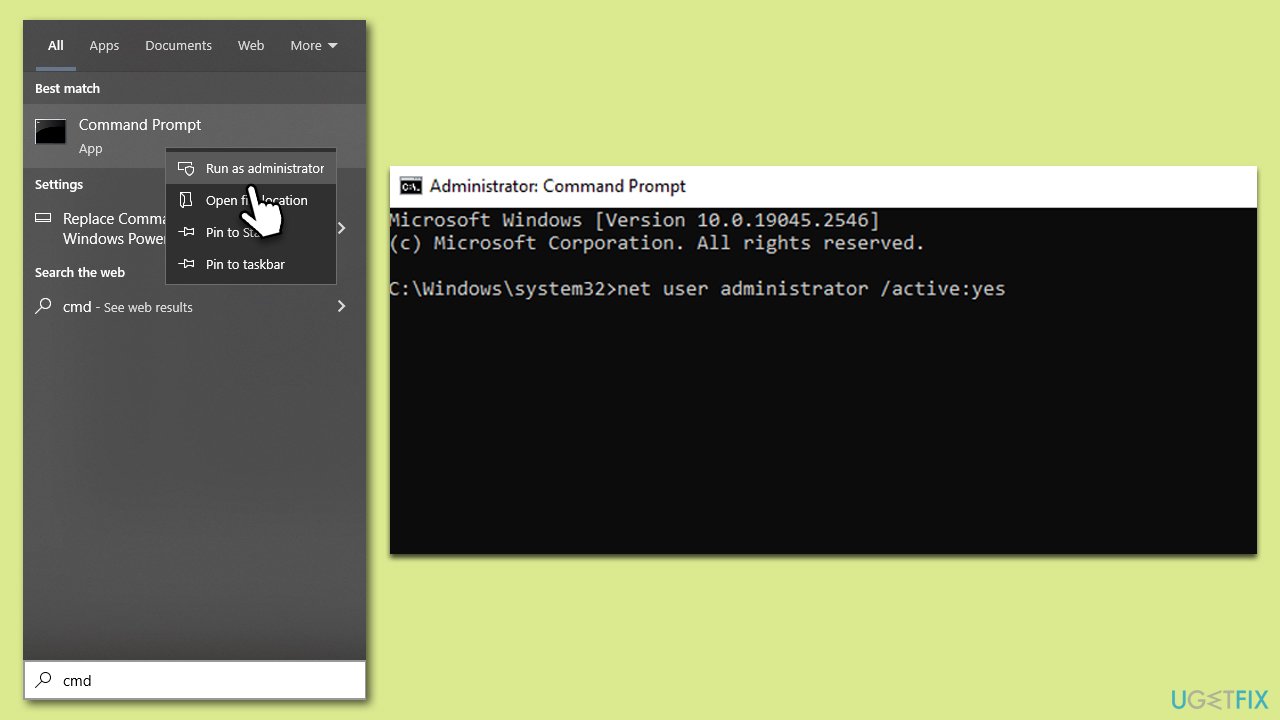
Enabling the administrator account through Command Prompt can resolve issues related to insufficient permissions, which might be causing the malfunction of keyboard shortcuts in Photoshop. The administrator account has higher privileges, allowing Photoshop to access necessary system resources.
- Type cmd in Windows search.
- Right-click on Command Prompt and select Run as administrator.
- When prompted by User Account Control, click Yes.
- In the Command Prompt window, type the following and press Enter:
net user administrator /active:yes - Close the Command Prompt window.
- Log out of your current account.
- Log in to the Administrator account that now appears on the welcome screen.
Fix 2. Update Photoshop
Outdated versions of Photoshop might have compatibility issues with your Windows operating system, leading to problems like non-functioning keyboard shortcuts. Updating Photoshop ensures that you have the latest features, bug fixes, and compatibility improvements.
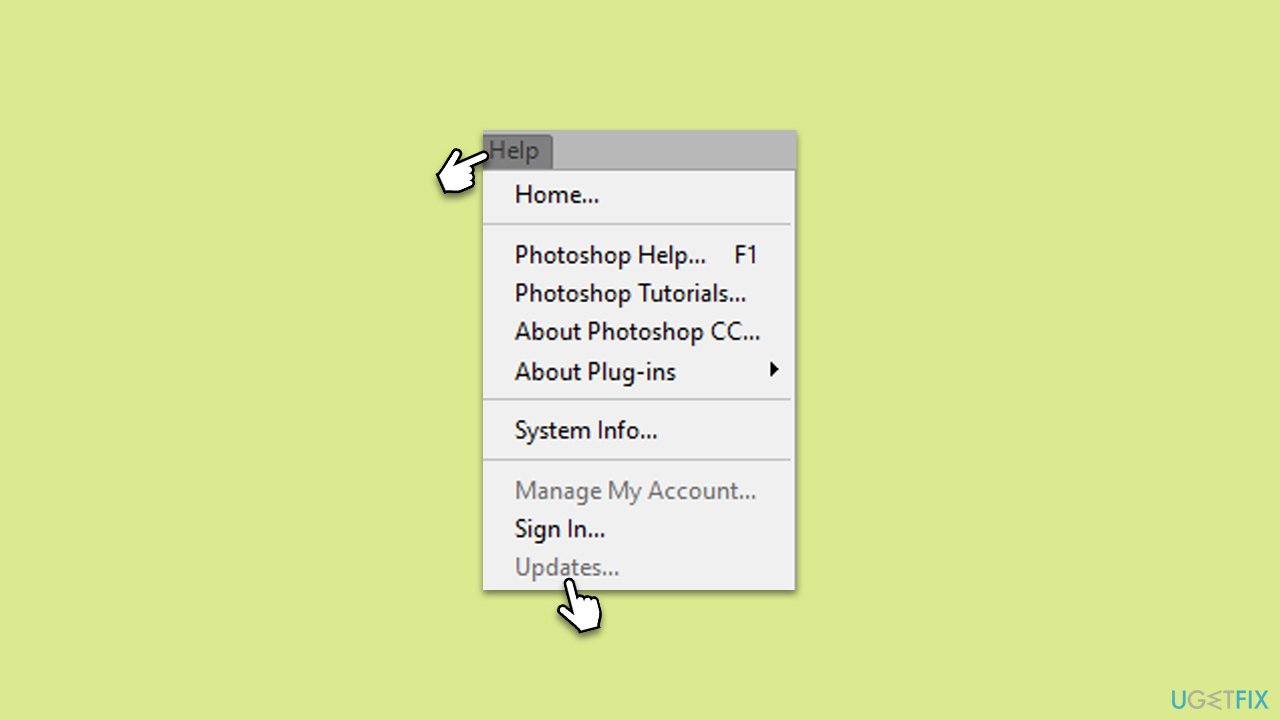
- Open Adobe Photoshop.
- Go to Help in the menu bar.
- Select Updates.
- Follow the on-screen instructions to install any available updates.
- Restart Photoshop after the update.
Fix 3. Disable Sticky Keys
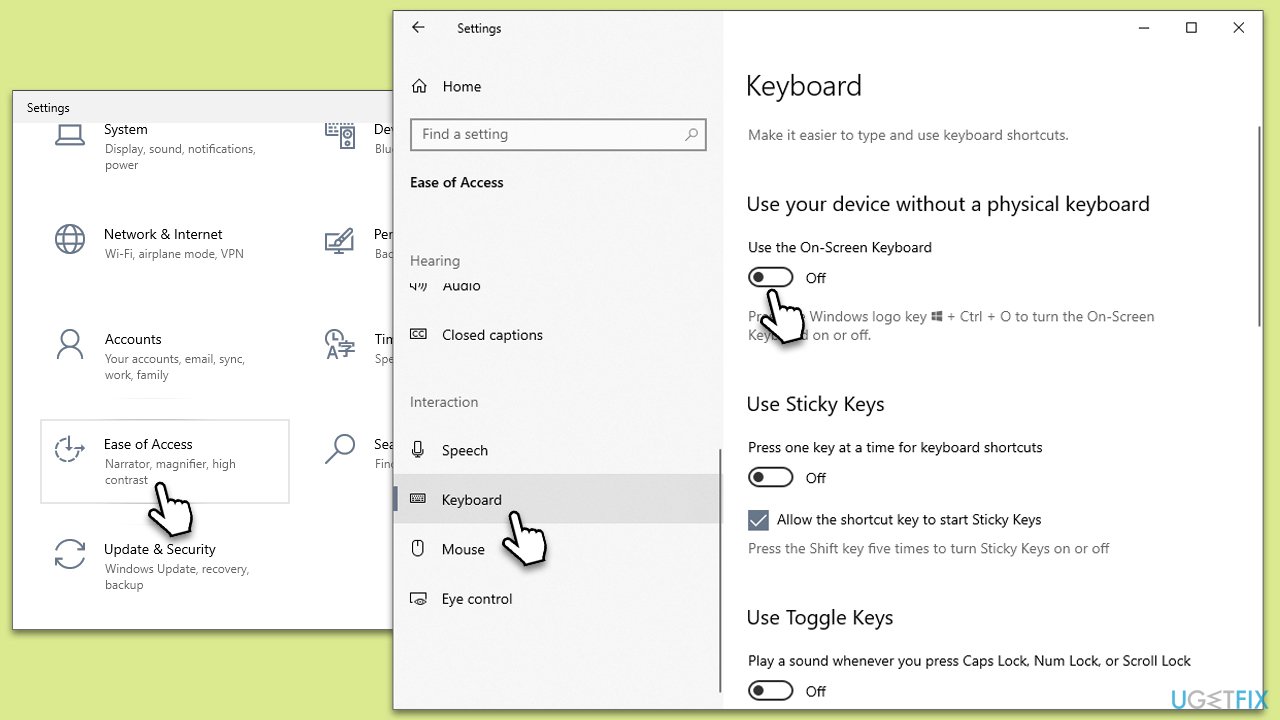
Sticky Keys is a Windows feature that alters how keyboard shortcuts work. Disabling it can prevent interference with Photoshop's keyboard shortcuts.
- Press Win key + I to open Settings.
- Go to Ease of Access (Accessibility in Windows 11).
- Select Keyboard from the left pane.
- Find Sticky Keys and turn it off.
- Restart your computer and open Photoshop to test the shortcuts.
Fix 4. Change Windows keyboard settings
Incorrect keyboard settings in Windows might conflict with Photoshop's shortcuts. Adjusting these settings can resolve the issue.
- Press Win key + I to open Settings.
- Go to Time & Language.
- Select Language from the left pane.
- Under Preferred languages, ensure the correct language is set.
- If necessary, add a new language or set a different one as default.
- Restart your computer and check Photoshop.
Fix 5. Reset Workspace in Photoshop
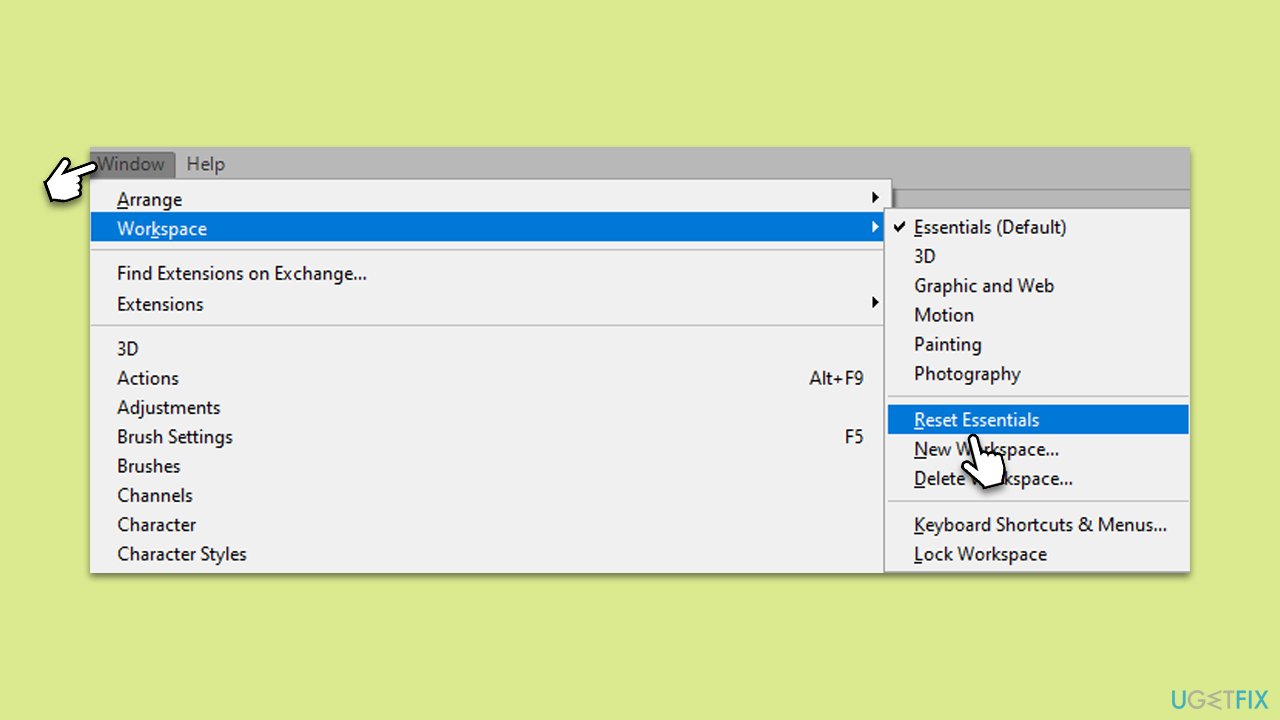
Resetting the workspace in Photoshop can fix issues related to custom configurations that may be interfering with keyboard shortcuts.
- Open Adobe Photoshop.
- Go to Window in the menu bar.
- Hover over Workspace.
- Select Reset Essentials.
- Check if the keyboard shortcuts are now functioning.
Fix 6. Reset Preferences in Photoshop
Resetting Photoshop's preferences can resolve conflicts and issues caused by corrupted or incorrectly configured settings, potentially fixing the keyboard shortcut issue.
- Close Photoshop.
- Hold down Alt + Ctrl + Shift on your keyboard.
- While holding these keys, open Photoshop.
- A dialog box will ask if you want to delete the Photoshop settings file. Click Yes.
- Photoshop will open with default settings. Check the keyboard shortcuts.
Fix 7. Create a new user account
Creating a new user account on your Windows can help determine if the issue is specific to your current user profile. A new account will have default settings, which might resolve the shortcut problem.
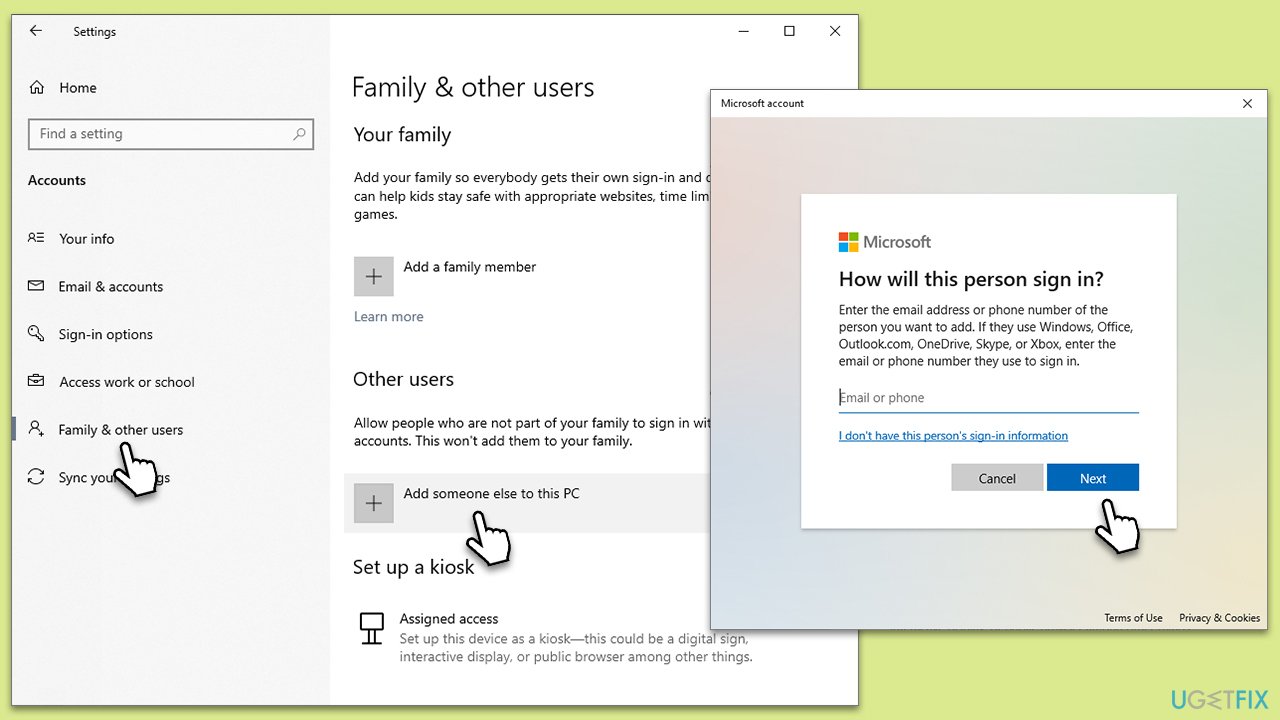
- Open Settings and go to Accounts.
- Select Family & other users.
- Under Other users, click on Add someone else to this PC.
- Follow the on-screen instructions to create a new account.
- Log into the new account, install Photoshop if necessary, and test the keyboard shortcuts.
Bottom line
To fix the issue of Photoshop keyboard shortcuts not working on Windows, verify and adjust your keyboard settings, check and update your user permissions, and ensure that Photoshop is updated to the latest version. If these measures do not resolve the problem, consider using a professional PC repair tool.
Frequently asked questions
This issue may occur due to conflicting applications or settings in Windows 10. Try resetting Photoshop preferences or checking for any software that may be intercepting keyboard inputs.
To restore default shortcuts, go to Edit > Keyboard Shortcuts and select 'Set' to 'Adobe Defaults' in Photoshop on Windows 11.
If shortcuts remain unresponsive, ensure your graphics drivers are updated and consider reinstalling Photoshop to resolve potential installation issues.




Report an issue
What's wrong with this guide? We review every report and update or remove content.
Report received — thank you. We'll review and fix it.
You need a free account to submit a report.
Be the first to comment