How to fix
“Windows has detected an IP address conflict” error
on Windows
Resolve the “Windows has detected an IP address conflict” error on Windows 10 or 11 quickly and easily. Expert-tested solutions await!


What causes How to fix “Windows has detected an IP address conflict” error on Windows?
- Another computer on the network has the same IP address
- Multiple devices connected to the same network may have duplicated IP addresses
- Issues with PC settings
- Router configuration problems
- Direct connection using a cable may lead to IP address conflicts
Repairs Windows system files, removes malware, and restores a clean OS state — without reinstalling.
Hello. A couple of days ago I’ve started receiving an error, which claims that “IP address conflict Network Error – Another computer on this network has the same IP address as this computer.” I understand that the problem is related to the Internet connection, but since I’m not tech-savvy, I have no idea what should I do to fix that. I use Windows 10 1703, which is connected to the Internet using Ethernet port if that makes sense. Thanks in advance!
Windows has detected an IP address conflict is an IP-address[ref en-1] related error that has been plagued by Windows PC and laptop users since 2016. The problem does not seem to happen when the machine is connected to the Internet via Wi-Fi router, though the users who are using Ethernet cable for establishing the Internet connection are very likely to have these problems.
An Internet Protocol, internationally known as IP address, is a unique numerical label assigned to each device that is connected to a computer network. The IP address is used for communication, hosting, network interface identification, and location addressing.
It is not possible to browse the Internet and have no IP address identification. Each device is differentiated on the bases of the IP, thus the network can easily recognize the user, his or her location, technical specifications or the device, and other required non-personal data[ref en-2].
Thus, encountering the Windows has detected an IP address conflict may be a serious issue because the error may occur when trying to connect to the Internet. This error message indicates the fact that your IP address is already in use on the network.
The culprit of the Windows has detected an IP address conflict error may happen if you are using several devices, such as PC, laptop, printer, and a smartphone to the same network, the IP addresses may get duplicated and trigger infringements. Note that this problem has nothing to do with the Internet Provider[ref en-3], but rather related to PC settings or Router.
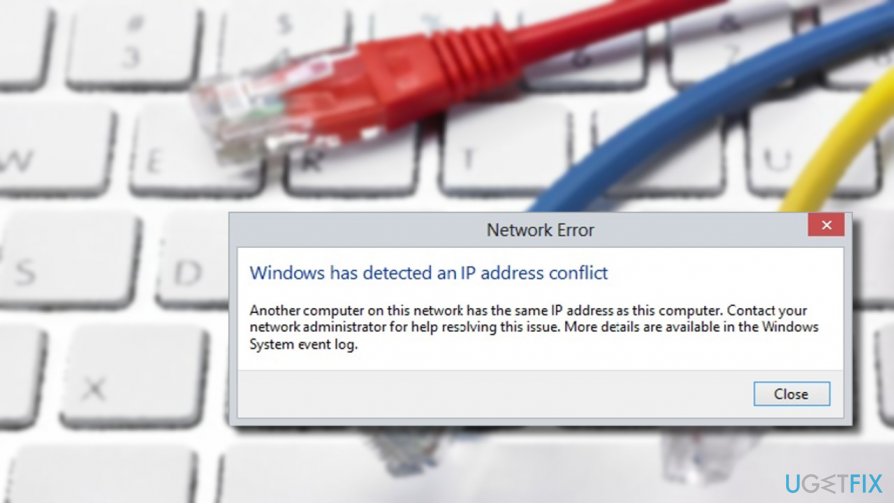
When the direct connection using a cable is established, the Internet connection requires entering the IP address, default gateway, preferred DNS server, Subnet mask, and alternate DNS server. All the processes information is registered as the current Media Access Control (MAC) address and is tied to the currently connected device.
Therefore, if the computer with the registered MAC address is disconnected and the other device is connected to the same Ethernet cable, the network fails to recognize the MAC address of the other computer. If this kind of IP conflict emerges, the user is notified with the following message:
Windows has detected an IP address conflict
Another computer on this network has the same IP address as this computer. Contact your network administrator for help resolving this issue. More details are available in the Windows System event log.
Fixing the "Windows has detected an IP address conflict" error on Windows
The error should no longer occur if you switch back to the PC, which MAC address has been registered by your network. If that’s not the solution because you need two or more devices to be connected to the same Ethernet cable, then you should try these "Windows has detected an IP address conflict" fixes:
Method 1. Restart the router
In order to fix Windows has detected an IP address conflict error try to restart the router. This method may work if the router fails to attribute different IP addresses to several devices interconnected on the same network.
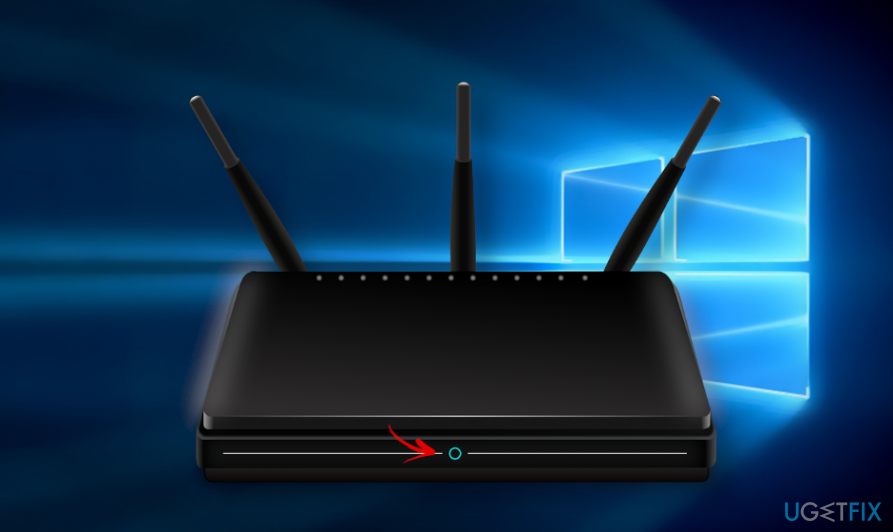
- Find the power button on the router and turn it off.
- Leave the router turned off for several minutes.
- After that, turn on the router back.
Method 2. Change MAC address
To fix the problem, try using the same MAC address[ref en-4] on the second device connected to the network. For this purpose, you should:
- Right-click on Windows key and select Command Prompt (Admin).
- OR press Windows key + R, type cmd, and press Enter.
- Copy and paste the ipconfig /all command.
- Press Enter after it.
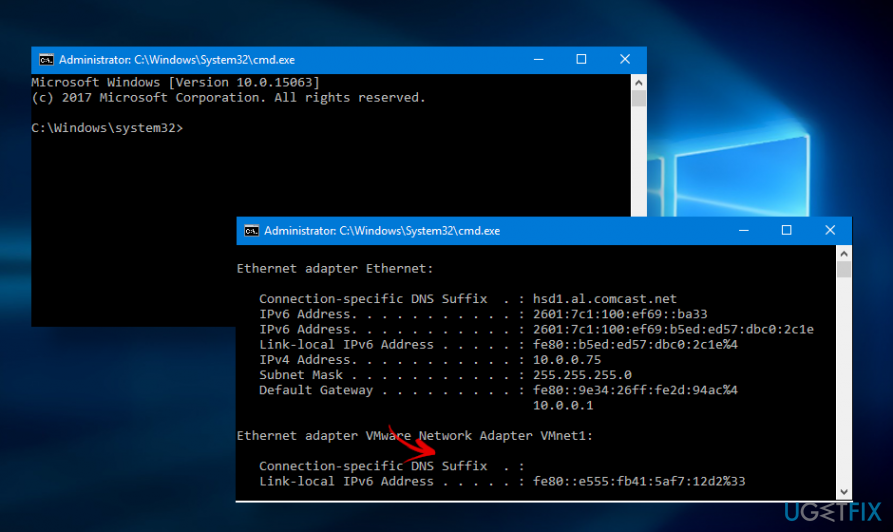
Change mac address - When the Physical Address opens, open the second PC.
- Press Windows key + R, type ncpa.cpl, and press Enter.
- Right-click on the Ethernet [number] and open Properties.
- Select Configure and then open Advanced.
- Click on Network Address and enter the MAC address in the Value box.
- Save the changes
Method 3. Renew IP address
- Right-click on Windows key and select Command Prompt (Admin).
- OR press Windows key + R, type cmd, and press Enter.
- Copy and paste the following commands in the Command Prompt windows and hit Enter after each:
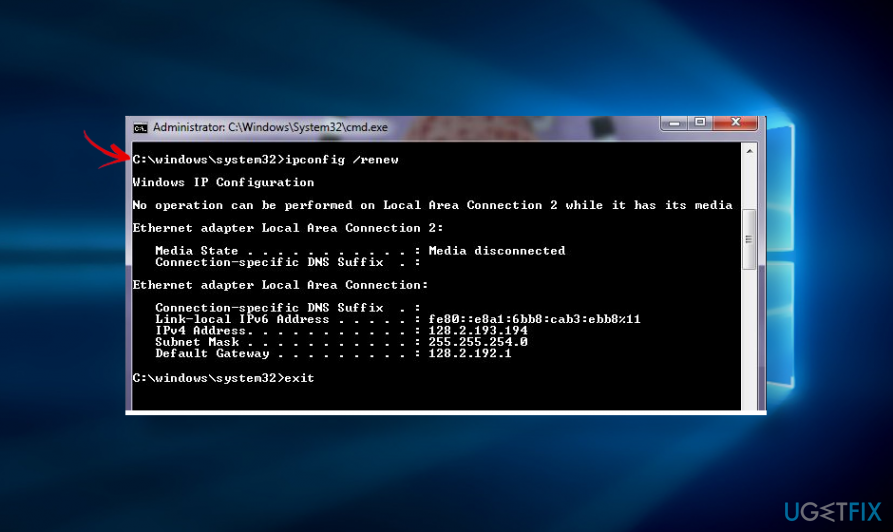
Renew ip address
Method 4. Remove static IP, use VPN service
If the IP address has been entered and configured manually on your machine, it's called static. Therefore, try to fix Windows has detected an IP address glitch by removing the static IP and turn into using an automatic IP. For this purpose, you should:
- Press Windows key + R to open Run dialog.
- Type in the ncpa.cpl command and click OK.
- When the Network Connections window opens, right-click on the adapter that you're using.
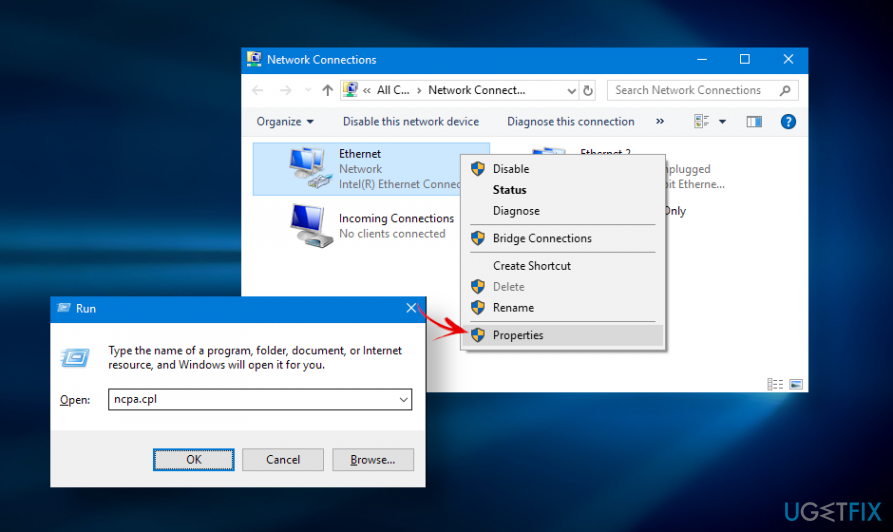
Network connections - Select Properties and double-click on the Internet Protocol Version 4 (TCP/IPv4).
- Open the General tab and select both Obtain an IP address automatically and Obtain DNS server address automatically.
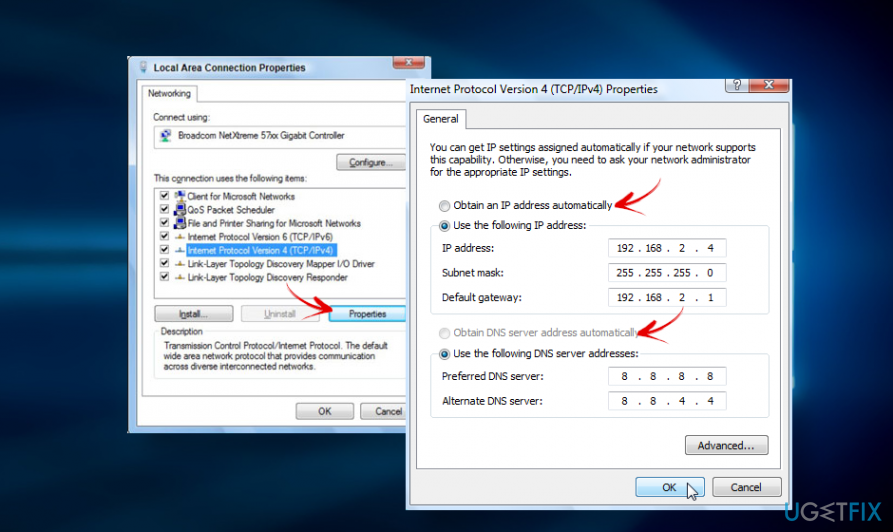
Remove static ip address - After that, click the OK button on both windows.
- Restart your PC.
If removing the static IP did not solve the Windows has detected an IP address error did not solve the problem, try using a VPN software. Dubbed as Virtual Private Network, such software is aimed ar protecting people's privacy, preventing the government from spying, ensuring users' anonymity when web browsing, or unlocking country restrictions to access some services. For more information on the pros of the VPNs, read the article Get the best-dedicated IP VPN to enjoy risk-free online reputation. Nevertheless, the VPN software generates a new unique IP address for the single device that is connected to the network. Our recommended VPN is [rev id="Private Internet Access"]. It's a powerful tool, so give it a try if the previous methods failed to work in Windows has detected an IP address conflict glitch.
Bottom line
To fix the 'Windows has detected an IP address conflict' error, you can try releasing and renewing your IP address, checking your router settings, or disconnecting other devices from the network. If none of these solutions work, consider contacting your Internet Service Provider for further assistance.
Frequently asked questions
This error typically occurs when two devices on the same network are assigned the same IP address, which can happen if static IP addresses are improperly configured or if the DHCP server malfunctions.
To fix the error on Windows 11, you can release and renew your IP address using the Command Prompt by typing 'ipconfig /release' and then 'ipconfig /renew'.
Yes, restarting your router can help resolve the IP address conflict by refreshing the DHCP settings and reassigning IP addresses to devices on the network.




Report an issue
What's wrong with this guide? We review every report and update or remove content.
Report received — thank you. We'll review and fix it.
You need a free account to submit a report.
Be the first to comment