How to fix
“Sorry, but you’re not permitted to view these materials at this time” error on Steam
on Windows
Resolve the "Sorry, but you're not permitted to view these materials" error on Steam for Windows 10 and 11. Quick, effective solutions provided by experts.

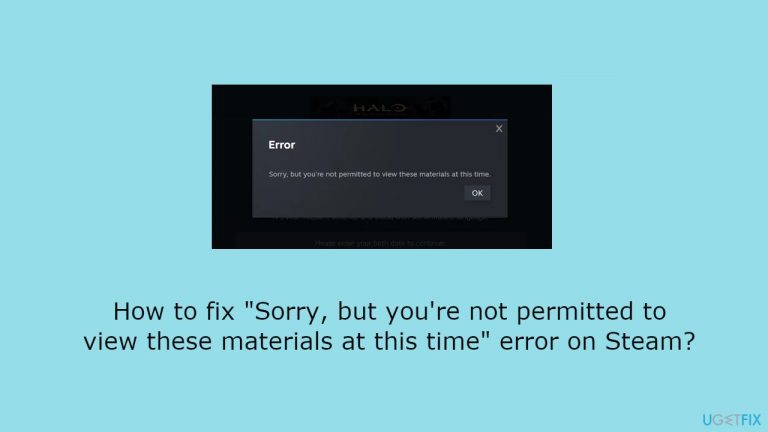
What causes How to fix “Sorry, but you’re not permitted to view these materials at this time” error on Steam?
- Incorrect date of birth entry
- Age restrictions on content
- Temporary limitations due to mistakes
- Accidental input errors
Repairs Windows system files, removes malware, and restores a clean OS state — without reinstalling.
Hello. I tried to view GTA 5 on the Steam Store but I keep getting the "Sorry, but you're not permitted to view these materials at this time" error message. What should I do?
For many devoted Steam users, seeing the bothersome warning, "Sorry, but you're not permitted to view these materials at this time," might be an unexpected obstacle. Despite being convinced that they meet the age criteria for viewing specific content, some individuals report encountering this error. The root of the problem is frequently found in the nuances of age restrictions and, at times, accidental mistakes made while entering one's date of birth.
Users may be locked out owing to age restrictions if the date of birth submitted does not match the requirements for accessing certain materials on Steam. A more prevalent case includes users unintentionally causing the error. This can happen when people fail to enter their date of birth correctly, resulting in a temporary limitation on accessing age-restricted content.
The major result of this error is a temporary ban on accessing resources with age restrictions, such as games and other content. Aside from the technical element, users who are truly qualified for the material may experience annoyance and inconvenience as a result of a seemingly minor oversight during the date of birth input process.
The key to resolving this issue is for users to enter their correct date of birth. If you are already locked out, you may need to take specific steps to reset the age verification process, such as clearing the HTML cache or browser data. In this guide, you will find 4 steps that should help you fix "Sorry, but you're not permitted to view these materials at this time" error on Steam.
If you experience any OS issues, you can run a maintenance tool like [d1] that can fix most system errors, BSODs,[ref en-1] corrupted files, registry[ref en-2] issues, or clear cookies and cache[ref en-3] automatically. Otherwise, follow the step-by-step instructions provided below.
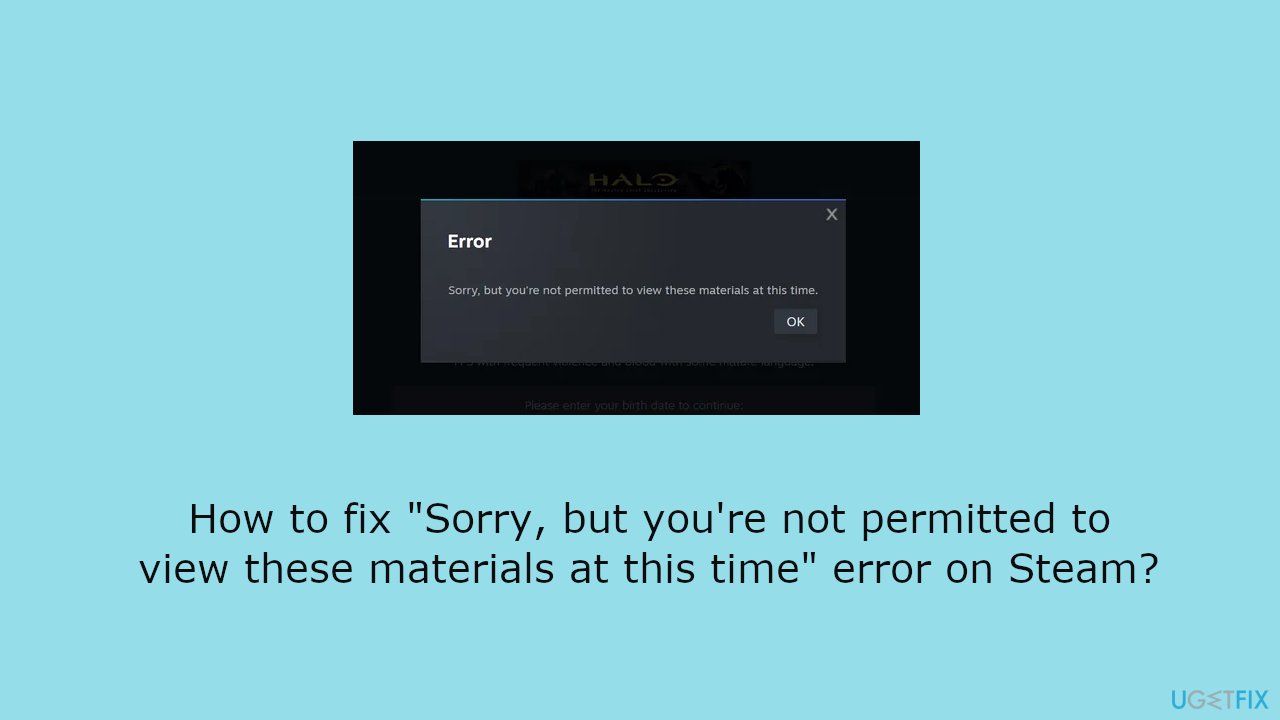
Method 1. Refresh the Site
We recommend starting with this as your first step. Please refresh the page before proceeding. This is the most basic method to attempt first. If the problem persists, use the second method.

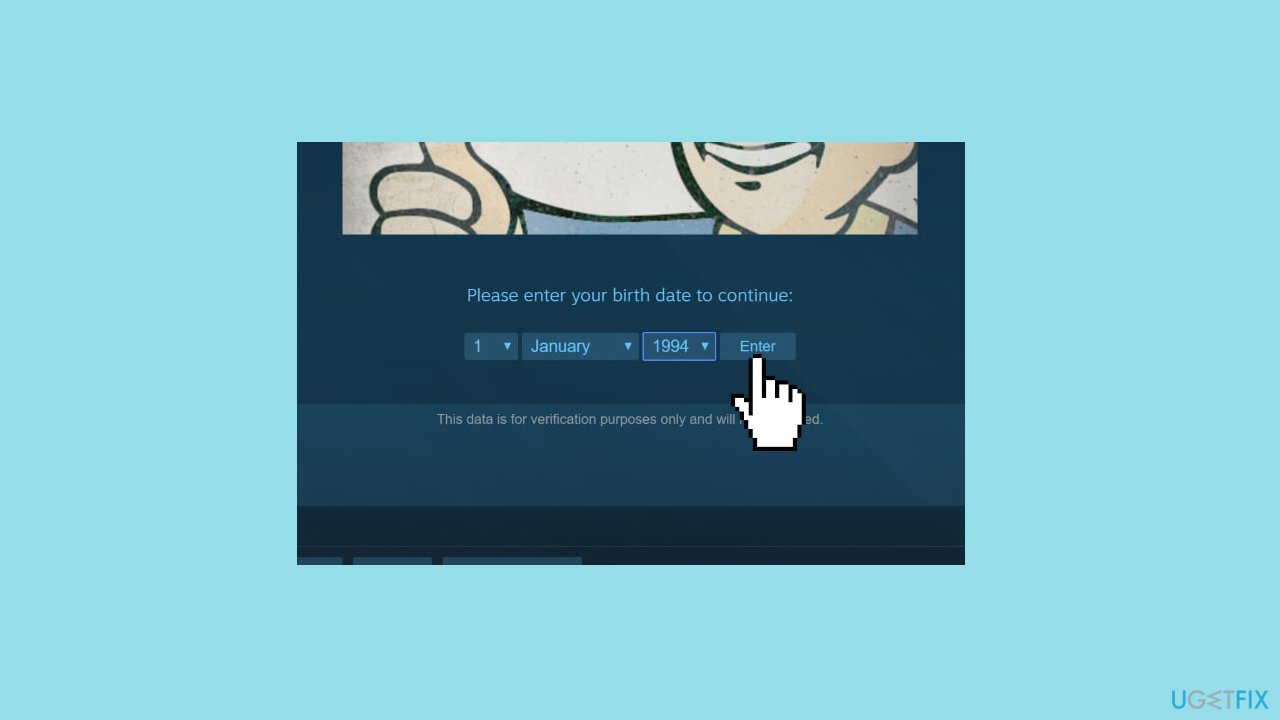
Method 2. Check Date of Birth
Enter an appropriate birth date. Certain games have age limitations, and if you don't meet the requirements, you will not be able to play them. If you get an error despite providing your real age, try using a fictitious age. This may solve the problem.
Method 3. Clear Browser Cookies
Chrome:
- Launch the Chrome browser.
- Click on the three vertical dots located at the top-right corner of the window.
- Select Settings from the dropdown menu.
- In the next window, click on Privacy and Security on the left pane.
- On the right pane, select Clear Browsing Data.
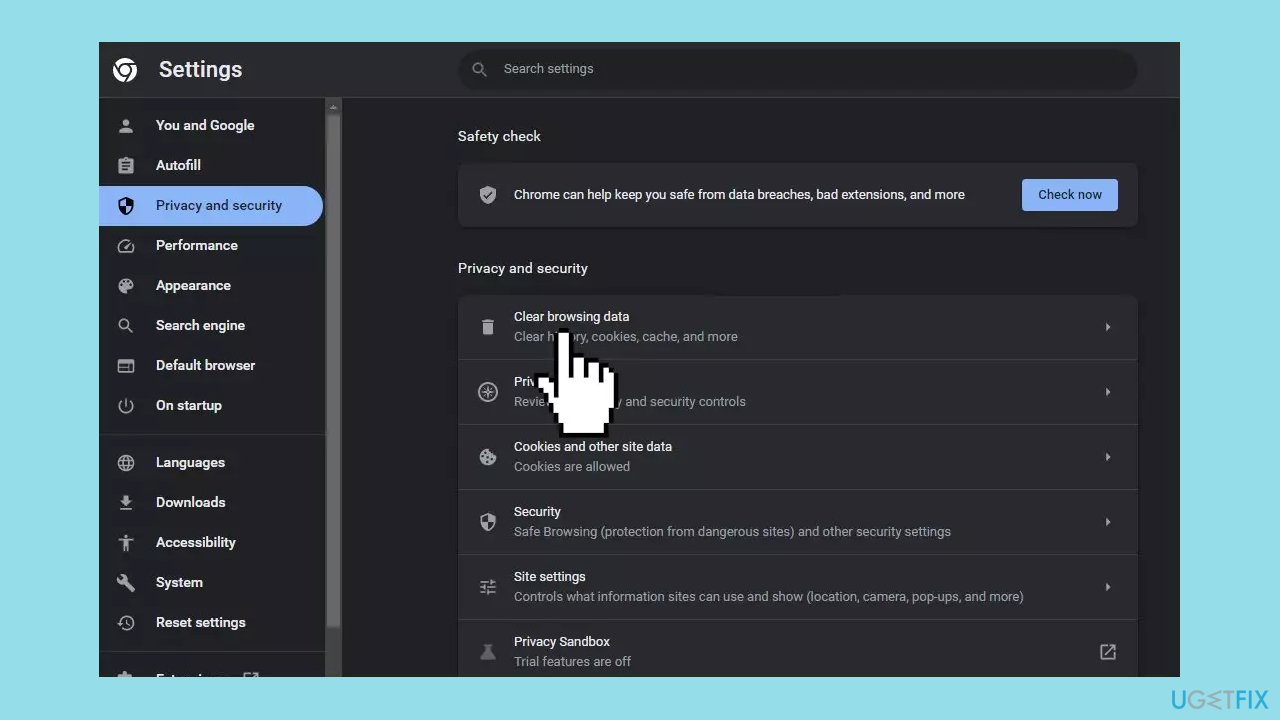
- In the popup window that appears, check the boxes next to Browsing History, Cookies, and Cache data.
- Click on the Clear Data button.
- Wait until the browsing data is cleared.
- Exit the browser by closing the window.
- Check if the error is fixed.
Firefox:
- Launch Firefox and open a new tab.
- Click on the Library icon located on the top right side.
- From the dropdown menu, select the History option.
- In the History window that opens, click on the Clear Recent History button.
- Next to the Time range to Clear option, click on the dropdown.
- Select All time from the options provided.
- Under the History heading, check all the boxes related to the items you want to clear.
- Click on the Clear Now option.
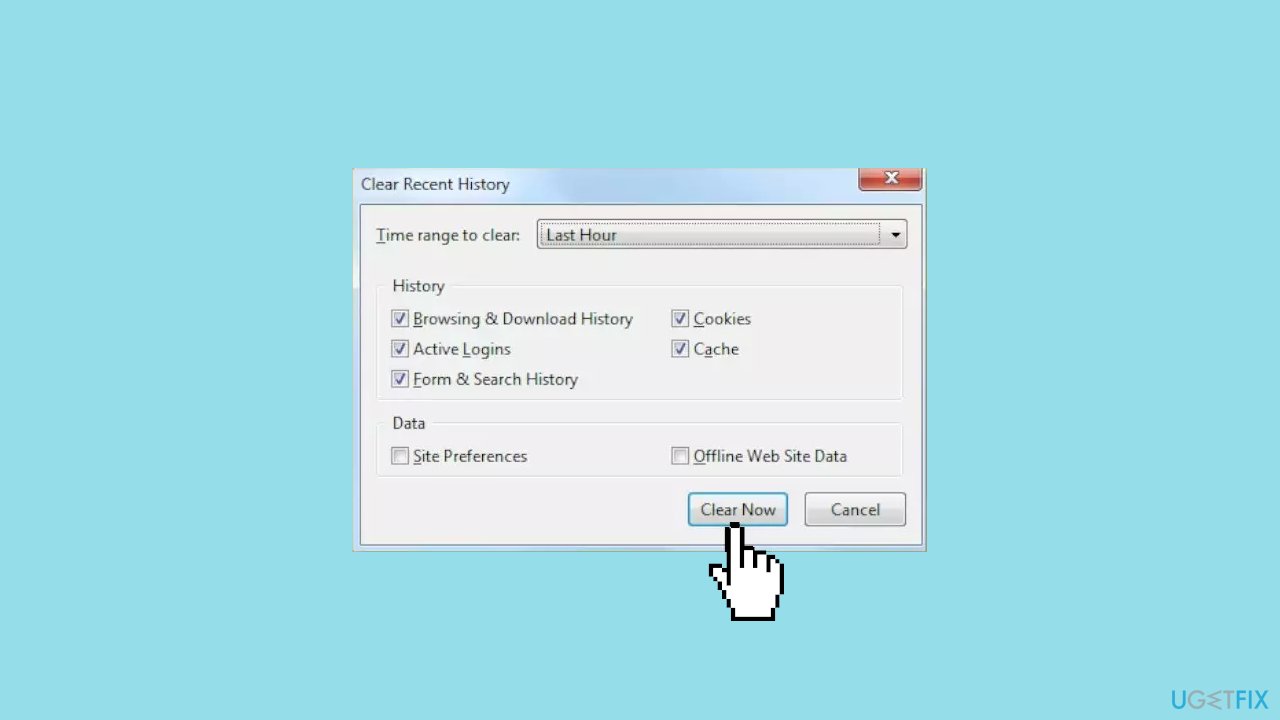
- If prompted, select yes to confirm the action.
- The cookies and history for your browser have now been cleared.
- Check to see if the issue persists.
Microsoft Edge:
- Launch the browser and open a new tab.
- Click on the three vertical dots located on the top right corner.
- From the dropdown menu, click on the History option.
- In the History menu, locate and click on the Clear History button.
- Check the first four options or checkboxes related to the items you want to clear.
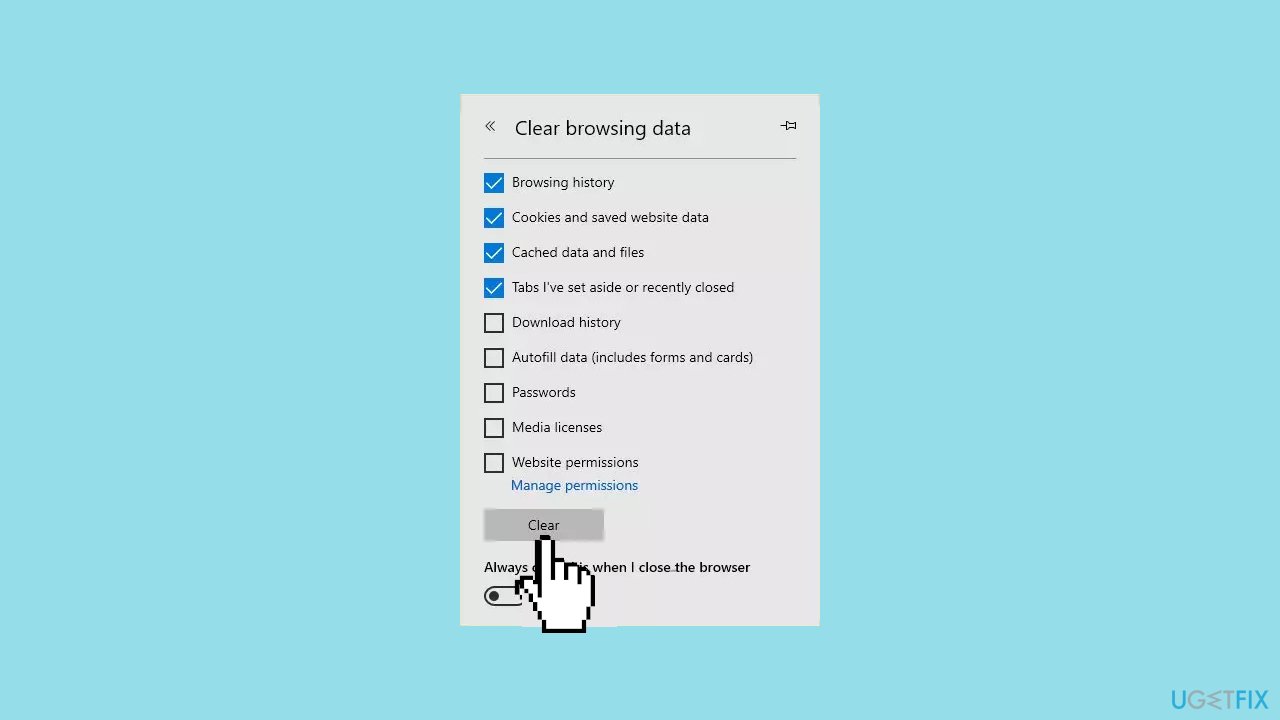
- Click on the Clear option to proceed with clearing the selected history.
- After the clearing process is complete, check to see if the issue persists.
Method 4. Clear HTML Cache Folder
If blocked after incorrect DOB entry on Steam:
- Close the Steam Client.
- Press the Windows key + R to open the Run dialog box.
- Copy %localappdata% and paste it into the text field.
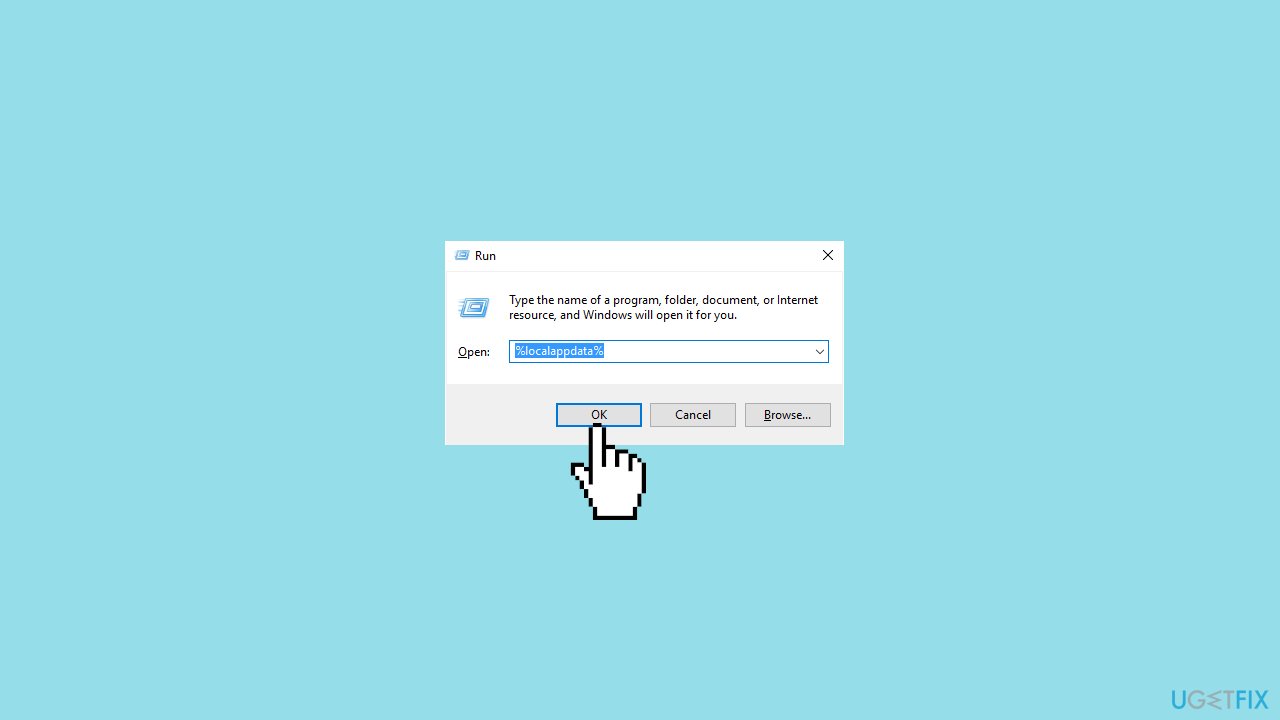
- Press Enter.
- Open Steam.
- Clear the HTML cache folder.
- Relaunch the Steam Client.
or:
- Press Ctrl + Shift + Del.
- Select the desired time range.
- Tick the Cookies and other site data option.
- Tick the Cached images and files option.
- Click the Clear data button.
Bottom line
To resolve the 'Sorry, but you're not permitted to view these materials at this time' error on Steam, ensure you enter your correct date of birth and consider clearing your HTML cache or browser data. If these steps do not resolve the issue, running a maintenance tool may help fix underlying system errors.
Frequently asked questions
This error typically occurs due to account restrictions or issues related to Steam's regional settings. It can also be triggered by problems with your internet connection or firewall settings on Windows 10.
To resolve this issue on Windows 11, ensure that your account is in good standing and check for any regional restrictions on the content you are trying to access. Additionally, verify your game's ownership and any applicable restrictions in your Steam settings.
Yes, clearing the Steam cache can help resolve various issues, including the 'not permitted to view' error. You can do this by navigating to Steam's settings and choosing the appropriate options under the 'Downloads' section.




Report an issue
What's wrong with this guide? We review every report and update or remove content.
Report received — thank you. We'll review and fix it.
You need a free account to submit a report.
Be the first to comment