How to fix
“Error 1067: The process terminated unexpectedly”
on Windows
Resolve "Error 1067" quickly on Windows 10 or Windows 11 with our expert-tested solutions. Get your system running smoothly again—fixed in minutes!


What causes How to fix “Error 1067: The process terminated unexpectedly” in Windows?
- Inadequate permissions assigned to the affected service
- Misconfigured security settings
- User account limitations
- Issues with service dependencies
- Software conflicts
Repairs Windows system files, removes malware, and restores a clean OS state — without reinstalling.
Hi. Whenever I attempt to enable Application Server Service, I keep receiving "Error 1067: The process terminated unexpectedly." How do I bypass this error?
Error 1067: The process terminated unexpectedly is a frustrating problem that many Windows users encounter when attempting to enable crucial services like the Application Server Service or SQL Service. This issue primarily stems from inadequate permissions within the Windows operating system, although other causes, such as software conflicts, can also be at play.
The leading cause of Error 1067 is the lack of sufficient permissions assigned to the affected service. When a service lacks the necessary permissions to access essential system resources and perform its functions, it fails to start correctly, resulting in the termination error. This problem can manifest due to various reasons, including misconfigured security settings, user account limitations, or issues with service dependencies.
To effectively address Error 1067, users must follow precise steps. Initially, it is essential to confirm that the service's associated user account possesses the requisite permissions to access critical system resources and execute the service. Furthermore, users should meticulously review and adjust security policies and group memberships that may impact the service's operation. Ensuring that all service dependencies function correctly and keeping relevant drivers and software up-to-date is also vital.

For users seeking a more streamlined and automated solution to Error 1067, it is advisable to consider employing a reputable PC repair tool like [d1]. These specialized tools are designed to diagnose and rectify underlying permission and configuration issues that trigger errors and even crashes. By utilizing such an app, users can expedite the troubleshooting process, saving valuable time and effort while ensuring the uninterrupted operation of critical Windows services.
Fix 1. Grant correct permissions
Ensure that the affected service has the necessary permissions to access system resources and execute its tasks.
- Press the Win + R to open the Run dialog box.
- Type services.msc and press Enter to open the Services window.
- Locate the service associated with Error 1067 (e.g., Application Server Service or SQL Service) in the list of services.
- Right-click on the service and select Properties.
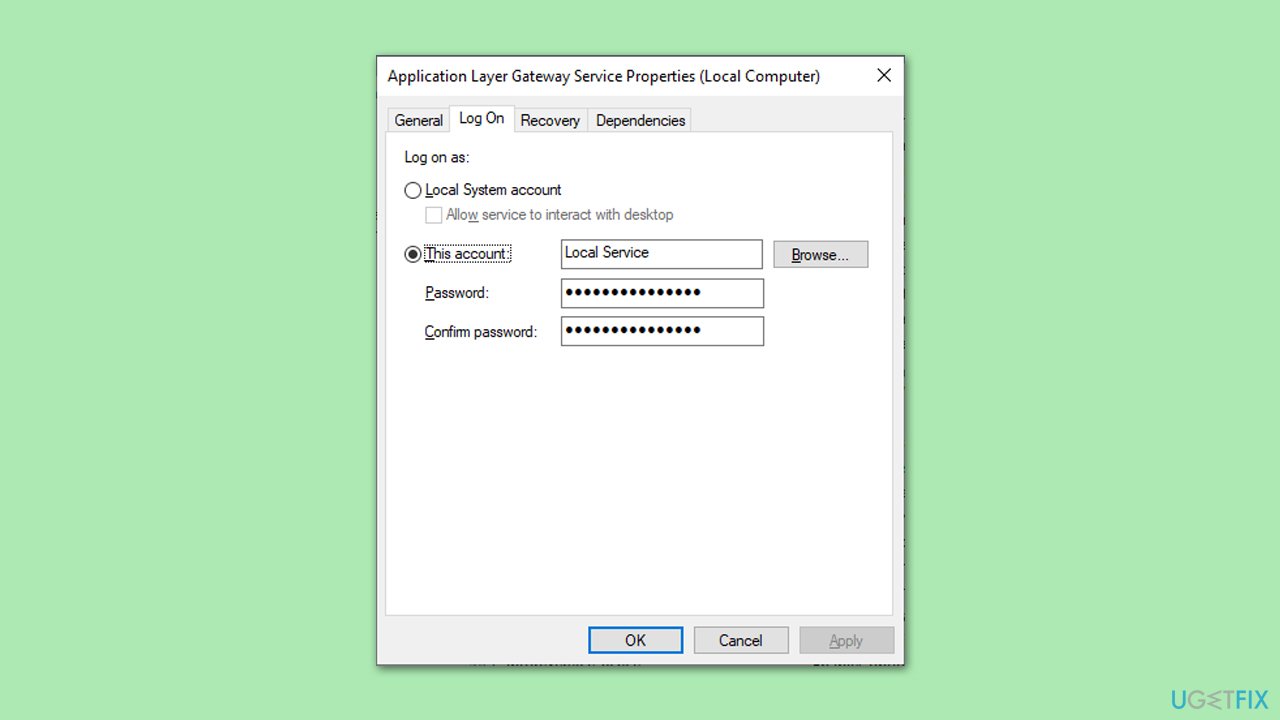
- In the Properties window, go to the Log On tab.
- Ensure that the service is set to log on with an account that has the appropriate permissions.
- If necessary, click the Browse button to find the correct user account and set it as the logon account.
- Click Apply and then OK to save the changes.
- Restart the service and check if the error persists.
Fix 2. Adjust Security Policies and Group Memberships
Review and modify security policies and group memberships that might affect the service's operation.
- Press the Win + R to open the Run dialog box.
- Type secpol.msc and press Enter to open the Local Security Policy window.
- Navigate to Local Policies and then User Rights Assignment.
- Check policies related to service execution and make sure the necessary accounts have the Log on as a service right.
- Adjust group memberships as needed to include the service account.
- Close the Local Security Policy window and restart your computer.

Fix 3. Verify service dependencies
Check and ensure that all service dependencies are functioning correctly.
- Press the Win+ R to open the Run dialog box.
- Type services.msc and press Enter to open the Services window.
- Locate the service associated with Error 1067.
- Right-click on the service and select Properties.
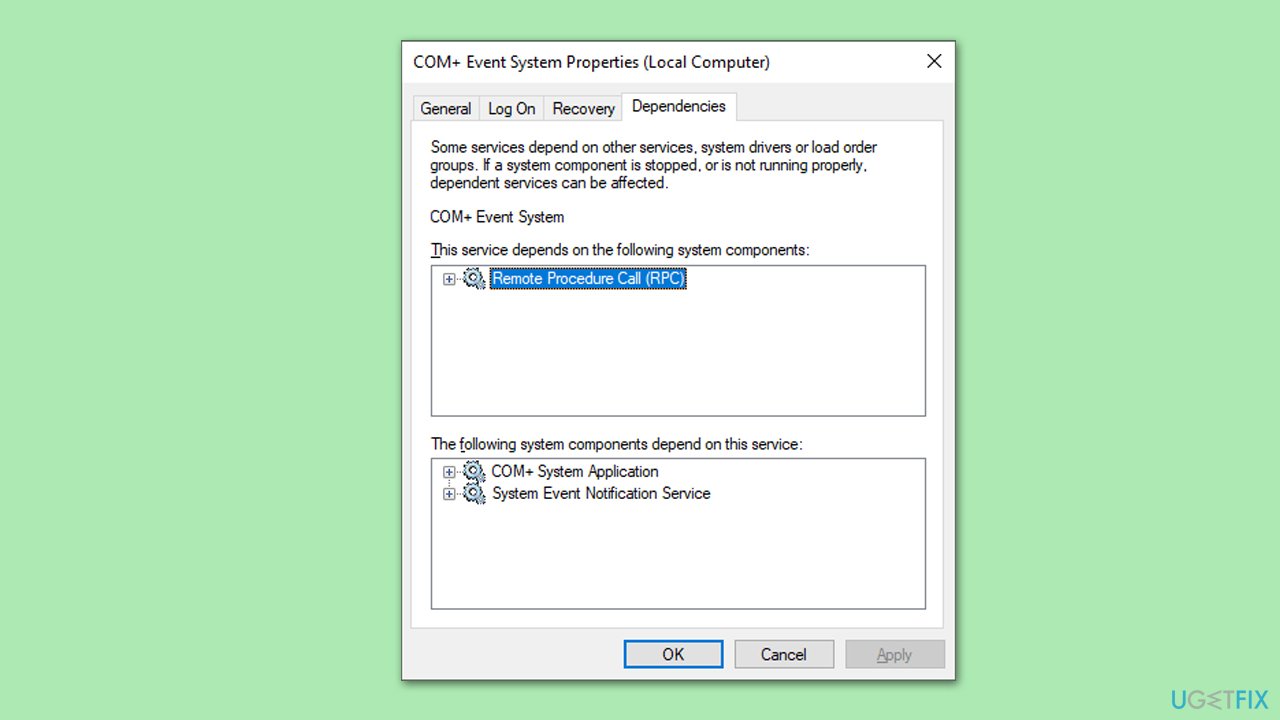
- Go to the Dependencies tab.
- Ensure that all dependent services listed are running without issues.
- If there are issues with dependent services, resolve them first, and then try starting the main service again.
Fix 4. Run System File Checker and DISM
Use the System File Checker tool to scan and repair corrupted or missing system files. DISM can check whether your Windows image files are not damaged or corrupted.
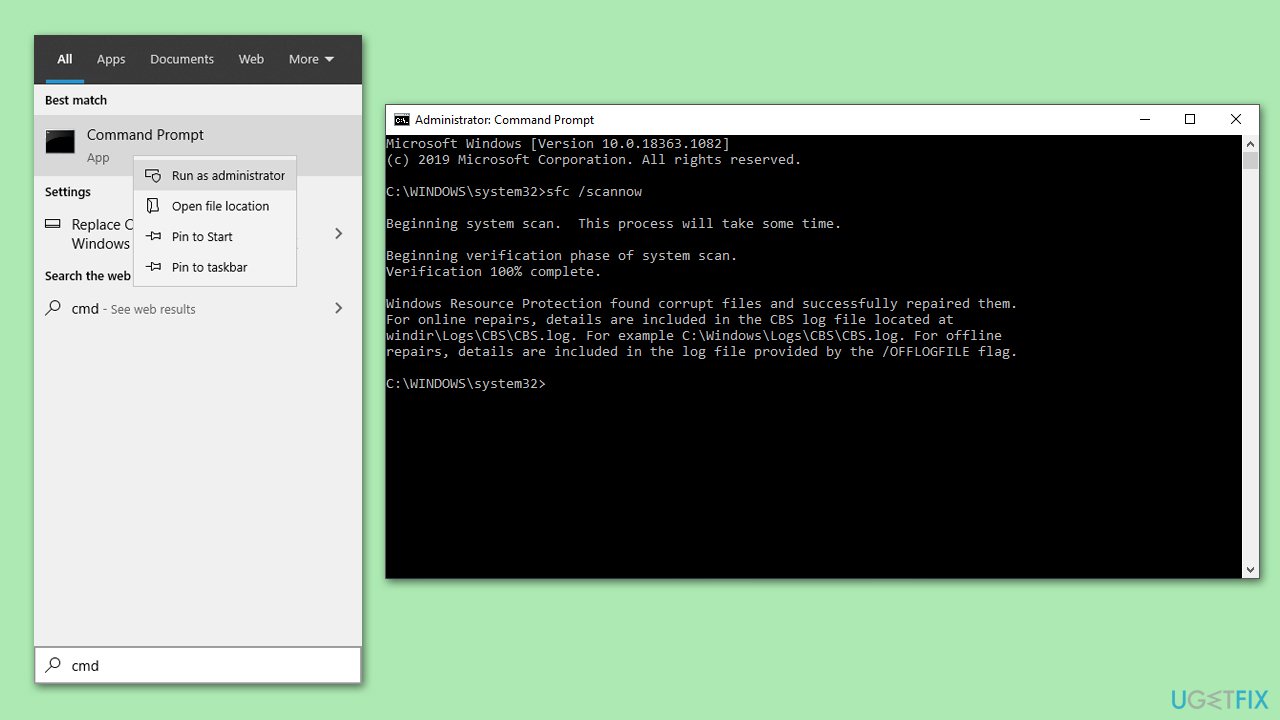
- Type cmd in Windows search.
- Right-click on Command Prompt and pick Run as administrator.
- User Account Control window will show up - click Yes when prompted.
- Then, copy and paste the following command, pressing Enter after:
sfc /scannow - Wait till the scan is finished. If Windows finds system file integrity violations, it will attempt to fix them. After this, use the set of the following commands, pressing Enter each time:
DISM /Online /Cleanup-Image /CheckHealth
DISM /Online /Cleanup-Image /ScanHealth
DISM /Online /Cleanup-Image /RestoreHealth - Close down the Command Prompt and restart your system.
Fix 5. Delete log files
Deleting certain log files can sometimes help you fix the SQL or MySQL error 1067.
- Open Services once again.
- Scroll down to find MySQL service.
- Right-click and select Properties.
- Click Stop.
- Now press Win + E to open File Explorer and navigate to the location where you installed MySQL.
- In the MySQL folder locate ib_logfile0 and ib_logfile1 files.
- Mark them and then press Shift + Del on your keyboard.
- Open the MySQL Service Properties again and press Start to launch the service.
Bottom line
To fix Error 1067, ensure that the affected service has the necessary permissions, review security policies, and verify service dependencies. Additionally, consider using a reputable PC repair tool for automated solutions. If none of these steps work, further investigation into system configurations may be required.
Frequently asked questions
Error 1067 typically occurs when a service fails to start properly due to misconfiguration, corrupted files, or conflicts with another service in Windows 10 or Windows 11.
To restart a service, open the Services application, locate the problematic service, right-click it, and select 'Restart' to see if that resolves Error 1067 in Windows 10 or Windows 11.
You can use the Command Prompt to run 'sfc /scannow' or 'DISM /Online /Cleanup-Image /RestoreHealth' to repair corrupted system files that might be causing Error 1067 in Windows 11.




Report an issue
What's wrong with this guide? We review every report and update or remove content.
Report received — thank you. We'll review and fix it.
You need a free account to submit a report.
Be the first to comment