How to fix
Grounded “Hosting Game Error”
on Windows
Resolve the Grounded "Hosting Game Error" on Windows 10 and 11 with our expert-tested tips. Enjoy seamless gameplay in minutes!


What causes How to fix Grounded “Hosting Game Error” in Windows?
- Internet connection issues
- Outdated version of the game
- Incorrect time and date settings on the computer
- Server-related issues
Repairs Windows system files, removes malware, and restores a clean OS state — without reinstalling.
I tried to invite a friend to play Grounded together but I received a "Hosting Game Error" with the message "There was an issue hosting a multiplayer game. Check your connection and try again." This also happens when I try to host the game.
Grounded is a survival adventure game developed by Obsidian Entertainment, known for other popular titles like Fallout New Vegas and Pillars of Eternity. The game offers a single-player mode, but its multiplayer aspect, which supports up to four players, is a significant draw for many gamers.
In this mode, players can join forces to navigate the game's challenges. However, players sometimes encounter the "Hosting Game Error" when trying to host or join a multiplayer game. This error is displayed with the message: "Hosting Game Error - There was an issue hosting a multiplayer game. Check your connection and try again."
"Hosting Game Error" typically arises due to several potential factors, one of the most common ones being the player's internet connection. Given that Grounded's multiplayer mode relies on a stable online connection, any disruptions or weaknesses in this connection can contribute to the issue.
Another possible reason for encountering the "Hosting Game Error" is running an outdated version of the game. Updates in Grounded are crucial for maintaining compatibility with the game servers and often contain necessary bug fixes. Incorrectly set time and date on the player's computer can also trigger this error, as these settings play a role in the game's networking functions.
To mitigate this issue, it's advisable to start by checking and improving the internet connection. This could involve troubleshooting the network or contacting the internet service provider for support. Monitoring the status of Grounded's servers is also recommended, as server-related issues can cause this error. Regularly updating the game is essential to ensure compatibility and access to the latest fixes. Additionally, verifying and correcting the time and date settings on the computer can be a straightforward yet effective approach to resolving the issue.
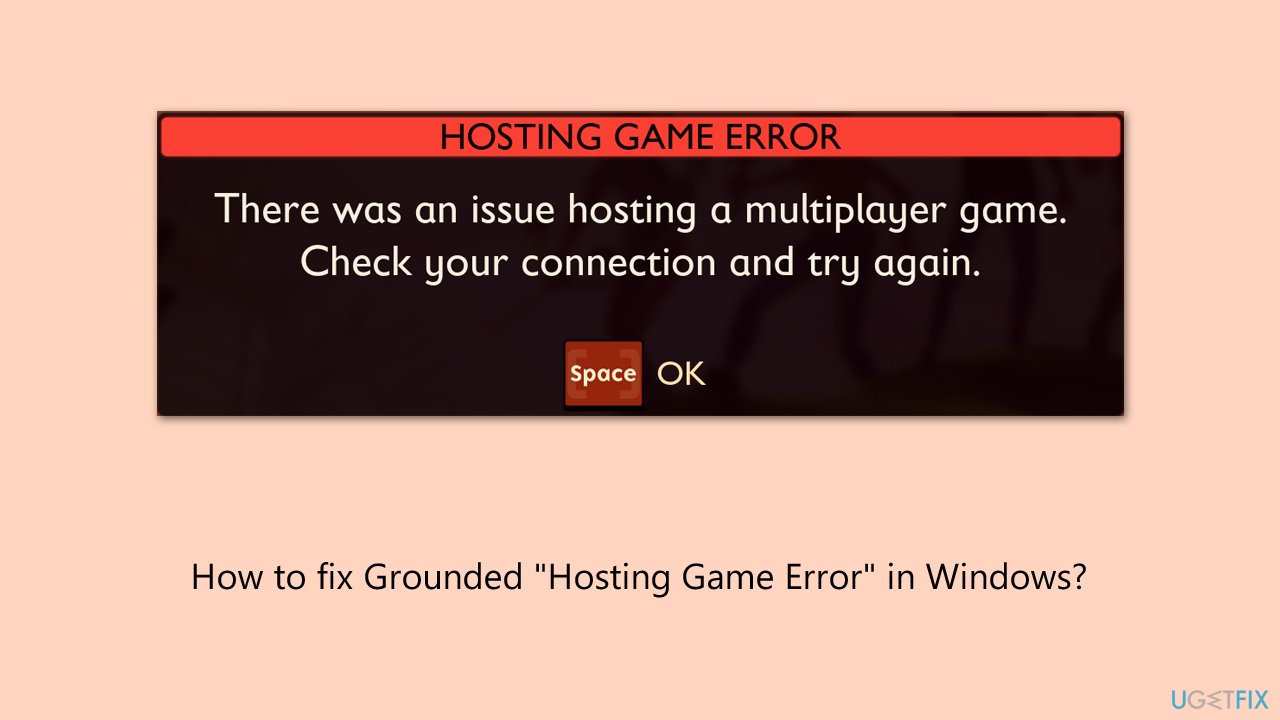
"Hosting Game Error" in Grounded is usually linked to internet connectivity problems, outdated game versions, or incorrect computer settings. Addressing these areas can help in resolving the issue. For further assistance, utilizing a PC repair tool like [d1] can be beneficial, as it can automatically diagnose and fix any underlying issues with Windows that might be causing the error.
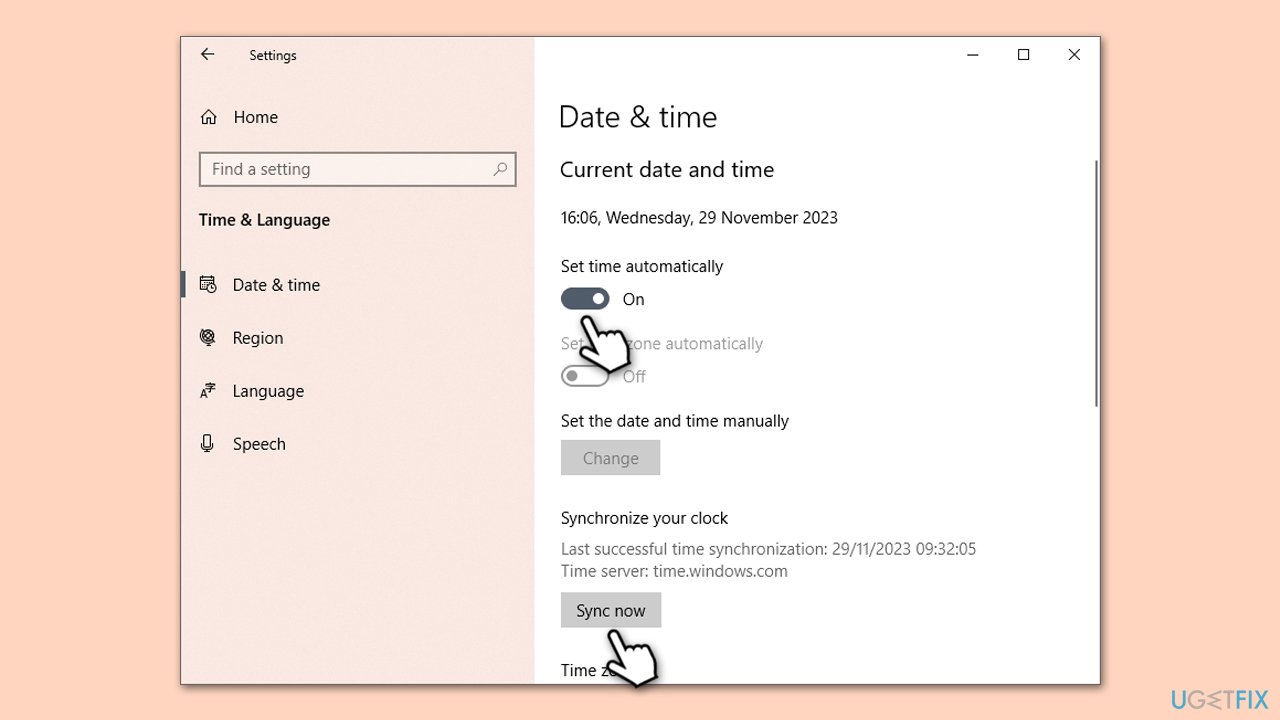
Fix 1. Check time and date settings
Incorrect time and date settings on a PC can disrupt connectivity and gameplay in online games like Grounded, as these games often rely on accurate system time for server synchronization and other networking functions.
- Click on Start and open Settings.
- Go to the Time & Language section.
- Under Current date and time, ensure that Set time automatically is set to ON.
- Under Synchronize your clock, click Sync now.
Fix 2. Run Network troubleshooter
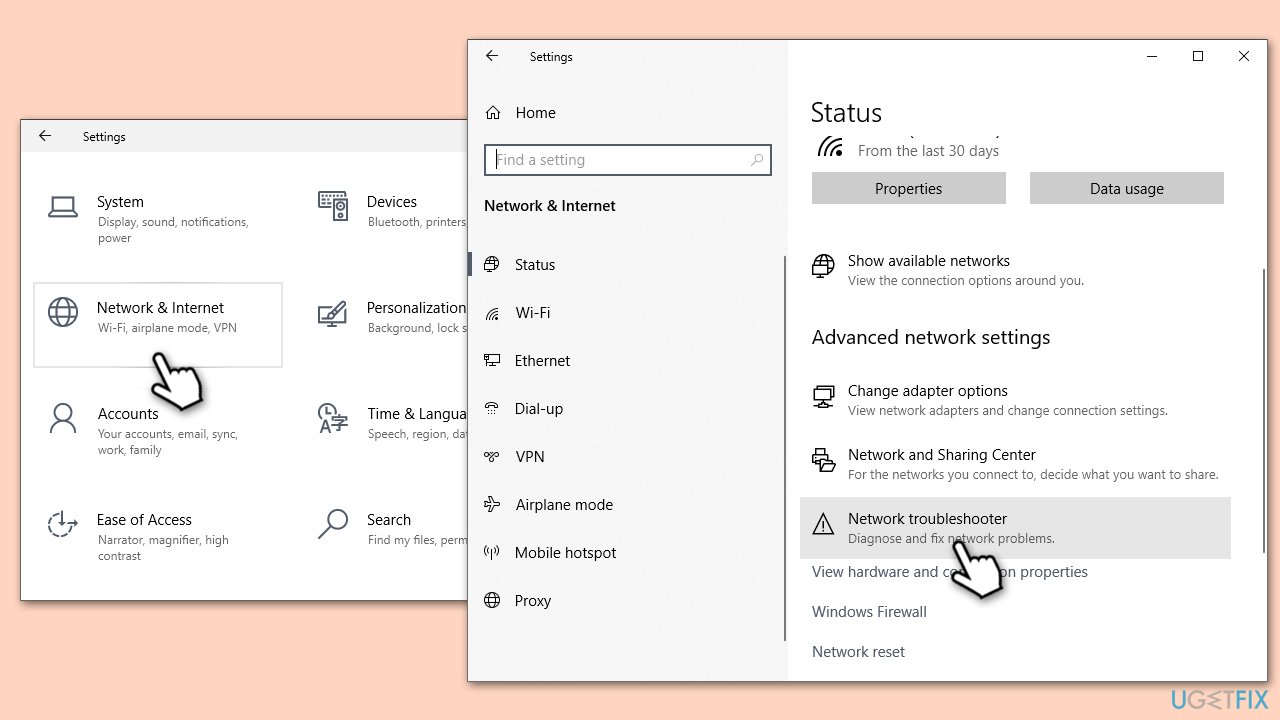
- Right-click on Start and pick Settings.
- Go to Network & Internet section.
- On the right side, find the Advanced network settings section.
- Click Network troubleshooter, specify the problem, and wait till the scan is finished.
- When done, apply all the recommendations.
Fix 3. Update the game
Running the latest version of Grounded ensures compatibility with servers and might resolve hosting errors.
- Open the gaming platform you use (e.g., Steam, Xbox app).
- Go to your library and find Grounded.
- Check for any available updates and install them.
- Once updated, try hosting or joining a multiplayer game again.
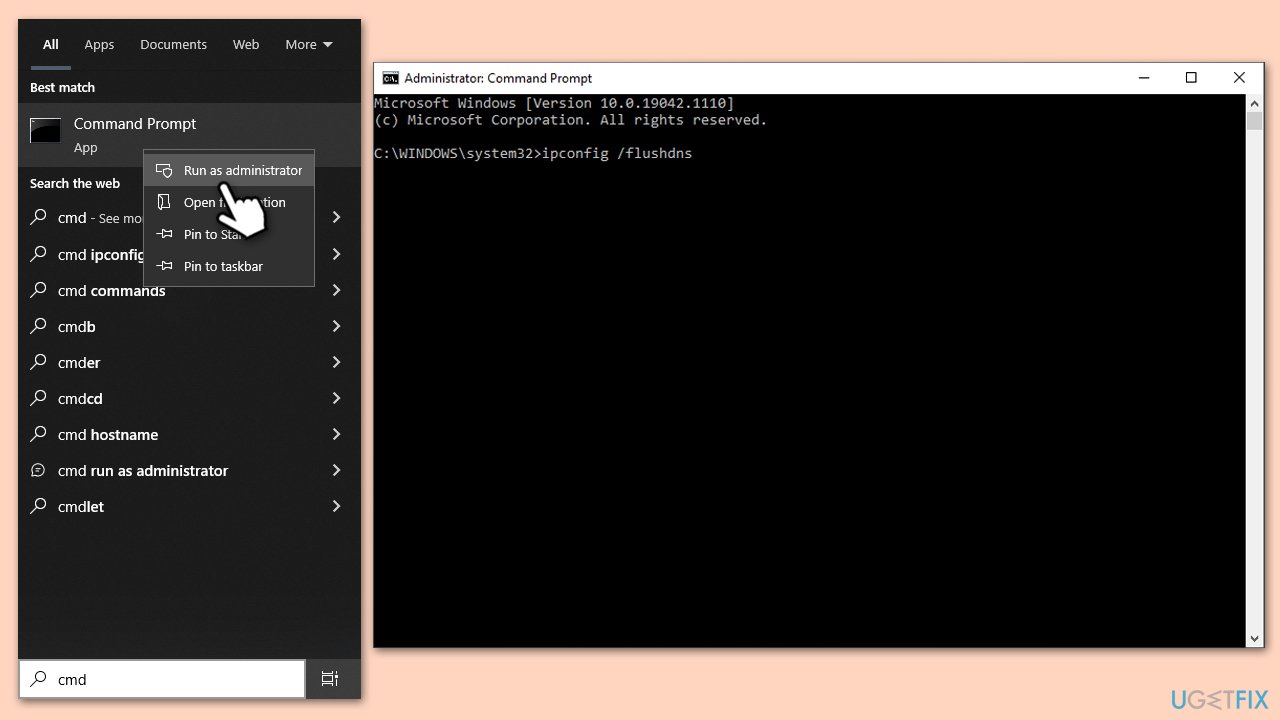
Fix 4. Reset your internet connection
A stable internet connection is essential for online gaming. Resetting your internet can resolve connection-related issues.
- Type cmd in Windows search.
- Right-click on Control Panel and choose Run as administrator.
- User Account Control will ask whether you want to allow changes - click Yes.
- Copy and paste each of the following commands, pressing Enter after each:
ipconfig /flushdns
ipconfig /registerdns
ipconfig /release
ipconfig /renew
netsh winsock reset - Restart your PC.
Fix 5. Repair or reset Xbox app, Gaming Services, and Microsoft Store
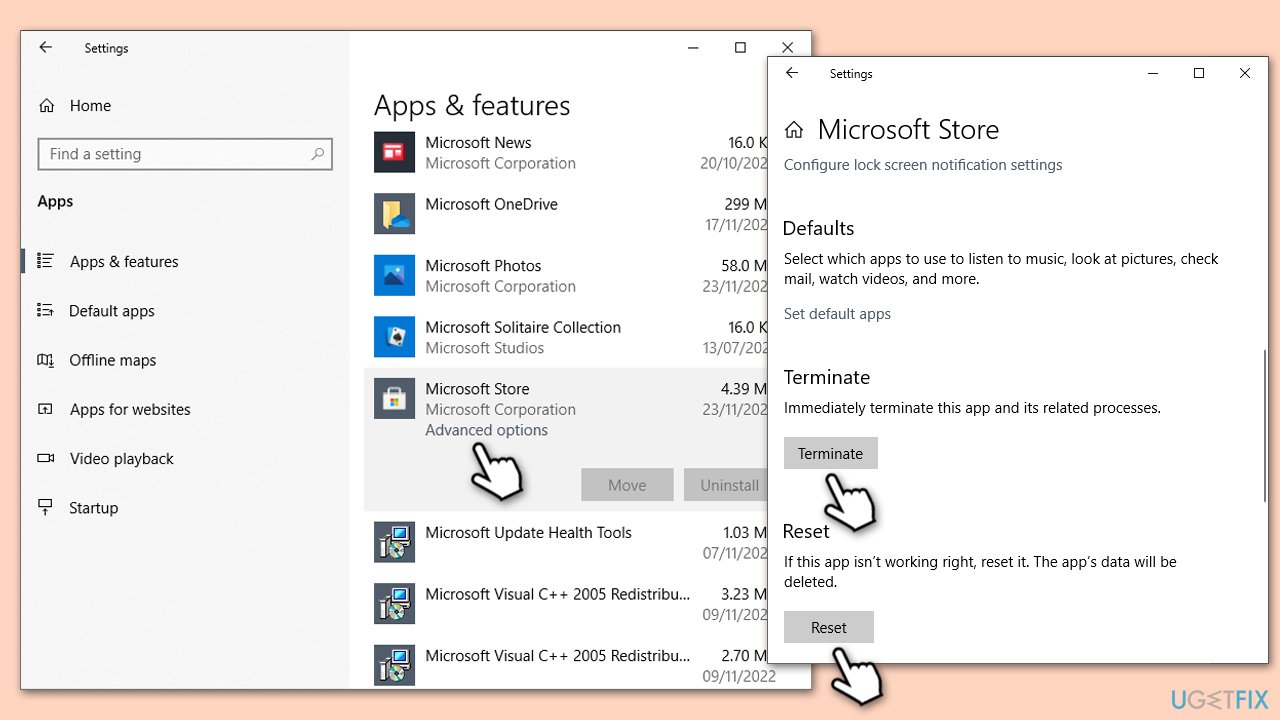
- Right-click on Start and pick Apps & Features.
- Scroll down to locate the Microsoft Store and click Advanced options.
- Click Terminate and Repair.
- If that does not help, try the Reset option instead.
- Repeat the same with the Xbox app and Gaming Services.
Fix 6. Check Xbox Live Multiplayer
If Xbox Live Multiplayer is not running smoothly, it could lead to connectivity issues.
- Right-click on Start and pick Settings.
- Go to the Gaming section.
- Select Xbox Networking on the left.
- Under Xbox Live multiplayer, make sure the Internet connection shows as Connected.
- If not, you can click Fix it and wait till the fixes are implemented.
Fix 7. Check if Grounded servers are up
Server issues on Grounded's end can lead to hosting errors. Checking server status can clarify if the problem is from the game's servers.
- Open a web browser.
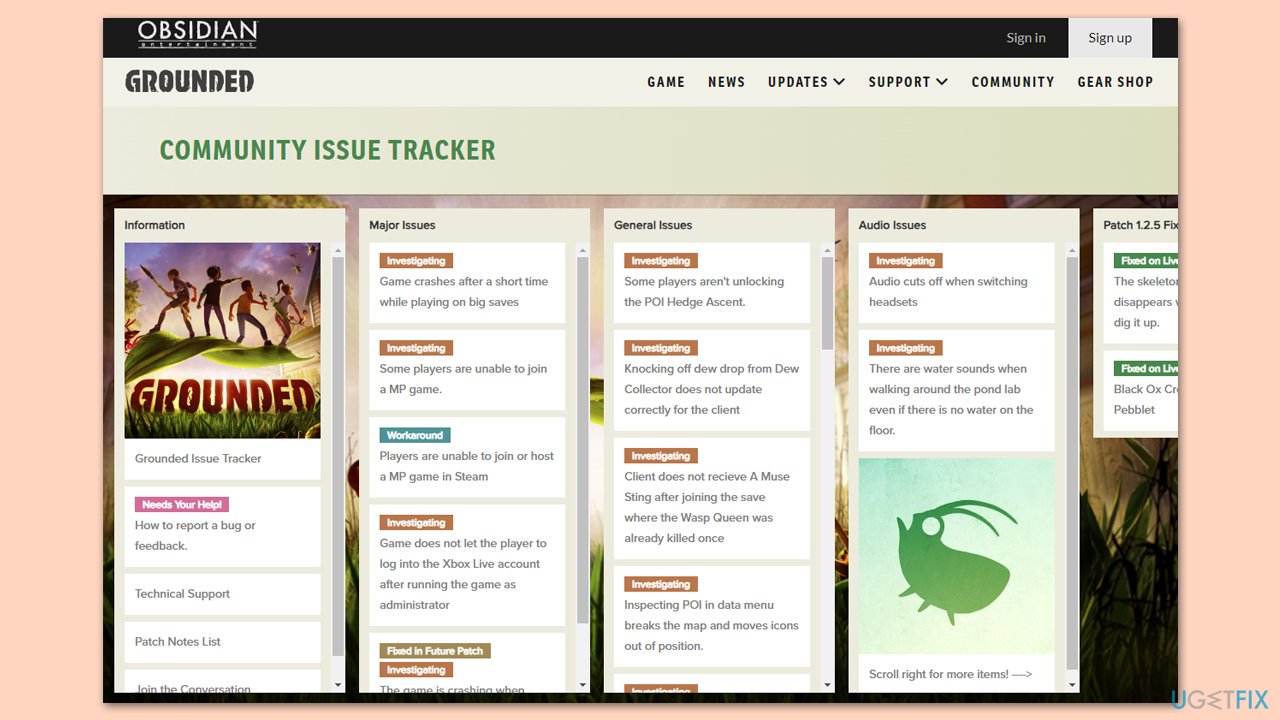
- Go to the official Community Issue Tracker website by Obsidian.
- Check for any reported issues or maintenance notices.
- If server issues are reported, wait until they are resolved before attempting to play multiplayer.
Bottom line
To fix the 'Hosting Game Error' in Grounded, check and improve your internet connection, ensure the game is updated, and verify your computer's time and date settings. If these steps do not resolve the issue, consider monitoring the status of Grounded's servers or contacting your internet service provider for further assistance.
Frequently asked questions
The 'Hosting Game Error' can often be caused by network connectivity issues, firewall settings blocking the game, or outdated game files. Ensuring a stable internet connection and checking your firewall settings can help resolve this issue.
To update Grounded, open the Xbox app or Steam client on your Windows 10 or Windows 11 system, navigate to your game library, and check for any available updates for Grounded. Keeping the game updated can help eliminate compatibility issues that lead to errors.
You should ensure that Grounded is allowed through your Windows Firewall by going to Control Panel > System and Security > Windows Defender Firewall > Allow an app or feature through Windows Defender Firewall, and then adding Grounded if it's not listed.




Report an issue
What's wrong with this guide? We review every report and update or remove content.
Report received — thank you. We'll review and fix it.
You need a free account to submit a report.
Be the first to comment