How to fix
KB5032292 fails to install
on Windows
Fix the KB5032292 installation error on Windows 11 with our expert-tested solutions. Get back on track quickly and hassle-free, with screenshots!

What causes How to fix KB5032292 fails to install in Windows 11?
- Conflicts with existing software
- Incomplete previous updates
- Specific hardware configurations
- Instability inherent in beta versions
- Known issues reported by other Insiders
Repairs Windows system files, removes malware, and restores a clean OS state — without reinstalling.
I am unable to install Beta Insider update KB5032292 on Windows 11. How do I resolve this?
Windows Insider Program, an initiative by Microsoft, allows users to access pre-release versions of Windows operating systems, including the latest, Windows 11. This program is pivotal for both Microsoft and its user base, as it enables early detection and resolution of issues before a wider release.
In November 2023, as part of this ongoing process, Microsoft rolled out update KB5032292 to all participants of the Windows 11 Beta Channel. This update was aimed at introducing a range of improvements and bug fixes, crafted specifically for Insiders to test and provide feedback.
However, despite its intended benefits, some participants encountered difficulties with installing KB5032292. This issue can be attributed to various factors intrinsic to the nature of beta testing. Beta versions, while essential for the development process, are inherently less stable than final releases.
This instability can sometimes lead to complications such as update installation failures. In the case of KB5032292, the failure to install could be a result of conflicts with existing software, incomplete previous updates, or even specific hardware configurations that present unique challenges.
If you're experiencing this issue, it's important to understand that such problems are not uncommon in beta testing environments. The first step is to run the built-in Windows update troubleshooter that could find and resolve issues quickly.
Additionally, verifying the integrity of system files and ensuring that no other updates are pending can be crucial. It's also beneficial to check for any known issues reported by other Insiders, as these can provide insight into whether the problem is widespread and if there are any workarounds or pending fixes from Microsoft.
For those who prefer a more hands-off approach, using a PC repair tool like [d1] can be an effective method to address such issues. These tools are designed to automatically detect and fix underlying problems within Windows systems, simplifying the resolution process.
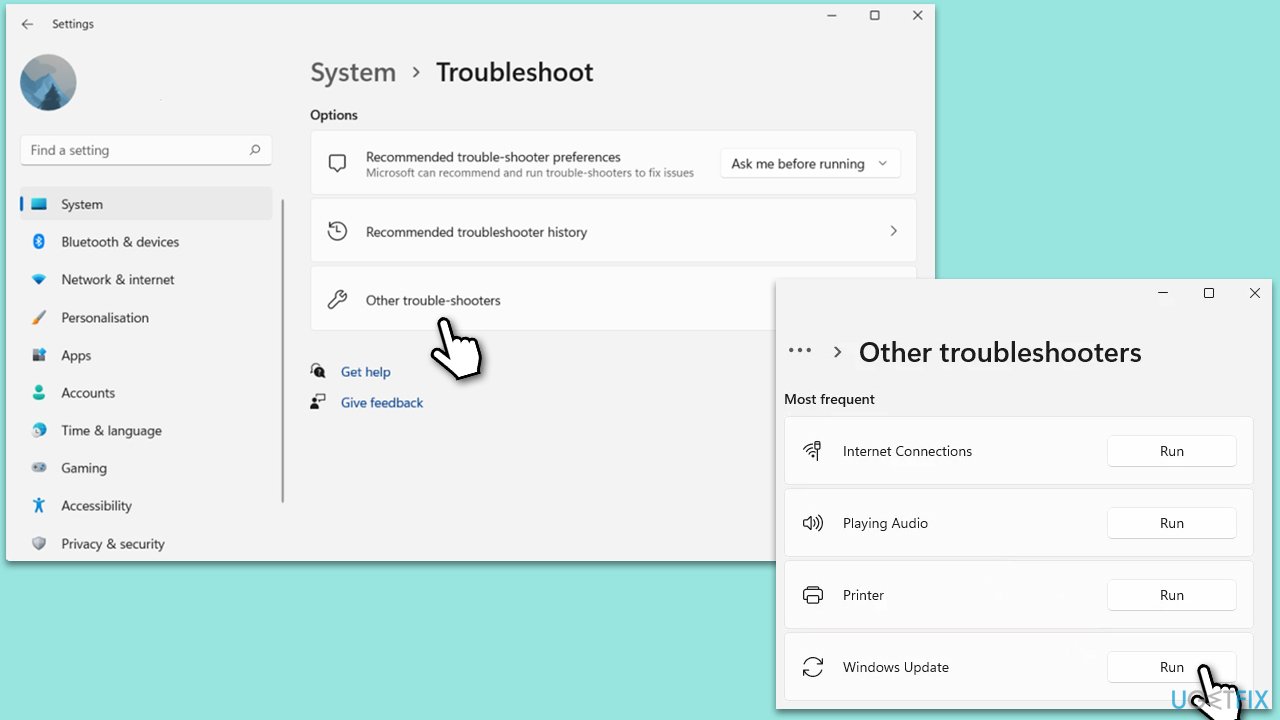
Fix 1. Run the Windows Update Troubleshooter
The Windows Update Troubleshooter is a built-in tool designed to identify and resolve common issues related to Windows updates. It works by scanning your system for update-related problems and attempting to fix them automatically. This tool can often resolve issues where an update fails to install by resetting components or clearing temporary files that may be causing conflicts.
- Type Troubleshoot in Windows search and press Enter.
- Select Additional troubleshooters/Other troubleshooters.
- Find Windows Update from the list.
- Click it and select Run the troubleshooter/Run.
- Restart your PC when the process is finished.
Fix 2. Check for corrupted system files
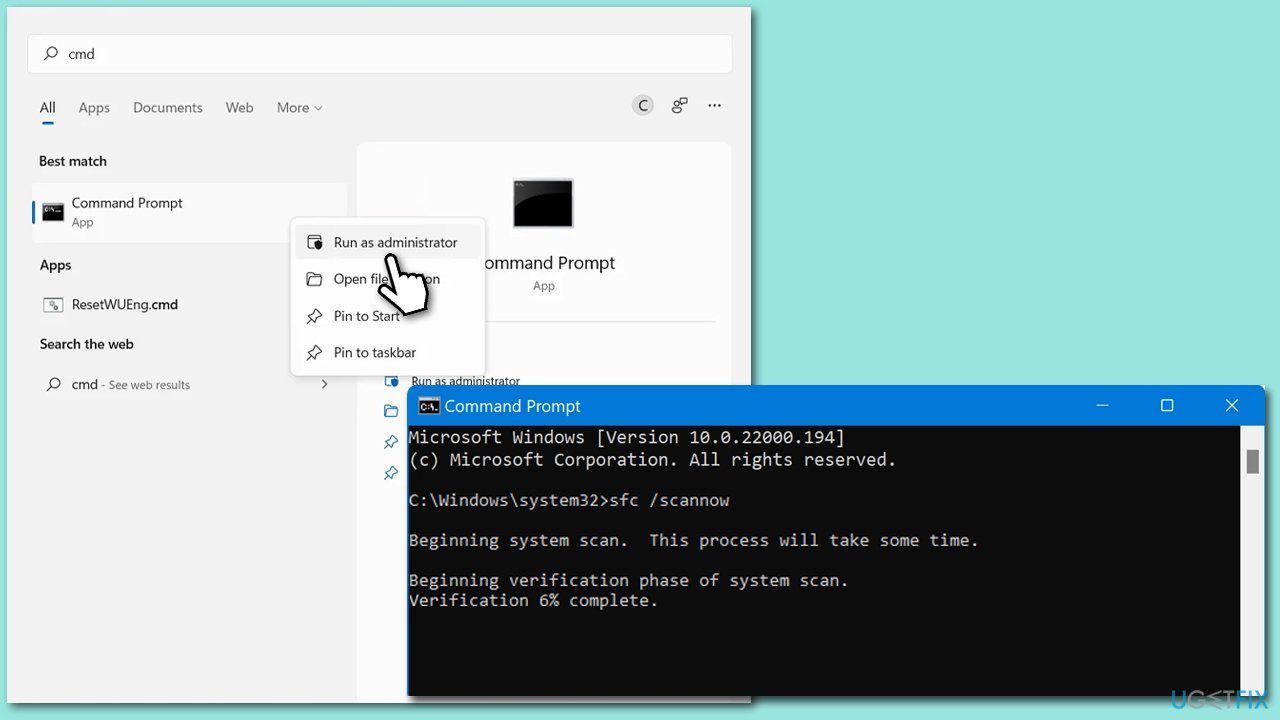
System File Check (SFC) is a utility in Windows that allows users to scan for and restore corruptions in Windows system files. This tool is beneficial if system file corruption is preventing the update from being installed. DISM, on the other hand, can check and repair issues with Windows Image.
- Type cmd in Windows search.
- Right-click on Command Prompt and select Run as administrator.
- In the User Account Control window, click Yes.
- In the Command Prompt window, paste the following command and hit Enter:
sfc /scannow - Next, use the following commands, pressing Enter each time:
Dism /Online /Cleanup-Image /CheckHealth
Dism /Online /Cleanup-Image /ScanHealth
Dism /Online /Cleanup-Image /RestoreHealth
(Note: if you get an error executing this last command, add /Source:C:\RepairSource\Windows /LimitAccess to it and try again). - Reboot your PC.
Fix 3. Reset Windows Update Components
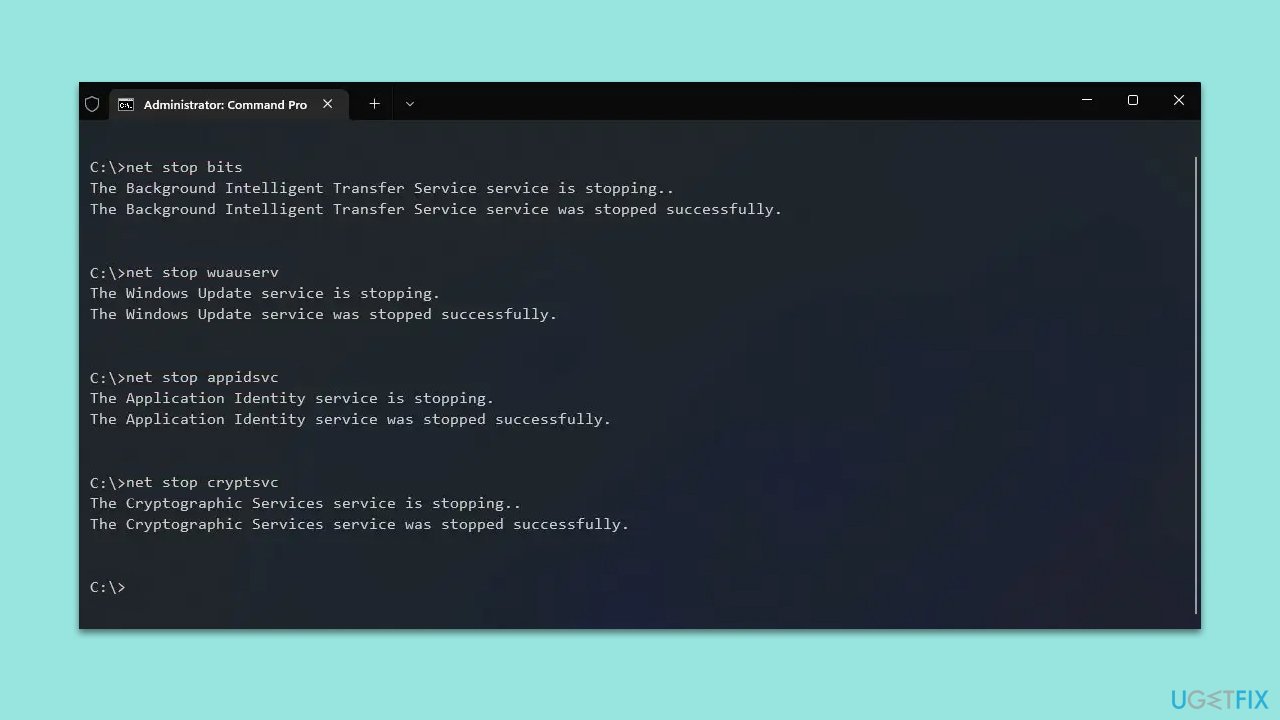
Manually Resetting Windows Update components manually involves restarting the Windows Update service and clearing specific update-related files and settings. This can resolve more complex issues that the troubleshooter can't fix.
- Open Command Prompt as administrator, as explained in the previous step.
- Stop the Windows Update Services by entering the following commands, one at a time, and pressing Enter after each:
net stop wuauserv
net stop cryptSvc
net stop msiserver
net stop bits - Rename the SoftwareDistribution and Catroot2 folders with the following commands:
ren C:\Windows\SoftwareDistribution SoftwareDistribution.old
ren C:\Windows\System32\catroot2 catroot2.old - Restart the services you stopped earlier with these commands:
net start wuauserv
net start cryptSvc
net start msiserver
net start bits - Close the Command Prompt window and try running the Windows Update again.
Fix 4. Perform a Clean Boot
Clean boot starts Windows with a minimal set of drivers and startup programs. This can help identify if background programs are interfering with the update process.
- In Windows search, type msconfig and press Enter.
- In the System Configuration window, click on the Services tab.
- Check the box that says Hide all Microsoft services, then click Disable all.
- Next, click on the Startup tab.
- Click on Open Task Manager.
- Under the Startup tab in Task Manager, for each startup item, select the item and then click Disable.
- Close Task Manager.
- On the Startup tab of the System Configuration dialog box, click OK, and then restart your computer.
Fix 5. Run Disk Cleanup
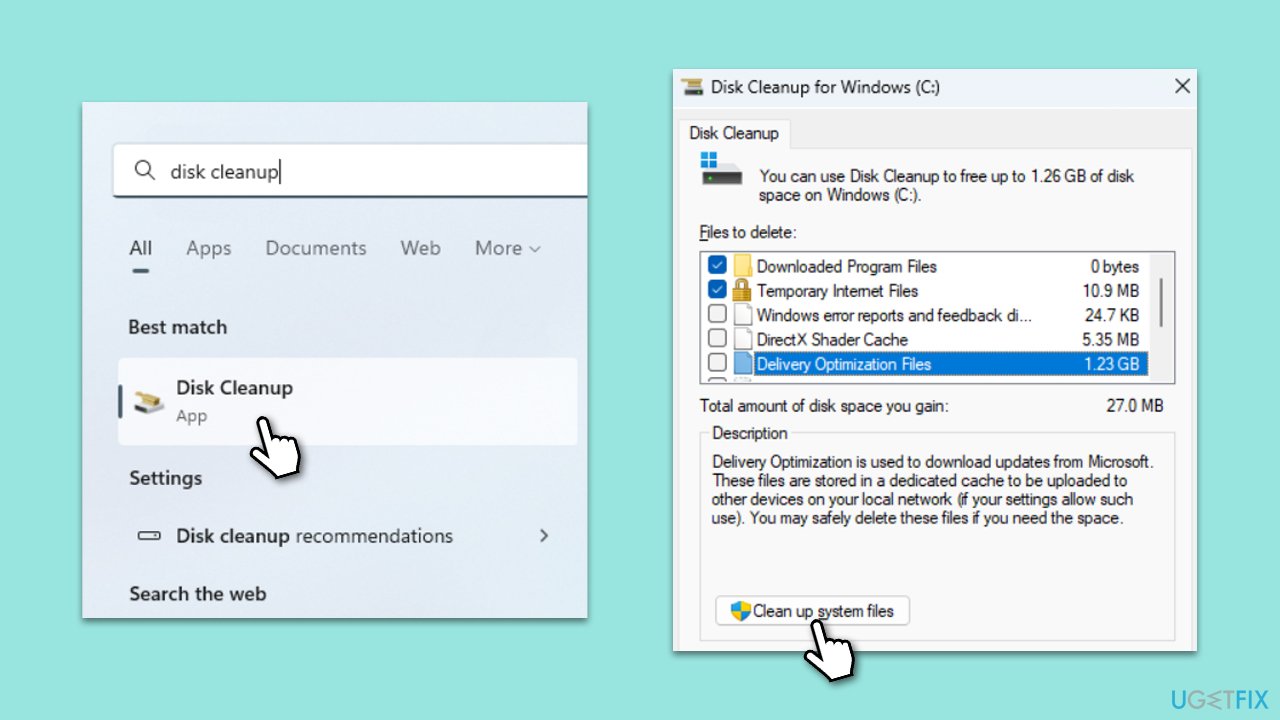
Disk Cleanup is a utility in Windows that helps free up disk space on your computer's hard drive. It works by searching for files that can be safely deleted, such as temporary files, system files, and items in the Recycle Bin. Running Disk Cleanup can be particularly helpful for resolving update issues by clearing unnecessary files that might be taking up space and potentially interfering with the update process.
- Type Disk Cleanup in Windows search and press Enter to open the Disk Cleanup utility.
- In the Disk Cleanup window, click Clean up system files.
- Select the drive (usually, C:) again and click OK.
- It is important to clear up sections related to Windows updates (Windows Update Cleanup, Windows upgrade log files, Delivery optimization files), as well as other temp files - Temporary Internet Files, Temporary Files, etc.
- Click OK to begin the cleanup process.
Bottom line
To resolve the installation failure of KB5032292, you can run the Windows Update Troubleshooter, verify the integrity of system files, and check for pending updates. Additionally, consider using a PC repair tool for automatic detection and fixes. If these methods do not work, it may be helpful to look for further guidance from the Windows Insider community or Microsoft support.
Frequently asked questions
First, try running the Windows Update Troubleshooter by going to Settings > Update & Security > Troubleshoot. If that doesn't work, consider resetting the Windows Update components using Command Prompt.
Yes, you can manually download the update from the Microsoft Update Catalog website and install it. Make sure to select the correct version for your system architecture.
You can check the Windows Update log files for error codes related to the failed installation, and ensure that any third-party antivirus software is temporarily disabled during the update process.




Report an issue
What's wrong with this guide? We review every report and update or remove content.
Report received — thank you. We'll review and fix it.
You need a free account to submit a report.
Be the first to comment