How to fix
Memory technology devices not showing in Device Manager
on Windows
Resolve the issue of Memory technology devices not appearing in Device Manager on Windows 10 or Windows 11. Expert-tested solutions await you!

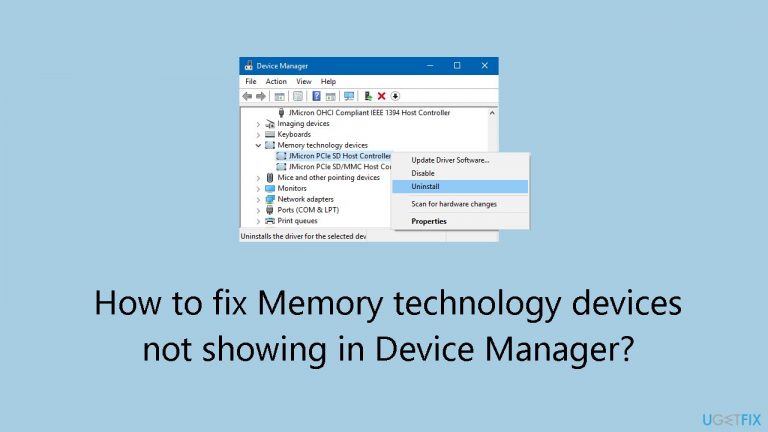
What causes How to fix Memory technology devices not showing in Device Manager?
- Driver conflict
- Identification problem with the operating system
- Hardware malfunction
- Outdated system software
- Corrupted system files
Repairs Windows system files, removes malware, and restores a clean OS state — without reinstalling.
Hello. I want to use an SD card reader on my laptop but it is not working. I wanted to try reinstalling the drivers but the Memory technology devices category is missing in Device Manager. What should I do?
The reported problem is that the internal SD card reader cannot be accessed because Memory Technology Devices are not displayed in Device Manager. One user raises concerns, pointing out that it is difficult to perform troubleshooting procedures like uninstalling and reinstalling drivers[ref en-1] because the Memory Technology Devices category is missing from the Device Manager.
Users who depend on internal SD card readers for data transfer, storage, or other critical tasks may be greatly impacted by this issue. If they depend on the SD card reader for everyday operations like transferring files, papers, or images, then not being able to access it could cause a hindrance to their productivity.
When Memory Technology Devices are not listed in the Device Manager, there may be a driver or identification problem with the operating system. This may lead to a breakdown in communication between the internal SD card reader and the system, making it unavailable to the user.
To figure out how to fix this problem, you might need to look into possible driver conflicts, make sure the hardware is operating correctly, or check for system upgrades. To resolve the underlying issue and get the internal SD card reader working again, users may need to investigate options including updating or reinstalling drivers, looking for hardware issues, or contacting the device's manufacturer or support.
In this guide, you will find 5 steps that should help you fix Memory technology devices not showing in Device Manager. You can also run a system repair tool like [d1] that can fix most system errors, BSODs,[ref en-2] corrupted files, and registry[ref en-3] issues. Otherwise, follow the step-by-step instructions below.
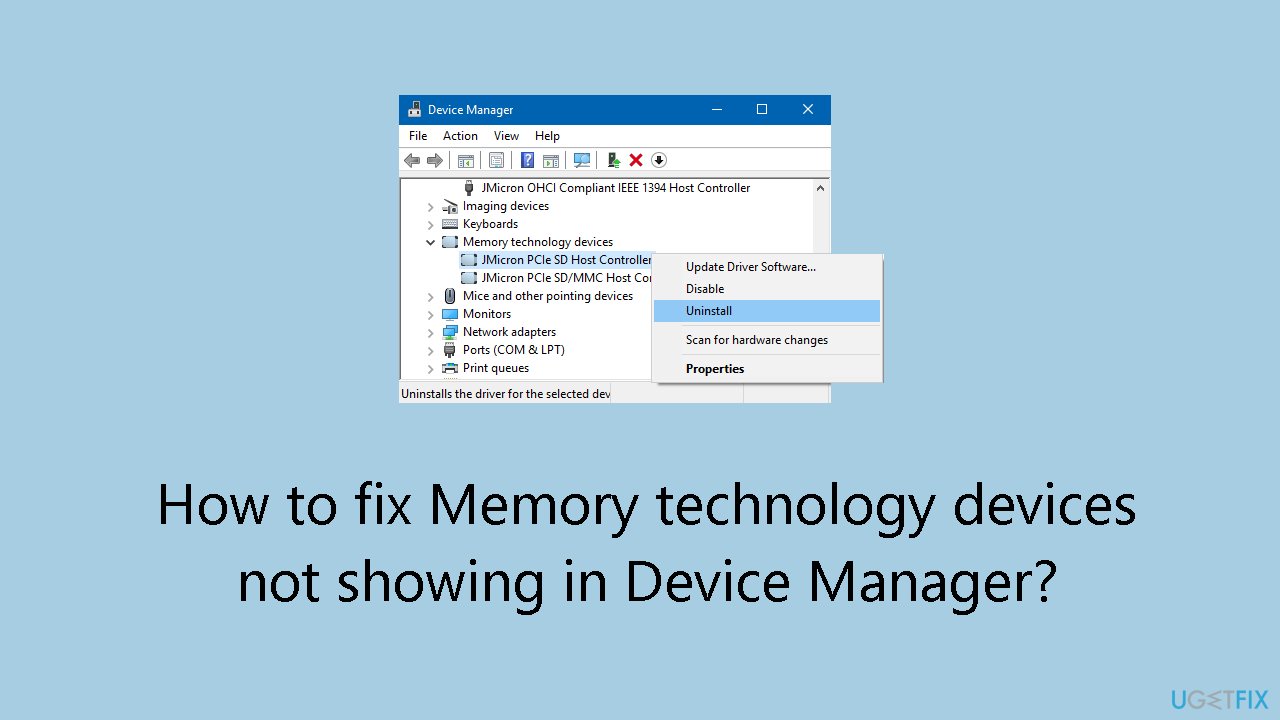
Solution 1. Fix Corrupted System Files
Use Command Prompt commands to repair system file corruption:
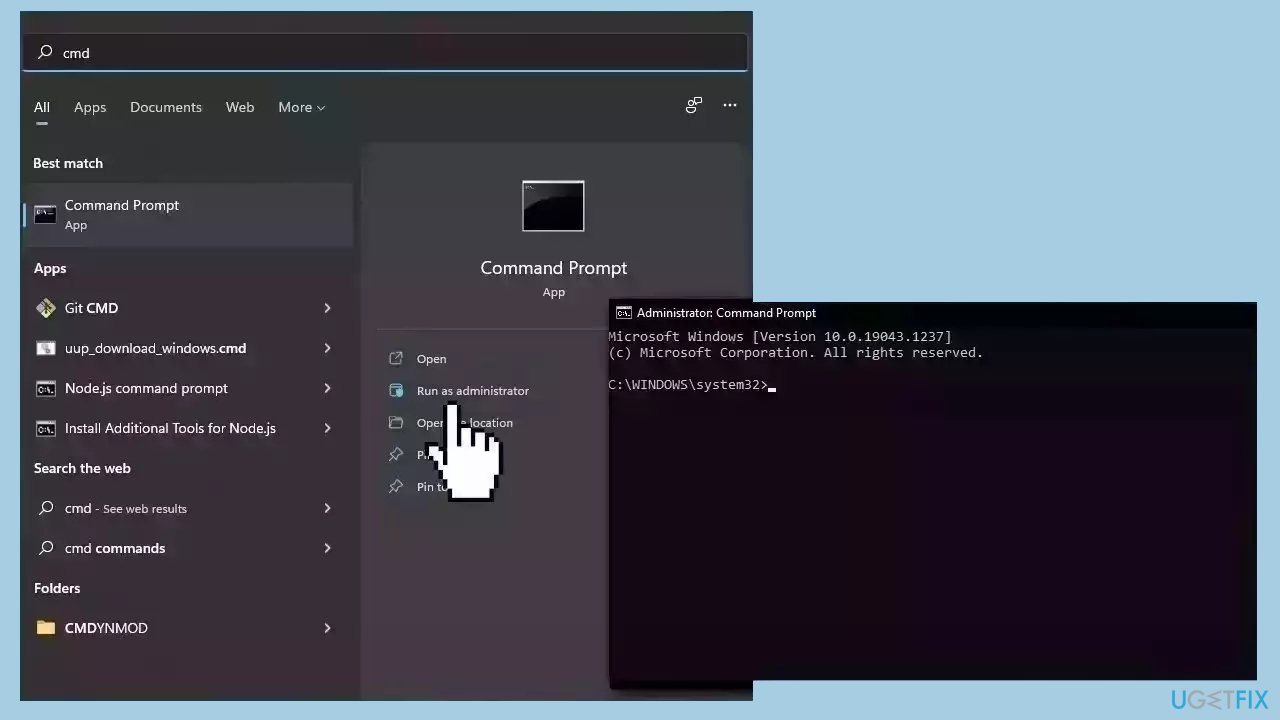
- Open Command Prompt as administrator
- Use the following command and press Enter:
sfc /scannow
- Reboot your system
- If SFC returned an error, then use the following command lines, pressing Enter after each:
DISM /Online /Cleanup-Image /CheckHealth
DISM /Online /Cleanup-Image /ScanHealth
DISM /Online /Cleanup-Image /RestoreHealth
Solution 2. Run the Hardware and Devices Troubleshooter
- Click on the Start button.
- Type cmd in the search box, then press Enter.
- Select the Command Prompt from the search results.
- Type the following in the Command Prompt:
msdt.exe -id DeviceDiagnostic
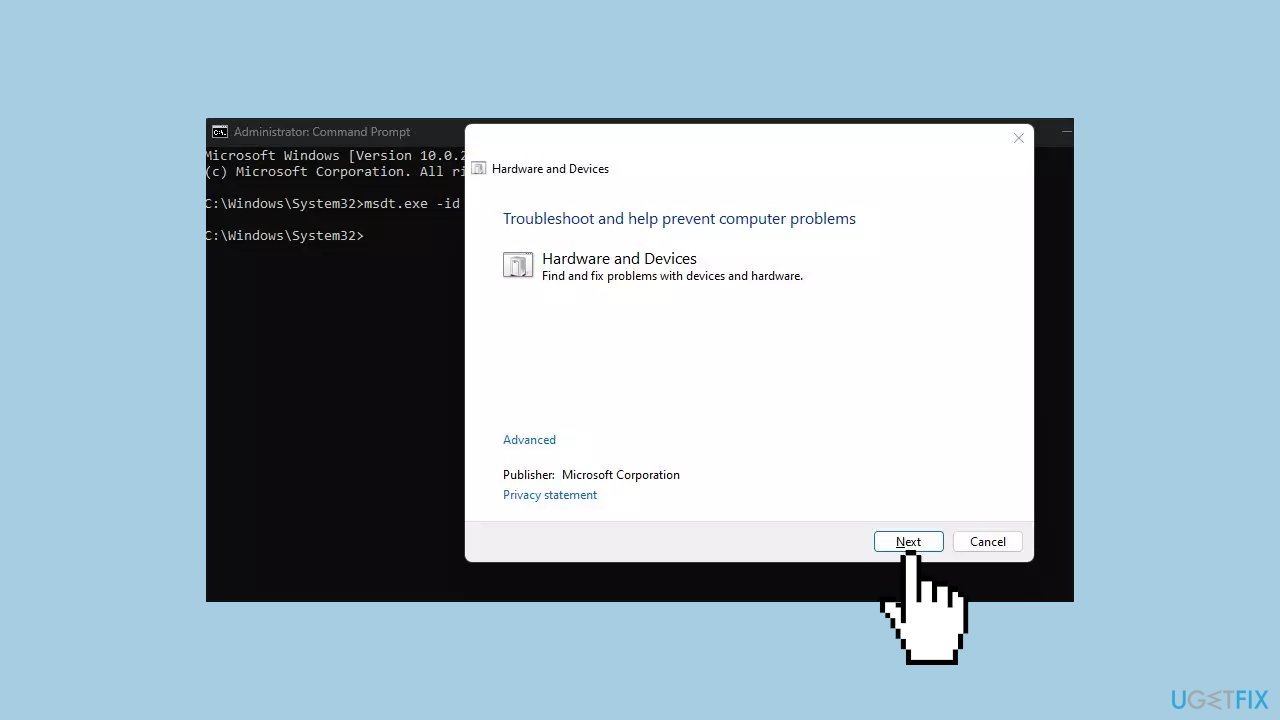
- Press Enter to invoke the Hardware and Devices Troubleshooter.
- Once the troubleshooter appears, you’ll be able to troubleshoot various hardware issues on your computer.
Solution 3. Try Clean Boot
- Open the Search menu, type in system configuration, and press Enter.
- Under the Services tab, tick the Hide all Microsoft services box.
- Click on Disable all button.
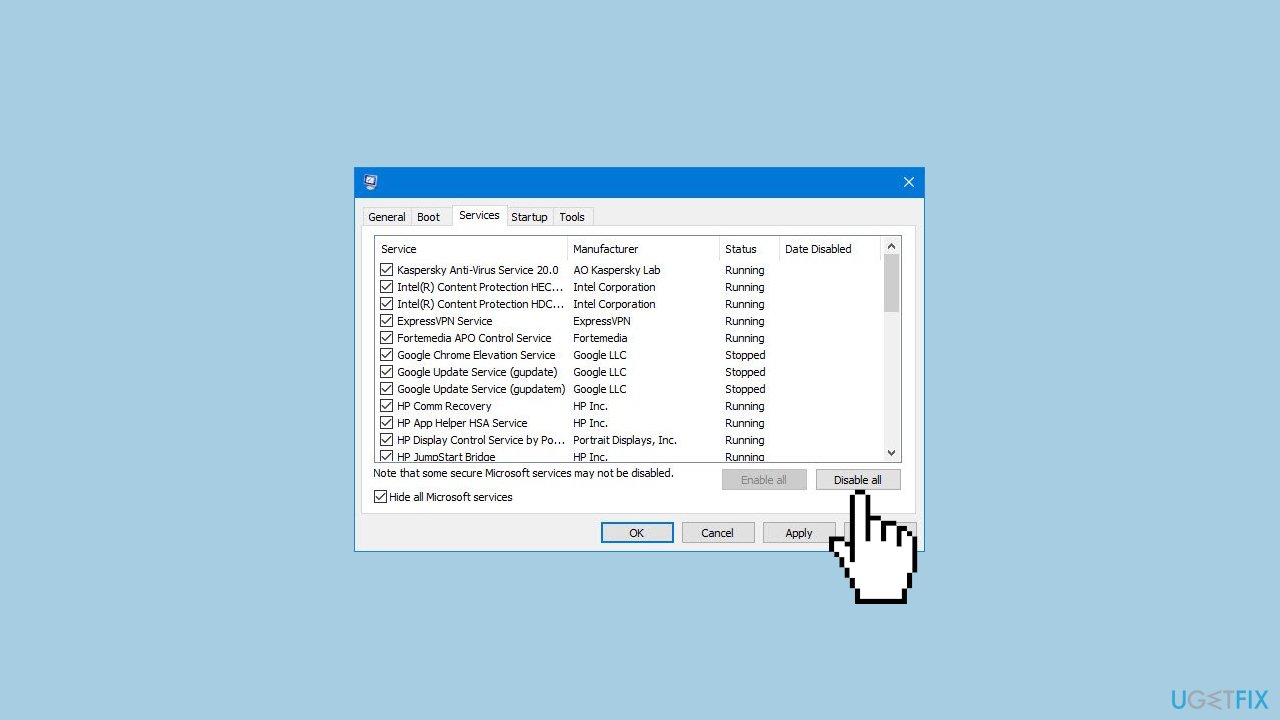
- Head over to the Startup tab and click on Open Task Manager.
- Select a third-party program and click on Disable at the top.
- Repeat this step to disable all third-party apps and programs.
- Restart your PC to enter the clean boot state and see if the issue persists.
- If the issue disappeared in the clean boot state, then you can be certain that a third-party app is causing it.
- Go through all recently installed apps or programs and remove them one by one.
Solution 4. Boot into Safe Mode
Safe Mode is a diagnostic startup mode in operating systems, including Windows, designed to troubleshoot and resolve system issues. In Safe Mode, the system loads only essential drivers and services, limiting background processes and preventing certain software from running.
This minimal configuration helps identify and address problems caused by third-party applications or drivers, making it a useful tool for troubleshooting and resolving issues without interference from unnecessary components.
- Click the Start icon and then select Settings.
- In the left pane, click on System.
- Navigate to the System page and click on Recovery.
- In the Recovery options section, locate Advanced startup to the right and click Restart now.
- When the computer restarts to the blue Choose an option screen, choose Troubleshoot, then Advanced options, and finally Startup Settings.
- On the Startup Settings page, click Restart.
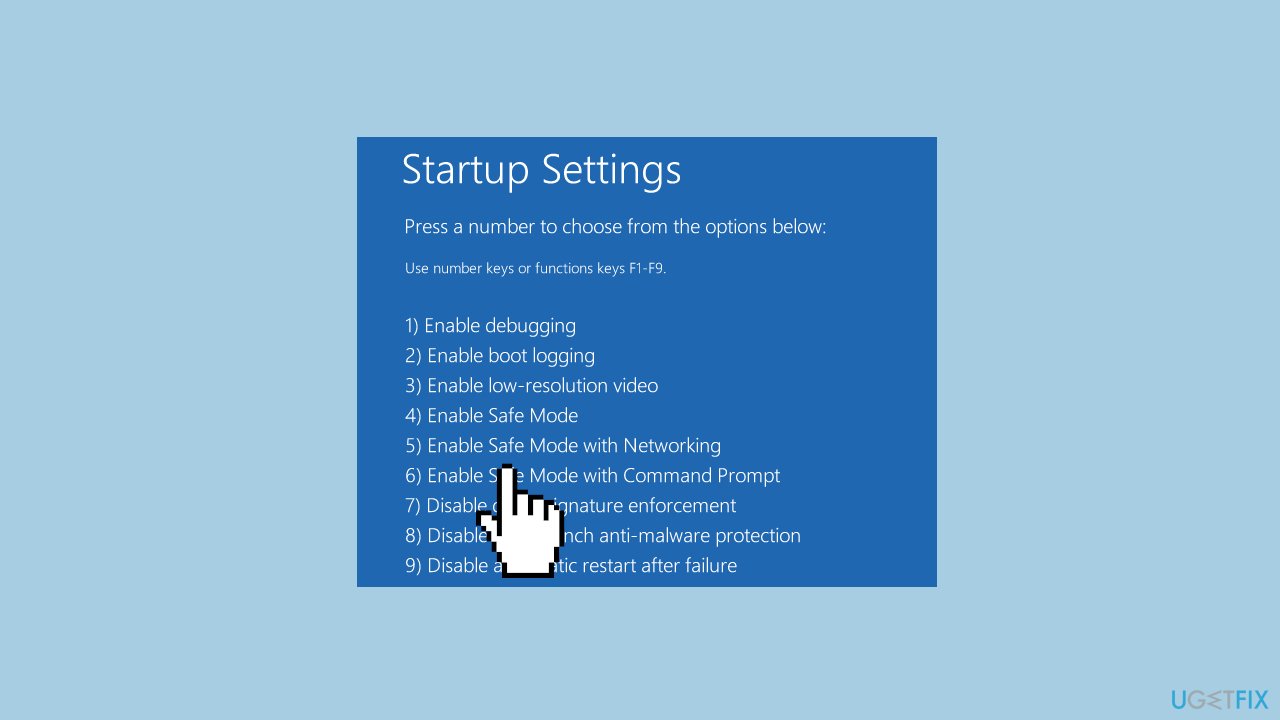
- After the computer restarts again, you will see various options. Select either Safe Mode or, if internet access is required, choose Safe Mode with Networking.
- Check if the issue persists in the selected Safe Mode.
Solution 5. Repair Install Windows
- Visit the official Microsoft website to download Windows 11 or Windows 10 Installation Media
- Run the Media Creation Tool and select Create Installation Media for another PC.
- Select your USB drive.
- Let the Process complete of writing the Installation files to the USB drive.
- Click Finish.
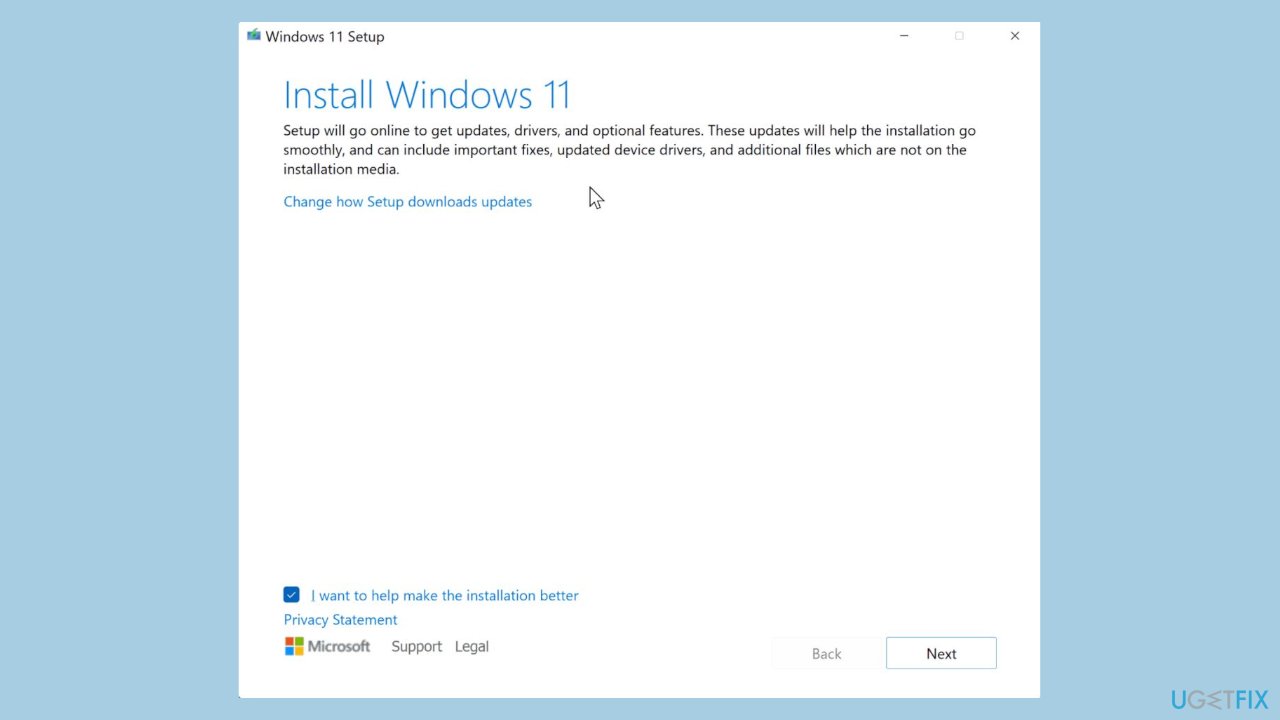
- On the PC you wish to upgrade, Press Windows + E to open the File Explorer.
- Open the Removable drive and click Setup.exe.
- Accept the license terms on the next screen.
- Confirm the Upgrade options – Files, apps and Settings are kept.
- Click Install, and the upgrade should start.
Bottom line
To fix the issue of Memory Technology Devices not showing in Device Manager, you can try updating or reinstalling drivers, checking for hardware issues, or running a system repair tool. If these steps do not resolve the problem, consider contacting the device's manufacturer or support for further assistance.
Frequently asked questions
This issue may occur due to outdated or missing drivers, or if the system does not recognize the memory technology devices due to BIOS settings. Ensure that your Windows 10 is updated and check the BIOS configuration to enable relevant features.
You can resolve this by updating your device drivers through the Device Manager or running the Windows Troubleshooter to detect hardware issues. Additionally, ensure your Windows 11 system is fully updated.
After a Windows update, you may need to reinstall the drivers for your memory technology devices or roll back the update if the problem persists. Check for driver updates and restore previous drivers if necessary.




Report an issue
What's wrong with this guide? We review every report and update or remove content.
Report received — thank you. We'll review and fix it.
You need a free account to submit a report.
Be the first to comment